

Searching for a free file converter almost always lands on a browser tool, and almost always it is the wrong answer. Those services meter you, cap the file size and hold a copy of whatever you uploaded for a day or more. The offline alternatives have none of those limits and most people never hear about them.
Ten are compared below, split between the two. The browser ones earn their place when you cannot install anything; the rest are better in every other circumstance and cost nothing either.
What You Actually Pay a Free Online Converter
No money changes hands, and three things are still taken.
- A throughput cap. Zamzar allows two files per 24 hours. CloudConvert allows ten credits a day, and PDF to Office spends four of them. FreeConvert measures in time instead: 20 conversion minutes a day.
- A size ceiling. 50 MB at Zamzar, 75 MB at Online-Convert, 100 MB at Convertio by its own terms, 1 GB at CloudConvert and FreeConvert.
- A copy of your file. FreeConvert deletes uploads after eight hours, CloudConvert and Zamzar at the latest after 24, and Online-Convert at the latest after 72.
None of that matters for a holiday photo. All of it matters for a contract, a medical record or anything with a client’s name in it, and those are exactly the documents people convert most often.
The offline tools in this list impose no cap, no size limit and no retention, because the file never leaves the machine. That is the whole argument for them.
Free File Converters Compared: Limits, Platforms and Where Your File Goes
All ten below. The third column is the one that should decide most choices.
| # | Tool | Platforms | Where it runs | Free limit | Best for |
|---|---|---|---|---|---|
| 1 | HandBrake | Windows, macOS, Linux | On your computer | None | Converting video properly |
| 2 | FFmpeg | Windows, macOS, Linux, command line | On your computer | None | Anything, if you can use a command line |
| 3 | CloudConvert | Browser | Uploaded to their servers | 10 credits a day, 1 GB per file | An awkward format with nothing installed |
| 4 | ImageMagick | Windows, macOS, Linux, command line | On your computer | None | Batch image conversion |
| 5 | Calibre | Windows, macOS, Linux | On your computer | None | Ebooks and documents for e-readers |
| 6 | Pandoc | Windows, macOS, Linux, command line | On your computer | None | Markdown, Word, LaTeX and HTML |
| 7 | FreeConvert | Browser | Uploaded to their servers | 20 conversion minutes a day, 1 GB per file | The most generous free online tier |
| 8 | Zamzar | Browser | Uploaded to their servers | 2 files per 24 hours, 50 MB each | One file, right now, with no account |
| 9 | 7-Zip | Windows, with ports elsewhere | On your computer | None | Archives nothing else will open |
| 10 | LibreOffice | Windows, macOS, Linux | On your computer | None | Office documents and PDFs |
The 10 Best Free File Converters
1. HandBrake: Converting video properly
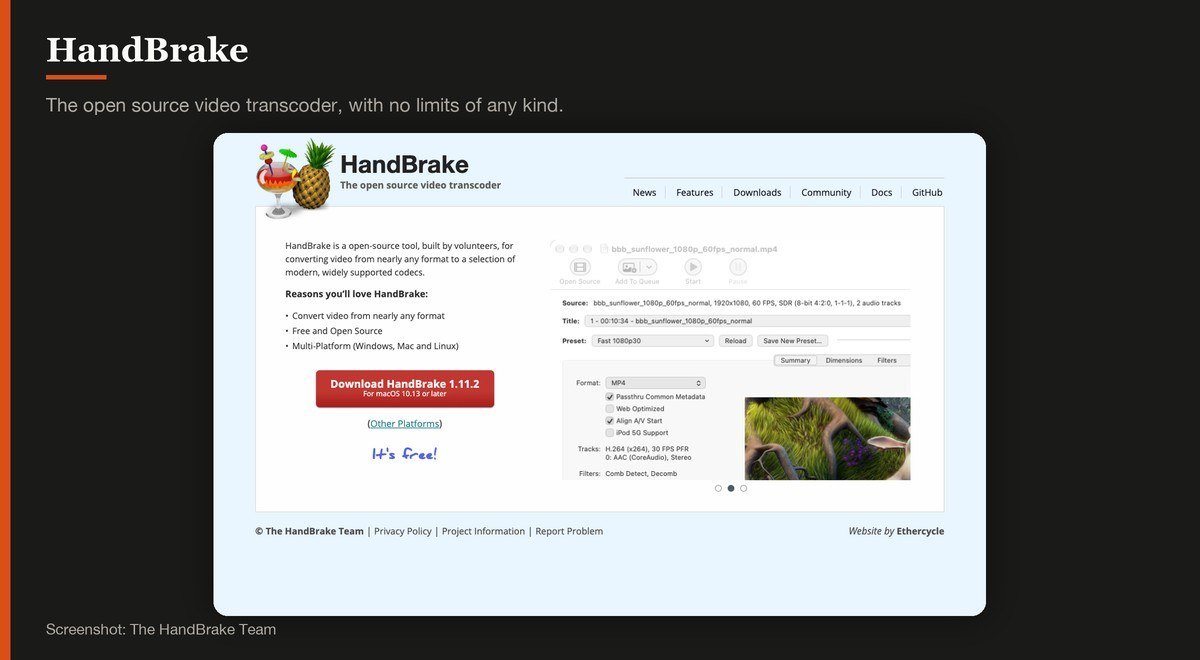
Platforms: Windows, macOS, Linux · Version: 1.11.2 · Where it runs: On your computer · Free limit: None
HandBrake describes itself as an open source tool, built by volunteers, for converting video from nearly any format into a selection of modern, widely supported codecs. That sentence is the whole product and it has been true for two decades.
Presets do the hard part: pick the device or the platform and it chooses the codec, bitrate and resolution for you. Nothing is uploaded, nothing is metered, and a two-hour film converts as easily as a two-minute clip. Version 1.11.2 is the current release.
2. FFmpeg: Anything, if you can use a command line
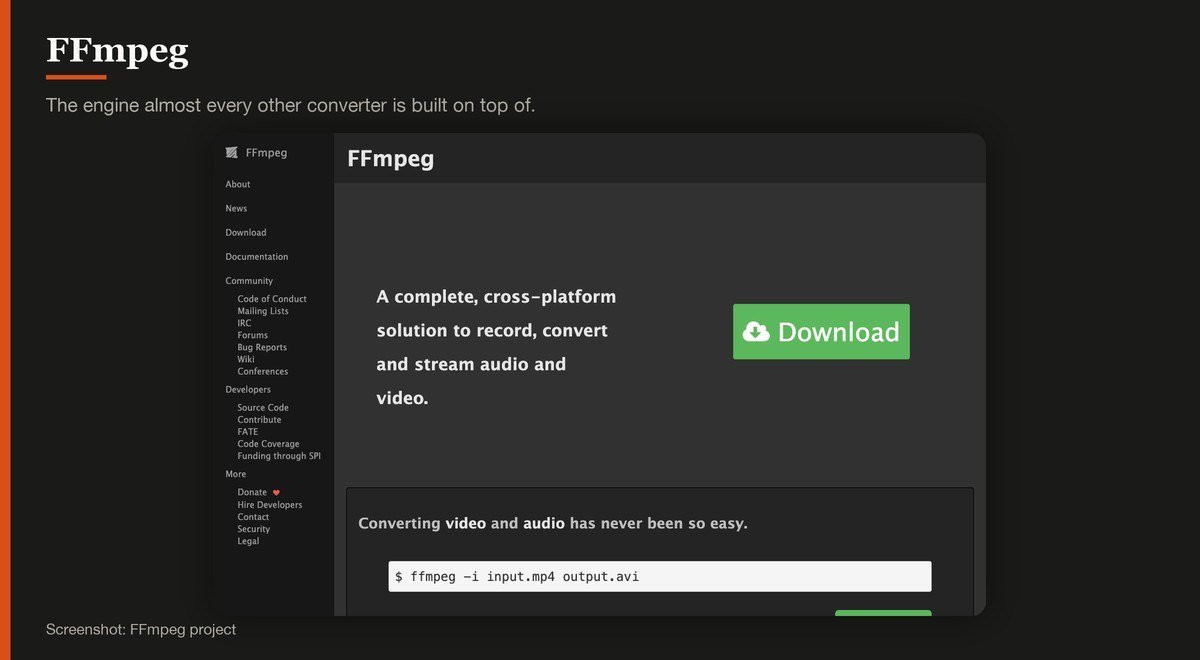
Platforms: Windows, macOS, Linux, command line · Version: 9.0.2 · Where it runs: On your computer · Free limit: None
FFmpeg is the library doing the actual work inside a startling number of the tools on this page, and inside most video players and streaming services. Used directly it converts essentially any audio or video format into any other.
The barrier is the interface, because there is not one. Everything happens through a command line with a syntax that rewards learning and punishes guessing. Learn three commands and you will outgrow every graphical converter here.
3. CloudConvert: An awkward format with nothing installed
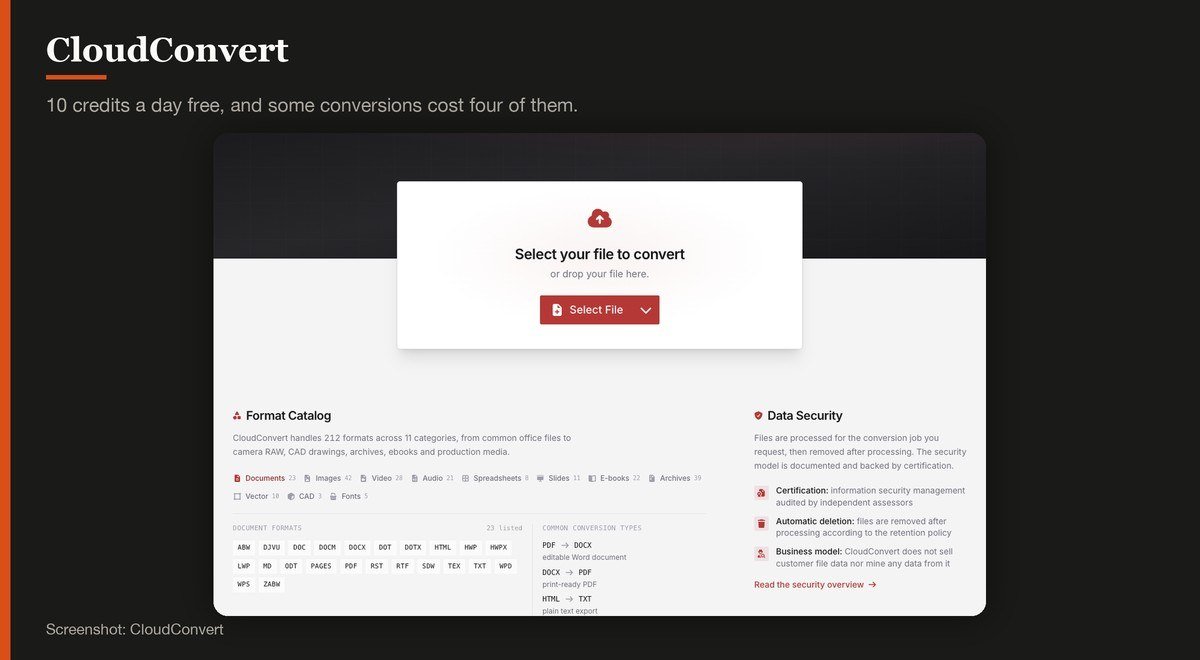
Platforms: Browser · Version: Web service · Where it runs: Uploaded to their servers · Free limit: 10 credits a day, 1 GB per file
CloudConvert handles the widest range of formats of any online service here, including the office and design files that general converters refuse. The free allowance is ten credits a day with a 1 GB file ceiling and five minutes of processing.
Read the credit system before relying on it. A conversion is not always one credit: PDF to Office costs four, so ten credits can mean two jobs rather than ten. Uploaded files are deleted at the latest after 24 hours.
4. ImageMagick: Batch image conversion
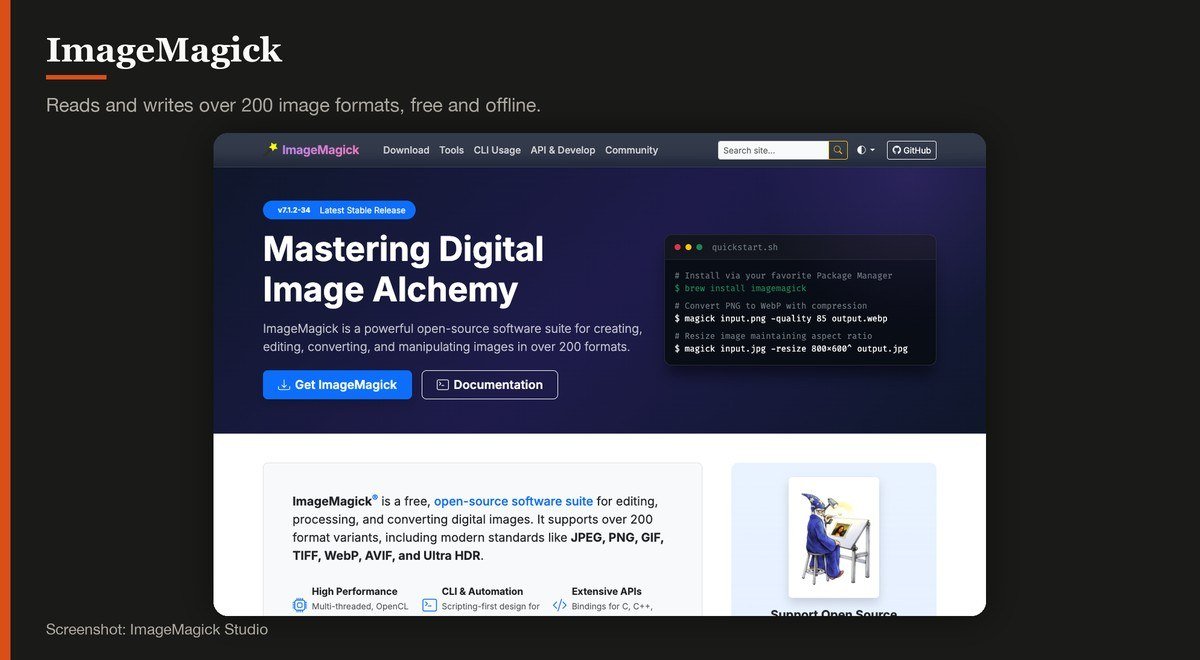
Platforms: Windows, macOS, Linux, command line · Version: 7.1.2-34 · Where it runs: On your computer · Free limit: None
ImageMagick handles images the way FFmpeg handles video: comprehensively, from a command line, in over 200 formats. Converting four hundred photographs from HEIC to JPEG is one line and finishes while a web service is still uploading the first file.
It also resizes, crops, composites and annotates, which makes it a scripting tool rather than only a converter. Version 7.1.2-34 is the current stable release.
5. Calibre: Ebooks and documents for e-readers
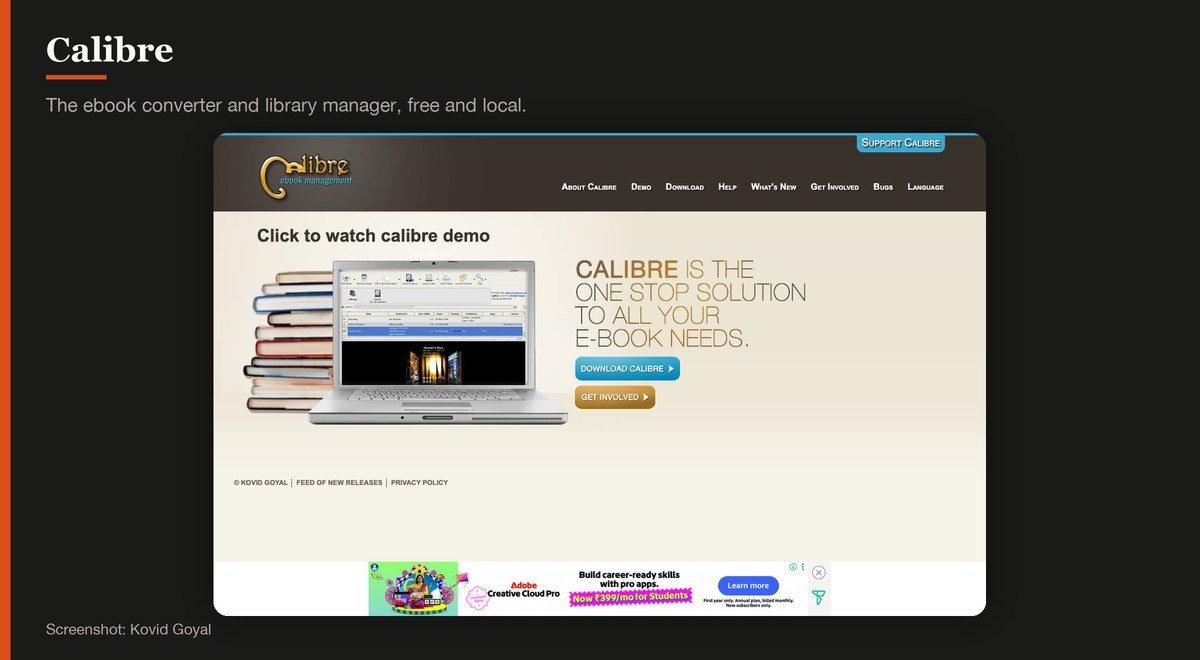
Platforms: Windows, macOS, Linux · Version: 9.17 · Where it runs: On your computer · Free limit: None
Calibre converts between EPUB, MOBI, AZW3, PDF, DOCX and most other book formats, and manages a library at the same time. For moving a book between a Kindle and a Kobo it is the only free tool that reliably works.
Conversion quality depends heavily on the source. A well-made EPUB converts cleanly; a PDF built from scanned pages converts into a mess, because the layout was never text in the first place.
6. Pandoc: Markdown, Word, LaTeX and HTML
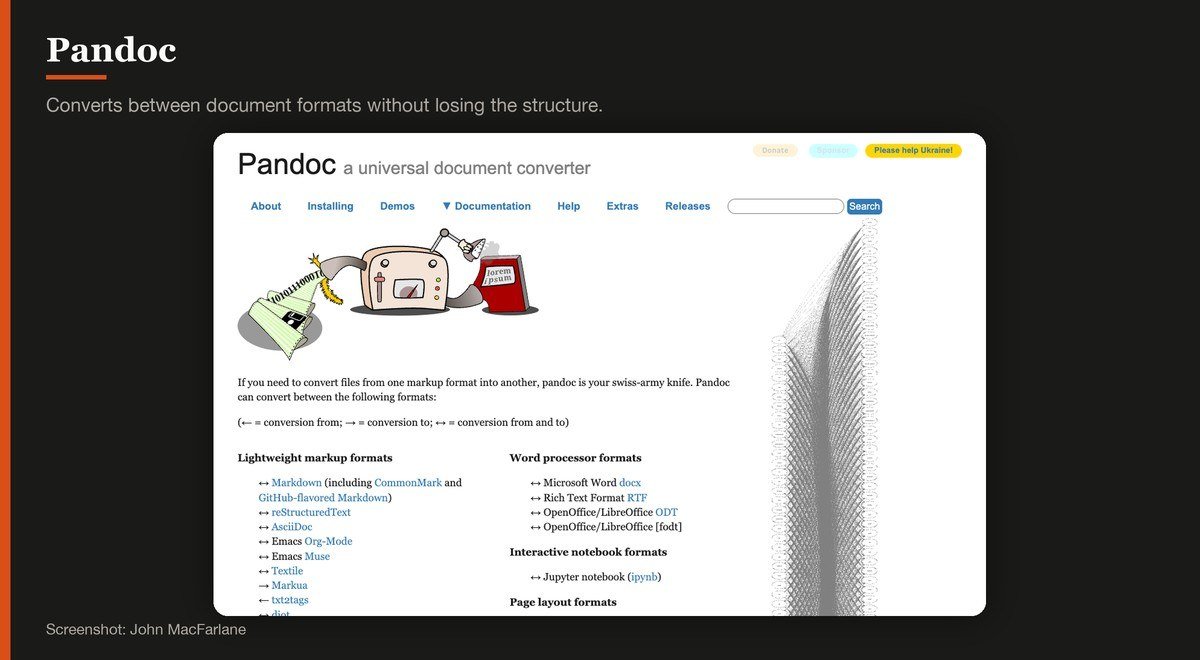
Platforms: Windows, macOS, Linux, command line · Version: 3.12.1 · Where it runs: On your computer · Free limit: None
Pandoc is the document equivalent of FFmpeg, converting between Markdown, Word, HTML, LaTeX, EPUB and a long list of academic formats while preserving headings, footnotes, citations and tables.
It is what people writing papers and documentation use, and it is wasted on a one-off file. For anyone who writes in Markdown and has to deliver Word documents, it removes an entire category of tedium. Version 3.12.1 is current.
7. FreeConvert: The most generous free online tier
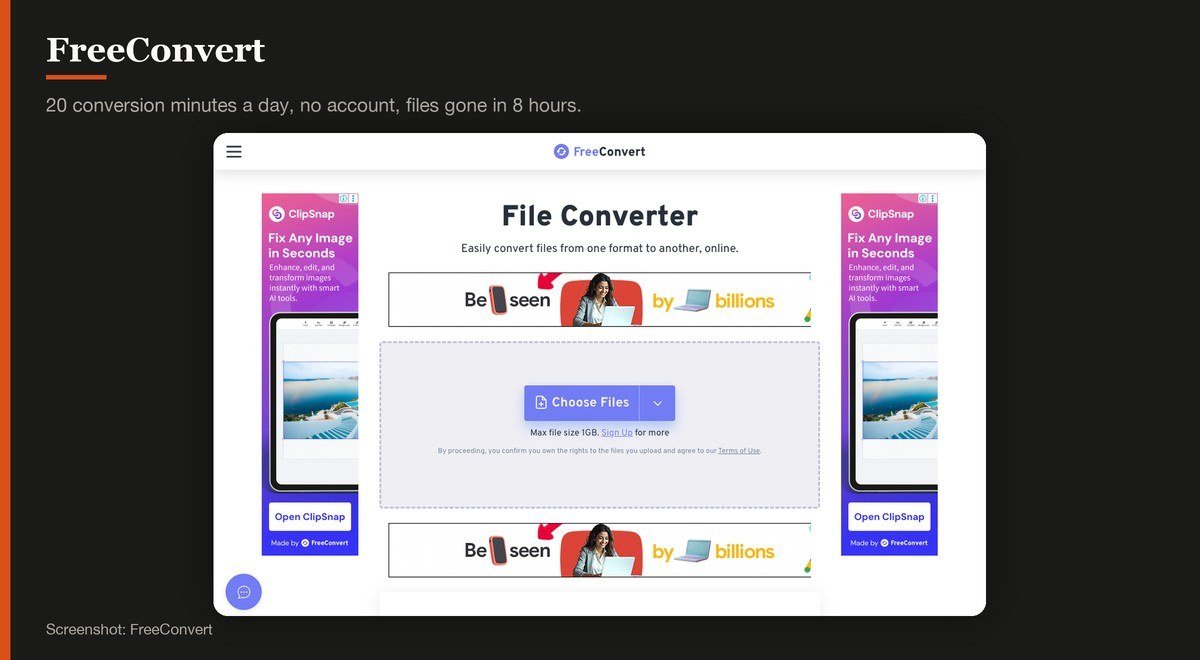
Platforms: Browser · Version: Web service · Where it runs: Uploaded to their servers · Free limit: 20 conversion minutes a day, 1 GB per file
FreeConvert gives 20 conversion minutes a day with a five minute ceiling on any single file and a 1 GB size limit, and asks for no account. Measured in time rather than in files, that is the most usable free allowance of the online services here.
It also deletes uploads faster than its rivals, after eight hours rather than 24. For a handful of conversions on a machine where you cannot install anything, it is the first one to try.
8. Zamzar: One file, right now, with no account
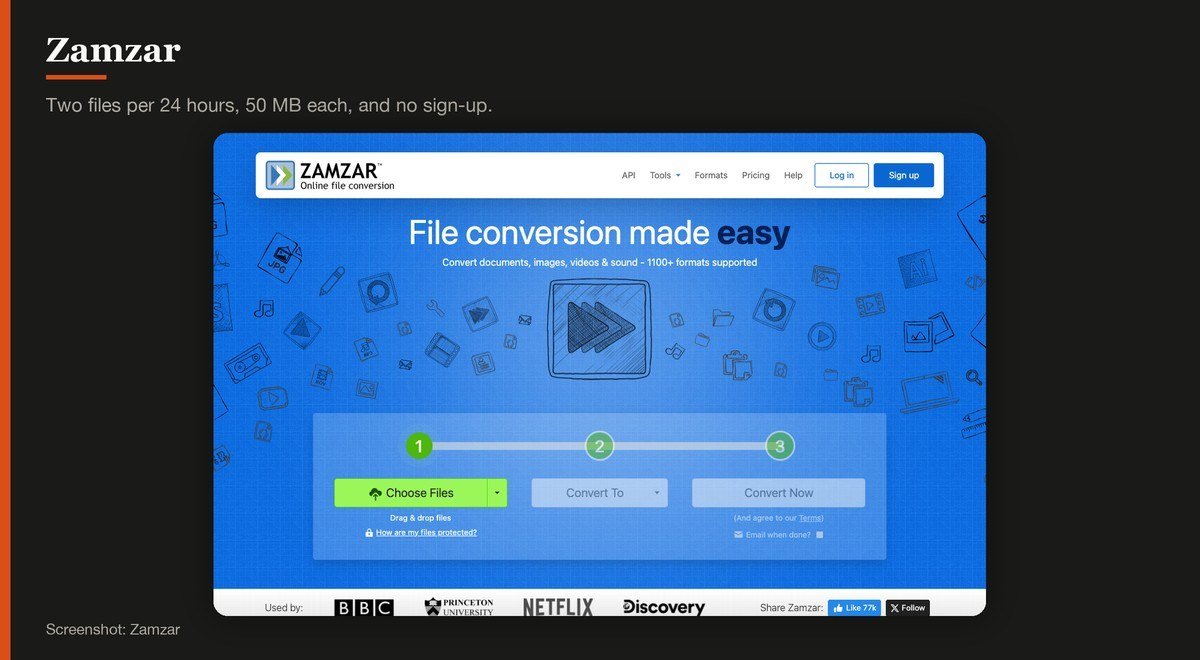
Platforms: Browser · Version: Web service · Where it runs: Uploaded to their servers · Free limit: 2 files per 24 hours, 50 MB each
Zamzar has been converting files in a browser since before most rivals existed, and its free tier is deliberately small: two files per 24 hours, 50 MB each, with no account required.
That makes it the right tool for exactly one job, the single awkward attachment somebody emailed you. Converted files are kept for a maximum of 24 hours. For anything repetitive the limit bites immediately.
9. 7-Zip: Archives nothing else will open
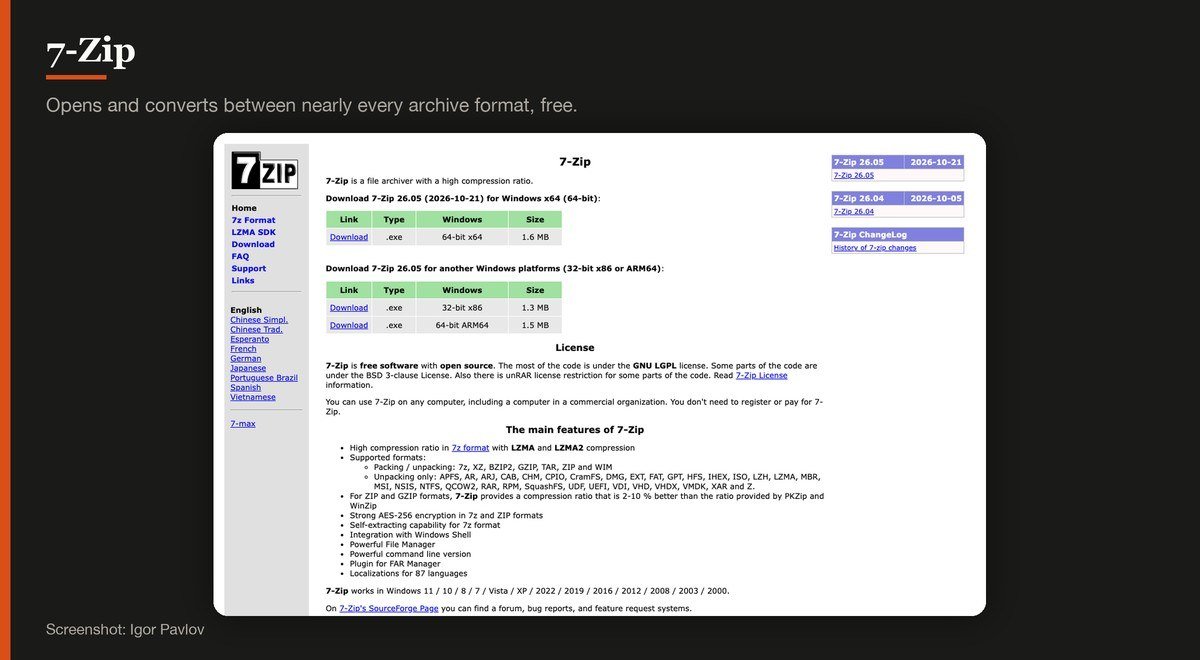
Platforms: Windows, with ports elsewhere · Version: 26.05 · Where it runs: On your computer · Free limit: None
Archive formats are a conversion problem people forget about until a RAR, 7z or tar.gz lands in their downloads folder. 7-Zip opens essentially all of them and repacks between them, free, with no nag screen.
Its own 7z format compresses considerably harder than ZIP, which matters when emailing a large folder. Version 26.05 is current and the program remains one of the smallest useful downloads in computing.
10. LibreOffice: Office documents and PDFs
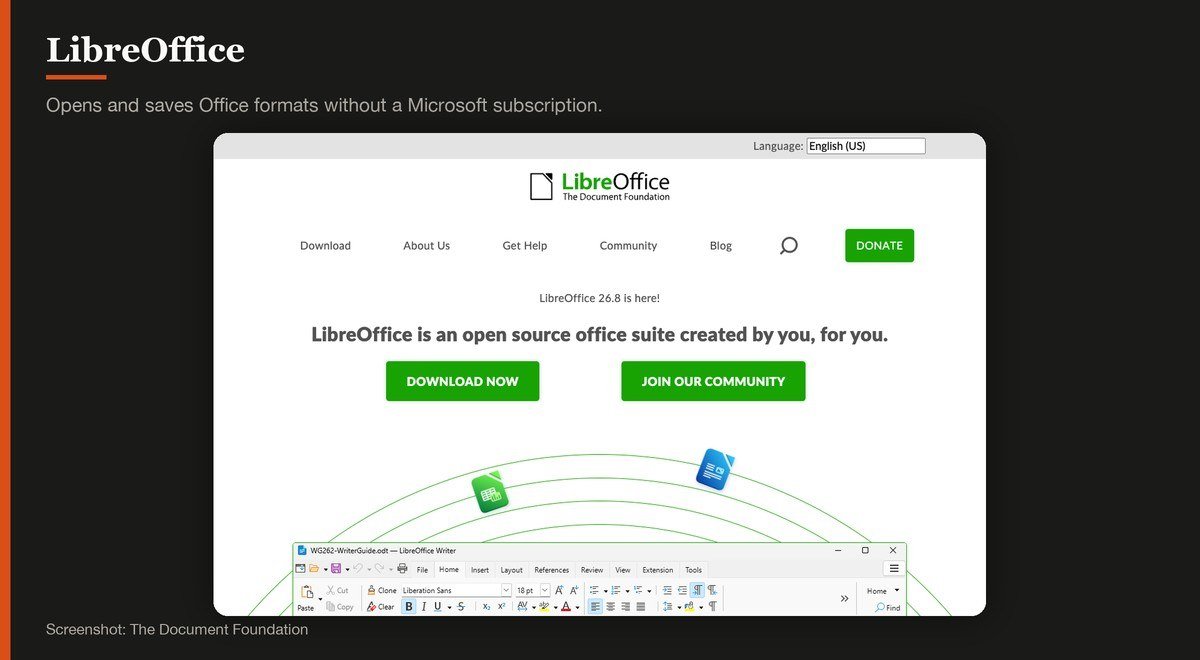
Platforms: Windows, macOS, Linux · Version: 26.8 · Where it runs: On your computer · Free limit: None
For documents and spreadsheets, the conversion tool most people need is an office suite that opens the format and saves another one. LibreOffice reads and writes DOCX, XLSX, PPTX, ODF and exports PDF, free and offline.
It is also the quiet answer to uploading a confidential contract to a web converter. Open it, save as PDF, done, with the file never leaving the machine. Version 26.8 is the current release.
Converting Does Not Always Preserve Quality
A conversion is not a copy. Moving between two lossy formats throws away detail a second time, because the file is decoded and then re-encoded by a codec that discards what it judges you will not notice.
MP3 to AAC, JPEG to WebP and H.264 to H.265 all lose something. Going from a lossless source such as WAV, PNG or a camera RAW file loses nothing on the first pass, which is why keeping originals matters more than picking the perfect converter.
Some conversions avoid the problem entirely. Remuxing video, which transcoding tools can do by changing the container without touching the stream, is instant and lossless. HandBrake and FFmpeg both support it; a browser converter generally does not offer the choice.
If the output will be edited further, convert as late as possible and keep the original. A free video editor will happily import most formats, so converting before editing often adds a generation of loss for no reason.
Which Tool for Which Kind of File
The general-purpose converters are worse at every specific job than the tool built for it.
- Video: HandBrake, or FFmpeg if you are comfortable with a command line.
- Images, in bulk: ImageMagick for a script, or XnConvert for a window.
- Documents: LibreOffice to open and save another format, Pandoc for structured text.
- Ebooks: Calibre, which nothing else matches.
- Archives: 7-Zip.
Install the two or three that match what you actually convert and the browser tools become a fallback rather than a habit. Photographers converting camera files will find free photo editors handle the job during export without a separate step at all.
What Decided the Order
Three things: whether the tool imposes any limit, whether the file stays on your machine, and how well it handles the specific category it is built for.
Two candidates were cut. Adapter lists a version that appears to be roughly a decade old and publishes no release date, and Format Factory offers its download through a mirror arrangement that could not be checked for bundled extras.
Conversion speed was not compared. It depends on the file, the codec and the machine far more than on the tool, and for the browser services it depends mostly on your upload bandwidth.
How to Choose a Free File Converter
Ask first whether the file is sensitive. If it is, the decision is already made: use something offline, and LibreOffice alone covers most document conversions people reach for a website to do.
If you convert regularly, install HandBrake for video and ImageMagick or XnConvert for images, and stop paying the daily-limit tax entirely. The learning cost is one afternoon.
If this is a one-off on a locked-down machine, FreeConvert has the most generous free allowance and the shortest retention. Zamzar is the quickest when you only have a single small file and no account.
Whatever you choose, keep the original. Every conversion between lossy formats is a one-way door, and the most common regret in this category is discovering that months later.
Frequently Asked Questions
Are free online file converters safe?
They are safe enough for ordinary files and a poor idea for sensitive ones, because your document is uploaded to a company’s servers and held there. Retention runs from eight hours at FreeConvert to as much as 72 at Online-Convert.
What is the best free file converter with no limits?
Any of the offline ones. HandBrake for video, ImageMagick for images, Calibre for ebooks, Pandoc for documents and 7-Zip for archives all convert as much as you like, at any size, because nothing is uploaded anywhere.
Does converting a file reduce its quality?
Between two lossy formats, yes, because the file is decoded and re-encoded and detail is discarded again. From a lossless original it does not. Remuxing video changes the container without touching the stream and loses nothing at all.
Can I convert files without installing anything?
Yes, that is what the browser services are for. FreeConvert allows 20 conversion minutes a day with no account, and Zamzar two files per 24 hours. Both cap file size, so a long video will not fit.
Related Articles

Get the Fox Bulletin briefing
The stories that matter, in your inbox. No spam, unsubscribe anytime.
Newsletter signup will be available soon.
Related stories

Best Wi-Fi Routers: 7 Picks From Flat to Flagship
Seven Wi-Fi routers compared on standard, bands, coverage and wired ports, with a plain explanation of which of those actually changes anything.

Best Gaming Chairs: 7 Picks and Their Limits
Seven gaming chairs compared on capacity, material and features, including the mesh and fabric options that do not trap heat.

Best Standing Desks: 6 Picks for Every Room
Six standing desks compared on size, capacity and presets, including two glass desks that look like furniture and a riser for the desk you already own.