

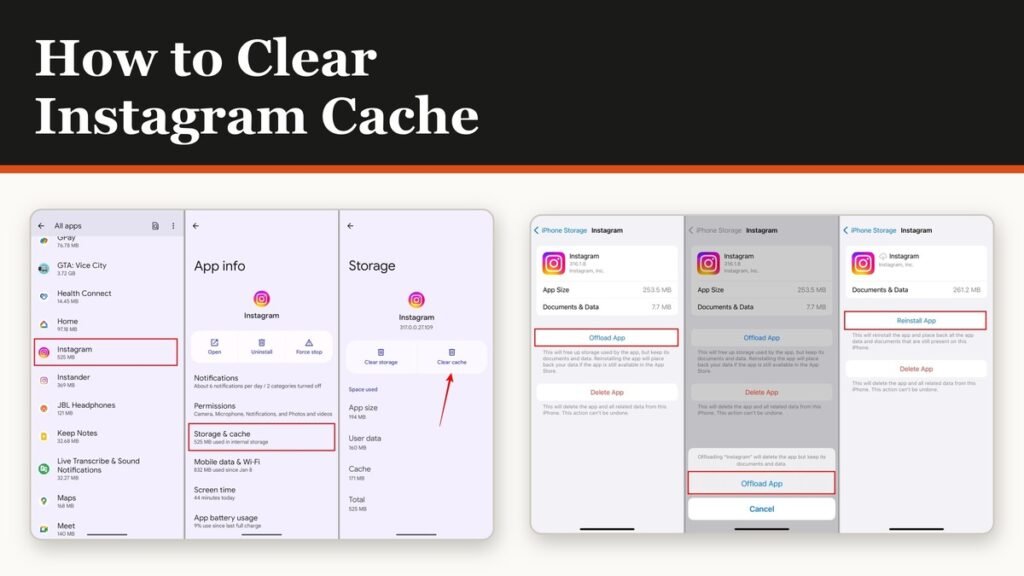
Instagram stores a lot on your phone. Every reel you scroll past, every profile photo and every story frame is written to disk so it loads instantly next time, and after a few months that pile can run to several gigabytes. Working out how to clear Instagram cache files is the usual response, and the first thing to know is that the app itself has no button for it.
There is no cache setting anywhere in Instagram’s own menus. What exists is a control in Android, a workaround on iPhone, and one genuine in-app cache that almost nobody knows about. Each is covered below, along with the neighbouring button that will sign you out of everything if you tap it by mistake.
Android has a real clear cache button
On Android the control belongs to the operating system rather than to Instagram, which is why looking inside the app never finds it. Start in your phone’s settings, not in Instagram.
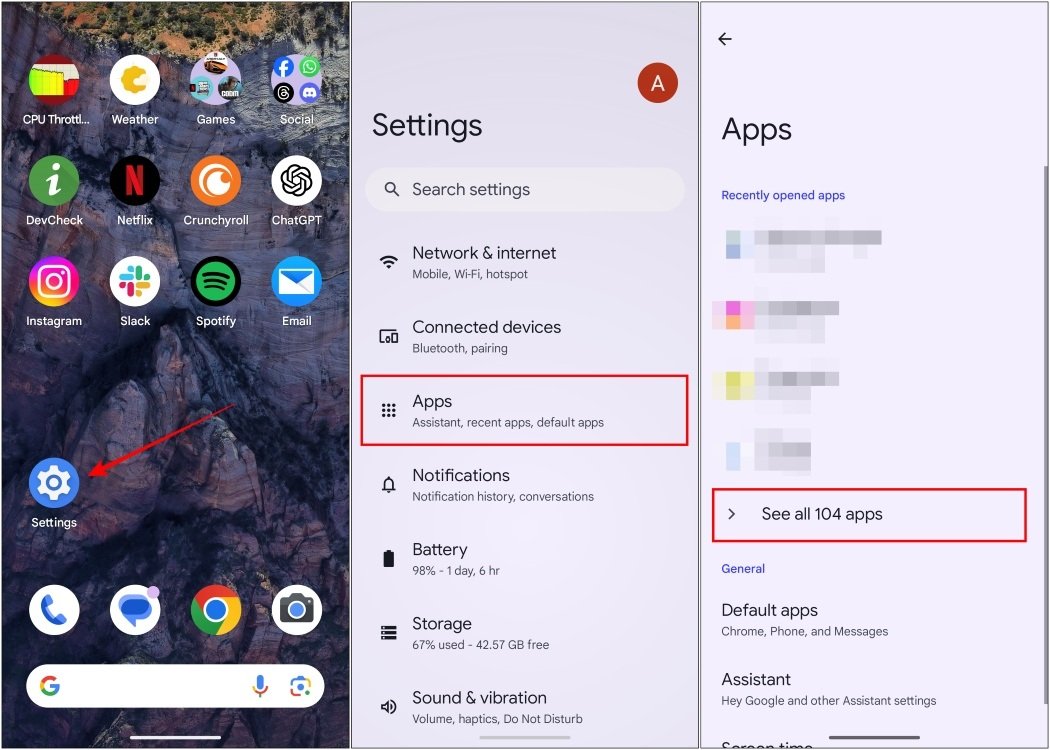
- Open your phone’s Settings.
- Tap Apps, then See all apps if you need the full list.
- Scroll down and tap Instagram.
- Tap Storage & cache.
- Tap Clear cache.
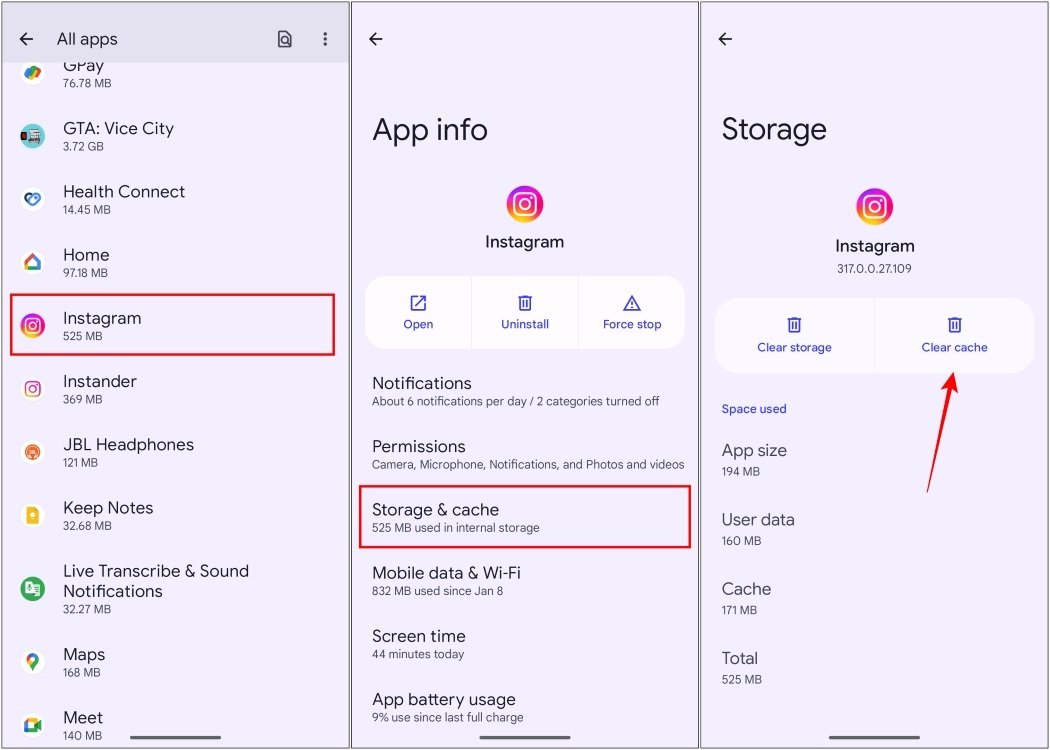
The cache figure drops to zero straight away and the app keeps working as before. The screen names vary a little between manufacturers: some phones label the step Storage rather than Storage & cache, and the two buttons may sit at the bottom of the screen rather than the top. The labels on the buttons themselves are consistent.
Clear cache against clear storage
These two buttons sit next to each other and do very different things. This is the single most important paragraph on the page.
| Button | Where | What it removes | What happens to you |
|---|---|---|---|
| Clear cache | Android only | Temporary files | Stays signed in, settings kept |
| Clear storage | Android only | Everything the app saved | Signed out, app reset |
| Offload App | iPhone only | The app and its cache | Documents and data kept |
| Delete App | Both | The app and everything in it | Signed out, app reset |
Clear cache removes temporary files only. You stay signed in, your settings survive, your drafts and saved posts are untouched, and the app rebuilds what it needs as you use it. It is safe to do whenever you like.
Clear storage, labelled Clear data on some phones, resets Instagram to the state it was in when you installed it. You are signed out, two-factor prompts come back, and anything held locally goes. It is not a bigger version of clearing the cache; it is a different action that happens to live next door. Only reach for it when the app is genuinely broken, and make sure you know your password first. If you are not certain you do, our comparison of the best password managers is the place to start before you tap it.
iPhone has no cache button at all
iOS gives no app its own cache control, so there is nothing to tap and no setting hidden in a submenu. The nearest equivalent is offloading, which removes the app binary and everything it had cached while keeping its documents and data.
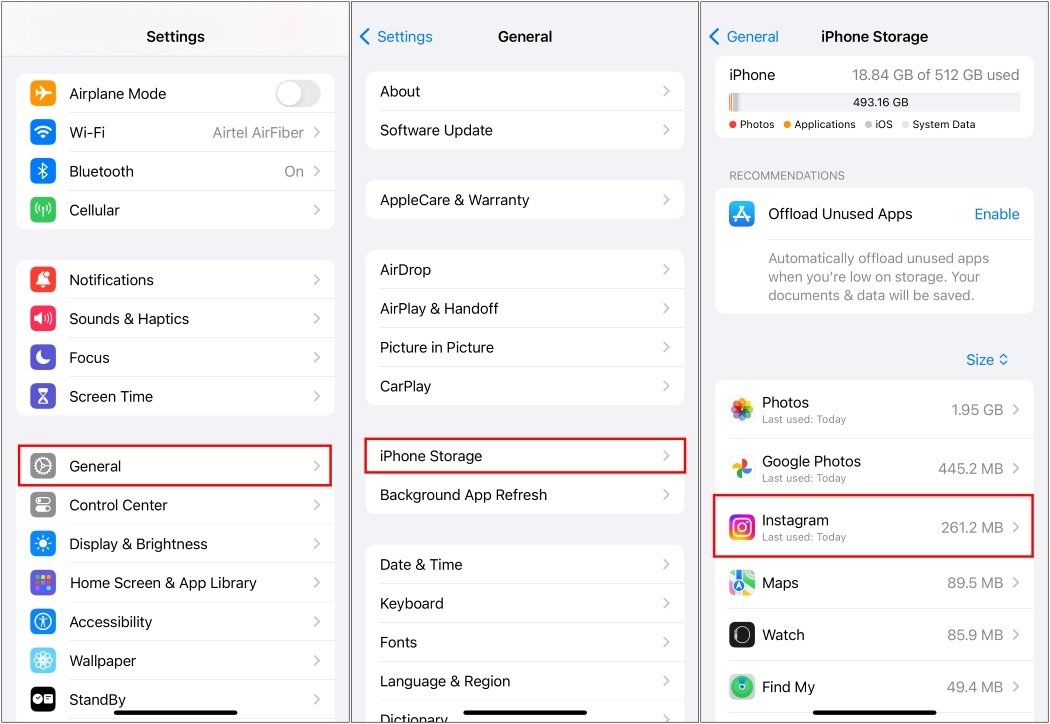
- Open Settings, then General.
- Tap iPhone Storage.
- Scroll down and tap Instagram.
- Tap Offload App, then confirm.
- Tap Reinstall App when you are ready to use it again.
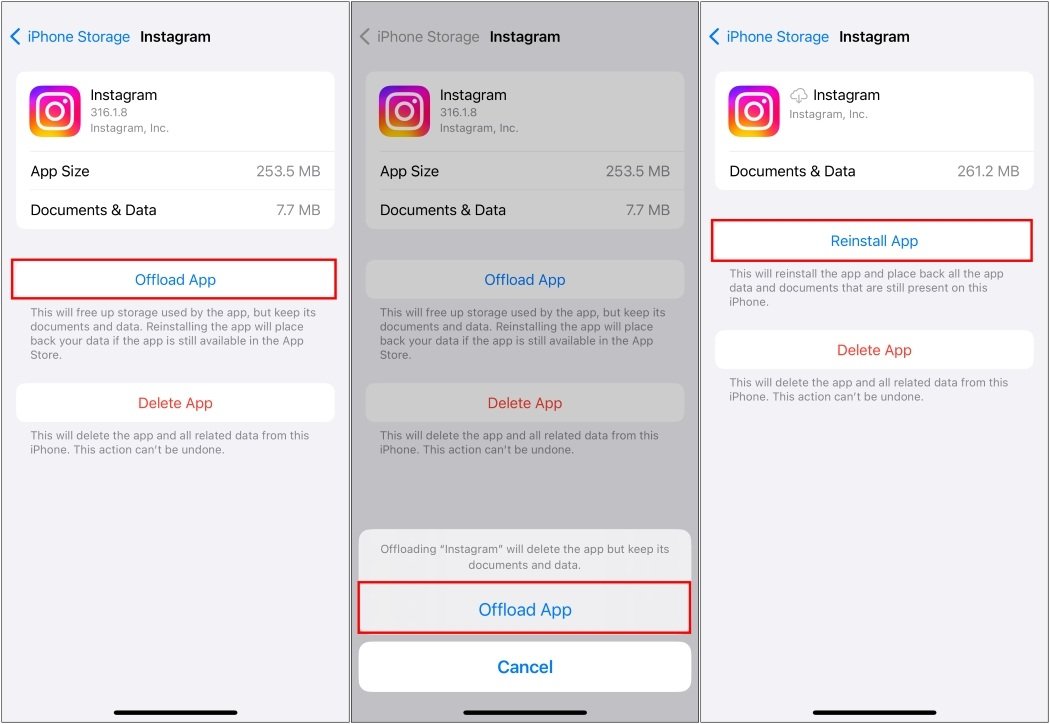
The app icon stays on the home screen with a small cloud symbol while it is offloaded, and tapping it downloads the app again. Expect to sign back in: offloading usually preserves the login, but not always, so treat being signed out as the likely outcome rather than a surprise.
Deleting and reinstalling does the same job more thoroughly and is the better move when the app is crashing rather than merely bloated. Both routes need your password on the way back in.
The one cache Instagram does let you clear
There is a genuine in-app cache control, and it is for the browser Instagram opens when you tap a link. That browser keeps its own cookies, cache and site data, entirely separate from the app cache the rest of this page is about.
- Tap any link inside Instagram to open the in-app browser.
- Tap Options in the top right.
- Tap Browser settings.
- Tap Clear cookies and cache in the top right.
- Tap Clear browsing data to confirm.
The same screen holds Clear link history, which wipes the record of sites you have opened inside Instagram, along with the autofill toggles for contact and payment forms. Those autofill switches are worth a look while you are there, and so is the rest of what has changed in the app lately, since several privacy controls have moved.
What clearing the cache will not fix
Clearing the cache frees space and resolves the specific case of corrupted temporary files, which typically shows up as images failing to load or stories that will not open. That is the full extent of it.
- It does not make Instagram faster on a healthy phone. The cache exists to speed the app up, so an empty one is briefly slower while it rebuilds.
- It does not free space permanently. Normal use refills the cache within days.
- It does not sign you out, delete drafts, remove saved posts or touch anything stored on Instagram’s servers.
- It does not fix a failed upload, a login loop or a feed that will not refresh, which are network or account problems rather than storage ones.
If the phone is struggling generally rather than Instagram specifically, the cache is rarely the culprit. Our guide to stopping a phone from overheating covers the background activity that usually is.
Frequently Asked Questions
Does clearing the Instagram cache delete my photos or drafts?
No. Clearing the cache removes temporary files only. Posts, drafts, saved collections and messages all live on Instagram’s servers or in the app’s data, neither of which the cache button touches.
Will clearing the cache log me out of Instagram?
Clear cache will not. Clear storage, Clear data, Delete App and in most cases a reinstall all will. The distinction is the one in the table above.
How often should I clear the Instagram cache?
Only when you need the space or something has visibly broken. There is no benefit to doing it on a schedule, and the app runs slightly slower immediately afterwards while it rebuilds what it just lost.
Why is Instagram using several gigabytes on my phone?
Video is the reason. Reels and stories are cached aggressively so they start instantly, and heavy scrolling builds that up quickly. The app size itself is a few hundred megabytes; almost everything above that is cache.
Related Articles

Get the Fox Bulletin briefing
The stories that matter, in your inbox. No spam, unsubscribe anytime.
Newsletter signup will be available soon.
Related stories
How to Turn Off Read Receipts on Instagram DMs
The global switch does not sweep up chats you have already set by hand. That one rule explains almost every case of Seen still appearing.

How to See Who Unfollowed You on Instagram
Instagram keeps no record of who left. There is still an accurate way to find out, and it does not involve handing your password to anyone.
How to Mute Someone on Instagram Without Unfollowing
Muting is the quiet option: they are never told, they stay a follower, and you stop seeing them. There is one feed it does not cover.