

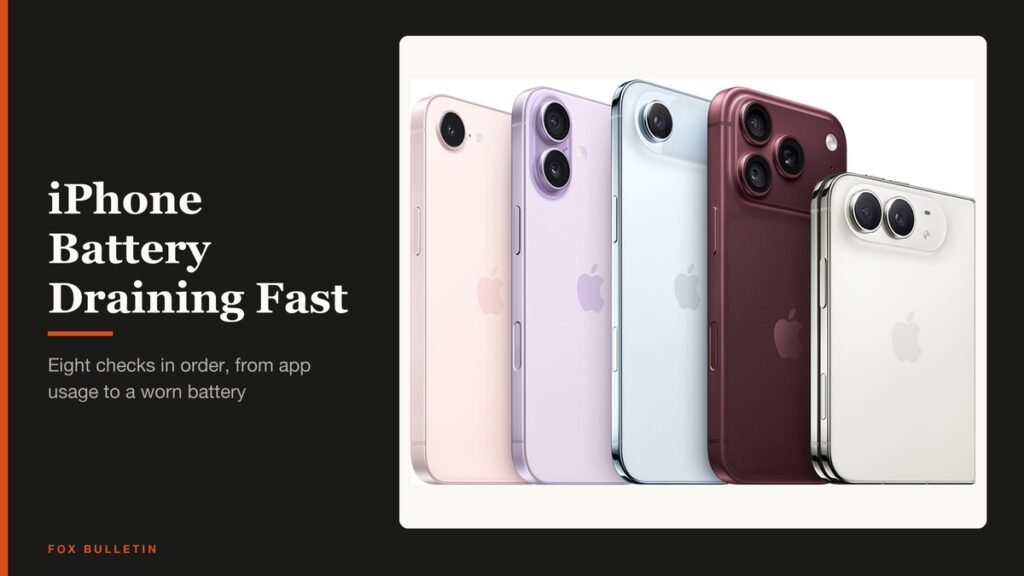
An iPhone battery draining fast in 2026 almost always traces to one of three things: an app working in the background, a setting that keeps the screen or radios busy, or a battery that has aged. Settings > Battery tells you which in about two minutes, and the checks below run from free to a paid replacement.
If you updated iOS in the last few days, start with the update check, because Apple says tasks tied to an update keep running in the background and can affect battery life. If the phone will not charge at all, our iPhone not charging guide is the right page.
iPhone Battery Draining Fast: The Short Answer
Open Settings > Battery and read the Daily Usage chart and the top three apps. Then set Background App Refresh to Wi-Fi, move location access to While Using the App, lower brightness, switch cellular to 5G Auto and wait a few days after any update. If Maximum Capacity reads under 80 percent, replace the battery.
What You Need and How Long It Takes
Allow 20 minutes for the settings pass and one normal day to judge the result. You need an iPhone on iOS 26 or iOS 27. Before changing anything, write down two numbers:
- Today’s battery percentage at a fixed time, such as 9:00 in the morning, and again at 9:00 in the evening.
- Maximum Capacity from Battery Health, so you can tell wear from software.
Match the Drain to a Cause Before You Touch a Setting
| What you see | Most likely cause | Where to look |
|---|---|---|
| Big drop while the screen is on | Brightness, long Auto-Lock or one heavy app | Battery > View All Battery Usage, then Display & Brightness |
| Drop while the phone sits locked | Background refresh, location or notifications | General > Background App Refresh and Privacy & Security > Location Services |
| Insight reads Ongoing iOS Update | Update tasks finishing in the background | Nothing to change; wait a few days |
| Drain in basements or on trains | Phone searching for a signal | Cellular Data Options > Voice & Data, or Airplane Mode |
| Warm in a pocket or on the dash | Heat, a restore or wireless charging | Move it out of the sun and let it cool |
| Shuts off with charge left | Aged battery | Battery Health |
| Maximum Capacity under 80 percent | Worn battery | Battery Health, then service |
| Worse only in the cold | Temporary cold effect | Warm the phone; it recovers |
Method 1: Read Settings > Battery Before Changing Anything
- Open Settings and tap Battery.
- Read the Daily Usage chart. Blue means similar or lower use than usual by this time of day, and orange means higher.
- Check the message just above the chart. Battery suggestions such as High Brightness and Insights such as Ongoing iOS Update appear there.
- Tap View All Battery Usage, then tap today’s bar.
- Tap the top app to see its on-screen and background time.
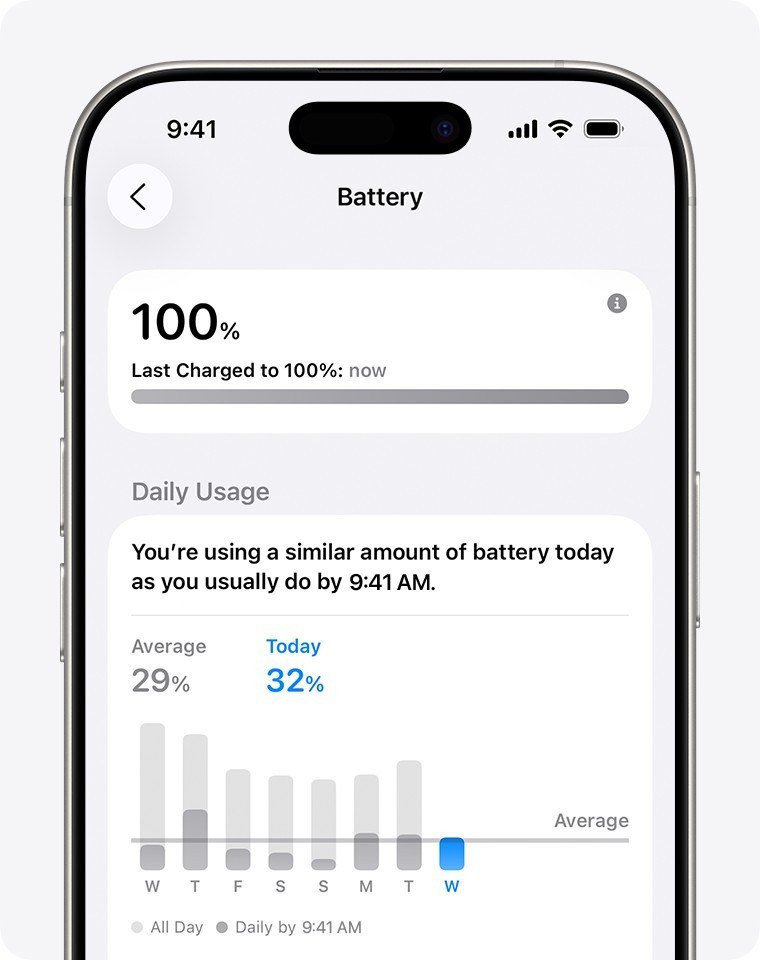 Image: Apple
In the iOS 27 guide, an app’s detail screen labels time as On screen, Background, Cellular coverage or Notifications. On iOS 26 the rows read Background Activity and No Mobile Coverage and Low Signal. Long Background time on an app you rarely open is the lead to follow.
You will know it worked when you can name the one or two apps behind most of today’s use and whether the time was on screen or in the background.
Method 2: Stop Background App Refresh and Mail Fetch From Running Unchecked
- Open Settings and tap General.
- Tap Background App Refresh, then tap Background App Refresh again.
- Choose Wi-Fi to stop refreshing over cellular, or Off to stop it everywhere.
- Open Settings, tap Apps, then tap Mail and Mail Accounts.
- Tap Fetch New Data and turn off Push if you do not need instant mail.
- Leave the fetch schedule on Automatically, or pick Manually.
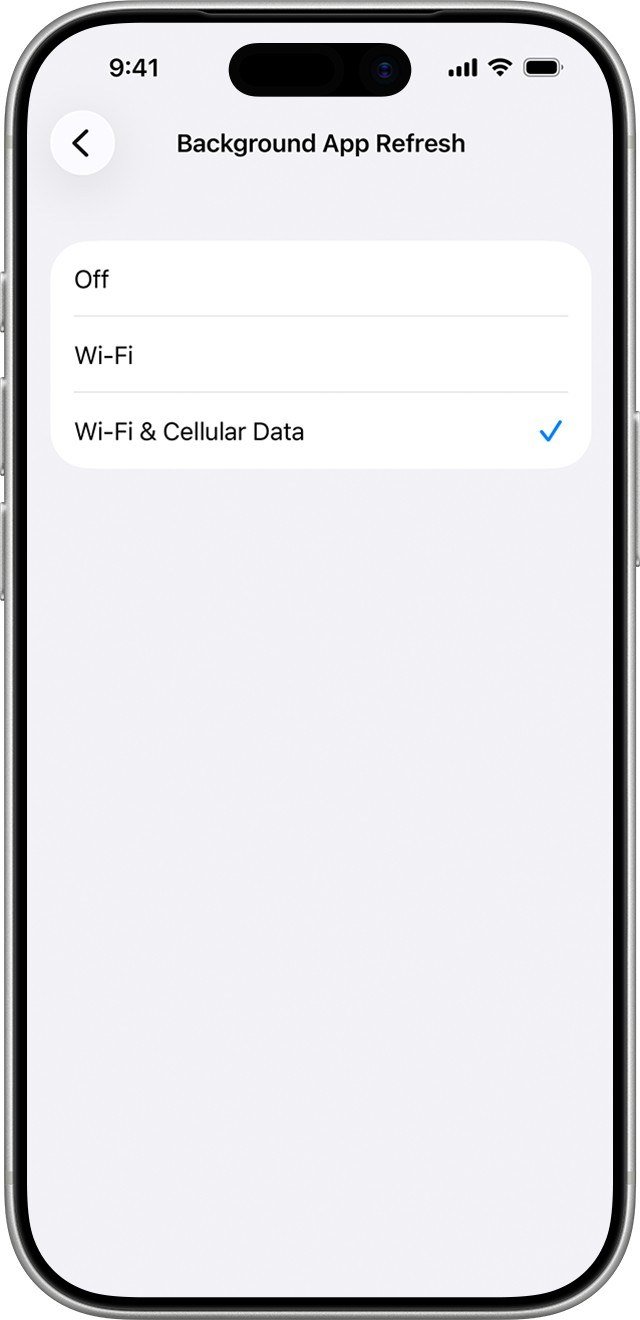
Apple’s default Automatically setting fetches mail in the background only while the phone is charging and on Wi-Fi. Push, a server-initiated delivery method, is the part that can keep waking the phone. Low Power Mode and Low Data Mode both switch Background App Refresh off for you.
You will know it worked when the apps that topped your list in Method 1 stop showing long Background time the next day. Apple also states that closing apps from the app switcher does not improve battery life, so leave them alone.
Method 3: Trim Location Services to What Each App Needs
- Open Settings, tap Privacy & Security, then tap Location Services.
- Scroll the app list and note every app set to Always.
- Tap an app that does not need your position in the background and choose While Using the App or Never.
- For weather and shopping apps, turn Precise Location off so they receive only an approximate position.
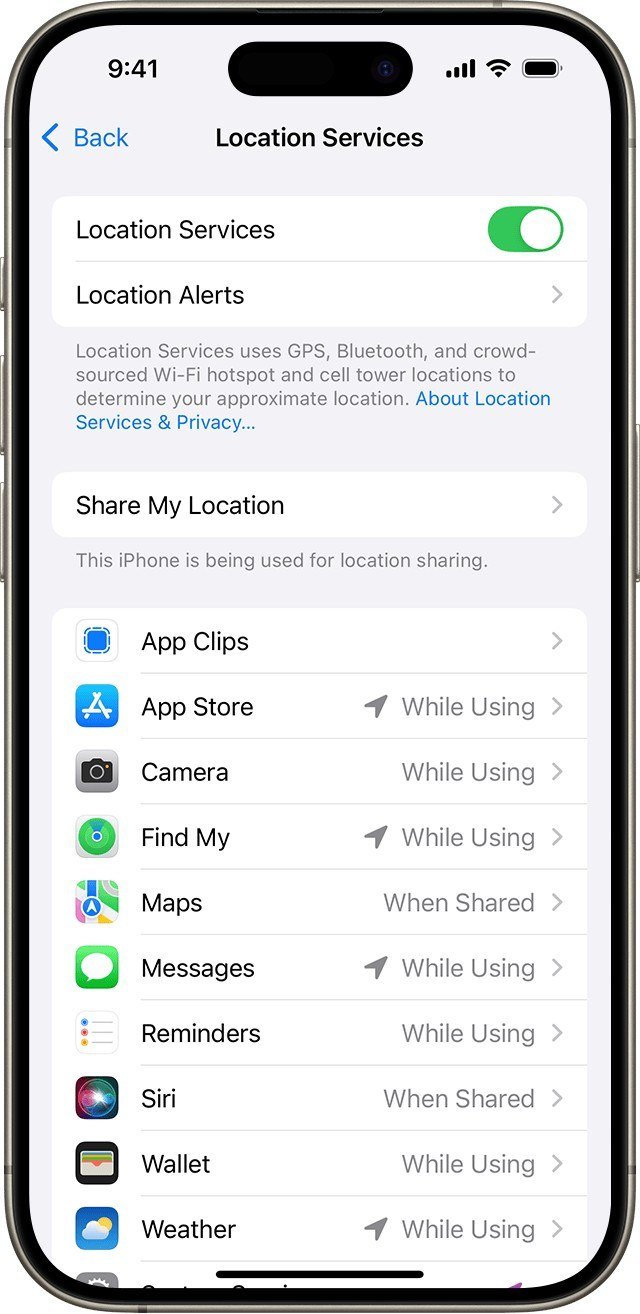
Apple’s four per-app choices are Never, Ask Next Time Or When I Share, While Using the App and Always, and only Always lets an app read location while it is in the background. A purple arrow beside an app means it used your location recently, and a gray arrow means within the last 24 hours. Keep Location Services itself on: Apple warns that many iPhone features stop working without it.
You will know it worked when no app reads Always unless you chose that on purpose.
Method 4: Cut Screen Power With Brightness, Auto-Lock and Always On
- Swipe down from the top-right corner to open Control Center and drag the brightness control down.
- Open Settings, tap Accessibility, tap Display & Text Size and make sure Auto-Brightness is on.
- Open Settings, tap Display & Brightness, then tap Auto-Lock and pick a shorter time.
- On a model with an Always-On display, tap Always On Display in the same screen and turn it off or choose what it shows.
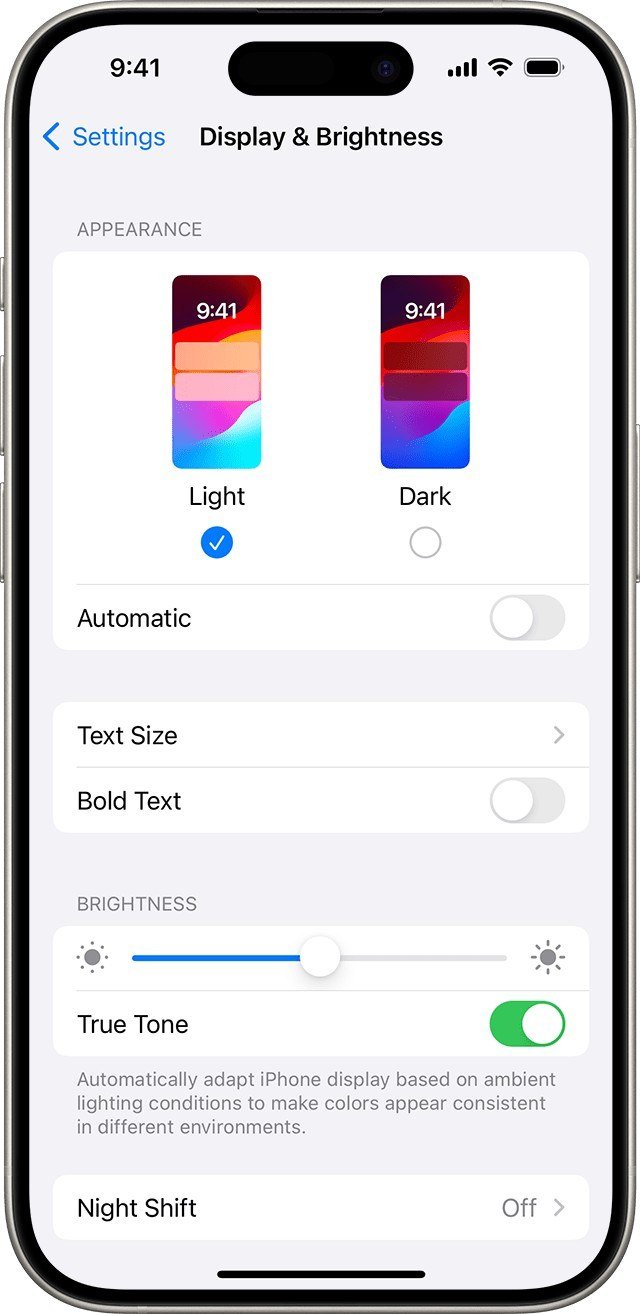
Apple notes that turning Auto-Brightness off may increase power consumption and that delaying Auto-Lock can too. Low Power Mode forces Auto-Lock to 30 seconds. The Always-On display is on by default on supported models.
You will know it worked when the High Brightness suggestion at the top of Settings > Battery disappears.
Method 5: Switch Cellular to 5G Auto and Fix Weak Signal
Apple says Wi-Fi uses less battery than cellular, and both use less in places with a strong signal. Where there is no coverage for a while, Airplane Mode stops the phone from hunting.
- Open Settings and tap Cellular, then tap Cellular Data Options.
- Tap Voice & Data.
- Choose 5G Auto. This option is on iPhone 12 and later with a 5G plan.
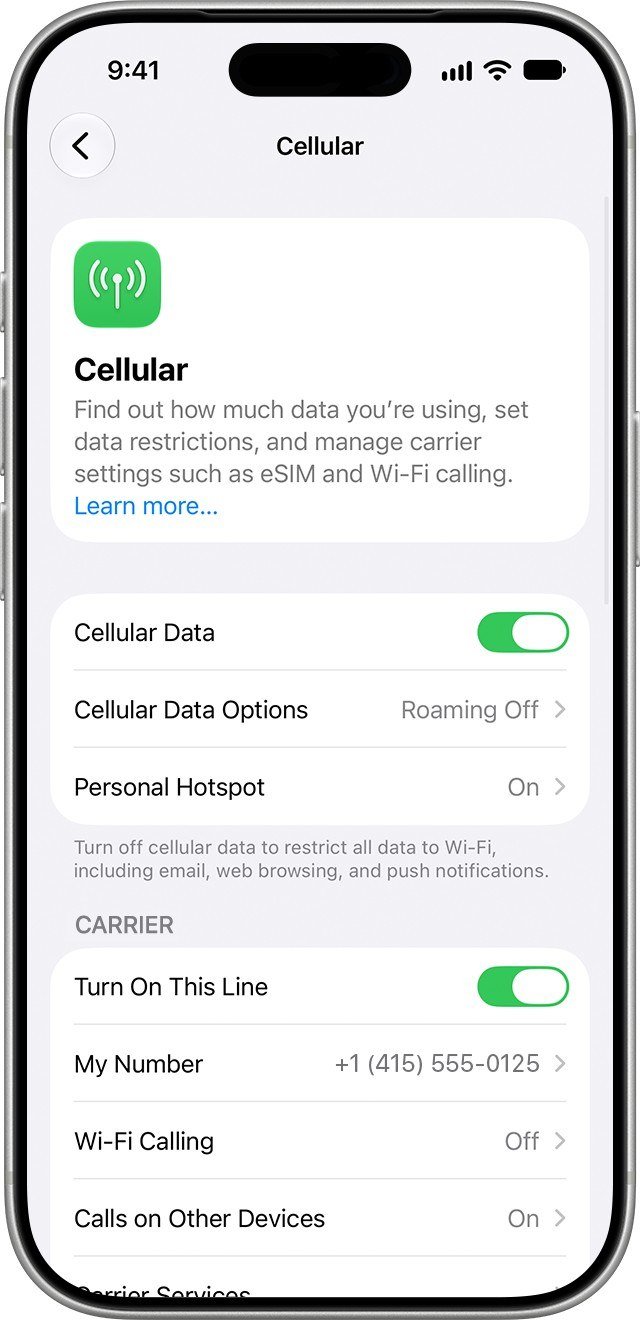
In 5G Auto, Apple calls the behaviour Smart Data mode: the phone drops to LTE when 5G speeds would not feel noticeably better. On the Wi-Fi side, Settings > Wi-Fi now holds Connectivity Assist, which replaced Wi-Fi Assist and lends your cellular connection to a weak network. If your router is the problem, our WiFi not working guide covers it.
You will know it worked when Cellular coverage stops appearing on the top apps in Battery usage.
Method 6: Give an iOS Update Time to Finish Its Background Work
Apple’s own advice for drain after an update is to wait a few days and check again. You can use the phone straight away, but update tasks continue in the background and can affect battery life and thermal performance. Setting up a new phone or restoring a backup does the same.
- Open Settings and tap Battery.
- Look above the Daily Usage chart for the Insight Ongoing iOS Update or Ongoing Device Setup.
- If it is there, change nothing and check again in two or three days.
- If it is gone and drain continues, open Settings, tap General, tap Software Update and install any newer release.
You will know it worked when the Insight disappears. iOS 27 shipped on 14 September 2026 and 27.0.1 followed on 28 September, so a phone that updated in that window has long since finished.
Method 7: Turn On Adaptive Power or Low Power Mode
- Open Settings and tap Battery.
- On iPhone 15 or later, tap Power Mode. On iPhone 14 or earlier, the switch is on this screen.
- Turn on Low Power Mode, or turn on Adaptive Power on iPhone 15 Pro and later.
- Check that the battery icon in the status bar has turned yellow.
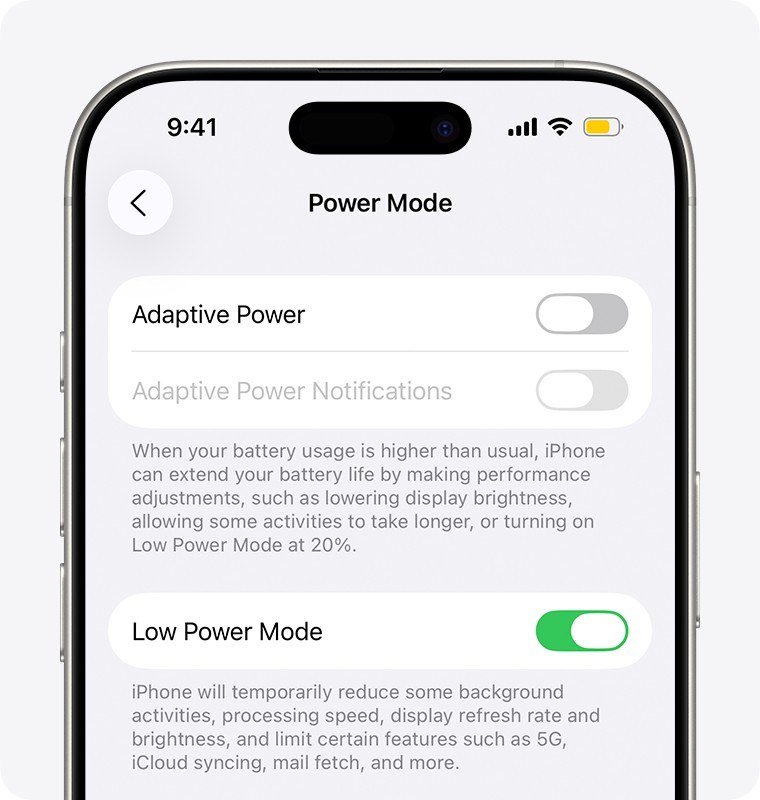
Low Power Mode reduces mail fetch, Hey Siri, Background App Refresh and some visual effects, limits ProMotion displays to 60 frames per second, and switches itself off when the phone charges past 80 percent. Adaptive Power can lower brightness slightly and limit background activity on heavy days, and it turns Low Power Mode on at 20 percent. It is on by default on the iPhone 17 Pro, 17 Pro Max, 18 Pro, 18 Pro Max and Duo, and off by default on the iPhone 16 and 15 Pro Max. Our Hey Siri guide shows the voice setting it pauses.
You will know it worked when the yellow icon appears and the phone lasts into the evening. These modes treat the symptom, so keep reading if you need them every day.
Method 8: Check Battery Health, Cycle Count and the Replacement Threshold
- Open Settings and tap Battery.
- On iPhone 15 or later, tap Battery Health. On iPhone 14 or earlier, tap Battery Health & Charging.
- Read Maximum Capacity, and on iPhone 15 or later also Cycle Count, Manufacture Date and First Use.
- Look for the word Service beside Battery Health.
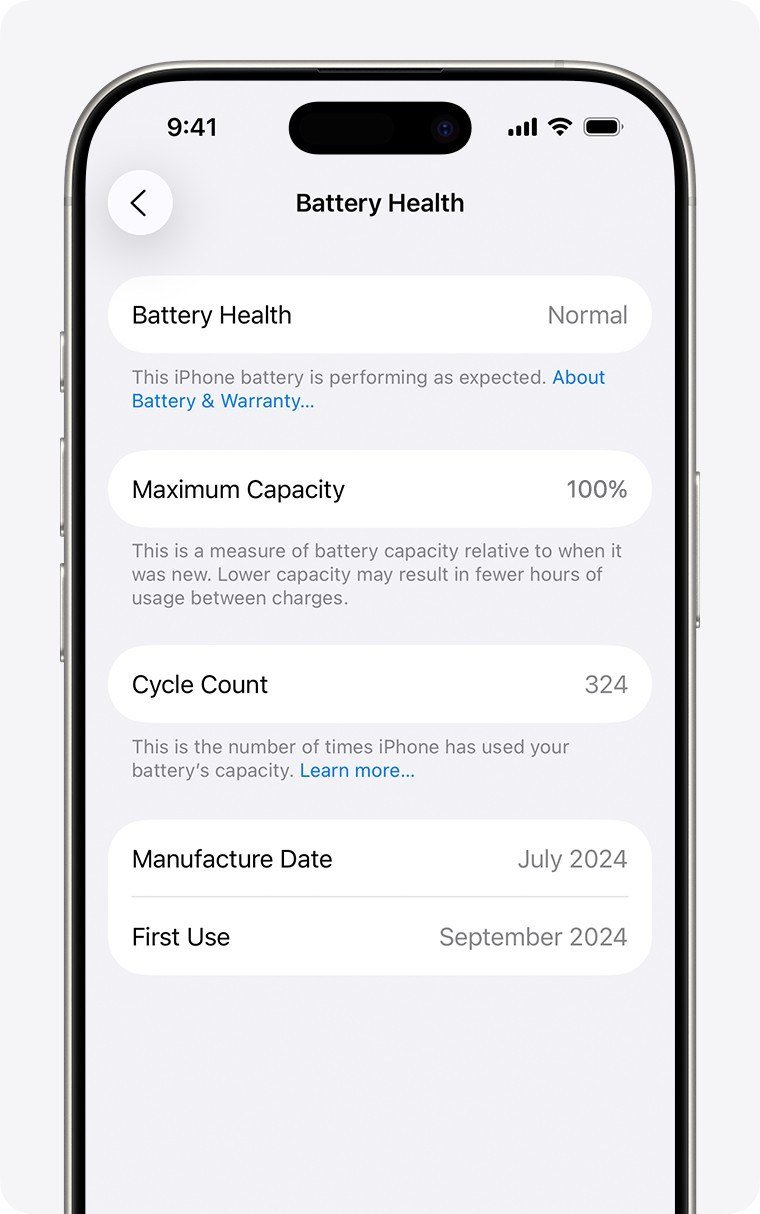
Apple designs iPhone 14 batteries and earlier to keep 80 percent of their original capacity at 500 complete charge cycles, and iPhone 15 batteries and later at 1,000. One cycle is 100 percent of capacity used, spread across any number of charges. At one full cycle a day, 500 cycles is about 16 months and 1,000 is about 33. The iPhone 17 specifications list up to 30 hours of video playback as a lab figure.
Under 80 percent, or a Service message, means replace the battery. AppleCare covers a replacement at no extra charge below 80 percent, while the standard warranty does not cover wear from normal use. Apple’s estimate tool gave these out-of-warranty prices on 24 October 2026, before tax and subject to inspection:
| iPhone family | Apple battery service, out of warranty |
|---|---|
| iPhone 8, SE (2nd and 3rd generation) | $69 |
| iPhone 11, 12, 13 and XS families | $89 |
| iPhone 14 and 15 families, 16, 16 Plus, 16e, 17, 17e | $99 |
| iPhone 16 Pro and Pro Max, 17 Pro and Pro Max, iPhone Air | $119 |
| iPhone 18 Pro and Pro Max | $129 |
| iPhone Duo | $229 |
You will know the battery was the cause when a replacement restores a full day. Afterwards, Settings > General > About should show Genuine beside Battery; an Unknown message means the part is not verified.
Mistakes That Make Battery Drain Worse
- Force-quitting apps. Apple says closing every app does not help battery life or speed.
- Judging a phone 24 hours after an update, while the Ongoing iOS Update Insight is still showing.
- Leaving a phone in a hot car. Apple rates iPhone for 0 to 35 degrees Celsius (32 to 95 degrees Fahrenheit) and warns that heat can permanently shorten battery life.
- Fitting an unverified battery, which can report inaccurate health data.
Frequently Asked Questions
Why is my iPhone battery draining so fast all of a sudden?
A recent update or restore is the most common reason, followed by one app that began running in the background. Open Settings > Battery and check for an Ongoing iOS Update Insight and for an app with unusually long background time.
How long does battery drain last after an iOS update?
Apple says to wait a few days and then check again. The Ongoing iOS Update Insight in Settings > Battery disappears when the background work is done.
What battery health percentage means I need a new battery?
Below 80 percent, or a Service message, is Apple’s line. AppleCare covers replacement under that threshold, and Apple designs 500 cycles for iPhone 14 and earlier and 1,000 cycles for iPhone 15 and later to reach it.
Does Low Power Mode really save battery?
It reduces mail fetch, Background App Refresh, Hey Siri and visual effects, and it caps ProMotion displays at 60 frames per second. It switches off automatically once the phone charges past 80 percent.
Related Articles

Get the Fox Bulletin briefing
The stories that matter, in your inbox. No spam, unsubscribe anytime.
Newsletter signup will be available soon.
Related stories

Windows Update Troubleshooter: Run It, Then Fix the Rest
Where the Windows Update troubleshooter lives on Windows 11 and Windows 10, how to run it, what it cannot fix, and the manual repairs in order: disk space, pause and resume, services and folders, DISM, sfc, stuck updates, restart loops and error codes.
Best Ad Blockers for iPhone and iPad: 10 Top Picks
Ten Safari content blockers for iPhone and iPad ranked on price, App Store rating and how recently they shipped, with what none of them can reach.
Best iPhone Camera Settings for Photos in iOS 27
Every iPhone camera setting that changes how a photo turns out in iOS 27, with the exact menu path and what to set it to.