


Most of how to create a QR code in Canva is one short trip through the Apps panel. Open Apps in the editor, search for QR code, enter the web address and save. The code lands on the canvas as an element you can move and resize like anything else.
The decision worth slowing down for comes first. Canva offers static and dynamic codes as separate apps, and they behave completely differently once something has been printed. Picking the wrong one is the difference between editing a link and reprinting five hundred flyers.
The short version
In an open design, select Apps in the editor sidebar and search for QR code. Choose a static or dynamic code app, pick a pattern if you are offered one, type the web address into the URL field and select Save. The code appears on the canvas ready to position.
Static or dynamic, decided first
A static code has the destination baked into the pattern of squares itself. A dynamic code points at a redirect, and the redirect is what you change later.
| Static code | Dynamic code | |
|---|---|---|
| Where it points | Fixed forever | Changeable any time |
| After printing | Reprint to change it | Repoint it from Canva |
| Scan tracking | None | Available |
| Depends on a service | No | Yes, the redirect has to stay live |
| Best for | A permanent address | Anything that may move |
Canva states the benefit plainly in the panel: a dynamic code lets you update the link without the QR code changing. The printed artwork stays exactly as it is while the destination moves.
The trade-off is a dependency. A static code works as long as the destination page exists, because the address is in the pattern. A dynamic code also needs the redirect behind it to stay live, and Canva notes it may temporarily deactivate a dynamic code if the linked content does not meet its platform guidelines.
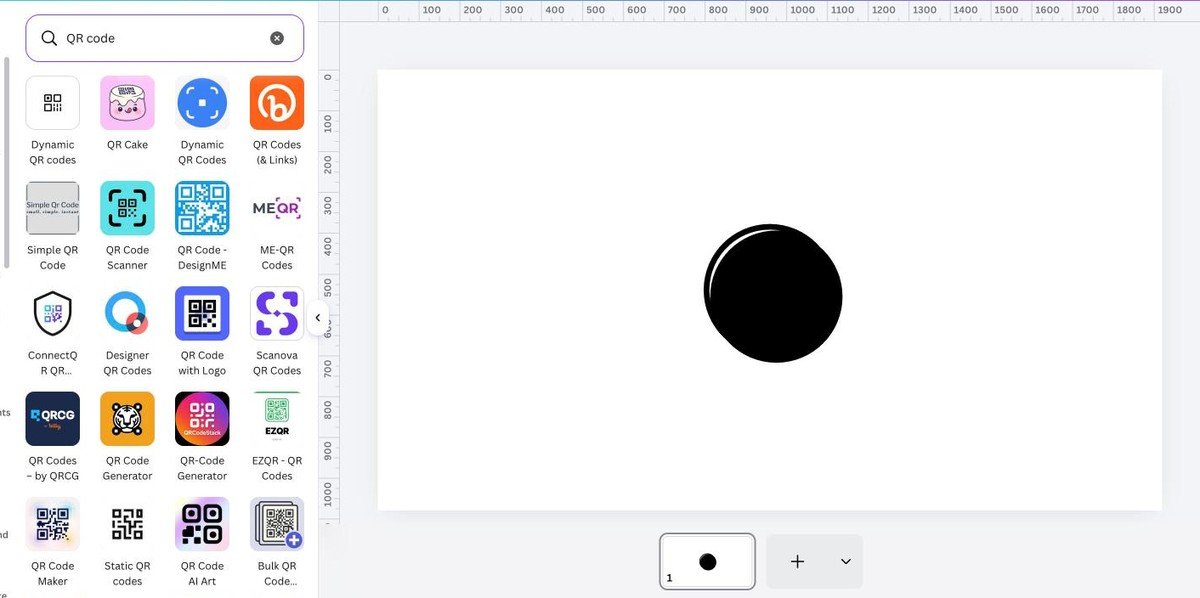
Find the QR code app inside Canva
QR codes are not in Elements, which is where most people look first. They come from the Apps panel.
- Open a design. The app needs somewhere to put the code, so create or open one first.
- Select Apps in the editor sidebar, below Projects.
- Search for QR code. Suggestions appear as you type.
- Press Enter to see the full grid of results.

The results are a mix of Canva apps and third-party ones, which is worth knowing before you pick. Static QR codes and Dynamic QR codes are the two straightforward choices, and the rest add things like logos, batch generation or decorative art.
Generate the code
A dynamic code asks for a pattern before anything else, which catches people out because the URL field is not the first thing on screen.
- Choose a pattern. Blocks, round squares, circles, crosses, stars and hearts are offered. Blocks is the safest for anything being scanned at a distance.
- Enter the web address in the URL field. Include the full address with https at the front rather than just the domain.
- Add a name if you want one. It is optional and only for finding the code again later.
- Select Save. The placeholder on the canvas fills in with the real code.

Corners and Logo sit under the pattern options. The corner markers are the three large squares a scanner uses to orient itself, and changing their shape is safe. Dropping a logo into the middle is also fine, within reason, because the format carries enough error correction to survive a small obstruction.
A static code offers colour and margin adjustments instead. The margin is the quiet white border around the pattern, and removing it is one of the quickest ways to make a code fail.
Test the code before anything is printed
This is the step people skip, and it is the only one that cannot be fixed afterwards on a static code.
- Scan it on screen with a phone camera before downloading anything.
- Download the design and scan the exported file rather than the editor preview.
- Scan from the distance it will really be read at, which for a poster is several feet rather than six inches.
- Try a second phone. Camera apps differ in how forgiving they are.
Print one copy and scan that too if the run is large. Paper, ink bleed and the surface it sits on all change the result in ways a screen never shows.
What stops a QR code scanning
Almost every failed code comes down to one of five things, and four of them are design decisions rather than technical faults.
- Too little contrast. The pattern needs to be clearly darker than its background. Light grey on white fails, and so does a code placed over a busy photo.
- Inverted colours. A light pattern on a dark background confuses many scanners, which expect dark on light.
- No quiet zone. The blank margin around the code is part of the format rather than padding. Cropping it off or butting text against the edge breaks it.
- Printed too small. Scanning distance scales with size, so a code on a banner read from across a room has to be far bigger than one on a business card.
- Stretched out of square. Dragging a corner handle without holding Shift turns the code into a rectangle, and the pattern stops being readable.
Keeping the code square is the easiest of those to get wrong, since it happens with a single careless drag. Grouping the code with its caption, as covered in our guide to grouping elements in Canva, stops the pair drifting apart on a crowded layout.
Where the code goes in the design
A code that scans in isolation can still fail in position, because placement changes how it is read.
- Give it a plain background, even a white rectangle behind it, rather than letting it sit over a photograph.
- Tell people what it does. A short line such as Scan for the menu lifts scan rates far more than making the code bigger.
- Keep it off folds and edges on anything printed, since a crease through the pattern breaks it.
- Leave margins clear of other elements so the quiet zone survives both the layout and the trim.
For a print run, export at the print settings rather than the screen ones. Our guide to building a PDF in Canva covers the preset that keeps the pattern crisp at 300 dpi.
What a QR code can point at
The app takes a web address, which sounds limiting until you notice how much sits behind a URL. Almost every common use is a link to something rather than data stored in the code itself.
- A booking or event page, which is the most common use on a poster or flyer and the one dynamic codes suit best.
- A digital menu, where the page changes far more often than the printed table card does.
- A form or survey, collected at an event without typing an address into a phone.
- A contact page or portfolio, on a business card or the back of a leaflet.
- A video, which works well on packaging where a printed instruction would not fit.
For anything where the destination might move, a dynamic code is worth it for that reason alone. A menu that changes seasonally behind a static code means new table cards every season.
Keeping track of codes you have made
The optional Name field looks like clutter until you have produced a dozen codes across several designs and need to find the one on last year’s flyer.
- Name every dynamic code after the thing it is printed on rather than where it points, since the destination is the part that will change.
- Record which design carries which code somewhere outside Canva if a campaign runs across several pieces.
- Keep the original design file rather than only the exported PDF, because repointing a dynamic code happens through the app in that design.
- Check a code before reprinting an old piece of artwork, since the page behind it may have moved on in the meantime.
Frequently Asked Questions
Do Canva QR codes expire?
A static code has the address written into the pattern, so it keeps working as long as the page it points to exists. A dynamic code relies on a redirect staying live, and Canva says it may deactivate one if the linked content breaches its guidelines.
Can I change where a code points after printing?
Only if it is dynamic. That is the entire reason dynamic codes exist, and it is why the choice has to be made before the artwork goes anywhere.
Can a QR code have a logo in the middle?
Yes. The format includes error correction, so a small logo over the centre usually still scans. Test it rather than assuming, because the bigger the logo the smaller the margin for error.
Why does my code work on screen but not in print?
Usually size or contrast. A code that scans at arm’s length on a monitor can be too small on paper, and ink spread on uncoated stock can close up the gaps between the squares.
Related Articles

Get the Fox Bulletin briefing
The stories that matter, in your inbox. No spam, unsubscribe anytime.
Newsletter signup will be available soon.
Related stories

How to Add Music to Canva Designs and Videos
Adding the track is one click. Trimming it, fading it and exporting in a format that carries sound at all are the three steps that decide whether anyone hears it.

How to Highlight Text in Canva Three Different Ways
One effect does it in two clicks, and its three sliders decide whether the result looks like a marker pen or a solid block.

Connected Carousel in Canva: Build One That Lines Up
The design half is one wide canvas. The half that stops people is the split, because Canva has no built-in command for it and the answer is an app.