

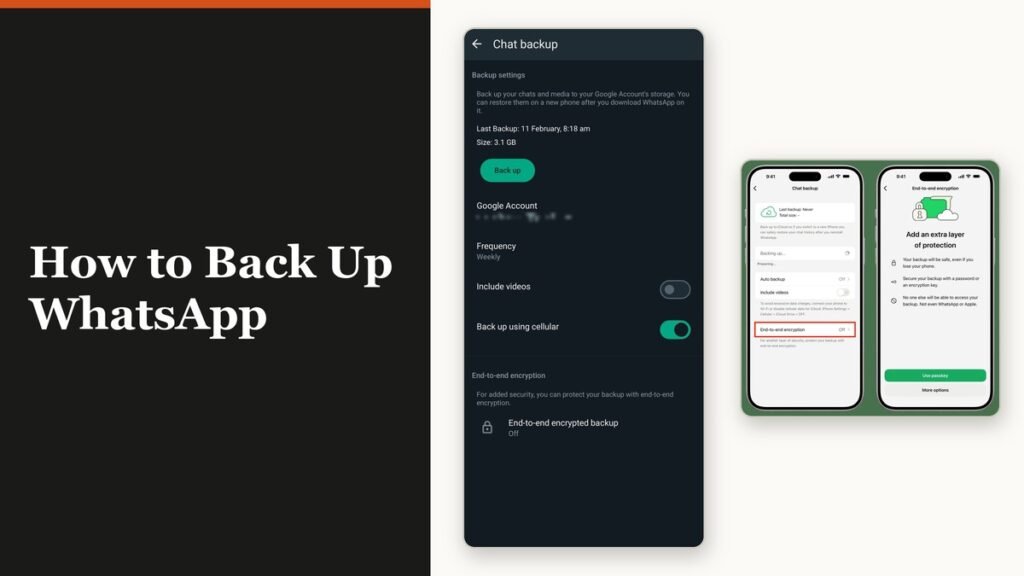
Learning how to back up WhatsApp used to mean one screen and one destination. It now means picking between two, because WhatsApp has added cloud storage of its own alongside the Google Account and iCloud routes. The setting that chooses between them sits in the same place on both platforms: Settings, then Chats, then Chat backup.
The whole job takes under two minutes, and the part that matters is not the backup itself but the schedule and the encryption switch. WhatsApp keeps exactly one backup per account. Each new one overwrites the last, which makes an unencrypted daily backup a very different thing from an encrypted weekly one.
Choose where the backup is stored
WhatsApp cloud storage is the newer option and the simpler one, because it is encrypted end to end by default with no key for WhatsApp or Meta. The older route hands the file to Google or Apple instead. Switching between them is done from Chat backup at any time.
| Destination | Available on | Encryption | The catch |
|---|---|---|---|
| WhatsApp cloud storage | Android and iPhone | Always end to end encrypted | Still being rolled out, may not appear yet |
| Google Account | Android only | Encryption is optional and off by default | Counts against your 15 GB Google storage |
| iCloud | iPhone only | Encryption is optional and off by default | Counts against your iCloud storage |
WhatsApp describes its own cloud storage as a feature it is still building and testing, so it may not have reached your account yet. On an iPhone there is a second wrinkle: choosing WhatsApp cloud storage rules out an iCloud backup of WhatsApp at the same time, and keeping both iCloud-side copies means paying for the storage twice over.
Back up WhatsApp on Android
The Android flow asks for a destination, a schedule and three toggles. Set the schedule to anything other than Never or the tap-to-run option, or no automatic backup happens at all.
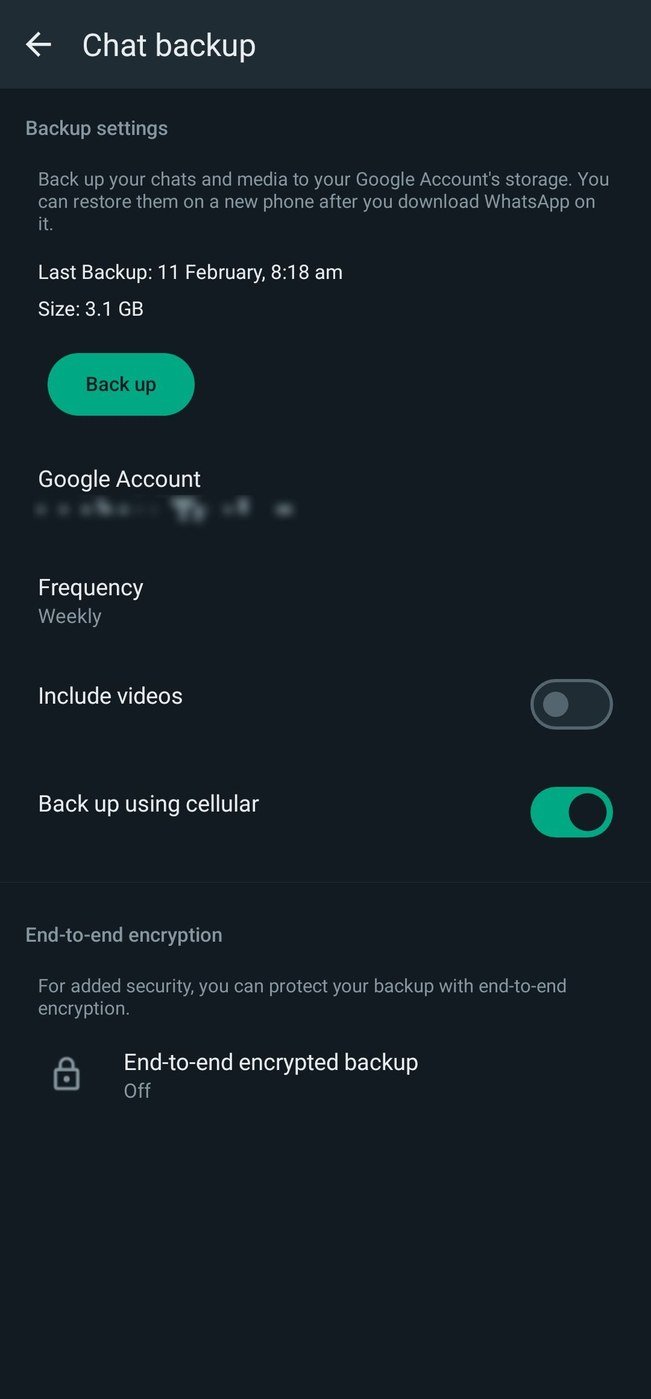
- Open WhatsApp and go to Settings, then Chats, then Chat backup.
- Tap Cloud backup and select WhatsApp or Google, then Turn on backups.
- For Google, tap Back up and pick a frequency that is not Never and not Only when I tap “Back up”.
- Choose the Google Account the file should go to, adding one if the list is empty.
- Set Include videos in chats, Back up using cellular and Back up status archive to suit your data plan.
On a daily schedule the Google copy is written every night, after the local backup on the phone has finished. The screen then shows the time and size of the last successful backup, which is how you confirm it worked rather than assuming it did.
Back up WhatsApp on an iPhone
The iPhone version of the screen is the same idea with different labels. Auto backup holds the schedule, Back up now runs one immediately, and there are two toggles rather than three because cellular backup is handled by iOS itself.
- Tap Settings or your profile picture, then Chats, then Chat backup.
- Tap Cloud backup, choose WhatsApp or iCloud, then Turn on backups.
- Tap Auto backup and pick daily, weekly or monthly.
- Set Include videos in chats and Include status archive.
- Tap Back up now to write the first copy rather than waiting for the schedule.
WhatsApp asks for free space on the phone as well as in the account, because the file is assembled locally before it is uploaded. If it reports a shortfall, it names the amount, and clearing that much is enough.
Turn on end-to-end encrypted backup
Messages in transit are encrypted whatever you do. A Google or iCloud backup is not, unless you switch it on, which means the file sitting in that account is readable by whoever can reach the account.
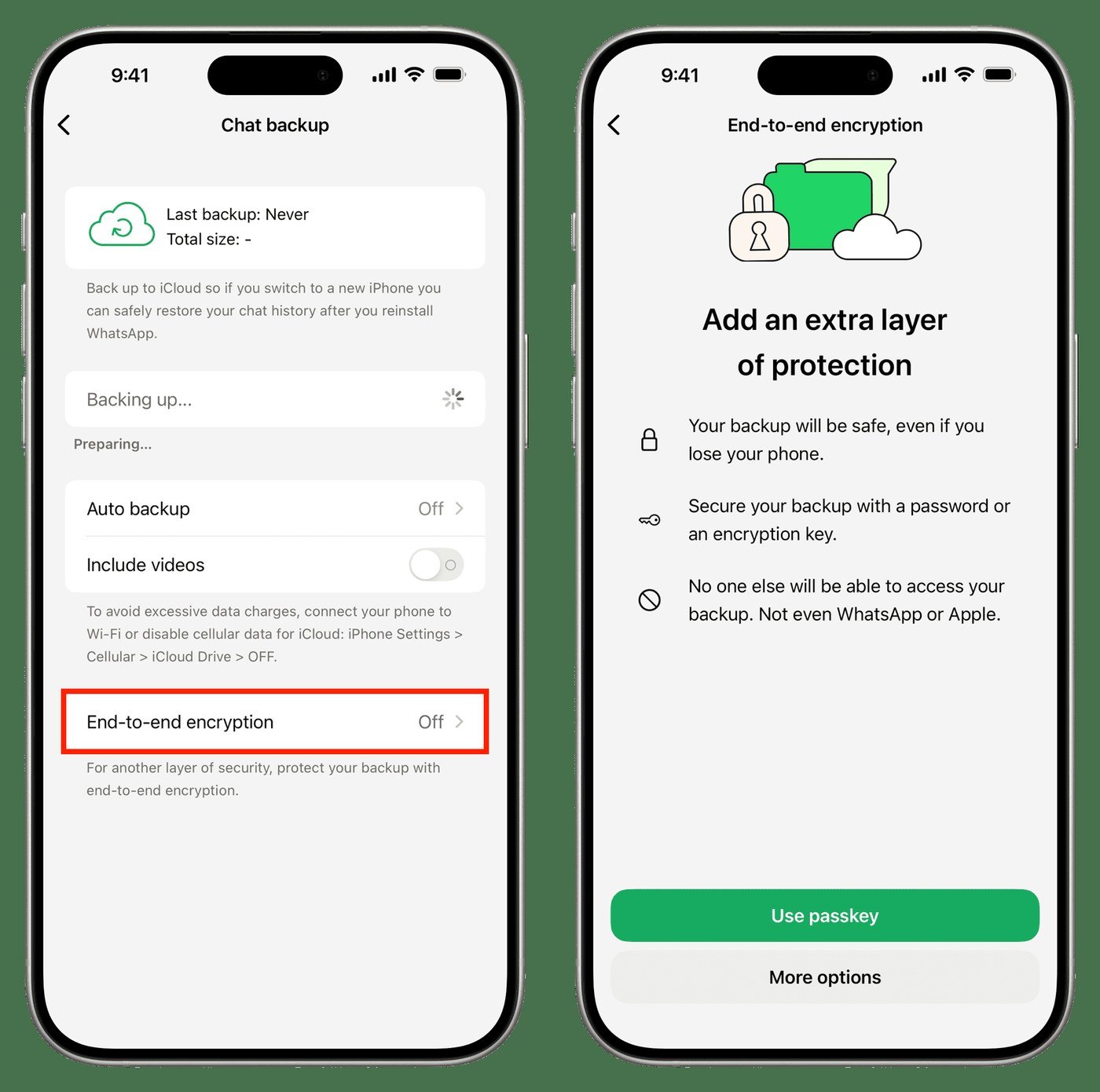
- Go to Settings, then Chats, then Chat backup, then End-to-end encrypted backup.
- Tap Use passkey, or More options for a 64-digit key or a password.
- Tap Create and wait for the process to finish.
There is no recovery path if the password or key is lost, because that is the point of it. WhatsApp cannot read the backup and cannot reset the key. Put the 64-digit version somewhere durable, which is a job one of the password managers we compared handles better than a note on the same phone the backup is protecting.
What the backup holds, and what it costs you
The file covers your messages, your media and the chats in communities you belong to. Channel updates come along too, although channel media only does if you are the admin of that channel. Videos are included only if the toggle was on before the backup ran.
- One backup per account. Each run replaces the previous file, so there is no history of versions to roll back to.
- Only the last successful backup restores. Anything sent after it cannot be recovered.
- Android backups use your Google storage. Google lists WhatsApp backups on Android among the things that count against the quota, and the free tier is 15 GB shared with Gmail, Drive and Photos.
- The phone number has to match on the device that restores it.
A chat history of several gigabytes will eat a free Google allowance on its own, which is the usual reason a backup silently stops running. If that is where you are, our breakdown of how much free cloud storage each service really gives you is the context for deciding whether to pay or to turn videos off.
Frequently Asked Questions
How do I check my last WhatsApp backup?
Open Settings, then Chats, then Chat backup. The screen prints the time and size of the last successful backup. If it shows nothing, no backup has ever completed, whatever the schedule says.
Does a WhatsApp backup include deleted messages?
Only if they were still in the chat when the backup ran. A backup is a snapshot, so a message deleted before the most recent run is not in the file.
Can I move a backup between Android and iPhone?
No. A Google Account backup cannot be read by an iPhone and an iCloud backup cannot be read by an Android phone. Moving between the two platforms uses the chat transfer flow instead of a backup.
Why is my WhatsApp backup so large?
Video, almost always. Switching off Include videos in chats shrinks the file sharply, and clearing large forwarded files from within WhatsApp storage settings does the rest.
Related Articles

Get the Fox Bulletin briefing
The stories that matter, in your inbox. No spam, unsubscribe anytime.
Newsletter signup will be available soon.
Related stories
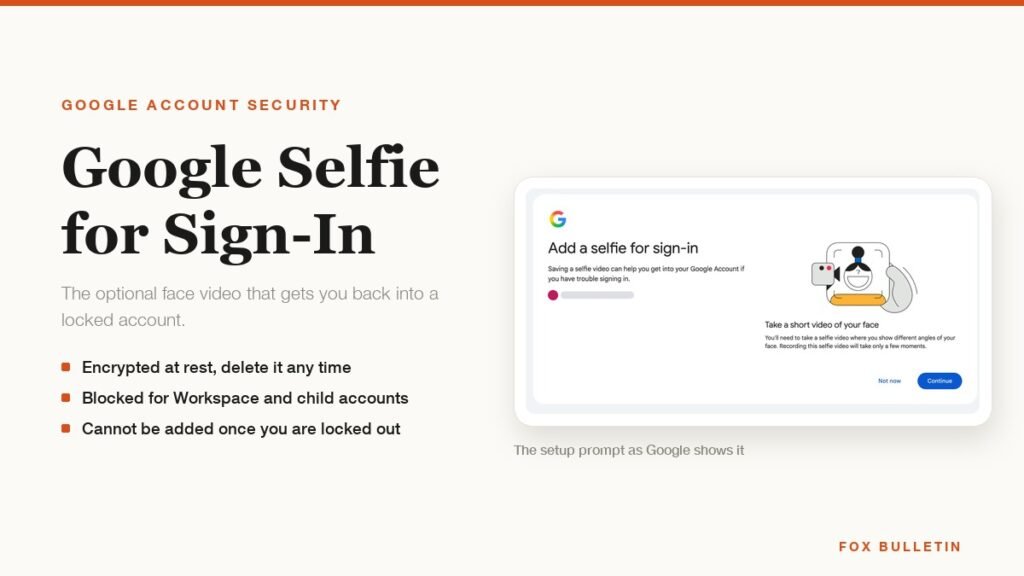
Google Selfie for Sign-In: How It Works and Is It Safe
The prompt headed Add a selfie for sign-in asks to keep a video of your face on your Google Account. Here is what that video is used for, and how to remove it.
My Eyes Only Snapchat: Set It Up and Unlock It
Forgetting the passcode does not lock you out. It deletes everything behind it, and that is by design.
How to Delete Friends on Snapchat and What Changes
Removing a friend is quiet and quick. It also leaves them able to message you unless one other setting is changed.