

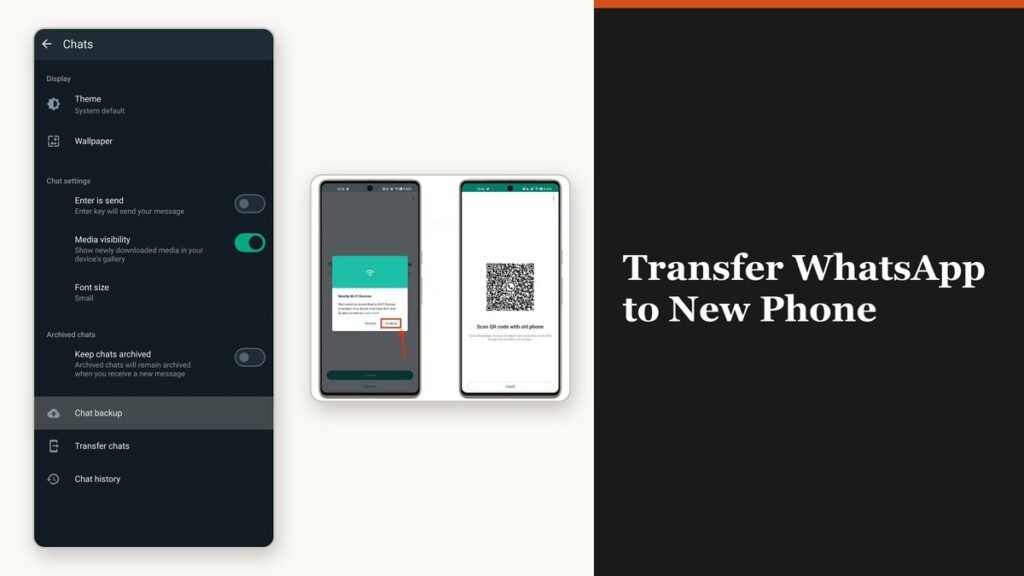
To transfer WhatsApp to new phone handsets without losing anything, use Chat Transfer rather than a backup restore wherever you can. A backup recovers chat data. Chat Transfer moves the account itself, including messages, photos, videos and documents, directly between the two devices over a local Wi-Fi link that never touches cloud storage.
All four routes share one unforgiving rule. The move has to happen before WhatsApp is activated on the new phone. Register first and the only way back to your old history is to wipe the new device and start again, because the two sets of chats cannot be merged.
Pick the route for your two phones
| Moving from and to | Method | Main requirement |
|---|---|---|
| Android to Android | Chat Transfer over local Wi-Fi | Android 6 or above on both |
| iPhone to iPhone | Chat Transfer over local Wi-Fi | Latest iOS and WhatsApp on both |
| Android to iPhone | Apple’s Move to iOS app | iPhone must be new or factory reset |
| iPhone to Android | Chat Transfer over local Wi-Fi | Android 6 or above |
Three of the four use WhatsApp’s own transfer. The exception is Android to iPhone, which runs through Apple’s Move to iOS app and is the only route that demands a factory-fresh destination. Whichever applies, keep both phones close together, plugged into power and with Wi-Fi switched on, and leave the old phone alone until the new one confirms the transfer finished.
Transfer WhatsApp to a new Android phone
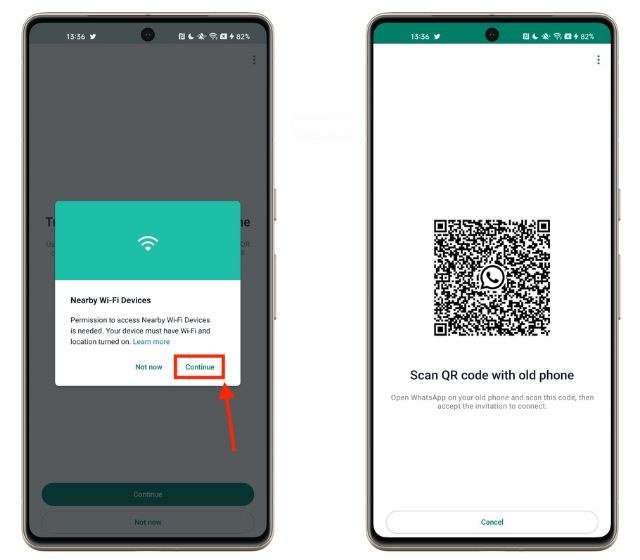
The Android flow pairs the phones with a QR code. Precise location permission is part of it, because Android gates nearby-device discovery behind that permission rather than using it for anything to do with your location.
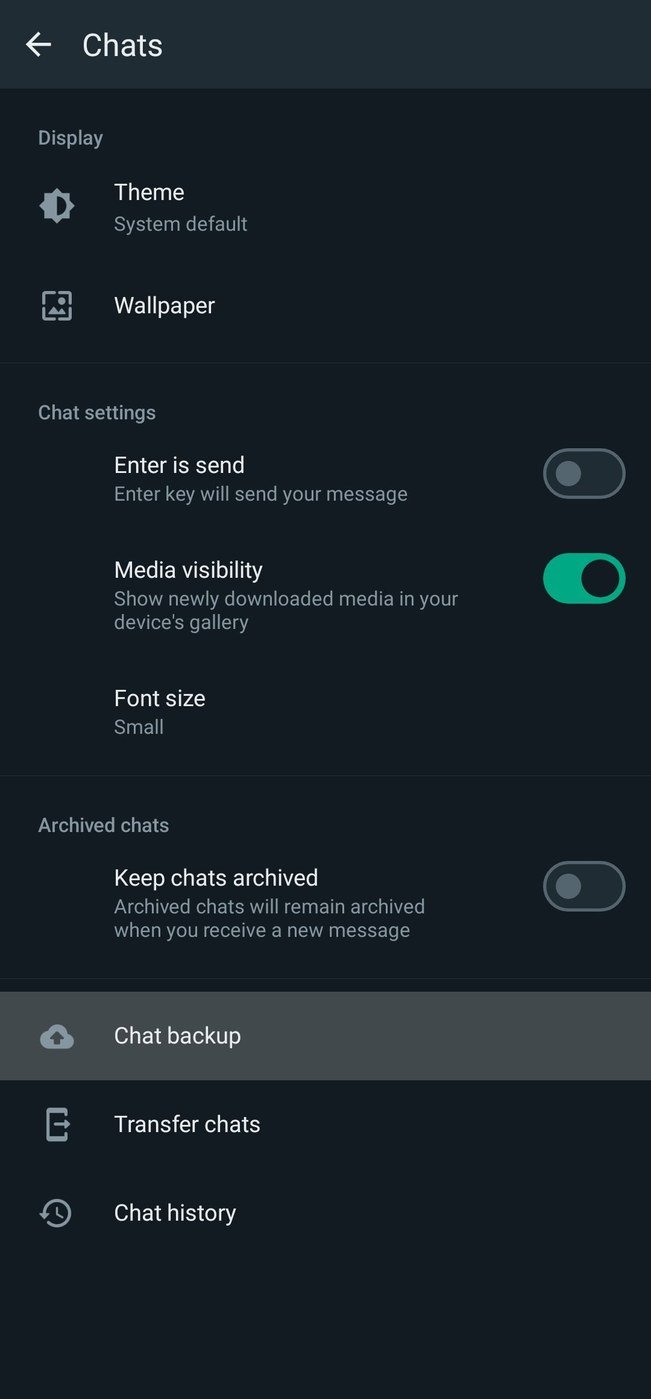
- On the old phone, open WhatsApp and tap the three-dot menu, then Settings, then Chats, then Transfer chats, then Start.
- Accept the permissions it asks for and wait at the QR scanner.
- On the new phone, install WhatsApp, open it and tap Agree and continue.
- Verify the same phone number and accept the permissions.
- Under Restore or transfer chats, choose Transfer from old phone, tap Continue, then Start.
- Scan the QR code on the new phone using the old phone’s camera, then tap Accept on the new phone.
- Watch the percentage bar to the end, then tap Next.
If it stalls, turn both phones off, wait 30 seconds and start again. Nothing is lost by a failed attempt as long as the old phone has not been wiped, which is why the old device stays untouched until the new one is showing your chats.
Moving between two iPhones
The iPhone version is the same mechanism with Apple’s wording and one extra permission. Both phones need local network access, and both need to be on Wi-Fi and online rather than simply having Wi-Fi enabled.
- On the old iPhone, open WhatsApp, tap your profile picture, then Chats, then Transfer Chats to iPhone, then Start.
- Allow camera access if prompted. The old phone does the scanning.
- On the new iPhone, open WhatsApp, tap Agree & continue and verify the number.
- Tap Continue on the transfer screen and accept local network permissions.
- Scan the new phone’s QR code with the old phone and accept local network permissions again.
- When it reads Transfer completed, tap Next and enter your name on the profile screen.
Messaging is paused on both devices for the duration, and the transfer can be cancelled at any point. Keep both screens on and stay inside WhatsApp, because switching apps on either handset interrupts it.
Android to iPhone with Move to iOS
This is the one route that is not WhatsApp’s own, and the one with a hard prerequisite: the iPhone has to be factory new or factory reset. An iPhone you have already set up and used cannot run this transfer at all.
- Install the Move to iOS app on the Android phone. Other transfer apps are not supported and cause failures.
- Start the iPhone setup, choose the option to move from Android, and enter the code the iPhone shows into the Android phone.
- Select WhatsApp on the Transfer Data screen and tap Start on the Android phone.
- Wait while WhatsApp prepares the export. You are signed out of the Android phone when it finishes.
- Tap Next to return to Move to iOS, then Continue to send the data.
- Install WhatsApp from the App Store, open it and log in with the same number, then tap Start when prompted.
Both devices need to be on power and on the same Wi-Fi network, or the Android phone connected to the iPhone’s hotspot. Android 5 or above and iOS 15.5 or above are the floors. Your call history and display name do not survive this direction, and neither does media you received through Channels.
iPhone to Android
Going the other way needs no Apple app and no factory reset, and it is the one direction that carries your call history across.
- On the iPhone, open WhatsApp and go to Chats, then Transfer chat history, then Transfer to Android.
- Tap Continue once the chats are prepared, and allow camera access.
- On the Android phone, open WhatsApp and verify the same number, then tap Allow so the devices can connect.
- Scan the QR code shown on the Android phone with the iPhone camera.
- Tap Join to connect to the Wi-Fi network and begin.
- Tap Next on the Android phone when it completes.
Keep the iPhone awake throughout and do not delete WhatsApp data from it until the Android phone is showing the chats. Status updates and display name do not come across in this direction. If the new handset is the question rather than the move, our comparison of Android phones worth buying instead is the place to start.
The mistakes that cost people their history
- Registering WhatsApp on the new phone first. This is the big one. The transfer option disappears and the histories cannot be merged.
- Wiping the old phone too early. Until the new device confirms success, the old one is the only complete copy.
- Changing number at the same time. Transfers only work to the same number. Change the number on the old phone first, then move.
- Expecting it on WhatsApp Business. Chat transfer is not available in the Business app in any direction.
- Letting a phone sleep. Both devices need to stay awake and inside WhatsApp until the bar finishes.
Nothing in a chat transfer goes to the cloud, which is a privacy gain and a backup gap at the same time. Once the new phone is working, set the backup up again from scratch, since the transfer does not create one. Our walkthrough of backing WhatsApp up properly covers the schedule and the encryption switch.
Frequently Asked Questions
Can I transfer WhatsApp without Wi-Fi?
On Android the two phones only need Wi-Fi switched on, not connected to a network, because they link directly. iPhone to iPhone needs both devices actually online. Android to iPhone needs a shared network or the iPhone’s hotspot.
Does chat transfer use my mobile data?
No. The data moves directly between the two phones over a local link, which is why the size of your history affects how long it takes but not what it costs.
What if I already set up WhatsApp on the new phone?
Uninstall WhatsApp on the new phone and start the transfer again. Going from Android to iPhone is harsher: that route needs a factory-reset iPhone, so the whole device has to be erased.
Can I keep using the old phone afterwards?
The data stays on the old phone until you delete WhatsApp or wipe it, but the account itself moves. Only one phone can hold a WhatsApp account at a time on a given number.
Related Articles

Get the Fox Bulletin briefing
The stories that matter, in your inbox. No spam, unsubscribe anytime.
Newsletter signup will be available soon.
Related stories
Google Selfie for Sign-In: How It Works and Is It Safe
The prompt headed Add a selfie for sign-in asks to keep a video of your face on your Google Account. Here is what that video is used for, and how to remove it.
My Eyes Only Snapchat: Set It Up and Unlock It
Forgetting the passcode does not lock you out. It deletes everything behind it, and that is by design.
How to Delete Friends on Snapchat and What Changes
Removing a friend is quiet and quick. It also leaves them able to message you unless one other setting is changed.