

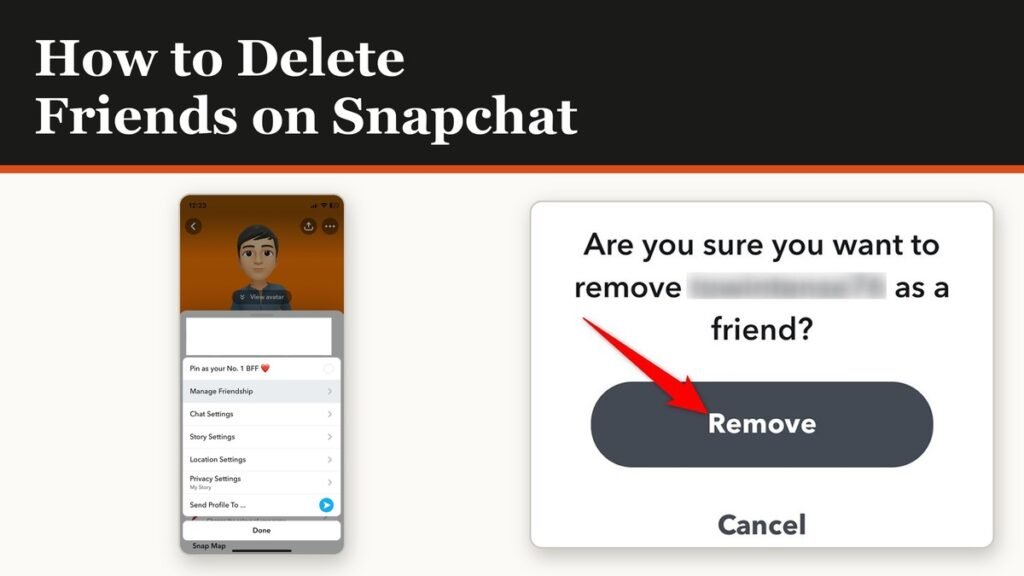
The process for how to delete friends on Snapchat is four taps and no confirmation to the other person: go to the Chat screen, press and hold their name, tap Manage Friendship, then tap Remove Friend. Snapchat calls this quietly taking someone off your friends list, and quiet is accurate. Nobody is told.
What catches people out is the half-measure underneath. Removing a friend is not blocking them. Snapchat says a removed person may still be able to Chat or Snap you depending on your privacy settings, and for a lot of accounts those settings allow exactly that.
Two ways to delete friends on Snapchat
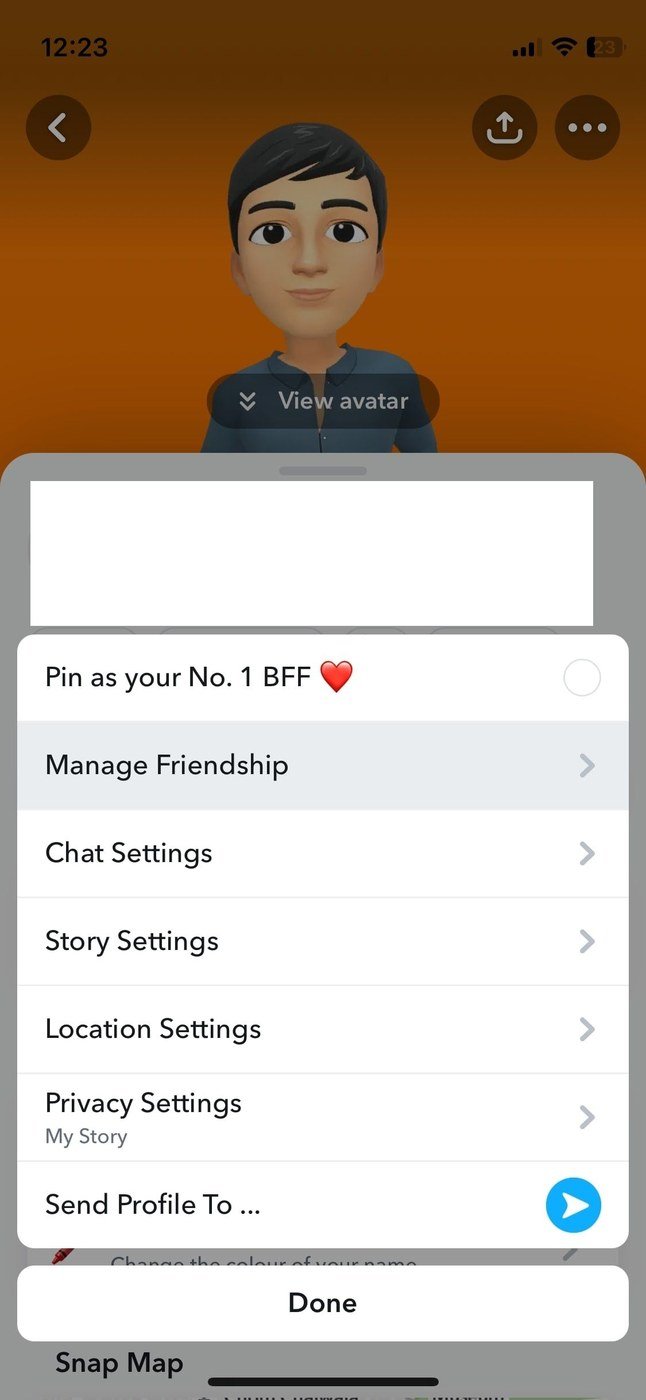
- Long press: swipe right from the camera to the Chat screen, press and hold the friend’s name, tap Manage Friendship, then Remove Friend.
- From their profile: swipe right, tap the friend’s profile icon to open their Profile, tap the three-dot icon at the top, tap Manage Friendship, then Remove Friend.
- Confirm at the prompt.
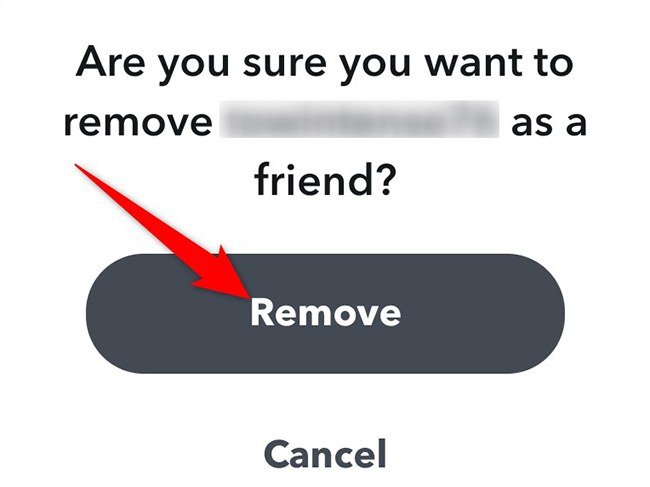
There is no bulk option. Snapchat states that friends have to be removed one at a time, so a long clear-out is a long session of the same four taps. Once removed, the person stops appearing in your friends list and should drop off your Stories screen too.
What the other person can still do
The honest answer is more than most people assume.
| After you remove them | What happens |
|---|---|
| Your private Stories | Hidden from them |
| Your Charms, including Snapstreaks | No longer visible to them |
| Public content you post | Still visible |
| Chatting or Snapping you | Possible, depending on your privacy settings |
| Your Stories screen | They disappear from it |
That fourth row is the important one. By default Snapchat lets your friends contact you, and you may also see messages from people in your phone’s contacts who message you before adding you. Removing someone does not automatically close that door.
Close the door properly
If the point of removing them was to stop the messages, change who can reach you as well.
- Tap your profile icon, then the gear icon for Settings.
- Tap Who Can Contact Me.
- Select Friends.
- For a single persistent account, open the chat and use Report or Block instead. Snapchat says the other person is not told you did.
A block is the stronger instrument and the one to reach for when a removal has not worked. It stops all contact, hides your Stories and Charms and takes your Snap Map location away from them, and our walkthrough of unblocking someone on Snapchat covers reversing it if you change your mind.
Remove, block or mute
Snapchat offers three ways to step back from someone and they sit on a scale.
- Mute is a break from their Stories and notifications with the friendship intact. Nothing visible changes for them.
- Remove Friend takes them off the list but leaves public content open and may leave messaging open.
- Block completely prevents interaction, in Snapchat’s own words, and is the only one that hides you from search and Quick Add.
- Report is separate from all three and sends the account to Snapchat for review.
Clearing the conversation that is left behind
Removing someone does not remove the chat. If you want the thread gone from your Chat feed as well, that is a separate control, and the path differs by platform.
- On iPhone: Settings, then My Privacy & Data under App & Privacy, then Clear Data, then Clear Conversations, then the X next to the name.
- On Android: Settings, then My Privacy & Data, then Clear Conversation under Manage My Data.
Snapchat notes that clearing a conversation does not delete saved or sent content, so anything either of you saved in the thread survives the clear-out. Individual messages come out by pressing and holding one and tapping Delete, though your friends can see that a message was deleted and can still have screenshotted it first.
Adding them back later
There is no undo on the chat screen. Snapchat says that once you remove someone, adding them again means searching for them, so you will need their exact username rather than a display name.
Expect the Charms to be gone. Charms highlight things about a friendship and include Snapstreaks, and they are a friend feature, so they stop applying the moment the friendship does. Saved messages are at risk too: Snapchat says saved messages in a one-to-one chat may be removed over time once two people are no longer friends. If any of it mattered, our guide to what the Snapchat planets mean explains the other friendship signals that reset at the same time.
Frequently Asked Questions
Does Snapchat tell someone you removed them?
No. There is no notification. They would have to notice that your private Stories have gone or that your name has left their friends list.
Can I remove several Snapchat friends at once?
No. Snapchat says there is no way to remove multiple friends at the same time, so each one has to be done individually through Manage Friendship.
Does removing a friend delete the chat?
Not immediately, but saved messages in that conversation may be removed over time once you are no longer friends. Clearing the conversation yourself is a separate action in your privacy settings.
Will they still see my Snap score?
A Snap score is visible on a profile, and a removed friend can still look you up if your profile is reachable. Blocking is what removes you from their search results entirely.
Related Articles

Get the Fox Bulletin briefing
The stories that matter, in your inbox. No spam, unsubscribe anytime.
Newsletter signup will be available soon.
Related stories
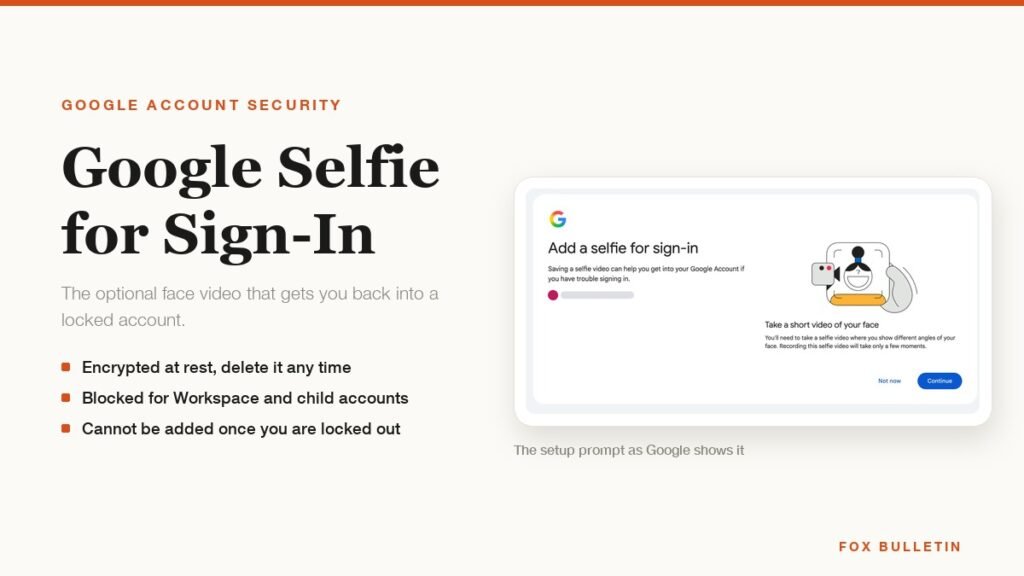
Google Selfie for Sign-In: How It Works and Is It Safe
The prompt headed Add a selfie for sign-in asks to keep a video of your face on your Google Account. Here is what that video is used for, and how to remove it.
My Eyes Only Snapchat: Set It Up and Unlock It
Forgetting the passcode does not lock you out. It deletes everything behind it, and that is by design.
Snapchat Dark Mode: Turn It On for iPhone and Android
The setting is four taps away and almost nobody finds it, because it is filed under Shortcuts rather than anywhere you would look.