

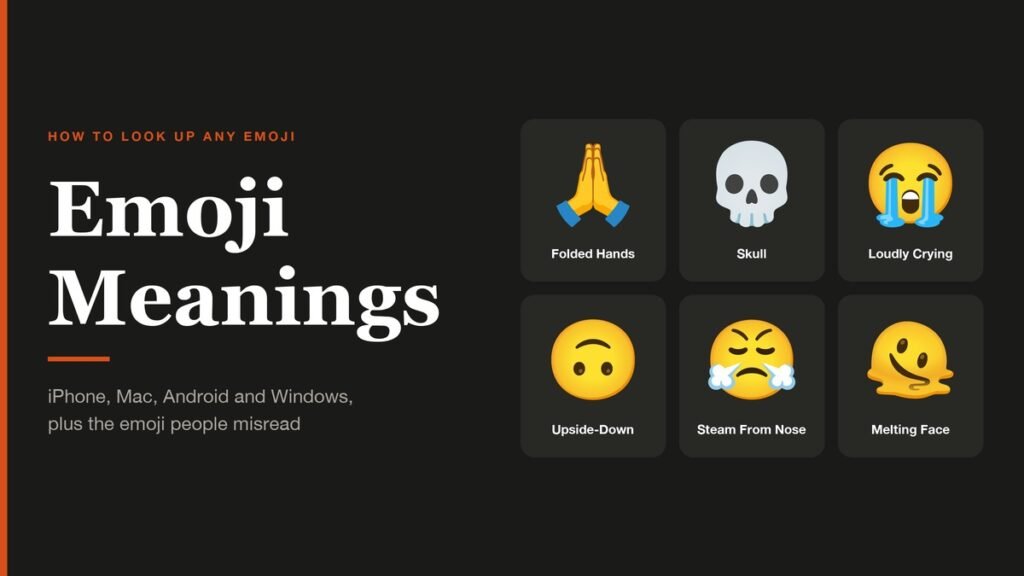
Emoji meanings are rarely as obvious as they look. Two pressed palms read as a high five to some people and a prayer to others, a skull usually means somebody is laughing, and a sobbing face is as likely to be joy as grief. The good news is that every emoji carries an official name, and the phone or computer in front of you will tell you what it is if you know where to ask.
By the end of this guide you will be able to identify any emoji on an iPhone, iPad, Mac, Android phone or Windows PC, then check how people actually use it. Each method takes under a minute once a setting is switched on, and none of them needs a paid app.
The Fastest Way to Check Emoji Meanings
Short version: on a Mac, open the Character Viewer with Fn/Globe-E and hover over the emoji to see its name. On an iPhone, turn on Speak Selection, select the emoji and tap Speak. On Android or Windows, paste the emoji into a web search. Then look it up on Emojipedia to see how people use it.
The name tells you what the designer drew. The usage tells you what the sender most likely meant, and the two are often different. Get both before you reply to anything that matters.
What You Need Before You Start
- A Mac on macOS 27 Golden Gate or an earlier version. The Character Viewer has been part of macOS for years, and only its shortcut has changed.
- An iPhone or iPad on iOS 27 or iPadOS 27. Older versions work too, but the setting was called Spoken Content before Apple renamed it Read & Speak. If you are behind, our guide to updating to iOS 27 covers the storage checks that usually hold it up.
- An Android phone with Gboard, Google's keyboard, which many phones ship with and any phone can install.
- A Windows 11 or Windows 10 PC. The emoji panel is built in.
- A web browser for the final usage check on Emojipedia.
How to See an Emoji's Name on a Mac
Apple's guide to emoji and symbols on Mac covers the Character Viewer, the panel that holds every emoji the Mac can display. It also shows each emoji's name, which is the part most people never notice.
- Click into any text field, such as a new note or a Messages conversation. Check: the cursor is blinking.
- Press Fn/Globe-E, or choose Edit > Emoji & Symbols from the menu bar. Check: the Character Viewer pops up under the cursor.
- Find the emoji by browsing the categories, or type a guess such as “hands” into the search field. Check: the grid narrows to matching emoji.
- Rest the pointer on the emoji without clicking. Check: a small label appears with its name.
- For more room, click the expand button in the upper-right corner of the viewer, then select the emoji. Check: the right-hand panel shows a large preview and the full name.
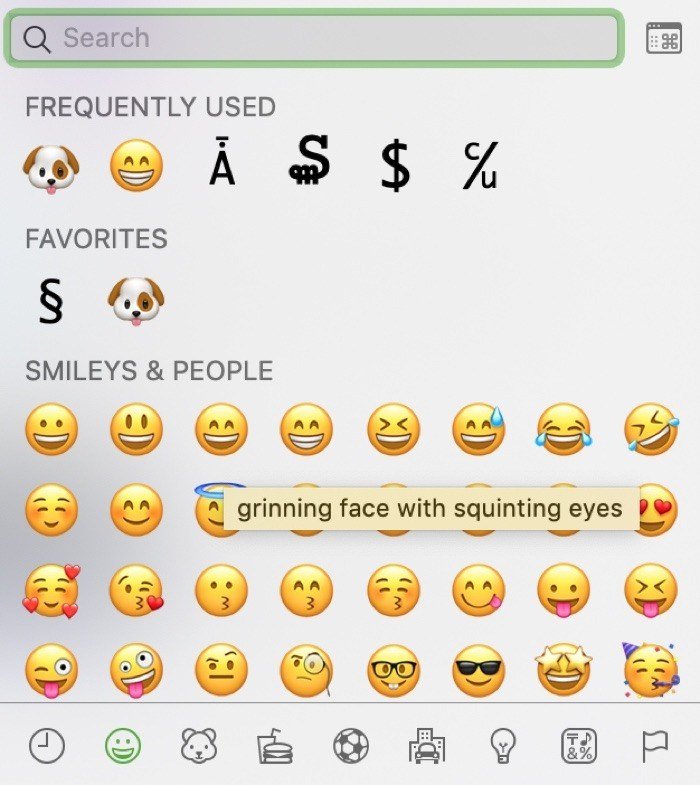
If the emoji came from someone else, copy it out of the message first. The Mac does not identify an emoji sitting inside a bubble, so the quickest route for a received emoji is the Emojipedia check further down.
How to Hear What an Emoji Means on iPhone or iPad
The iPhone has no hover, so it reads the name aloud instead. The feature is Speak Selection, and Apple's instructions for spoken content list it under Read & Speak in iOS 27. Switch it on once and it stays available everywhere you can select text.
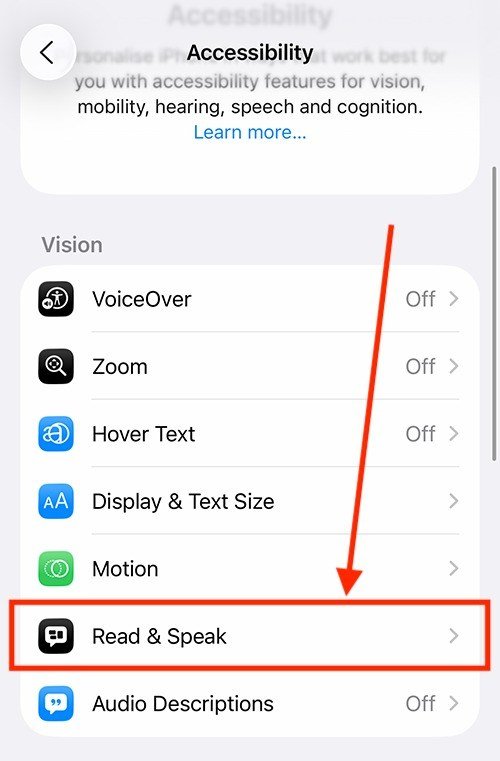
- Open Settings and tap Accessibility.
- Under Vision, tap Read & Speak.
- Tap Speak Selection and turn it on. Check: the note under the switch says a Speak button will appear when you select text.
- Open Notes or a message draft and add the emoji you want to identify. For an emoji someone sent you, touch and hold their message, tap Copy, then paste it into the draft.
- Double-tap the emoji so it is highlighted on its own. Check: the selection handles sit either side of the single emoji.
- Tap Speak in the menu that appears. If you cannot see it, tap the arrow at the end of the menu. Check: the iPhone says the emoji's name out loud.
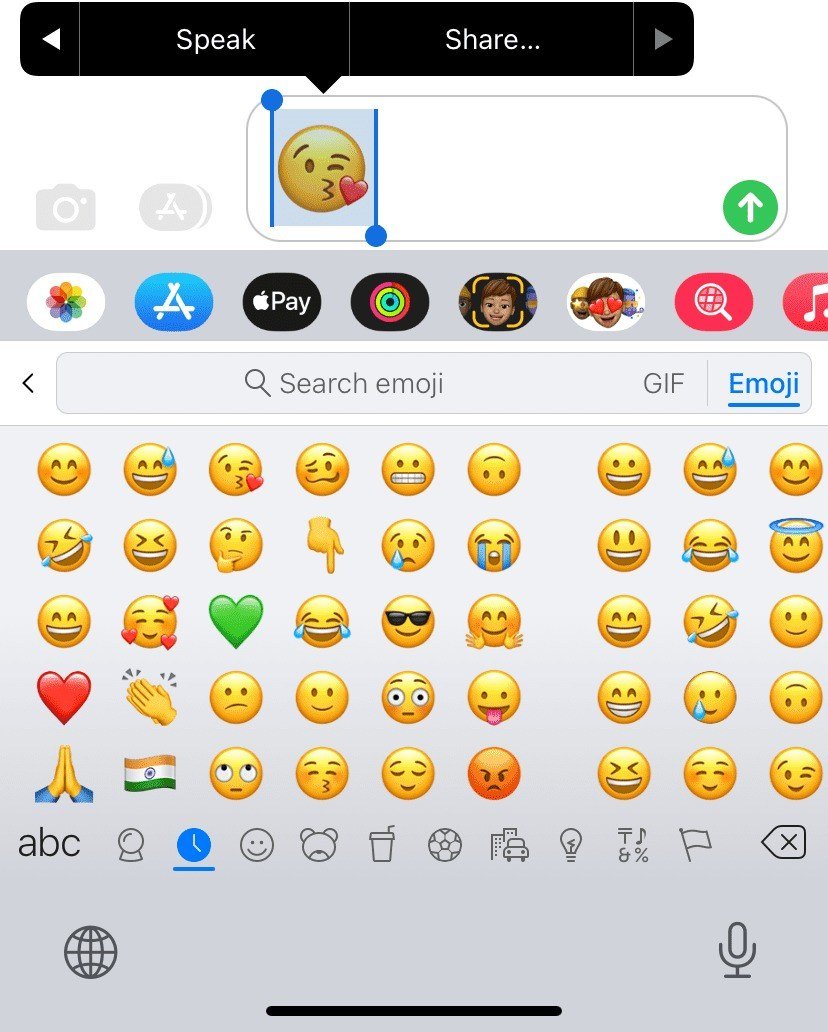
Two smaller tricks work in the other direction. As you type a word, suggested emoji appear above the keyboard, which confirms what an emoji stands for. The Search emoji field at the top of the emoji keyboard does the same for any word you type into it.
How to Identify an Emoji on Android
Android's quickest answer is a web search, because Google treats a pasted emoji as a query and returns pages about it. Gboard covers the reverse check, matching words to emoji.
- Touch and hold the message that contains the emoji, then tap Copy.
- Open the Google app or Chrome and paste the emoji into the search bar on its own.
- Run the search. Check: the results name the emoji, usually led by its Emojipedia entry.
- To test a guess, open any text field, tap the smiley key on Gboard and tap Search emoji.
- Type the word you think the emoji means. Check: if the emoji appears in the results, Gboard files it under that word.
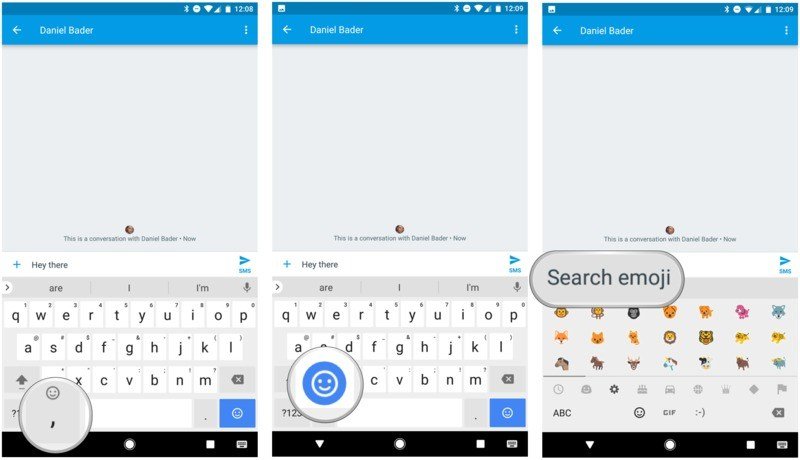
Gboard's key layout changes between versions and phone makers. If the smiley key is missing, long-press the comma key to reach the emoji panel instead.
How to Use the Emoji Panel on Windows
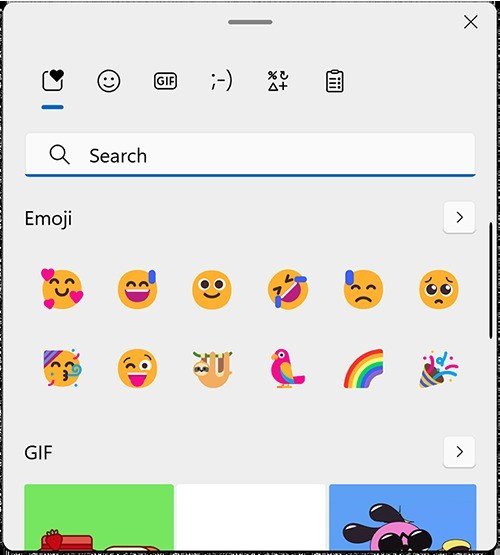
Windows 11 and Windows 10 share a shortcut for the emoji panel, and Microsoft documents it in its keyboard tips. The panel searches by keyword, which makes it a reverse lookup rather than a dictionary.
- Click into any text field, such as Notepad or a chat box.
- Press the Windows key and the period key together. Check: the emoji panel opens beside the cursor.
- Keep typing a word that describes the emoji. Check: the grid filters to emoji tagged with that word.
- For an emoji somebody sent you, copy it and paste it into a browser search, as on Android.
Check Real Emoji Meanings on Emojipedia
A name tells you what an emoji depicts. Emojipedia, a reference site that catalogues every emoji, adds how people actually use it, and that is where meaning lives. Its entry for Folded Hands, for example, explains that the gesture means please or thank you in Japanese culture and is only rarely a high five.
- Copy the emoji from the message.
- Go to emojipedia.org and paste it into the search bar at the top.
- Open the matching result. Check: the page title names the emoji and starts with a short meaning.
- Read the meaning, then open the Emoji Designs tab. Check: you can see the versions drawn by Apple, Google, Samsung, Microsoft and others side by side.
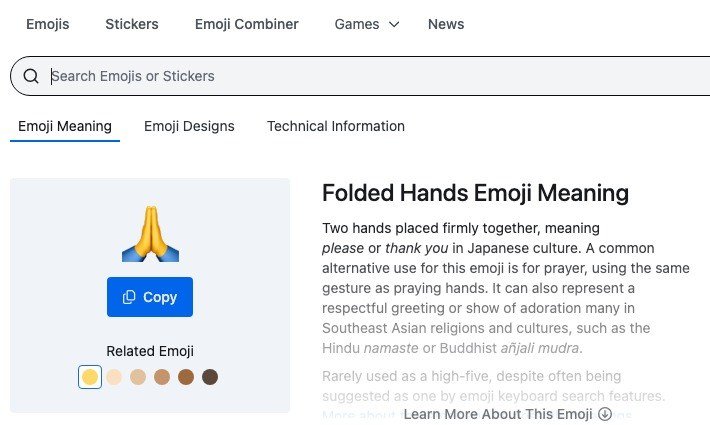
The Designs tab matters more than it looks. The sender saw their own platform's drawing, not yours, so an emoji that looks friendly on your screen can look smug on theirs.
Commonly Misread Emoji Meanings
These are the emoji whose everyday use drifts furthest from the picture. The names are the official ones your device will read out; the meanings summarise how each is most often used.
| Emoji | Official name | What it usually means |
|---|---|---|
| 🙏 | Folded Hands | Please or thank you, prayer, a respectful greeting. Rarely a high five. |
| 💀 | Skull | Figurative death: “I am dead” from laughing, frustration or affection. |
| 😭 | Loudly Crying Face | Overwhelming emotion, very often laughter or joy rather than grief. |
| 🙃 | Upside-Down Face | Irony, sarcasm, joking or plain silliness. |
| 😬 | Grimacing Face | Nervousness, embarrassment or awkwardness, the “eek” face. |
| 😤 | Face with Steam From Nose | Irritation or contempt, but also pride and triumph. |
| 😏 | Smirking Face | Smugness, mischief, flirting or innuendo. |
| 🫠 | Melting Face | Sarcasm, embarrassment, dread or feeling overwhelmed. Sometimes just heat. |
| 🤌 | Pinched Fingers | The Italian “what do you want?” gesture: disbelief or frustration. |
| 💅 | Nail Polish | Confidence, sass or nonchalance more often than manicures. |
| 😳 | Flushed Face | Embarrassment, though also surprise, disbelief or flattery. |
| 🫡 | Saluting Face | Respect, or “understood” when someone hands you a task. |
Context still decides. A skull from a friend after a joke is laughter, and the same skull under a horror film trailer may just be a skull. Apps layer their own symbols on top as well: Snapchat's green dot and its friend planets carry meanings that no emoji dictionary covers.
Two Mistakes That Lead to the Wrong Meaning
- Trusting keyboard suggestions as definitions. Keyboards match emoji to loose keywords, so typing “high five” can surface Folded Hands even though that is not what it shows. Use a suggestion to find an emoji, never to decide what it means.
- Reading your design instead of theirs. Flushed Face and Grimacing Face have looked very different across platforms over the years. When a message reads oddly, compare designs before you react.
A third trap is the empty box. Unicode 18.0, released on 16 September 2026, added nine emoji, among them a cracking face and a pair of left- and right-pointing thumbs, and the Unicode emoji counts now reach 3,972 including skin-tone and other variants. A device that has not caught up shows a new emoji as a box or a question mark. That is a missing font, not a hidden message.
Frequently Asked Questions
Is there an emoji dictionary built into my phone?
Not as a dictionary, but every device knows each emoji's official name. The iPhone reads it aloud with Speak Selection, the Mac shows it in the Character Viewer, and Android and Windows return it from a web search.
Why does an emoji look different on my friend's phone?
Unicode decides which emoji exist and what they are called, but Apple, Google, Samsung and Microsoft each draw their own versions. The meaning is meant to match while the drawing does not, which is how misunderstandings start.
What does the skull emoji mean in a text?
Most of the time it means the sender is “dead”, usually from laughing, sometimes from frustration or affection. It works like the phrase “I am dying” rather than anything literal.
Why do I see a box instead of an emoji?
Your device does not have that emoji yet. New emoji arrive with system updates, so updating the phone or computer usually fixes it once your platform has added the new designs.
Related Articles
- How to Make a Public Profile on Snapchat
- Instagram Just Changed in a Big Way: Everything New
- Forgot iPhone Passcode? Here Is How to Get Back In
- How to Screenshot on Mac and Find Every Screenshot Later
- Degree Symbol: How to Type ° on iPhone, iPad and Mac
- Black and White Wallpaper: 10 Free iPhone Designs

Get the Fox Bulletin briefing
The stories that matter, in your inbox. No spam, unsubscribe anytime.
Newsletter signup will be available soon.
Related stories
Second Monitor Not Detected? Fixes for Common Multi-Monitor Problems
A second monitor that shows no signal is usually a cable, input or display mode problem. Here is the fix for that and every other common multi-monitor headache.
How to Scan Mac for Malware: A Complete Step-by-Step Check
Macs scan themselves, but not on demand. Here is how to check a Mac for malware by hand, which free tools help, and the 2026 copy-paste scam to watch for.
How to Split Screen on iPad: Side by Side, Slide Over and More
Split screen on iPad now lives inside Windowed Apps. Here is how to put two apps side by side, resize them, float a third in Slide Over and go back to one app.