

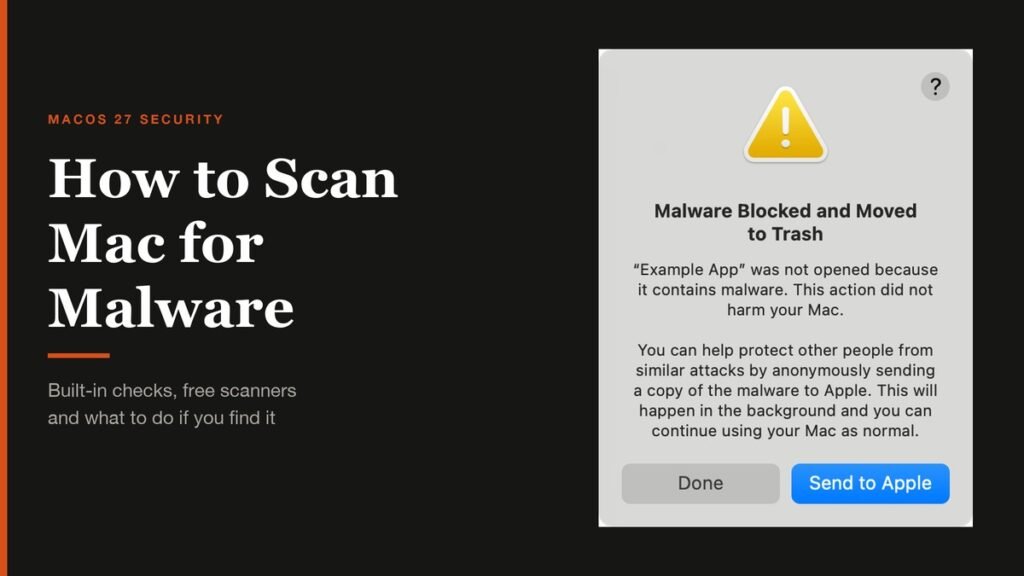
Knowing how to scan Mac for malware matters more than it used to. Macs have strong built-in defences, but the threats aimed at them have changed: instead of sneaking past macOS, most 2026 attacks trick the owner into letting them in, then quietly steal passwords, browser cookies and cryptocurrency.
macOS has no scan button, so checking a Mac means knowing where malware hides. This guide explains what your Mac already scans automatically, walks through six manual checks that cover the places malware persists, recommends free tools for a second opinion, and sets out exactly what to do if you find something.
The Quick Answer
Short version: update macOS so XProtect has the latest signatures, then check System Settings, General, Login Items & Extensions and Device Management for anything you do not recognise. Review your Applications folder and browser extensions, watch Activity Monitor for unknown busy processes, and run a free scanner such as Malwarebytes for a second opinion.
Signs Your Mac Might Have Malware
| What you notice | Likely cause | Where to look |
|---|---|---|
| Browser homepage or search engine changed | Adware or a malicious extension | Step 4 |
| Pop-ups and redirects in every browser | Adware | Steps 2 and 4 |
| Apps, login items or profiles you never added | Adware or a persistent backdoor | Steps 2 and 3 |
| Fans and CPU busy while the Mac is idle | Cryptominer or runaway process | Step 5 |
| Accounts logged in elsewhere, crypto wallets drained | Infostealer | If You Find Malware |
| A macOS alert about malware | XProtect caught something | Step 1 |
The most dangerous Mac malware is often the quietest. Infostealers try to grab what they want in one go and may leave few visible traces, so a clean-looking Mac is not proof of safety if you recently ran something suspicious.
What Your Mac Already Scans Automatically
Apple builds three layers of protection into macOS, described.
- Gatekeeper and Notarization check that apps from outside the App Store come from an identified developer and have been scanned by Apple for known malware before they first open.
- XProtect is the built-in antivirus. It checks apps when they first launch, when they change on disk and when its signatures update, and moves known malware to the Trash with an alert.
- XProtect remediation periodically looks for infections that have already run and removes them when Apple pushes new information. macOS checks for XProtect updates daily by default.
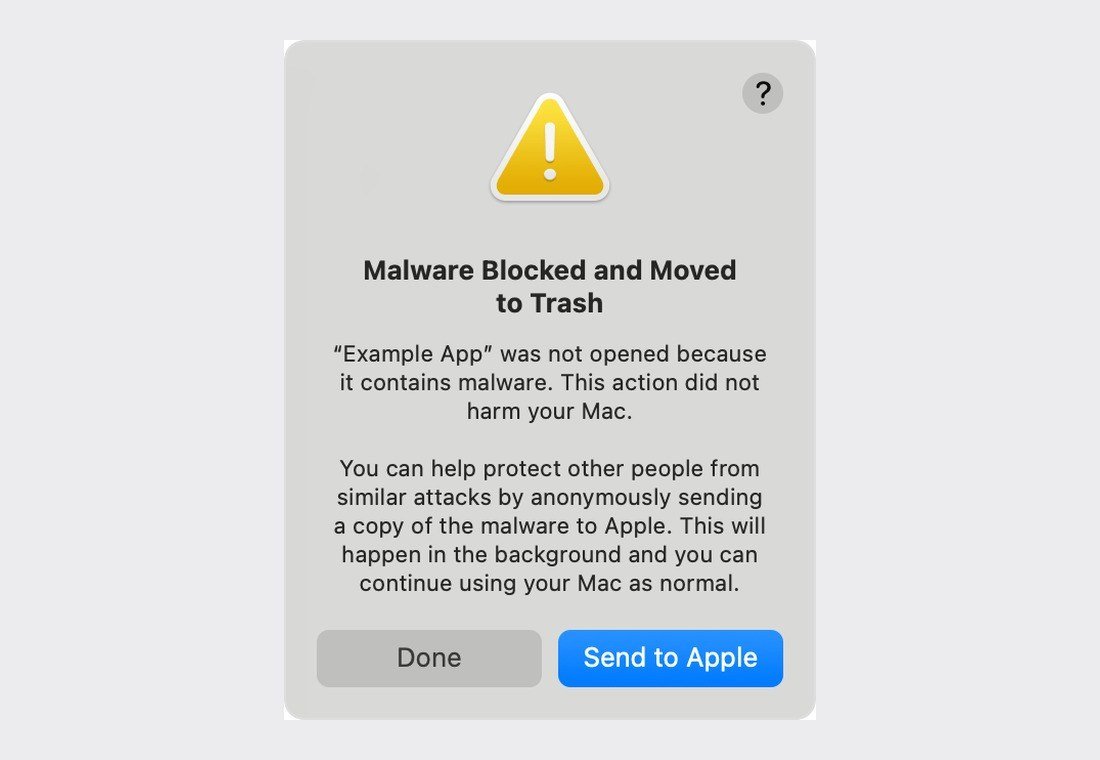
The limitation is that you cannot point XProtect at your drive and ask for a full scan, and it only knows what Apple has added signatures for. That is why the manual checks below are worth doing.
Step 1: Update macOS and Its Security Files
- Open System Settings, click General, then Software Update, and install anything waiting.
- Click the info button next to Automatic Updates.
- Turn on Install system data files and security updates (on macOS Sequoia and earlier it is called Install Security Responses and system files). Check: it shows as on.
This keeps XProtect signatures and Background Security Improvements current without waiting for a full macOS release. If you are comfortable with Terminal, sudo xprotect check reports the latest XProtect version available on recent macOS releases.
Step 2: Check Login Items and Background Activity
Malware wants to survive a restart, and the easiest way is to register itself to launch automatically.
- Open System Settings, click General, then Login Items & Extensions.
- Under Open at Login, select anything you do not recognise and click the remove button.
- Scroll to App Background Activity and turn off items from apps you do not use or cannot identify.
- Look up any unfamiliar name before removing it, since some belong to printer drivers or security software. Check: restart and confirm the item does not return.
An item that keeps coming back after removal is a strong sign that its parent app needs to be deleted.
Step 3: Look for Rogue Configuration Profiles
Profiles can change your browser settings, install certificates and route traffic, which makes them popular with adware. Open System Settings, click General, then Device Management. On a personal Mac this list is usually empty. Select any profile you did not knowingly install and click the remove button. If a work or school issued the Mac, check with its administrator first, because some profiles can only be removed by them.
Step 4: Review Apps and Browser Extensions
- Applications: open the Applications folder in Finder, switch to list view and sort by Date Added. Drag anything you did not install to the Trash, then empty it.
- Safari: open Safari, choose Settings, then Extensions, and uninstall anything unfamiliar. Check the General and Search tabs to restore your homepage and search engine.
- Chrome, Edge, Firefox and Brave: open the browser's extensions page and remove anything you did not add. Reset the startup page and search engine in settings.
Fake utilities are a favourite disguise. Be wary of cleaners, video downloaders, cracked apps and anything installed from a pop-up claiming your Mac is infected.
Step 5: Watch Activity Monitor
- Open Finder, then Applications, Utilities, Activity Monitor.
- Click the CPU tab and the % CPU column to sort by usage.
- Look for unfamiliar processes using lots of CPU while you are not doing anything demanding.
- Search the exact process name online before acting. Check: if it is clearly malicious, select it and click the stop button, then remove the app it belongs to.
Leave core macOS processes such as kernel_task, WindowServer and mds alone. They can run hot for legitimate reasons, such as indexing after an update.
Step 6: Run a Free Scanner for a Second Opinion
A second engine catches things XProtect has no signature for yet, especially adware.
- Malwarebytes for Mac offers a free scan. Open the app, click Scan on the Scanner card, then tick any detections and click Quarantine. Scheduled scans need a paid plan.
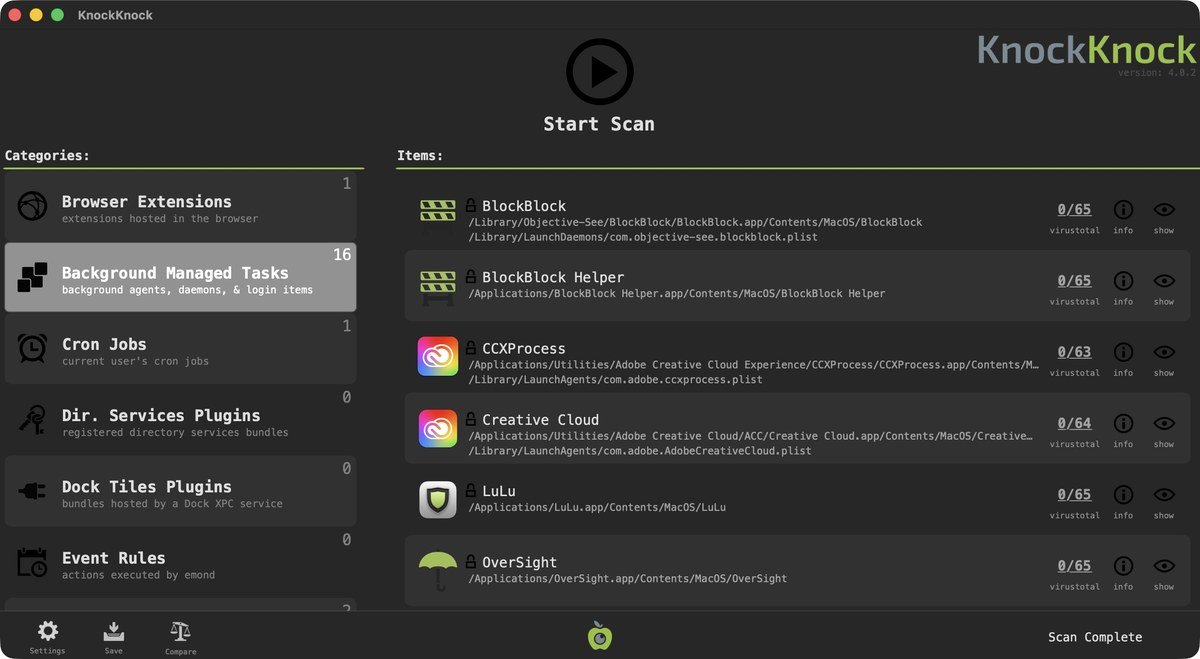
- KnockKnock, from the non-profit Objective-See, lists everything set to launch persistently, including background tasks and browser extensions, with a VirusTotal score beside each.
- BlockBlock and LuLu, from the same developer, are free tools that alert you when something tries to install itself persistently or make an outgoing connection.
Only download scanners from the developer's own site or the App Store. Fake "Mac cleaner" downloads are themselves a common source of malware.
The 2026 Threat to Watch: Copy-and-Paste Terminal Scams
The most common way Macs get infected now involves no download at all. A fake CAPTCHA, a broken video call or a "fix" for a supposed problem tells you to copy a command, open Terminal and paste it. Because you run it yourself, Gatekeeper has nothing to check. Security firm Moonlock's mid-2026 report found this ClickFix technique remains the dominant way in, with Odyssey, an offshoot of Atomic Stealer, behind 62.7 per cent of the stealer detections it tracked.
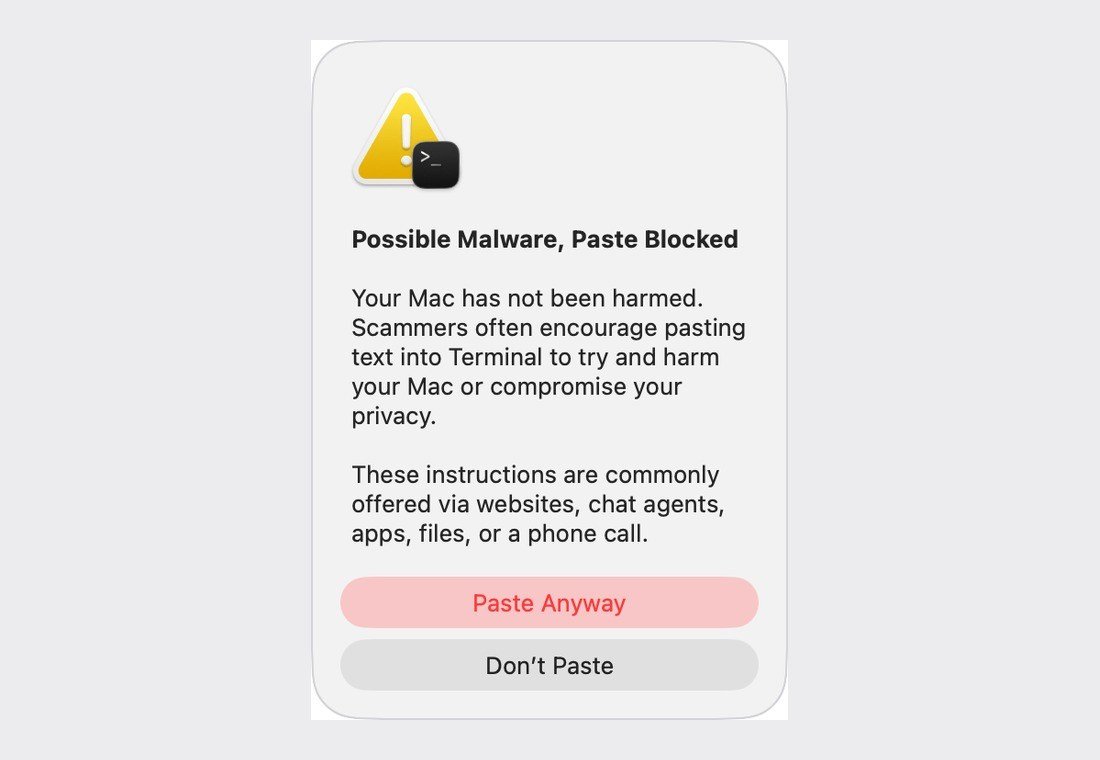
Since macOS Tahoe 26.4, Terminal can block a suspicious paste. Apple's guidance on the alert is simple: a "Possible malware, Paste blocked" warning means your Mac has not been harmed, and you should not paste the command unless you are certain what it does. A "Malware Detected" version offers no option to continue. The rule that protects you best is never to paste a command a website, chat or caller gives you.
If You Find Malware: What to Do Next
- Disconnect from the internet to stop data leaving the Mac.
- Remove the app, login item, profile or extension you found, then empty the Trash.
- If something refuses to quit or delete, start up in Safe Mode. On Apple silicon, shut down, press and hold the power button until startup options appear, select your disk, hold Shift and click Continue in Safe Mode.
- From another device, change your Apple Account password, email password and banking passwords. Our guide to resetting an Apple ID password walks through it.
- Sign out of other sessions on your important accounts and move any cryptocurrency to a new wallet.
- If you cannot be sure the Mac is clean, back up your documents and use System Settings, General, Transfer or Reset, Erase All Content and Settings, then set it up fresh.
Do You Need Antivirus on a Mac?
For most people, an up-to-date Mac plus careful habits is enough: download apps from the App Store or developer sites, never paste Terminal commands from strangers, and keep automatic security updates on. Paid antivirus adds real-time scanning and scheduled scans, which help people who install a lot of software or hold cryptocurrency. A Mac too old to receive security updates is the riskiest of all, and our MacBook Neo vs MacBook Air comparison covers the current budget options.
Frequently Asked Questions
Can I run a full malware scan with XProtect?
No. XProtect scans automatically when apps launch or change and when its signatures update, but it has no manual scan button. Use a free scanner for an on-demand check.
How do I know if my Mac has a virus?
Look for changed browser settings, pop-ups, unknown login items or profiles, and unexplained CPU use. Accounts accessed from elsewhere can point to an infostealer.
Is it safe to paste Terminal commands from websites?
Only if you fully understand the command and trust the source. Copy-paste Terminal commands are the main way Mac infostealers spread.
Will erasing my Mac remove malware?
Erase All Content and Settings removes your data, apps and settings, including malware hiding in them, while keeping macOS installed.
Related Articles

Get the Fox Bulletin briefing
The stories that matter, in your inbox. No spam, unsubscribe anytime.
Newsletter signup will be available soon.
Related stories

Morse Code: The Full Chart, Timing and How It Works
Every letter, digit, punctuation mark and procedural signal in international Morse code, with the timing rules that govern them and the places the code is still working.

Military Alphabet: All 26 Letters, Spelled and Pronounced
Alfa, Bravo, Charlie: the military alphabet is a set of 26 code words that keep letters apart over a noisy radio. Here is every letter, how to say it, and the history behind the list.
How to Turn Off Read Receipts on Instagram DMs
The global switch does not sweep up chats you have already set by hand. That one rule explains almost every case of Seen still appearing.