

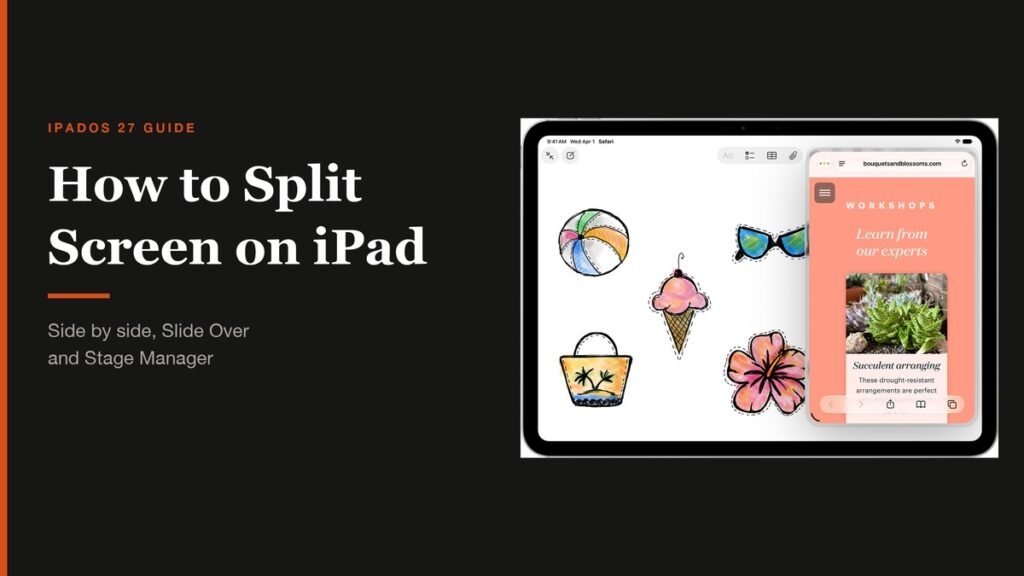
Knowing how to split screen on iPad turns it from a big phone into something closer to a laptop: notes beside a web page, a video call next to a document, two Safari windows for comparing prices. The feature changed a lot with iPadOS 26, and iPadOS 27 keeps that new design, so the old three-dot multitasking button no longer exists on an up-to-date iPad.
This guide covers the current method step by step, how to resize and swap apps, how to get rid of split screen, and the extras that make multitasking useful, including Slide Over and Stage Manager. Setting it up takes about two minutes.
The Quick Answer
Short version: open Settings, tap Multitasking & Gestures and select Windowed Apps. Open your first app full screen, then drag a second app from the Dock to the left or right edge of the screen. The two apps tile side by side. Drag the bar between them to resize, or all the way to one edge to close split screen.
Before You Start: Turn On Windowed Apps
Split screen needs iPadOS 26 or later and one of the windowing modes. Every iPad that can run iPadOS 26 or 27 gets the feature, from the iPad (9th generation) and iPad mini (6th generation) up to the latest iPad Pro.
- Open the Settings app.
- Tap Multitasking & Gestures.
- Select Windowed Apps. Check: open any app and you will see small window controls appear at its top left once you resize it.
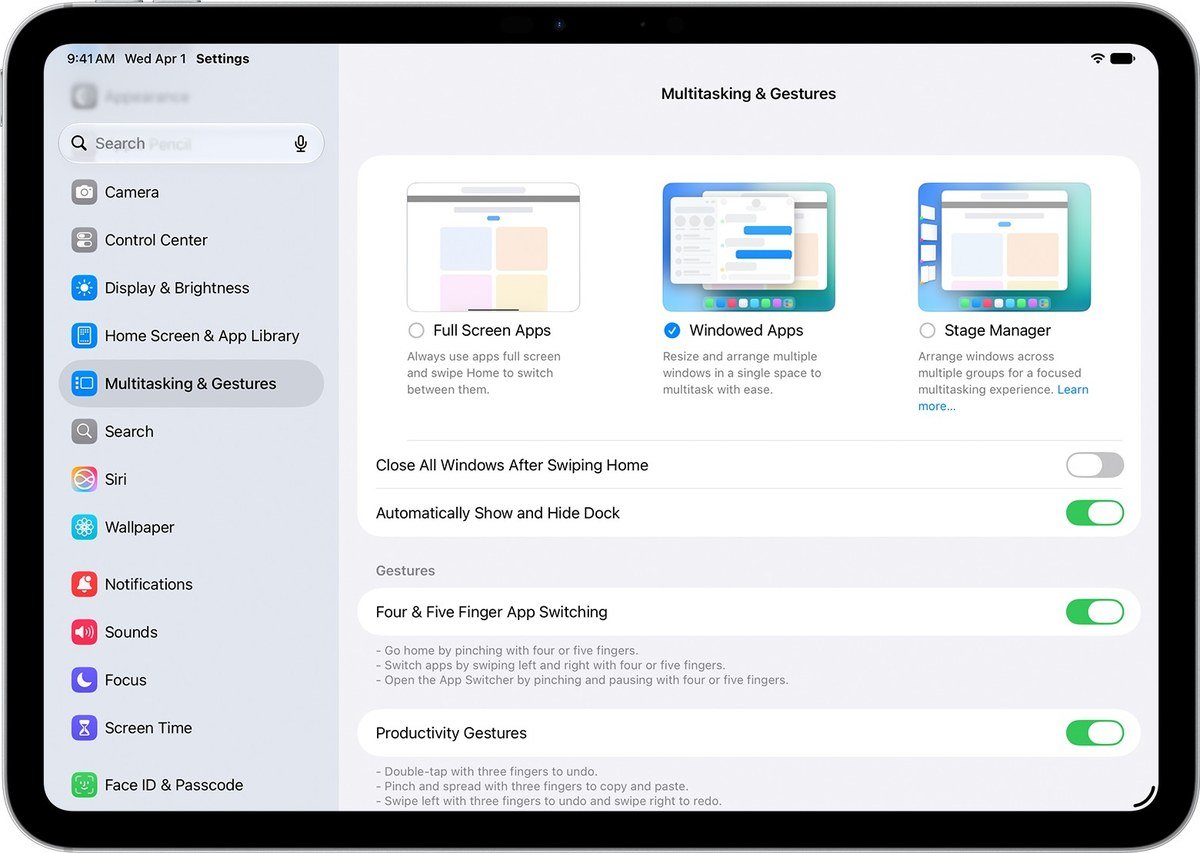
| Mode | How it works | Split screen? |
|---|---|---|
| Full Screen Apps | One app at a time, filling the screen | No |
| Windowed Apps | Resizable windows you can tile, overlap and float | Yes |
| Stage Manager | Windows grouped into sets, with recent apps on the left | Yes |
If your iPad is set to Full Screen Apps, every app fills the screen and there is no way to put two side by side, which is the most common reason people think the feature has disappeared.
How to Split Screen on iPad With Two Apps
This is the fastest route, and it follows Apple's multitasking guide.
- Open the first app so it fills the screen.
- Swipe up slightly from the bottom edge to show the Dock.
- Touch and hold the second app's icon in the Dock.
- Drag it to the left or right edge of the screen and let go. Check: both apps now share the screen, with a thin bar between them.
- Drag the bar in the middle to give one app more room.
You can drag the second app from App Library or Spotlight instead of the Dock, which helps when the app you want is not pinned there.
Tile Two Windows You Already Have Open
If both apps are already open as windows, drag one from its top edge, hold it briefly, then swipe it quickly toward one side of the screen. Do the same with the other window toward the opposite side, and they snap into a side-by-side layout.
Resize, Swap and Rearrange Split Screen Apps
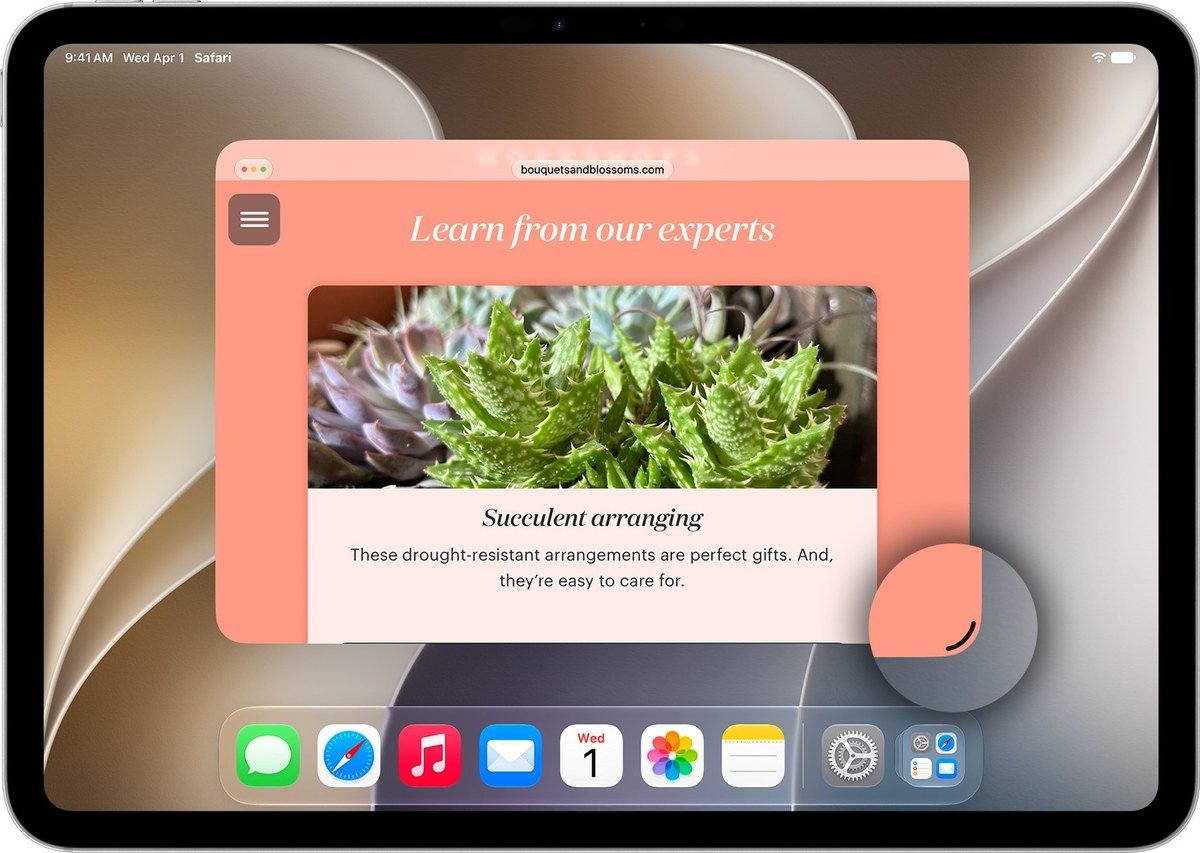
- Resize both apps at once: drag the divider between them.
- Resize a single window: drag the handle in its bottom-right corner.
- Swap an app out: drag a new app icon from the Dock on top of the window touching the left or right edge. The new app replaces it in the same spot.
- Use a preset layout: touch and hold the window controls at the top left of a window and pick one of the arrangements, such as halves or quarters.
- Fine-tune placement: tap Window in the menu bar, then Move & Resize, for more layout options.
Apple lists every gesture on its window layout page, including how to open an app in a window at its previous size by dragging its icon to the middle of the screen.
How to Get Rid of Split Screen on iPad
Getting back to a single app is just as quick. Use whichever of these is easiest:
- Drag the divider all the way to one edge. The app you push toward the edge closes, and the other fills the screen.
- Tap the window controls at the top of the app you want to keep and tap the full screen button.
- Double-tap the top of a window to make it full screen.
- Minimise or close the app you no longer need from its window controls.
- Switch modes for good: go back to Settings, Multitasking & Gestures and choose Full Screen Apps if you never want split screen.
Use Slide Over for a Floating Third App
Slide Over keeps one window floating on top of everything else, which is perfect for Messages or a calculator while you work. It returned in iPadOS 26.2, so update if you do not see it.
- Open the app you want to float.
- Touch and hold the window controls, then tap Enter Slide Over. Check: the window gets a glassy border and stays on top.
- Swipe the window off the left or right edge to hide it. An arrow marks where it went.
- Swipe in from that edge to bring it back.
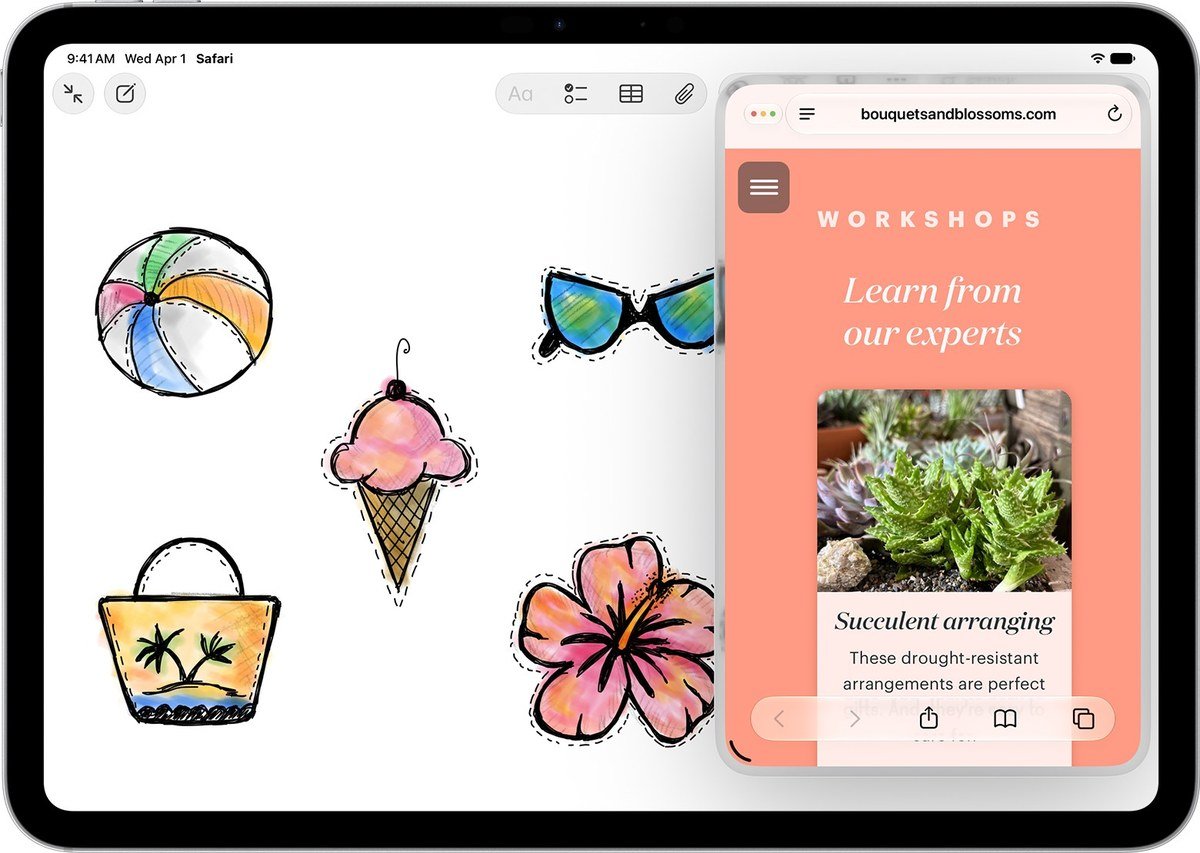
To leave Slide Over, drag the window to the middle of the screen and pause, or choose Exit Slide Over from the window controls.
Open Two Windows of the Same App
Split screen is not limited to different apps. In Safari, Notes and other apps that support it, touch and hold the app icon and tap New Window, then tile the two windows side by side. In Mail, Messages and Notes, touching and holding an email, conversation or note and tapping Open in New Window opens it in the centre of the screen on top of what you are viewing.
Split Screen With Stage Manager
Stage Manager is the alternative to Windowed Apps for people who juggle several projects. You turn it on in the same Settings screen. The apps you are working in sit in the centre, and other recent apps line up along the left side. Drag windows from that list into the centre to build a group, for example a browser, a document and a chat, then tap another group to switch the whole set at once. Apple's Stage Manager guide covers the gestures.
Keep a Video Playing With Picture in Picture
Picture in Picture is the lightweight cousin of split screen. During a FaceTime call or while watching a video, go to the Home Screen (swipe up from the bottom, or press the Home button on an iPad that has one) and the video shrinks into a corner while you open other apps.
- Resize it: pinch open to enlarge the video window, pinch closed to shrink it.
- Move it: drag the window to a different corner.
- Hide it: drag it off the left or right edge, and drag it back when you need it.
- Go back to full screen: tap the small window, then tap the full screen control.
It works alongside split screen, so you can follow a tutorial video while two apps share the rest of the display.
Split Screen on an Older iPad
An iPad stuck on iPadOS 18 or earlier still uses the previous design. Open an app, tap the three-dot multitasking button at the top of the screen, tap the Split View button, then choose the second app from the Home Screen or Dock. Drag the divider to the edge to close it. If your iPad can update to iPadOS 27, the window-based method above is far more flexible.
Split Screen Not Working? Common Fixes
- Nothing happens when you drag an app to the edge: check that Windowed Apps or Stage Manager is selected, not Full Screen Apps.
- No Slide Over option: install the latest iPadOS update, since Slide Over needs iPadOS 26.2 or later.
- The Dock will not appear: swipe up a short distance from the bottom and stop, rather than swiping all the way up.
- Using a keyboard: press the Exposé key, or hold Globe and press the Up Arrow, to see all open windows. A keyboard with a trackpad, like those in our guide to the best iPad keyboards, makes resizing windows much easier.
If you split screen constantly and still find the iPad limiting, our comparison of the MacBook Neo vs MacBook Air covers the step up to a Mac.
Frequently Asked Questions
Why can't I split screen on my iPad?
Most often the iPad is set to Full Screen Apps. Go to Settings, Multitasking & Gestures and select Windowed Apps or Stage Manager.
How do I get rid of split screen on iPad?
Drag the divider between the two apps all the way to one edge, or tap the window controls and choose full screen for the app you want to keep.
Can I split screen with more than two apps?
Yes. With Windowed Apps you can tile several windows, including a four-way layout, and float one more on top in Slide Over.
Where did Split View go on iPad?
Since iPadOS 26, side-by-side apps are part of Windowed Apps rather than a separate Split View button. The result is the same: two apps sharing the screen.
Related Articles

Get the Fox Bulletin briefing
The stories that matter, in your inbox. No spam, unsubscribe anytime.
Newsletter signup will be available soon.
Related stories

Morse Code: The Full Chart, Timing and How It Works
Every letter, digit, punctuation mark and procedural signal in international Morse code, with the timing rules that govern them and the places the code is still working.

Military Alphabet: All 26 Letters, Spelled and Pronounced
Alfa, Bravo, Charlie: the military alphabet is a set of 26 code words that keep letters apart over a noisy radio. Here is every letter, how to say it, and the history behind the list.
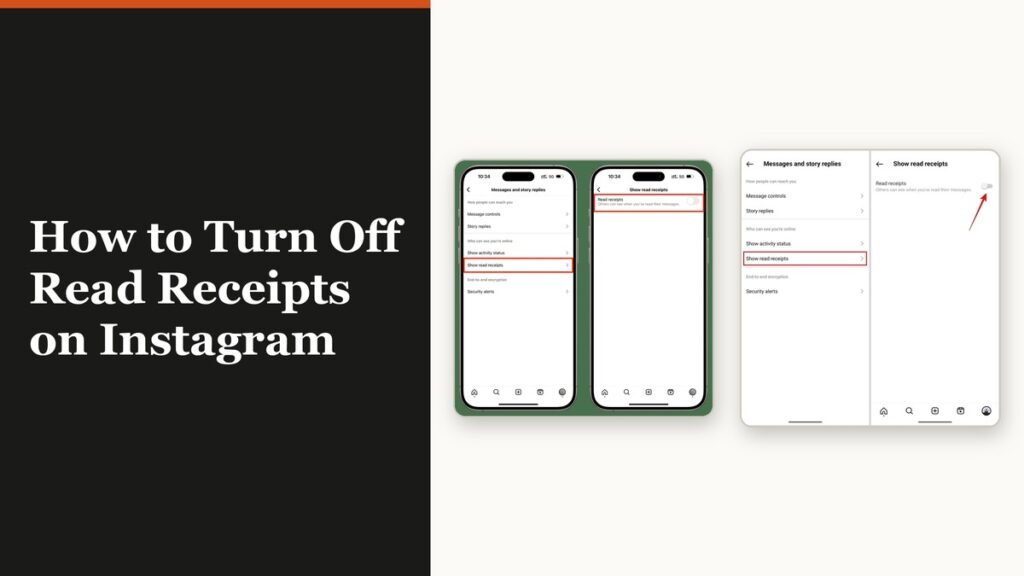
How to Turn Off Read Receipts on Instagram DMs
The global switch does not sweep up chats you have already set by hand. That one rule explains almost every case of Seen still appearing.