

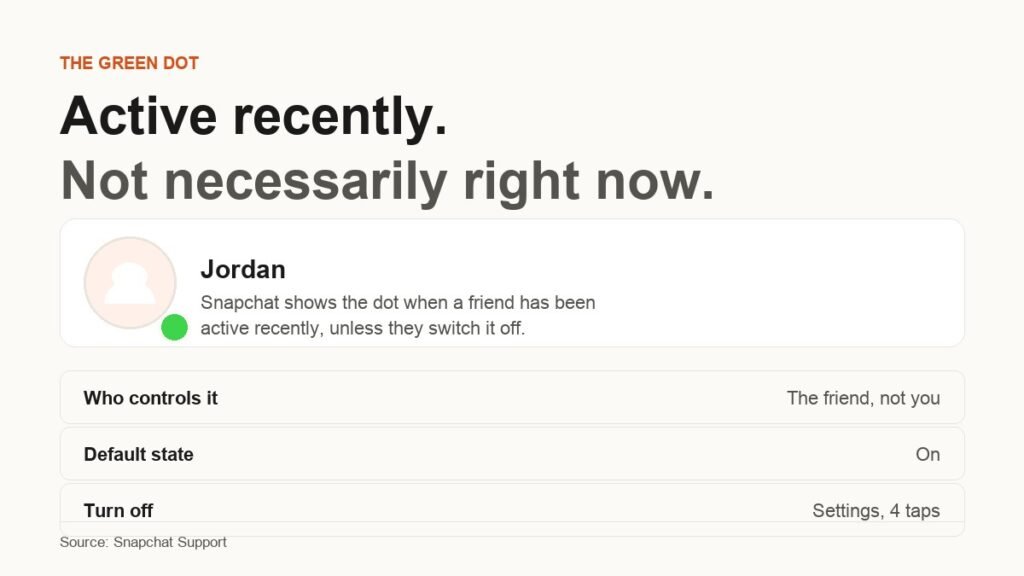
A small green circle sits on the corner of some of your friends’ avatars in Snapchat. It is called the Activity Indicator, it is switched on by default, and it tells everyone who can see your avatar that you have used the app recently.
Most of the trouble it causes comes from a single word. Snapchat says recently. People read now. This covers what the dot genuinely reports, why it comes and goes on its own, how to switch yours off in four taps, and which of Snapchat’s other signals it keeps getting confused with.
Snapchat’s Own Definition, Word for Word
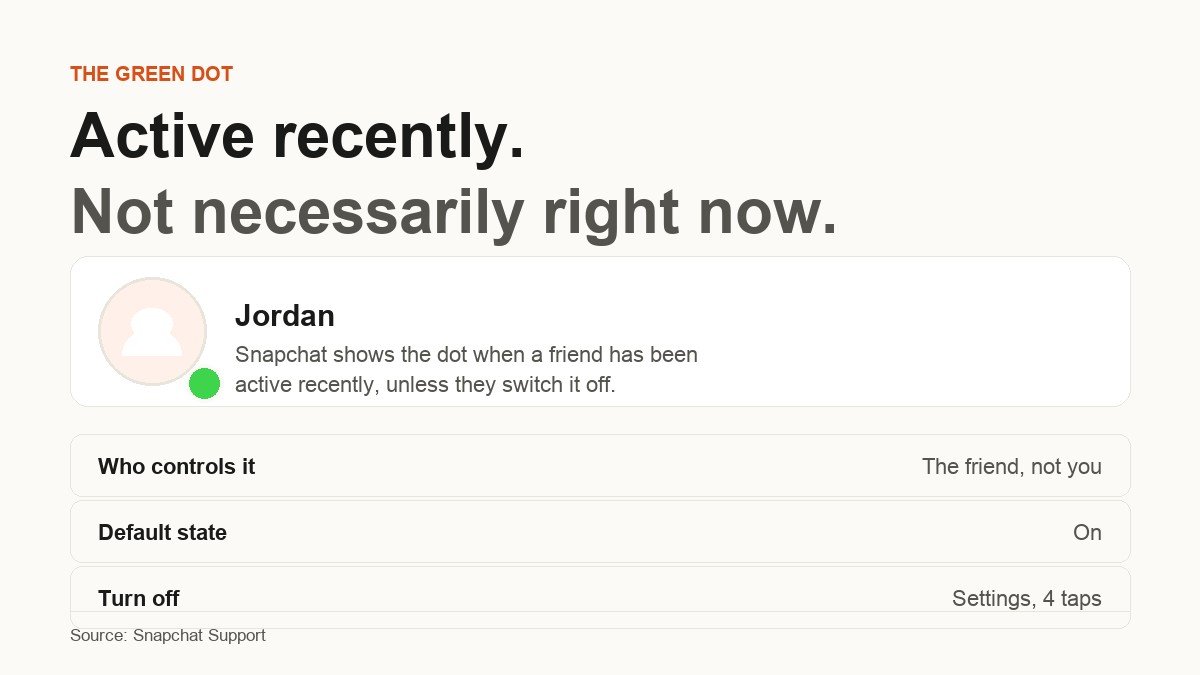
Snapchat’s help page for the green dot runs to two sentences and a set of instructions. The dot shows up on a friend’s avatar to indicate that they have been active on Snapchat recently, and it will show up unless they disable it.
Read carefully, that sentence rules out more than it confirms. There is no mention of being online, no mention of being in a conversation, no mention of having opened anything you sent, and no number attached to recently. Snapchat has never published the time window, and the absence is almost certainly intentional. A dot with a published expiry would function as a stopwatch on your friends, which is a noticeably more invasive feature than the one that shipped.
The practical consequence is that any article quoting an exact figure, five minutes or otherwise, is passing off someone’s observation as documentation. Treat the dot as approximate, because that is all Snapchat has ever claimed for it.
Why It Appears and Vanishes Without Anyone Doing Anything
The dot is attached to a person, not a conversation, and it reacts to app activity of any kind. That produces behaviour that looks arbitrary until you know what is driving it.
- It can light up because a friend opened a notification, watched one Story and put the phone down. None of that has anything to do with you.
- It can light up seconds after you send a message, because your message produced the notification they tapped. This is the single most misread moment in the whole feature.
- It disappears on its own once the activity window passes, with no action from the person and no signal to anyone.
- It is the same dot everywhere. Because it sits on the avatar, everyone who is friends with that person sees it at the same time. It is not a per-conversation state.
None of those behaviours indicate anything about intent. Someone whose dot is lit has not necessarily seen your message, and someone whose dot is dark has not necessarily been avoiding it.
Where the Dot Turns Up in the App
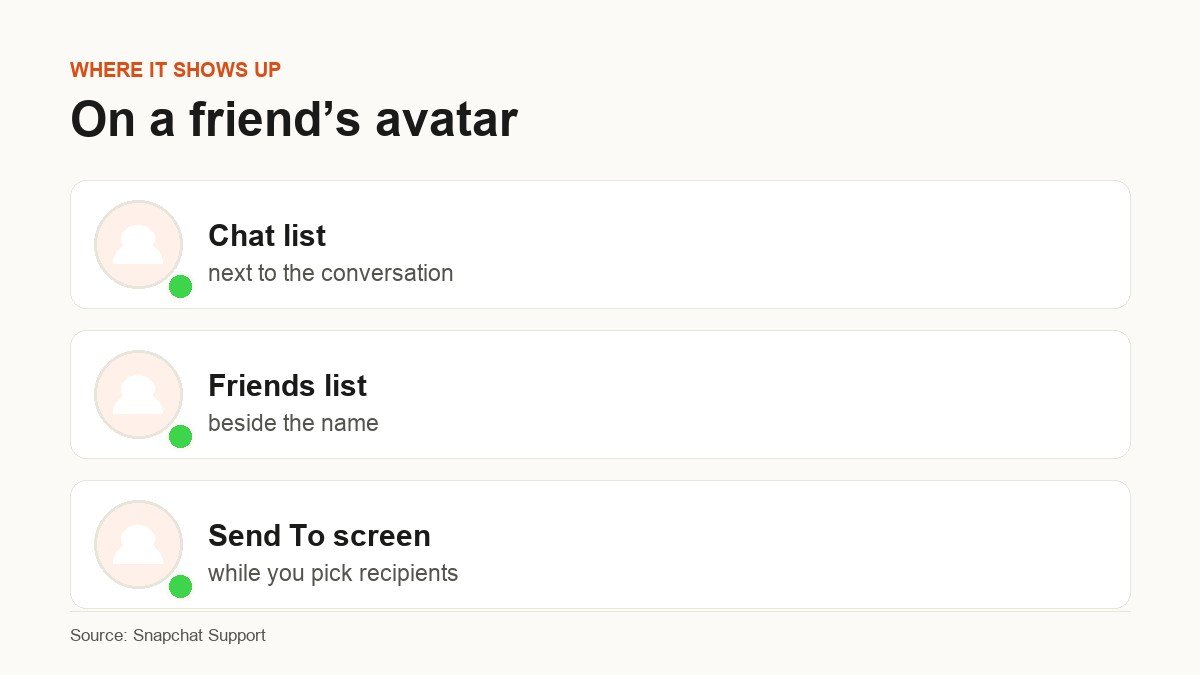
Because it rides on the avatar, it surfaces in every screen that draws your friends:
- The Chat list, beside each conversation.
- Your friends list, next to the name.
- The Send To screen, while you are picking who gets a Snap.
Switching Your Activity Indicator Off in Four Taps
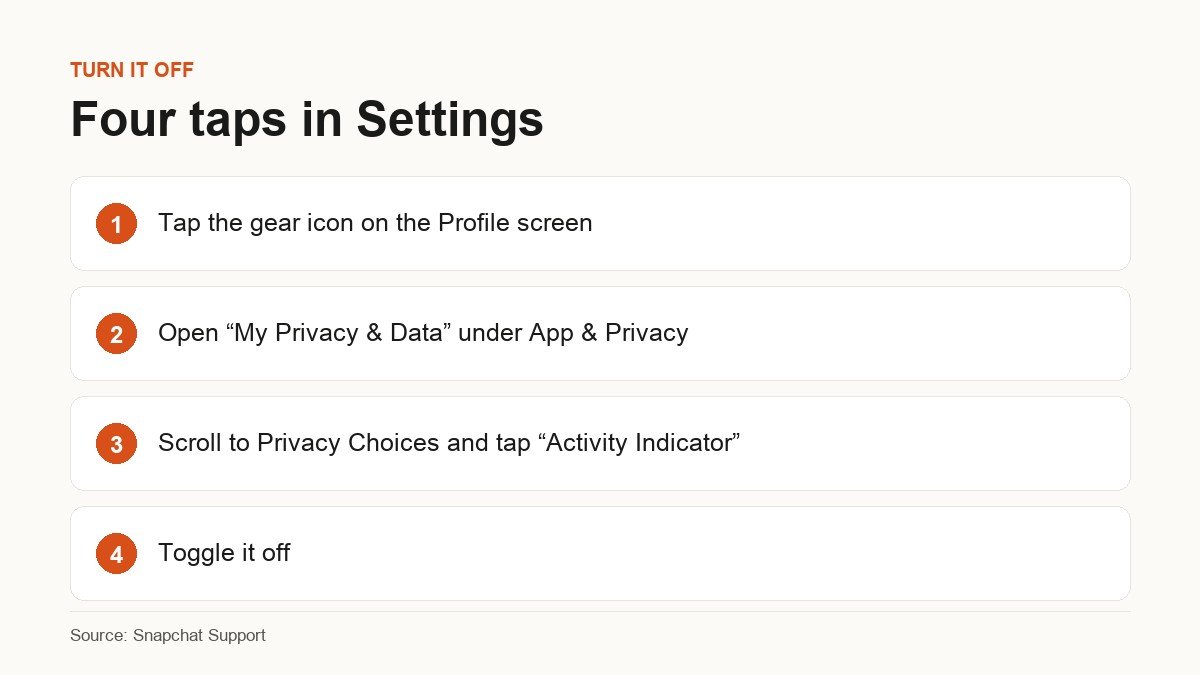
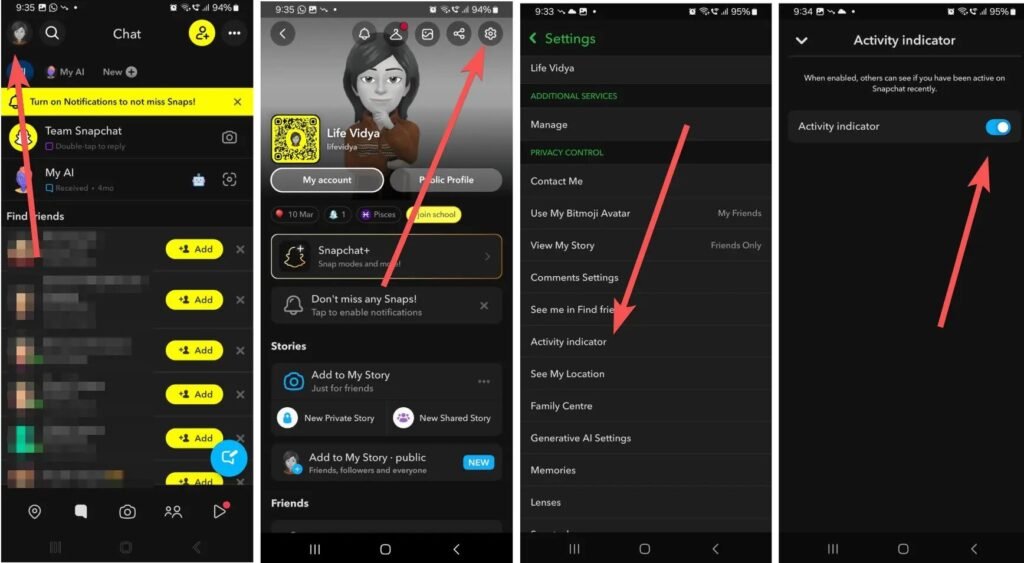
Snapchat documents the path, and it is deep enough that nobody finds it by accident.
- Tap the gear icon on the Profile screen to open Settings.
- Scroll to the App and Privacy section and tap My Privacy and Data.
- Scroll to the Privacy Choices section and tap Activity Indicator.
- Toggle it off.
Three things about that toggle are worth being clear on. It is account-wide, so there is no way to hide from one person and stay visible to everyone else. It only governs what you emit, so your friends’ dots carry on showing to you exactly as before. And Snapchat does not notify anyone when you change it, although a friend who was watching your dot will eventually notice it stopped.
It is a small setting and a good example of a wider habit worth having, which is reading the privacy section of an app you use daily rather than accepting whatever the defaults were when you installed it. The same logic runs through setting up a Snapchat Public Profile, where what is visible to strangers is decided by choices most people never open.
What Someone Can and Cannot Learn From Your Dot
Worth being precise about, because the gap between the two lists is where the anxiety lives.
What they can tell: that you opened Snapchat at some point inside an unpublished recent window, and that you have not turned the indicator off.
What they cannot tell: how long ago, for how long, what you did in the app, whether you read their message, whether you are typing, where you are, or whether you are still there now. The dot carries one bit of information and people routinely extract six.
Should You Turn Yours Off?
There is no universally right answer, but there are three situations where the decision is fairly clear.
- Leave it on if your friends use it as a coordination signal. In a small group that messages constantly, a lit dot is a cheap way of knowing whether a reply is likely in the next ten minutes. Turning it off removes something people were genuinely using.
- Turn it off if it is generating arguments. If anyone in your circle reads a lit dot as proof you saw a message and chose not to answer, the feature is costing you more than it gives. The toggle is the fastest fix available and it takes four taps.
- Turn it off on any account that is semi-public. If you run a Public Profile or an account with subscribers rather than friends, broadcasting when you last opened the app has no upside and tells people when to expect you.
One nuance worth keeping in mind: switching the indicator off is not a way to be invisible. The chat icons still report what happened to messages people send you, so someone waiting on a reply can still see that their Chat was opened. What you are removing is ambient presence, not read state.
Snapchat’s Other Signals, and How the Dot Differs
Nearly every misunderstanding about the green dot is really a different feature being attributed to it. These are the four it collides with.
- The chat screen icons. These are the real delivery and read indicators, and Snapchat groups them into six states: sent, received, opened, viewed, screenshot and replay, with separate icons for a Snap without audio, a Snap with audio and a Chat. If you want to know whether a message landed, this is the thing to look at.
- Grey pending icons. Two of them exist and both get read as a snub. One can appear simply because the other person has not accepted your friend request, depending on their privacy settings. The other means a Snap or Chat is pending and may have expired.
- Friend Emojis. The small emoji beside a friend’s name describe your relationship history, including streaks and mutual best friends. They have nothing to do with activity.
- Snap Map. A friend’s Bitmoji on the map is location sharing, governed by its own settings. The green dot contains no location information whatsoever.
When a Friend’s Dot Stops Showing
Running through the ordinary explanations before the dramatic one saves a lot of unnecessary worry.
- They turned the Activity Indicator off. It is a normal privacy setting and a lot of people switch it off as soon as they discover it.
- Their recent activity simply aged out of the window.
- They are not a friend of yours. The indicator appears on friends’ avatars, so an account you have not added will not show one.
- Your app is showing stale state. Pull to refresh the Chat list, or close and reopen Snapchat.
A missing dot is not evidence of being blocked. Blocking produces its own distinct effects, and an absent Activity Indicator on its own proves nothing at all.
Frequently Asked Questions
How long does the green dot stay on Snapchat?
Snapchat has not published a figure. The support page says the dot indicates a friend has been active recently and leaves it at. Every specific duration circulating online comes from user observation rather than documentation, and behaviour of this kind can vary by device, connection and app version.
Does the green dot mean they read my message?
No. Read state is reported by the chat screen icons, which distinguish sent, received, opened, viewed, screenshot and replay. The green dot only says the app was used. A dot appearing right after you send something usually means they tapped the notification, not that they read and ignored you.
Can I turn the green dot off for just one person?
No. The Activity Indicator is one account-wide toggle under Settings, My Privacy and Data, Privacy Choices. It is on for everyone who can see your avatar or off for everyone. Snapchat offers no per-friend control over it.
If I turn mine off, can I still see other people’s?
Yes. The setting only controls whether your own activity is broadcast. Every friend who has left theirs switched on will keep showing a dot to you.
Is the green dot new?
It is not the original Snapchat experience, but it is well established and documented in Snapchat’s permanent help centre rather than announced as a trial. If it has only just appeared for you, the more likely explanation is an app update reaching your device, or a friend switching their indicator back on.
Related Articles

Get the Fox Bulletin briefing
The stories that matter, in your inbox. No spam, unsubscribe anytime.
Newsletter signup will be available soon.
Related stories

Airbus A380: Size, Range and Who Still Flies It
The largest passenger aircraft ever flown measures 72.72 m long and 79.75 m across the wings. Its specifications, the two decks, why production ended at 251 aircraft, and which airlines still fly it.

Apple Creator Studio: Price and the New AI Tools
Generate Fill in Pixelmator Pro, an AI assistant in Logic Pro and MotionVFX in Final Cut. A free update for subscribers.

Apple Home Collection: Every Accessory and Price
Cameras, a smart lock and two thermostats, built by LG and Schneider Electric and sold by Apple.