

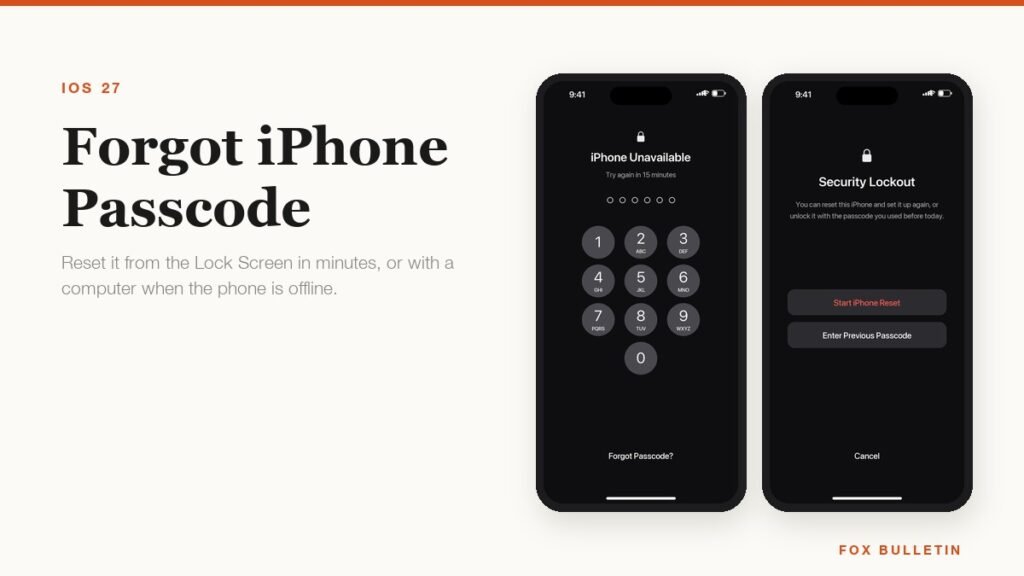
There is exactly one happy ending to a forgotten iPhone passcode, and it only applies if you changed that passcode in the last three days. Everything else ends with the phone being erased, because that is the whole point of the lock. Apple has no master code, no bypass and no way to look it up, and neither does anyone else, whatever a search result promises.
What that actually costs you depends entirely on your last backup. If iCloud Backup has been running, the erase is an inconvenience and almost everything reappears during setup. If it has not run for a year, this is the expensive way to find that out. Start with the route that loses nothing, then work down.
First, try the passcode you had before
Since iOS 17, changing your passcode starts a 72-hour grace period during which the previous one still unlocks the phone. Apple calls it Passcode Reset, and it exists precisely because the most common reason people get locked out is changing a passcode and then forgetting the new one. If your lockout started within three days of a change, this is the fix and it costs nothing.
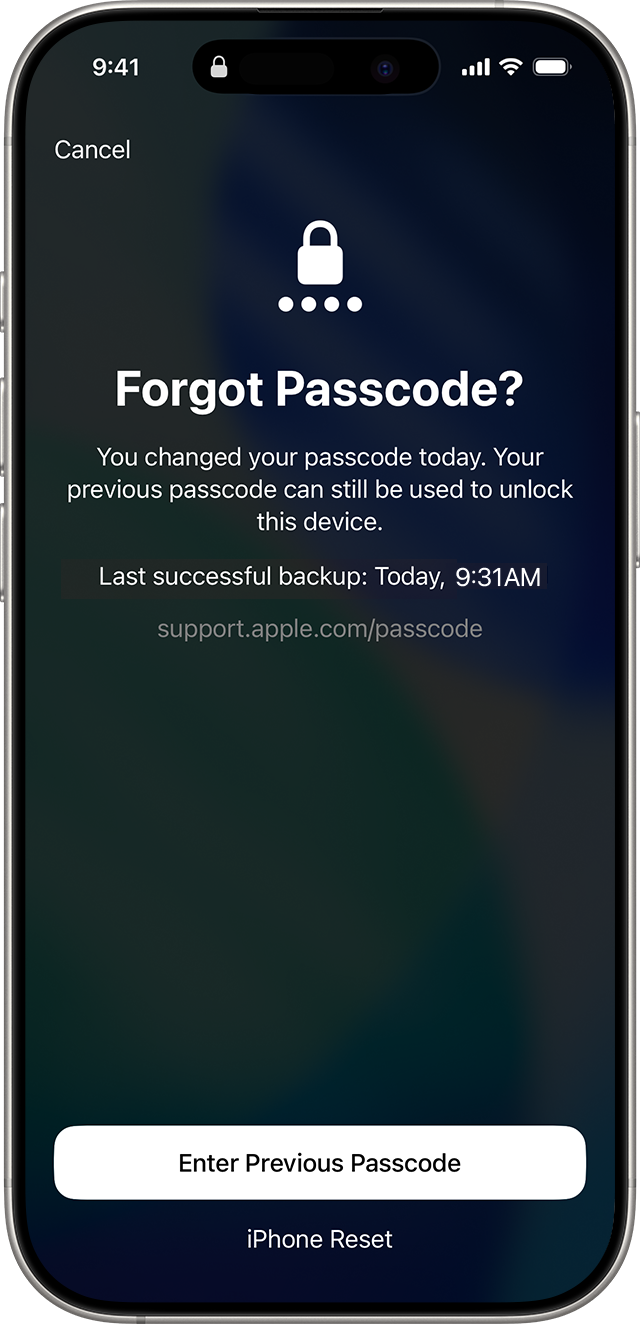
- Enter any passcode five times until the iPhone Unavailable screen appears.
- Tap Forgot Passcode? in the bottom corner.
- Tap Enter Previous Passcode.
- Type the passcode you used before the change.
- Follow the prompts to set a new passcode immediately, which the phone insists on.
Apple’s page on using an old passcode within 72 hours notes that you can also expire the old passcode early from Settings, which is worth doing if you changed it because somebody had seen the old one. If the button is missing or the old code is rejected, the window has closed and the next section applies.
Reset the iPhone from the Lock Screen
From iOS 15.2 onward you can wipe and reset a locked iPhone using nothing but the phone itself. It needs four things to be true: the phone is on a cellular or Wi-Fi connection, Find My is on, it is signed in to your Apple Account, and you know that account password. Miss any one and the Forgot Passcode button will not appear.
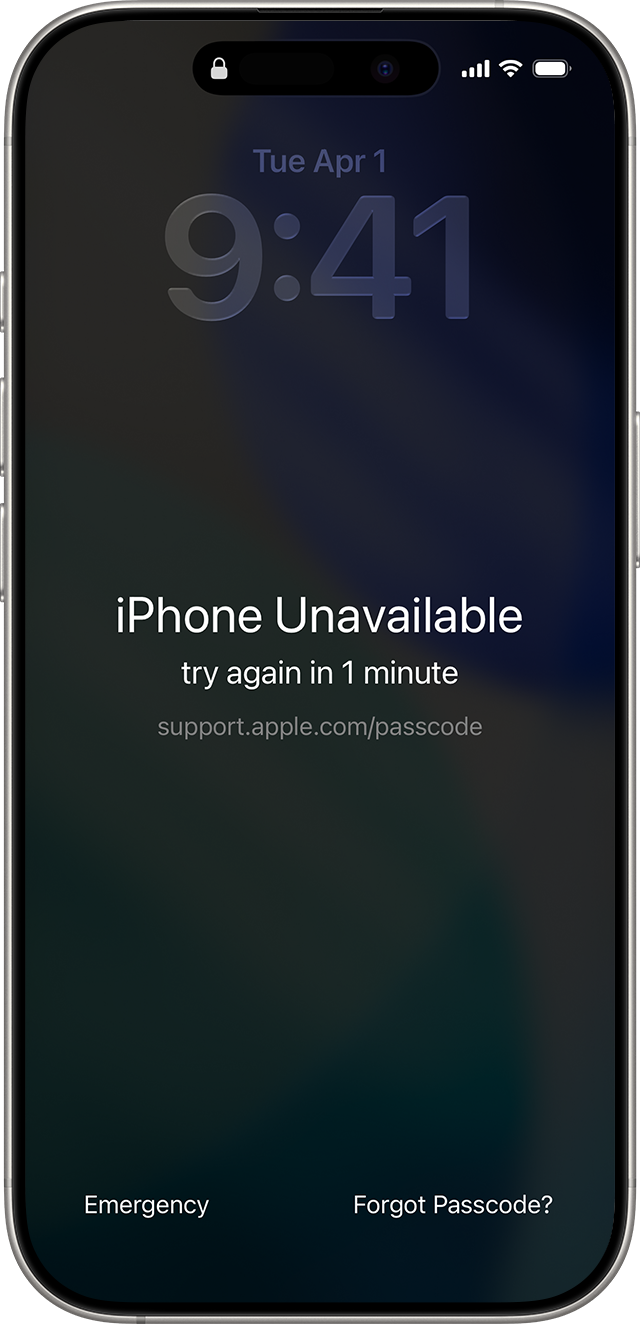
- From the Lock Screen, keep entering your passcode until the iPhone Unavailable screen appears.
- Tap Forgot Passcode? in the bottom corner.
- On the Forgot Passcode? screen, tap iPhone Reset.
- Enter your Apple Account password to sign out of the account on this device.
- Confirm the wipe, picking Keep eSIM and Erase Data or Delete eSIM and Erase Data if the phone carries an eSIM.
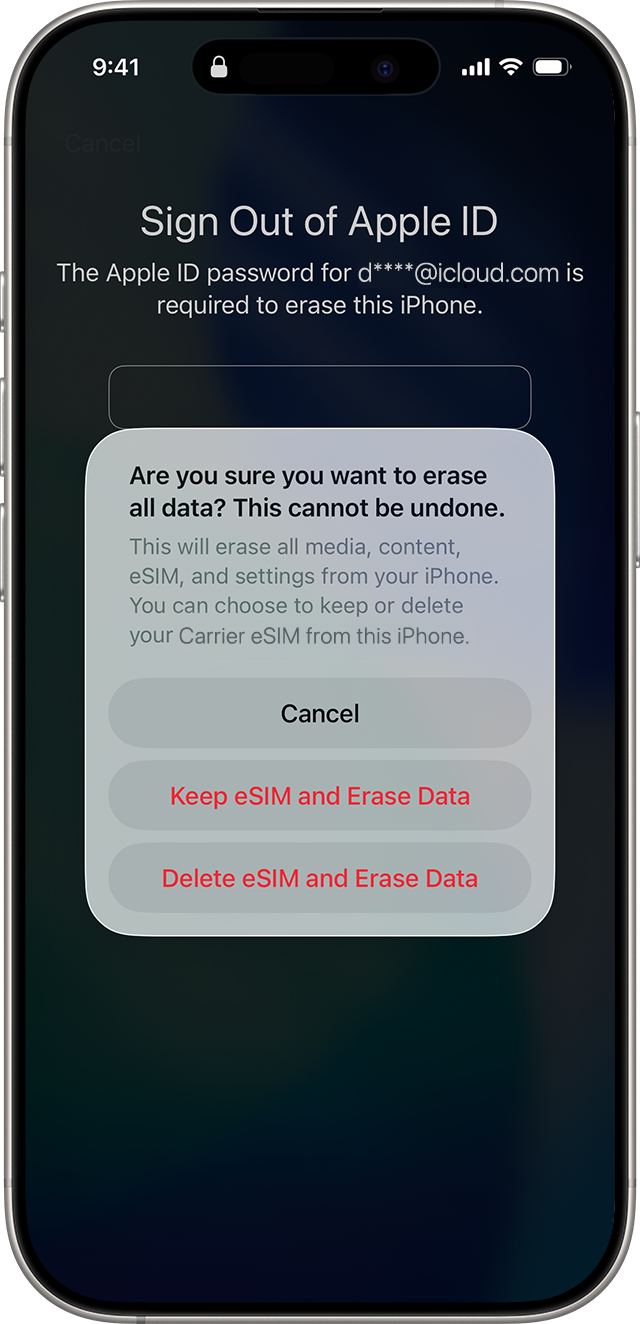
Keep the eSIM unless you are handing the phone on. Keeping it means your number is live again as soon as setup finishes; deleting it means a call to your carrier for a replacement QR code. Apple’s instructions for resetting without a computer spell out the same choice and note that on iOS 16 and earlier the eSIM has to be re-added by the carrier regardless.
If you cannot remember the Apple Account password either, stop here and fix that first, because every route from this point asks for it eventually. It is the one credential that cannot be worked around.
Reset it with a Mac or PC
When the phone is offline, has Find My switched off, or simply never shows the Forgot Passcode button, a computer does the same job through recovery mode. You do not need to have synced with that computer before, and any Mac or Windows PC will do, including a borrowed one. Budget an hour.
- Turn the iPhone off: hold the side button and either volume button, then drag the slider.
- Hold the side button while plugging the cable into the computer, and keep holding until the laptop-and-cable screen appears.
- On a Mac, select the iPhone in Finder under Locations. On a PC, open the Apple Devices app and select it.
- Choose Restore when the Update or Restore alert appears.
- Wait for the download and install, then set the phone up and restore from a backup.
The button combination differs on older hardware: iPhone 7 uses Volume Down instead of the side button, and anything with a Home button uses that. Apple lists all of them in its computer reset instructions, and our walkthrough of iPhone recovery mode covers what each screen means on the way through.
One timing trap catches people here. If the software download takes more than 15 minutes, the phone leaves the recovery screen and goes back to trying to boot. That is not a failure. Let the download finish, put the phone back into recovery mode, and the restore picks up with the file already on the computer.
What each route costs you
Side by side, the choice is really about which conditions you meet rather than which you prefer.
| Route | What you lose | Requires |
|---|---|---|
| Passcode Reset with your old passcode | Nothing | Changed the passcode in the last 72 hours |
| Reset from the Lock Screen | Everything not in a backup | Online, Find My on, you know the Apple password |
| Reset with a Mac or PC | Everything not in a backup | Phone is offline or the button never appears |
| Apple Store or service provider | Everything not in a backup | No computer and no way to borrow one |
Everything in the middle column depends on your backup. An iCloud backup from this morning means photos, messages, app data and settings all return during setup. A backup from last spring means a year of camera roll is gone. Apple’s backup guide is worth ten minutes of reading once this is over, because the fix for next time is automatic and free.
- Photos come back in full if iCloud Photos was on, since they were never only on the phone.
- Messages return only if Messages in iCloud was enabled or the backup is recent.
- App data varies: anything that syncs to its own account restores on sign-in, anything stored locally is gone.
- Passwords survive in iCloud Keychain, which is why a password manager matters more than people think.
If the iPhone is not yours to begin with
A locked phone that came from a marketplace listing, a relative or an old employer is a different problem, and no amount of resetting at your end solves it. Erasing the device does not remove Activation Lock, so setup stops at a screen demanding the Apple Account it was signed into. Only the person who owns that account can clear it.
- Bought secondhand: ask the seller to sign in at iCloud.com, open Find Devices and choose Remove This Device, which takes them a minute and costs them nothing.
- Inherited from family: Apple has a Digital Legacy process for a deceased owner’s account, and a death certificate is part of it.
- Ex-employer device: a supervised phone enrolled in mobile device management can only be released by that organisation’s IT team, not by Apple.
- Seller has vanished: the phone is not usable, and Apple will not unlock it on proof of purchase from a third party.
This is also the reason to be wary of a cheap listing with the phone shown on the setup screen rather than the home screen. A seller who has genuinely wiped a phone can show it sitting on the language picker; one who has only erased it from the Lock Screen cannot, because the Activation Lock screen comes next.
How to avoid being locked out again
Most repeat lockouts come from the same two habits: changing the passcode on a whim, and never checking that backups are actually running. Both take a minute to fix.
- Turn on iCloud Backup and check the date, in Settings under your name then iCloud; a backup that last ran months ago usually means the phone is short of iCloud space.
- Use a six-digit code you can picture, not a date somebody else could guess and not a random string you will lose.
- Record it in a password manager on another device, which is the only copy that survives the phone being wiped.
- Set up Face ID or Touch ID properly, since a biometric that works first time means you rarely type the passcode and rarely mistype it either.
- Add a recovery contact so a locked Apple Account never becomes the second half of this problem.
If the phone that locked you out is one you are thinking of replacing anyway, this is a reasonable moment to decide. A device that is erased and restored is effectively new software on old hardware, and our rundown of the iPhone 18 Pro sets out what has actually changed if you are weighing it up rather than just repairing what you have.
Frequently Asked Questions
Can I unlock an iPhone without losing data if I forgot the passcode?
Only through Passcode Reset, and only within 72 hours of changing the passcode. Every other method erases the phone. Software and services that claim otherwise either do not work or are describing the same erase in different words.
How many wrong passcode attempts before an iPhone is disabled?
Five wrong entries bring up the iPhone Unavailable screen with a one-minute wait, and the delay grows with each further attempt until the phone is locked out entirely. The Forgot Passcode button appears alongside those screens, so extra attempts do not help.
Does erasing an iPhone remove Activation Lock?
No. The phone will ask for the Apple Account it was signed into before setup can finish. That is why you need the account password before you start, and why a secondhand phone has to be removed from the previous owner’s account rather than merely wiped.
Can an Apple Store unlock my iPhone for me?
They can restore it, which is the same erase you would do at home, and they will ask for proof of purchase and your Apple Account password first. Nobody at Apple can recover the passcode itself or get into the phone without wiping it.
Related Articles

Get the Fox Bulletin briefing
The stories that matter, in your inbox. No spam, unsubscribe anytime.
Newsletter signup will be available soon.
Related stories

Claude Duet: Anthropic’s New Agent That Works While You Rest
Anthropic opened a research preview of Claude Duet on October 21, 2026. Here is what the agent does in your connected apps, where it stops to ask you, and how to get on the waitlist.

Best Tech Gifts for Men 2026: 10 Gadgets From Earbuds to Dash Cams
The best tech gift for most men is the Sony WF-1000XM6, a pair of noise cancelling earbuds he will use on every commute, call and flight. If he already has earbuds, the…

Best Gifts for Gamers 2026: 10 Gaming Gifts From Headsets to Chairs
The best gift for a gamer is a wireless headset that works on the console they already own, and the Turtle Beach Stealth 700 (Gen 3) is the safest choice when you…