

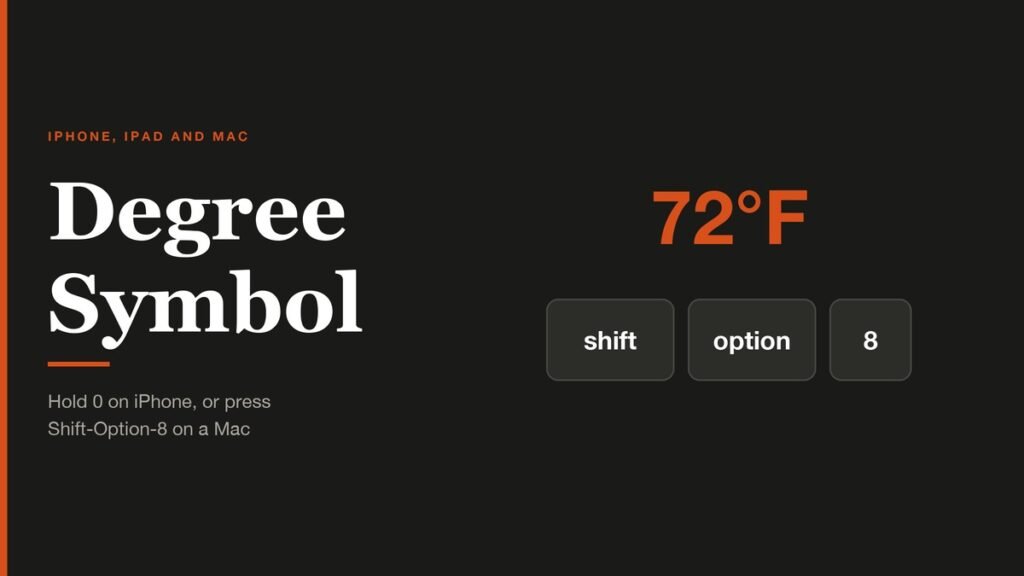
The degree symbol (°) is hiding in plain sight on Apple devices. It is not printed on any key, so most people type the word “degrees” or copy the sign from a web page, but the iPhone, iPad and Mac keyboards can all produce it directly in a second or two.
This guide covers the built-in method on each device, a text shortcut for people who type temperatures or angles every day, and two lookalike characters that are easy to insert by mistake.
Degree Symbol Shortcuts on Apple Devices
| Device | How to type ° |
|---|---|
| iPhone and iPad | Tap 123, touch and hold 0, slide to ° |
| Mac | Shift-Option-8 |
| Mac (no shortcut) | Edit > Emoji & Symbols, search “degree” |
How to Type the Degree Symbol on iPhone and iPad
The sign lives behind the 0 key on the number layout of Apple's own keyboard. It works the same in Messages, Notes, Mail and any other app with a text field.
- Tap into a text field so the keyboard opens.
- Tap 123 to switch to the number layout.
- Touch and hold the 0 key until a small pop-up appears above it.
- Without lifting your finger, slide onto ° and let go. The degree sign appears at the cursor.
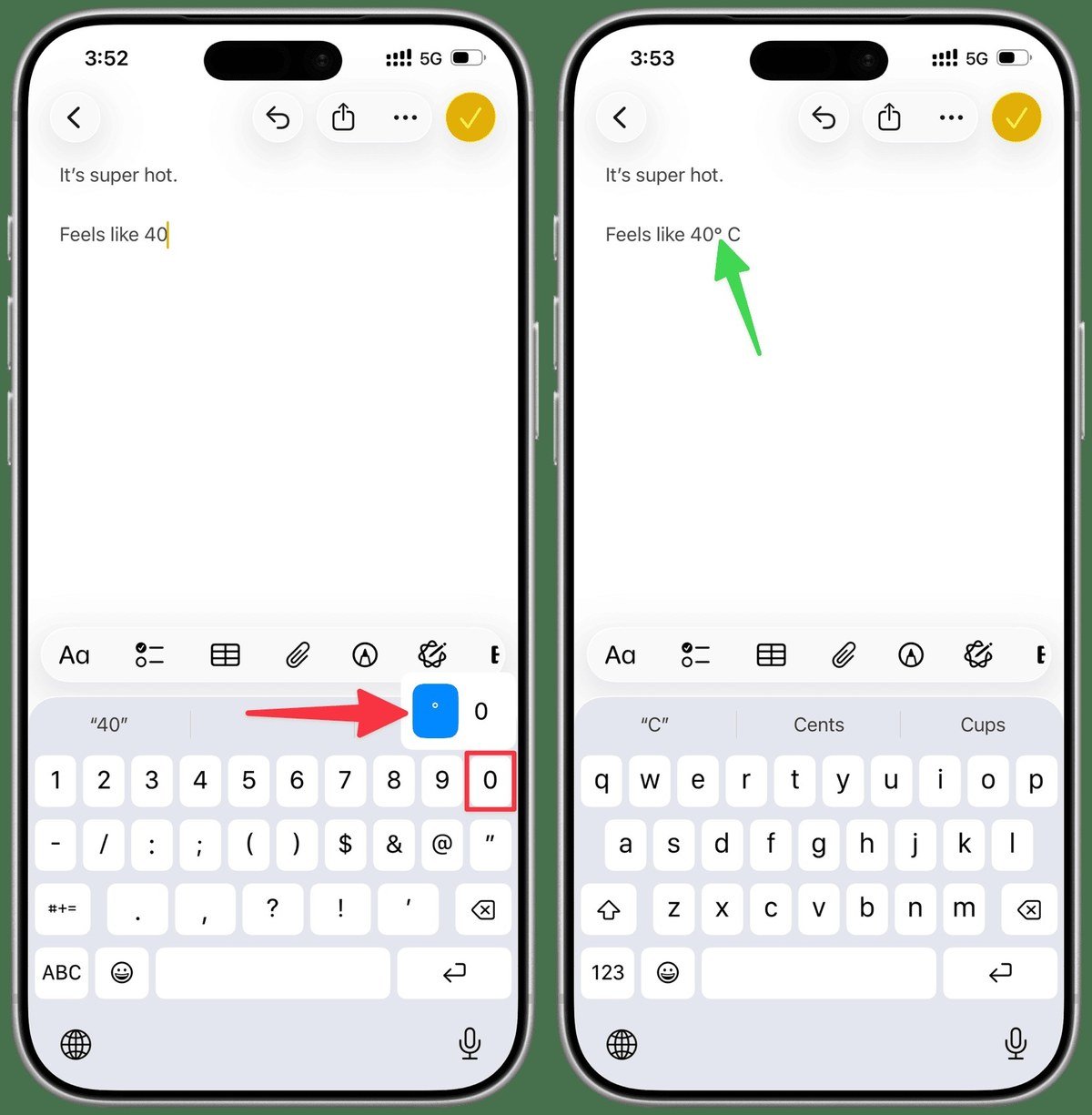
If you lift your finger before sliding, you get a plain 0 instead. Undo it and hold the key a little longer. Some third-party keyboards hide the sign in a different place, so switch back to Apple's keyboard with the globe key if the pop-up never shows.
How to Type the Degree Symbol on a Mac
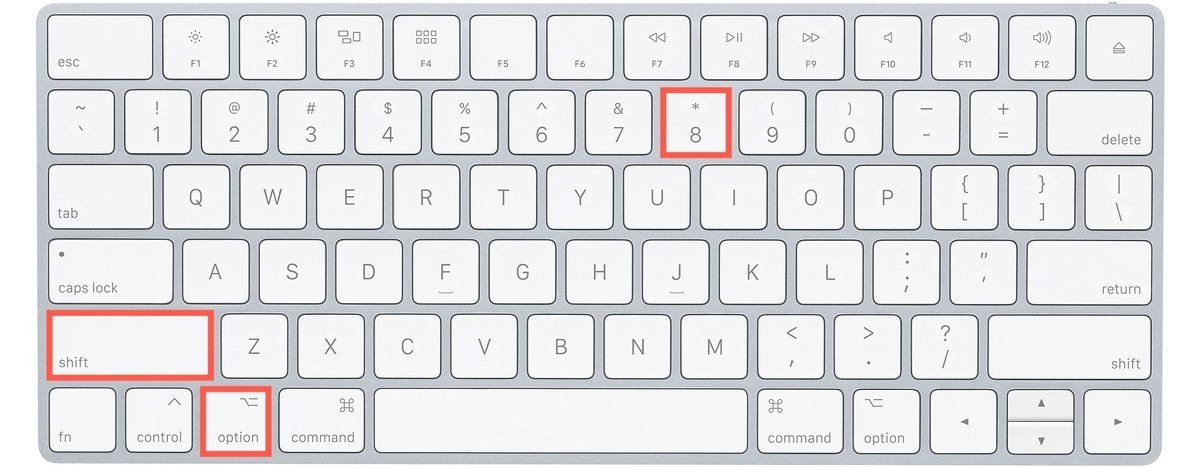
On a Mac the sign has a proper keyboard shortcut. Press Shift-Option-8 in any app and ° appears. That holds on the U.S., ABC and British English layouts, which most Mac keyboards sold in English-speaking countries use.
If you prefer to click, open the Character Viewer instead:
- Click where you want the symbol.
- Choose Edit > Emoji & Symbols, or press Fn/Globe-E.
- Type degree in the search field.
- Click the degree sign to insert it. Select it and click Add to Favorites to keep it one click away.
The same viewer holds thousands of other characters, and our guide to emoji meanings shows how to use it to identify an emoji you do not recognise.
Set Up a Text Shortcut for the Degree Sign
If you write temperatures all day, a Text Replacement saves the hold-and-slide. Apple's text replacement guide covers the setting, which lives in the iPhone keyboard menus:
- Open Settings, tap General, then Keyboard, then Text Replacement.
- Tap the plus button.
- Put ° in the Phrase field (hold 0 to type it one last time).
- Type a short code you never use in real words, such as dgx, in the Shortcut field, then tap Save.
Typing dgx now offers the degree sign. With iCloud Drive syncing switched on, your personal dictionary of shortcuts carries over to your other Apple devices.
Two Lookalikes That Are Not the Degree Sign
Two nearby Mac shortcuts produce characters that look almost the same but are different letters as far as software is concerned. The Mac Keyboard Viewer shows every Option combination if you want to see them for yourself.
- Option-0 types º, the masculine ordinal indicator used in Spanish and Portuguese numbering. Depending on the font it may sit higher or carry an underline.
- Option-K types ˚, the ring above, a standalone accent mark.
Either one can break a search, a spreadsheet formula or a screen reader, which expects the true degree sign. On a Windows-layout keyboard plugged into a Mac, the Alt key does the Option key's job, so the shortcut still works with most keyboards for Mac.
Frequently Asked Questions
How do I type the degree symbol on Windows?
Hold Alt and type 0176 on the numeric keypad, then release Alt. The number row above the letters will not work for Alt codes, so on a laptop without a keypad, open Character Map from the Start menu and copy the sign from there.
What is the Unicode code for the degree symbol?
It is U+00B0, named DEGREE SIGN. The degree symbol has had that code point since Unicode adopted the ISO Latin-1 character set in 1991.
Why does holding 0 not show the degree sign on my iPhone?
You are probably on the letters layout or a third-party keyboard. Tap 123 first, and use Apple's own keyboard if the pop-up still does not appear.
Related Articles

Get the Fox Bulletin briefing
The stories that matter, in your inbox. No spam, unsubscribe anytime.
Newsletter signup will be available soon.
Related stories
Morse Code: The Full Chart, Timing and How It Works
Every letter, digit, punctuation mark and procedural signal in international Morse code, with the timing rules that govern them and the places the code is still working.
Military Alphabet: All 26 Letters, Spelled and Pronounced
Alfa, Bravo, Charlie: the military alphabet is a set of 26 code words that keep letters apart over a noisy radio. Here is every letter, how to say it, and the history behind the list.
How to Turn Off Read Receipts on Instagram DMs
The global switch does not sweep up chats you have already set by hand. That one rule explains almost every case of Seen still appearing.