


Working out how to group on Canva takes one button, but only after the harder half of the job is done: getting two or more elements selected at the same time. Select them, press Group, and from then on they move, resize and rotate together.
It is the difference between a layout that survives being dragged around and one that falls apart the first time someone nudges a stray icon. This guide covers the selection methods on desktop and phone, the shortcuts Canva documents for both operating systems, and how to edit a single item without pulling the group apart.
The short version
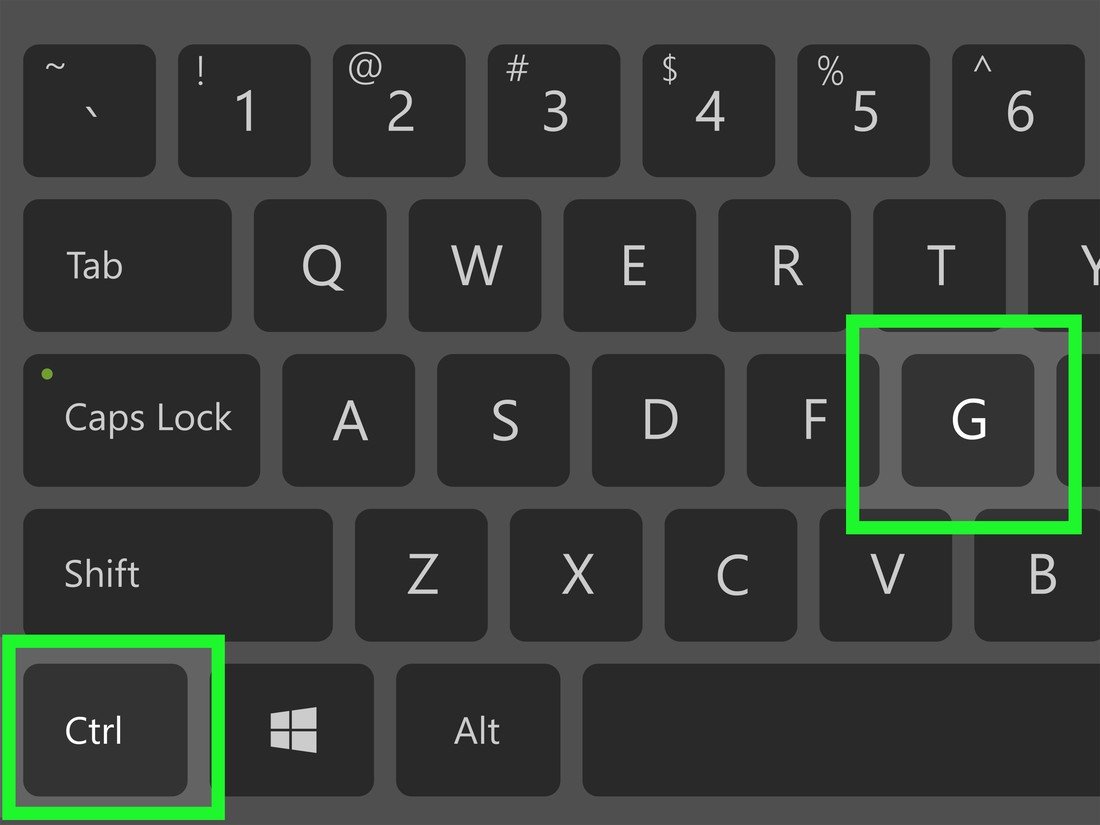
Hold Shift and click each element, or drag a box around them, then select Group in the toolbar above the canvas. The keyboard shortcut is Ctrl + G on Windows and Command + G on a Mac. Ungrouping is the same combination with Shift added.
Select more than one element first
Canva will not show a Group option until at least two things are selected. There are three ways to get there on a computer, and the right one depends on how the elements sit on the page.
- Drag a selection box. Click an empty part of the canvas and drag across the elements. Anything the box touches is picked up, which is fastest when the items sit together in one area.
- Shift and click. Click the first element, then hold Shift and click each of the others. This is the one to use when the items are scattered or when a background image would otherwise get swept into the selection.
- Keyboard multi-select. Press F8 with something already selected to turn multi-select on, then use Shift with W, A, S or D to add the closest element above, to the left, below or to the right.

A purple border with round handles around every chosen item confirms the selection worked. If only one border appears, the Shift key was released too early, or the click landed on the canvas rather than on an element.
Group the selection
With two or more elements held, the toolbar above the canvas changes and a Group option appears at its right-hand end.
- Select Group. The separate borders collapse into one border around the whole set.
- Drag the group to test it. Everything should move together, keeping the spacing between items exactly as it was.
- Resize from a corner handle. The whole group scales in proportion, which is the main reason to group a logo and its wordmark before placing them.
A group behaves as a single element after that. It can be duplicated, locked, sent behind other items or copied into another design in one action, and the arrangement inside it stays intact through all of that.
Keyboard shortcuts for grouping on Windows and Mac
Canva publishes a shortcut for each of these, and they are worth learning because grouping is something you do dozens of times in a long layout session.
| Action | Windows | Mac |
|---|---|---|
| Group elements | Ctrl + G | Command + G |
| Ungroup elements | Ctrl + Shift + G | Command + Shift + G |
| Turn multi-select on or off | F8 | F8 |
| Add the closest element above | Shift + W | Shift + W |
| Add the closest element below | Shift + S | Shift + S |
| Lock an element in place | Alt + Shift + L | Option + Shift + L |
| Tidy up spacing | Alt + Shift + T | Option + Shift + T |
Tidy up is the quiet one on that list. With several elements selected it evens out the spacing between them before you group, which saves dragging each item a pixel at a time to get a row looking even.
Grouping in the Canva mobile app
There is no Shift key on a phone, so the app replaces it with a selection mode you have to turn on first. This is the step that sends most people searching.
- Touch and hold an element until a menu appears over the canvas.
- Tap Select multiple. The menu closes and the app switches into a mode where tapping adds to the selection instead of replacing it.
- Tap each of the other elements you want in the group.
- Tap Group on the floating toolbar at the bottom of the screen.
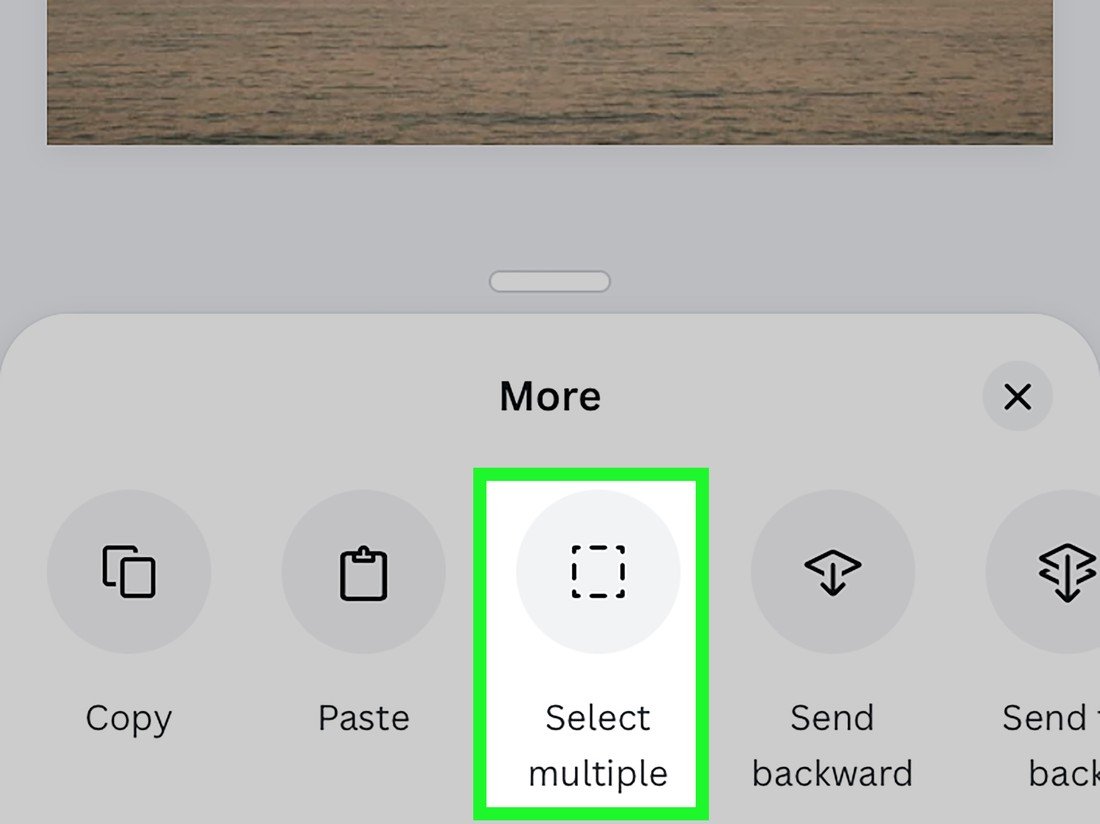
The Group button sits in the same floating menu as Bring forward and Download selection, so it may take a sideways scroll to reach on a narrow screen.

Groups made on a phone open as groups on a computer, because the structure is stored in the design rather than on the device.
Ungroup, and edit one item without ungrouping
Select the group and choose Ungroup, or press Ctrl + Shift + G on Windows or Command + Shift + G on a Mac. On mobile, select the whole group and tap Ungroup on the floating toolbar.
Most of the time you do not need to ungroup at all. Double-clicking an item inside a group selects just that item and leaves the group intact, so a single colour or one line of text can be changed without taking the arrangement apart and rebuilding it.
That matters on a design you have already cut a photo out for, where ungrouping and regrouping risks losing the alignment between the cutout and whatever sits behind it.
Use the layers view on a crowded page
Clicking the right elements gets difficult once a design has a dozen overlapping items. Canva has a layers list that makes the stack visible, and it opens with Option and 1 on a Mac or Alt and 1 on Windows.
The list shows every element on the page in stacking order, top item first. Clicking an entry selects that element on the canvas even when it is buried under something larger, which is the reliable way to pick up a shape sitting behind a photo.
Groups appear in that list as a single entry, so a page that scrolled on for thirty rows collapses to five or six once the related items are grouped. That alone is a reason to group as you build rather than at the end.
Group, lock or frame: which one to use
Three features in Canva stop elements moving around, and they are not interchangeable. Picking the wrong one is why a layout sometimes refuses to behave.
- Group ties elements together while leaving them all editable and movable as a unit. Use it for anything that should travel together, such as an icon and its label.
- Lock pins an element to the page so it cannot be moved or resized at all until the lock comes off. Use it for backgrounds, borders and anything you keep dragging by accident.
- Frame is a container that crops whatever is dropped into it to a shape. It is not a grouping tool, and putting a cutout into one will clip the outline you just made.
Group and lock combine well. Group a header block so it moves as one piece, then lock it so it does not move at all while the rest of the page is built underneath.
When grouping causes problems
Two situations account for most of the complaints about grouped elements, and both have a straightforward answer.
- Text resizes oddly. Scaling a group changes the font size along with everything else, so text that was 24 point may land at 19. Set type after the group is at its final size, or resize the group by its corner handles only.
- You cannot select the thing underneath. A large grouped background swallows clicks aimed at items behind it. Lock the group with Alt or Option plus Shift and L, and clicks will pass through to whatever is below.
Locking is also the better choice for anything you never want to move again, such as a header bar or a border. A locked group stays exactly where it is while the rest of the page is rearranged around it, and it is still a group once the lock comes off. Lining up those fixed areas first is the same habit that makes a layout quick to rework in any photo editor.
Frequently Asked Questions
Why is there no Group button in my toolbar?
Only one element is selected. Canva shows the option once two or more items are held at the same time, so hold Shift and click a second element, or drag a selection box across both, and the option appears.
Can I put a group inside another group?
Yes. Select an existing group along with other elements and group again. Ungrouping once returns the inner group as a group rather than as loose elements, so complicated layouts can be built in layers.
Does grouping change how the design exports?
No. Groups affect editing only. A downloaded PNG, JPG or PDF looks identical whether the elements are grouped or loose, because grouping is a property of the editor rather than of the finished file.
How do I move one element inside a group?
Double-click it. That selects the single item while the group stays together, and you can then nudge it with the arrow keys or change its colour. Clicking elsewhere returns you to the group as a whole.
Related Articles

Get the Fox Bulletin briefing
The stories that matter, in your inbox. No spam, unsubscribe anytime.
Newsletter signup will be available soon.
Related stories

How to Add Music to Canva Designs and Videos
Adding the track is one click. Trimming it, fading it and exporting in a format that carries sound at all are the three steps that decide whether anyone hears it.

How to Highlight Text in Canva Three Different Ways
One effect does it in two clicks, and its three sliders decide whether the result looks like a marker pen or a solid block.

Connected Carousel in Canva: Build One That Lines Up
The design half is one wide canvas. The half that stops people is the split, because Canva has no built-in command for it and the answer is an app.