

Most of the work in how to create a PDF book in Canva happens before you design anything, when you choose the page size. Get that right and the rest is adding pages and exporting once. Get it wrong and the whole book has to be rebuilt, because Canva cannot change a design size without resizing everything on it.
The export is the other place books go wrong. Canva offers two PDF presets with different purposes, and one setting buried in the advanced options will silently break every link in a contents page. Both are covered below, along with page limits and the size to pick for each kind of book.
The short version
Create a design at the size you want the finished pages, build each page, then use Add page to extend the book. When it is finished open Share, choose Download, set the file type to PDF and pick the Digital preset for an ebook or Print for anything going to a printer.
Choose the page size first
A Canva design has a fixed size. Everything after this decision inherits it, so it is worth thirty seconds of thought.
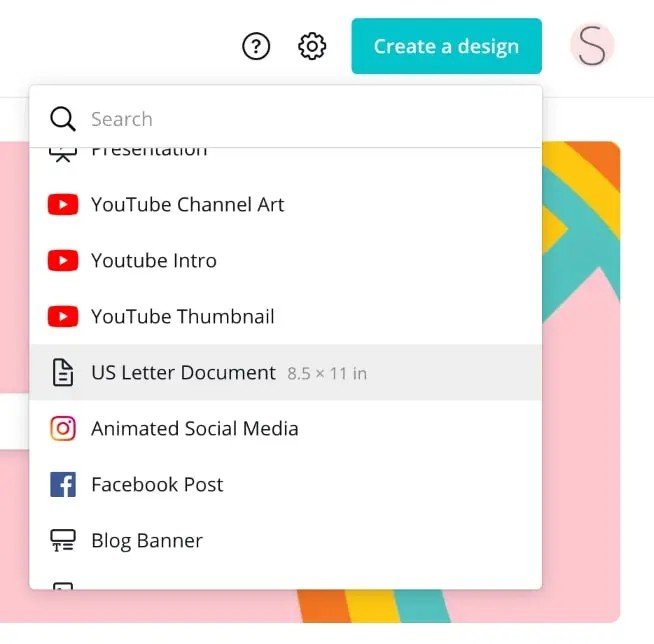
- Open Create a design and type the format you want rather than scrolling the list.
- Pick a document size for a readable book. US Letter and A4 are the two that print properly and open cleanly on a tablet.
- Use Custom size for a specific trim, such as the 6 by 9 inches most print on demand services expect.
| Size | Dimensions | Best for |
|---|---|---|
| US Letter | 8.5 x 11 in | Lead magnets and workbooks for a US audience |
| A4 | 210 x 297 mm | The same job outside the US |
| Presentation 16:9 | 1920 x 1080 px | Reading on a laptop rather than printing |
| Square | 2000 x 2000 px | Short guides read on a phone |
| Custom 6 x 9 in | 6 x 9 in | A book meant for print on demand |
Landscape formats read well on a laptop and badly on a phone, which is where most lead magnets are actually opened. A portrait document is the safer default unless you know the book will be read on a desk.
Build the pages of the Canva book
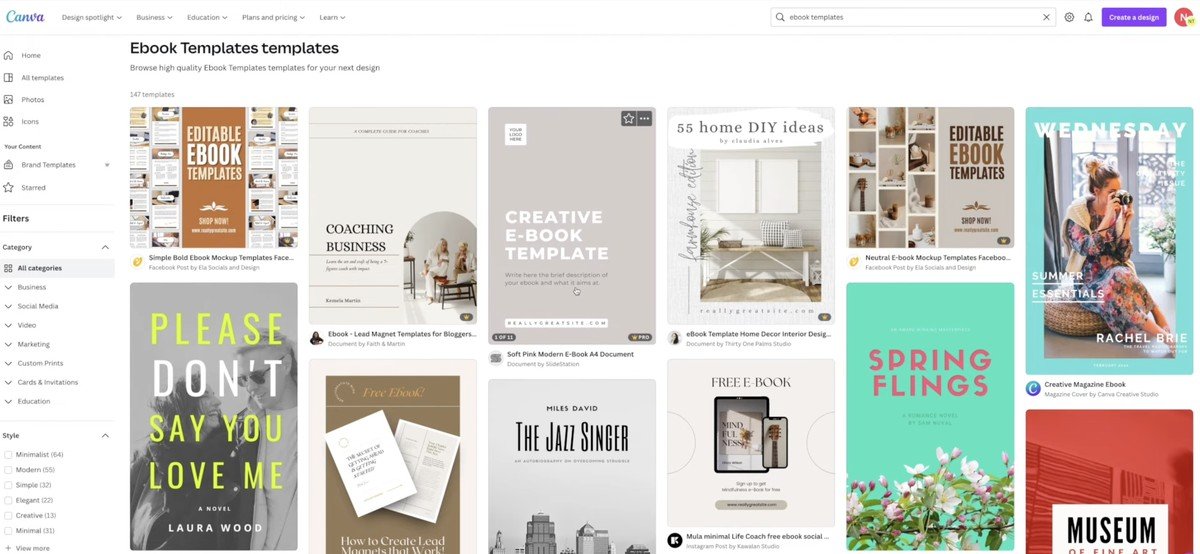
Starting from a template saves laying out a grid by hand, and the ebook templates are built at document proportions already.
- Search the Templates panel for ebook, workbook or lead magnet and apply one to the first page.
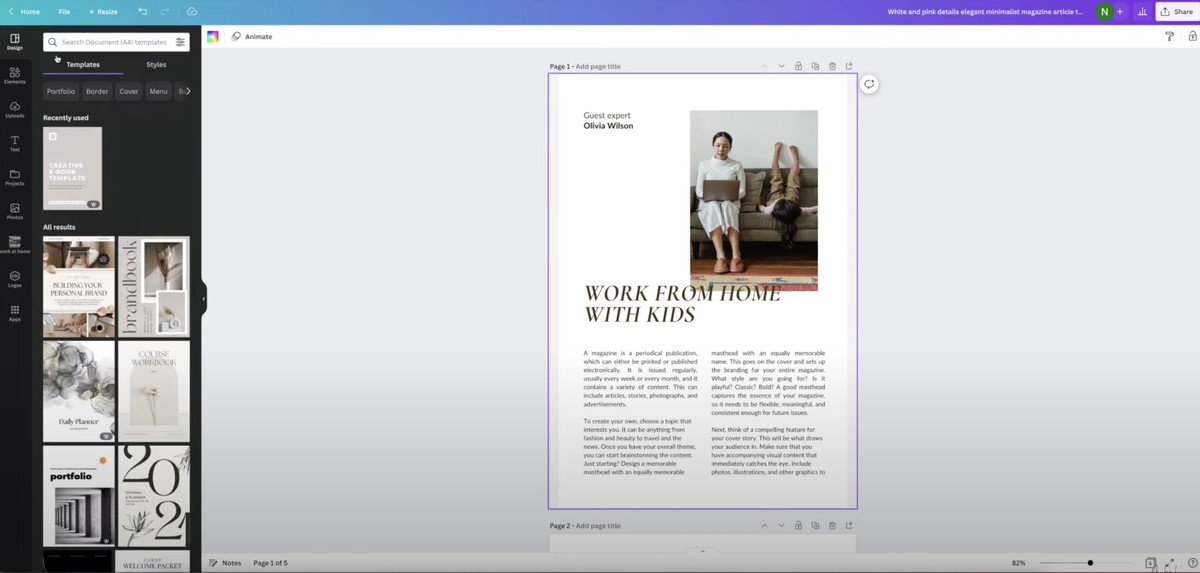
- Replace the placeholder text and images. Double-click any text to edit it, and drag your own photos onto the frames to swap them.
- Add pages with the Add page button beside the last page. A design holds up to 500 pages, which is far more than any sensible book.
- Apply a template to each new page from the same set, so the book stays visually consistent rather than looking assembled from parts.
Grid view is the quickest way to see the book as a whole. It shows every page at once, which makes an uneven rhythm obvious in a way that scrolling one page at a time never does.
Keep repeated furniture such as headers, page numbers and footers grouped on each page. That way a change to one can be copied across without the parts drifting out of alignment, which is covered in our guide to grouping elements.
Add a contents page that works
A clickable contents page is what separates a PDF book from a stack of pages, and Canva has no automatic table of contents for designs. It is built by hand.
- List the chapter titles as text on an early page, one per line.
- Select each line and add a link from the toolbar. Canva lets a link point at another page in the same design as well as at a web address.
- Add page numbers so the contents still makes sense once the book is printed, where links do nothing.
- Check every link in the exported PDF, not in the editor. The editor preview is not what the reader receives.
The same applies to any external links in the book. A lead magnet usually carries a link back to a site or a sign-up page, and those are worth testing in the downloaded file for the same reason.
Export it as a PDF
Canva offers two PDF presets, and the choice between them is about where the file is going rather than about quality in the abstract.
- Open Share at the top right and choose Download.
- Set File type to PDF.
- Choose a preset: Digital for a file people read on a screen, Print for one going to a printer.
- Select all pages, then download.
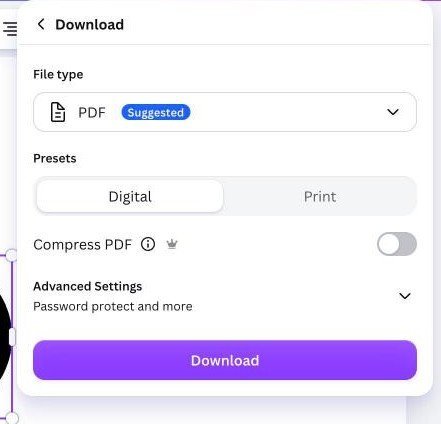
Digital produces a smaller file sized for sharing and email, and it is the right choice for an ebook or a lead magnet. It was previously called PDF Standard, which is the name that still turns up in older instructions.
Print produces a 300 dpi file and adds the controls a printer needs. The colour profile selector appears here, offering RGB for digital use or CMYK for commercial printing, and the advanced settings hold crop marks and bleed.
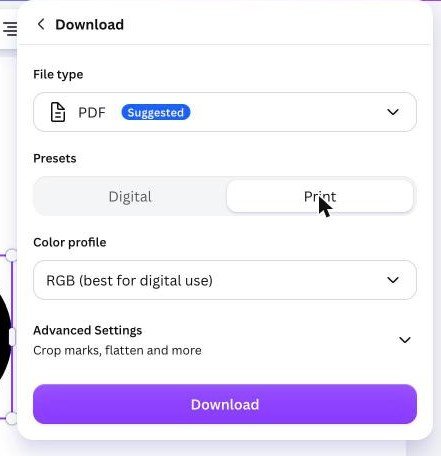
Turning on crop marks and bleed adds the bleed area to the dimensions the design already has, so the exported page comes out larger than the size you set. That is expected and the printer trims it back, but it catches people who then think the export is wrong.
Give the cover its own treatment
The cover is the only page most people see before deciding whether to open the file, and it is the page most often left as a lightly edited template.
- Set the title at a size that survives a thumbnail. A cover is usually first seen as a small image on a landing page or in an email, not full width.
- Keep it to three elements: a title, a subtitle or author line, and one image. Covers fall apart when they try to preview the contents.
- Use a photograph or a strong block of colour, not a pale background that disappears against a white page.
- Check it in greyscale if the book may be printed, since a colour contrast that works on screen can vanish in black and white.
A cut-out product shot works well here because it sits on the cover without a hard rectangular edge. Our guide to the background remover covers how to make one in a few seconds.
Where the finished file goes
A PDF book is usually delivered rather than just saved, and the delivery method decides how big the file is allowed to be.
- Email attachments are the tightest constraint, with most providers refusing anything much over 20MB. The Digital preset is built for this.
- A download link from a site removes the size limit but means the file has to be hosted somewhere stable.
- Print on demand services want the Print preset with the trim size and bleed they specify, and they will reject a file that does not match.
- Canva can also share a view link, though that requires the reader to have a connection and gives you less control over the file.
For a lead magnet the PDF is almost always the right answer rather than a shared link, because the reader keeps the file and can open it offline.
The setting that breaks your links
Flatten PDF sits in the advanced settings and looks harmless. It merges everything on each page into a single flat image.
- A flattened PDF has no working hyperlinks. The contents page becomes a picture of a contents page, and every link in the book stops responding.
- Text stops being selectable, so readers cannot copy a quote and search engines cannot read the file.
- File size usually grows, because text that compressed efficiently is now part of an image.
- It is useful in one case, which is discouraging casual editing of a file you are sending out.
For almost every book the answer is to leave it switched off. If the file needs protecting, the advanced settings also carry a password option, which does the job without destroying the links.
Frequently Asked Questions
How many pages can a Canva book have?
Up to 500 in one design. Beyond that the editor becomes slow to work in well before the limit matters, so a very long book is usually split into separate designs and the PDFs joined afterwards.
Can I change the page size after I have started?
Only by resizing the whole design, which scales every element and rarely survives intact on a text-heavy page. Choosing the size before you build the book is the only reliable approach.
Why is my PDF so large?
Usually high-resolution photographs, or Flatten PDF being switched on. Switching to the Digital preset and leaving flattening off brings most books back to a sensible size for emailing.
Will the fonts look right on someone else’s computer?
Yes. A PDF embeds its fonts, so the file looks the same wherever it opens. That is the main reason to send a book as a PDF rather than as a shared Canva link.
Related Articles

Get the Fox Bulletin briefing
The stories that matter, in your inbox. No spam, unsubscribe anytime.
Newsletter signup will be available soon.
Related stories

How to Add Music to Canva Designs and Videos
Adding the track is one click. Trimming it, fading it and exporting in a format that carries sound at all are the three steps that decide whether anyone hears it.

How to Highlight Text in Canva Three Different Ways
One effect does it in two clicks, and its three sliders decide whether the result looks like a marker pen or a solid block.

Connected Carousel in Canva: Build One That Lines Up
The design half is one wide canvas. The half that stops people is the split, because Canva has no built-in command for it and the answer is an app.