

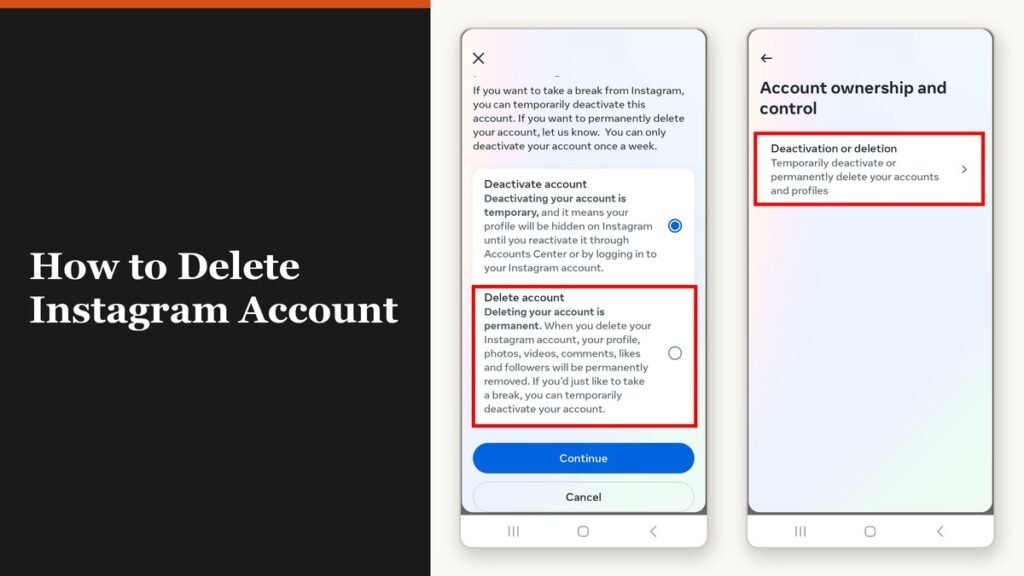
There is no delete button in the Instagram settings list, which is why so many people conclude the option has been removed. It has not. Working out how to delete Instagram account data for good means going two screens deeper, into Accounts Center, the settings panel Instagram shares with Facebook and Threads.
Two things make this harder than it should be. Instagram is part way through moving people from Accounts Center to Meta Account settings, so two different menus are live at the same time and guides that describe only one of them send you in circles. And the thing most people actually want is often deactivation, not deletion. The difference is covered below, after the steps.
Export your photos before you touch anything
Once the profile is gone, the export tool goes with it. There is no way to ask for your photos back afterwards, and support cannot retrieve them for you. The export lives in Accounts Center under Your information and permissions, and the archive can take up to a couple of days to arrive by email, so start it before you begin deleting.
Export anything you would miss: photos, videos, reels, stories, direct messages and the follower lists. The same advice applies on any account you are closing, and our guide to deleting a Facebook account walks through the equivalent archive on that side of the same Accounts Center.
How to delete Instagram account from the app
Start on your own profile, tap the menu in the top right, and look for Accounts Center. What happens next depends on which menu shape your account has been given. Scroll to the bottom of Accounts Center: if it says Manage accounts, follow the first list. If it says Accounts, follow the second. Everything after the branch is identical.
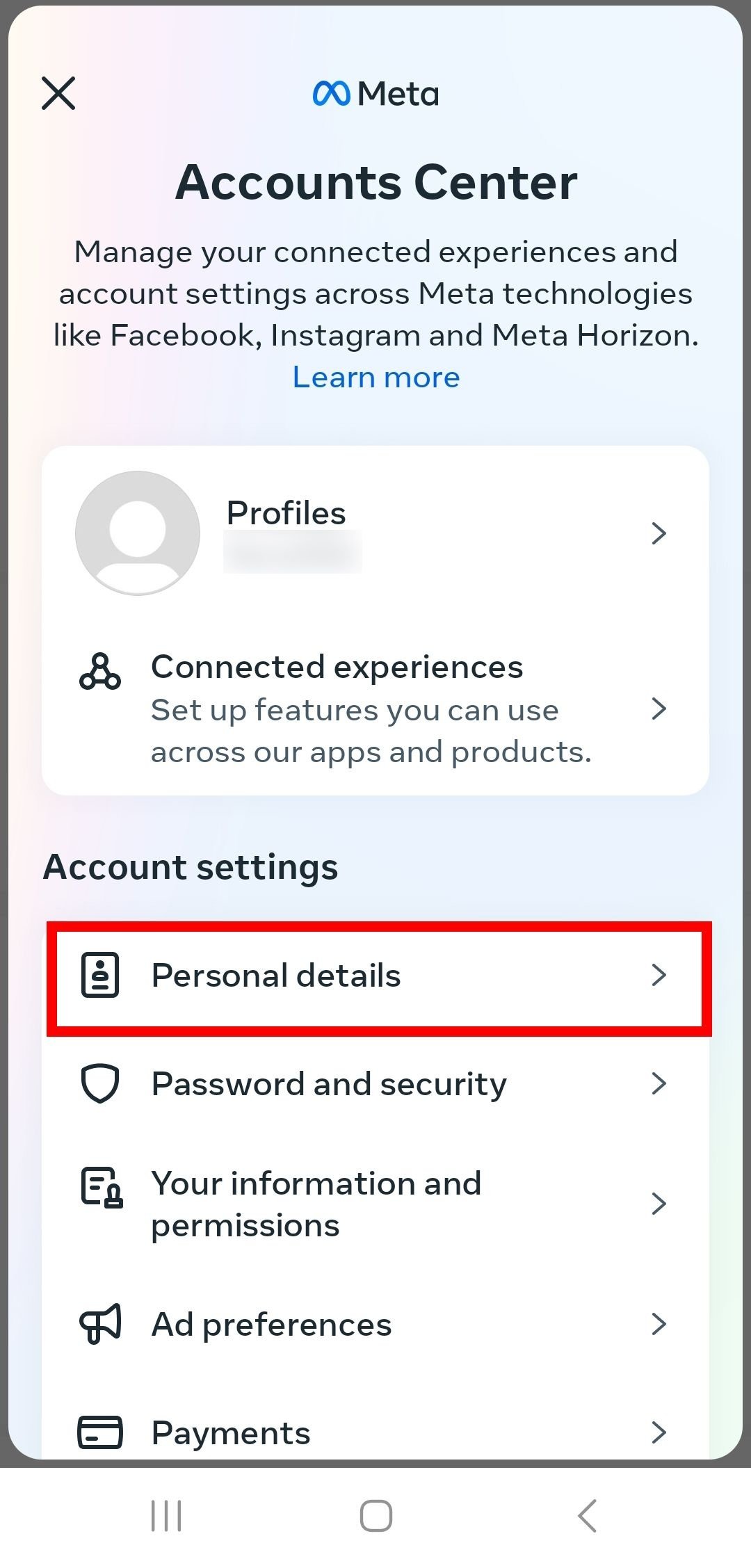
If the bottom of Accounts Center reads Manage accounts:
- Open your profile and tap the menu in the top right.
- Tap Accounts Center, then Profiles and personal details.
- Tap Manage next to the account type you want to remove.
- Tap Deactivation or deletion.
- Tap the account you want to delete.
- Tap Delete account, then Continue.
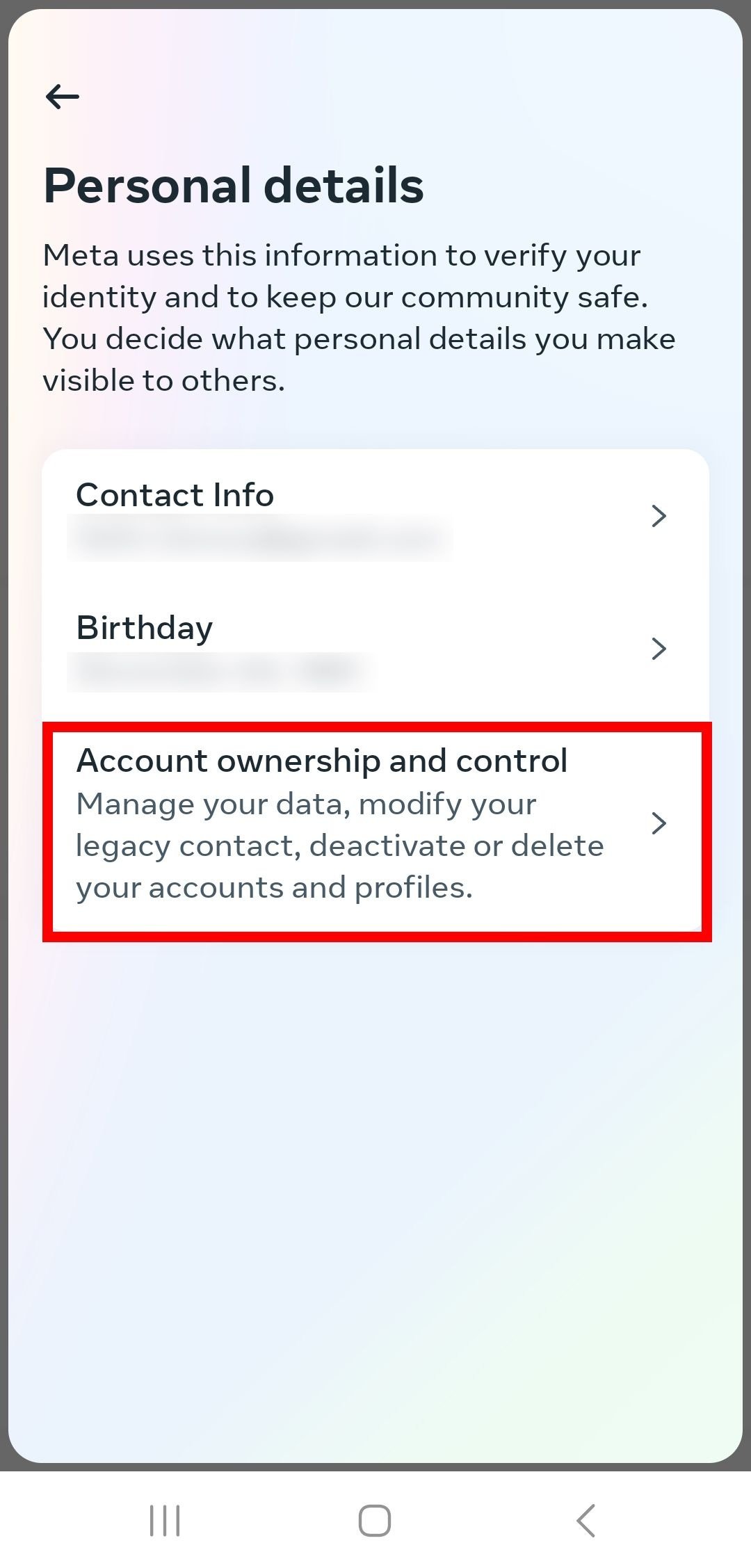
If the bottom of Accounts Center reads Accounts, the route runs through Personal details instead:
- Open your profile and tap the menu in the top right.
- Tap Accounts Center at the top left of the screen.
- Tap Personal details, under Account settings.
- Tap Account ownership and control.
- Tap Deactivation or deletion.
- Choose the account or profile you want to delete.
- Select Delete account, tap Continue, and follow the confirmation prompts.
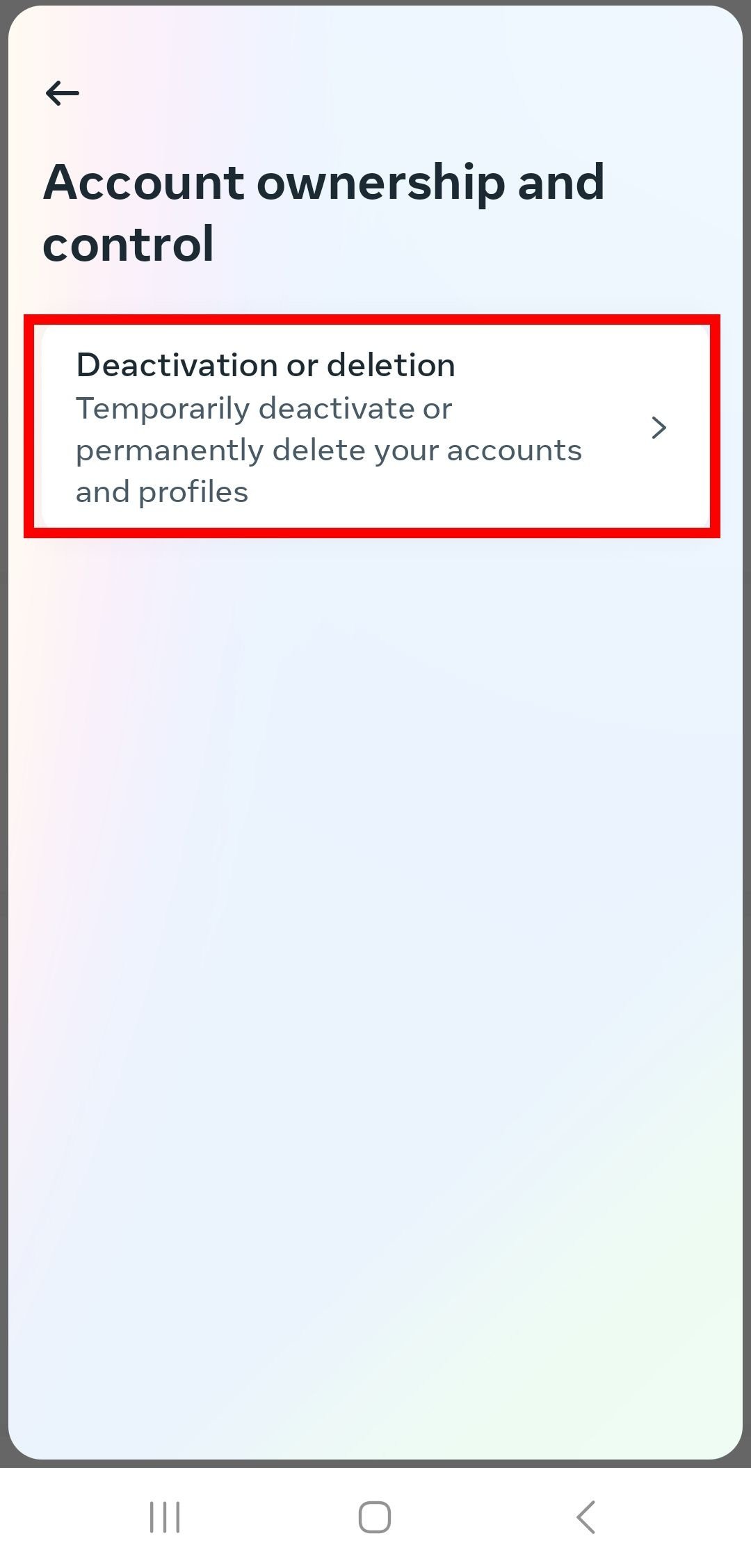
The last screen is the one worth reading rather than tapping through. It offers both options side by side, with deactivation described as temporary and deletion described as permanent. Pick the wrong radio button here and you will have hidden your account when you meant to close it, or closed it when you meant to take a break.
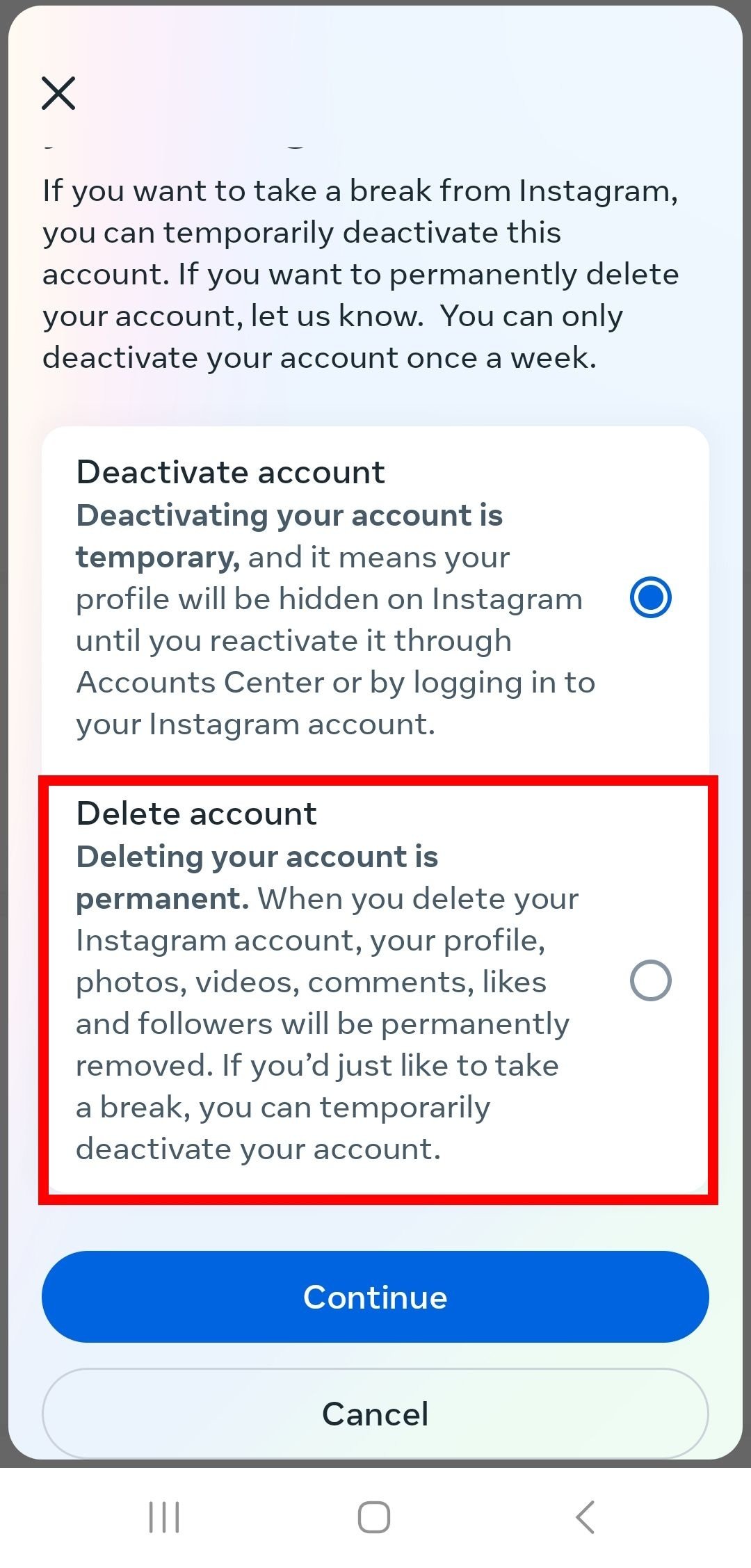
Instagram asks for your password at the end. This is deliberate: for security reasons it will not delete a profile on request from anyone who cannot log in, which also means a locked-out account cannot be closed until you recover access to it first.
Deleting from a computer
The desktop route is the same journey with different furniture. Click More in the bottom left of the web app, then Settings, then Accounts Center, and pick up the branch above from there. A phone browser works too, which is useful if the app will not open or keeps crashing on the settings screen.
What the 30-day and 90-day clocks mean
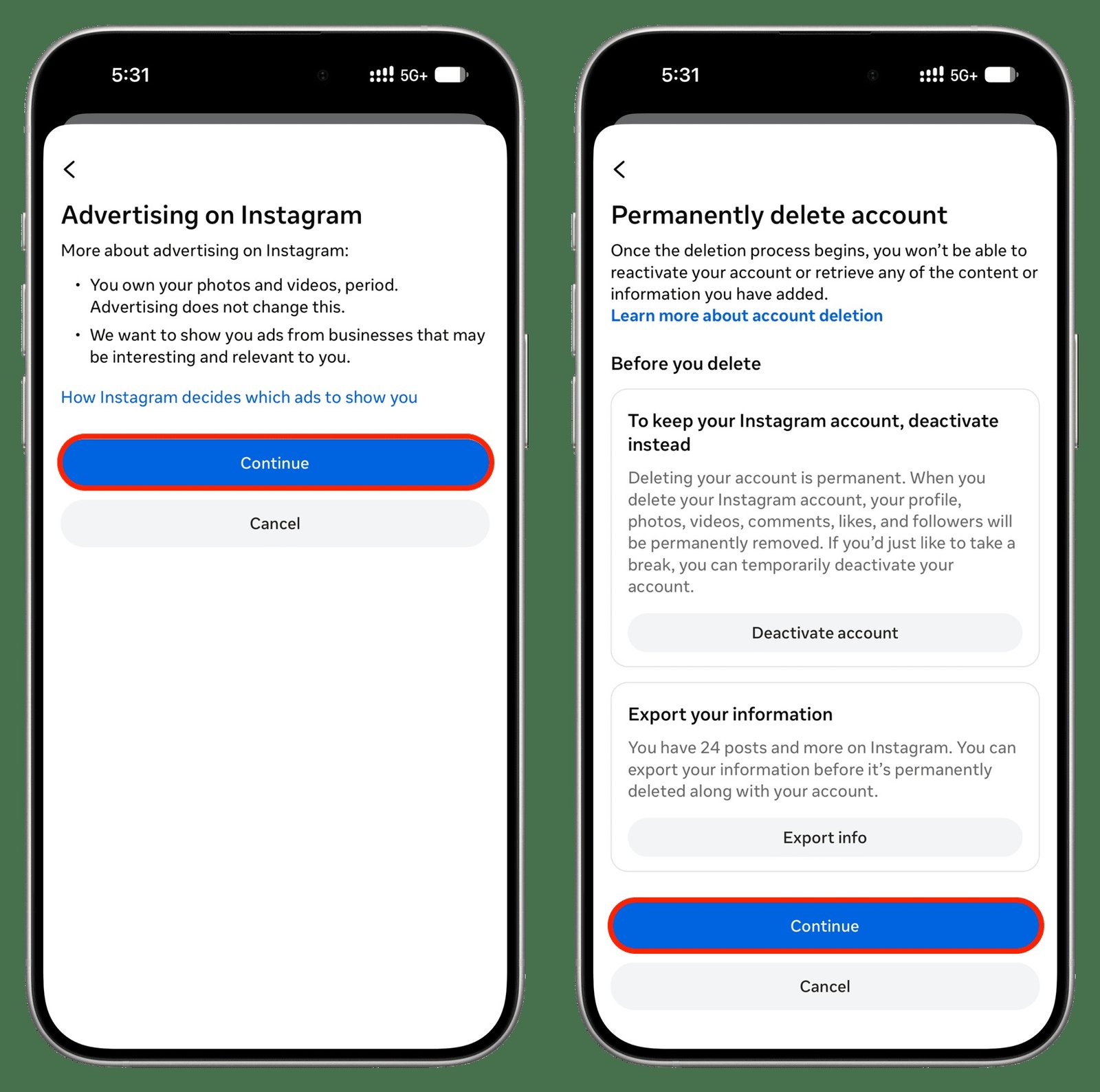
Deletion is not instant, and the two numbers get mixed up constantly. One is your window to change your mind. The other is how long the removal takes on Instagram’s side.
| Stage | What is happening |
|---|---|
| You tap Delete account | The profile vanishes from Instagram for everyone else that day |
| The first 30 days | Your data still exists and logging back in cancels the deletion |
| Day 30 | Deletion becomes final and nothing can be retrieved |
| Up to day 90 | Instagram finishes removing the content from its live systems |
| After day 90 | Copies may remain in backup storage and in legal or safety holds |
One caveat matters more than the rest: the length of the cancellation window varies by region, so 30 days is not a guarantee everywhere. If you might want the account back, do not treat the grace period as something you can rely on. And if the profile was removed for breaking the Community Standards rather than by your own request, the username may not be available to sign up with again.
When deactivating is the better move
Most people searching for the delete button want to disappear, not to destroy. Deactivation hides your photos, comments and likes until you log back in, keeps the username reserved, and reverses itself the moment you sign in again. The one restriction is that it can only be done once a week.
Deletion is the right choice when you want the data gone rather than hidden, when you are closing an old account you no longer control the email for, or when you are cleaning up duplicate profiles. If you are doing a wider clear-out, the same reasoning applies to deleting a WhatsApp account, where the account and the chat history go together and nothing survives the request.
It is also worth knowing what deleting Instagram does not touch. A Threads profile created from your Instagram account is deleted separately and survives on its own. Recent changes to the app have shifted where several of these controls live, and our rundown of the newest Instagram features covers what moved.
Frequently Asked Questions
Can Instagram delete my account for me?
No. Instagram states plainly that for security reasons it cannot delete a profile on your behalf, and you have to be able to log in to make the request. If you have lost the password or the email address, recovering access is the first job, not a support ticket asking for deletion.
Can I get the same username back afterwards?
Usually, as long as nobody else has claimed it. After deletion you can sign up again with the same username or add it to another profile. The exception is a profile removed for breaking the Community Standards, where the username may stay out of reach.
Does deleting Instagram delete my Facebook account too?
No. They share the Accounts Center panel but they are separate accounts, and deleting one leaves the other running. The same goes for Threads, which has its own deletion flow even though it was created from your Instagram profile.
How do I cancel a deletion I already requested?
Log back in with your username and password during the cancellation window. Signing in is the cancellation; there is no separate button. Once the window closes, nothing can be restored.
Related Articles

Get the Fox Bulletin briefing
The stories that matter, in your inbox. No spam, unsubscribe anytime.
Newsletter signup will be available soon.
Related stories
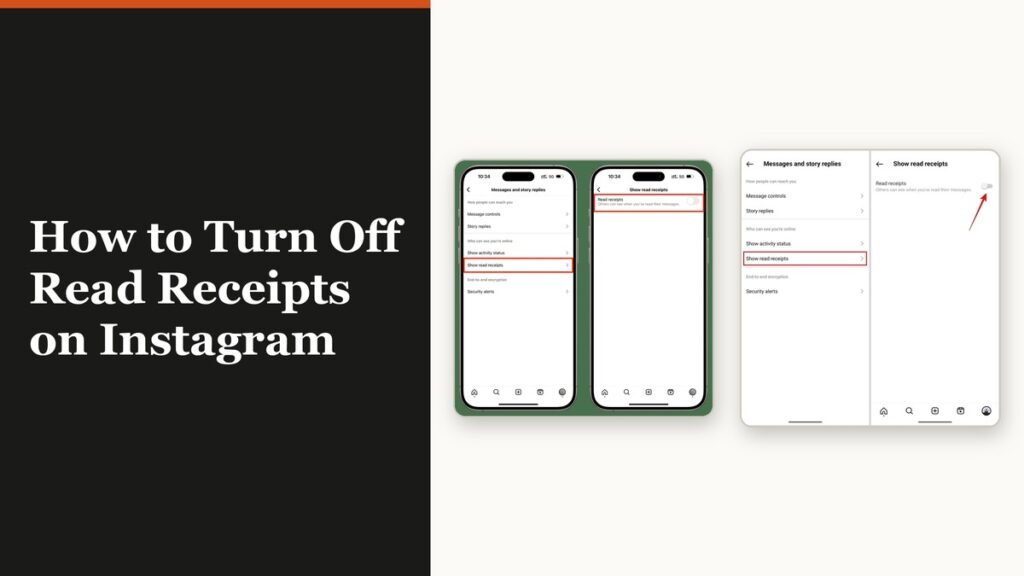
How to Turn Off Read Receipts on Instagram DMs
The global switch does not sweep up chats you have already set by hand. That one rule explains almost every case of Seen still appearing.
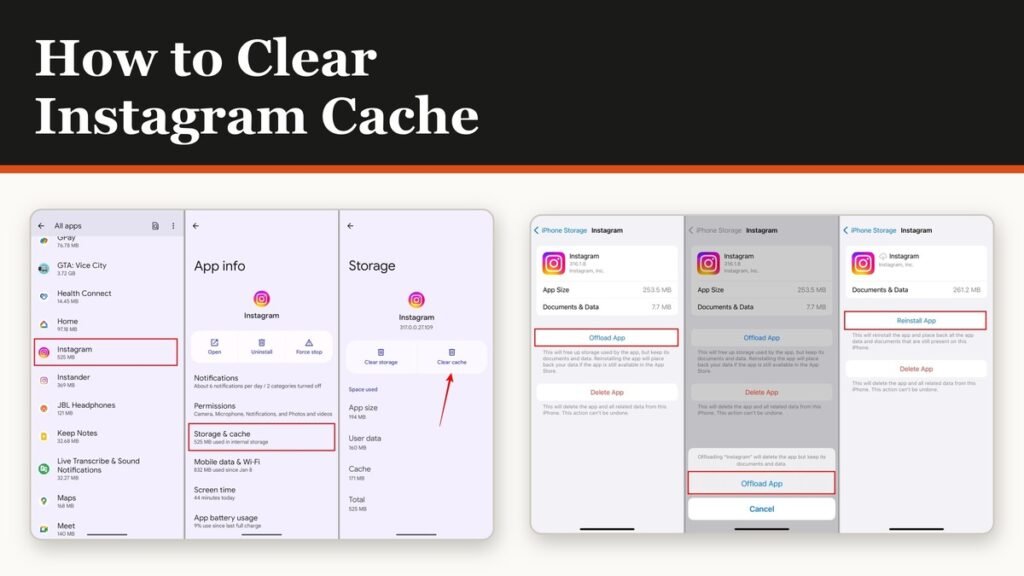
How to Clear Instagram Cache on Android and iPhone
Android has a real cache button and iPhone does not. The important part is telling it apart from the button next to it, which signs you out of everything.
How to See Who Unfollowed You on Instagram
Instagram keeps no record of who left. There is still an accurate way to find out, and it does not involve handing your password to anyone.