

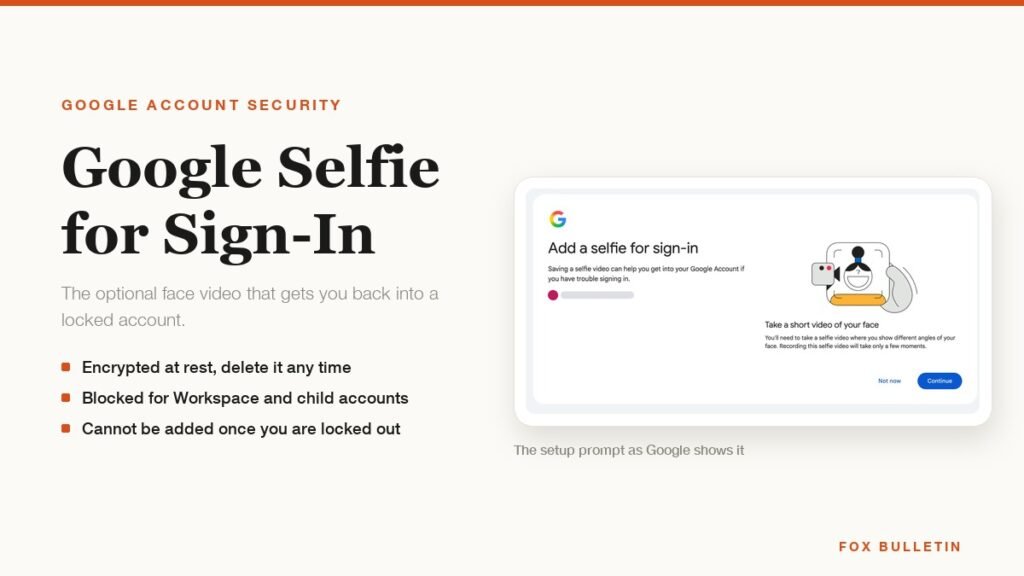
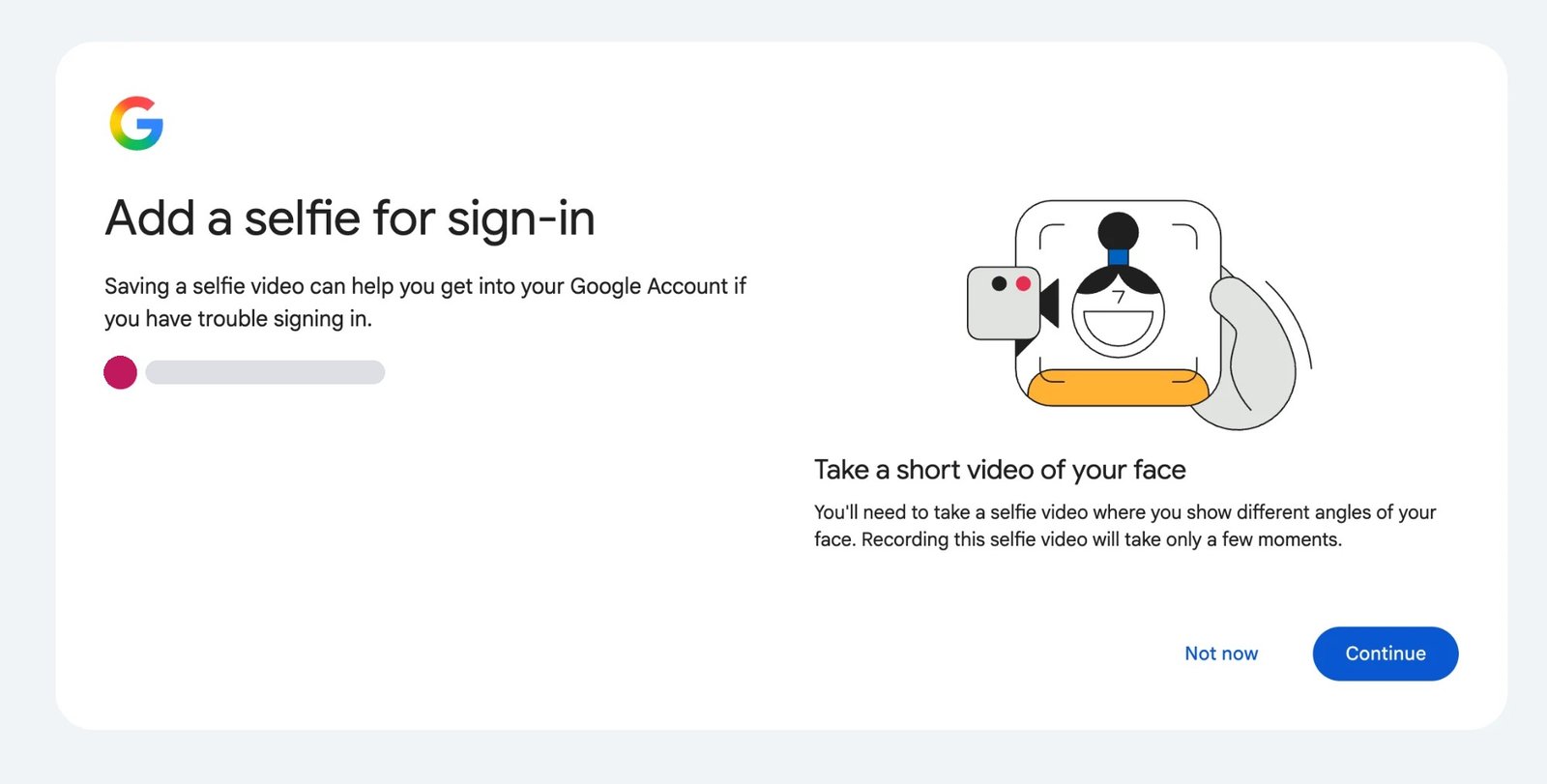
Google selfie for sign-in is an optional face check that records a short video of you and keeps it on your account as a way back in. If a card headed Add a selfie for sign-in appeared the last time you signed in, Google is offering to store that video so a future lockout does not end with a lost account.
It replaces nothing. Your password and your passkey keep working exactly as before, and the button marked Not now leaves the account untouched. What the prompt does not say on its face is that the stored video has more than one job, that three kinds of account cannot use it at all, and that you have to enrol while you can still sign in.
What Google selfie for sign-in actually does
Selfie video is a biometric recovery option on a personal Google Account. You record a short enrolment video once. When you later cannot sign in, you record a second video, and Google compares it with the stored one to decide whether to let you through.
Google documents three uses for a stored selfie video, and only the first is about lockouts.
- Getting back into the account when you cannot sign in the usual way.
- Unlocking features or services that ask you to prove you are a real person who has not broken Google’s policies.
- Creating an avatar for AI-generated content that resembles you.
The third one is worth reading twice. A video enrolled to survive a lockout sits in the same place as the video that would build a likeness of you, and Google treats them as one stored asset rather than two separate ones.
How the face match works behind the prompt
Enrolment takes well under a minute. You look at the camera and follow a few guided head movements, which capture your face from several angles rather than from one flat front-on frame. A computer with a camera finishes the whole thing in the browser. Without one, Google hands you a QR code to carry the step over to a phone.
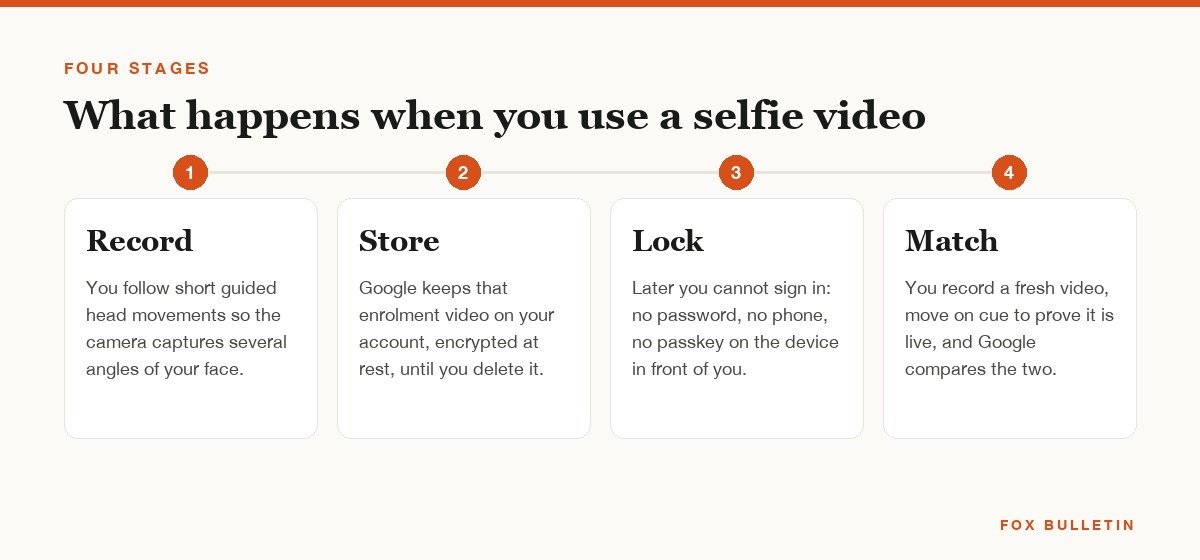
The second recording is where the security work happens. Google matches the new video against the saved one and asks you to move on cue, which is how it separates a living face from a photograph held up to the lens. Google says several layers sit behind that check to turn away fake photos and deepfakes, without naming them.
The stored video is encrypted at rest and used only for sign-in unless you turn on a separate setting. Google does not publish whether what it holds is the recording itself, a mathematical template derived from your face, or both. Independent measurement of how well face matching performs across demographics comes from the Face Recognition Vendor Test at NIST, which tests submitted algorithms rather than any one company’s live product.
Who can turn it on, and who is shut out
This is the first thing to check, because the setting simply does not appear for a large number of accounts. Three categories are excluded outright.
- Google Workspace accounts. A work or school address on Workspace cannot add a selfie video.
- Child accounts. Supervised accounts are left out.
- Advanced Protection Program accounts. Google’s hardened tier for people at elevated risk of targeted attack blocks it; the Advanced Protection Program enrolment page sets out what that tier changes.
Beyond those three, availability still varies by region, by account and by device, so an eligible-looking account can go without the option for weeks. Nothing you do speeds that up.
The restriction that matters most is quieter: you cannot add a selfie video while you are locked out or already in the recovery flow. It only ever helps if you set it up on a day when you did not need it.
Enrolment also has conditions of its own, and failing one of them is the usual reason a capture will not complete.
- Your eyes, nose and mouth have to be visible, so sunglasses, masks and hats come off.
- There must be no other people and no images of faces in the background.
- The device needs a working Wi-Fi or cellular connection.
- Camera access has to be allowed for the browser or the device.
Adding a selfie video to your Google Account
The whole thing lives in one place in account settings, and the steps are the same on a phone and on a computer.
- Open your Google Account and sign in if you are asked to.
- Open Security & sign-in.
- Under How you sign in to Google, select Selfie video.
- On the Add a selfie for sign-in page, select Continue.
- Follow the on-screen steps and hold each guided head movement until it clears.
Google also publishes the shortcut g.co/signin-selfie, which opens the same eligibility check without the menu walk. If the account is not eligible, that page is where you find out fastest.
Setting up a face-based route is a reasonable thing to do on an account you cannot afford to lose, and it is the same instinct behind keeping a second recovery path on any platform. Our walkthrough of resetting an Apple Account password shows how costly it gets when the only remaining route is a multi-day review.
Deleting the selfie video and what stops working
Removal is two steps, and it is available at any time.
- Open the Selfie video page in your Google Account.
- Next to the video, select Delete.
Google says the video is removed from the account after a period of time rather than instantly, that a copy may be held briefly as a security measure, and that it can be kept for longer where a Google policy was broken, so the company can investigate and enforce. No fixed number of days is published for any of those three cases.
Two things stop working once it is gone. You can no longer use the video to sign in, which is the point of deleting it. If the same video was used to unlock a feature or a service, access to that can go with it, and Google does not list which features those are.
There is a second control on the same page worth knowing about. Under Improve Google services, an optional setting lets Google use submitted videos and related data to develop facial recognition, age estimation and other verification methods. It is separate from enrolment, and you can switch it on or off whenever you like without deleting the video itself.
If removing stored biometrics is part of a wider clear-out, the same care applies elsewhere. Our guide to deleting a Facebook account covers the difference between deactivating something and actually getting the data off the platform.
The privacy trade-off before you tap Continue
A password can be changed in ten seconds. A face cannot. Enrolling a selfie video converts a permanent physical characteristic into an account credential, and that decision is not reversible in the way a password reset is, even after deletion removes the file.
The second consideration is the policy-violation carve-out. For most people it will never apply, but it means the retention period for an enrolled video is not entirely in the account holder’s hands, and the conditions under which it extends are described in general terms.
Weighed against that is a real failure mode. People do lose the phone that holds every passkey and every authenticator code, and accounts without a working recovery route are genuinely lost. If your recovery phone number and recovery email are current and a passkey lives on a second device, the selfie video adds little. If none of that is true, it covers the case nothing else covers.
Anyone in the Advanced Protection Program has already answered this question, which is why the option is withheld from those accounts: a face is weaker than a hardware key against a determined, targeted attacker.
Back-ups worth keeping alongside it
Selfie video is a last resort, not a first line. Four other measures do more, and all of them can sit on the same account at once.
- A passkey on a device you keep. It signs you in with the device unlock and cannot be phished.
- A hardware security key. The strongest option, and the one Advanced Protection is built around.
- A current recovery phone and email. Stale ones are the single most common reason a recovery fails.
- Recovery contacts and printed backup codes. Both work when the phone in your pocket does not.
Everything above still rests on the password underneath it being unique to Google. If it is shared with another site, a breach somewhere else is the thing that locks you out in the first place; our guide to password managers covers the tools that fix that properly.
Frequently Asked Questions
Is selfie video required to use a Google Account?
No. It is entirely optional, and declining it changes nothing about how you sign in. The prompt offers Not now alongside Continue, and the option can be added later from Security and sign-in if you change your mind.
Can someone unlock my account with a photo of my face?
That is what the guided movements are there to stop. Google asks for simple motions during the check so a still image or a screen held up to the camera fails, and says further layers target manipulated video. No liveness check is perfect, which is why the feature sits behind other sign-in methods rather than in front of them.
Does deleting the selfie video remove it from Google straight away?
Not immediately. Google says the video is deleted from the account after a period of time, may be retained briefly as a security measure, and can be kept longer if a policy was broken. The exact windows are not published.
Can I add a selfie video after I am already locked out?
No. Enrolment is blocked while you are locked out or in the account recovery process, so it has to be set up from a session where you are already signed in. That single rule decides whether the feature is any use to you.
Related Articles

Get the Fox Bulletin briefing
The stories that matter, in your inbox. No spam, unsubscribe anytime.
Newsletter signup will be available soon.
Related stories
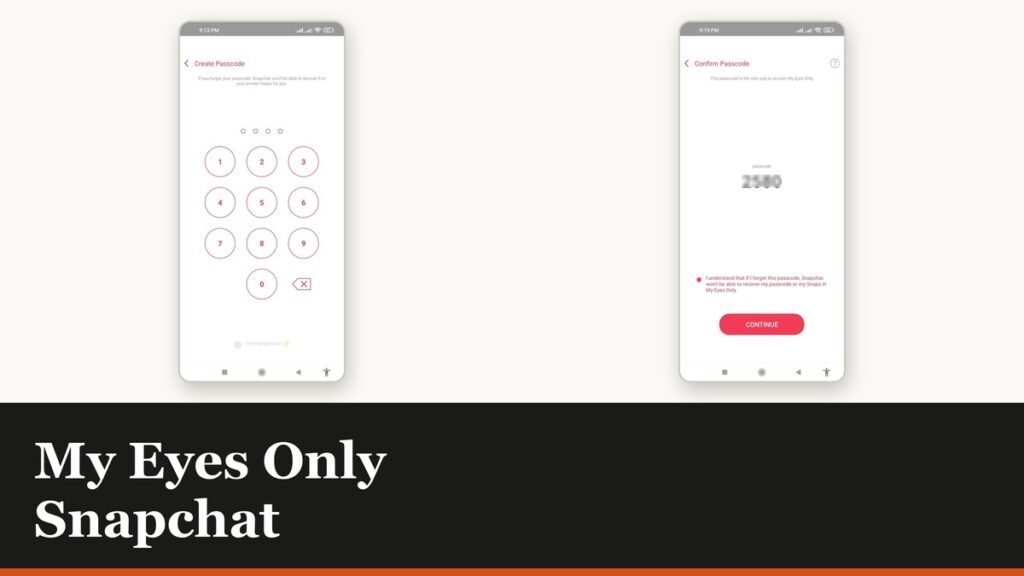
My Eyes Only Snapchat: Set It Up and Unlock It
Forgetting the passcode does not lock you out. It deletes everything behind it, and that is by design.
How to Delete Friends on Snapchat and What Changes
Removing a friend is quiet and quick. It also leaves them able to message you unless one other setting is changed.
Snapchat Dark Mode: Turn It On for iPhone and Android
The setting is four taps away and almost nobody finds it, because it is filed under Shortcuts rather than anywhere you would look.