

Hey Siri is the hands-free way to talk to your iPhone: say the phrase, keep talking, and Siri handles the rest without you touching the screen. In iOS 27 the setting has moved. Siri now has its own entry in the Settings app, and the wake word lives in a section called Requests, so instructions written for older versions send people hunting through menus that no longer exist.
This guide covers the current setup on iPhone, the choice between saying “Siri” and “Hey Siri”, how the phone tells your voice from everyone else's, and what to do when it stops answering. Turning it on takes about two minutes, most of it spent reading a few phrases aloud.
Hey Siri in Short: Where the Setting Lives in iOS 27
Quick answer: open Settings, tap Siri, then tap Requests and choose “Siri” or “Hey Siri”. Follow the prompts to record your voice. If Siri is switched off entirely, tap Turn On Siri first. From then on, say the phrase and your request in one breath.
What You Need Before Turning On Hey Siri
- An internet connection. Siri needs one for requests, and an offline iPhone usually answers that it is having trouble with the connection.
- A current iPhone on iOS 27. Older versions put the same switches under Apple Intelligence & Siri, then Talk & Type to Siri. Our guide to updating to iOS 27 covers the storage and backup checks that usually hold an update up.
- A quiet minute. Voice training asks you to say several short phrases, and background noise makes the recording less accurate.
- For Siri AI only: an iPhone 15 Pro, iPhone 15 Pro Max or any iPhone 16 model or later, set to English for now. The beta is not available at first in the EU.
How to Turn On Hey Siri on iPhone
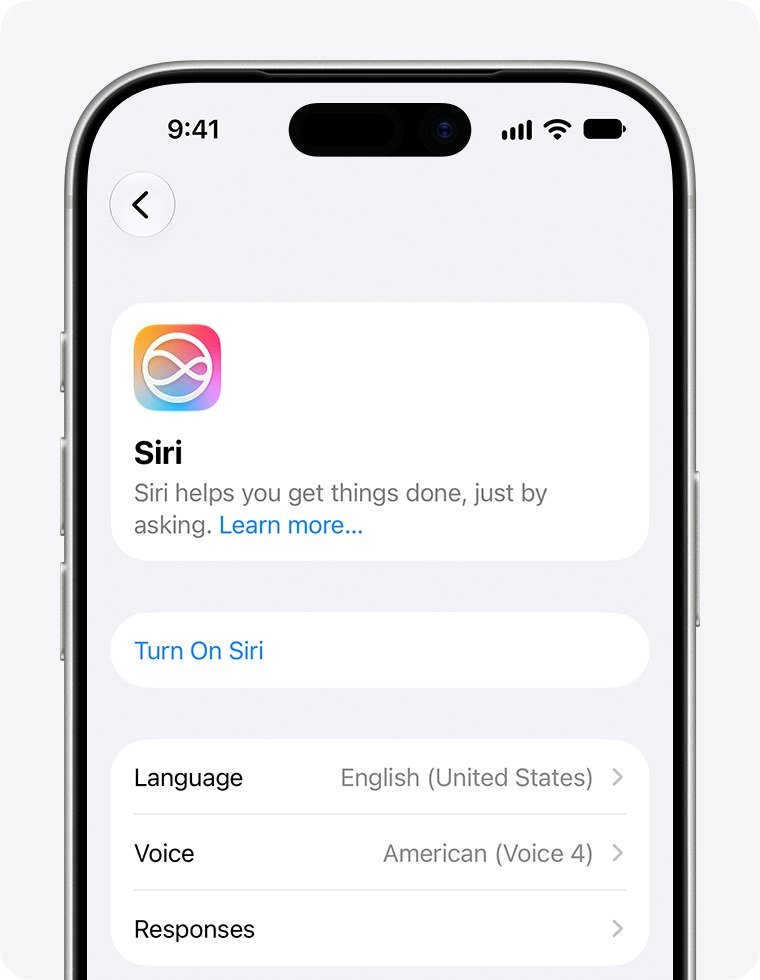
- Open the Settings app and tap Siri. Check: you see the Siri screen with Language, Voice and Responses below the main option.
- If you see Turn On Siri, tap it and follow the prompts. Check: Siri is on and the Requests option can be opened.
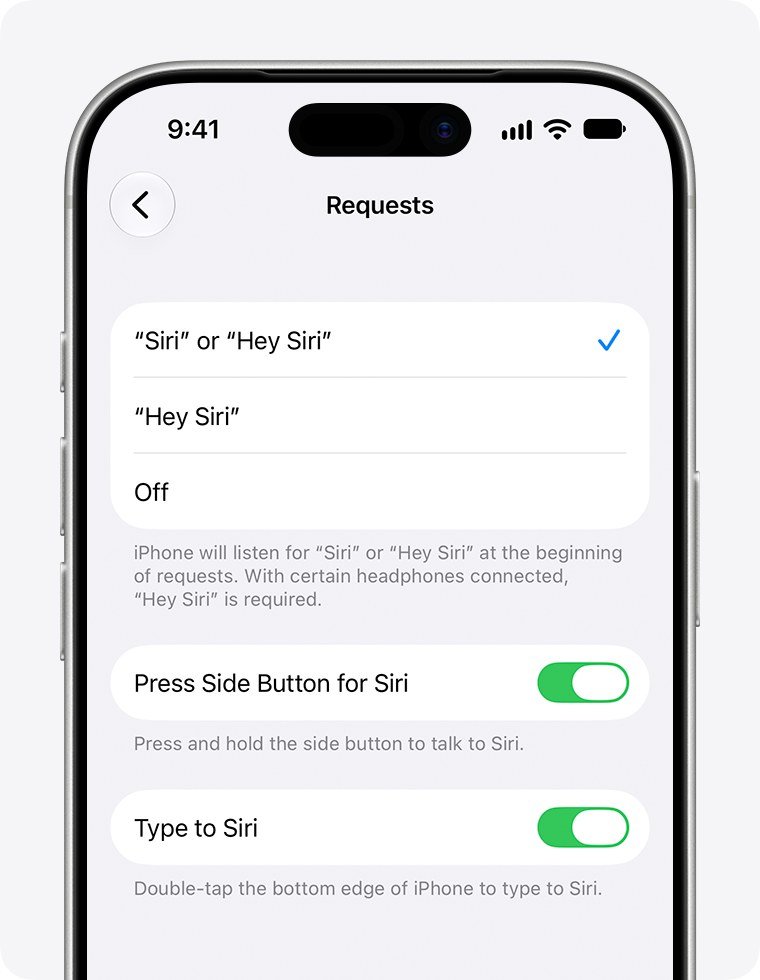
- Tap Requests. Check: three choices appear: “Siri” or “Hey Siri”, “Hey Siri”, and Off.
- Tap “Siri” or “Hey Siri” to accept both phrases, or “Hey Siri” to accept only the longer one.
- Follow the setup screens and say each phrase shown, then tap Done. Check: a tick sits next to your choice.
- Turn on Press Side Button for Siri as a backup for noisy places, and Type to Siri if you want to double-tap the bottom edge of the screen and type instead.
- Lock the phone and say “Hey Siri, what time is it?” Check: Siri answers out loud.
Two behaviours surprise people on the first day. Siri answers silently when you summon it with the side button while the iPhone is in Silent mode, but always speaks when you wake it by voice. And placing the iPhone face down stops it responding to the wake word at all, which is the simplest fix for a phone that keeps waking during conversations.
Siri or Hey Siri: Which Wake Word to Choose
Saying just “Siri” became possible with iOS 17, and in iOS 27 it sits at the top of the Requests options on iPhones and languages that support it. It is quicker, but a shorter word is easier to trigger by accident, especially if somebody in the house has a similar name. Picking “Hey Siri” only is the stricter setting.
- “Siri” or “Hey Siri”: the phone listens for either phrase at the start of a request.
- “Hey Siri” only: fewer false wake-ups, at the cost of one extra word.
- Headphones: with certain headphones connected, the iPhone requires “Hey Siri” whichever option you picked.
- Region: the short form is not offered in every language or region. Apple lists where it works on its iOS feature availability page.
How Hey Siri Hears You and Ignores Everyone Else
The iPhone is not recording everything you say. In its machine learning research note on Hey Siri, Apple describes a very small speech recognizer that runs all the time and listens only for the two words. A low-power processor makes the first check, and only if it fires does the main processor run a larger model to confirm.
The voice training you did at setup is what stops your phone answering a friend. Your recorded phrases become a reference, and new attempts are compared against them. That is also why retraining fixes so many problems: a recording made in a noisy room, or before a cold changed your voice, makes a poor reference. On Apple Watch, the same note says the detector runs only after you raise your wrist and the screen wakes, which saves battery.
Using Hey Siri on Mac, Apple Watch and HomePod
Mac
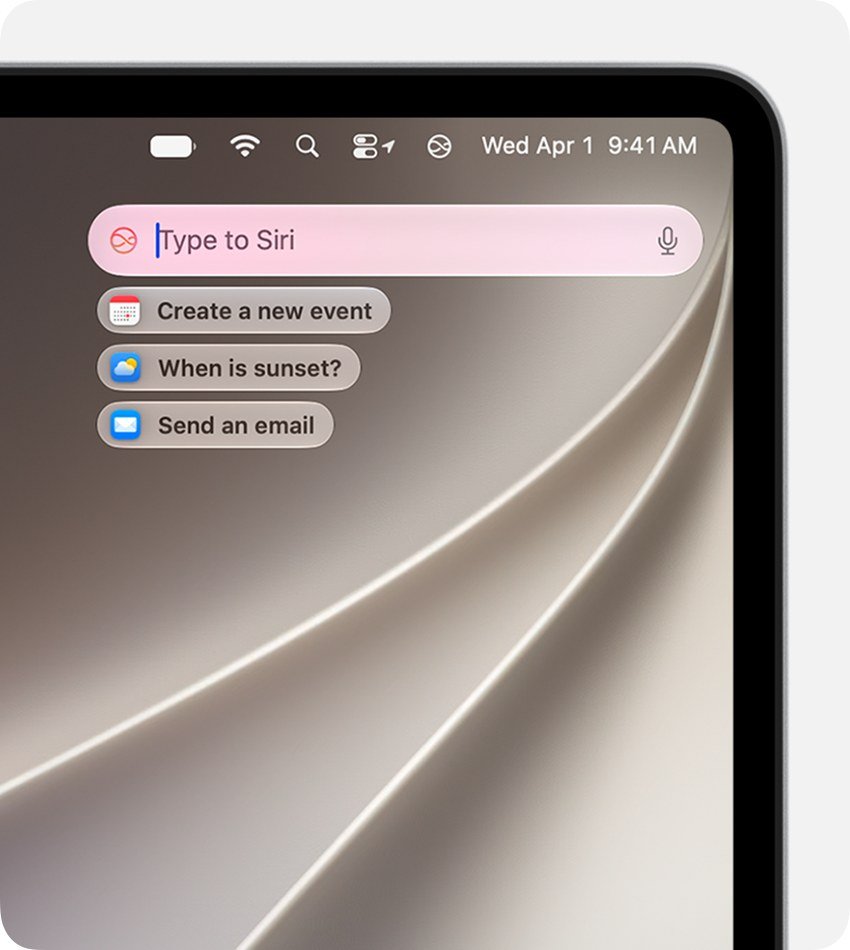
On a Mac, the same Requests setting turns on voice activation inside the Siri section of System Settings. You can also click the Siri button in the menu bar, or hold the Dictation key on an Apple keyboard with function keys. With Siri AI on macOS 27, Command-Space opens Spotlight and lets you type a request to Siri.
Apple Watch
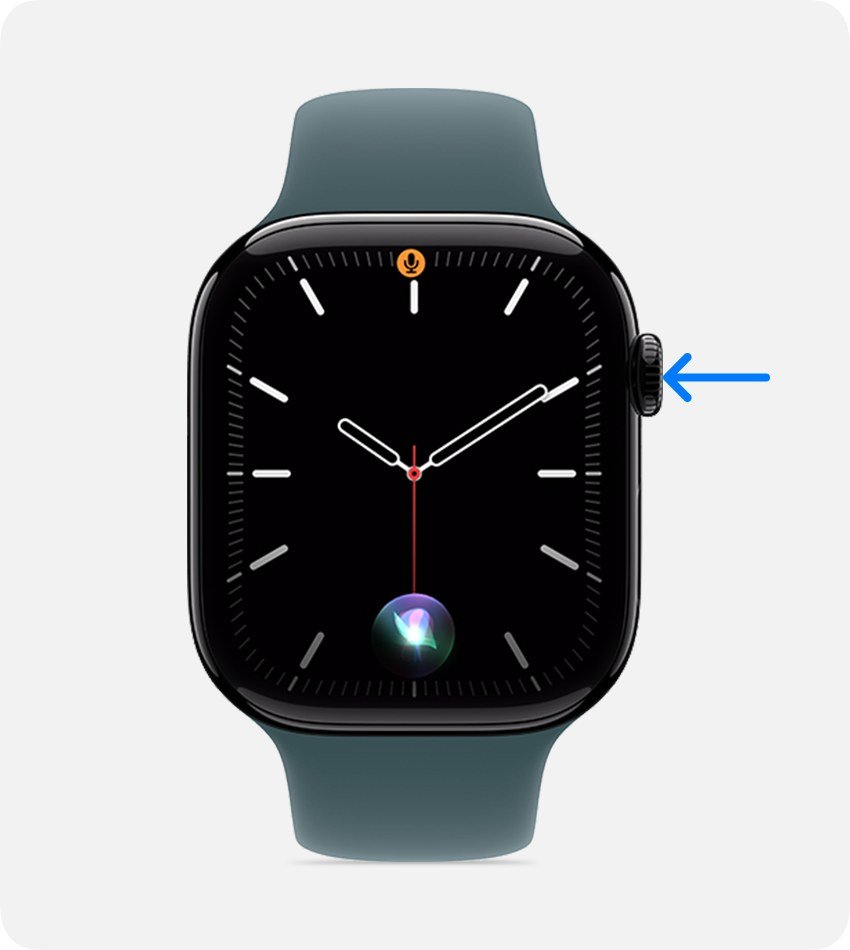
Say the wake word, or press and hold the Digital Crown and speak. The Crown shortcut can be switched on or off under Settings, Siri, Press Digital Crown on the watch. On Apple Intelligence-capable models, the watch uses the same version of Siri as the iPhone it is paired with.
HomePod
HomePod answers the wake word from across the room. When it is too noisy to be heard, touch and hold the top of the speaker and make your request instead.
When Hey Siri Stops Responding
Apple's own Siri troubleshooting checklist starts with the basics. Work through these in order and try the wake word after each one.
- Check the connection. Turn Wi-Fi or mobile data off and back on, then try again.
- Toggle the wake word. Go to Settings, Siri, Requests, tap Off, then choose your phrase again.
- Retrain your voice. When the setup screen appears after toggling, tap Continue, say each phrase shown, and tap Done. Do it somewhere quiet.
- Look at the phone's position. A face-down iPhone, or one buried in a bag, will not respond to the wake word by design.
- Check for a VPN profile. Some VPN profiles block Siri, which can even make it vanish from Settings after a restart.
- If you cannot hear Siri, go to Settings, Siri, Responses and choose Prefer Spoken Responses.
If voice activation still fails, the side button and Type to Siri keep working, so you are never fully locked out while you troubleshoot.
Change How Siri Sounds and Answers After Setup
Once Hey Siri is working, three settings in the same Siri menu shape what you hear back.
- Voice: Settings, Siri, Voice offers several variations and voices. With Siri AI on an iPhone 17 Pro, 17 Pro Max, iPhone Air, 18 Pro or 18 Pro Max, Siri Expressive Voices also let you tune pace and expressiveness.
- Language: Settings, Siri, Language changes the language Siri listens for. The same choice is used by Maps directions and by Listen to Page in Safari, so change it with care.
- Responses: choose spoken or silent answers, show captions of what Siri says, or show your request on screen so you can see what it heard.
If Siri keeps mishearing names, open Settings, Siri, Your Information and check your contact card. Siri reads names, home and work addresses and relationships from it, which is what makes a request like “give me driving directions home” work.
Hey Siri and Siri AI in iOS 27
iOS 27 introduced Siri AI, a beta version of the assistant that understands personal context, can see what is on your screen and keeps your conversations in a dedicated Siri app. You opt in from the Siri screen in Settings by tapping Try Siri AI (Beta), and you can switch back by choosing Use Siri Classic.
The wake word works the same way with either version. What changes is what you can ask. Siri AI adds new ways to start a request too: swiping down from the Dynamic Island, touching and holding a photo or file and choosing Ask Siri, or using Siri mode in Camera. Whether your iPhone qualifies is covered in our rundown of iOS 27 supported devices.
Frequently Asked Questions
Why does Hey Siri respond to other people?
Usually because the voice training is weak or the short “Siri” wake word is on. Retrain your voice in a quiet room, and if false triggers continue, switch Requests to “Hey Siri” only.
Can I use Hey Siri without the internet?
Siri needs an internet connection for requests. Offline, it usually tells you it is having trouble with the connection.
How do I stop Hey Siri from listening?
Go to Settings, Siri, Requests and tap Off. The side button still activates Siri unless you also turn off Press Side Button for Siri. To pause it briefly, place the iPhone face down.
Does Hey Siri drain the battery?
The design keeps the cost small. The phrase is detected by a small recognizer on a low-power processor, so the main processor wakes only when the wake word is likely to have been said.
Related Articles

Get the Fox Bulletin briefing
The stories that matter, in your inbox. No spam, unsubscribe anytime.
Newsletter signup will be available soon.
Related stories

Second Monitor Not Detected? Fixes for Common Multi-Monitor Problems
A second monitor that shows no signal is usually a cable, input or display mode problem. Here is the fix for that and every other common multi-monitor headache.
How to Scan Mac for Malware: A Complete Step-by-Step Check
Macs scan themselves, but not on demand. Here is how to check a Mac for malware by hand, which free tools help, and the 2026 copy-paste scam to watch for.

How to Split Screen on iPad: Side by Side, Slide Over and More
Split screen on iPad now lives inside Windowed Apps. Here is how to put two apps side by side, resize them, float a third in Slide Over and go back to one app.