

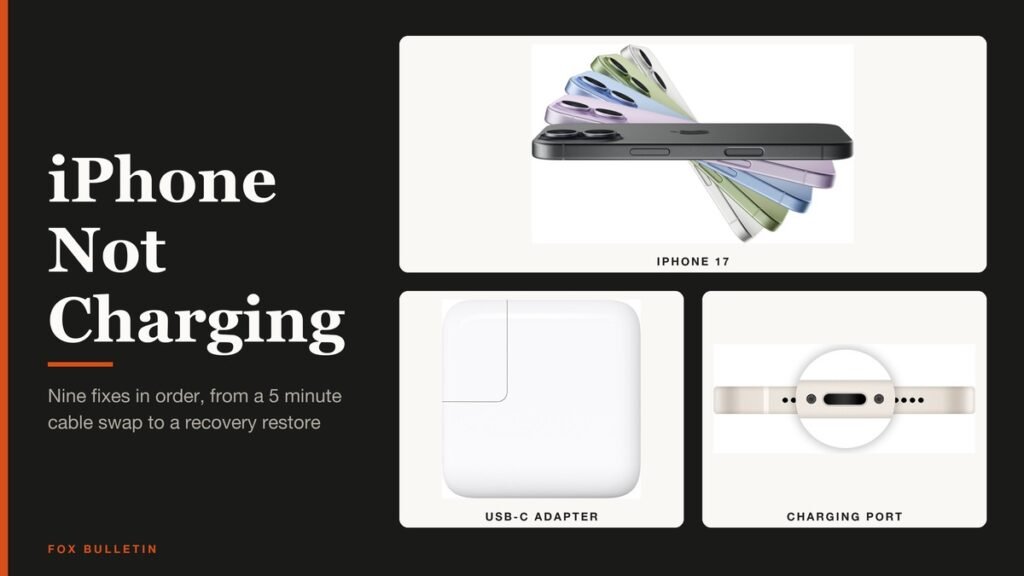
An iPhone not charging in 2026 is usually a cable, adapter, lint or heat problem rather than a dead phone, so the cheapest checks come first. A second cable and another wall socket take 5 minutes and cover the parts you can swap without tools.
The fixes run from 2 minutes to about an hour and match iOS 27 on iPhone 11 and later, including the iPhone 17, iPhone Air, iPhone 18 Pro and iPhone Duo (27.0.1 is current; the Duo runs 27.1). Each fix below carries the Settings screen it lives on and the test that shows which part actually failed.
iPhone Not Charging: The Short Answer
Swap the cable, adapter and outlet, clear the port with a soft non-metal brush, then force restart: press Volume Up, Volume Down, then hold the side button until the Apple logo appears. A stop at 80 percent or a Charging On Hold message is not a fault. Update iOS, test wireless charging, then restore or book service.
What Your iPhone Shows: Symptom, Likely Cause and the Fix to Try
| # | What you see | Likely cause | Go to |
|---|---|---|---|
| 1 | Dead screen and no charging bolt | Drained battery, bad cable or adapter | Fixes 1 and 3 |
| 2 | Bolt flickers when the cable moves | Loose connection or debris in the port | Fixes 1 and 2 |
| 3 | Stops at 80 percent | Optimized Battery Charging or a charge limit | Fix 4 |
| 4 | Charging On Hold or a temperature screen | Battery too hot or too cold | Fix 5 |
| 5 | Slow Charger or Incompatible Charger in Settings | Weak or mismatched charger | Fix 1 |
| 6 | Liquid Detected or Charging Not Available | Moisture in the connector | Fix 2 |
| 7 | Accessory Not Supported or Certified | Dirty port or a damaged or uncertified cable | Fixes 1 and 2 |
Before You Start: Time, Tools and Two Rules
Plan on about 5 minutes for fixes 1 to 3 and up to an hour for fix 8. Gather these:
- A second cable and adapter you trust. iPhone 15 and later use USB-C; iPhone 14 and earlier use Lightning.
- A small, clean, dry, soft-bristled brush with no metal in it.
- A Mac or PC and a cable that can charge the phone, for fixes 6 and 8.
Two rules: power off and unplug before anything touches the port, and never plug in a wet iPhone.
Fix 1: Swap the Cable, Adapter and Outlet (5 Minutes)
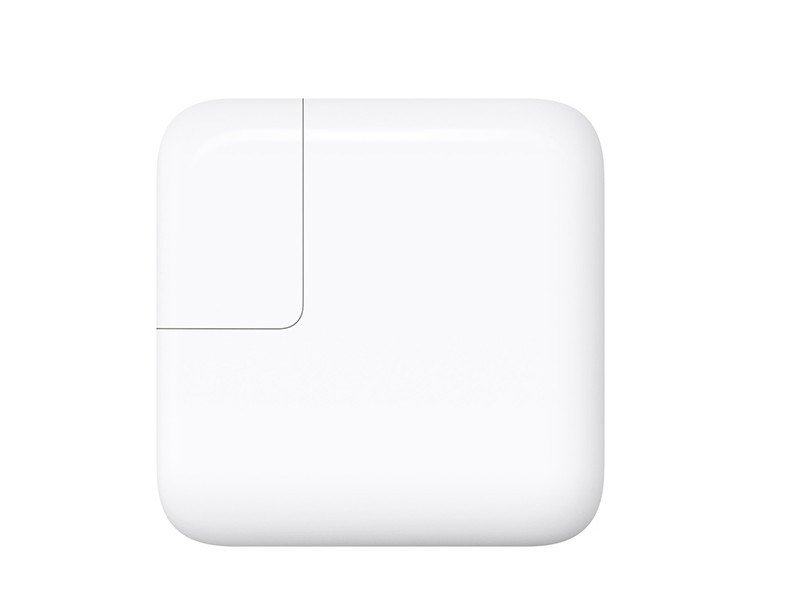
An iPhone 15 or later needs a USB-C cable and an adapter that follow the USB-C standard, including USB Power Delivery. The USB connector types and charging standards explain how to tell one cable from another.
- Unplug the cable at both ends and look for a frayed outer layer, bent prongs or a discolored adapter casing.
- Plug a different cable into the same adapter and the same iPhone.
- Still nothing? Plug the original cable into a different adapter on a different wall outlet.
- Hold the connector and wiggle the cable gently at the phone end. A bolt that flickers means a loose connection.
- Wait at least 10 minutes before you judge the result.
A deeply drained iPhone can need 20 to 30 minutes to turn on, though the charging icon should show within 2 minutes. A computer that is turned off can drain the battery instead of charging it, and a USB-A adapter caps an iPhone 15 or later at 7.5W. The wattage is negotiated over USB Power Delivery, which every iPhone 15 and later runs through a USB-C connector.
You’ll know it worked when the battery icon shows a charging bolt within 2 minutes, or a low-battery image appears and then the Apple logo.
Fix 2: Clear Debris From the Charging Port (3 Minutes)
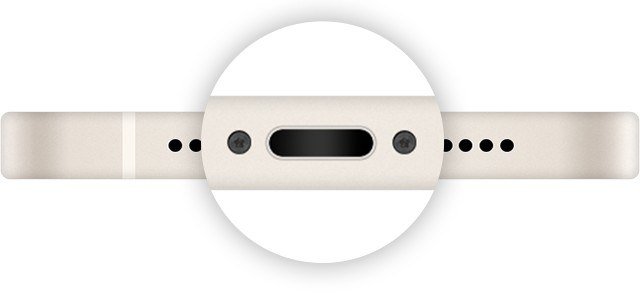
Debris in the port can stop the plug from seating, which looks like a dead cable.
- Turn the iPhone off and unplug every cable.
- Shine a light into the port.
- Twist the brush gently to loosen what is inside.
- Brush the debris out and away from the connector, not deeper in.
- Turn the iPhone on and push the cable in firmly.
Apple rules out compressed air, bleach, hydrogen peroxide and cotton swabs, and calls for a non-metallic brush.
You’ll know it worked when the cable seats further than before and the bolt appears.
If a Liquid Detected Alert Blocks Charging
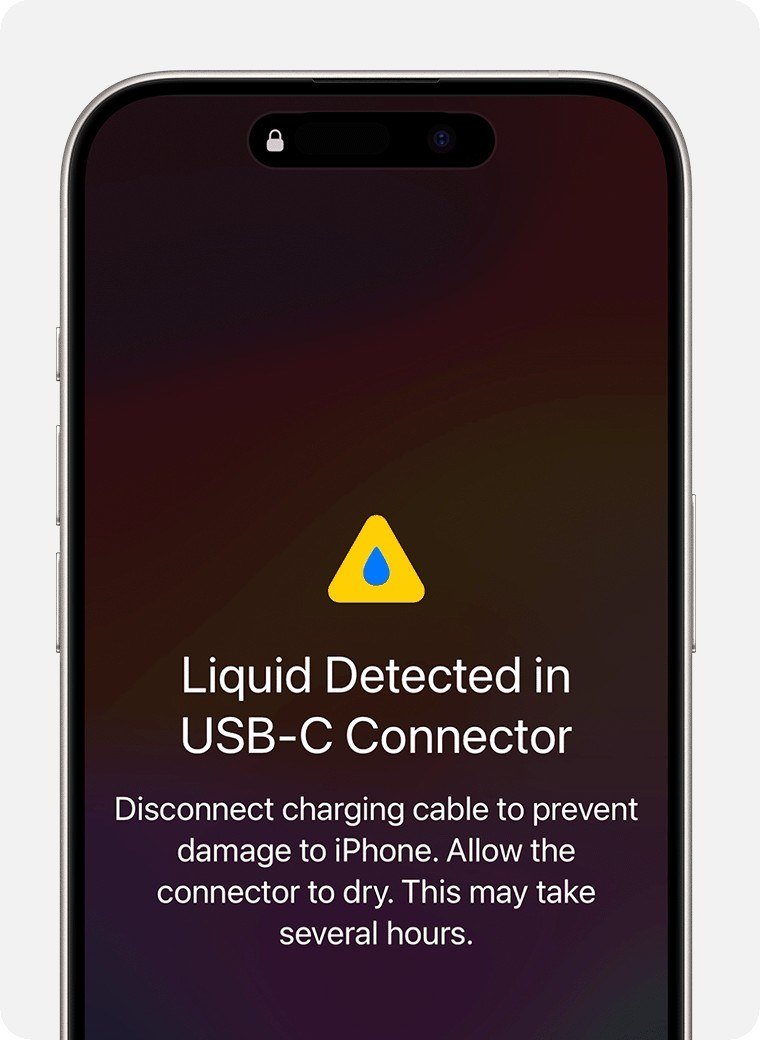
An iPhone XS, XR or later warns you when it senses liquid in the connector, with wording such as Charging Not Available or Liquid Detected in USB-C Connector. Charging stops until the connector dries.
- Unplug the cable from the iPhone and from the adapter.
- Tap the iPhone gently against your hand, connector down, then leave it in dry airflow for at least 30 minutes.
- Plug in again. If the alert returns, wait; drying can take up to 24 hours.
Never use heat, compressed air or a bag of rice. An emergency override exists, but charging a wet connector can corrode the pins for good.
You’ll know it worked when the alert stays gone and the bolt appears.
Fix 3: Force Restart (2 Minutes)
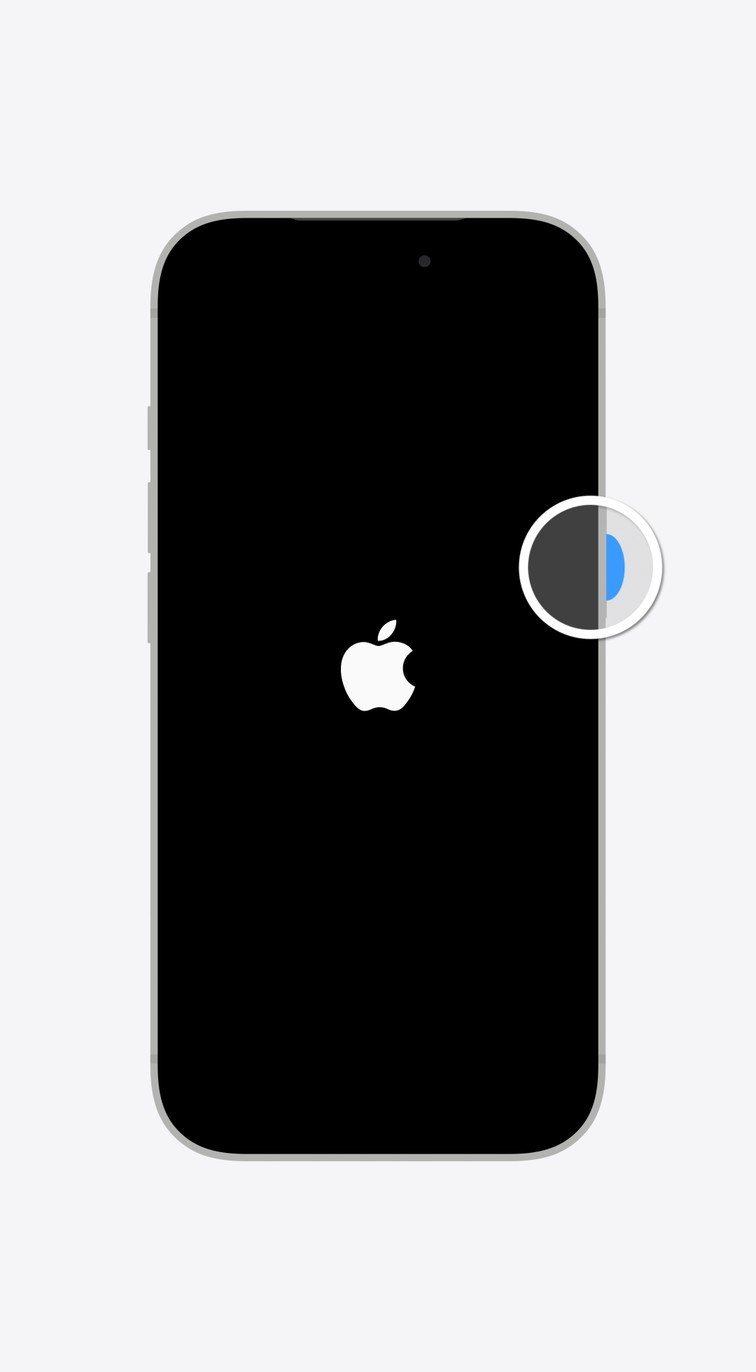
A frozen system can ignore a working charger. On an iPhone 8 or later, a force restart is three presses:
- Press and quickly release the Volume Up button.
- Press and quickly release the Volume Down button.
- Press and hold the side button.
- Keep holding through the power-off slider until the Apple logo appears; it can take longer than 10 seconds.
- Plug in the charger and wait 30 minutes.
You’ll know it worked when the Apple logo appears, the Lock Screen follows and the charging bolt shows.
Fix 4: Check Whether Optimized Battery Charging Paused It
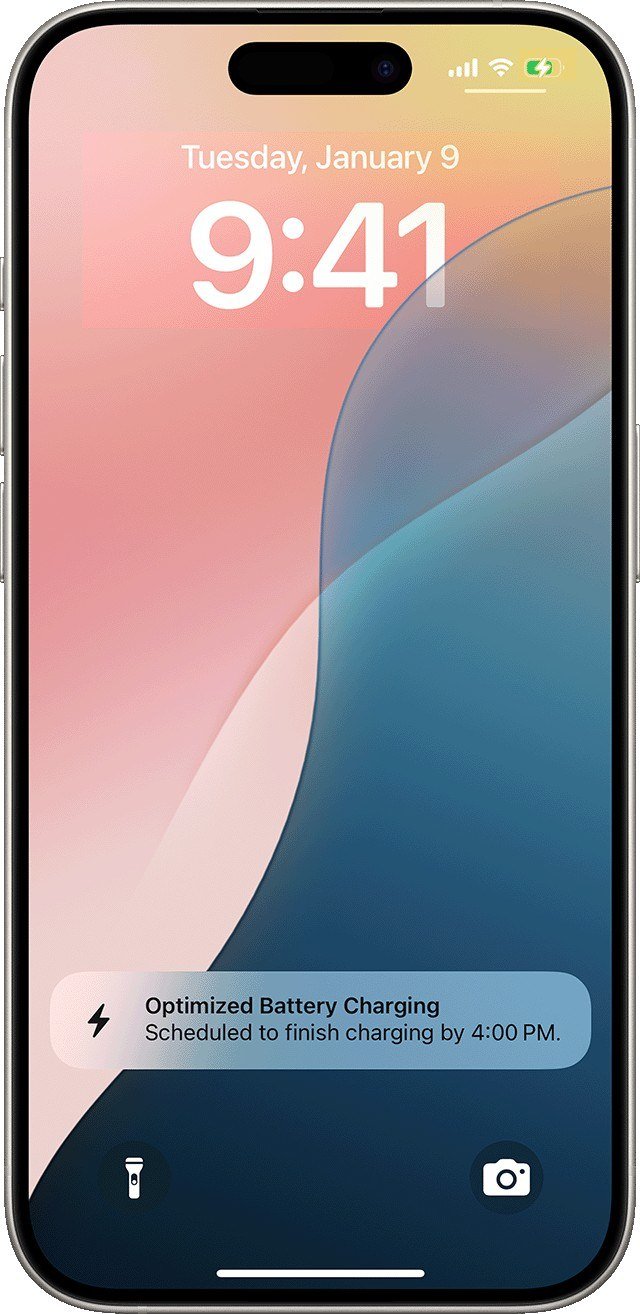
Optimized Battery Charging holds the battery at 80 percent when your iPhone expects a long stay on the charger, then finishes near your usual unplug time. It needs 14 days of history and 9 charges of 5 hours or more in one place before it starts. Touch and hold its Lock Screen note and tap Charge Now to skip the wait.
- Open Settings and tap Battery.
- On an iPhone 15 or later, tap Charging. On an iPhone 14 or earlier, tap Battery Health & Charging.
- On an iPhone 15 or later, drag the Charge Limit slider to 100 percent.
- Back on the Battery screen, tap Resume Charging if it shows.
With a limit below 100 percent, an iPhone 15 or later stops within a few points of it. Apple describes both settings on the Battery screen itself. Holding a lithium-ion battery at full charge overnight ages it faster, which is the loss the pause is there to avoid.
You’ll know it worked when Settings > Battery shows the charge estimate to 100 percent and the level rises past 80.
Fix 5: Cool the iPhone Down or Warm It Up
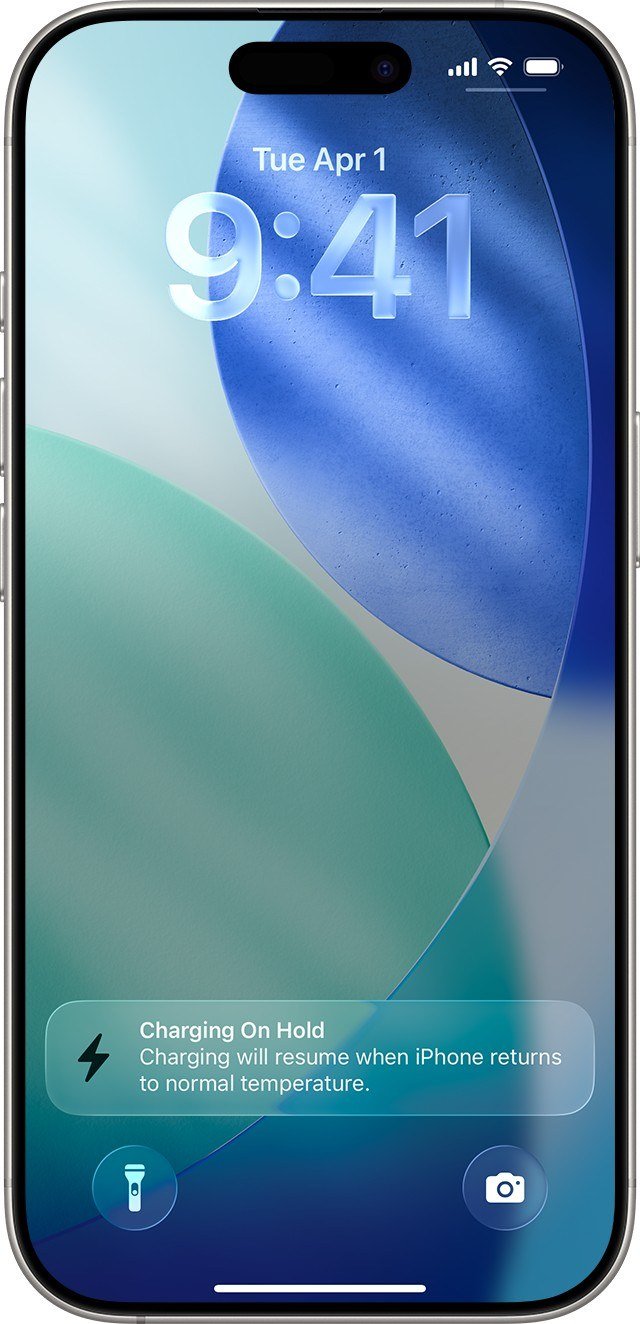
Apple designs the iPhone for room temperatures from 0 to 35 degrees C (32 to 95 degrees F). Outside that range charging slows or stops, wireless included, and the Lock Screen reads Charging On Hold. Heat also builds during setup, a restore and a major update. Apple publishes that range with its iPhone operating temperatures.
- Move the iPhone and charger out of direct sunlight, and out of a parked car.
- Take off the case and lock the screen.
- If it was in the cold, move it somewhere warmer and wait.
This protection cannot be switched off; charging resumes on its own.
You’ll know it worked when the Charging On Hold message clears and the bolt returns without you touching a setting.
Fix 6: Update iOS, Even Over a Cable
Software updates carry bug fixes; the latest for iPhone 11 and later is iOS 27.0.1.
- Back up the iPhone to iCloud or a computer.
- Plug it into power and join Wi-Fi.
- Open Settings, tap General, then tap Software Update.
- If an update shows, tap Download and Install and follow the prompts.
If the phone dies mid-download, update from a Mac or PC with the same cable.
You’ll know it worked when Software Update lists the newest version of iOS and the charging bolt stays on.
Fix 7: Test Wireless Charging, Then Read Battery Health
Wireless charging tests the battery without the port. Unplug the cable first, because the wired connection wins when both are attached. Set an iPhone 8 or later face up and centered on a plugged-in Qi-certified pad; our MagSafe power bank picks cover Qi2 speeds. Take off a thick, metal or battery case first.
If it charges wirelessly but not by cable, the port or cable has failed. If neither works, open the battery report:
- Open Settings and tap Battery.
- On an iPhone 15 or later, tap Battery Health. On an iPhone 14 or earlier, tap Battery Health & Charging.
- Read Maximum Capacity, and on an iPhone 15 or later the Cycle Count too.
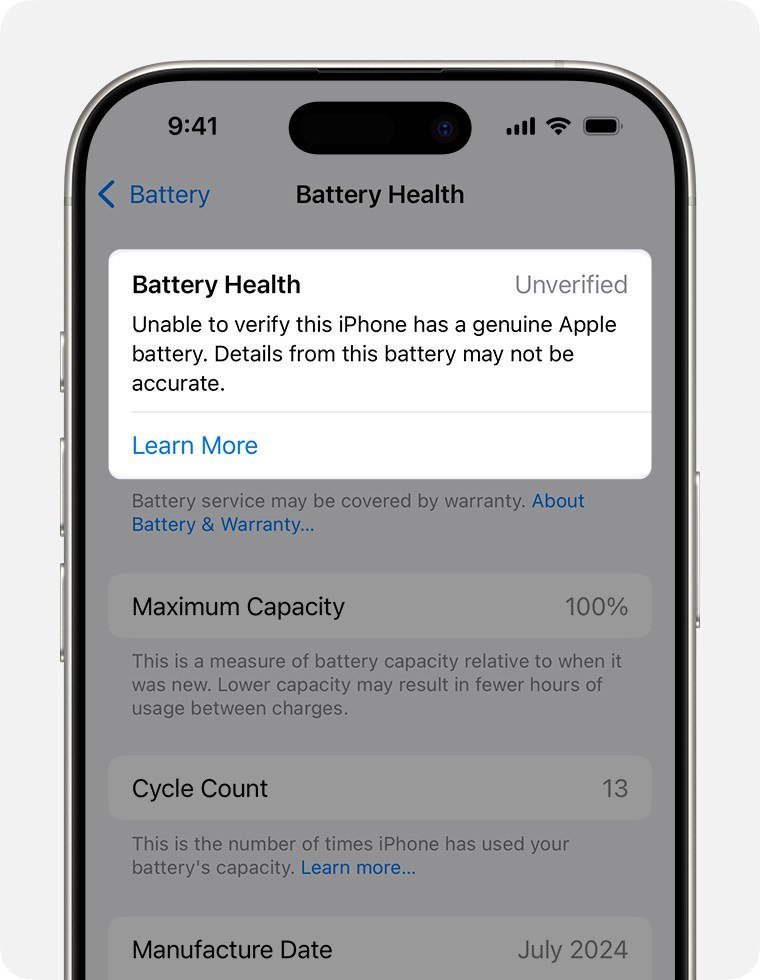
Apple designs iPhone 14 batteries and earlier to keep 80 percent of their capacity at 500 charge cycles, and iPhone 15 batteries at 1,000. Battery Health also carries the service messages you may see, such as Unable to verify a genuine Apple battery.
You’ll know it worked when the phone charges on a pad and Battery Health shows a capacity that matches its age.
Fix 8: Restore Through Recovery Mode or DFU Mode (30 to 60 Minutes)
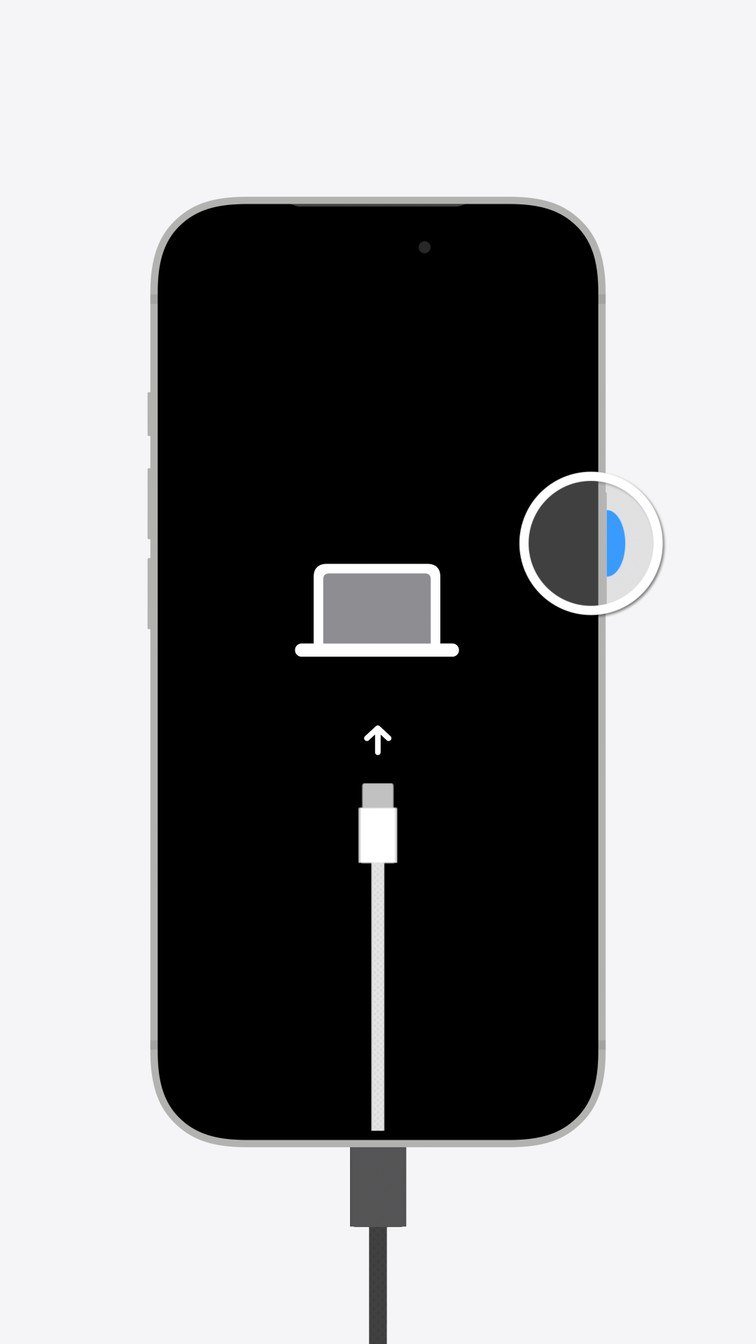
Use this when the screen sits on the Apple logo for minutes or the Connect to computer screen appears. Choose Update before Restore, because Restore erases every file.
- Connect the iPhone to a Mac, or to a PC running the Apple Devices app, with a cable that can charge it.
- Press and quickly release Volume Up, then Volume Down.
- Hold the side button until the recovery screen shows a computer and a cable.
- On a Mac, open Finder and select the iPhone in the sidebar under Locations.
- Click Update first. Click Restore only if Update fails.
- If the download passes 15 minutes and the screen closes, let it finish and repeat steps 2 and 3.
DFU mode goes lower than recovery mode: no operating system loads, and a Mac restores the phone from an IPSW file through Finder or Apple Configurator.
You’ll know it worked when the Hello screen appears after the restore and a plugged-in iPhone shows the bolt.
Fix 9: Book Service When iPhone Not Charging Survives Everything
Stop and book a repair at an Apple Store or Apple Authorized Service Provider when any of these holds:
- The iPhone charges only on a wireless pad, which points at the connector.
- A Liquid Detected alert returns with every Apple cable after a full day of drying.
- The recovery restore fails, or a button sticks.
- Battery Health reads significantly degraded, or Settings > General > About shows Unknown beside Battery.
A significantly degraded battery is not a safety issue, and the warranty covers a defective one. A trained technician should replace it with a genuine part, which reads Genuine in About. If the display also shows lines, read why a green line on a phone screen appears before you book.
Five Mistakes That Keep an iPhone From Charging
- Judging after 30 seconds. Give a drained phone 10 minutes on a wall adapter.
- Cleaning with compressed air or a pin. Use a soft non-metal brush only.
- Charging a wet connector. Dry it first; the pins can corrode.
- Blaming the phone for a weak charger. A 7.5W adapter crawls.
- Wireless charging with a cable attached. The cable wins.
Frequently Asked Questions
Why is my iPhone not charging when plugged in?
The usual causes are a damaged cable or adapter, debris in the port, a software freeze or heat. Swap the cable and adapter, clear the port, then force restart. Charging On Hold means the battery needs to return to a normal temperature.
Why does my iPhone stop charging at 80 percent?
Optimized Battery Charging pauses at 80 percent to reduce wear, and an iPhone 15 or later can also have a charge limit. A warm battery can hold charging near 80 until it cools. Check Settings > Battery > Charging.
Is my charging port broken or just dirty?
Try a wireless pad. If the phone charges there, the port or cable is the problem. If the cable still will not seat after cleaning, or an alert persists with every Apple cable, the port needs service.
How long should I charge a dead iPhone before giving up?
Charge it for 30 minutes, force restart, then charge another 30. An iPhone that will not turn on can need a full hour. Past that, run fixes 6 to 8.
Related Articles

Get the Fox Bulletin briefing
The stories that matter, in your inbox. No spam, unsubscribe anytime.
Newsletter signup will be available soon.
Related stories

Best VPN: 7 Services Compared on Audits and Privacy
Seven VPN services compared on no-logs audits, server countries, simultaneous devices, platforms and kill-switch behavior, with prices only where a service lists them in US dollars.

Best Laptop: 7 Picks for Every Budget and Job
Seven laptops that cover every kind of buyer, from a MacBook Air to a Chromebook Plus, with the chip, memory and storage each listing confirms and the specs worth paying for.

Best Headphones: 7 Wired, Wireless and ANC Picks
Seven headphones chosen by design, from an open-back Sennheiser and a Sony studio standard to Sony, Beats and Skullcandy noise cancelling pairs, with the wired and Bluetooth basics.