

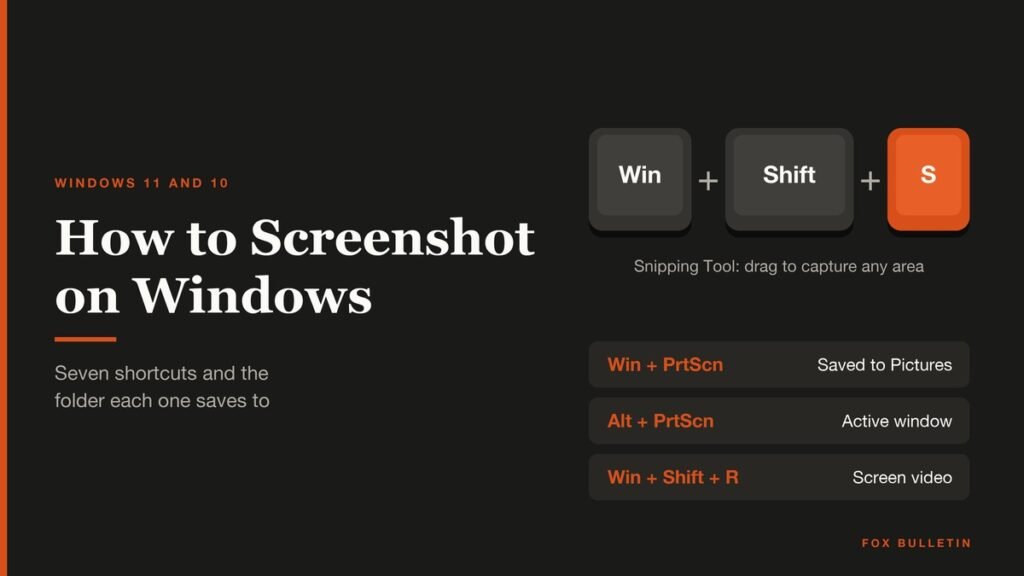
If you want to know how to screenshot on Windows, press Windows + PrtScn to save the whole screen as a file, or Windows + Shift + S to pick an area. Those two shortcuts cover most jobs in 2026, on Windows 11 and Windows 10 alike.
Five more key combinations handle single windows, screen video, games and laptops with no Print Screen key. This guide takes them one shortcut at a time, with the exact keys, what each one captures, and the folder where the image lands. Reading it takes about ten minutes; learning the two main shortcuts takes one.
How to Screenshot on Windows: The Quick Answer
Press Windows + PrtScn to capture the full screen and save a PNG in Pictures, Screenshots. Press Windows + Shift + S to drag a rectangle, choose a window, grab the full screen or draw a freeform shape; that capture goes to the clipboard and opens in Snipping Tool. Alt + PrtScn copies only the active window.
What You Need Before You Start
- A PC running Windows 11 or Windows 10. Every shortcut below works on both unless noted; a laptop sold with DOS has none of them until Windows is installed, as our DOS vs Windows laptop comparison explains.
- A keyboard with a PrtScn key (it may be labeled PrtSc, Prt Scr or Print Screen). Laptops without one have a workaround, covered further down.
- Snipping Tool, which ships with Windows. Search for it from Start if it is not pinned.
- Xbox Game Bar switched on, only if you plan to capture games.
All Seven Windows Screenshot Shortcuts and Where Each Saves
| # | Shortcut | What it captures | Where it goes |
|---|---|---|---|
| 1 | PrtScn | Region (Windows 11 default) or full screen (Windows 10) | Clipboard |
| 2 | Windows + PrtScn | Full screen | Pictures\Screenshots file |
| 3 | Alt + PrtScn | Active window | Clipboard |
| 4 | Windows + Shift + S | Rectangle, window, full screen or freeform | Clipboard; Windows 11 also saves a copy |
| 5 | Windows + Shift + R | Screen video of a region | Videos\Screen Recordings (MP4) |
| 6 | Windows + Alt + PrtScn | Game or app (Game Bar) | Videos\Captures (PNG) |
| 7 | Fn + Windows + Space Bar | Screen, on keyboards with no PrtScn key | Screenshot ready to print or share |
The last column matters most. PrtScn and Alt + PrtScn only copy to the clipboard, so nothing exists on disk until you paste and save it. The full Windows keyboard shortcuts list from Microsoft carries all of them.
PrtScn: The Key That Changed on Windows 11
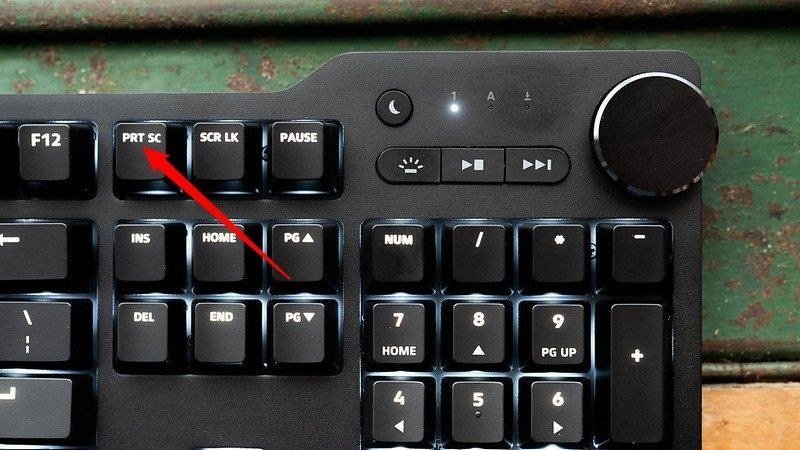
The Print Screen key dates back to MS-DOS, when it sent the text on screen to the printer port. The history of the Print Screen key also explains why it may share a key with SysRq. On Windows 10 it still copies the entire screen to the clipboard. On Windows 11 it now opens the snipping overlay instead, a default that arrived in 2023.
- Press PrtScn once.
- On Windows 11, drag around the area you want, or pick a mode from the bar at the top.
- Open Paint, Word or an email and press Ctrl + V to paste.
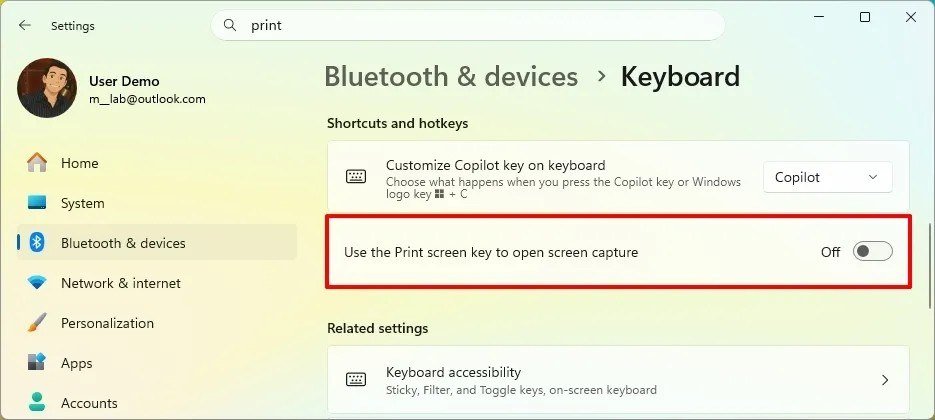
To switch the Windows 11 behavior back, open Settings and search for “print.” The toggle, “Use the Print Screen button to open screen snipping,” sits under Accessibility, Keyboard, and on recent builds under Bluetooth & devices, Keyboard. Turn it off and PrtScn copies the full screen again.
Windows 10 works the other way round. Go to Settings, Ease of Access, Keyboard and turn on the toggle under Print Screen shortcut to make PrtScn open screen snipping.
You’ll know it worked when the screen dims for a selection on Windows 11, or the image appears after Ctrl + V on Windows 10.
Windows + PrtScn: Save a Full-Screen File Automatically
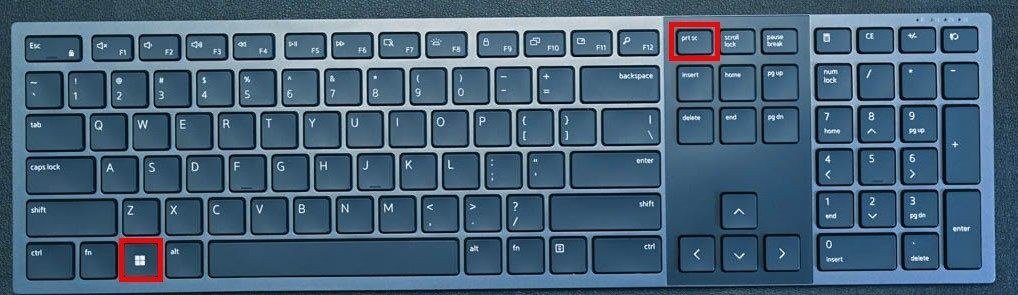
This shortcut writes a file without opening any app or pasting anything. Microsoft describes it as capturing the full screen and saving it to the Screenshots subfolder of the Pictures folder. Saving a screenshot straight to disk this way goes back to Windows 8.
- Arrange the screen exactly as you want it captured.
- Hold the Windows key.
- Press PrtScn, then release both keys.
- Open File Explorer, select Pictures, then Screenshots.
You’ll know it worked when the display dims for a split second and a new PNG appears in the Screenshots folder.
Alt + PrtScn: Capture Only the Active Window
Alt + PrtScn captures the window you are working in and copies it to the clipboard, leaving out the taskbar and everything behind it. It suits error dialogs and single app windows. Click the window first so it is the active one.
- Click the title bar of the window you want.
- Press Alt + PrtScn.
- Paste with Ctrl + V into Paint, a chat or a document, then save if you need a file.
Do not add the left Shift key by accident: left Alt + left Shift + PrtScn turns on high contrast mode.
You’ll know it worked when the pasted image shows one window with no desktop around it.
Windows + Shift + S: Rectangle, Window, Full Screen or Freeform
This is the Snipping Tool shortcut, and the most flexible one. The screen turns slightly gray and a small bar appears at the top with four modes:
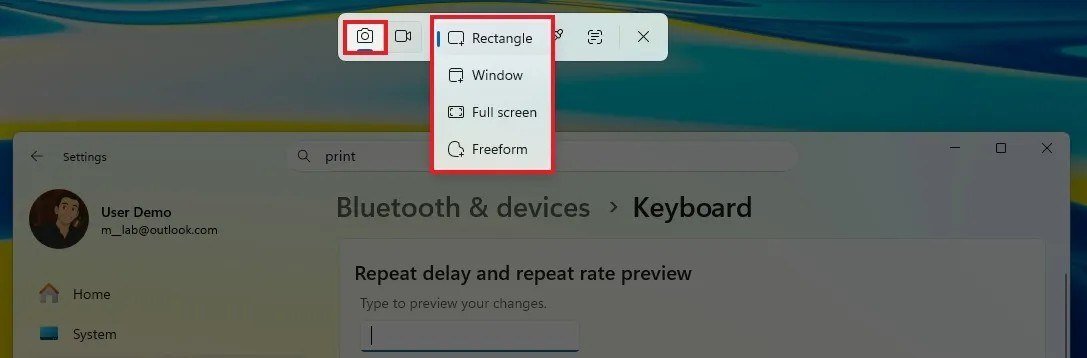
- Rectangle: drag a box around any area.
- Window: click a window, such as a dialog box.
- Full screen: captures the whole screen immediately.
- Freeform: draw any shape around an object.
- Press Windows + Shift + S.
- Choose a mode from the bar.
- Drag, click or draw to make the capture.
- Open the capture in Snipping Tool to mark it up, or paste it anywhere with Ctrl + V.
On Windows 11, Snipping Tool also saves each snip to the Screenshots folder automatically. You can change that, or the folder, from See More, Settings inside the app.
You’ll know it worked when Ctrl + V pastes the capture, or it opens in the Snipping Tool window ready for markup.
Snipping Tool Extras: Delay, Text Actions and Windows + Shift + R
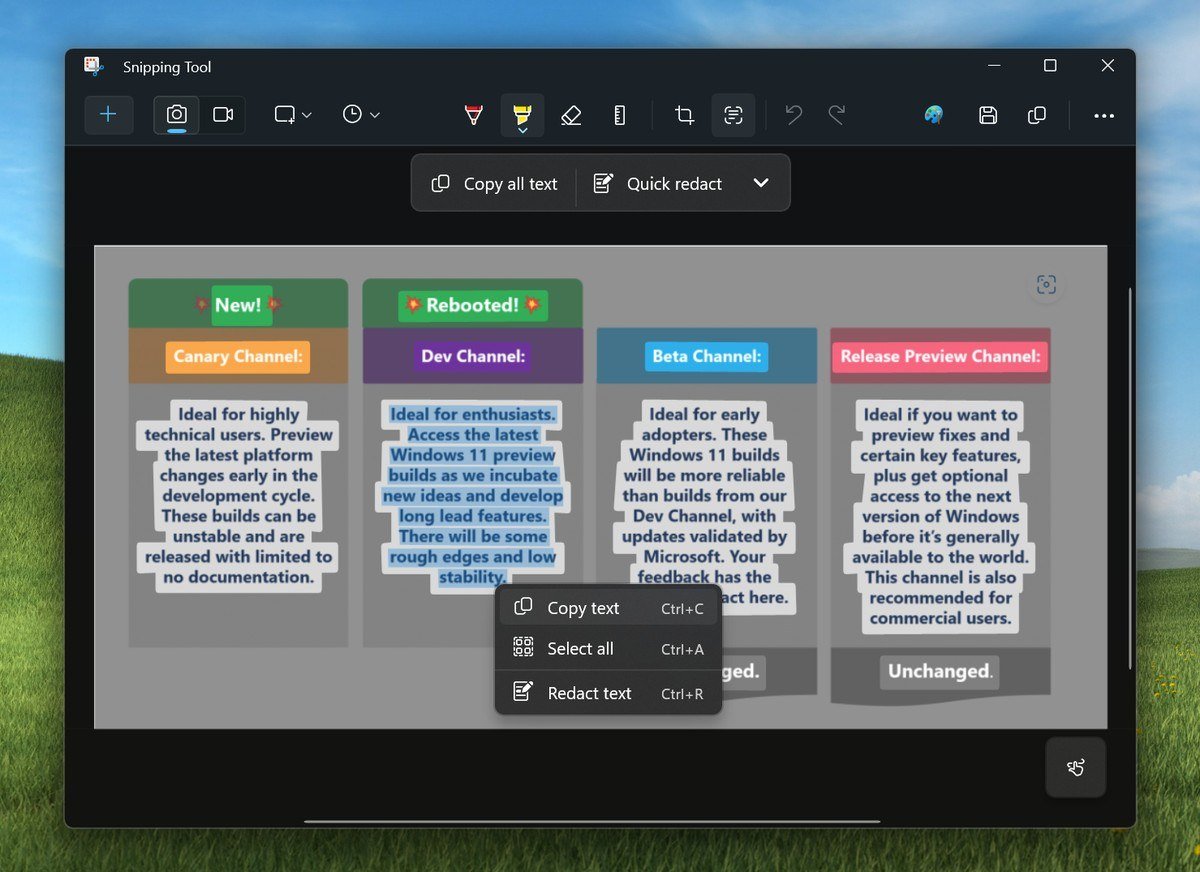
Open Snipping Tool itself for the tools the overlay lacks. The Delay option starts a countdown so you can open a menu before the screen freezes; current builds offer 3, 5 or 10 seconds. Alt + D is the delay shortcut, and Alt + N starts a new snip in the last mode used.
Text actions reads the text in a capture so you can copy it, and Quick redact hides email addresses and phone numbers before you share. Microsoft added it in Snipping Tool version 11.2308.33.0 in September 2023, and the recognition runs locally on your PC.
Windows + Shift + R records video. Select an area, click Start, then Stop. The MP4 is saved to the Screen Recordings subfolder of Videos, and Edit in Clipchamp adds captions or adjusts audio from 0 to 200 percent volume. Copilot+ PCs also get Perfect screenshot, which snaps the frame to the main content.
Windows + Alt + PrtScn: Game Bar Screenshots in Games
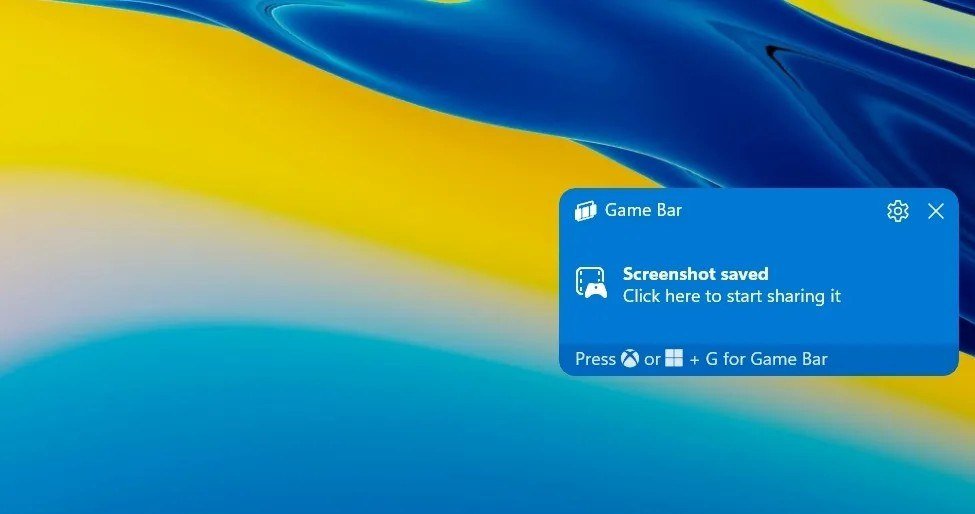
Inside games, Xbox Game Bar is the better tool because it works without leaving the game. Press Windows + Alt + PrtScn and Game Bar saves a PNG to the Captures folder inside Videos. A “Screenshot saved” notice confirms it.
- Windows + G opens Game Bar.
- Windows + Alt + R starts or stops a recording, saved as an MP4 named after the game with the date and time.
- Windows + Alt + G saves the last few moments, if background recording is on.
- Windows + Alt + M turns the microphone on or off.
If Game Bar is off, search Settings for “xbox” and turn on Enable Xbox Game Bar. Xbox support has more Game Bar keyboard shortcuts, including how to set your own under Settings, More settings, Shortcuts.
You’ll know it worked when the “Screenshot saved” notice appears and the file shows in Widget Menu, Gallery.
No PrtScn Key? Laptop and Surface Combinations
Some laptop keyboards have no Print Screen key or put it on a function layer. Microsoft’s answer for keyboards without it is Fn + Windows + Space Bar. On laptops where PrtScn shares a key, hold Fn with it.
- Surface Pro, Book, Go and Studio: hold Power, then press Volume Up. This does not work on Surface Laptop.
- Surface keyboards: Fn + Spacebar opens screen snip; Fn + Alt + Spacebar copies the active window.
- Snipping key: Surface keyboards with one open snipping in a single press; Windows + Snipping key saves a full-screen file.
If the thing you want to show is a fault in the panel itself, such as lines or dark spots, our guide to laptop screen problems covers the fixes.
Windows 10 vs Windows 11 Screenshot Differences
- PrtScn: full screen to clipboard on Windows 10; opens the snipping overlay on Windows 11.
- App name: Windows 10 version 1809 introduced Snip & Sketch; Windows 11 renamed it Snipping Tool in 2021.
- Auto-save: Windows 11 Snipping Tool saves every snip to Screenshots; Windows 10 needs Save Snip.
- Video: Windows 11 records with Windows + Shift + R; on Windows 10 use Game Bar or Clipchamp.
- Menus: on Windows 10, open Snipping Tool, open the menu, then press Ctrl + PrtScn.
Where Screenshots Are Saved on Windows
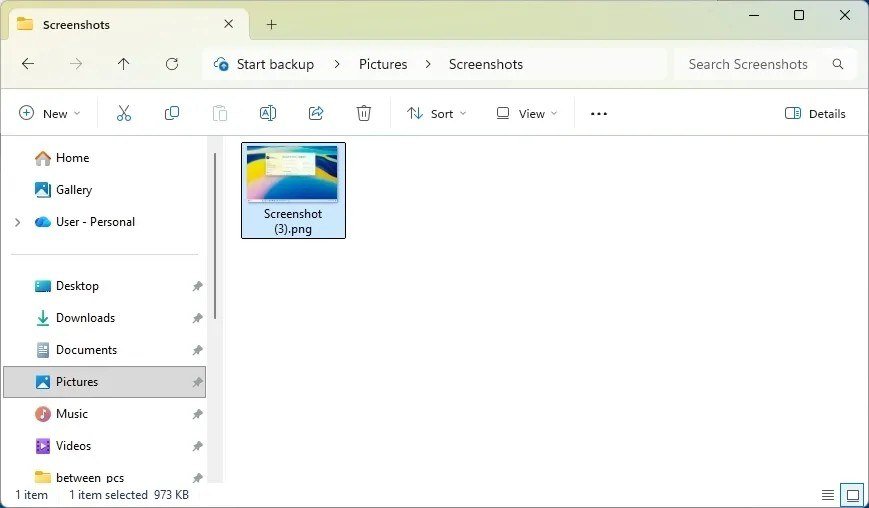
Files from Windows + PrtScn and Snipping Tool go to Pictures, Screenshots. Snipping Tool videos go to Videos, Screen Recordings, and Game Bar captures go to Videos, Captures. Open File Explorer and pick the folder in the side pane.
If Pictures, Screenshots looks empty, check OneDrive. Microsoft removed the old “Save screenshots to OneDrive” setting; screenshots now reach OneDrive only when the Pictures folder is backed up, which puts Screenshots inside OneDrive, Pictures. Mac users have a different routine, shown in our guide on how to screenshot on Mac.
Screenshot Mistakes That Lose Your Capture
- Expecting a file from the clipboard: Alt + PrtScn, and PrtScn on Windows 10, create no file. Paste and save before you copy anything else.
- Expecting the old PrtScn on Windows 11: if the screen dims instead of copying, the snipping toggle is on. Switch it off or use Windows + PrtScn.
- Missing Fn on laptops: nothing happens because PrtScn is on the function layer.
- Full-screen games: if Game Bar shortcuts fail, press Windows + G until the screen flashes twice, then reopen the game in full screen.
Frequently Asked Questions
Where do screenshots go on Windows?
Windows + PrtScn and Snipping Tool save to Pictures, Screenshots. Game Bar saves to Videos, Captures. Plain PrtScn and Alt + PrtScn only copy to the clipboard until you paste and save.
What is the Snipping Tool shortcut?
Windows + Shift + S opens the Snipping Tool overlay for still images, and Windows + Shift + R opens it for video. On Windows 11, PrtScn opens the same overlay by default.
How do I screenshot on a laptop without PrtScn?
Microsoft lists Fn + Windows + Space Bar for keyboards without a PrtScn key. Windows + Shift + S needs no PrtScn key at all.
Can I take a screenshot of just one window?
Yes. Press Alt + PrtScn to copy the active window, or press Windows + Shift + S and choose Window mode.
Related Articles

Get the Fox Bulletin briefing
The stories that matter, in your inbox. No spam, unsubscribe anytime.
Newsletter signup will be available soon.
Related stories

Claude Duet: Anthropic’s New Agent That Works While You Rest
Anthropic opened a research preview of Claude Duet on October 21, 2026. Here is what the agent does in your connected apps, where it stops to ask you, and how to get on the waitlist.

Best Tech Gifts for Men 2026: 10 Gadgets From Earbuds to Dash Cams
The best tech gift for most men is the Sony WF-1000XM6, a pair of noise cancelling earbuds he will use on every commute, call and flight. If he already has earbuds, the…

Best Gifts for Gamers 2026: 10 Gaming Gifts From Headsets to Chairs
The best gift for a gamer is a wireless headset that works on the console they already own, and the Turtle Beach Stealth 700 (Gen 3) is the safest choice when you…