

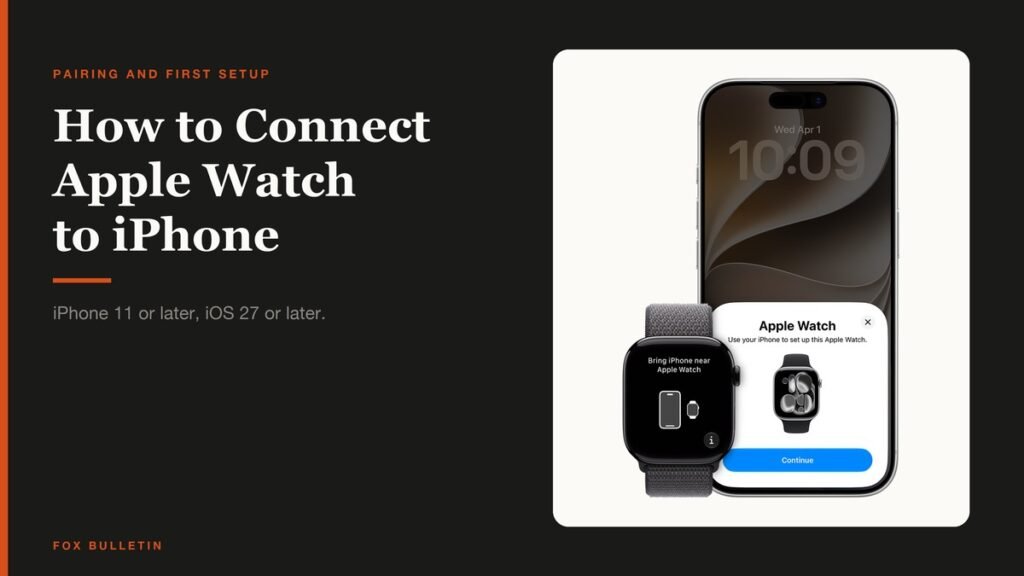
Working out how to connect Apple Watch to iPhone is mostly a matter of holding the two devices near each other and letting the camera do the work. The whole process takes about five minutes of attention plus however long the watch needs to sync, which depends on how much is on your phone.
The part that stops people is not the pairing itself. It is a version mismatch, or a watch that was already paired to someone else and never erased. Both are covered below, along with the choices setup puts in front of you.
What You Need Before Pairing
Apple lists hard requirements for watchOS 27, and a device below either line will not complete setup.
- Apple Watch SE 3, Series 9 or Ultra 2 or later, running watchOS 27 or later
- iPhone 11 or later, running iOS 27 or later
- Bluetooth switched on, and the iPhone connected to Wi-Fi or cellular
- Enough charge in the watch to turn it on, or a charger to hand
- Your Apple Account password, because setup signs in partway through
The short version: update the iPhone, hold the side button until the Apple logo appears, bring the phone near the watch and tap Continue, choose Set Up for Myself, then hold the watch inside the viewfinder on the iPhone screen to pair them.
How to Connect Apple Watch to iPhone
Apple sets this out in its guide to pairing and setting up Apple Watch with iPhone. Do the two checks first, because a stalled update midway through pairing means starting again.
- Update the iPhone. Open Settings, tap General, then Software Update and install anything waiting. You know you are ready when the screen says iOS is up to date.
- Check Bluetooth and the network. Swipe down from the top-right corner of the iPhone to open Control Center. You know it is right when the Bluetooth and the Wi-Fi or Cellular buttons are both highlighted.
- Put the watch on and turn it on. Fit the band so the watch sits closely but comfortably, then press and hold the side button. You know it worked when the Apple logo appears. If nothing happens, charge it first.
- Bring the iPhone near the watch. Hold them together and wait. You know it worked when the Apple Watch pairing card slides up on the iPhone. Tap Continue. If no card appears, open the Apple Watch app and tap Start Pairing.
- Tap Set Up for Myself. You know you picked right if the next screen asks you to point the camera rather than asking about a family member.
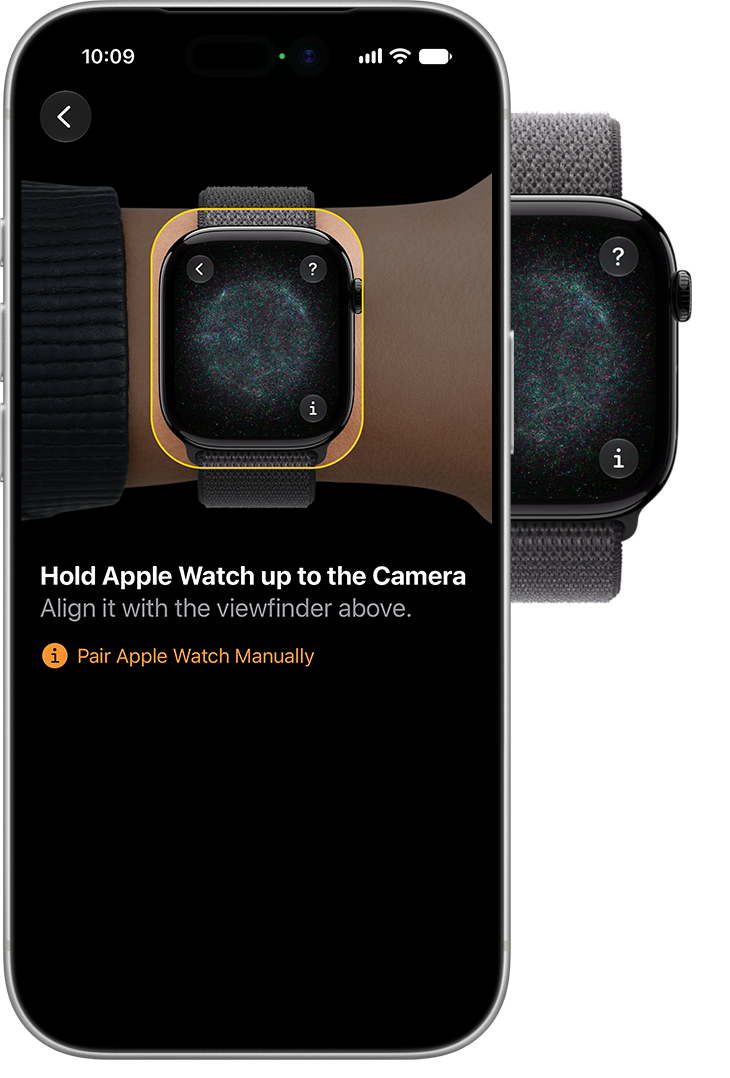
- Hold the watch in the viewfinder. Position the iPhone so the watch appears inside the animation on screen. You know it worked when the two devices pair and setup moves on by itself.
From there the iPhone walks through the rest. Keep the two devices close and on power until the watch shows its face, which is the signal that syncing has finished.
What Setup Asks You to Choose
Four decisions come up, and two of them are hard to change your mind about later without repeating the whole process.
- Apple Account sign-in. The watch has to join the same account as the phone
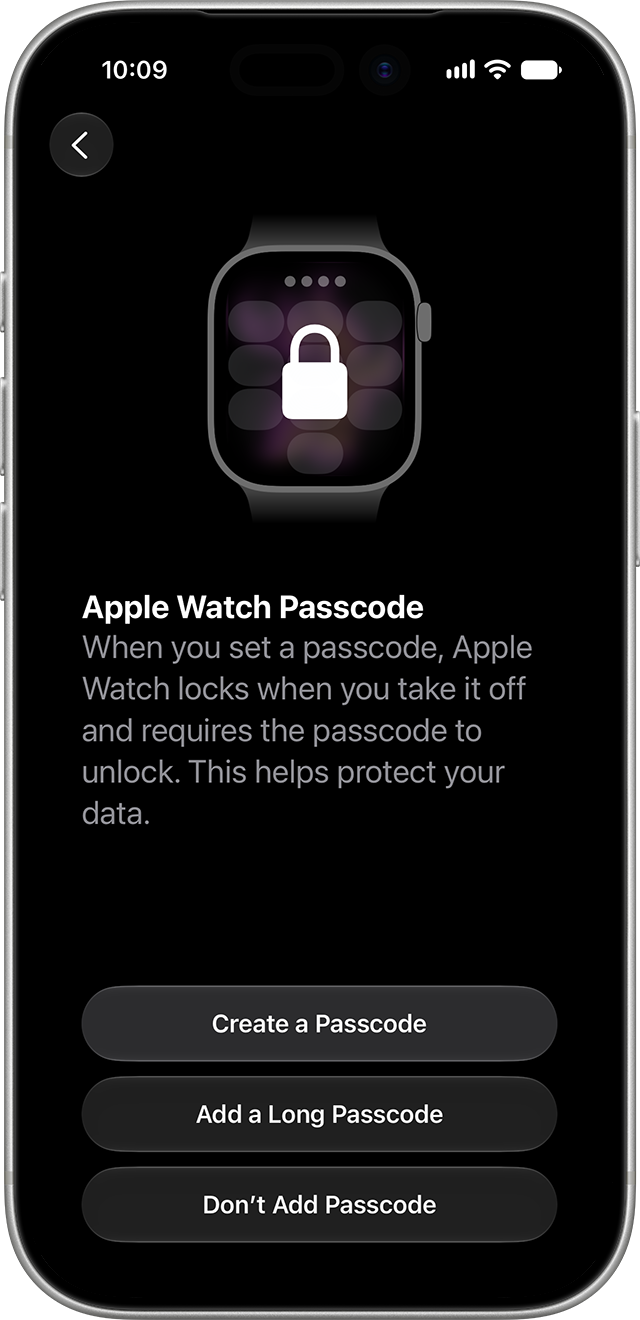
- A passcode. Apple offers a standard four-digit code, a six-digit long passcode, or no passcode at all. A passcode is what lets the watch unlock your Mac and authorise payments
- Text size and personal details. Date of birth and height feed the fitness and health calculations, so a wrong entry skews calorie and workout figures
- Health notifications. You pick which alerts the watch may raise, and all of these are changeable afterwards in Settings
If the iPhone is still on an older release, pairing will refuse before any of this. Our guide to updating to iOS 27 covers the storage and backup checks that usually hold the update up, and the iOS 27 device list confirms whether your phone qualifies at all.
What Happens While the Watch Syncs
Pairing finishes long before the watch is ready. Once the handshake completes, the iPhone pushes across apps, watch faces, music, messages and health data, and on a well-used phone that takes a while. The watch showing its face is the signal that the transfer has finished, not the pairing animation ending.
Keep both devices close together and within Bluetooth range for the whole sync, and leave the watch on its charger if the battery arrived low. Apple suggests tapping Get to Know Your Watch during the wait, which opens tips and the full user guide on the iPhone. After setup, the same material sits under Discover in the Apple Watch app.
Apps install in the background rather than all at once, so a watch that looks half empty an hour in is usually still working. Apple’s own setup walkthrough is the reference if a step looks different on your hardware, since the flow varies slightly by model and region.
watchOS has shipped a major release every year since the first one in 2015, and each of them has moved parts of setup around, as the watchOS release history records. Screenshots from older guides are a common source of confusion for exactly that reason.
Setting Up a Replacement or Second Watch
If you have already paired an Apple Watch to this iPhone, setup takes a different turn. A screen headed Make This Your New Apple Watch appears instead of the first-run flow.
- Tap Apps & Data and Settings to see exactly what Express Setup intends to copy across, then tap Continue to accept it
- Tap Customize Settings to choose for yourself, then pick which backup from a previous Apple Watch to restore
- Tap Set Up as New Apple Watch to start clean, which is the right choice if the old watch was misbehaving
- An iPhone can hold several paired watches at once, so a second watch does not displace the first
Adding Cellular Service
Cellular models can be activated during setup or afterwards from the Apple Watch app on the iPhone. Two constraints matter.
The iPhone and the watch must use the same carrier. The single exception is a watch you set up for someone in your Family Sharing group, which may sit on a different carrier from the iPhone managing it. Apple also notes that cellular service is not available in every country or region, so a watch bought abroad may not activate at home.
When Pairing Will Not Start
You see a watch face instead of the pairing animation. That watch is already paired to an iPhone. It has to be erased before it can join yours, and if it came from someone else they need to unpair it from their phone so Activation Lock clears.
The camera never starts the pairing. Tap Pair Apple Watch Manually at the bottom of the iPhone screen and follow the prompts instead. This is the reliable fallback in poor light or behind a scratched camera lens.
Nothing happens at all. Check the watch has charge, then confirm both devices meet the version requirements above. A watch bought secondhand is the most common cause, and our guide to resetting an Apple Watch covers the erase that clears it for a new owner.
Frequently Asked Questions
Which iPhone do I need to pair an Apple Watch?
For watchOS 27, Apple requires an iPhone 11 or later running iOS 27 or later. The watch side needs an Apple Watch SE 3, Series 9 or Ultra 2 or later. An older iPhone can still run an older watchOS pairing, but it will not complete setup against the current release.
Can I pair an Apple Watch to two iPhones?
No. A watch pairs to one iPhone at a time. An iPhone, however, can hold several watches, so you can switch between them. Moving a watch to a different phone means unpairing it from the first, which backs it up and clears Activation Lock before it will join another.
Why does my Apple Watch show a watch face instead of pairing?
Because it is already paired to an iPhone. Apple is specific that you have to erase all content and reset the settings before it will pair again. On a secondhand watch, the previous owner needs to unpair it from their own phone, otherwise Activation Lock blocks setup.
Does the watch need the same carrier as my iPhone?
Yes, for cellular service on your own watch. The one exception Apple names is a watch set up for someone in your Family Sharing group, which can use a different carrier from the iPhone that manages it. Cellular is also not offered in every country or region.
Related Articles

Get the Fox Bulletin briefing
The stories that matter, in your inbox. No spam, unsubscribe anytime.
Newsletter signup will be available soon.
Related stories
How to Turn Off an Apple Watch and Restart It
How to turn off an Apple Watch in watchOS 27, restart it, and force restart a frozen one, plus the charging rule that hides the power slider.
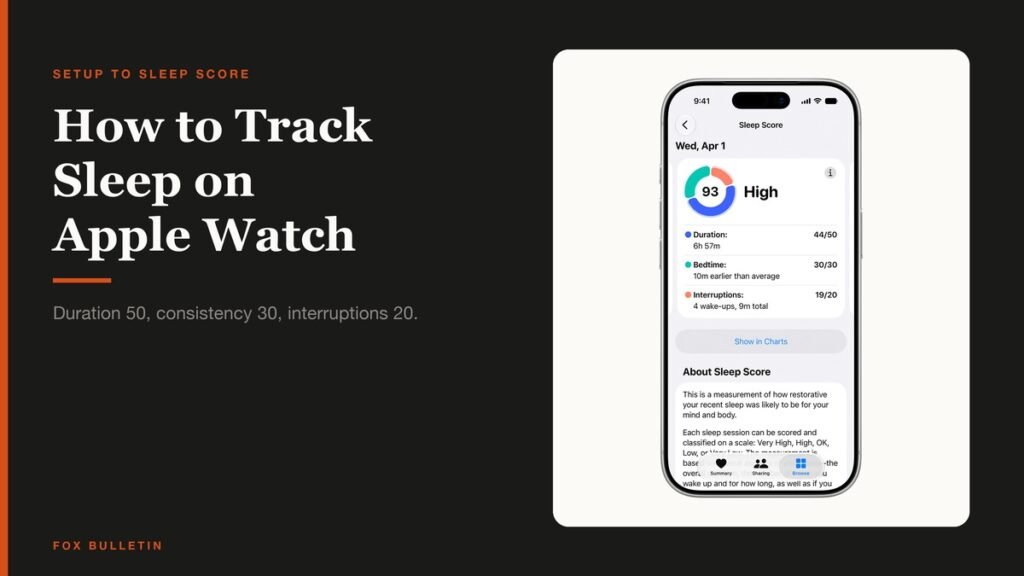
How to Track Sleep on Apple Watch and Read It
How to track sleep on Apple Watch from setup to stages, how the 0 to 100 Sleep Score is calculated, and the two settings that decide whether you get data.
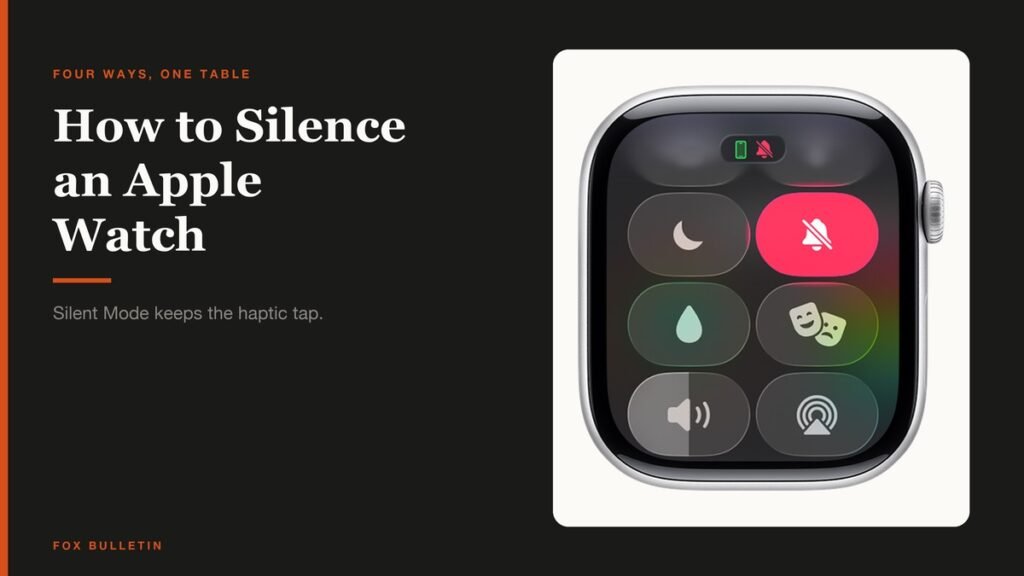
How to Silence Apple Watch: Every Mute Option
How to silence Apple Watch four ways, what each one leaves switched on, and why Silent Mode still lets alarms sound while the watch is charging.