

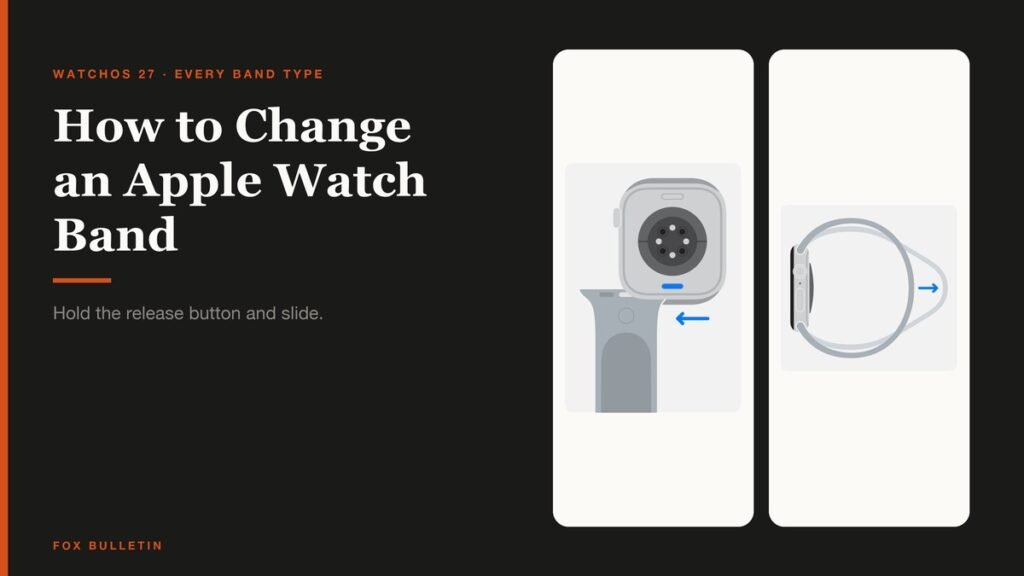
Learning how to change an Apple Watch band takes about thirty seconds once you know where the release button is, and no tools at all. Every Apple band, from the cheapest Sport Loop to the Link Bracelet, uses the same slide-in mechanism on the back of the case.
The two things that catch people out are size and force. A band is sold for a range of case sizes rather than one, and a band that will not go in is almost never a band that needs pushing harder. This guide covers the basic swap, the sizes that interchange, and the five bands that need one extra move.
What You Need Before You Start
Nothing beyond the watch, the new band and a soft surface. Set aside two minutes for a first attempt and about thirty seconds after that.
- A lint-free microfibre cloth or a soft padded mat to work on
- The replacement band, in a size that matches your case
- Clean, dry hands, because the release button needs firm pressure
- No tools, no screwdrivers and nothing pushed into the holes in the case
The short version: lay the watch face down, hold the band release button, slide the old band out sideways, then slide the new one in with its text facing you until it clicks. On a Link Bracelet, split the bracelet into two pieces first.
How to Change an Apple Watch Band in Four Steps
Apple sets out the same four moves for every band in its guide to changing an Apple Watch band. Work on a soft surface, because the case back is where the sensors sit and it scratches.
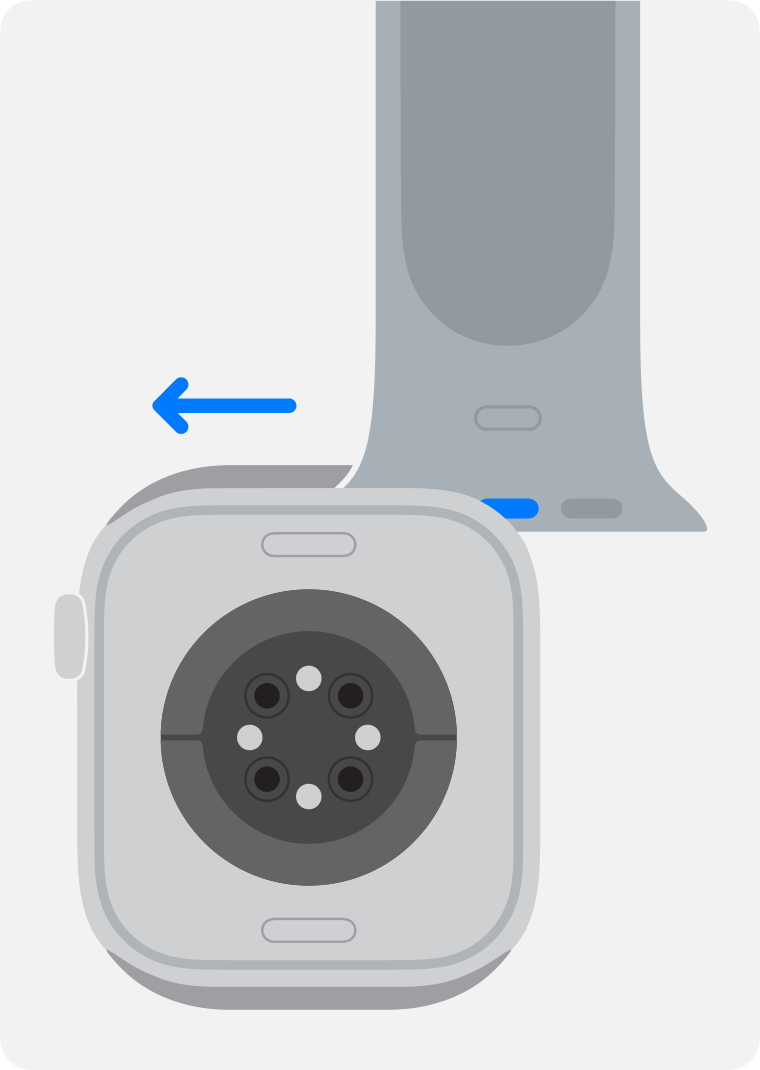
- Lay the watch face down. Put it on the cloth or mat with the screen down and the band release buttons facing up. You know it is right when both oval buttons on the case back are visible and nothing is pressing on the screen.
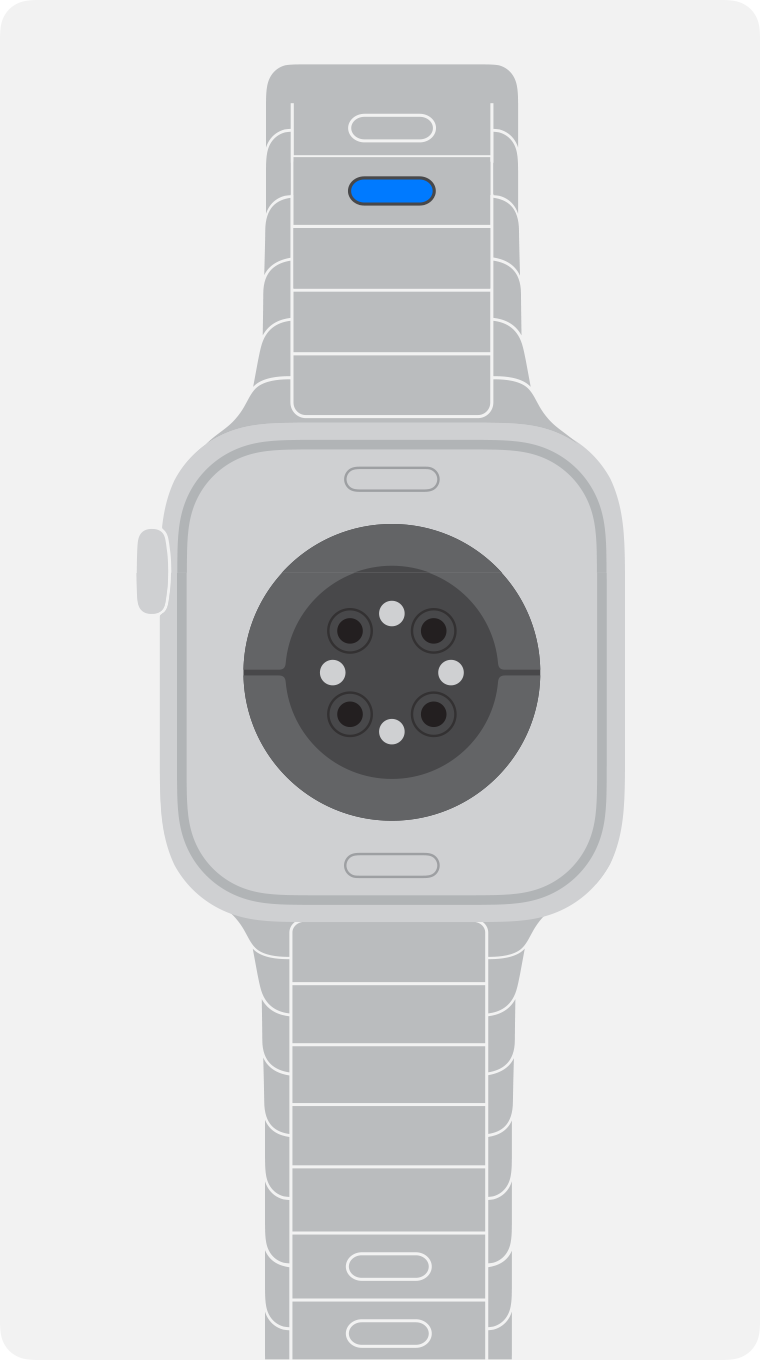
- Split a Link Bracelet first. If you have a Link Bracelet, close the butterfly clasp, hold one quick release button on the inside of the bracelet and gently pull the links apart. You know it worked when the bracelet is in two separate pieces. Skip this step for every other band.
- Hold the release button and slide. Press and hold the band release button, then slide the band sideways out of its channel. You know it worked when the band leaves the slot without any twisting.
- Slide the new band in. Turn the band so the text on it faces you, then slide it in until you feel and hear a click. You know it is seated when the band will not slide at all unless you hold the release button down again.
That last check is the one worth doing every time. Apple is explicit that a correctly installed band will not move freely, so a band that still slides is not in.
Which Apple Watch Bands Fit Which Case Size
Bands are sold per case size, but several sizes interchange, which is why a band bought for an older watch often still fits a new one.
| Band sold for | Also fits |
|---|---|
| 38mm, 40mm, 41mm | Each other |
| 42mm, 44mm, 45mm | Each other |
| 46mm | 44mm, 45mm and 46mm cases |
| 49mm (Ultra) | 44mm, 45mm and 46mm cases |
| 44mm, 45mm, 46mm | 49mm Ultra cases, for casual wear |
The Ultra row is the one to read twice. A 49mm band fits a 44mm, 45mm or 46mm case and the reverse is also true, but Apple adds that smaller bands on an Ultra should only be worn for casual, everyday use rather than for the rugged activities the Ultra is sold for. If you are shopping rather than swapping, our roundup of the best Apple Watch bands covers what each style is actually comfortable for.
The Bands That Need an Extra Move
Five bands behave differently enough to be worth describing on their own.
Link Bracelet
This one must be separated into two pieces before it leaves the watch. Fold the butterfly closure in one side at a time until it clicks, hold a quick release button on the inside of the bracelet, then pull the links apart. Apple warns against forcing or twisting the band at any point, because the clasp is the part that breaks.
Solo Loop and Braided Solo Loop
There is no clasp at all. Pull from the bottom of the band to stretch it over your wrist, both putting it on and taking it off. On an Ultra you may need a smaller size than you normally wear, because the larger case takes up more of the loop, so try one before buying.
Milanese Loop
The Milanese Loop was redesigned in 2018 so that the magnetic closure slides all the way through the band connector, which means the band opens completely. On models made before that redesign the closure will not pass through the lug, so do not force it.
Ocean Band, Alpine Loop and Trail Loop
All three are 49mm bands built for Apple Watch Ultra and later, and all three are a precision fit. Before inserting one, line the band edge up so it is parallel with the case, then push it gently towards the case with the metal tooth facing down.
Modern Buckle and Titanium Milanese Loop
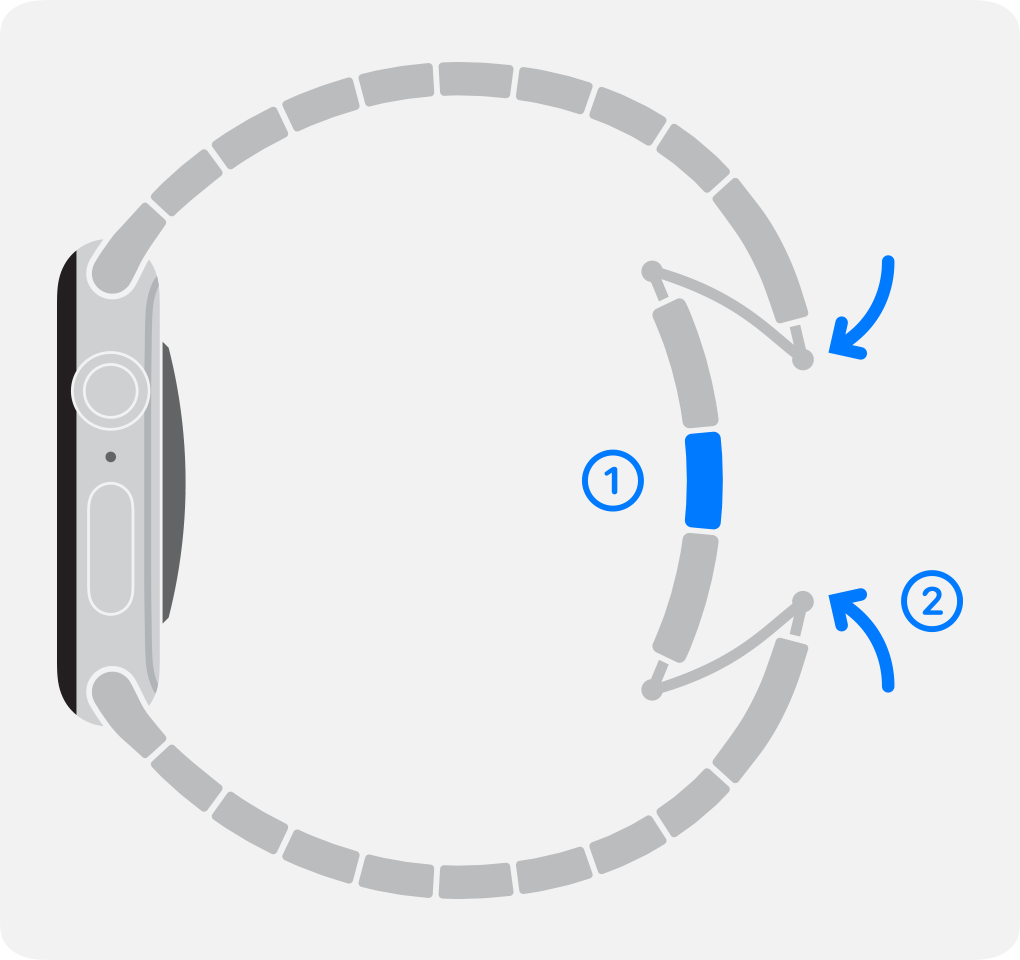
The Modern Buckle opens by pressing the release buttons on the sides of its magnetic closure, and resizes using the adjustment holes. The Titanium Milanese Loop adjusts by lifting the clamp, sliding the buckle with a finger on each side while keeping it parallel to the band, then pressing the clamp back down.
Two Mistakes That Damage a Band
Forcing a band that will not click. Apple says never to force a band into the slot. If there is no click, slide the band left and then right rather than pushing harder. If it still will not lock, centre it, push it into place, then wiggle it gently up and down.
Wearing a band that still slides. A band that moves without the release button held is not seated, and Apple is direct about this: do not wear the watch in that state. A band that drops off a wrist takes the watch with it.
A third one is worth naming even though it is not about fitting. Apple notes that third-party bands may interfere with the Wrist Detect feature and with Compass, and Wrist Detect is what keeps a passcode from being demanded every time you raise your arm. If you are planning to pass the watch on rather than rewear it, our guide to resetting an Apple Watch covers the unpairing step that clears Activation Lock.
Cleaning a Band Without Ruining It
Take the band off the watch first. Apple’s guidance on removing and changing bands applies to Apple-branded bands only; anything else follows whatever care note came with it.
- Wipe all bands and clasps with a nonabrasive, lint-free cloth, lightly dampened with fresh water if you need to
- Dry everything thoroughly before putting the band back on the watch
- Leather bands are not water resistant, so never soak them, and let them air dry fully
- Keep leather out of direct sunlight, high temperatures and high humidity
- Stainless steel bands are not water resistant either, despite the metal
Water resistance belongs to the case rather than the strap, and the ratings differ across the range, as the Apple Watch model history sets out. A soaked leather band on a swim-rated case is still a ruined band.
Frequently Asked Questions
Do I need a tool to change an Apple Watch band?
No. Every Apple band releases with a button on the back of the case and slides out sideways. Apple is explicit that nothing should be poked into the holes in the case, and a watch has no reset button and no SIM tray to open. The only band needing anything extra is the Link Bracelet, and that separates by hand using its own quick release buttons.
Will a band from my old Apple Watch fit a new one?
Often. Bands sold for 38mm, 40mm and 41mm cases all interchange, as do bands for 42mm, 44mm and 45mm. Bands for 46mm cases fit 44mm, 45mm and 46mm, and 49mm Ultra bands fit 44mm, 45mm and 46mm cases as well, in both directions. Apple notes the smaller sizes on an Ultra are for casual wear.
Why will my new band not click into place?
Almost always because it is slightly off centre rather than because it needs more force. Slide it left, then right. If that fails, centre the band, push it in and wiggle it gently up and down. Never force it, and do not wear the watch while the band still slides freely.
Can I put a 49mm Ultra band on a smaller Apple Watch?
Yes. Apple lists 49mm bands as compatible with 44mm, 45mm and 46mm cases. The Ocean Band, Alpine Loop and Trail Loop are all 49mm bands designed for the Ultra, and they seat with the band edge parallel to the case and the metal tooth facing down.
Related Articles

Get the Fox Bulletin briefing
The stories that matter, in your inbox. No spam, unsubscribe anytime.
Newsletter signup will be available soon.
Related stories
How to Turn Off an Apple Watch and Restart It
How to turn off an Apple Watch in watchOS 27, restart it, and force restart a frozen one, plus the charging rule that hides the power slider.
How to Track Sleep on Apple Watch and Read It
How to track sleep on Apple Watch from setup to stages, how the 0 to 100 Sleep Score is calculated, and the two settings that decide whether you get data.
How to Silence Apple Watch: Every Mute Option
How to silence Apple Watch four ways, what each one leaves switched on, and why Silent Mode still lets alarms sound while the watch is charging.