

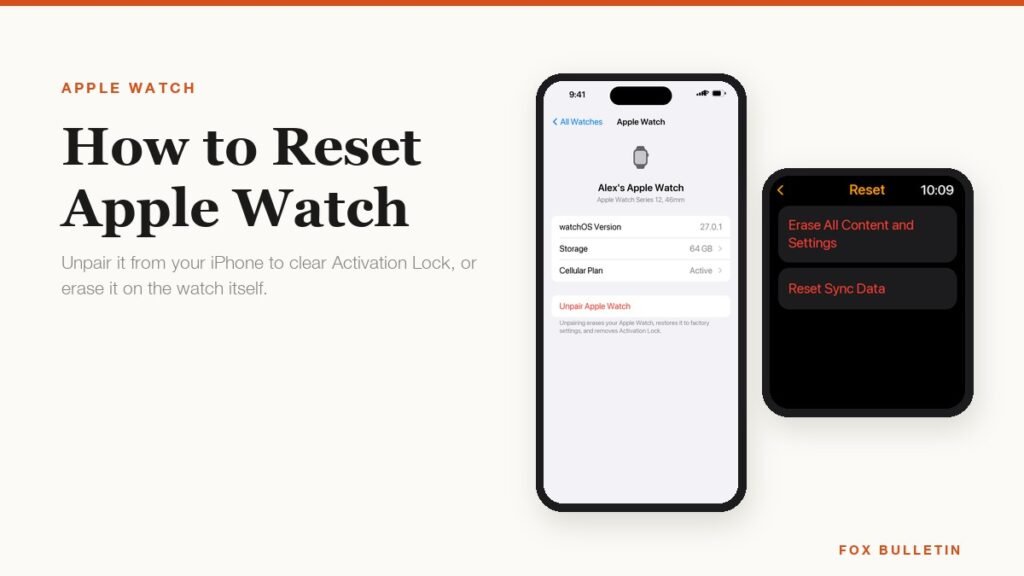
There are two resets on an Apple Watch and they are not interchangeable. Unpairing the watch from the iPhone it is married to wipes it, backs it up and switches off Activation Lock. Erasing the watch from its own Settings app wipes it too, but Activation Lock stays on, which means the next owner hits a sign-in screen they cannot get past. Picking the wrong one is the single most common reason a secondhand Apple Watch arrives dead in the box.
Which route you need comes down to one question: do you still have the iPhone that the watch is paired to? If yes, unpair. If no, erase and then clear Activation Lock separately from your Apple Account. The steps below cover both on watchOS 27, along with what to do when the watch is too frozen to tap and how to get the passcode off a watch you own but are locked out of.
One thing to settle before you start: the iPhone needs to be on a current version of iOS for the Watch app to pair and restore cleanly afterwards. If you have been putting off the update, run it first, since our guide to updating to iOS 27 walks through the storage and backup checks that usually hold it up.
Unpair the watch from your iPhone to wipe it properly
Unpairing is the reset Apple points to for anyone selling or handing on a watch. Before it erases anything, the iPhone takes a fresh backup of the watch, so pairing a replacement later restores your watch faces, app layout and health settings. Keep the two devices side by side and connected to Wi-Fi for the whole process. Apple notes in its unpair and erase instructions that an Apple Watch has no reset button and no SIM tray, so nothing should ever be poked into the holes in the case.
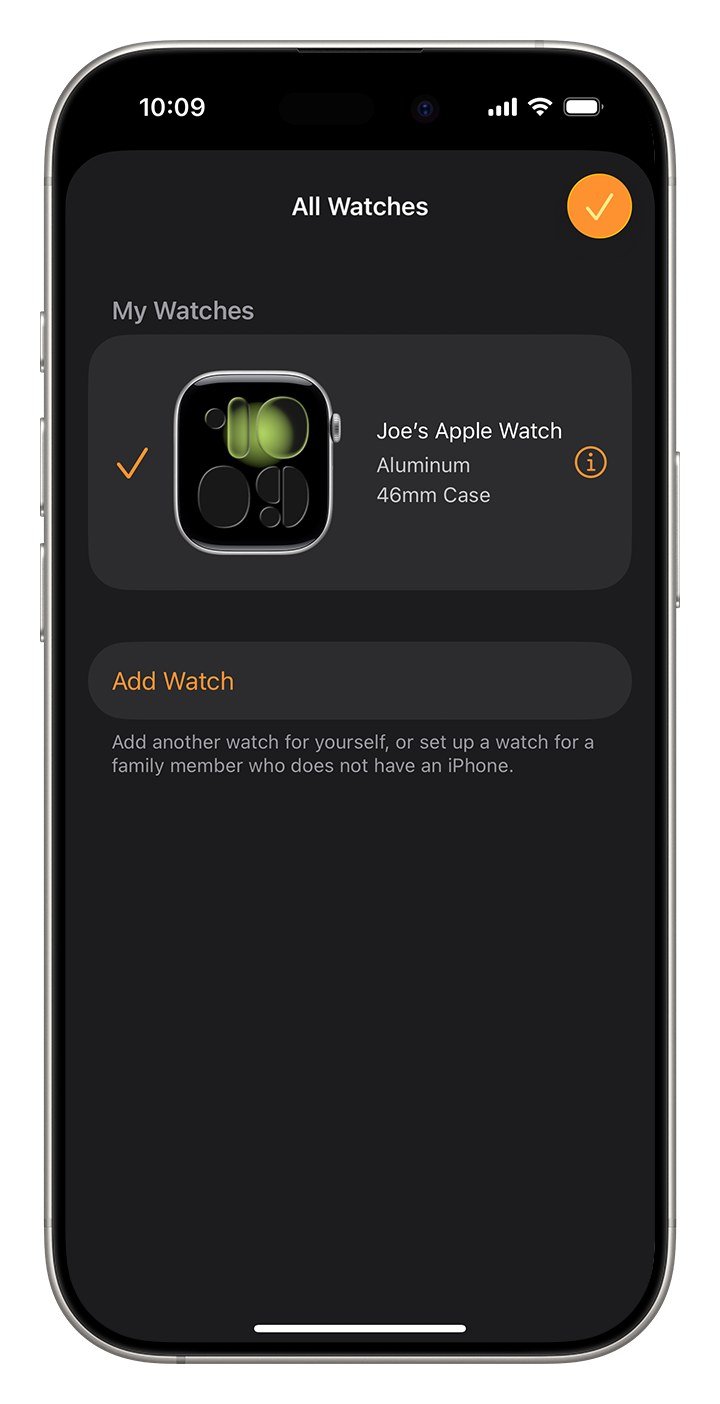
- Keep your Apple Watch and iPhone close together, both switched on.
- On the iPhone, open the Apple Watch app and stay on the My Watch tab.
- Tap All Watches at the top left.
- Tap the info button, the circled i, next to the watch you want to reset.
- Tap Unpair Apple Watch, then tap Unpair and the watch name to confirm.
A watch with a cellular plan adds one more decision at this point. Keep the plan if you are pairing the same watch to the same phone again, for example after a software problem. Remove it if the watch is leaving your hands, then call the carrier separately to cancel the line, because removing the plan from the watch does not close the account.
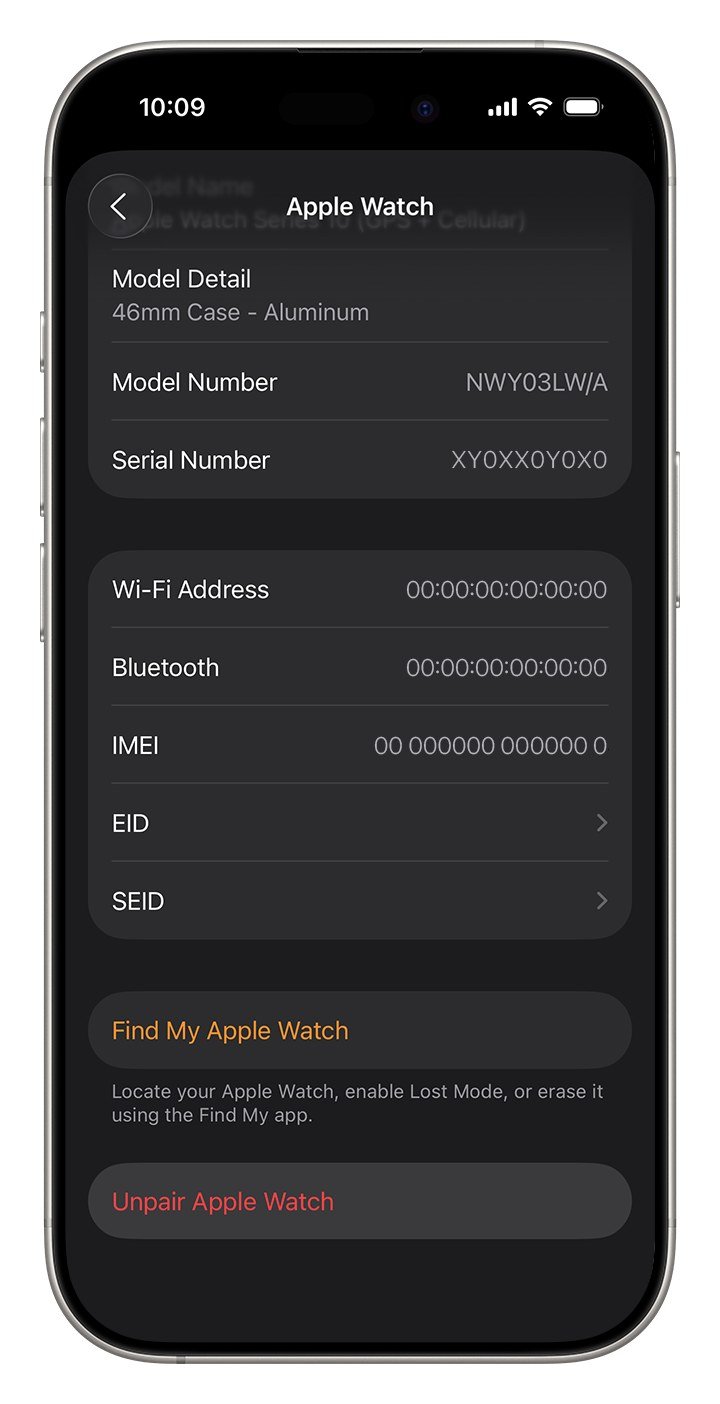
The last prompt asks for your Apple Account password. That is the step doing the real work: entering it switches off Activation Lock so the watch can be set up by somebody else. If you cannot remember the password, stop and reset it first, because a watch unpaired without it is a watch nobody can use. Expect the wipe itself to take a couple of minutes, after which the watch restarts to the language picker it shipped with.
Erase Apple Watch when you do not have the iPhone
If the paired iPhone has been sold, lost or wiped already, you can still clear the watch from its own Settings app. Be clear about the trade-off: this is a full erase, but Activation Lock survives it. The watch will boot to a setup screen that demands the Apple Account it was signed into, so this route only makes sense for a watch you are keeping, or as step one before you clear the lock yourself.
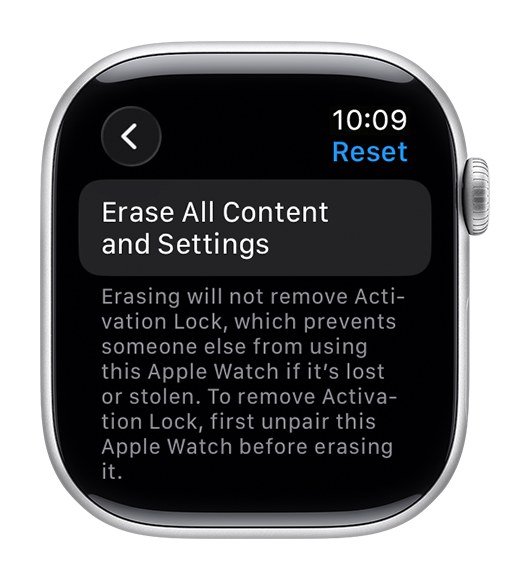
- Press the Digital Crown to open the app grid, then open Settings.
- Scroll down and tap General.
- Scroll to the bottom and tap Reset.
- Tap Erase All Content and Settings.
- Type your watch passcode if it asks, choose whether to keep the cellular plan, then tap Erase All.
There is a third door worth knowing about. In the Apple Watch app on iPhone, My Watch then General then Reset offers Erase Apple Watch Content and Settings. It does the same wipe as the watch-side route while leaving the two devices paired, which is handy for clearing a watch that has filled up without going through a fresh setup.
Once the watch is erased, remove it from your account to retire Activation Lock. Sign in at iCloud.com, open Find Devices, pick the watch from the list and choose Remove This Device. The watch has to be erased already or offline for that option to appear.
Which reset clears Activation Lock
Activation Lock is the only part of this that is hard to undo, so it is worth being blunt about which routes switch it off and which leave it running.
| Reset route | Clears Activation Lock | Backs up first | Use it when |
|---|---|---|---|
| Unpair from the paired iPhone | Yes | Yes, automatic | Selling, trading in, giving it away |
| Erase on the watch | No | No | Watch is frozen or the iPhone is gone |
| Erase from the Watch app | No | No | Clearing space without unpairing |
| Remove from Find My on the web | Yes | No | Watch is lost and you already sold it |
Buying secondhand, treat this table as a checklist. A watch that wakes to a watch face or the language picker is clean. A watch that wakes to a screen asking for somebody else’s Apple Account is still locked, and no amount of resetting at your end will change that. Only the original owner can clear it, either by unpairing properly or by removing the watch from their account.
Reset a frozen Apple Watch that will not respond
A watch stuck on the Apple logo or ignoring taps cannot be reset through Settings, so you have to force it to restart first. Hold the side button and the Digital Crown together for about ten seconds and let go when the Apple logo appears. That is a restart, not an erase, and nothing on the watch is lost.
- Still frozen after a force restart: put it on the charger for half an hour and try again, because a flat battery looks identical to a crash.
- Stuck mid-update: leave it on the charger next to the iPhone and wait, since a watchOS install can sit on the progress wheel for an hour on an older model.
- Boots but behaves oddly: unpair and pair again rather than erasing, so the backup restores your settings instead of forcing a fresh start.
- Comes back only to the Apple logo: that is a hardware or firmware fault, and a Genius Bar appointment will save you time.
A watch you own but are locked out of is a different problem. Too many wrong passcode entries puts it into a disabled state with no Forgot Passcode option, because watchOS has nothing like the iPhone’s security lockout reset. The fix is to unpair it from the paired iPhone, which erases the passcode along with everything else, then restore from the backup the unpair just made.
What to do after the watch is reset
An erased watch is not finished until it is either paired again or physically out of your hands. If you are keeping it, hold it near the iPhone and wait for the pairing animation, then choose Restore from Backup and pick the one the unpair created minutes earlier. Apple’s pairing guide covers the handful of cases where the automatic pairing card does not appear and you have to use the manual code instead.
- Selling it: confirm Activation Lock is off by watching the watch boot to the language list, then clean the case and bands before photographing it.
- Trading it in: most programmes reject a locked watch outright, so unpair before you post it.
- Passing it to family: unpair from your phone first, then let them pair it to theirs; sharing one watch across two phones is not supported.
- Keeping it as a spare: erase rather than unpair, so the watch stays attached to your account and Find My keeps working.
If the reset was really a prelude to replacing the watch, it is worth checking what else is out there before you buy the obvious upgrade. Our rundown of Apple Watch alternatives covers the fitness bands that pair with an iPhone without locking you into watchOS, which matters more than usual if the reason you are resetting is a battery that no longer lasts a day.
One detail trips people up at the end. Unpairing removes the watch from the iPhone, but your cellular carrier may still bill for the watch line until you cancel it. Check the bill a month later rather than assuming the reset closed the account.
Frequently Asked Questions
Does resetting an Apple Watch delete my health and fitness data?
No. Health, Activity and workout history live in the Health app on your iPhone, not on the watch, so a reset leaves them untouched. The watch only holds a working copy. That is also why a replacement watch fills its rings with your history as soon as it pairs.
Can I reset an Apple Watch without the Apple Account password?
You can erase it from the watch, but you cannot clear Activation Lock, and the erased watch will stop at a sign-in screen on its next setup. Reset the Apple Account password first if you are selling the watch. If the watch was bought secondhand and is already locked, the original owner has to remove it from their account.
How long does an Apple Watch reset take?
The erase itself usually runs two to five minutes, plus however long the iPhone needs to take the backup first. Pairing again and restoring from that backup is the slow part and can take twenty minutes or more, mostly because the watch reinstalls apps while it goes.
Will unpairing my Apple Watch delete anything on my iPhone?
No. Unpairing only wipes the watch. The backup it writes is stored on the iPhone, your Health data stays where it is, and the Apple Watch app remains installed and ready to pair something new.
Related Articles

Get the Fox Bulletin briefing
The stories that matter, in your inbox. No spam, unsubscribe anytime.
Newsletter signup will be available soon.
Related stories

Claude Duet: Anthropic’s New Agent That Works While You Rest
Anthropic opened a research preview of Claude Duet on October 21, 2026. Here is what the agent does in your connected apps, where it stops to ask you, and how to get on the waitlist.

Best Tech Gifts for Men 2026: 10 Gadgets From Earbuds to Dash Cams
The best tech gift for most men is the Sony WF-1000XM6, a pair of noise cancelling earbuds he will use on every commute, call and flight. If he already has earbuds, the…

Best Gifts for Gamers 2026: 10 Gaming Gifts From Headsets to Chairs
The best gift for a gamer is a wireless headset that works on the console they already own, and the Turtle Beach Stealth 700 (Gen 3) is the safest choice when you…