

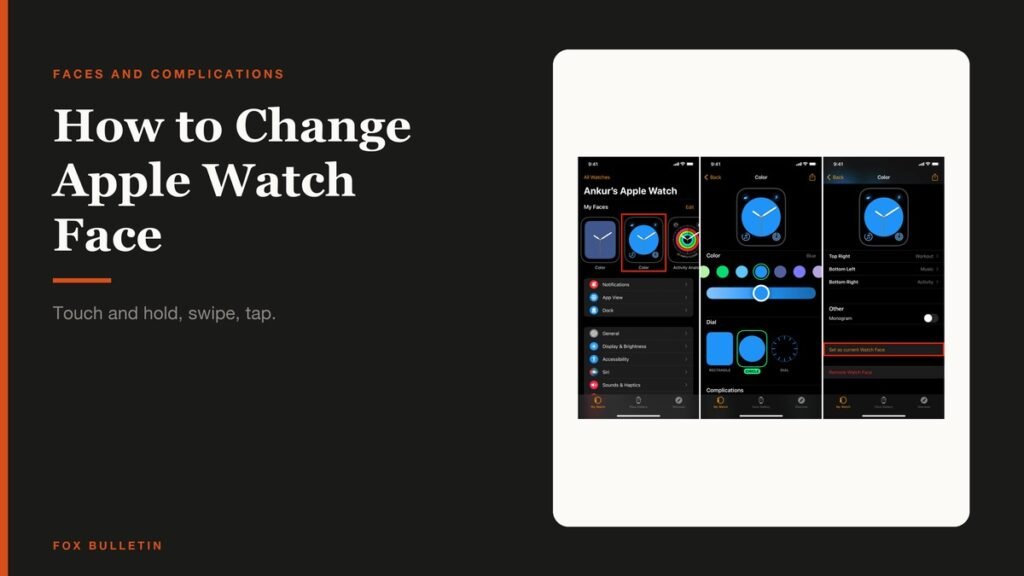
There are two places to change an Apple Watch face and they do different jobs. On the wrist you switch between faces you already keep; in the Apple Watch app on your iPhone you browse everything Apple offers and build new ones. Knowing how to change Apple Watch face in both places takes under a minute.
The part worth spending time on is complications, the small data slots on a face. They are the difference between a watch you glance at and a watch you keep raising to check something you could have seen already.
What You Need and How Long It Takes
Nothing beyond the watch itself for switching faces. Adding and customising is easier on the iPhone, where the screen is big enough to see what you are choosing.
- An Apple Watch running watchOS 27, for the steps as written here
- The paired iPhone, for the Face Gallery and for faster customising
- About ten seconds to switch a face, and two minutes to build one
- No account, no download and no payment: every face Apple ships is included
The short version: to switch, touch and hold the current face, swipe to the one you want and tap it. To add one, open the Apple Watch app on your iPhone, tap Face Gallery, pick a face, tap Get, set its complications, then tap Add to Watch.
How to Change Apple Watch Face on the Watch
This is the route for faces already in your collection, and it is the one you will use daily. Apple documents it in its guide to changing Apple Watch faces.
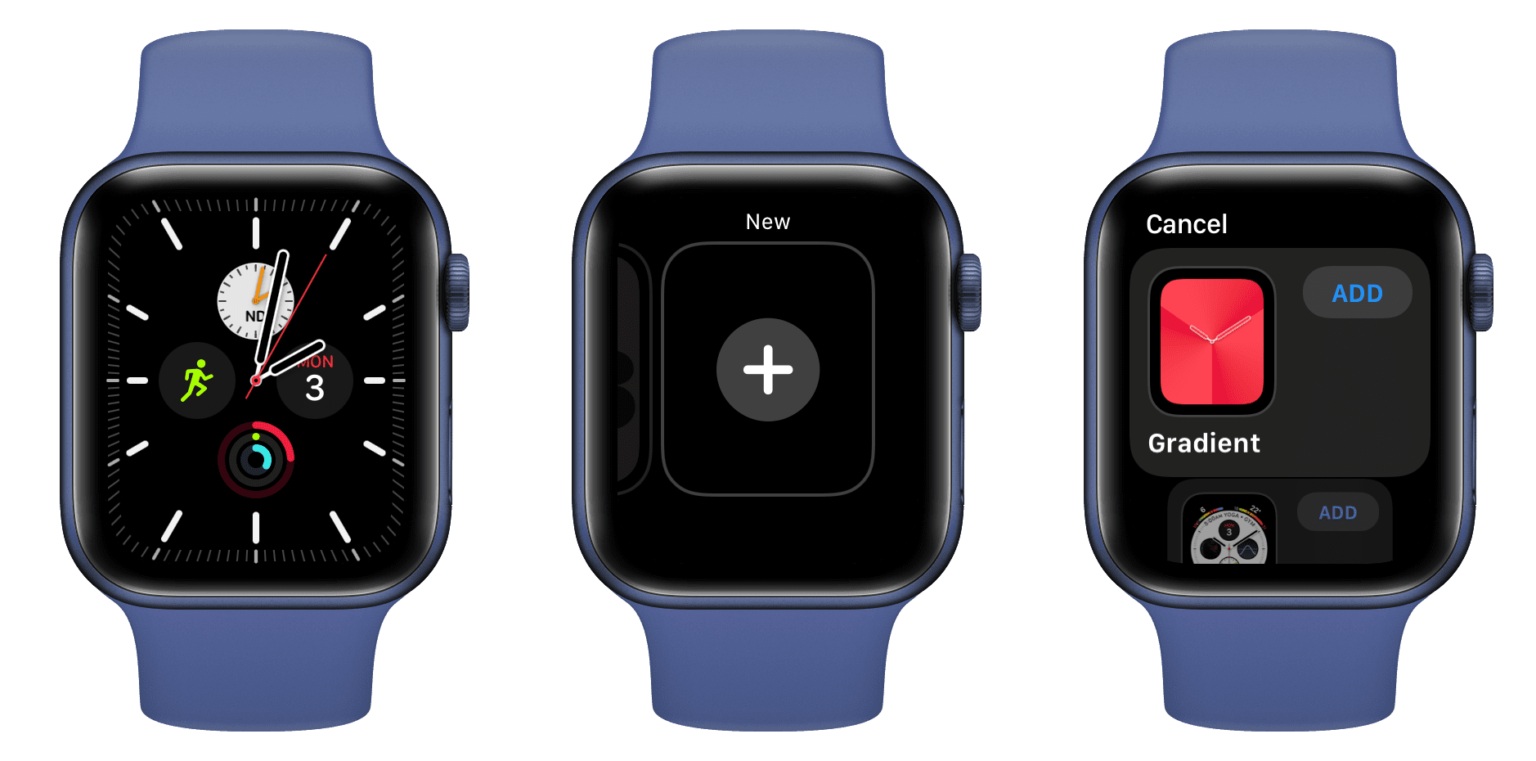
- Wake the watch to its face. Raise your wrist or tap the screen. You know you are in the right place when the clock is showing rather than an app.
- Touch and hold the display. You know it worked when the face shrinks and sits in a carousel you can swipe.
- Swipe to the face you want. Move left or right through the collection. You know you have reached the end when the add button appears.
- Tap the face. You know it worked when the face fills the screen again and stays there.
There is a faster version. Go to Settings on the watch, tap Clock, then turn on Swipe to Switch Watch Face. After that a plain swipe across the face changes it, with no touch and hold first. It is the single best change most people never make.
Adding a Face from the Face Gallery
The Face Gallery on the iPhone shows every face available to your watch, grouped into categories like Health and Fitness, Photos and Data Rich. It is the only place you can see all of them at once.
- Open the Apple Watch app on your iPhone and tap Face Gallery.
- Tap a category, or scroll down and tap See All Watch Faces to view everything.
- Scroll to a face and tap Get, then tap an option.
- Choose features such as colour or style. The preview at the top updates as you tap, so you can see the result before committing.
- Tap Add to Watch. You know it worked when the face becomes the current one on your wrist.
You can do the same thing without the phone. Touch and hold the face, swipe left all the way to the end, tap the add button, then pick a collection such as New Watch Faces or scroll down for All Watch Faces. Tap Get next to the one you want, then Add.
Choosing Complications That Earn Their Slot
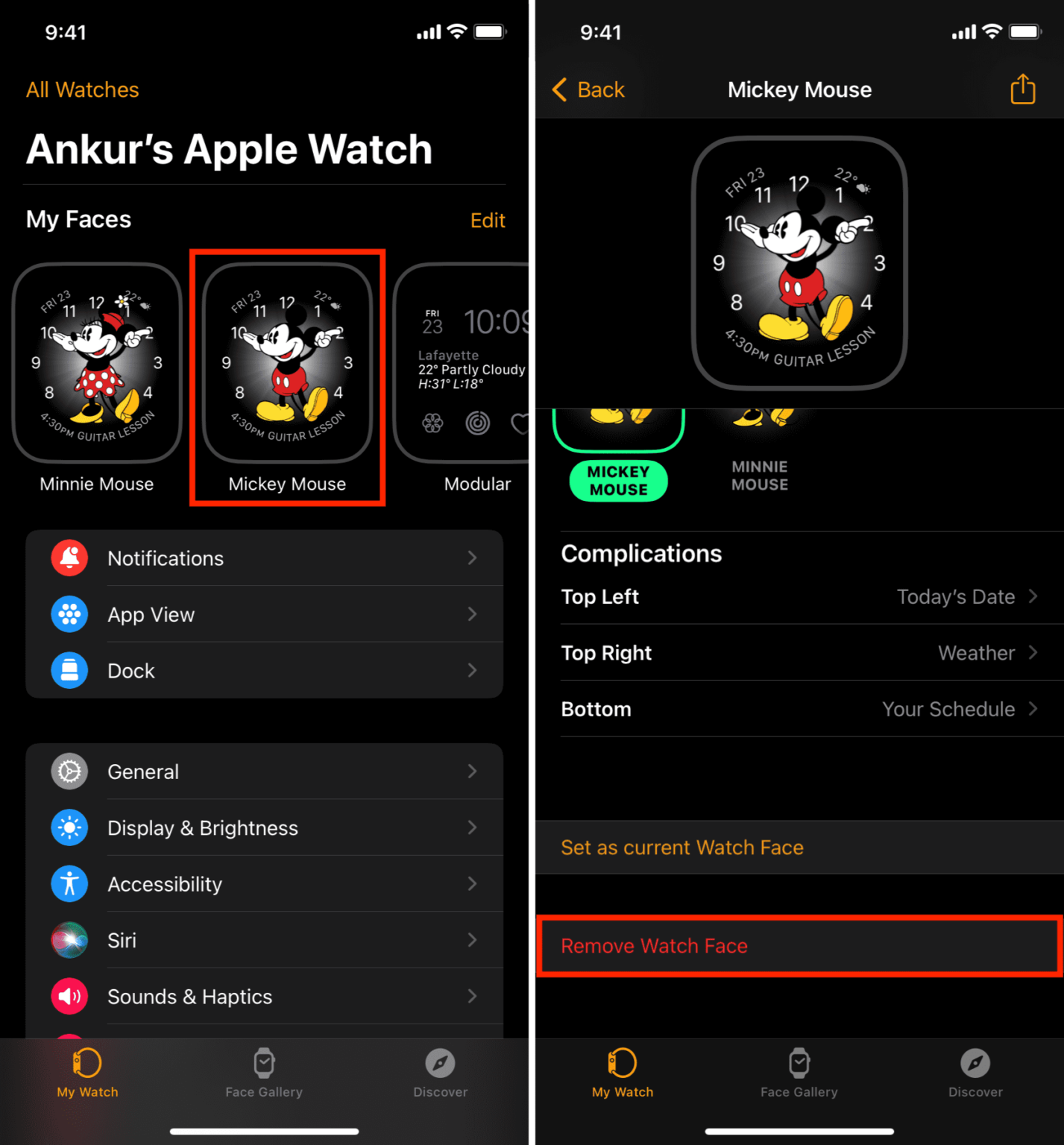
Complications are the data slots on a face, and each face offers its own positions, typically Top Left, Top Right and Bottom. Apple covers the mechanics in its guide to adding complications to the watch face.
Tap a complication position, swipe to see what is available for that slot, then tap the one you want. To clear a slot rather than fill it, scroll to the top of the list and tap Off. An empty slot is a legitimate choice, and a face with two complications you actually read beats one with six you ignore.
Faces are tied to the watch rather than the account, so a new watch starts with the default set until the restore finishes. If you are setting one up now, our guide to connecting an Apple Watch to an iPhone covers the backup step that brings your collection across.
Reordering and Removing Faces
A collection grows faster than it gets pruned, and swiping past four faces you never use defeats the point of swiping at all.
- Reorder on the iPhone: Apple Watch app, tap My Watch, tap Edit in the My Faces area, then drag a face up or down
- Reorder on the watch: touch and hold the face, touch and hold again, then drag the selected face left or right
- Remove on the watch: touch and hold, swipe to the face you do not want, swipe up, then tap Remove
- Remove on the iPhone: My Watch, tap Edit in My Faces, tap the control next to the faces you want gone, then tap Remove
Nothing is lost permanently. A removed face can be added again from the gallery at any time, though any customisation you had applied to it goes with it.
Faces can also be sent to other people. Apple’s guide to sharing Apple Watch faces covers passing a configured face, complications included, through Messages or Mail. Changing the strap underneath is covered in our guide to changing an Apple Watch band.
Which Face Suits Which Day
Apple groups the gallery by what a face is for rather than how it looks, and the category names are a better guide than the thumbnails.
- Data Rich faces carry the most complications, which suits a working day where you want calendar, weather and activity in one glance
- Health and Fitness faces put rings and workout shortcuts front and centre, and drop the slots you would not read mid-run
- Photos faces rotate through an album or a set you pick, and leave room for one or two complications at most
- Artist and typographic faces carry few or no complications, which is the point: they are for the evening, not the commute
Nothing stops you keeping several versions of the same design. A Data Rich face built for work and a stripped version of the same face for weekends is a common setup, and the collection holds both without confusion because you reorder them in the order you use them.
Worth remembering that a face is per watch, not per person. If you wear a different Apple Watch at the weekend, it keeps its own collection, and faces do not sync between the two even when both are paired to the same iPhone.
The Clock Offset Most People Never Find
The watch can be set to run fast, which is useful if you are chronically late and willing to lie to yourself about it. Go to Settings on the watch, tap Clock, tap +0 min, then turn the Digital Crown to set the watch ahead by as much as 59 minutes.
It is safer than it sounds. The setting changes only the time shown on the watch face. Alarms, timers, the times in notifications and World Clock all keep running on the real clock, so a watch set nine minutes fast will still wake you at the hour you asked for.
Frequently Asked Questions
How do I switch watch faces with a single swipe?
Turn the setting on first. Go to Settings on the Apple Watch, tap Clock, then turn on Swipe to Switch Watch Face. After that, swiping across the face moves through your collection without touching and holding first. It is off by default, which is why most people still touch and hold.
Why can I not find a watch face I have seen elsewhere?
Faces are not all available everywhere. Apple notes that some are limited by country or region and some by watch model, and the list changes with software updates. A face shown in a guide written for a different release or market may simply not be offered on your watch.
Do I lose a face if I remove it?
Not the face, only your version of it. You can add it again from the Face Gallery whenever you like, but any colour, style and complication choices you had made are not kept, so a face you have carefully built is worth reordering to the end rather than removing.
Can I set my Apple Watch a few minutes fast?
Yes, by up to 59 minutes. Go to Settings on the watch, tap Clock, tap +0 min and turn the Digital Crown. Only the watch face moves. Alarms, timers, notification timestamps and World Clock all stay on the correct time, so nothing you rely on drifts with it.
Related Articles

Get the Fox Bulletin briefing
The stories that matter, in your inbox. No spam, unsubscribe anytime.
Newsletter signup will be available soon.
Related stories
How to Turn Off an Apple Watch and Restart It
How to turn off an Apple Watch in watchOS 27, restart it, and force restart a frozen one, plus the charging rule that hides the power slider.
How to Track Sleep on Apple Watch and Read It
How to track sleep on Apple Watch from setup to stages, how the 0 to 100 Sleep Score is calculated, and the two settings that decide whether you get data.
How to Silence Apple Watch: Every Mute Option
How to silence Apple Watch four ways, what each one leaves switched on, and why Silent Mode still lets alarms sound while the watch is charging.