

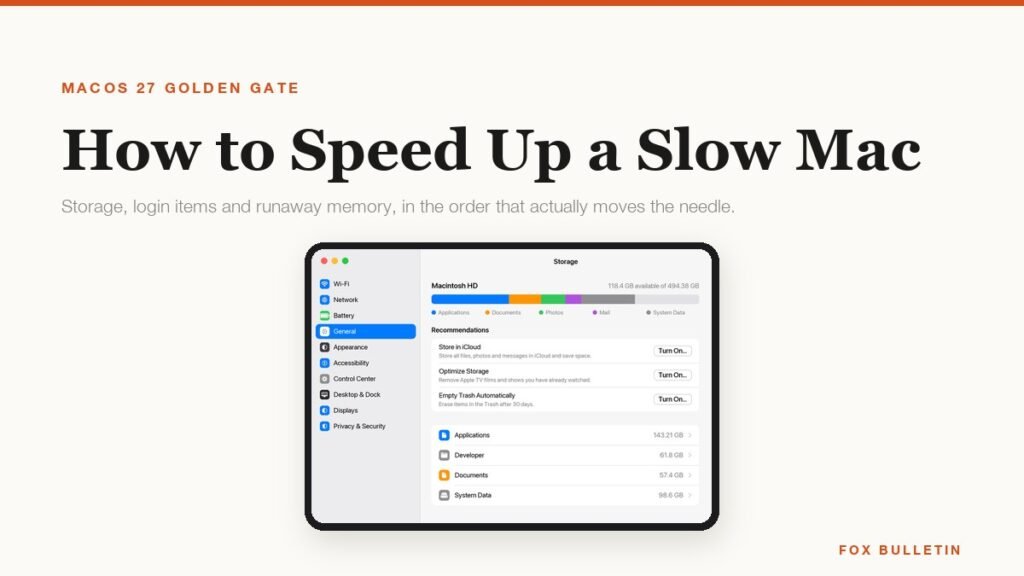
A Mac that has got slower almost never has a worn-out processor. It has a startup disk with nothing left to breathe, a login list that has quietly grown to a dozen apps, or one browser process holding several gigabytes of memory while the system swaps the rest to disk. Those three account for most complaints, and none of them needs new hardware.
The fixes below are ordered by how many machines they actually help, not by how dramatic they sound. Work down the list and recheck after each one, because once the real cause is gone the rest stop mattering. Everything here is written against macOS 27 Golden Gate, which Apple released on 14 September 2026 and updated to 27.0.1 a fortnight later.
Start by finding out what is actually slow
Guessing wastes an afternoon. Open Activity Monitor from Applications then Utilities, or by pressing Command and Space and typing the name, and watch it for a minute while you use the Mac normally. The Activity Monitor user guide explains the tabs, but for this job only two matter. The Memory tab shows memory pressure as a coloured graph at the bottom; green means fine, amber means the system is compressing, red means it is swapping to disk and that is what the beachball feels like. The CPU tab shows which single process is pinned.
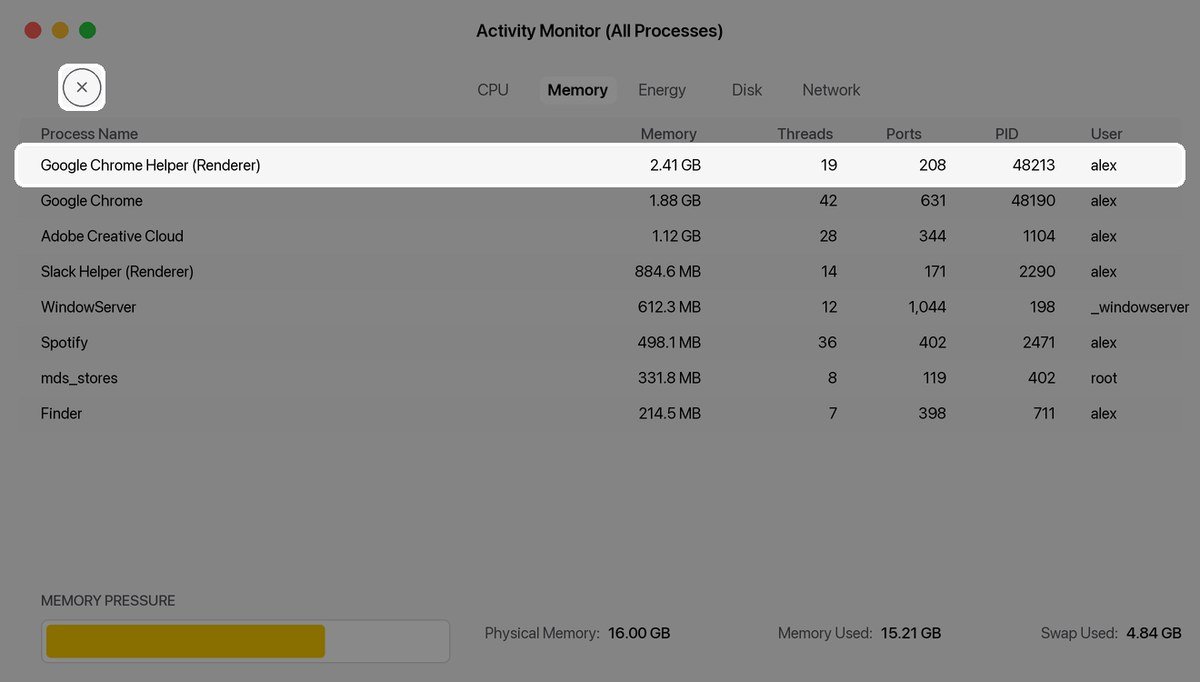
Sort by Memory and look at the top three rows. A browser helper process near the top is normal; a browser helper process holding two gigabytes is a tab you forgot about. Select the row and click the stop button in the toolbar to quit it. Swap Used is the number worth watching over time, because a figure in the gigabytes on a machine that has been awake for an hour means you are short of RAM for the way you work, not that anything is broken.
| What it feels like | Usual cause | Where to look |
|---|---|---|
| Beachball when switching apps | Memory pressure and swap | Activity Monitor, Memory tab |
| Everything slow after login | Too many login items | General, Login Items & Extensions |
| Slow saves and app launches | Startup disk nearly full | General, Storage |
| Fans loud, battery dying fast | A process pinned at high CPU | Activity Monitor, CPU tab |
| Safari and Mail crawl, apps fine | Browser tabs and mailbox size | Quit and reopen, then rebuild |
| Slow only right after an update | Spotlight is reindexing | Wait, then recheck |
Free up the startup disk before anything else
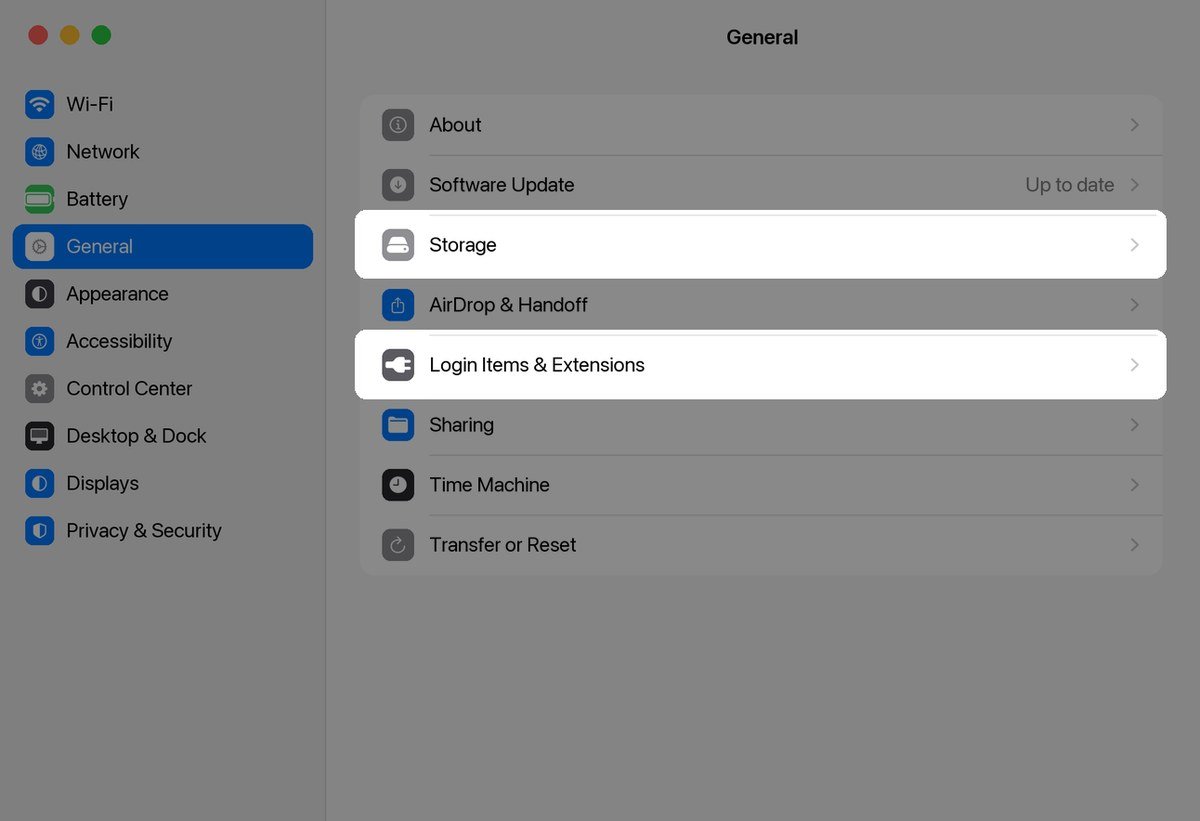
macOS needs free space to work. It writes swap, caches, app updates and temporary files to the same disk your files live on, and when that runs down to a few gigabytes everything slows at once. Apple’s own advice for a slow Mac puts the startup disk first for exactly this reason. Open the Apple menu, choose System Settings, click General in the sidebar, then click Storage.
The bar at the top breaks your disk down by category and updates as you clear things. Aim to get at least ten per cent of the disk free, and more if you edit video or run virtual machines. The categories below the bar are where the space actually is, and the three that usually surprise people are Applications, Developer and System Data.
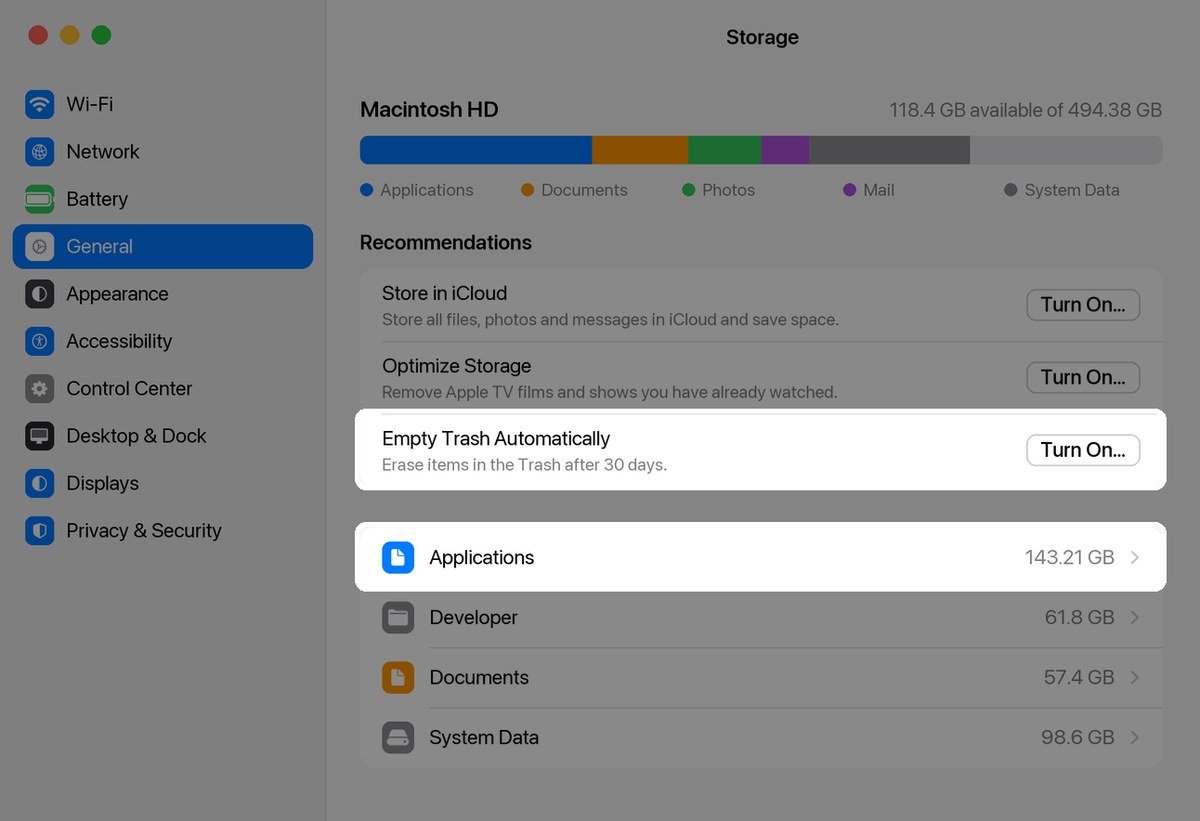
- Click the info button beside Applications and sort by size, then remove what you have not opened in a year.
- Turn on Empty Trash Automatically so deleted files stop counting against you after 30 days.
- Open your Downloads folder and clear it; on most Macs this alone frees several gigabytes.
- In Mail, choose Mailbox then Erase Junk Mail, then Erase Deleted Items.
- Delete old iPhone and iPad backups, which Apple lists in its guide to freeing up storage.
Treat Store in iCloud with more care than the other recommendations. It genuinely frees space by keeping only recent files locally, but it also means a file you need offline may not be on the machine when you open the lid on a plane. Turn it on for Photos if your library is large, and leave Desktop and Documents alone unless you are always online.
System Data is the category people try hardest to shrink and should mostly leave alone. It is a catch-all for caches, logs, snapshots and anything macOS does not file elsewhere, and it shrinks on its own once the disk gets tight. If it has grown past about 100 GB and stayed there, restarting is the safe first move, since that clears a chunk of it without deleting anything you chose to keep.
Cut the login items that slow every startup
Every app in the login list launches the moment you sign in, and several of them keep running whether or not you use them. Cloud storage clients, creative-suite updaters, chat apps and music apps are the usual offenders, and a Mac that feels slow for ten minutes after login almost always has five or more of them.
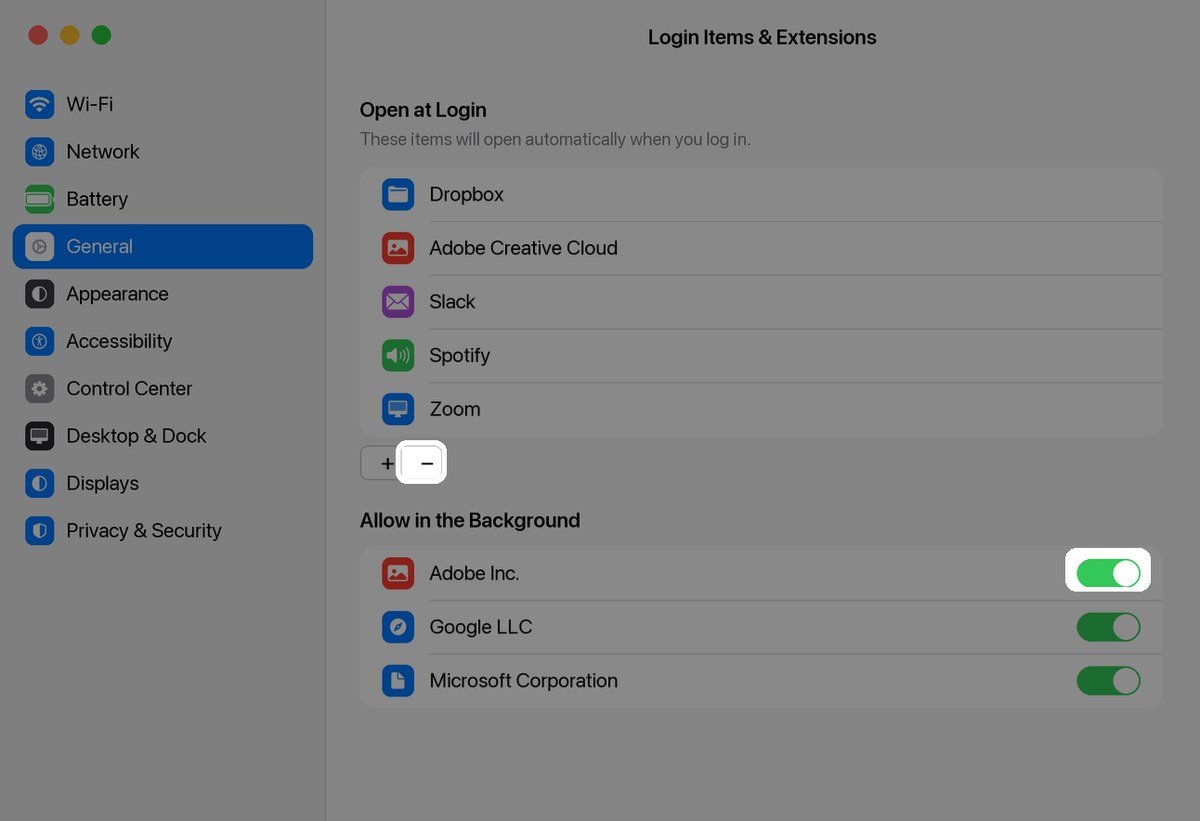
- Open System Settings, click General, then click Login Items & Extensions.
- Under Open at Login, select anything you do not need every day and click the minus button.
- Scroll to Allow in the Background and switch off the helpers you recognise and do not want.
- Restart and time how long the Mac takes to feel usable, so you know whether this was your problem.
Removing an app from the login list does not uninstall it or stop it working. It just means the app starts when you open it. The one group worth keeping is anything doing security or backup work, because those are meant to run without being asked.
Deal with the browser, because it is usually the browser
On most modern Macs the single biggest consumer of memory is a web browser, and the fix is behavioural rather than technical. Thirty open tabs are thirty live processes, each holding whatever that page loaded. Closing them is faster than any cleaning app.
- Close tabs you are keeping as reminders and bookmark them instead; the memory comes back immediately.
- Audit extensions, since ad blockers and password tools run on every page and a stale one can cost more than the pages themselves.
- Quit the browser once a day, which releases memory that long-running tabs never hand back.
- Try Safari for a day if you normally use Chrome, because on Apple silicon it is noticeably lighter on memory and battery.
If swapping browsers fixes it, you have learned something useful about your machine rather than fixed a fault. A Mac with 8 GB of memory running a browser, a design app and a chat client at once is simply at its limit, and no amount of maintenance changes that. Our explainer on RAM versus storage covers why adding disk space does not help there.
Restart, update, and use safe mode as a test
A Mac that has not been restarted in weeks accumulates leaked memory and stale caches. Restarting is not a superstition here; it is the cheapest way to clear both. Do it before you spend money on anything.
- Restart weekly rather than only closing the lid, which just sleeps the machine.
- Install pending updates, since macOS 27.0.1 and the Safari release alongside it both carried performance fixes.
- Boot into safe mode once to test: it loads a minimal system and clears certain caches, so a Mac that is fast in safe mode and slow normally has a third-party app or extension at fault.
- Check Spotlight is not reindexing, which happens after a big update and makes everything crawl until it finishes.
Before you update, check the machine still qualifies. macOS 27 Golden Gate runs only on Apple silicon: MacBook Air and MacBook Pro from 2020, iMac from 2021, Mac mini from 2020, Mac Studio from 2022, the 2023 Mac Pro and the 2026 MacBook Neo. An Intel Mac stops at macOS Tahoe 26, and is still supported with security updates, so there is no need to panic. If you are weighing a replacement, our MacBook Neo and MacBook Air comparison sets out where the extra memory actually earns its money.
When the Mac is slow because of the hardware
Some slowness is real and permanent. A spinning hard disk in a 2012 iMac will never feel quick, a swollen battery throttles a laptop to protect itself, and a machine at its memory limit will swap no matter how tidy the disk is. Three signs point this way rather than at software.
- Memory pressure stays amber or red even with only one app open.
- The Mac is fast in safe mode and slow in normal use, but removing login items changes nothing.
- Battery health is listed as Service Recommended in System Settings under Battery.
At that point the honest options are an external SSD to move a large library off the startup disk, a battery replacement, or a new machine. Cleaning apps that promise to speed up a Mac mostly delete caches that macOS rebuilds within the hour, and several of them add a login item of their own, which is the problem you came here to solve.
Frequently Asked Questions
Does clearing cache speed up a Mac?
Briefly, and then it does not. macOS rebuilds caches as soon as it needs them, so the space comes back and the first launch of each app is slower than before. Clearing caches is worth doing when an app misbehaves, not as routine maintenance.
How much free space does a Mac need to run well?
Keep at least ten per cent of the startup disk free, and 15 to 20 per cent if you work with video, large photo libraries or virtual machines. Below about 10 GB free, macOS has trouble writing swap and the whole system starts to stutter regardless of how fast the hardware is.
Is 8 GB of memory still enough on a Mac?
For email, documents, streaming and a handful of browser tabs, yes. For a browser with twenty tabs alongside a design or video app, no, and Activity Monitor will show it as persistent memory pressure and swap. Memory is soldered on Apple silicon Macs, so this is a decision made at purchase rather than a later upgrade.
Do Mac cleaning apps actually work?
They remove files you could remove yourself from Storage settings, and the one thing they cannot fix is the usual cause, which is too little memory for the way you work. Apple’s built-in Storage recommendations do the same job without installing anything that runs in the background.
Related Articles

Get the Fox Bulletin briefing
The stories that matter, in your inbox. No spam, unsubscribe anytime.
Newsletter signup will be available soon.
Related stories
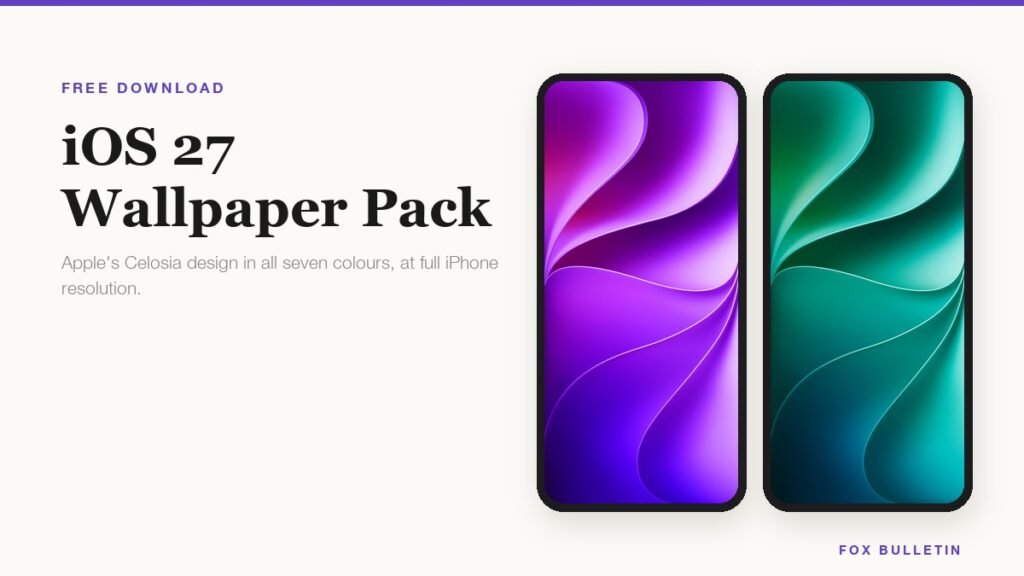
iOS 27 Wallpaper: Download All 7 Celosia Colours
Apple drew one wallpaper for iOS 27 and shipped it in seven colourways. Here is each one at full resolution, shown on an iPhone so you can see where the fold falls before you download it.
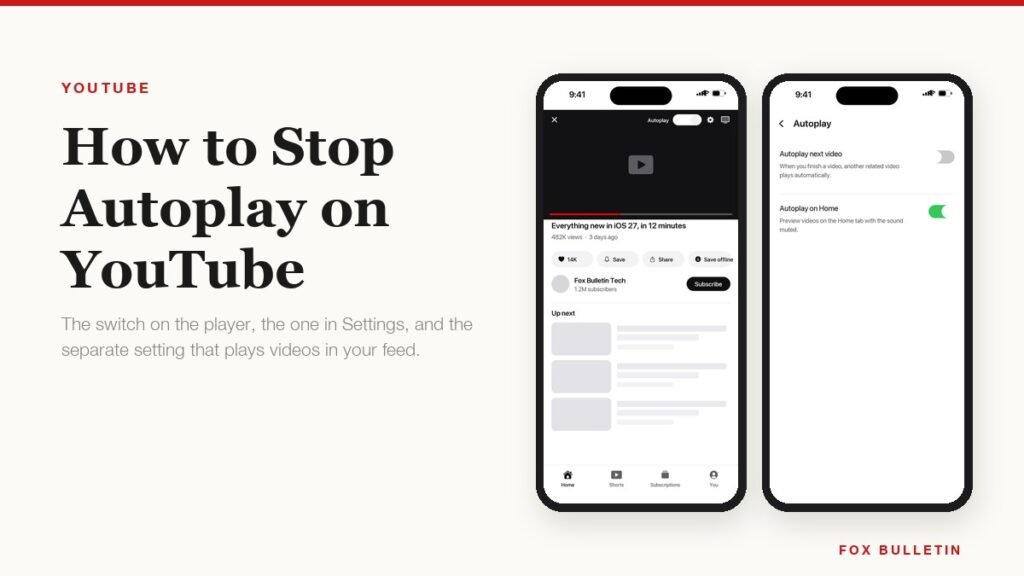
How to Stop Autoplay on YouTube on Every Device
Autoplay is set per device, so switching it off on your phone leaves it running on the laptop. There is also a second setting, Playback in feeds, that most people miss entirely.
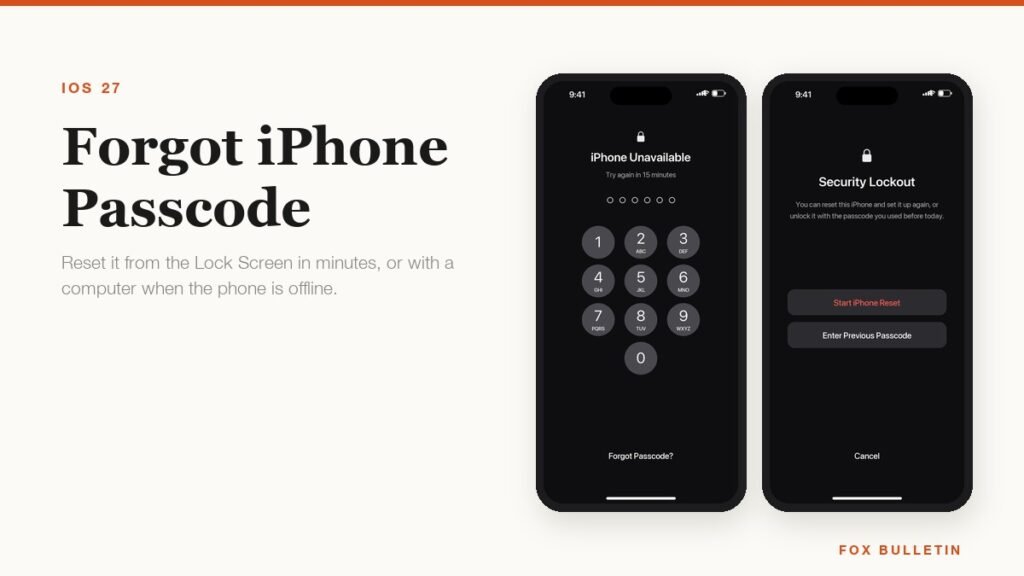
Forgot iPhone Passcode? Here Is How to Get Back In
If you changed the passcode in the last 72 hours, the old one still works and nothing is lost. After that the only way in erases the phone, which is exactly what the lock is for.