

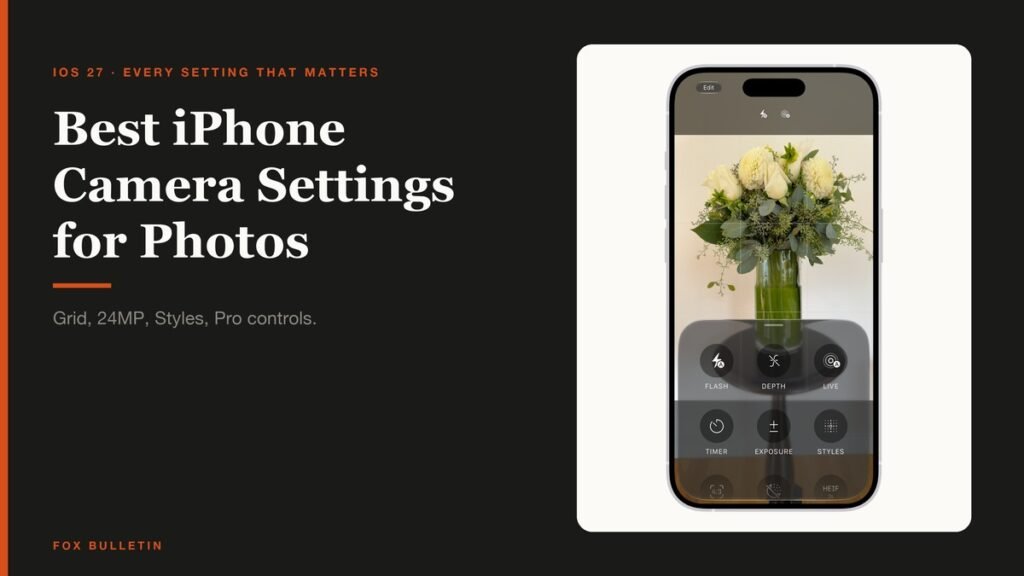
The best iPhone camera settings for photos are not the ones Apple ships. iOS 27 leaves Photo Mode at 24 MP, hides the full 48 MP behind a toggle, turns the grid off, and quietly trades detail for speed every time you tap the shutter twice. Six changes in the Settings app fix all of that, and none of them costs you anything but storage.
Every path below is written the way it reads on the phone, so you can follow it with the Settings app open beside you. Where a toggle exists on only some models, the line says which, so you are not hunting for something your iPhone does not have.
Best iPhone Camera Settings for Photos: Every Path and Default
Sixteen settings decide how an iPhone photo turns out. This is all of them, with the menu path, the state the phone arrives in, and the change worth making.
| Setting | Where it lives | Ships as | What to do |
|---|---|---|---|
| Photo Mode | Settings > Camera > Formats > Photo Mode | 24 MP | Keep 24 MP |
| Resolution Control | Settings > Camera > Formats | Off | Turn on |
| Prioritize Faster Shooting | Settings > Camera | On | Turn off |
| Additional Lenses | Settings > Camera > Main Camera | 24 mm only | Add 28 mm and 35 mm |
| Grid | Settings > Camera | Off | Turn on |
| Level | Settings > Camera | Off | Turn on |
| Photographic Styles | Settings > Camera > Photographic Styles | Standard | Pick one, keep it mild |
| High Efficiency | Settings > Camera > Formats | On | Keep on |
| ProRAW Format | Settings > Camera > Formats | Not set | Set it if you edit |
| Lens Aperture | Camera controls button | Automatic | Pick a value, then preserve it |
| Preserve Settings | Settings > Camera > Preserve Settings | Live Photo and Portrait Zoom only | Add Exposure Adjustment and Night Mode |
| Macro Control | Settings > Camera | On | Keep on |
| Lens Correction | Settings > Camera | On | Keep on |
| View Outside the Frame | Settings > Camera | On | Personal choice |
| Lens Cleaning Hints | Settings > Camera | On | Keep on |
| Reference Image | Settings > Camera > Reference Image | Off | Turn on if you need proof |
1. Photo Mode: Leave It at 24 MP
Settings > Camera > Formats > Photo Mode offers 12 MP and 24 MP. The 24 MP file is the one the Fusion Main camera is built around: it is assembled from the full 48 MP sensor read rather than cropped down, so it holds detail that a 12 MP file has already thrown away.
Dropping to 12 MP only makes sense if you are close to full and shoot constantly. There is a second reason to stay at 24 MP, and it is the one most people miss: the extra Main camera lenses described further down will not appear at all unless Photo Mode is set to 24 MP.
2. Resolution Control: Unlock the Full 48 MP
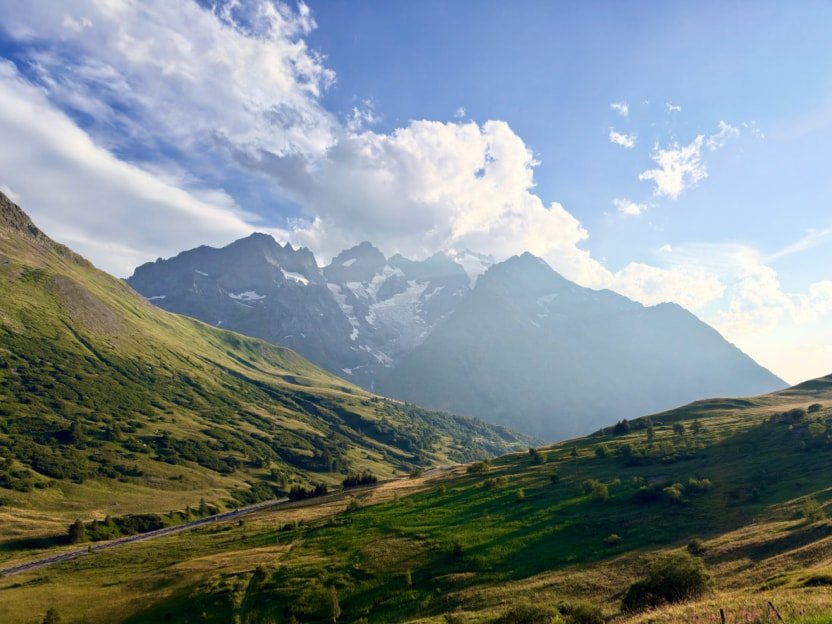
The 48 MP capture every iPhone 17 and iPhone 18 model is advertised with is off until you switch it on. Go to Settings > Camera > Formats and turn on Resolution Control, or ProRAW & Resolution Control on a Pro model. A format control then appears at the top of the Camera screen, and you tap it to turn 48 MP on for the shot in front of you.
Use it for landscapes, architecture and anything you intend to crop into later. Leave it off for a street scene you will post as-is, because the files are several times larger and the camera takes longer to be ready for the next frame.
- 48 MP HEIF Max keeps the resolution and a manageable file size.
- 48 MP ProRAW Max keeps the resolution and the raw sensor data, on Pro models only.
- 24 MP stays the right default for everything else.
3. Turn Off Prioritize Faster Shooting
This one is on out of the box and it is the single setting most worth changing. Apple describes it as modifying how images are processed so you can capture more photos when you tap the shutter rapidly. The processing it skips is the detail work.
Settings > Camera, then turn off Prioritize Faster Shooting. The camera becomes slightly slower between rapid shots and every frame gets the full treatment. If you photograph children or dogs and genuinely need the frame rate, use Burst mode instead by holding the shutter and sliding left, which is what Burst is for.
4. Add 28 mm and 35 mm to the Main Lens
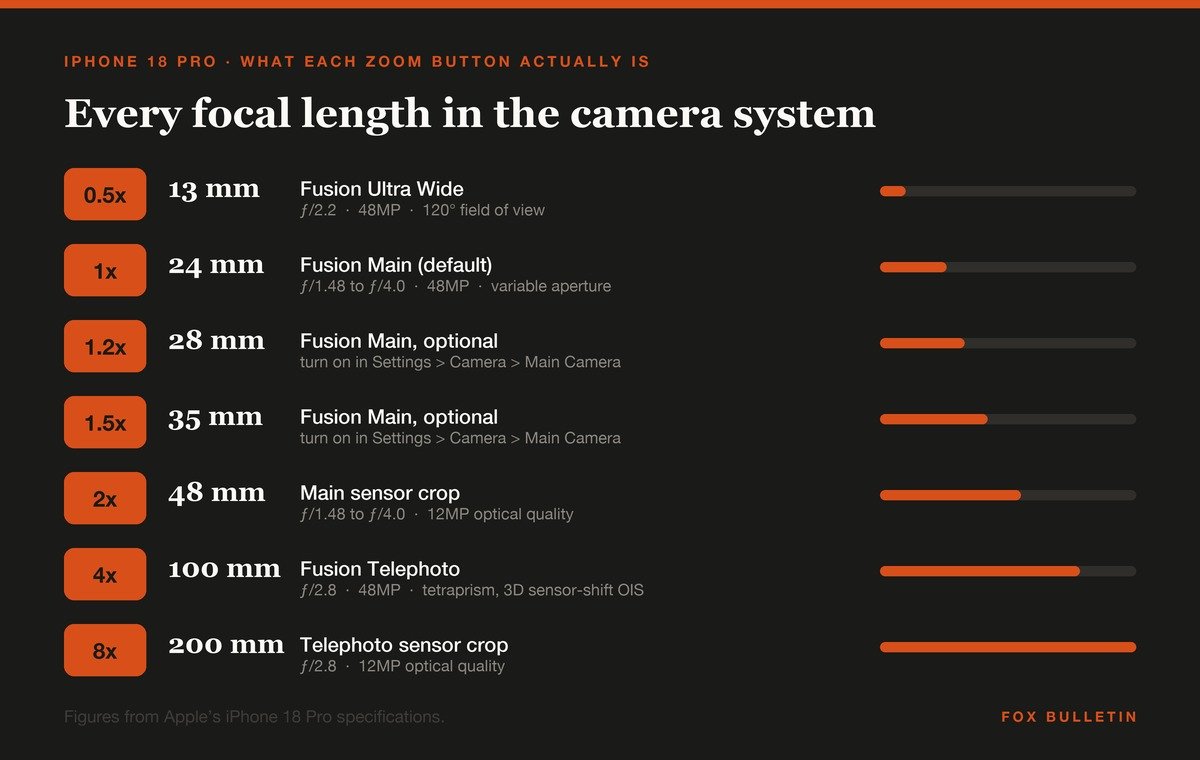
The 1x button on an iPhone 18 Pro is 24 mm, which is wide enough that people at the edges of the frame stretch. iOS 27 lets you add two more focal lengths to the same lens and switch between them by tapping 1x repeatedly.
- Set Settings > Camera > Formats > Photo Mode to 24 MP first, or the option stays hidden.
- Go to Settings > Camera and tap Main Camera, or Fusion Camera, below Photo Capture.
- Under Additional Lenses, turn on 28 mm and 35 mm.
- Under Default Lens, choose which one the Camera app opens at.
The 1x button then cycles 1x at 24 mm, 1.2x at 28 mm and 1.5x at 35 mm. On iPhone Air and iPhone Duo the Main lens starts at 26 mm, so the same two additions read as 1.1x and 1.4x. For portraits of people, 35 mm is the one to default to.
5. Switch On Grid and Level
Settings > Camera, then turn on Grid and Level. The grid draws two lines each way across the frame, which puts the intersections used by the rule of thirds on screen while you compose rather than after the fact.
Level is the more useful of the two. Point the phone down at a table or a document and a crosshair appears that turns yellow when the phone is flat. Aim it at a horizon and a horizontal line appears that snaps yellow when the shot is straight. Crooked horizons are the most common fault in phone photos and this removes it.
6. Take Focus and Exposure Off Automatic
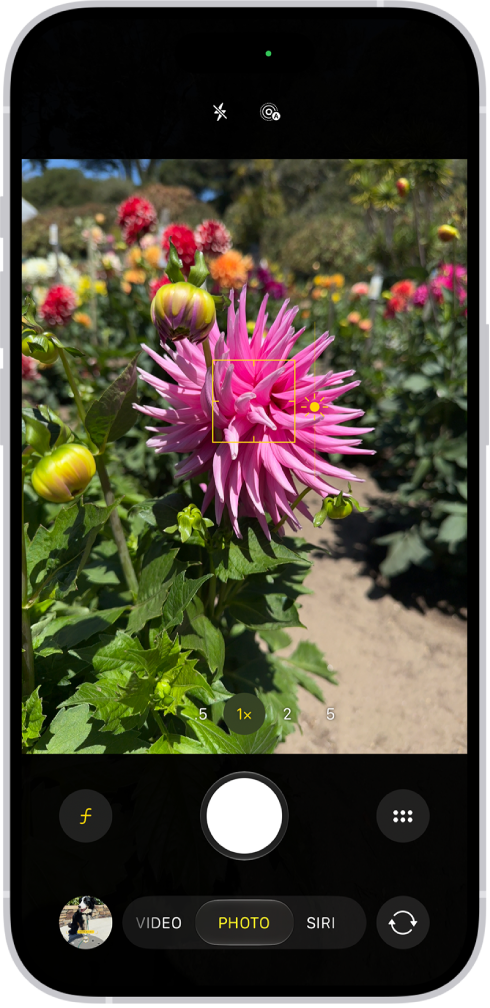
Tap where you want the camera to focus and a yellow box appears with a sun icon beside it. Drag that sun down and the shot gets darker, up and it gets brighter. Pulling exposure down roughly a third protects highlights that cannot be recovered later, which matters because a blown sky is gone for good while a dark foreground can be lifted.
Touch and hold the same spot until AE/AF Lock appears and focus and exposure stay put while you recompose. The exposure you set resets the next time Camera opens unless you turn on Exposure Adjustment under Preserve Settings.
iPhone 18 Pro and iPhone Duo go further. The camera controls button has a Focus tool that locks the camera to Ultra Wide, Main or Telephoto and gives you a focus distance slider, with the areas in focus outlined on screen. Tapping a subject and then double-tapping its yellow frame starts focus tracking, which follows the subject as it moves.
7. Photographic Styles: Choose the Look Before the Shot
A Photographic Style is applied as the photo is taken and changes specific colors rather than washing a filter over everything. Open Camera, tap the controls button, tap Styles, and swipe. The Tone and Warmth sliders control how hard it lands.
On iPhone 18 Pro and iPhone Duo, Photographic Styles 3 adds a Texture control with Soft Skin, Glow and Film options plus a Grain slider. Soft Skin on a low setting is genuinely useful for portraits. Everything above about a third of the slider looks processed on a large screen.
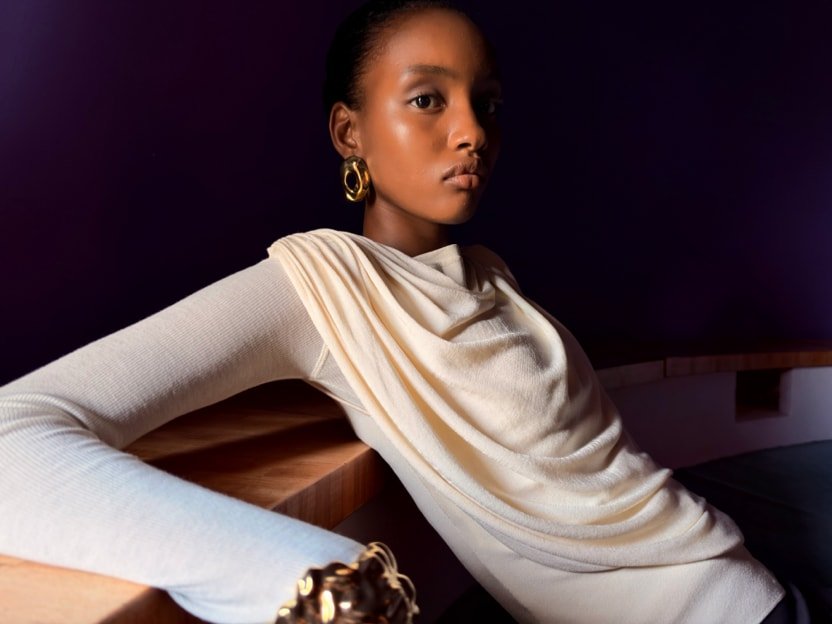
One condition is easy to miss: Settings > Camera > Formats must be on High Efficiency for a style to stay editable in Photos afterwards. To clear a style, go to Settings > Camera > Photographic Styles and choose Use Standard.
The monochrome styles are the ones that hold up at any strength, because they are removing color information rather than pushing it. A shot taken that way makes a better black and white phone wallpaper than a color photo converted afterwards.
8. Night Mode: Set the Exposure Yourself
Night mode turns itself on in low light and picks an exposure time. Tap the controls button, tap Night Mode, and you can choose a longer one. The choice carries over to your next night shot.
Brace the phone against a wall or use a tripod for anything past a second or two. If crosshairs appear in the frame the phone has detected movement, and lining them up is what keeps the frame sharp. Night mode also works in Portrait mode and on the front camera on current models.
9. Pro Controls on iPhone 18 Pro
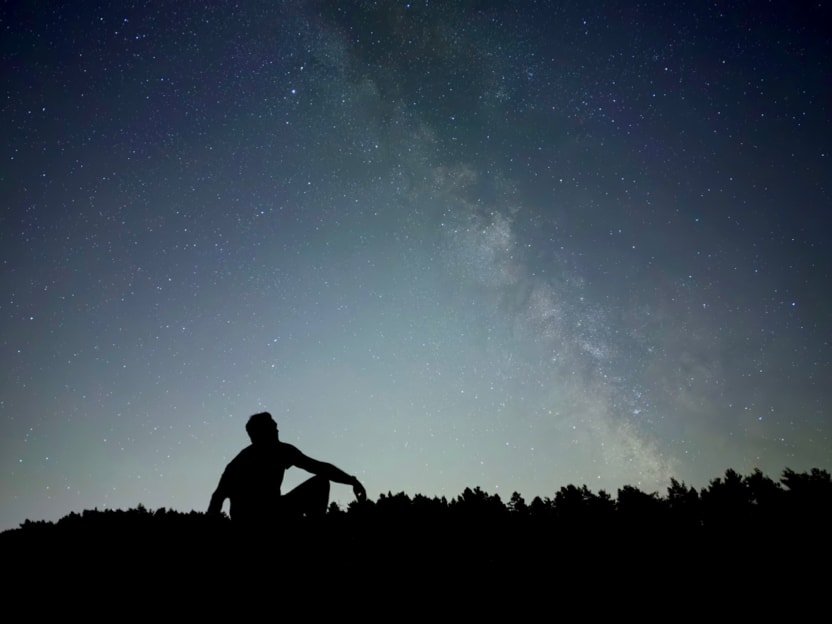
iPhone 18 Pro models added manual control of the camera, and it is the largest change to iPhone photography in years. Tap the camera controls button and you get Lens Aperture, Shutter Speed, White Balance and a Histogram, usable in Photo, Video, Cinematic, Slo-mo and Time-Lapse.
- Lens Aperture is a real six-blade mechanism, not a software effect. Tap a value to pick one of four settings between ƒ/1.48 and ƒ/4.0.
- Shutter Speed is a slider. Drag it slow for moving water and light trails, fast to freeze a moving subject.
- White Balance is a tap. Set it manually and a sequence of shots stops shifting color between frames.
- Histogram shows where the exposure sits across the frame, so you can see clipped highlights before you take the shot rather than after.
The aperture resets when you reopen Camera unless you turn on Lens Aperture in Preserve Settings. The full camera hardware is listed on Apple’s iPhone 18 Pro specifications, including the four aperture values and the 16x optical-quality zoom range.
10. ProRAW and the Format Control
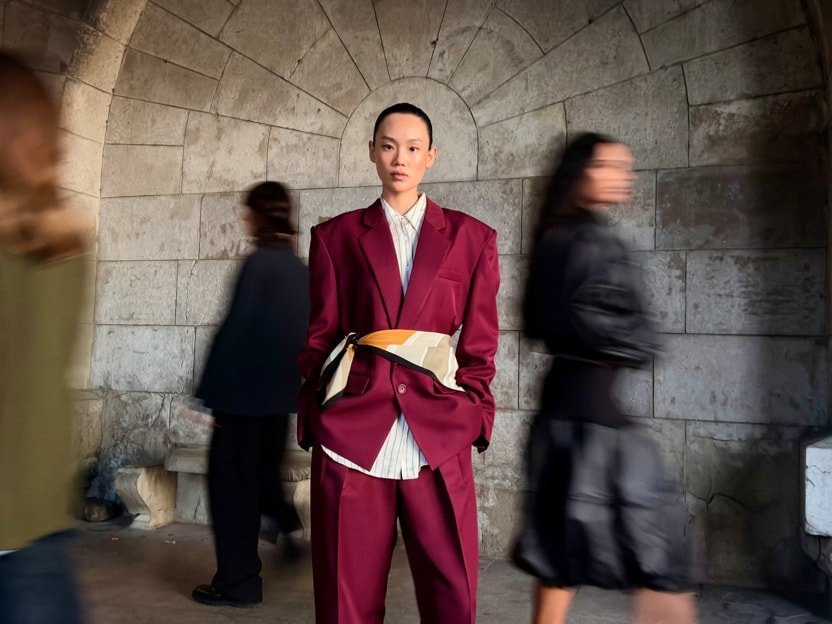
Apple ProRAW keeps the raw sensor data alongside the processing the iPhone would normally bake in, which leaves room to move exposure, color and white balance later without the image falling apart. It writes a DNG file.
Turn it on at Settings > Camera > Formats, choose the file type under ProRAW Format, then use the Format control in the Camera app to switch it on per shot. It works on every camera including the front one, but not in Portrait mode, and the files are large enough that leaving it on permanently will fill a phone.
iPhone 17, iPhone 17e and iPhone Air capture HEIF and JPEG only. ProRAW and DNG are Pro features, so on those models this section does not apply and Resolution Control is the setting that matters instead.
11. Make the Settings Stick With Preserve Settings
Most of what you change inside the Camera app resets the moment the app closes. Settings > Camera > Preserve Settings decides what survives. Live Photo and Portrait Zoom are on already. These are the ones worth adding:
- Exposure Adjustment so a deliberate exposure offset is not thrown away.
- Night Mode so a chosen exposure time is not reset to automatic.
- Photographic Style so your look is applied to the next shot too.
- ProRAW & Resolution Control so 48 MP stays on through a shoot.
- Lens Aperture on iPhone 18 Pro, so a chosen aperture holds.
- Camera Mode so Camera opens in Portrait or Pano if that is what you use.
Macro Control, Depth Control, Creative Controls, Action Mode and Apple ProRes are also on the list. Leave the ones you do not use alone, because preserving a mode you forgot about is how you end up shooting a whole afternoon in the wrong one.
12. The Settings Worth Leaving Exactly As They Are
Advice to switch these off circulates widely and it is wrong on all three counts.
- Lens Correction straightens the distortion the Ultra Wide and front cameras produce at the edges of the frame. Turning it off bends faces outward.
- Macro Control puts a flower icon on screen when you are inside macro range so you can stop the automatic switch to Ultra Wide. Off, you lose the override, not the switching.
- Lens Cleaning Hints warns you that the lens is smudged. A fingerprint on the glass ruins more photos than any setting in this list.
View Outside the Frame is the one genuine preference. It shows what a wider lens would catch in the area around the frame, which helps when framing and distracts when composing. It sits in Settings > Camera and costs nothing either way.
Apple Reference Image on iPhone 18 Pro
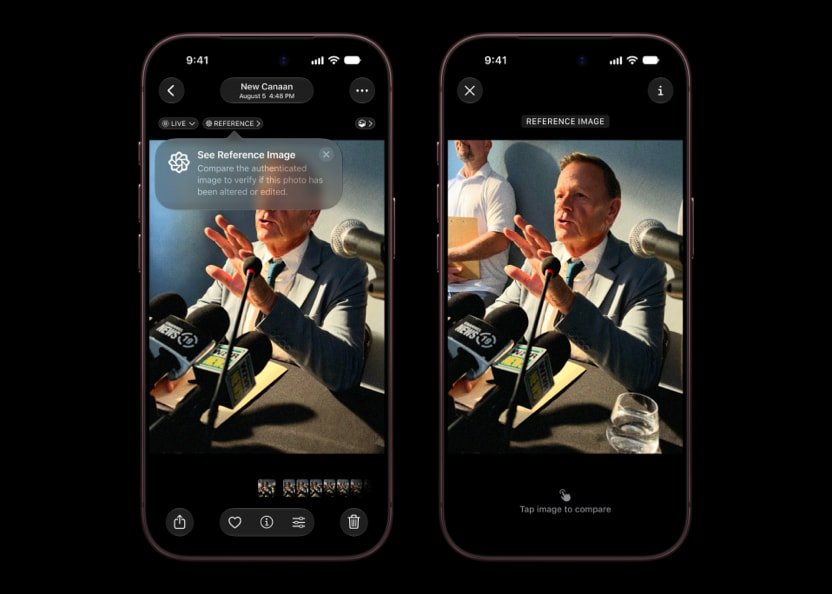
Reference mode is new and it is not about image quality. It saves the original signed data from the Main camera sensor alongside the photo, so the file can later be shown to be an unaltered capture rather than something generated or edited.
Turn it on once at Settings > Camera > Reference Image, tap Add Reference Mode, then swipe to Reference in the Camera app when you need it. It is limited to iPhone 18 Pro models and is not offered in every country.
What Applies to iPhone 17, iPhone Air and Older Models
Most of this list is not Pro-only. Grid, Level, Prioritize Faster Shooting, Photo Mode, Photographic Styles, Preserve Settings, focus and exposure control and Night mode all work the same on an iPhone 17. Check which iPhones run iOS 27 if you are not sure the menus will match.
- iPhone 17 has a 48 MP Fusion Main at 26 mm and a 48 MP Ultra Wide, so Resolution Control applies but ProRAW does not.
- iPhone Air has the Main camera only, with no Ultra Wide, so macro and the 0.5x button are not there.
- Pre-iPhone 15 models have no 24 MP option and no additional Main lenses.
- iPhone 11, iPhone SE second generation and iPhone 12 are the only models with a manual Smart HDR switch.
Shooting at 48 MP with Night mode and ProRAW on is also one of the heavier things an iPhone does. If the phone is warm and the battery is dropping faster than it should, a long session at full resolution is a likely cause.
Which Changes to Make First
If you only change three things, change these, in this order.
- Turn off Prioritize Faster Shooting. It costs nothing and affects every photo you take.
- Turn on Grid and Level. Composition and a straight horizon improve more photos than any amount of resolution.
- Add Exposure Adjustment to Preserve Settings, then pull exposure slightly down and leave it there. Protected highlights are the difference between a usable file and a white sky.
Resolution Control and ProRAW come after those, because both cost storage and neither helps a badly composed, badly exposed photo. Exposure value is the single idea worth understanding if you want to go past the defaults, because every manual control on an iPhone 18 Pro is a way of trading one part of it for another.
Frequently Asked Questions
Should I shoot at 48 MP all the time?
No. A 48 MP file is several times the size of a 24 MP one and the camera is slower between shots. Switch it on for landscapes, detailed scenes and anything you expect to crop into heavily, and leave 24 MP as the everyday setting.
Does turning off Prioritize Faster Shooting make the camera slow?
Only between rapid consecutive taps of the shutter. A single photo is unaffected. For fast sequences, Burst mode is the right tool, and it does not compromise the processing in the same way.
Which iPhone camera settings matter most for portraits?
Set the Main lens default to 35 mm so faces are not stretched, use Portrait mode for the depth effect, keep Photographic Styles mild, and pull exposure down slightly so skin highlights hold. On iPhone 18 Pro, ƒ/1.48 gives the shallowest depth of field.
Do Photographic Styles apply to ProRAW files?
No. A style is part of the processed image, and ProRAW keeps the sensor data instead. If you want a style to remain editable afterwards, Settings > Camera > Formats has to be set to High Efficiency.
Related Articles

Get the Fox Bulletin briefing
The stories that matter, in your inbox. No spam, unsubscribe anytime.
Newsletter signup will be available soon.
Related stories
Windows Update Troubleshooter: Run It, Then Fix the Rest
Where the Windows Update troubleshooter lives on Windows 11 and Windows 10, how to run it, what it cannot fix, and the manual repairs in order: disk space, pause and resume, services and folders, DISM, sfc, stuck updates, restart loops and error codes.
Best Ad Blockers for iPhone and iPad: 10 Top Picks
Ten Safari content blockers for iPhone and iPad ranked on price, App Store rating and how recently they shipped, with what none of them can reach.

How to Fix Slow Internet: Find the One Weak Link
A wired speed test, a symptom table and fixes in order: Wi-Fi band and placement, background tasks, cables, modem limits, QoS and the point where the plan or hardware has to change.