
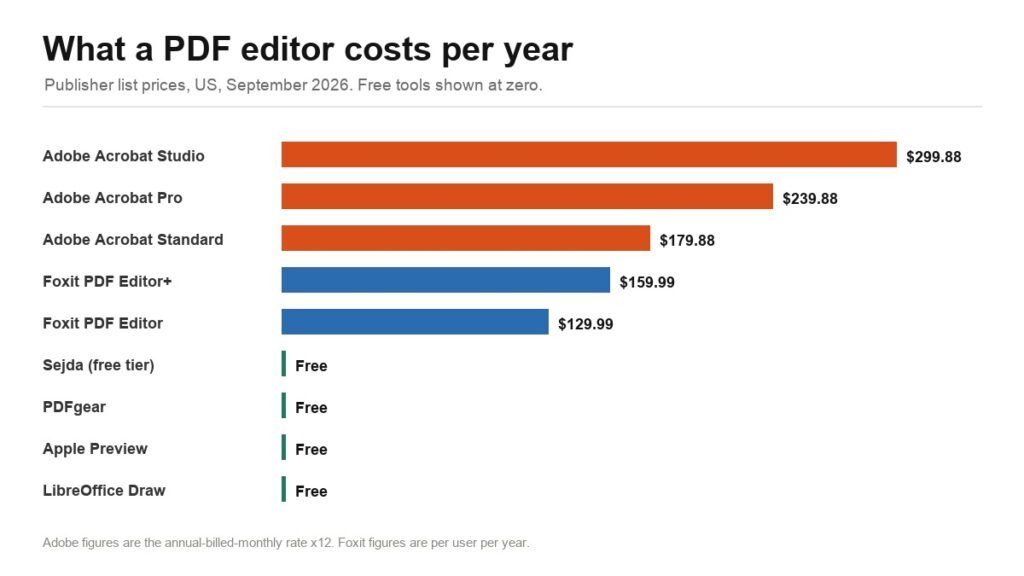
Almost nobody needs everything Adobe Acrobat does, and almost everybody pays for it anyway. Acrobat is the default because it invented the format, not because editing a PDF requires a $240-a-year subscription. For a large share of the work people actually do to PDFs, which is filling a form, signing it, deleting a page or fixing a typo, there are free tools that do the job completely.
The six below are split by what you are actually trying to do. All prices are the publisher’s own US list price, checked in September 2026, and free tools are labelled free only where the publisher says the feature is free without a watermark.
What Each One Costs
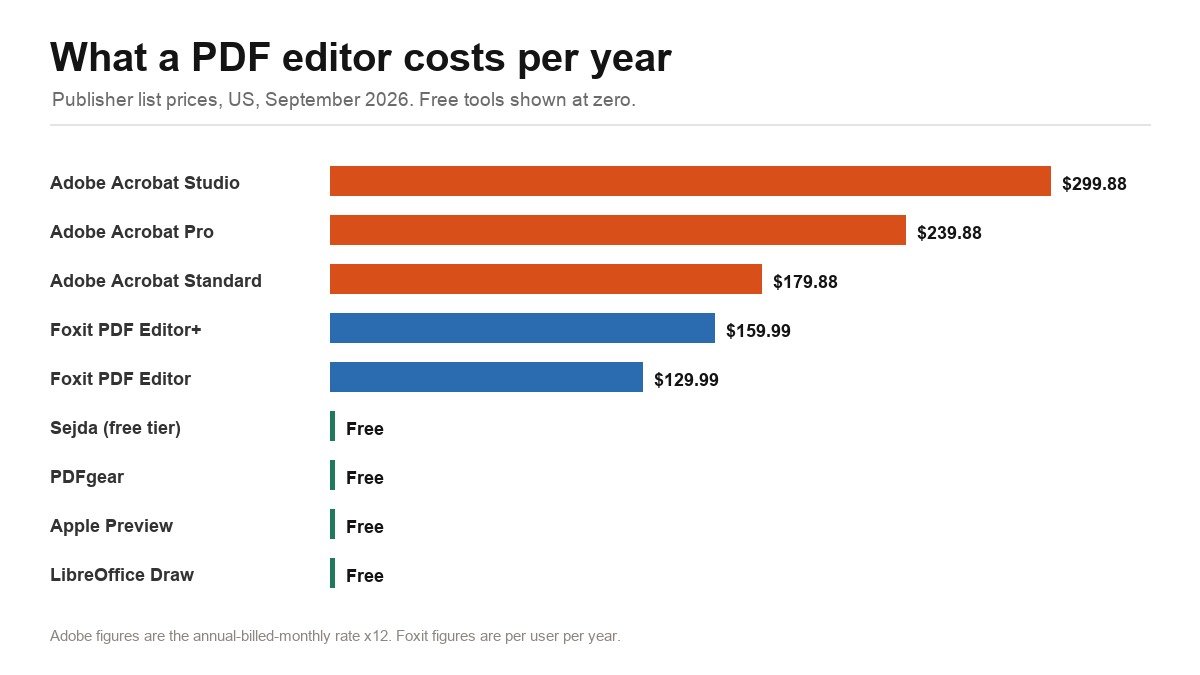
Adobe sells by the month and Foxit by the year, so the chart converts Adobe to an annual figure at its annual-billed-monthly rate. That is the fairest comparison, and it is the number that appears on your card over twelve months.
| Tool | Price | Platform | Best for |
|---|---|---|---|
| Adobe Acrobat Pro | $19.99/month | Windows, Mac, web, mobile | Everything, including compliance and redaction |
| Adobe Acrobat Standard | $14.99/month | Windows, Mac, web | Editing and forms without the advanced tools |
| Foxit PDF Editor+ | $159.99/user/year | Windows, Mac, mobile | The closest full replacement for Acrobat |
| Foxit PDF Editor | $129.99/user/year | Windows, Mac | Desktop editing at a lower price |
| PDFgear | Free | Windows, Mac, web, iOS | Free editing with no account |
| Sejda | Free tier, paid plans | Web, desktop | Occasional edits in a browser |
| Apple Preview | Free, built in | Mac | Signing, annotating and page shuffling on a Mac |
| LibreOffice Draw | Free, open source | Windows, Mac, Linux | Editing PDF text offline with no account |
1. Adobe Acrobat Pro: The One That Does Everything, Priced Accordingly
Adobe prices Acrobat in three tiers for individuals: Standard at $14.99 a month, Pro at $19.99 and the newer Acrobat Studio at $24.99, all on an annual plan billed monthly. Over a year that is $179.88, $239.88 and $299.88 respectively.
What Pro adds over Standard is the professional end of the format. Redaction that genuinely removes the underlying text rather than drawing a black box over it. Bates numbering for legal documents. Validation against ISO standards like PDF/A for archiving and PDF/X for print. Accessibility checking. Preflight for print production. If you work in law, publishing or government, those are not optional extras, and no free tool on this list does them properly.
Acrobat Studio is the AI tier, adding PDF Spaces, an AI assistant that answers questions with citations, and Adobe Express Premium. Whether that is worth another $60 a year depends entirely on whether you would use it.
What it does well
- Redaction that actually removes the text underneath.
- PDF/A and PDF/X validation for archiving and print.
- Bates numbering and accessibility checking.
- Works identically across Windows, Mac, web and mobile.
What to know
- The most expensive option here by a wide margin.
- Subscription only for the current versions.
- Far more tool than most people need.
2. Foxit PDF Editor: The Serious Alternative, at Roughly Half the Price
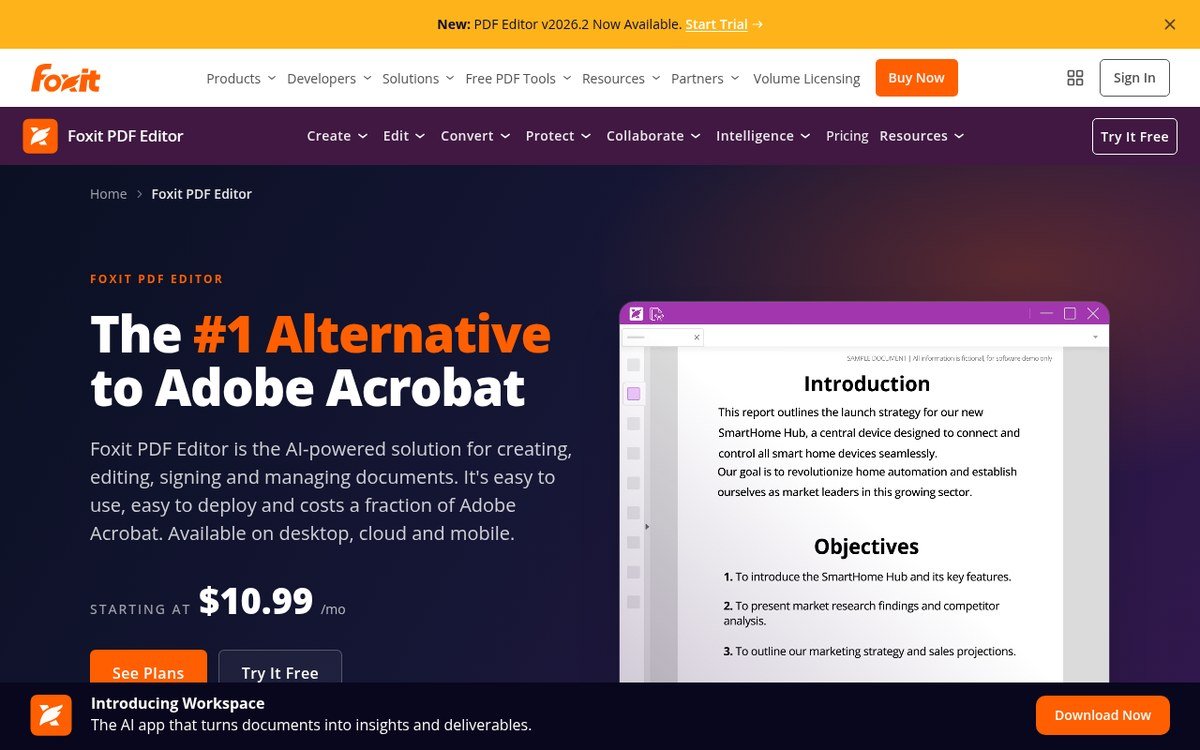
Foxit is the closest thing to a like-for-like Acrobat replacement, and it says so openly: its own product page markets it as the number one alternative to Adobe. PDF Editor is $129.99 per user per year and PDF Editor+ is $159.99, with monthly billing available from $10.99.
The gap between the two tiers is worth understanding. Editor+ adds the iOS and Android apps, Foxit eSign Essentials with 150 signature envelopes a year, and an AI-powered Smart Redact that finds and removes personally identifiable information automatically. The AI Assistant is a separate $49.99 a year add-on that includes 2,000 credits a month for summarising, translating and extracting data.
Foxit also still sells a perpetual licence, Foxit PDF Editor 14, at $209.99. That is the option to look at if you resent subscriptions: it costs more than one year of the subscription and less than two, and it keeps working when you stop paying.
What it does well
- Roughly half the annual cost of Acrobat Pro for comparable core editing.
- A perpetual licence is still available at $209.99.
- Editor+ includes 150 eSign envelopes a year.
- Familiar ribbon interface if you are coming from Office.
What to know
- AI features cost an extra $49.99 a year.
- Mobile apps only on the Editor+ tier.
- The interface is dense, like Acrobat’s.
3. PDFgear: Genuinely Free, With No Account and No Watermark
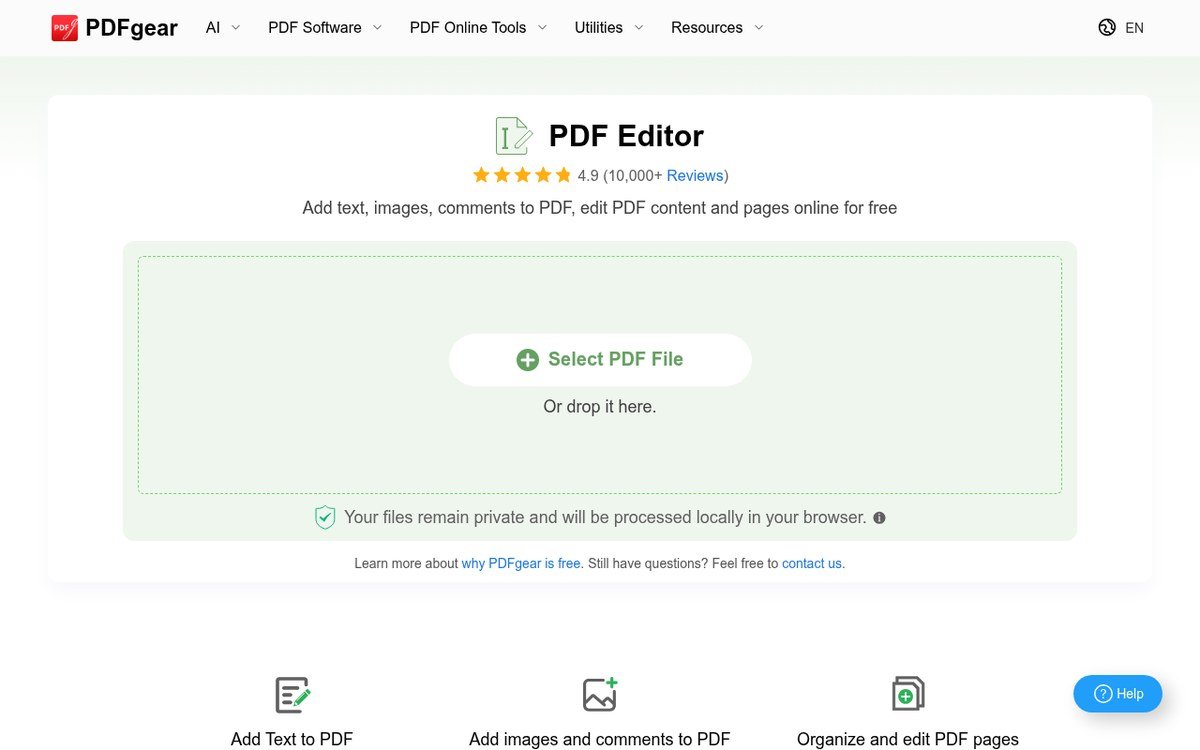
The free PDF editor category is full of tools that are free until you try to save, at which point a watermark appears or a sign-up wall does. PDFgear states plainly that it is 100% free with no sign-up, no ads, no premium plan and no purchase required.
There are two versions and the distinction matters. The online editor works in a browser with a 100MB file size limit. The desktop software has no file size limit at all. Both handle the common jobs: adding text and images, highlighting, drawing shapes and filling forms. If your requirement is “edit this PDF without paying or registering”, this is the first thing to try.
What it does well
- Free with no account, no ads and no watermark.
- Desktop version has no file size limit.
- Available for Windows, Mac, web and iOS.
- Handles text, images, highlights, shapes and form filling.
What to know
- The online editor caps files at 100MB.
- No redaction, PDF/A validation or Bates numbering.
- A smaller company than Adobe or Foxit, with a shorter track record.
4. Sejda: Free in the Browser, With Limits You Should Read First
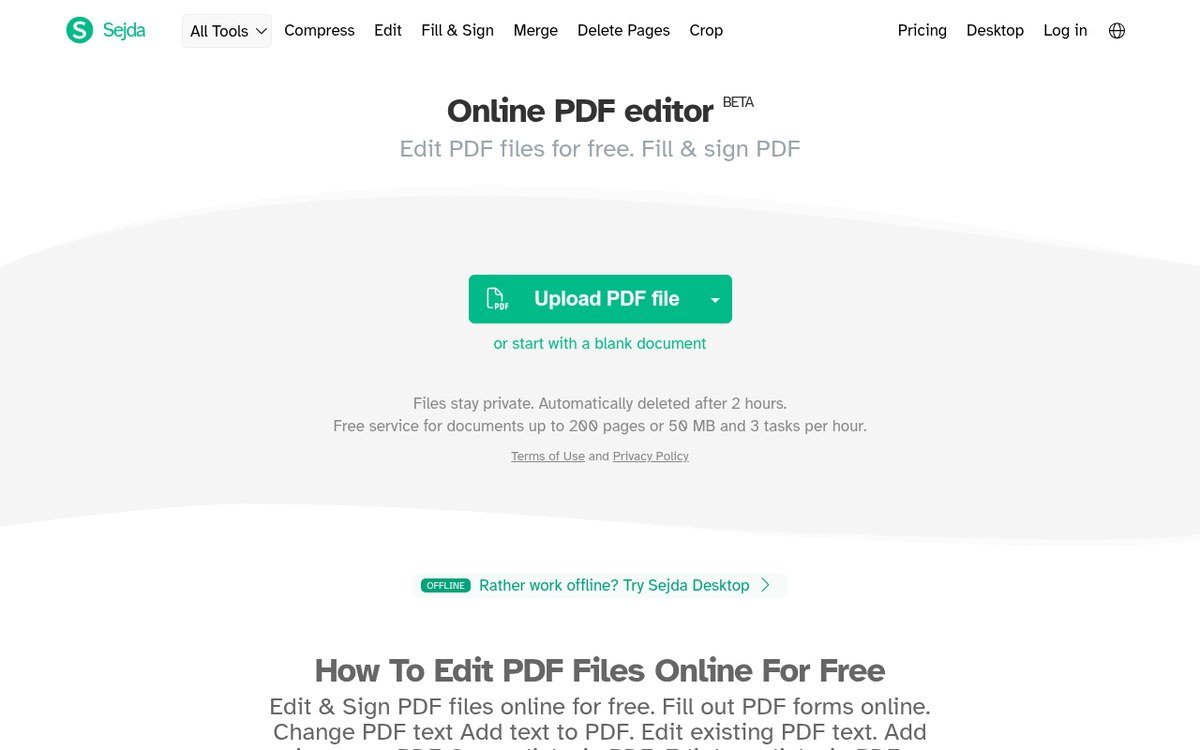
Sejda edits PDFs in a browser with no registration and no watermark, which makes it the fastest route to fixing one document on a machine that is not yours. The catch is that the free tier is metered, and Sejda publishes the limits openly rather than hiding them behind a failed save.
Free users get 3 tasks per hour, one file per task, a 50MB file size cap and a 50 page cap. Conversions are limited to 20 pages, OCR to 10 pages, and link handling to 20 links per task. For a one-off signature or a typo fix, none of those will trouble you. For processing a stack of documents, you will hit the hourly task limit quickly and the paid plan is the intended answer.
What it does well
- Works in any browser with no install and no registration.
- No watermark on free output.
- Limits are published up front rather than discovered on save.
- Handles text editing, whiteout, find and replace, and signing.
What to know
- 3 tasks per hour on the free tier.
- 50MB and 50 page caps per file.
- OCR limited to 10 pages free.
5. Apple Preview: Already on Your Mac and Better Than People Realise
Every Mac ships with Preview, and most Mac owners think of it as an image viewer. It is also a capable PDF tool, and Apple’s own user guide documents it as one: opening, viewing and working with PDFs, filling out forms and adding a signature without a printer.
What it does well is the everyday list. Reorder, rotate and delete pages by dragging thumbnails. Merge two PDFs by dragging one into another’s sidebar. Annotate, highlight and add text boxes. Capture your signature once with the trackpad or camera and apply it to any document forever. What it cannot do is edit the existing body text of a PDF, which is the one thing people most often want and the reason they go looking for an editor in the first place.
What it does well
- Already installed on every Mac, at no cost.
- Signature capture that works across all documents.
- Page reordering, deletion and merging by drag and drop.
- Form filling without printing.
What to know
- Cannot edit existing body text in a PDF.
- macOS only.
- No OCR, redaction or compliance tooling.
See Apple’s Preview user guide
6. LibreOffice Draw: Free, Offline and the Only Open Source Option Here
LibreOffice is free and open source software, which means no account, no telemetry you cannot turn off, and no possibility of the licence terms changing under you. Draw is the component that opens PDFs, and it is the free tool that will actually edit existing body text.
The trade is fidelity. Draw imports a PDF as a page of editable objects rather than a document, so complex layouts, unusual fonts and multi-column text can shift when you save. For a text-heavy document with a simple layout it works well. For a designed brochure it will fight you. It is also the right answer when the document is sensitive and you do not want it leaving your machine, because everything happens locally with no upload.
What it does well
- Free and open source, with no account or upload required.
- Actually edits existing PDF body text, unlike Preview.
- Runs on Windows, Mac and Linux.
- Everything stays local, which suits confidential documents.
What to know
- Layout and fonts can shift on complex PDFs.
- Not designed as a PDF editor, so the workflow is awkward.
- No redaction or compliance features.
Free Versus Paid: Where the Line Actually Falls
Redaction is the big one. Drawing a black rectangle over text in any free tool leaves the text in the file, recoverable by anyone who selects and copies it. Proper redaction removes the underlying content. Acrobat Pro and Foxit Editor+ do this; nothing free on this list does. If you are publishing documents containing anything sensitive, this alone justifies the subscription.
OCR separates scans from documents. A scanned page is an image of text, not text. Turning it into something searchable and editable needs optical character recognition. Acrobat and Foxit include it without limits; Sejda caps it at 10 pages on the free tier; Preview and LibreOffice Draw do not do it at all.
Compliance formats are a professional requirement or nothing. PDF/A for archiving, PDF/X for print, and accessibility tagging matter enormously in law, publishing and government, and not at all to most people. They are Acrobat Pro and Foxit territory, and they sit alongside the other software a small business ends up paying for, which our guide to accounting software for small business covers from the same angle.
Editing existing text is the common surprise. People assume every PDF editor can retype a paragraph. Preview cannot. Sejda and PDFgear can within limits. LibreOffice Draw can but may disturb the layout. Acrobat and Foxit do it cleanly, reflowing the paragraph around the change.
Which PDF Editor to Choose
Start free and see whether you ever hit a wall. For most people PDFgear covers the job entirely, with no account and no watermark, and it costs nothing to find out. On a Mac, try Preview first for anything involving signing, form filling or page shuffling, because it is already there and it is genuinely good at those three things.
Move to Sejda if you only need a browser and can live inside 3 tasks an hour. Move to LibreOffice Draw if the document must never leave your machine, which is also the reasoning behind keeping credentials off third-party servers, covered in our password manager comparison.
Pay for Foxit PDF Editor if you edit PDFs as part of your job and want Acrobat’s capability at roughly half the annual cost, or buy its perpetual licence at $209.99 if subscriptions annoy you on principle. Pay for Adobe Acrobat Pro only if you need the professional end specifically: true redaction, Bates numbering, PDF/A or PDF/X validation, or accessibility compliance. Those are real requirements for some jobs and irrelevant to everyone else, and they are the only honest reason to spend $239.88 a year on this.
Frequently Asked Questions
Is there a completely free PDF editor with no watermark?
Yes. PDFgear states it is 100% free with no sign-up, no ads and no premium plan, on web and desktop. Sejda is also watermark-free but metered at 3 tasks per hour. On a Mac, Preview is free and built in, though it cannot edit existing body text.
How much does Adobe Acrobat cost per year?
On the annual plan billed monthly, Acrobat Standard is $14.99 a month, Pro is $19.99 and Acrobat Studio is $24.99. That works out to $179.88, $239.88 and $299.88 a year respectively.
Can you edit the text in a PDF for free?
Sometimes. PDFgear and Sejda both edit text in a browser within their limits, and LibreOffice Draw edits text offline but can disturb complex layouts. Apple Preview cannot edit existing body text at all, only add new text on top.
Why does redaction matter if I can just draw a black box?
Because a black box is a drawn shape sitting above the text, and the text is still in the file. Anyone can select it, copy it or extract it with a script. Genuine redaction deletes the underlying content, and only the paid tools here do it.
Related Articles

Get the Fox Bulletin briefing
The stories that matter, in your inbox. No spam, unsubscribe anytime.
Newsletter signup will be available soon.
Related stories
Free Evernote Alternative: 5 Options, 3 Genuinely Free Forever
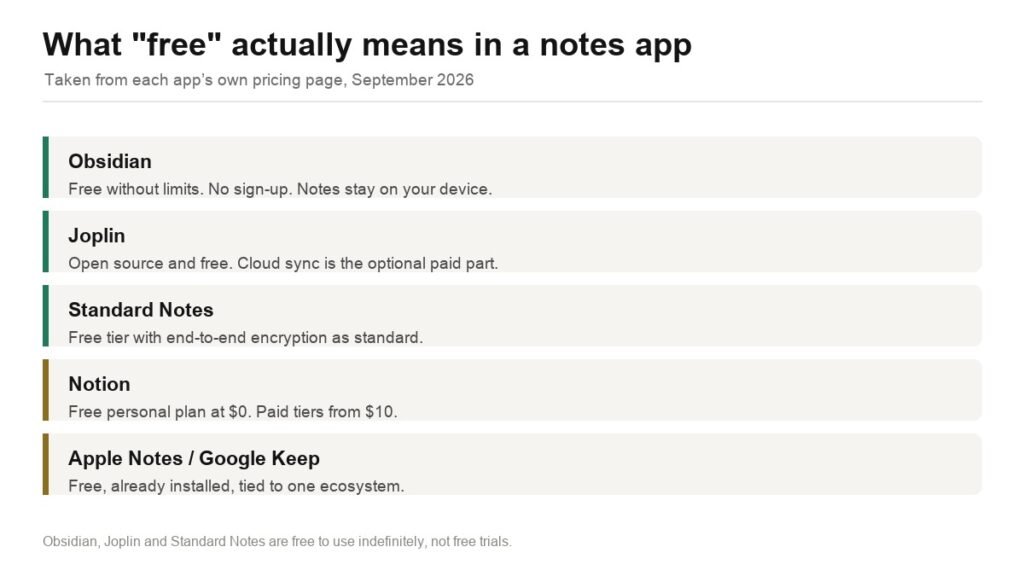
Obsidian, Joplin, Standard Notes, Notion and the built-in notes apps compared on what free actually covers, plus how to export your Evernote library without losing attachments.
Dropbox Alternatives: 3 Worth Switching To, and the Break-Even Maths
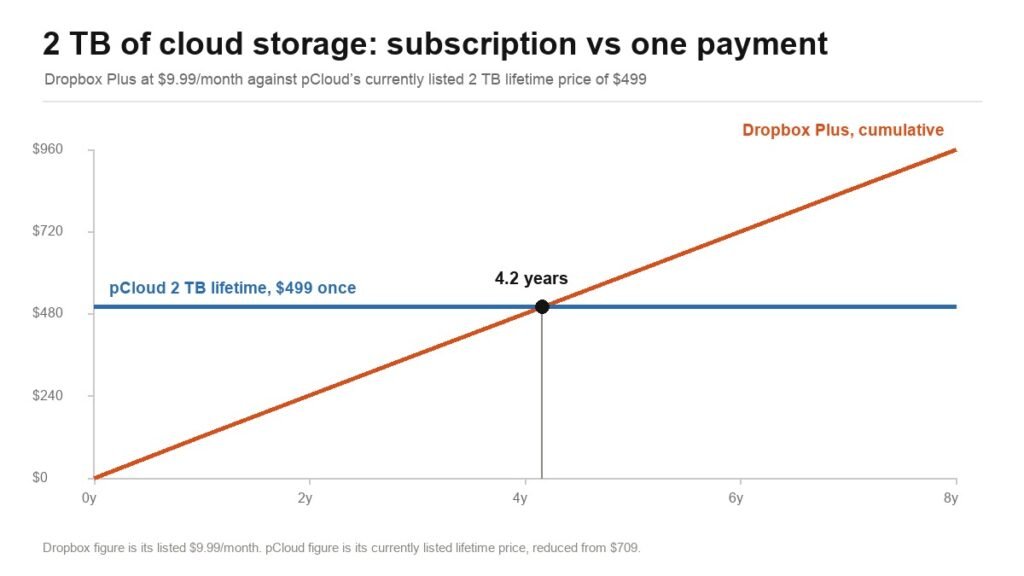
pCloud, Proton Drive and Sync.com compared against Dropbox on published prices, encryption model and version history, plus exactly when a lifetime plan beats a subscription.
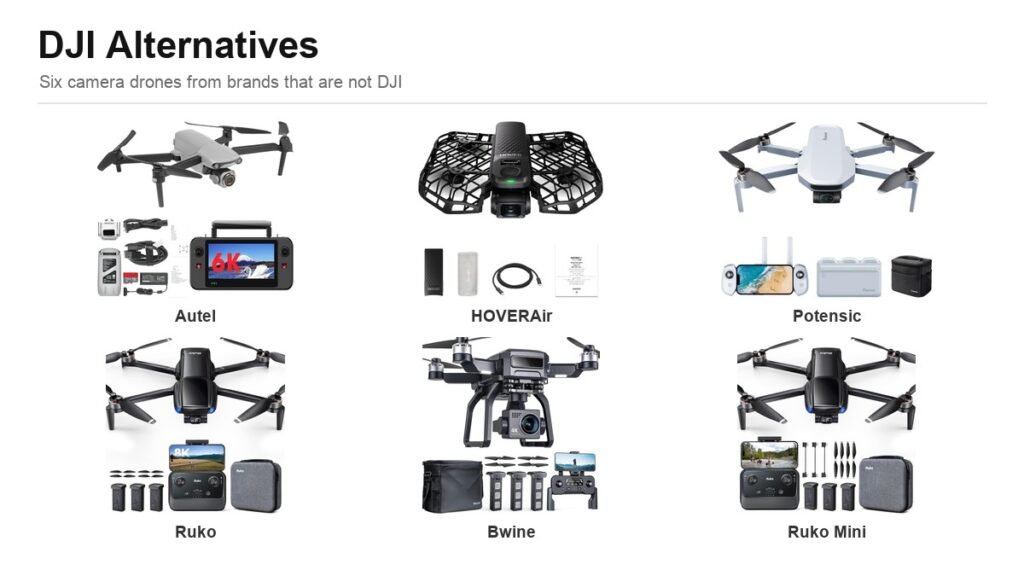
DJI Alternative: 6 Camera Drones Worth Buying Instead
Six credible DJI alternatives from Autel to HOVERAir, compared on sensor size, gimbal type and range, plus the FAA weight rule that decides whether you register the drone at all.