


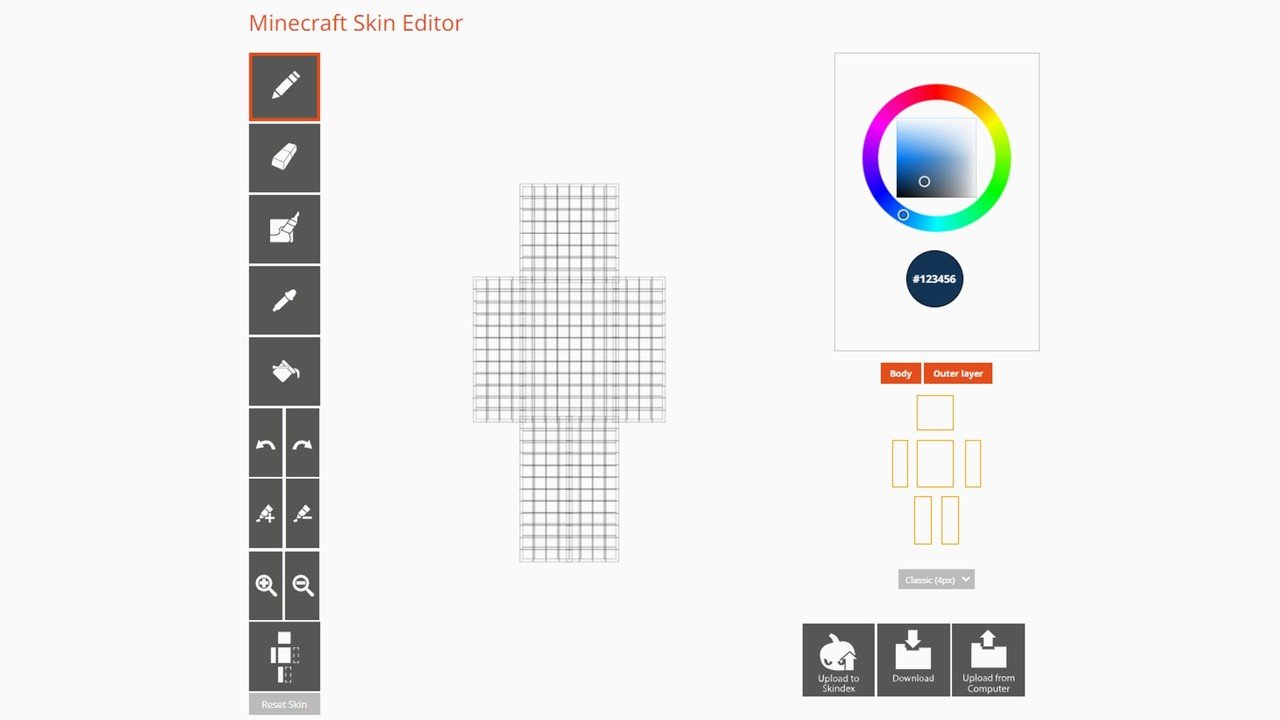
Minecraft skins are image files that decide what your character looks like. Each one is a flat PNG, 64 x 64 pixels on Java Edition, that the game folds around a blocky player model, so a single small picture produces the head, torso, arms and legs everyone sees.
Changing yours takes about two minutes once you know where the setting lives, and it lives in a different place on Java Edition and Bedrock Edition. This guide covers how the format works, the nine skins every account starts with, the exact steps for each edition, what costs money, and why a new skin sometimes refuses to appear.
How Minecraft Skins Work: A Texture Wrapped on a Player Model
A skin is a texture, not a model. The player body is always built from the same cuboids, and the PNG supplies the colours that get painted onto each face. The player stands 32 pixels tall, which is why even a detailed skin looks chunky up close.
Every skin has two layers. The inner layer is the body itself, and the outer layer sits on top as a hat, jacket or sleeve. The outer layer is drawn 0.5 pixels larger than the body, arms and legs, and 1 pixel larger on the head, which is what gives hair, helmets and hoods their raised, three-dimensional look.
On Java Edition your skin belongs to your account rather than to a file on disk. The server sends other players a texture address and a signature, and the game only shows skins that were uploaded through Minecraft services. That is also why a skin you edited in a paint program does nothing until you upload it.
Classic and Slim: File Sizes, Layers and Arm Widths
Two arm models exist. The classic, or wide, model has arms 4 pixels across and a body 16 pixels wide. The slim model has arms 3 pixels across and a body 14 pixels wide, with the shoulders sitting slightly lower. Steve uses the classic model and Alex uses the slim one.
| Edition | Accepted PNG sizes | Arm models | Transparency rule |
|---|---|---|---|
| Java Edition | 64 x 64 PNG, or the older 64 x 32 layout | Wide (4 px arms) or slim (3 px arms) | Inner layer forced fully opaque |
| Bedrock Edition | 64 x 32, 64 x 64 or 128 x 128 PNG | Wide (4 px arms) or slim (3 px arms) | Pixels at 25/255 opacity or lower are invisible |
Pick the arm model that matches how the skin was drawn, because a mismatch leaves the arm texture misaligned with the model. The slim model arrived in Java Edition with version 1.8, and since 1.19.3 the game remembers your skin separately for the wide and slim settings.
The 128 x 128 size is a Bedrock Edition feature. It offers 13,056 usable pixels against 3,264 for a 64 x 64 file, which is room for fine detail on faces and fabric. A Java account will not take it.
The Nine Default Minecraft Skins and Their Arm Models
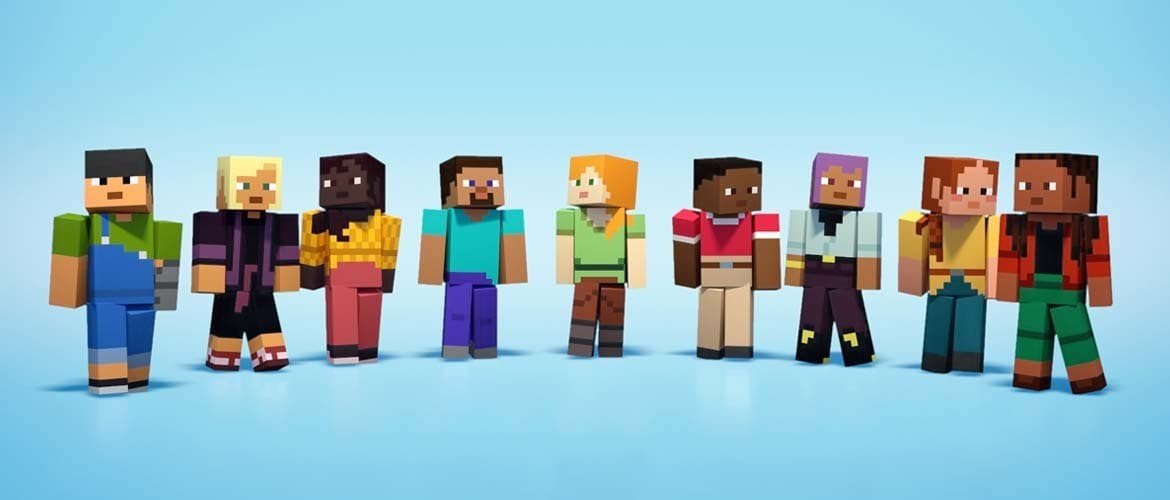
Every account starts with one of nine defaults: Steve, Alex, Sunny, Kai, Makena, Zuri, Efe, Ari and Noor. Steve and Alex are the originals, and the other seven were announced at Minecraft Live on 15 October 2022. They reached Java Edition in snapshot 22w45a on 20 October 2022, which shipped in version 1.19.3, and they work for offline players too.
| Default skin | Arm model | Arm width |
|---|---|---|
| Steve | Wide | 4 px |
| Alex | Slim | 3 px |
| Sunny | Wide | 4 px |
| Kai | Wide | 4 px |
| Makena | Slim | 3 px |
| Zuri | Wide | 4 px |
| Efe | Slim | 3 px |
| Ari | Wide | 4 px |
| Noor | Slim | 3 px |
Five of the nine are wide and four are slim. The launcher lists all nine, and none of them can be deleted, so you can always return to a default after trying something else.
How to Change Your Skin in the Java Edition Launcher
Only players who own Minecraft can change their skin. The launcher runs on Windows, macOS and Linux, and the Skins tab sits between Installations and Patch Notes.
- Open the Minecraft Launcher and choose Minecraft: Java Edition from the left-hand menu.
- Click the Skins tab.
- Pick one of the nine defaults, or press New Skin to add your own.
- Type a name for the skin so you can find it later.
- Choose Classic (wide) or Slim to match the arm model the skin was drawn for.
- Press Browse and select your 64 x 64 PNG file.
- Click Save and use.
The same tab lets you apply, edit, duplicate or delete saved skins and switch the wide or slim setting later. Resource packs can also overwrite the default skin files, but that only changes how default skins look for people running the pack, and it never alters the skin on your account. If you also like changing how blocks look, the Minecraft texture packs guide covers that side of customisation.
Changing Your Skin on the Minecraft Website
The launcher is not the only route for Java Edition. The profile page at minecraft.net/en-us/msaprofile accepts a valid 64 x 64 PNG, or the legacy 64 x 32 layout, and it has its own arm width setting for 3 or 4 pixels. Sign in with the Microsoft account that owns the game.
This route is useful on a machine where the launcher is not installed, or when you want to equip a cape without opening anything. Capes are cosmetic only, they also change the look of an elytra, and they cannot be custom. The Vanilla Cape was released on 31 August 2022 for both editions, while the Migrator Cape is Java Edition only and dates from 9 July 2021.

How to Change Your Skin in Bedrock Edition
Bedrock Edition uses the Dressing Room on the start screen. Choose Create Character, and the game offers two options: Character, which builds a skin item by item, and Classic Skin, which uses a standard wide or slim texture.
- Classic Skins: switch between skins you own or have downloaded, or import your own file. Classic skins are flat textures and cannot carry 3D models.
- Character Creator: pick a Base, Hair, Eyes, Mouth, Facial Hair, Arms, Legs and Size under Body, then a Top, Bottom, Outerwear, Headwear, Gloves, Footwear, Face Item and Back Item under Style.
- Slots: the Dressing Room holds five skin slots, and on first launch you choose one of the nine defaults.
Character Creator items can be 3D and can replace limbs entirely. Height and arm size are adjustable, but the hitbox does not change. Signing in with a Microsoft or console account brings every skin you own to any device.
| Setting | Java Edition | Bedrock Edition |
|---|---|---|
| Where you change it | Minecraft Launcher Skins tab, or the profile page on minecraft.net | Dressing Room on the start screen |
| Accepted file sizes | 64 x 64, plus legacy 64 x 32 | 64 x 32, 64 x 64 and 128 x 128 |
| Custom PNG import | Yes, for accounts that own the game | Windows and mobile only |
| Paid options | None built in | Marketplace skin packs and Character Creator items, priced in Minecoins |
| Saved slots | Skins saved in the launcher, plus nine defaults | Five skin slots and five character slots |
| Capes | Equipped in the launcher or on the profile page | Capes section of Character Creator |
Marketplace Skins Against Free Custom Skins

Bedrock Edition is where money enters the picture. The Marketplace, announced on 10 April 2017 and renamed from the Store in Bedrock 1.12.0, sells skin packs, worlds, add-ons and texture packs. Most cost Minecoins, although some are free and some skin packs include one or two free skins.
Character Creator works the same way. Alex as a base, Alex’s Hair and Steve’s Beard are free, every eye and mouth option is free, and most other items are priced between 50 and 280 Minecoins. Items from Minecraft Earth can no longer be obtained, because that game shut down on 30 June 2021.
Marketplace Pass is a monthly subscription with rotating content, available on every platform from Bedrock 1.20.70 and included with Realms Plus. Java Edition has no built-in store. A custom PNG is free on both editions, and Mojang also publishes free skin collections on minecraft.net, for example Chase the Skies on 26 June 2025 and Tiny Takeover on 6 April 2026.
Where to Get Safe Minecraft Skins and the 2018 Malware Case
Download only PNG image files. A skin is a picture, and anything that arrives as an .exe or .jar file is not a skin, whatever the page claims. Fake apps that promise free skins are a common trap, so stick to sites that serve plain image downloads, such as Planet Minecraft, The Skindex and Minecraft Skins.
The risk is not hypothetical. In April 2018, malware was found in several user-made Java skin files, and Avast said nearly 50,000 accounts were infected. Mojang patched the problem and stated that the game itself does not run the code. It only executed when the image file was opened as a program outside the game.
- Check the extension. A real skin ends in .png.
- Check the dimensions. Anything other than 64 x 64 or 64 x 32 (or 128 x 128 for Bedrock) is not a standard skin.
- Never run a file to apply a skin. You upload skins through the launcher, the profile page or the Dressing Room, nothing else.
Mods that change player models are a separate matter. If you want those, the best Minecraft mods roundup is the place to start.
Why Your New Skin Does Not Show Up
Most missing skins come down to the way each edition validates them. Work through these causes in order.
- Offline mode. Players in offline mode cannot use custom skins without mods, because there is no account to carry the signature.
- The owner is not online. On Java Edition other players see a custom skin only while its owner is logged in.
- Upload route. Vanilla clients reject skins that did not come through Minecraft services.
- Only Allow Trusted Skins. On Bedrock Edition, imported custom skins have limited visibility for players who have this setting switched off.
- Wrong arm model. A skin set to the wrong width looks misaligned on the arms, which can pass for a broken upload.
Signature records are stored permanently, and sites that look up skin history can trace them. If you run a world of your own and want to see skins in action, the Minecraft commands reference is a handy companion for setting up test scenes.
Frequently Asked Questions
Are Minecraft skins free?
Yes, custom PNG skins are free to make and upload on Java Edition, as long as you own the game. Marketplace skin packs and Character Creator items on Bedrock mostly cost Minecoins, though some are free. The skin collections on minecraft.net are free downloads.
What size is a Minecraft skin?
A Java Edition skin is a 64 x 64 PNG, and the older 64 x 32 layout still works. Bedrock Edition also accepts 128 x 128. The player model itself is 32 pixels tall.
What is the difference between Steve and Alex?
Steve uses the classic model with 4 pixel arms. Alex uses the slim model with 3 pixel arms and slightly lower shoulders. Choose the matching model when you upload a skin.
Can other players see my custom skin?
On Java Edition, only while you are logged in and the skin was uploaded through Minecraft services. Offline-mode players need mods to show one. On Bedrock Edition, imported skins have limited visibility for players whose Only Allow Trusted Skins setting is off.
Related Articles

Get the Fox Bulletin briefing
The stories that matter, in your inbox. No spam, unsubscribe anytime.
Newsletter signup will be available soon.
Related stories
Rarest Fortnite Emotes Ranked by Last Time in the Shop
The rarest Fortnite emotes ranked by their last Item Shop date, with price, release date and years away, plus the pass-only emotes that were never for sale.

Fortnite Save the World Free: What You Get and Earn
Fortnite Save the World has been free since 16 April 2026. Here is what free players earn, what Founders still get, and how the currency rules changed.
Fortnite Stats: How to Check Yours on Any Platform
Where to see your Fortnite stats, how to switch on Public Game Stats so stat sites can read them, and what to do when the numbers show zero or disagree.