

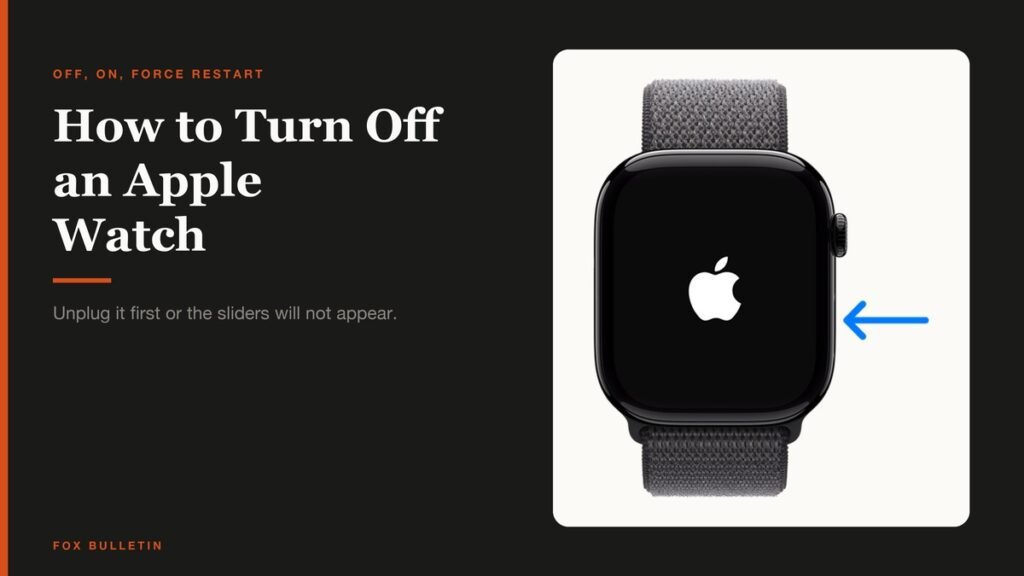
Knowing how to turn off an Apple Watch is less obvious than it should be, because the power control moved. In watchOS 27 holding the side button no longer puts Power Off straight in front of you: it brings up a set of sliders, and the power control sits in the top right corner from there.
There is also a rule that stops the whole thing working, and almost nobody knows it until they hit it. A watch sitting on its charger will not show the sliders at all. Unplug it first and everything below behaves.
What You Need and How Long It Takes
Nothing but the watch and about ten seconds. No iPhone, no app and no account.
- An Apple Watch running watchOS 27, for the button positions described here
- The watch off its charger, which is the step everyone skips
- Around ten seconds for a normal power off, and about thirty for a full restart
- A free hand, because a force restart needs two buttons held at once
The short version: take the watch off the charger, press and hold the side button until the sliders appear, tap the power control at the top right, then drag the Power Off slider to the right. To turn it back on, hold the side button until the Apple logo appears.
How to Turn Off an Apple Watch
Apple sets out the sequence in its guide to turning Apple Watch on or off, and the first instruction is the one that matters most.

- Disconnect it from the charger. You know this matters because the sliders simply will not appear while the watch is charging.
- Press and hold the side button. That is the flat, oval button below the Digital Crown, not the crown itself. You know it worked when a screen of sliders appears.
- Tap the power control at the top right. You know you tapped the right thing when the Power Off slider fills the screen.
- Drag the Power Off slider to the right. You know it worked when the display goes black and stays black.
- To turn it back on, hold the side button until the Apple logo appears. Give it a few seconds; the first boot after a shutdown is slower than a wake.
A full restart is simply those two halves run back to back. Apple is explicit that you cannot restart an Apple Watch while it is charging, so a watch on the puck has to come off before any of this works.
Force Restarting a Frozen Apple Watch
A force restart is the one to use when the screen will not respond, the sliders never appear, or the watch is stuck part way through something. Apple is clear that it should only be used when a normal restart is not possible.
Hold the side button and the Digital Crown at the same time for at least ten seconds, until the Apple logo appears. Ten seconds is longer than it feels, and letting go at six is the usual reason people think it has not worked.
- Use both buttons together, not one after the other
- Keep holding past the point where the screen goes dark
- Release only once the Apple logo is actually showing
- Try a normal restart first, every time, because a force restart cuts power rather than closing things down cleanly
If the watch is frozen because something went wrong during setup rather than in daily use, the fix is usually further back. Our guide to connecting an Apple Watch to an iPhone covers the pairing steps that commonly stall.
When It Hangs on the Apple Logo
A watch that shows the Apple logo and goes no further is a different problem from one that will not turn on. Apple has a specific sequence for it in its guidance on an Apple Watch stuck on the Apple logo.
- Press and hold both the side button and the Digital Crown until the screen goes black and the Apple logo comes back.
- If the logo still will not clear, unpair the watch from your iPhone and pair it again.
- If it persists after that, the watch needs service rather than another restart.
Resist the temptation to repeat step one indefinitely. Two force restarts that both end at the same logo are telling you the same thing, and the unpair is the step that actually changes the state of the watch.
Restarting the iPhone Instead
Plenty of watch problems are phone problems. If the watch is connected but not syncing, or notifications have stopped arriving, restarting the iPhone is often the faster fix.
- iPhone with Face ID: press and hold the side button and a volume button, then drag the slider
- iPhone without Face ID: press and hold the side or top button until the slider appears, then drag it
- Any iPhone: open Settings, tap General, then tap Shut Down
- To turn it back on: hold the side or top button until the Apple logo appears
Restart the phone before the watch when the symptom involves the pair of them talking to each other. Restart the watch first when the symptom is on the wrist, such as a frozen screen or an app that will not quit.
What the Side Button and Crown Each Do
Most of the confusion here comes from two controls that look similar and behave nothing alike. Knowing which is which makes every sequence above easier to follow.
- The Digital Crown is the rotating dial. A single press goes to the watch face or the app grid, a double press switches to the last app, and holding it starts Siri
- The side button is the flat oval below it. A single press opens Control Center, a double press opens the wallet, and holding it brings up the sliders you need here
- Both together, briefly takes a screenshot if that option is enabled
- Both together for ten seconds is the force restart, and nothing shorter triggers it
The slider screen holds more than Power Off. Medical ID and the emergency call options live there too, which is deliberate: it is the one screen you can reach by feel, without looking, in a situation where that matters. It is also why Apple did not leave Power Off as the only thing on it.
When a Restart Is the Wrong Tool
A restart clears a stuck process. It does not clear data, settings or an account, and reaching for it repeatedly is usually a sign the problem is elsewhere.
The watch will not turn on at all. That is a charge problem before it is a power problem. Put it on the charger, confirm the charging symbol appears, and give it a few minutes before trying anything else.
You are selling it or passing it on. A restart does nothing useful here. What you need is an unpair, which backs the watch up and clears Activation Lock, and our guide to resetting an Apple Watch covers the difference between that and erasing it.
It keeps freezing. Repeated freezes after a clean restart point at a software fault rather than a stuck process. Check for a watchOS update first, then consider the unpair and re-pair that Apple suggests for a watch stuck on the logo.
The battery drains overnight. Restarting will not touch this either. A watch that loses most of its charge while you sleep is usually running a workout that never ended, or a background app refusing to settle, and the fix is to find that rather than to power cycle the watch each morning.
Frequently Asked Questions
Why will my Apple Watch not turn off?
Almost always because it is still on the charger. Apple states that the sliders do not appear while the watch is charging, and that you cannot restart it in that state either. Disconnect it first, then press and hold the side button and the power control appears as normal.
How do I force restart an Apple Watch?
Hold the side button and the Digital Crown together for at least ten seconds, until the Apple logo appears. Apple recommends this only when a normal restart is not possible, because it cuts power rather than shutting down cleanly. Releasing early is the usual reason it appears not to work.
Is turning off the same as resetting an Apple Watch?
No, and the difference matters. Turning off and restarting leave everything on the watch exactly as it was. Resetting erases content and settings, and only unpairing from the paired iPhone also clears Activation Lock, which is what a new owner needs.
What do I do if my Apple Watch is stuck on the Apple logo?
Hold the side button and the Digital Crown until the screen goes black and the logo returns. If it still hangs, unpair the watch from the iPhone and pair it again. If the logo persists after that, Apple points to service rather than further restarts.
Related Articles

Get the Fox Bulletin briefing
The stories that matter, in your inbox. No spam, unsubscribe anytime.
Newsletter signup will be available soon.
Related stories
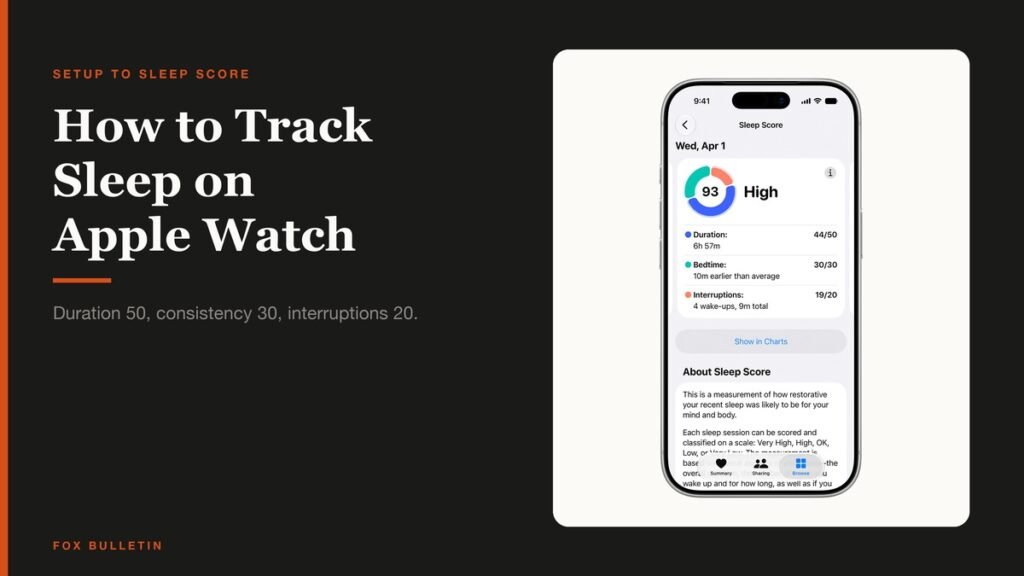
How to Track Sleep on Apple Watch and Read It
How to track sleep on Apple Watch from setup to stages, how the 0 to 100 Sleep Score is calculated, and the two settings that decide whether you get data.
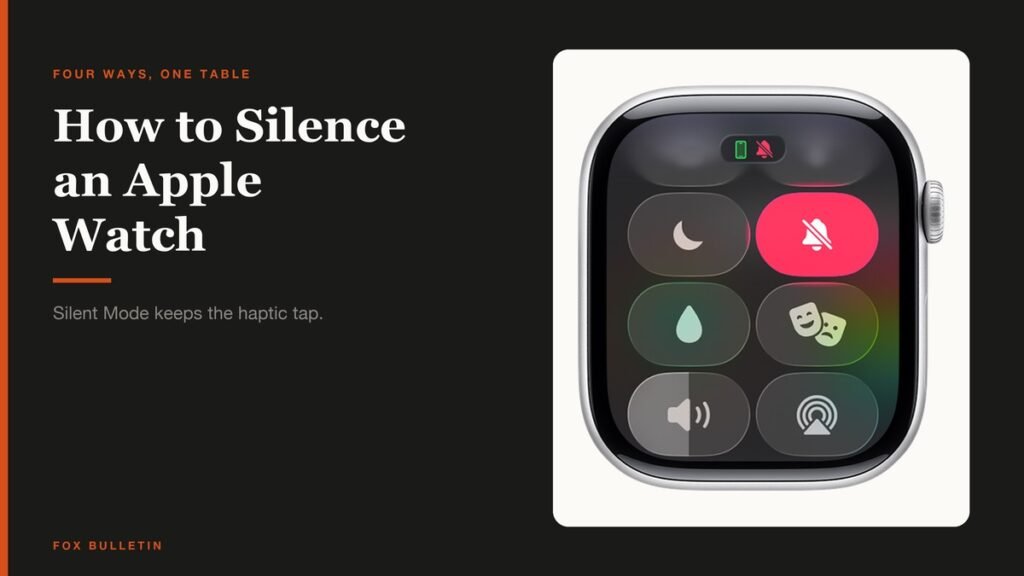
How to Silence Apple Watch: Every Mute Option
How to silence Apple Watch four ways, what each one leaves switched on, and why Silent Mode still lets alarms sound while the watch is charging.
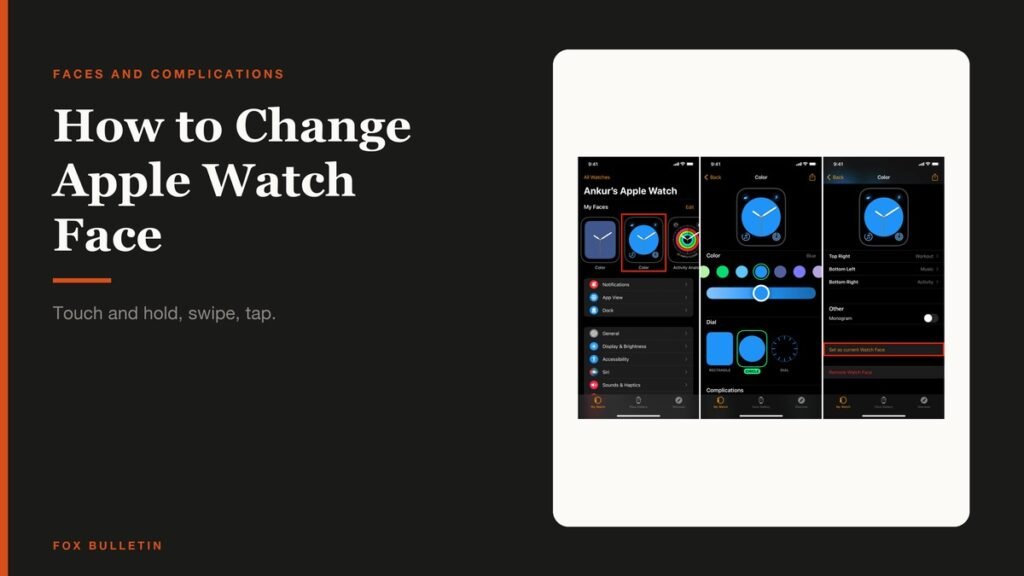
How to Change Apple Watch Face and Complications
How to change Apple Watch face on the watch and from the iPhone, pick complications, reorder your collection and remove the faces you never use.