

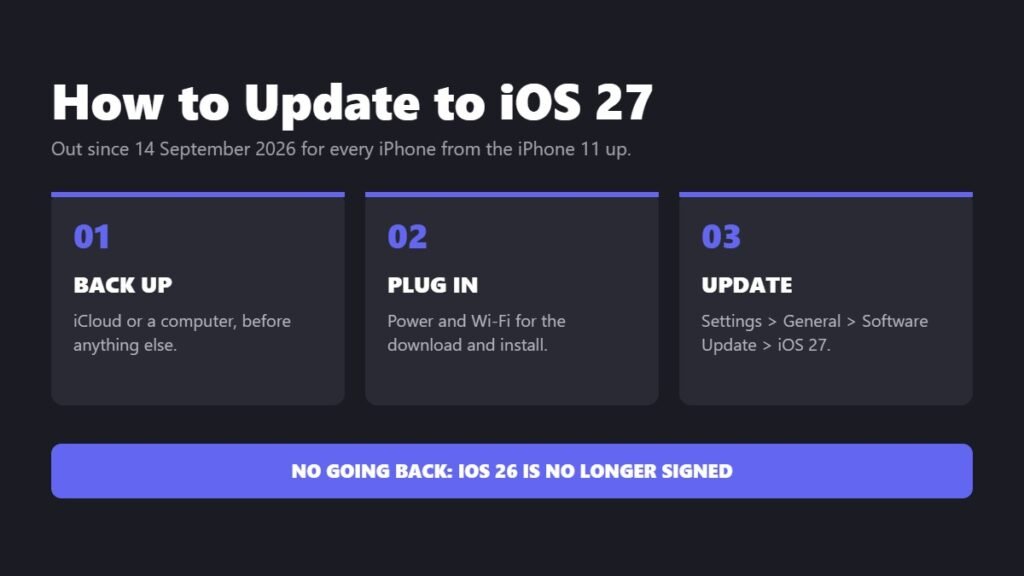
To update to iOS 27, back up your iPhone, plug it into power and connect to Wi-Fi, then open Settings > General > Software Update and choose iOS 27. Apple released iOS 27 on 14 September 2026, and it runs on every iPhone from the iPhone 11 and the second-generation iPhone SE onward, the same phones that ran iOS 26.
One thing catches people out: the Software Update screen offers two updates. iOS 26.7 is a security update for people staying on iOS 26, and iOS 27 is the new version. Every step below comes from Apple’s own support pages, with the release details from Apple’s newsroom.
When Did iOS 27 Come Out?
Apple released iOS 27 on Monday, 14 September 2026, the same day as iOS 26.7, according to its announcement and its security releases page. A first bug-fix update is on the way: on 24 September Apple told 9to5Mac it would release a software update early the following week to fix some iPhone 18 Pro and iPhone 18 Pro Max units that restart after a failed Face ID attempt. At the time of writing, that update, expected to be iOS 27.0.1, had not arrived. When it does, it will appear in the same Software Update screen.
Can My iPhone Get iOS 27?
Yes, if it can run iOS 26. Apple’s iOS page lists these iPhones as compatible, and no model was dropped this year:
| Series | Models that get iOS 27 |
|---|---|
| iPhone Duo | iPhone Duo |
| iPhone 18 | iPhone 18 Pro, iPhone 18 Pro Max |
| iPhone 17 | iPhone 17, 17e, iPhone Air, 17 Pro, 17 Pro Max |
| iPhone 16 | iPhone 16, 16e, 16 Plus, 16 Pro, 16 Pro Max |
| iPhone 15 | iPhone 15, 15 Plus, 15 Pro, 15 Pro Max |
| iPhone 14 | iPhone 14, 14 Plus, 14 Pro, 14 Pro Max |
| iPhone 13 | iPhone 13 mini, 13, 13 Pro, 13 Pro Max |
| iPhone 12 | iPhone 12 mini, 12, 12 Pro, 12 Pro Max |
| iPhone 11 | iPhone 11, 11 Pro, 11 Pro Max |
| iPhone SE | Second generation and later |
Getting iOS 27 is not the same as getting all of it. Siri AI and Apple Intelligence need an iPhone 15 Pro, iPhone 15 Pro Max or any iPhone 16 or later. Our full list of iOS 27 supported devices breaks down which features each model gets.
What’s New in iOS 27?
Apple’s headline additions are mostly about Siri and Apple Intelligence:
- Siri AI, which Apple says understands your personal context and what is on your screen.
- Visual Intelligence for asking questions about anything on screen.
- Write with Siri for drafting and refining text by voice.
- New Photos editing tools: Spatial Reframing, Extend and Clean Up, plus an updated Image Playground.
- Safari tab organization and alerts when a website you follow changes.
- Child safety: Ask to Browse, improved Communication Safety and a redesigned Screen Time.
Siri AI launches as a beta in English only, with more languages due in October. Apple says it will not be available at first in the EU or in China, it requires users to be 13 or older, and it has daily usage limits.
What to Do Before You Update to iOS 27
Apple’s update guide asks for three things before you start:
- Back up your iPhone. The quickest way is iCloud: open Settings, tap your name, tap iCloud, then iCloud Backup, then Back Up Now. Stay on Wi-Fi until it finishes; the date and time of your last backup appear under the button. You can also back up to a Mac with Finder or to a Windows PC with the Apple Devices app.
- Plug into power so the phone cannot run flat halfway through installing.
- Connect to Wi-Fi. A major update is a large download.
It is also worth checking your storage in Settings > General > iPhone Storage. If space is tight, iOS can remove apps temporarily during the install and put them back afterwards, but freeing some space first makes the process quicker.
How to Update to iOS 27 on Your iPhone
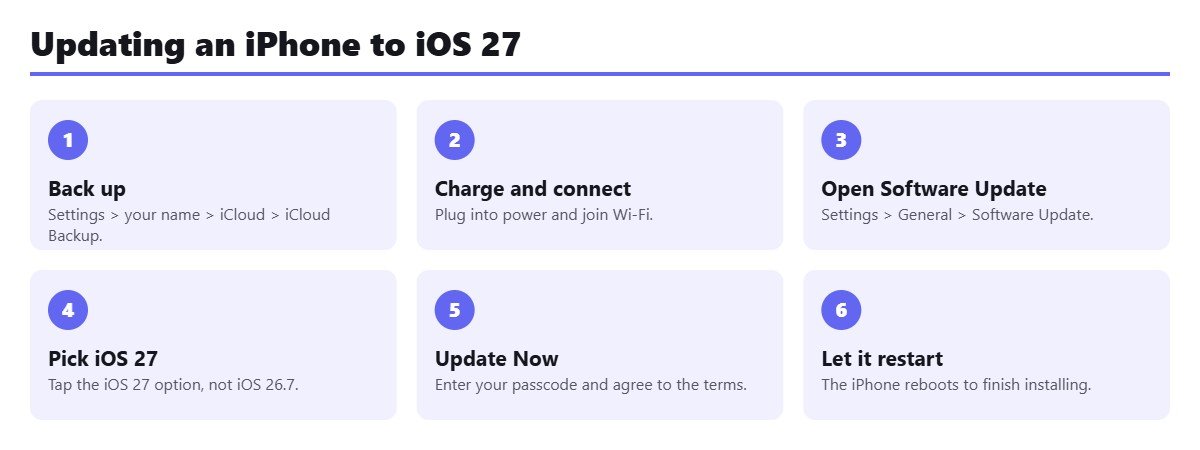
- Back up your iPhone to iCloud or a computer.
- Plug in to power and connect to Wi-Fi.
- Open Settings, tap General, then tap Software Update.
- Choose iOS 27. If you see iOS 26.7 at the top, look below it for the option to upgrade to iOS 27.
- Tap Update Now or Download and Install, enter your passcode and accept the terms.
- Wait for it to download and prepare. You can keep using your iPhone during the download.
- Let it restart. The phone reboots to install iOS 27 and returns to the lock screen when it is done.
If a message asks to remove apps temporarily to make room, Apple says to tap Continue: the apps are reinstalled automatically once the update is finished, and your data stays in place.
Should I Update to iOS 27 or Stay on iOS 26.7?
Most people should update. iOS 27 is where new features and future fixes will land, and it supports every phone iOS 26 did. But Apple lets you wait: according to MacRumors, the Software Update screen shows iOS 26.7 as the default and lists iOS 27 as a separate option, so installing iOS 26.7 keeps you on iOS 26 with the latest security fixes.
Waiting makes sense if you rely on an app that has not been updated for iOS 27 yet, or if you would rather let the first bug-fix release arrive before you switch. Just make the decision before you tap: once you are on iOS 27 there is no way back, as explained below.
How to Turn On Automatic Updates
Go to Settings > General > Software Update > Automatic Updates and turn on Automatically Download and Automatically Install. Apple says your iPhone will then download and install updates overnight while it is charging and connected to Wi-Fi. Automatic updates are best for point releases like iOS 27.0.1; a move from iOS 26 to iOS 27 is still worth doing yourself, after a backup.
How to Update to iOS 27 With a Mac or Windows PC
If the update will not install over the air, or you would rather use a cable, Apple supports updating from a computer:
- Mac with macOS Catalina or later: connect the iPhone, open Finder, select the iPhone in the sidebar, click General, then Check for Update, then Download and Update. On macOS Mojave or earlier, use iTunes instead.
- Windows PC with the Apple Devices app: connect the iPhone, select it in the sidebar, select General, then Update.
- Windows PC with iTunes: click the device button near the top left, then Check for Update, then Update.
Why Is iOS 27 Not Showing Up or Not Installing on My iPhone?
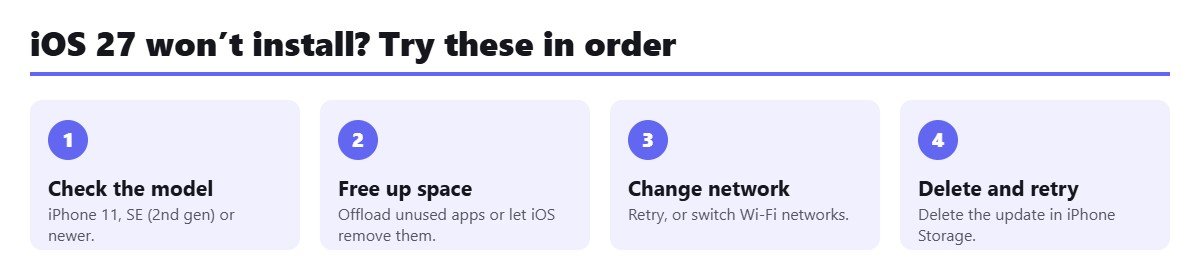
Apple’s troubleshooting page covers the usual causes. Work through them in this order:
- Check the model. If you have an iPhone XS, XR or older, iOS 27 will not appear because the phone is not supported.
- Look below iOS 26.7. If the Software Update screen only seems to offer iOS 26.7, scroll down for the iOS 27 option.
- Free up space. Go to Settings > General > iPhone Storage and use Offload Unused Apps or delete apps you do not need. Offloading removes the app but keeps its data.
- Fix the connection. If you see “Unable to Check for Update” or “Unable to Download”, try again on the same network, switch to a different Wi-Fi network, or update with a computer instead.
- Delete the update and download it again. In Settings > General > iPhone Storage, find the iOS update in the app list, tap it, tap Delete Update, then go back to Software Update and start again.
- Be patient with a slow download. Stay on Wi-Fi and avoid downloading other large content at the same time.
If you see a numbered error while updating from a computer, Apple keeps a separate list of update and restore error codes on its support site.
Can You Go Back to iOS 26 After Updating?
No. Downgrading requires Apple to keep “signing” the older version, and MacRumors reports that Apple stopped signing iOS 26.6.2 around 21 September. iOS 26.7 was released as an over-the-air update only, with no restore file, so there is no iOS 26 version you can reinstall. If you want to stay on iOS 26, choose iOS 26.7 in Software Update and do not install iOS 27.
Frequently Asked Questions
Is iOS 27 free?
Yes. Like every iOS update, iOS 27 is free for any supported iPhone and installs from Settings > General > Software Update.
Does iOS 27 work on the iPhone 11?
Yes. The iPhone 11, 11 Pro and 11 Pro Max are the oldest iPhones on Apple’s iOS 27 list, along with the second-generation iPhone SE. They do not get Siri AI or Apple Intelligence, which need an iPhone 15 Pro or newer.
Will updating to iOS 27 delete my photos or apps?
No. A normal update keeps your photos, messages and apps. If iOS needs room, it may temporarily remove some apps and reinstall them after the update. Back up first anyway, so you have a copy if anything goes wrong.
Can I use my iPhone while iOS 27 is downloading?
Yes. Apple says you can keep using your device during the download. You cannot use it during the install itself, when the phone restarts.
Why don’t I have Siri AI after updating to iOS 27?
Siri AI needs an iPhone 15 Pro, iPhone 15 Pro Max or iPhone 16 or later, it launches in English only, and it is not available at first in the EU or China. You also need to be 13 or older. If your phone and region qualify, check that your device and Siri language are set to English.
Related Articles

Get the Fox Bulletin briefing
The stories that matter, in your inbox. No spam, unsubscribe anytime.
Newsletter signup will be available soon.
Related stories

Best Docking Station: 10 Picks for Mac and Windows Laptops
Ten laptop docking stations compared on Thunderbolt version, charging and monitor support, including which ones run two or three screens on a MacBook.
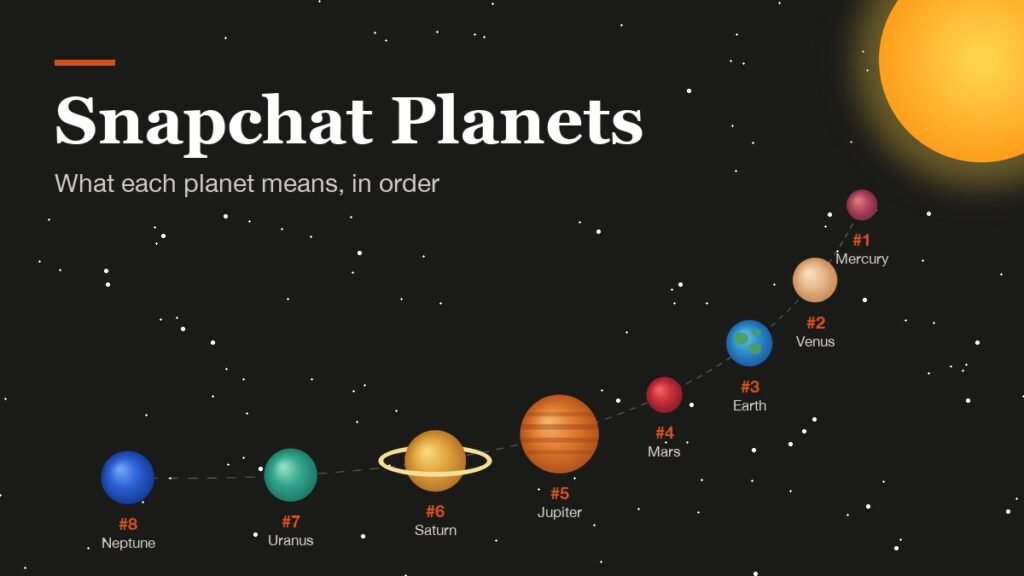
Snapchat Planets Order: What Each Planet Means, Mercury to Neptune
The Snapchat planets order runs from Mercury at one to Neptune at eight. What each planet says about where you stand, why the planet is theirs and not yours, and the toggle that hides them all.

Best Apple Watch Alternatives: 7 Picks for iPhone and Android
The best Apple Watch alternatives split cleanly by phone: three of these seven only pair with Android, four work with an iPhone. Battery life ranges from about a day to five weeks.