
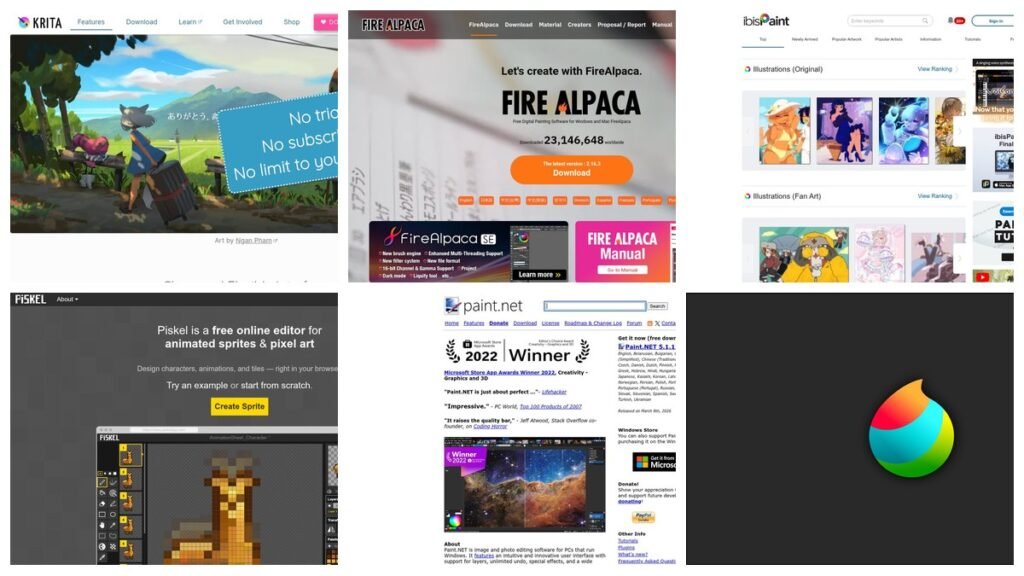
The paid drawing apps get the attention, but the free ones stopped being consolation prizes a long time ago. Krita’s brush engine is genuinely competitive with software that costs money. Photopea opens files from six different paid programs in a browser tab. Piskel makes game sprites that ship in real games. None of these are trials, none watermark your work, and none of them stop working after thirty days.
What actually separates them is not quality but purpose. An app built for painting with a stylus is miserable for pixel art, and a browser tool that opens PSD files is not where you draw a comic. The eight programs below are grouped by the kind of art they are made for, with the current version, the platforms and the specific thing each one does better than the rest.
Eight Free Drawing Programs Compared
| # | App | Best for | Platforms | Cost |
|---|---|---|---|---|
| 1 | Krita | Painting and illustration | Windows, macOS, Linux, Android | Free, GPL |
| 2 | MediBang Paint | Comics and manga | Windows, Mac, iPad, Android | Free |
| 3 | FireAlpaca | Older or slower computers | Windows, Mac | Free |
| 4 | ibis Paint X | Drawing on a phone | iOS, Android | Free, ad-supported |
| 5 | Paint.NET | Quick Windows edits | Windows | Free from the site |
| 6 | Photopea | Opening files from paid apps | Any browser | Free, ad-supported |
| 7 | Inkscape | Vector and line art | Windows, macOS, Linux, FreeBSD | Free, GPL |
| 8 | Piskel | Pixel art and sprites | Browser, desktop | Free, open source |
Two of these run without installing anything. Two are phone-first. Four are desktop programs that will happily fill a graphics tablet’s worth of pressure data. Picking the right group first saves the frustration of blaming an app for failing at a job it was never built to do.
Drawing Software for Painting and Illustration
1. Krita
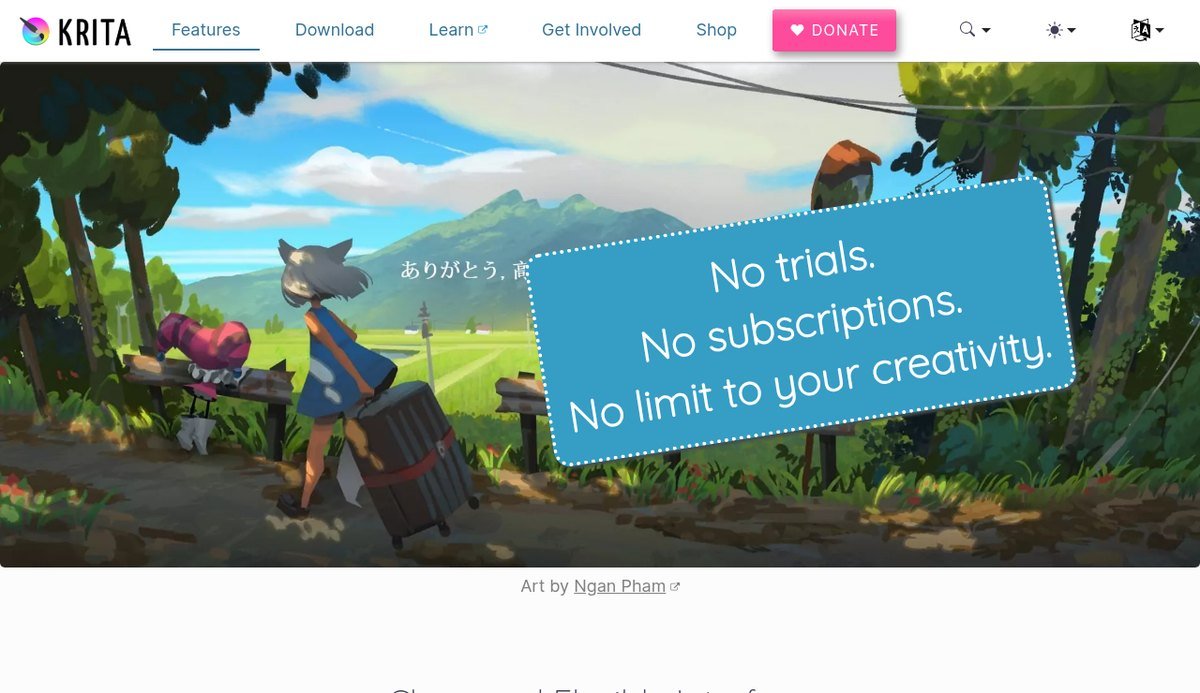
Krita is the strongest free painting program available, and the gap between it and paid competitors is now small enough to be a matter of preference rather than capability. It is built inside the KDE community by people who paint, and that shows in the details: brush stabilisers that smooth a shaky line, brush ganging, wrap-around mode for tiling textures, and a default brush set that is genuinely usable rather than a token handful.
The current version is 5.3.3, released on 29 July 2026, under the GNU GPL. It runs on Windows, macOS, Linux and Android. Beyond painting it handles frame-by-frame animation, vector layers for speech bubbles and panels, and a full complement of layer masks and blending modes.
- Use it for: digital painting, concept art, comics and illustration with a graphics tablet.
- Watch out for: weak photo-editing tools and no page-layout features. It is a painting program, not a suite.
2. MediBang Paint
MediBang Paint is the one to install if what you are drawing has panels. It is free, it covers Windows, Mac, iPad and Android, and it is built around comic and manga production rather than retrofitted for it. Panel-splitting tools, screentones, speech-bubble handling and a large library of free fonts and backgrounds come as standard.
Its cloud feature is the underrated part. Projects, brushes and fonts sync across devices, so roughing out a page on an iPad and finishing it on a desktop is a normal workflow rather than an export-and-email exercise. For a free app, the multi-device story is better than most paid ones.
- Use it for: comics, manga, webtoons and anything with panels, especially across more than one device.
- Watch out for: an interface that assumes you are making comics, which makes it a slightly odd fit for single illustrations.
3. FireAlpaca
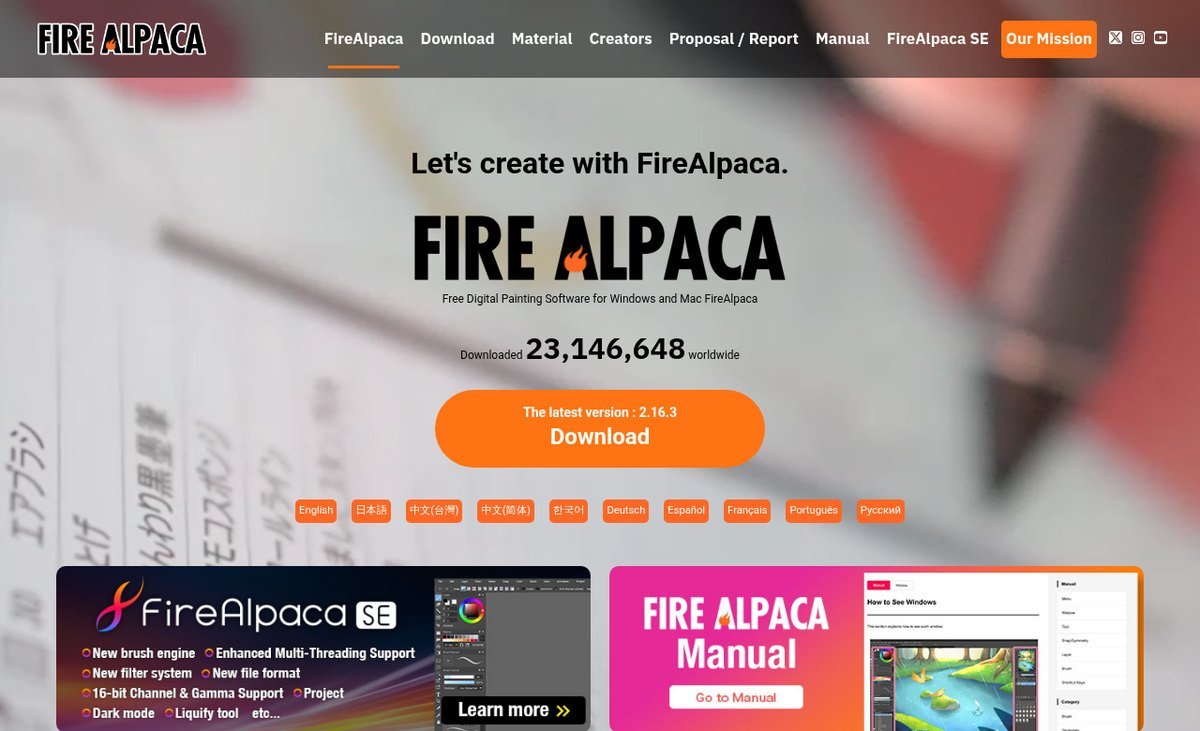
FireAlpaca’s argument is lightness. It is a small, fast Windows and Mac program, currently at version 2.16.3, that starts quickly and stays responsive on hardware where Krita or Photoshop would struggle. If you are drawing on a laptop that is several years old, this is frequently the difference between drawing and waiting.
Lightweight does not mean bare. The feature list includes a comic frame tool, speed lines and a concentration filter, halftone, 3D perspective guides, mesh deformation, gradient maps, watercolour edges, an animation tool and CMYK display. That is a lot of program for something this small.
- Use it for: drawing on older or low-specification machines, and quick comic work.
- Watch out for: a smaller brush engine than Krita’s and no Linux version.
Drawing Apps for Phones and Tablets
4. ibis Paint X
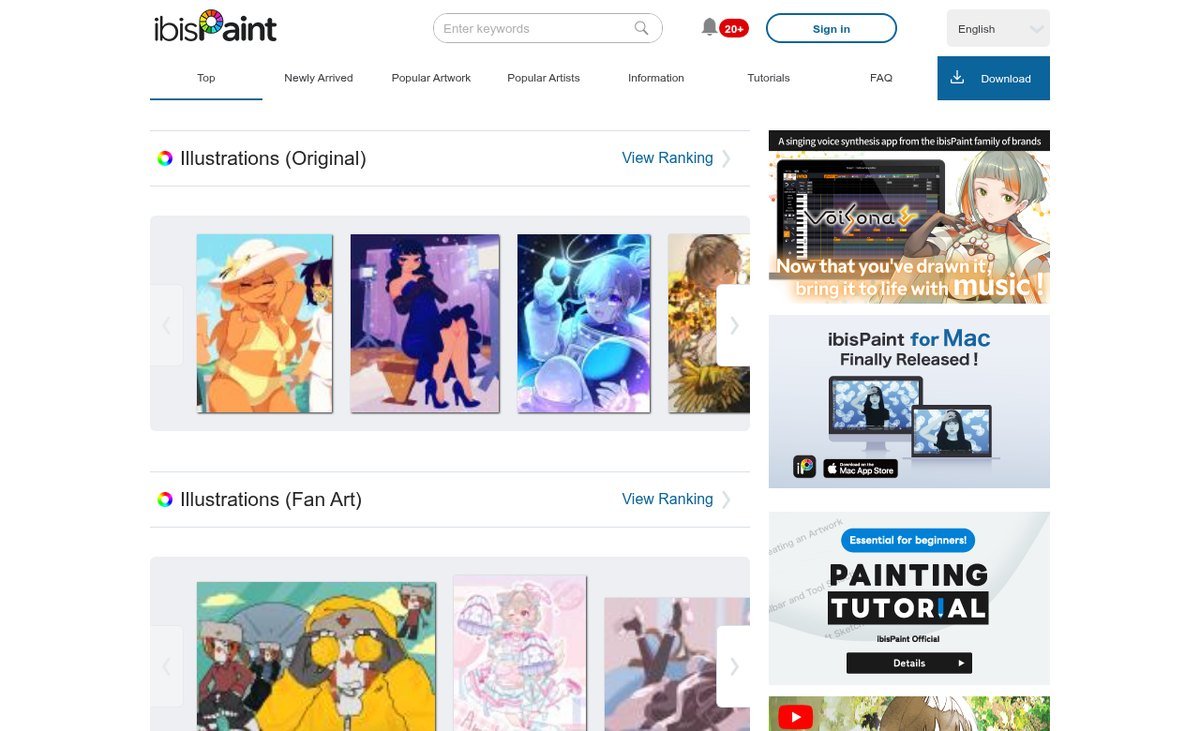
ibis Paint X is the most complete drawing app that fits in a pocket. The company advertises 421 brushes and 115 filters, which would be unremarkable marketing except that the brushes are genuinely good and the pressure handling on a stylus is better than most desktop free software managed a decade ago.
Its signature feature is social rather than technical: the app records your drawing process and can share it as a time-lapse video, which is why so much of the art you see being drawn on short-form video was made in it. It is free on iOS and Android, funded by advertising, with an optional paid membership that removes ads and unlocks extras.
- Use it for: drawing on a phone or tablet, and sharing the process as video.
- Watch out for: ads in the free tier, and the general limits of drawing on a small screen without a stylus.
Drawing Software That Runs Without Installing
5. Photopea
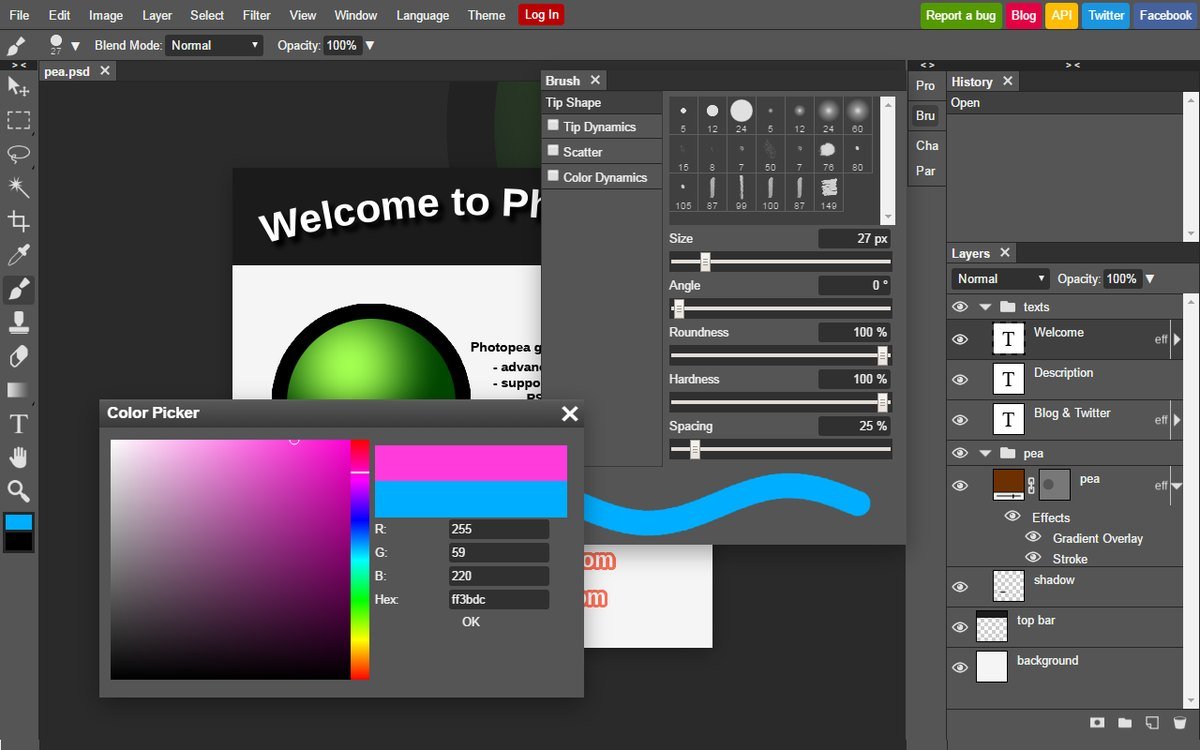
Photopea is a Photoshop-shaped editor that lives in a browser tab, needs no installation and no account, and its real trick is the format list. It opens PSD, AI, CDR, INDD, Sketch and Figma files, plus XCF, PDF, SVG and camera raw from Canon, Nikon, Sony, Panasonic, Fujifilm and Olympus.
For drawing specifically it is average: the brushes are fine rather than inspiring. What makes it essential is everything around drawing. Someone sends you a layered file made in software you do not own, or you need to pull one element out of a design on a machine that is not yours, and Photopea handles it in seconds.
- Use it for: opening, inspecting and editing files from paid programs you do not have.
- Watch out for: ads, and the performance ceiling of a browser tab on big layered files.
6. Piskel
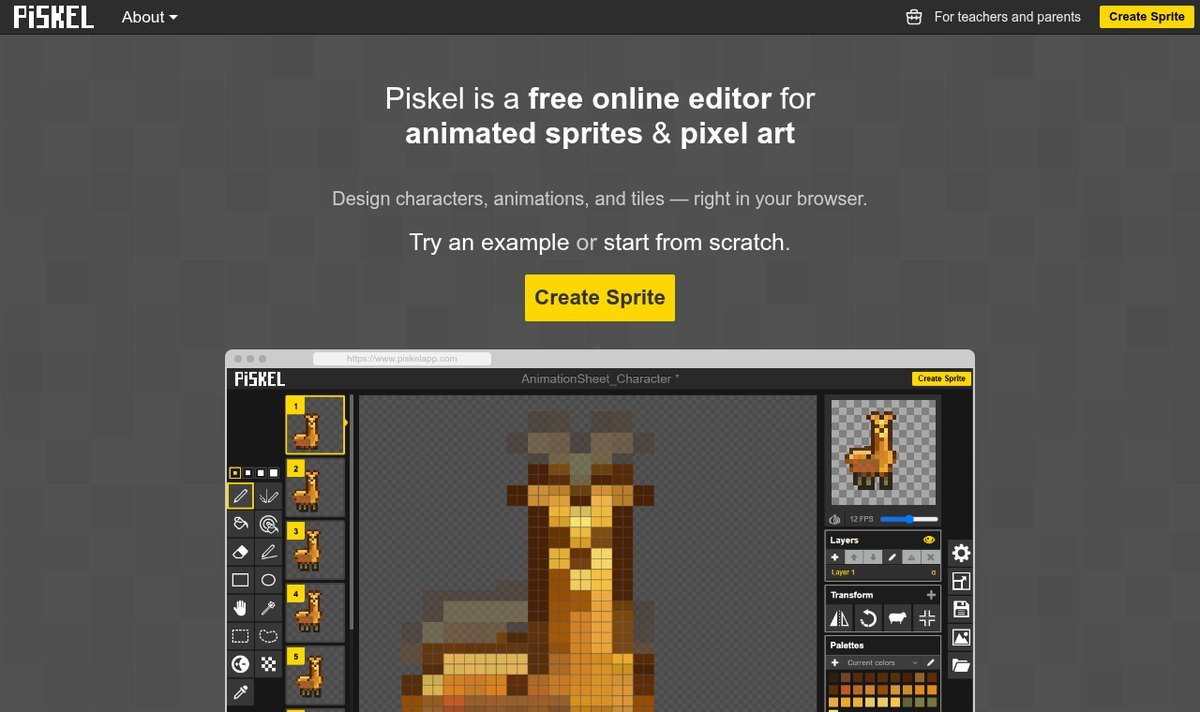
Pixel art needs the opposite of a good brush engine. It needs precise single-pixel control, a tight palette, and a frame timeline, and general-purpose painting apps are actively bad at all three. Piskel is free, open source, runs in a browser and does exactly this one job.
You draw frame by frame, preview the animation live at whatever frame rate you set, and export as an animated GIF, a PNG, or a spritesheet ready to drop into a game engine. Offline desktop builds exist if you would rather not work in a tab.
- Use it for: game sprites, pixel art and short looping animations.
- Watch out for: it does nothing else. This is a single-purpose tool and proud of it.
Free Tools for Line Art and Quick Edits
7. Inkscape
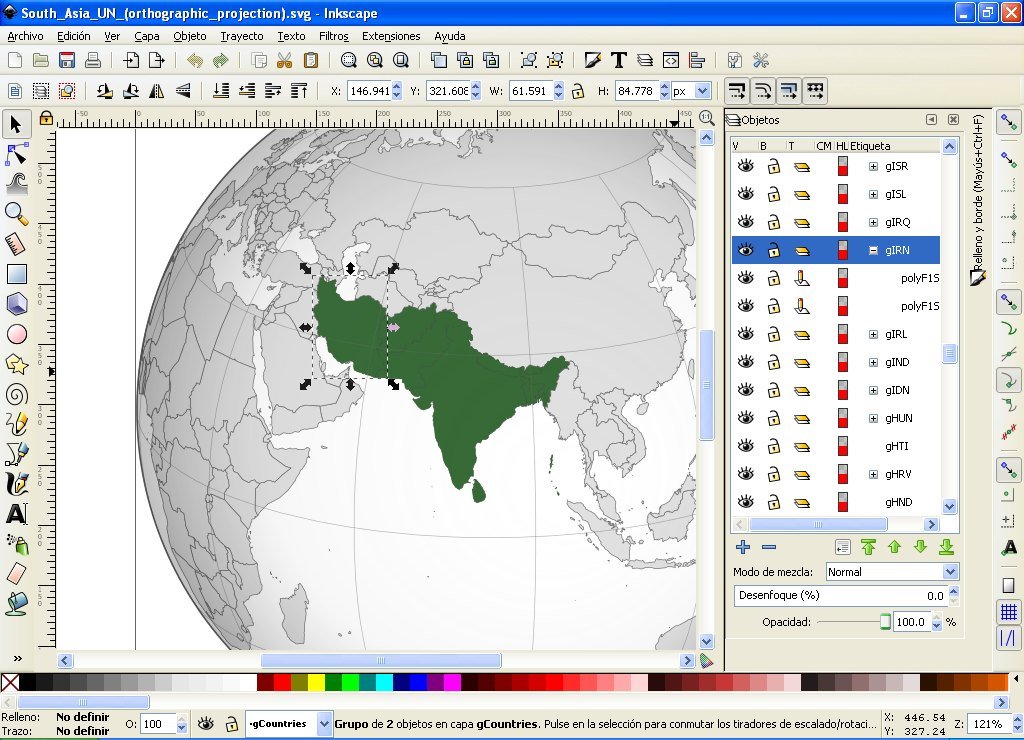
Inkscape draws with paths rather than pixels, which means the line you draw stays sharp whether it ends up on a sticker or the side of a building. For logos, icons, flat illustration and anything destined for a cutting machine or plotter, that is the right model, and it is the reason a painting app cannot substitute for it.
It is GPL licensed, currently at version 1.4.4 dated 6 May 2026, and runs on Windows, macOS, Linux and FreeBSD. SVG is its native format rather than an export option, and it also imports AI, EPS, PDF and PostScript. Its trace-bitmap tool turns a scanned pencil drawing into editable vector lines, which is the fastest bridge from paper to screen.
- Use it for: vector line art, logos, icons and converting scanned drawings into clean paths.
- Watch out for: a dated interface and no natural-media brushes. It draws lines, it does not paint.
8. Paint.NET
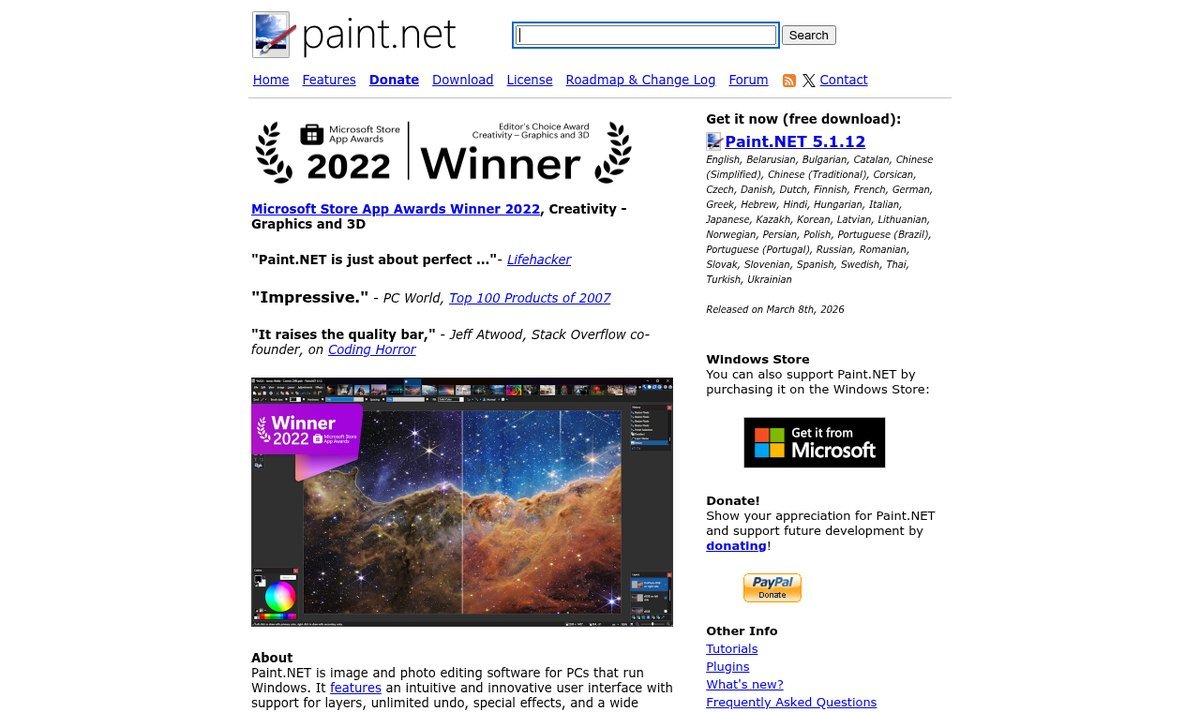
Paint.NET occupies the gap between Microsoft Paint and a full editor, and it has occupied it so well for so long that it is still the correct answer for a whole category of small jobs. Layers, selections, curves, effects and a plugin ecosystem, in a program that opens instantly and does not ask you to learn anything.
The current version is 5.1.12, released 8 March 2026, and it is Windows only. One detail catches people out: the download from the developer’s own site is free, while the Microsoft Store listing costs $9.99. Both are the same software, and the Store price is a way of supporting the developer rather than a different product.
- Use it for: quick edits, simple compositing and light drawing on Windows.
- Watch out for: Windows only, and a brush engine that is not intended for serious painting.
Matching the App to the Art You Actually Make
If you only read one section, read this one. The app that frustrates you is usually just the wrong app.
- Painting, concept art, illustration: Krita, with a graphics tablet.
- Comics, manga, webtoons: MediBang Paint, especially across devices.
- An older laptop that struggles: FireAlpaca.
- A phone or tablet with no stylus: ibis Paint X.
- Logos, icons and anything cut or printed large: Inkscape.
- Game sprites: Piskel.
- Opening a file someone sent you: Photopea.
- A fast crop, resize or touch-up on Windows: Paint.NET.
If your work is heading towards client jobs rather than personal pieces, the picture widens beyond drawing apps into layout, vector and print tools, which we covered in our comparison of graphic design programs.
What “Free” Means on This List
All eight cost nothing to use, but they are funded in four different ways, and that determines what you can rely on.
- Open source, funded by donations: Krita, Inkscape and Piskel. The licence guarantees they stay free and cannot be taken away.
- Free with advertising: Photopea and ibis Paint X. The product is free because your attention is the payment.
- Free with a paid store listing: Paint.NET, where the $9.99 Microsoft Store version funds development of the free one.
- Free as a commercial strategy: MediBang Paint and FireAlpaca, both backed by companies with related businesses.
The practical consequence is that the first group carries the least risk of changing terms later. Sketchbook is the cautionary tale here: Autodesk made it free in 2018, spun it out as an independent company in 2021, and the app went back to being paid afterwards. Anything free under a commercial strategy can reverse.
Two things are worth checking before you commit to any of them. First, that your graphics tablet’s pressure sensitivity is recognised, which is a driver issue rather than an app issue and is worth testing on day one. Second, that your machine has the memory for the canvas sizes you want, since large multi-layer files are limited by RAM far more than by processor speed, as our explainer on RAM versus storage sets out.
Frequently Asked Questions
What is the best free drawing software for beginners?
Krita, if you are on a computer with a tablet, because its defaults are sensible and you will not outgrow it. On a phone or tablet, ibis Paint X, because it is built for touch and the learning material for it is enormous. Avoid starting in Inkscape or Photopea, which are excellent tools but assume you already know what you are doing.
Can you sell art made in free drawing software?
Yes, in every case here. Open-source licences such as the GPL govern the software, not the artwork you produce with it, and the commercially backed apps place no claim on your output either. The one thing to check is any asset you did not draw yourself, such as bundled brushes, textures, fonts or backgrounds, which can carry their own terms.
Which free app opens Photoshop PSD files?
Photopea is the most reliable, and it needs no installation. It reads PSD layers, masks and text, and also opens AI, Sketch, Figma, CDR and INDD files. Krita and Paint.NET can import PSD files too, but with more loss on complex documents, particularly with layer effects.
Do these apps work with a drawing tablet?
Krita, MediBang Paint, FireAlpaca and Paint.NET all support pressure-sensitive tablets, and ibis Paint X supports the Apple Pencil and Android styluses. Pressure problems are almost always the tablet driver rather than the app, so install the manufacturer’s current driver before concluding a program is at fault.
Related Articles

Get the Fox Bulletin briefing
The stories that matter, in your inbox. No spam, unsubscribe anytime.
Newsletter signup will be available soon.
Related stories
iPhone 18 Pro Max Cases: 8 MagSafe and Rugged Picks, Plus Apple’s Own
Eight iPhone 18 Pro Max cases you can buy now, from Spigen and OtterBox to PITAKA and CASETiFY, plus Apple’s own three and why your 17 Pro Max case probably still fits.
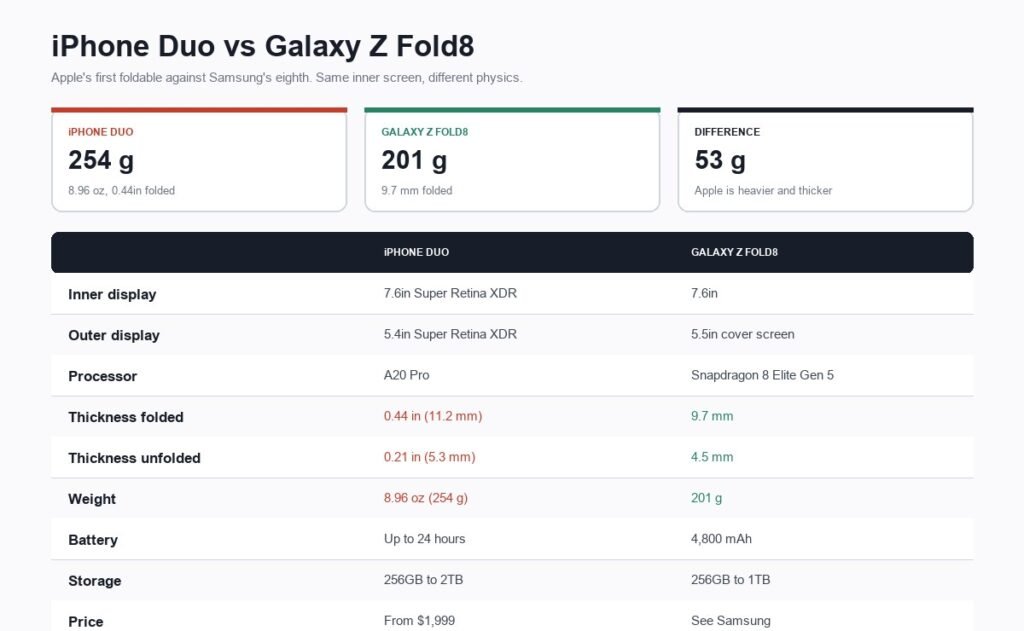
Foldable iPhone: The iPhone Duo’s Price, Specs and Release Date
Apple's foldable iPhone is the iPhone Duo, $1,999, on sale 23 October 2026. Full specs, the 3D-printed titanium hinge, and how it measures up against the Galaxy Z Fold8.
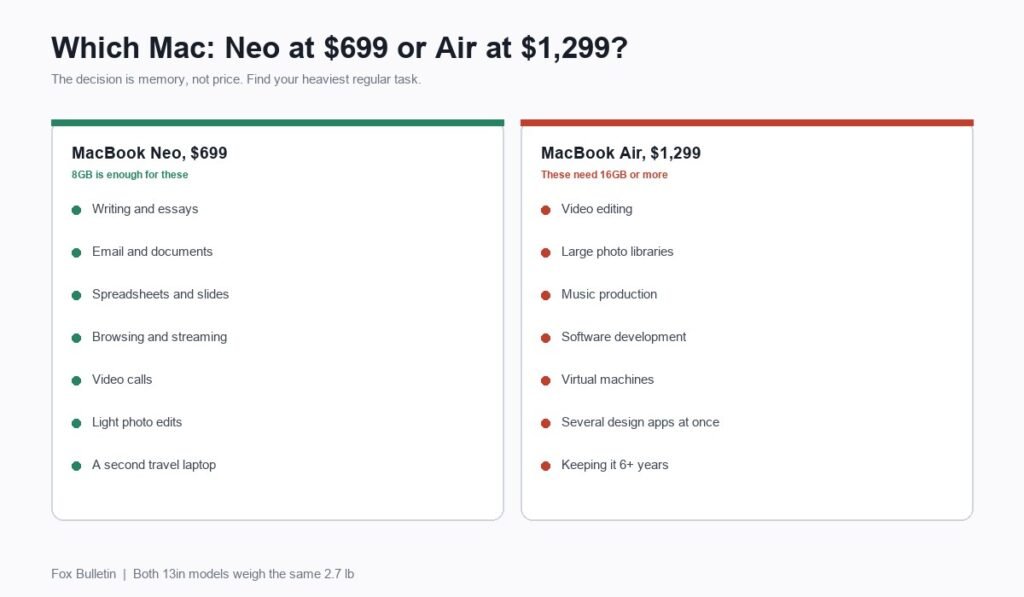
MacBook Neo vs MacBook Air: Which Mac Should You Actually Buy?
MacBook Neo costs $699 and MacBook Air $1,299, and both 13-inch models weigh the same. The comparison comes down to memory. Which to buy, worked through by workload.