

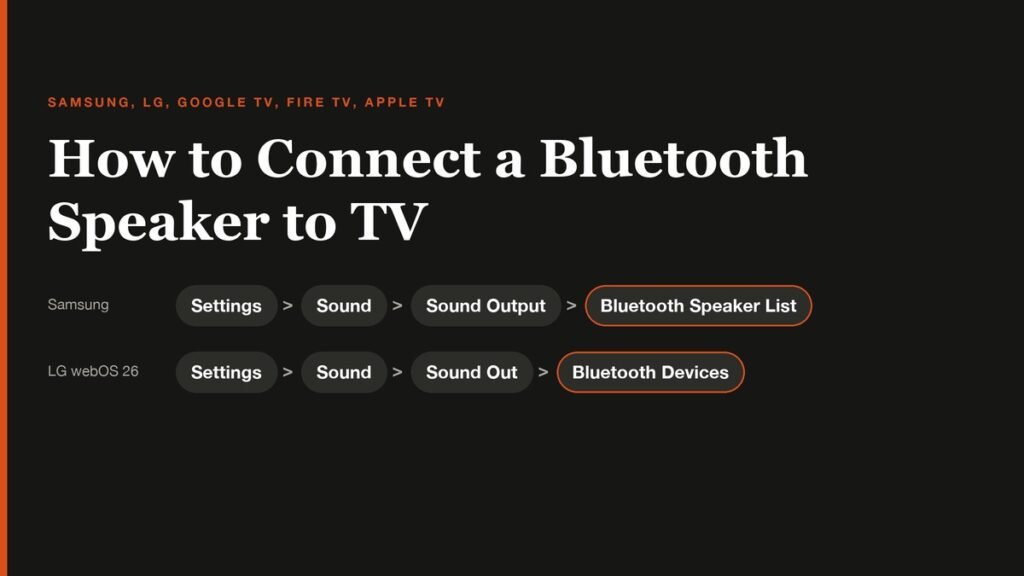
Learning how to connect a Bluetooth speaker to a TV takes about two minutes once you know where your TV hides the option. Every brand files it somewhere different, under Sound on one set and under Remotes or Accessories on another, which is why so many people give up and assume their TV cannot do it.
This guide gives the exact path for Samsung, LG, Google TV, Fire TV, Apple TV and Roku, then covers the two problems that come up most: a TV with no Bluetooth at all, and sound that arrives a fraction of a second after the picture.
The Short Answer
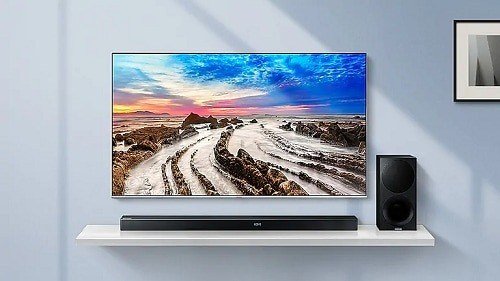
Quick version: put the speaker in pairing mode, usually by holding its Bluetooth button until a light flashes. Then open your TV's Bluetooth or sound output menu, select the speaker from the list and confirm. If the TV has no Bluetooth, plug a Bluetooth transmitter into its optical or headphone output and pair the speaker with that instead.
Before You Start
- Check that your TV has Bluetooth. On a Samsung, the giveaway is a Bluetooth Speaker List option in the Sound Output menu. If no Bluetooth entry exists anywhere in settings, skip to the transmitter section.
- Disconnect the speaker from your phone. A speaker already paired to another device often refuses a new connection until that device lets go.
- Expect one audio device at a time. Google TV and most TVs send sound to a single Bluetooth device, so pairing a second speaker usually drops the first.
- Keep it close. Bluetooth range shrinks through walls and cabinets, so pair with the speaker in the same room.
Menu Paths for Every TV Brand
Use this table to jump straight to the right screen, then follow the detailed steps for your brand below.
| TV or streaming device | Where to find Bluetooth audio |
|---|---|
| Samsung | Settings > Sound > Sound Output > Bluetooth Speaker List |
| LG (webOS 26, 2026 models) | Settings > All Settings > Sound > Sound Out > Bluetooth Devices > Connectable Devices |
| LG (webOS 6.0 and later) | Settings > All Settings > Sound > Sound Out > Use Wireless Speaker > Bluetooth Devices |
| Google TV (Sony, TCL, Hisense) | Settings > Remotes & Accessories > pair a remote or accessory |
| Fire TV | Settings > Controllers & Bluetooth Devices > Other Bluetooth Devices > Add Bluetooth Devices |
| Apple TV | Settings > Remotes and Devices > Bluetooth |
| Roku | Bluetooth headphones only, through Headphone Mode on supported models |
How to Connect a Bluetooth Speaker to a Samsung TV
Samsung's Bluetooth speaker instructions use the Sound Output menu on recent models:
- Put the speaker in pairing mode.
- Press the Home button and open Settings.
- Select Sound, then Sound Output.
- Choose Bluetooth Speaker List and pick your speaker. Check: the TV shows the speaker as connected and its own speakers go quiet.
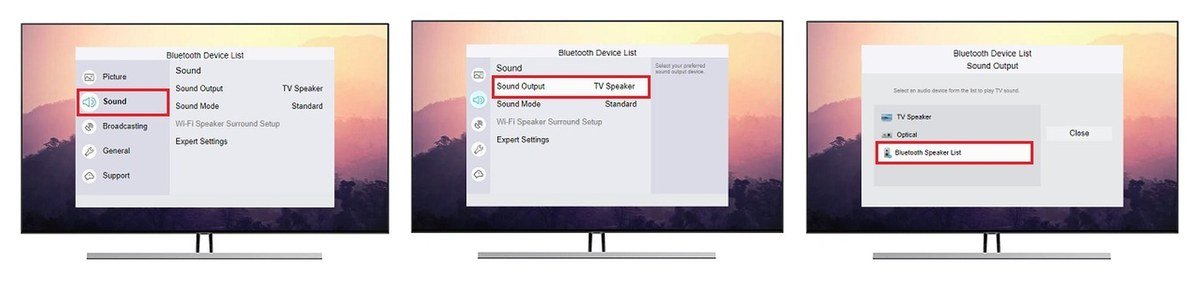
If sound keeps coming from the TV, open the Bluetooth Speaker List again and select the speaker. When you turn the speaker off, the TV switches back to its own speakers automatically. Samsung TVs made from 2022 onward also have a Dual Audio feature for sending sound to two Bluetooth devices at once.
How to Connect a Bluetooth Speaker to an LG TV
LG moved the option in its 2026 TVs, so the path depends on your model year. LG's Bluetooth connection guide lists all three versions:
- 2026 and newer (webOS 26): Settings, All Settings, Sound, Sound Out, Bluetooth Devices, Connectable Devices.
- 2021 to 2025 (webOS 6.0 and later): Settings, All Settings, Sound, Sound Out, Use Wireless Speaker, Bluetooth Devices, Connectable Devices.
- 2020 and older (webOS 5.0 or earlier): Settings, All Settings, Sound, Sound Out, Bluetooth, Connectable Devices.
Select your speaker when it appears. If the TV cannot find it, LG suggests turning the speaker off and on again and making sure it is not still connected to another device. On webOS 6.0 and later, the Use Multiple Speakers option under Sound Out can play a Bluetooth speaker alongside the TV's own speakers.
How to Connect a Bluetooth Speaker to Google TV
Google TV sets from Sony, TCL, Hisense and others, plus the Google TV Streamer, all use the same menu, according to Google's Bluetooth guide:
- Put the speaker in pairing mode.
- From the home screen, open Settings, then Remotes & Accessories.
- Choose the option to pair a new remote or accessory.
- Select the speaker and confirm the pairing request. Check: the speaker now appears in the Remotes & Accessories list.
To reconnect later, select the speaker in that list and choose Connect. Some speakers support Fast Pair, which shows a pairing card automatically when the speaker is nearby.
How to Connect a Bluetooth Speaker to Fire TV or Apple TV
Fire TV
- Put the speaker in pairing mode.
- Open Settings, then Controllers & Bluetooth Devices.
- Select Other Bluetooth Devices, then Add Bluetooth Devices.
- Pick the speaker from the list.
Apple TV
- Set the speaker to discoverable.
- Open Settings, then Remotes and Devices, then Bluetooth.
- Select the speaker under Other Devices and enter a code if one is shown.
If your speaker also supports AirPlay, Apple TV can send sound to it over Wi-Fi instead, which avoids Bluetooth range and delay entirely.
What About Roku TVs?
Roku is the exception. Roku TVs and players do not send TV sound to Bluetooth speakers. Some Roku streaming devices with Bluetooth can connect headphones for Headphone Mode, and the free Roku mobile app offers private listening through your phone, on up to four phones at once. For a room speaker on a Roku TV, use a Bluetooth transmitter as described next.
If Your TV Does Not Have Bluetooth
A Bluetooth transmitter adds the missing radio. It plugs into one of the TV's audio outputs and pairs with your speaker like a phone would.
- Find an audio output on the back of the TV: optical (Toslink), a 3.5mm headphone jack or red and white RCA sockets.
- Connect a transmitter that matches that output and power it, usually from the TV's USB port.
- In the TV's sound settings, switch audio output to that port. Optical output may need to be set to PCM.
- Put the transmitter and the speaker in pairing mode. Check: TV audio plays from the speaker.
Look for a transmitter that supports aptX Low Latency or a similar low-delay mode if you watch a lot of dialogue or play games, since a basic transmitter can add noticeable lag.
How to Fix Audio Delay and Other Problems
- Sound lags behind the picture: look for Audio Delay, AV Sync or Lip Sync in your TV's sound settings and adjust it until speech matches lips. Bluetooth always adds some delay, so a wired soundbar is better for gaming.
- Speaker will not appear: turn Bluetooth off on your phone, restart the speaker and try again. LG recommends forgetting the device and unplugging the speaker for 30 seconds before re-pairing.
- Connected but silent: on Samsung, choose the speaker again in Bluetooth Speaker List; on other brands, check that sound output is set to Bluetooth rather than TV speakers.
- Keeps disconnecting: move the speaker closer, away from Wi-Fi routers and microwaves, and update the TV's software.
If you are still choosing a speaker, our best Bluetooth speakers guide compares battery life and volume, and our best TV picks note which sets have the strongest built-in sound.
Bluetooth Speaker or Soundbar: Which Is Better for a TV?
A Bluetooth speaker is the quick, cable-free upgrade, and it moves easily between the TV, your phone and the garden. A soundbar connected over HDMI ARC or eARC is the better permanent fix for a living room.
- Delay: HDMI carries sound with no Bluetooth buffering, so speech stays in sync without adjustment.
- Surround formats: Dolby Atmos and multichannel audio travel over HDMI, not over Bluetooth.
- Control: an HDMI soundbar usually follows the TV remote for volume and power.
- Flexibility: a Bluetooth speaker wins if you also want music outdoors or in another room, or if you rent and cannot run cables behind a wall-mounted TV.
Frequently Asked Questions
Can I connect any Bluetooth speaker to my TV?
Any standard Bluetooth speaker will pair with a TV that supports Bluetooth audio. Older or budget TVs without Bluetooth need a transmitter plugged into an audio output.
Can I connect two Bluetooth speakers to one TV?
Usually not. Most TVs send sound to one Bluetooth device at a time, though Samsung TVs from 2022 onward include Dual Audio for two devices, such as two pairs of headphones.
Why is there a delay with my Bluetooth speaker?
Bluetooth compresses and buffers audio, which takes a fraction of a second. Use the TV's audio delay or AV sync setting to line it up with the picture.
Do Roku TVs support Bluetooth speakers?
No. Roku supports Bluetooth headphones on some models and private listening through its app, but for a speaker you need a Bluetooth transmitter.
Related Articles

Get the Fox Bulletin briefing
The stories that matter, in your inbox. No spam, unsubscribe anytime.
Newsletter signup will be available soon.
Related stories
Second Monitor Not Detected? Fixes for Common Multi-Monitor Problems
A second monitor that shows no signal is usually a cable, input or display mode problem. Here is the fix for that and every other common multi-monitor headache.
How to Scan Mac for Malware: A Complete Step-by-Step Check
Macs scan themselves, but not on demand. Here is how to check a Mac for malware by hand, which free tools help, and the 2026 copy-paste scam to watch for.
How to Split Screen on iPad: Side by Side, Slide Over and More
Split screen on iPad now lives inside Windowed Apps. Here is how to put two apps side by side, resize them, float a third in Slide Over and go back to one app.