

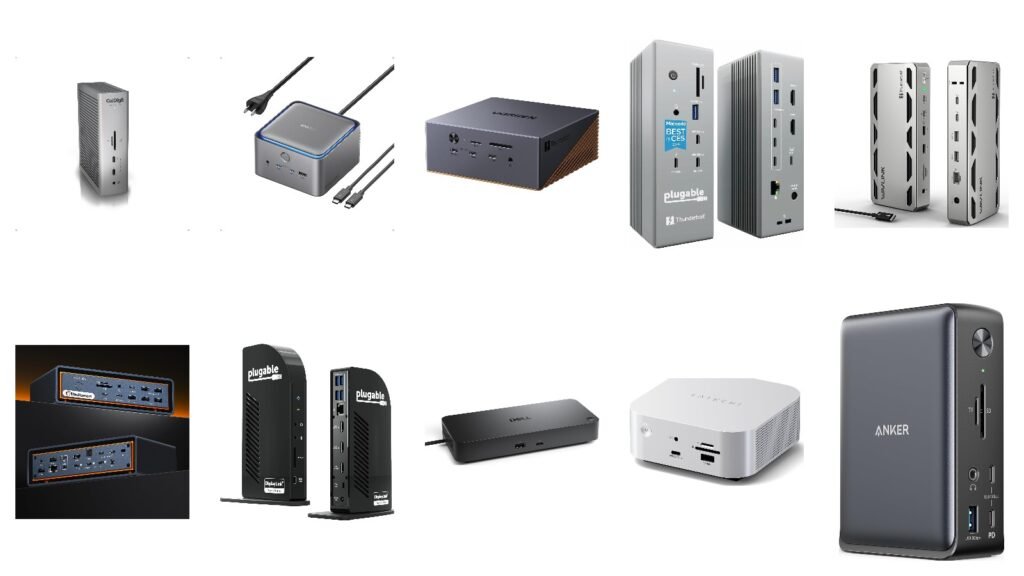
The best docking station is the one that matches the port on your laptop and the number of monitors you want to run. A Thunderbolt 5 dock is wasted on a laptop with a basic USB-C port, and no dock can give a MacBook Air more external screens than Apple allows unless it uses DisplayLink software. Get those two things right and the rest comes down to ports, charging power and price.
The 10 docks below run from a $199.99 USB-C dock for Windows laptops to a 23-port Thunderbolt 5 dock that drives four monitors from a MacBook Pro. Ports, charging, display limits and list prices come from each brand’s own US site, checked on 28 September 2026, with independent reviews from Macworld, MacRumors and XDA where they add something the spec sheet doesn’t.
Best Docking Stations at a Glance
Start with the connection column, because it has to match your laptop’s port. The monitors column shows the most screens each dock can run; on a Mac, the chip sets a lower limit, which we cover further down.
| Docking station | Connection | Laptop charging | Most monitors | Video ports | List price |
|---|---|---|---|---|---|
| CalDigit TS5 | Thunderbolt 5 | 140W | 3 on Windows, up to 4 on an M5 Max Mac | None, uses Thunderbolt or USB-C | $399.99 |
| Anker Prime TB5 Docking Station | Thunderbolt 5 | 140W | 2 | HDMI 2.1 or DisplayPort 2.1 | $399.99 |
| UGREEN Maxidok Thunderbolt 5 | Thunderbolt 5 | 140W | 3 on Windows, 2 on Mac | DisplayPort 1.4 | $499.99 |
| Plugable Thunderbolt 5 Dock | Thunderbolt 5 | 140W | 2 | 2 x HDMI 2.1 | $349.95 |
| Wavlink Thunderbolt 5 Dock | Thunderbolt 5 | 140W | 3 on Windows, 2 on Mac | None, uses Thunderbolt | $299.99 |
| iVanky FusionDock Max 2 | Thunderbolt 5, Mac only | 140W | 3, or 4 on an M5 Max | HDMI 2.0 | $449.99 |
| Plugable UD-ULTC4K | USB-C with DisplayLink | 100W | 3, including on a base MacBook Air | 3 x HDMI and 3 x DisplayPort | $245.99 |
| Dell Pro Thunderbolt 4 Dock WD25TB4 | Thunderbolt 4 | 130W on Dell laptops, 96W on others | 4 on Windows | 2 x DisplayPort 1.4, HDMI 2.1 | $299.99 |
| Satechi Thunderbolt 5 CubeDock | Thunderbolt 5 | 140W | 3 on Windows, 2 on most Macs | None, uses Thunderbolt or USB-C | $399.99 |
| Anker 575 USB-C Docking Station | USB-C | 85W | 3 on Windows, 1 extended desktop on Mac | 2 x HDMI, DisplayPort | $199.99 |
1. CalDigit TS5: Best Docking Station Overall
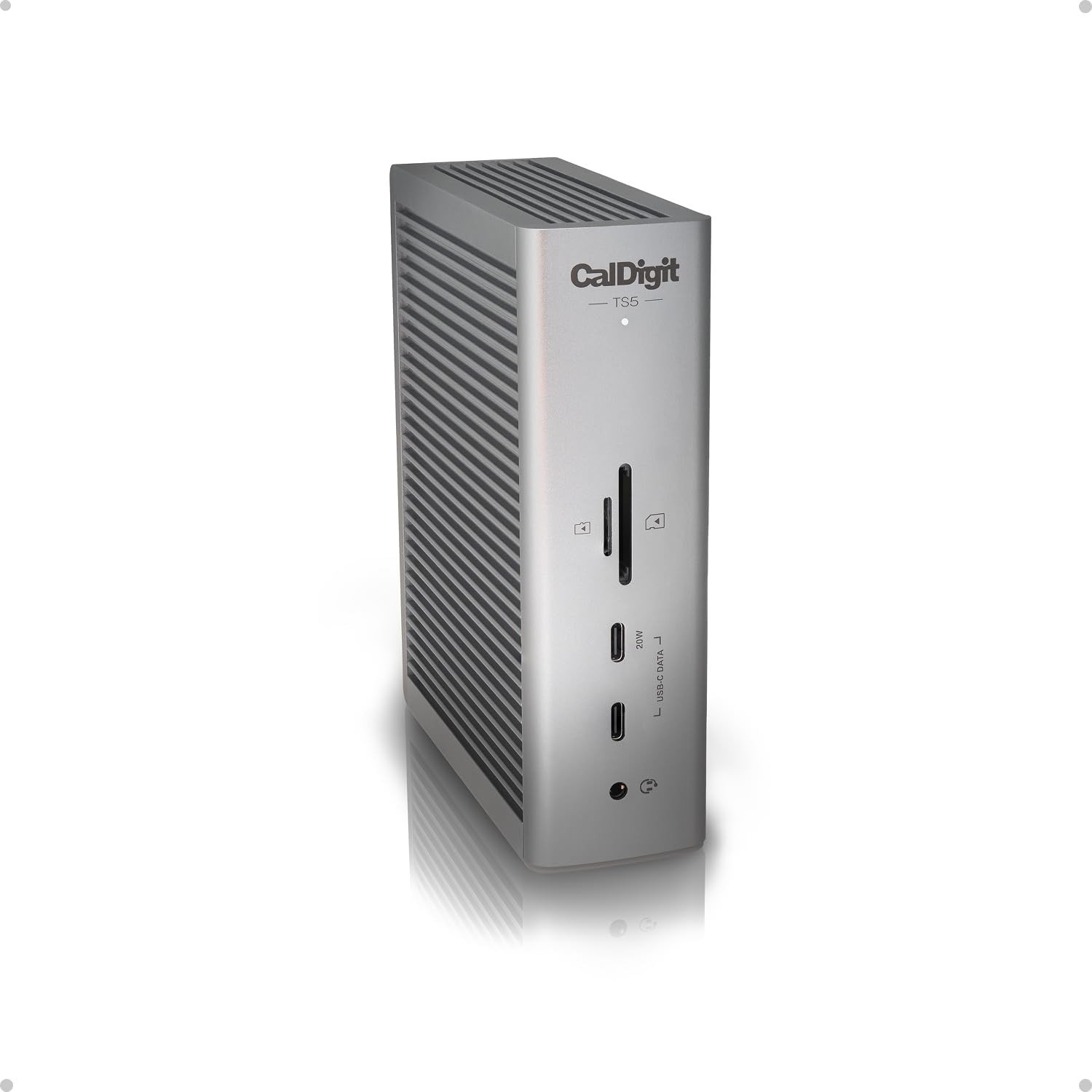
Connection: Thunderbolt 5 · Laptop charging: 140W · Ports: 15 · List price: $399.99
The TS5 is the dock to buy if your laptop has Thunderbolt 5, or if you want a dock that will outlast your current one. It has four Thunderbolt 5 ports, one for the laptop and three downstream at 80Gbps for USB-C and Thunderbolt monitors, fast drives or another dock. Alongside them are three 10Gbps USB-C ports, two USB-A, SD and microSD readers at UHS-II speed, 2.5Gb Ethernet and audio jacks front and back. It charges your laptop at 140W from a 240W power brick.
It is fanless, stands upright or lies flat, and measures just 5.55 by 4.46 in. Macworld made it an Editors’ Choice, and 9to5Mac called it the best Thunderbolt 5 dock for most Mac users. The catch is video: there is no HDMI or DisplayPort, so monitors without a USB-C input need an adapter or a USB-C to DisplayPort cable. If you want a DisplayPort, 10Gb Ethernet and 20 ports, the TS5 Plus costs $100 more at $499.99.
What it does well
- Three downstream Thunderbolt 5 ports for monitors, drives or another dock.
- Fanless and compact, upright or flat.
- UHS-II card readers, 2.5Gb Ethernet and a 20W front USB-C port.
What to know before buying
- No HDMI or DisplayPort, so older monitors need adapters.
- No SSD slot.
2. Anker Prime TB5 Docking Station: Best Docking Station With a Built-In Power Supply
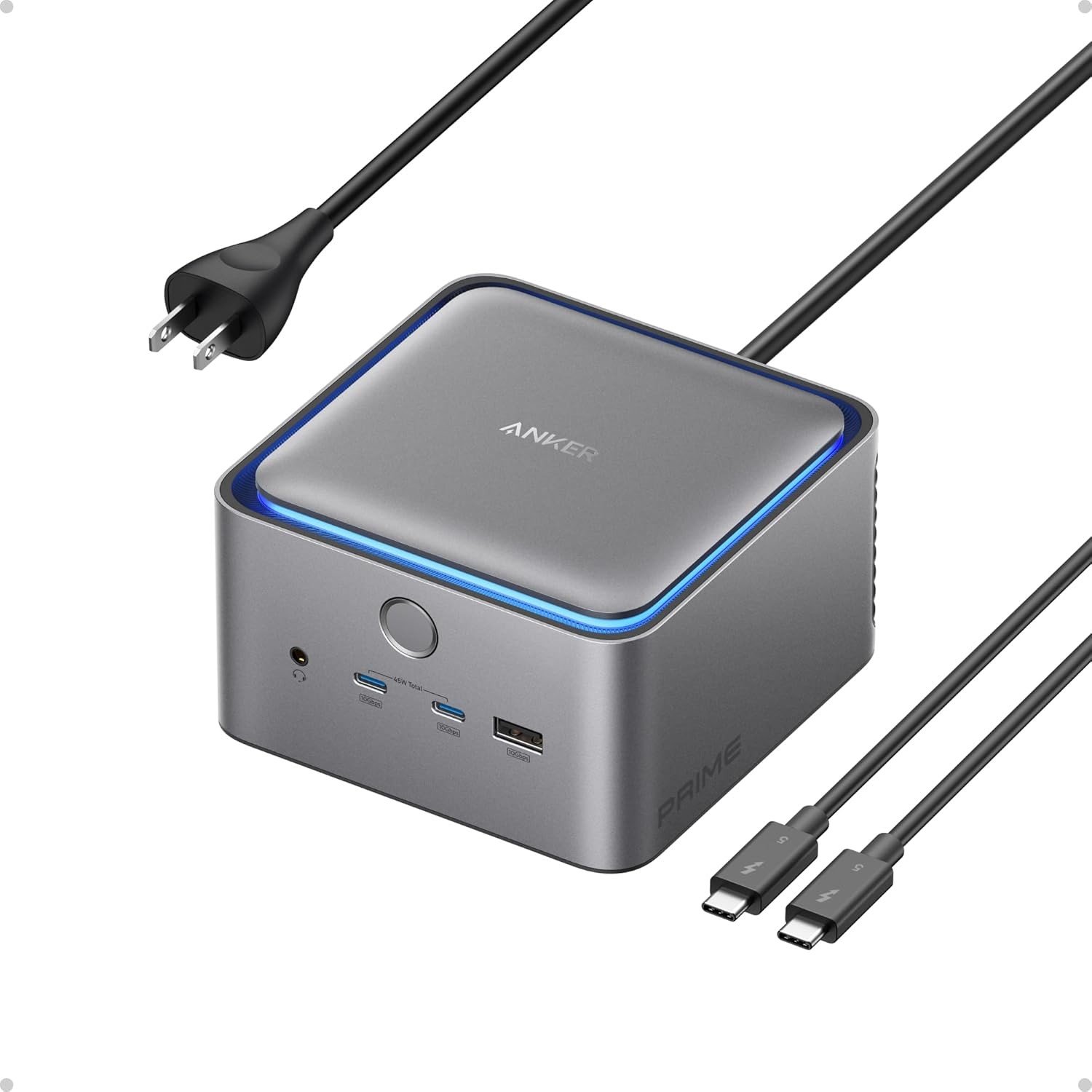
Connection: Thunderbolt 5 · Laptop charging: 140W · Ports: 14 · List price: $399.99
Anker’s Prime dock has no power brick. The power supply is built into the 4.6-inch cube, so a single cord runs to the wall and it still charges your laptop at 140W. It also has something the CalDigit lacks, a native video port: HDMI 2.1 or DisplayPort 2.1, one at a time, plus two downstream Thunderbolt 5 ports for more monitors or drives. Three 10Gbps USB-A ports, two 10Gbps USB-C, 2.5Gb Ethernet, an audio jack and SD and microSD readers cover the rest.
On a Thunderbolt 5 Windows laptop it can drive two 8K/60Hz monitors. On Macs, Anker says base M1 to M3 chips get one display, while M4, Pro and Max chips get two. It needs macOS 15 or later and does not support Thunderbolt 3 Windows laptops, ChromeOS or Linux. Macworld made it an Editors’ Choice.
What it does well
- No external power brick to hide under the desk.
- A native HDMI 2.1 or DisplayPort 2.1 output.
- A compact cube that suits a Mac mini desk.
What to know before buying
- It has a cooling fan.
- The card readers are slower UHS-I, where most rivals here use UHS-II.
- HDMI and DisplayPort cannot be used at the same time.
3. UGREEN Maxidok Thunderbolt 5: Best Docking Station With an SSD Slot
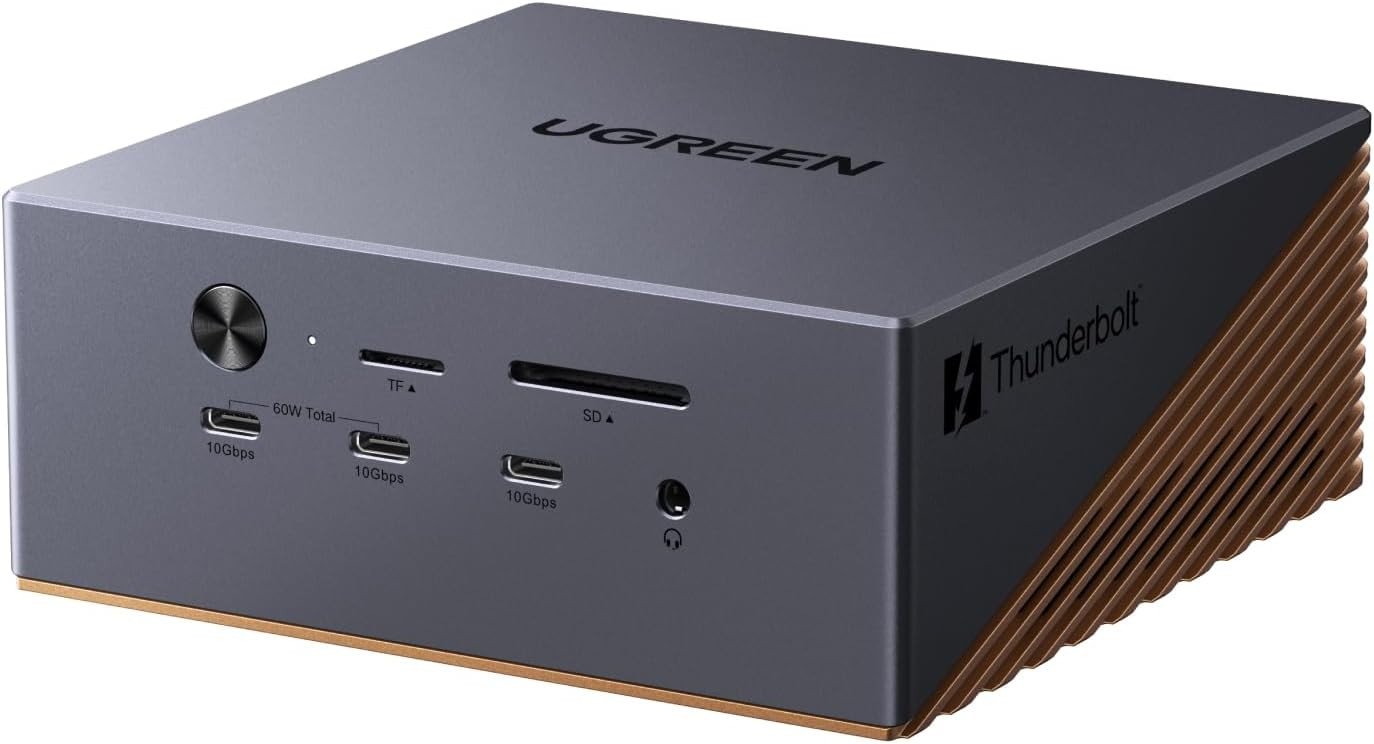
Connection: Thunderbolt 5 · Laptop charging: 140W · Ports: 17, plus an M.2 SSD slot · List price: $499.99
The Maxidok is a dock and an external SSD in one. Its M.2 slot takes a PCIe 4.0 NVMe drive in 2230 to 2280 sizes, up to 8TB, so backups or a photo library live on the dock and connect over the same cable as everything else. Drives with heatsinks fit if they are no taller than 12mm and no wider than 24mm.
Around the SSD are two downstream Thunderbolt 5 ports, a DisplayPort 1.4, three 10Gbps USB-A and three 10Gbps USB-C ports, SD and microSD readers, 2.5Gb Ethernet and three audio jacks. On Windows it drives three monitors, two over Thunderbolt and one over DisplayPort; on a Mac, two. It launched in March 2026 and is about the size of a Mac mini. UGREEN lists it at $499.99, though its own store had it at $349.98 when we checked.
What it does well
- An M.2 slot for NVMe drives up to 8TB.
- Three monitors on Windows, including one over DisplayPort.
- 140W charging and 60W shared across two USB-C ports.
What to know before buying
- A small fan, which UGREEN says runs below 30dB.
- The DisplayPort needs an active adapter for HDMI monitors, not a passive one.
- The SSD is sold separately.
4. Plugable Thunderbolt 5 Dock: Best Docking Station for Dual HDMI Monitors
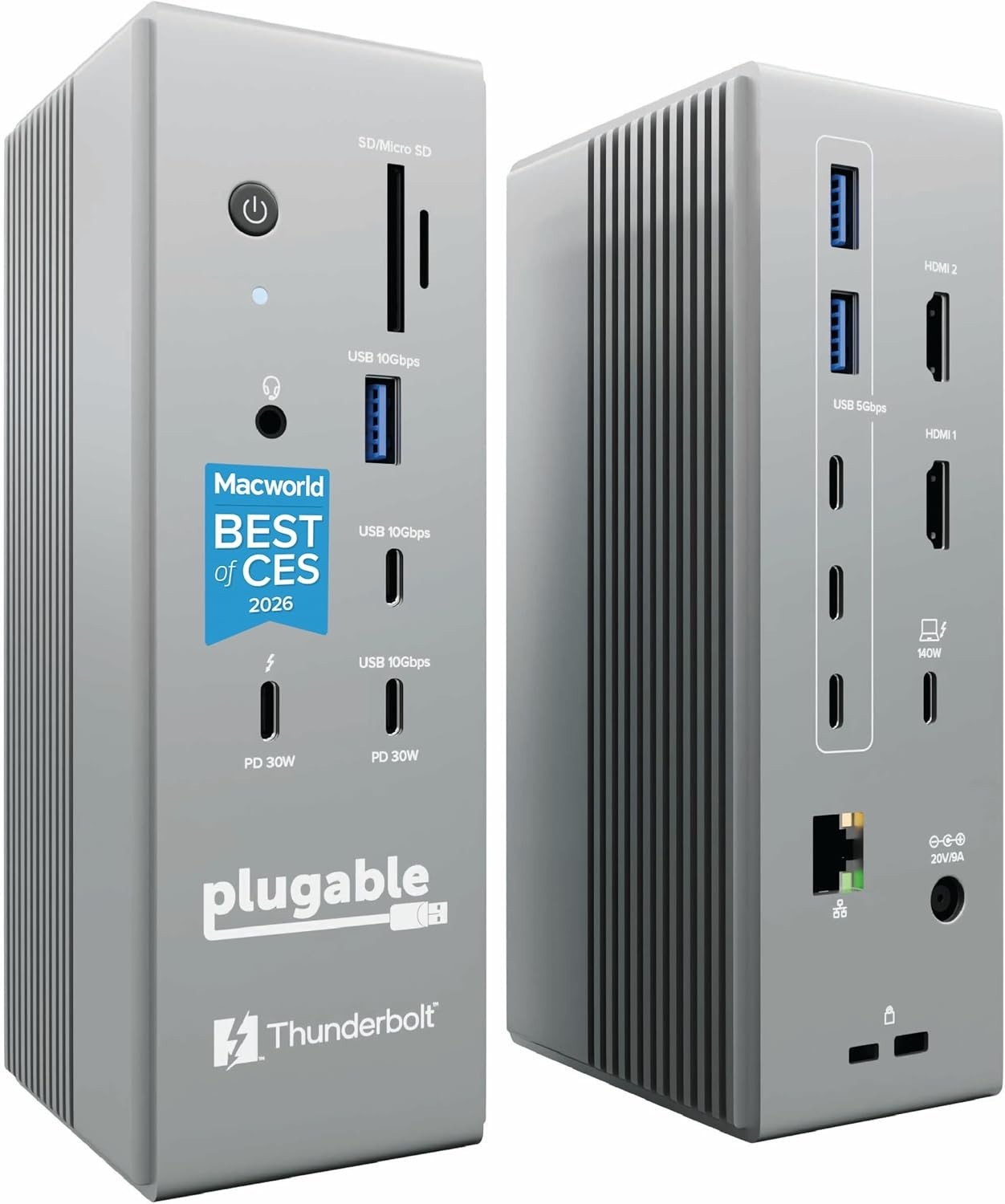
Connection: Thunderbolt 5 · Laptop charging: 140W · Ports: 16 · List price: $349.95
Most Thunderbolt 5 docks expect USB-C or Thunderbolt monitors. This one has two HDMI 2.1 ports built in, so the HDMI monitors most people already own plug straight in. On a Thunderbolt 5 Windows laptop they run at up to 8K/60Hz or 4K/144Hz each, and on a Thunderbolt 4 laptop at 4K/120Hz. On M4 and M5 Macs you get two 6K/60Hz or 4K/144Hz screens, and on base M1 and M2 Macs, one.
It is fanless and needs no drivers, and adds a downstream Thunderbolt 5 port, 2.5Gb Ethernet, UHS-II SD and microSD readers and two 30W charging ports on the front. Plugable launched it in May 2026. It is limited to two displays at a time, and it does not work with Thunderbolt 3 laptops, plain USB-C ports or Windows on Arm laptops.
What it does well
- Two HDMI 2.1 ports, so no adapters for HDMI monitors.
- Fanless and driver-free.
- Two 30W charging ports on the front.
What to know before buying
- Two displays at most, and only one downstream Thunderbolt 5 port.
- The five rear USB ports run at 5Gbps.
5. Wavlink Thunderbolt 5 Dock: Best Budget Thunderbolt 5 Docking Station
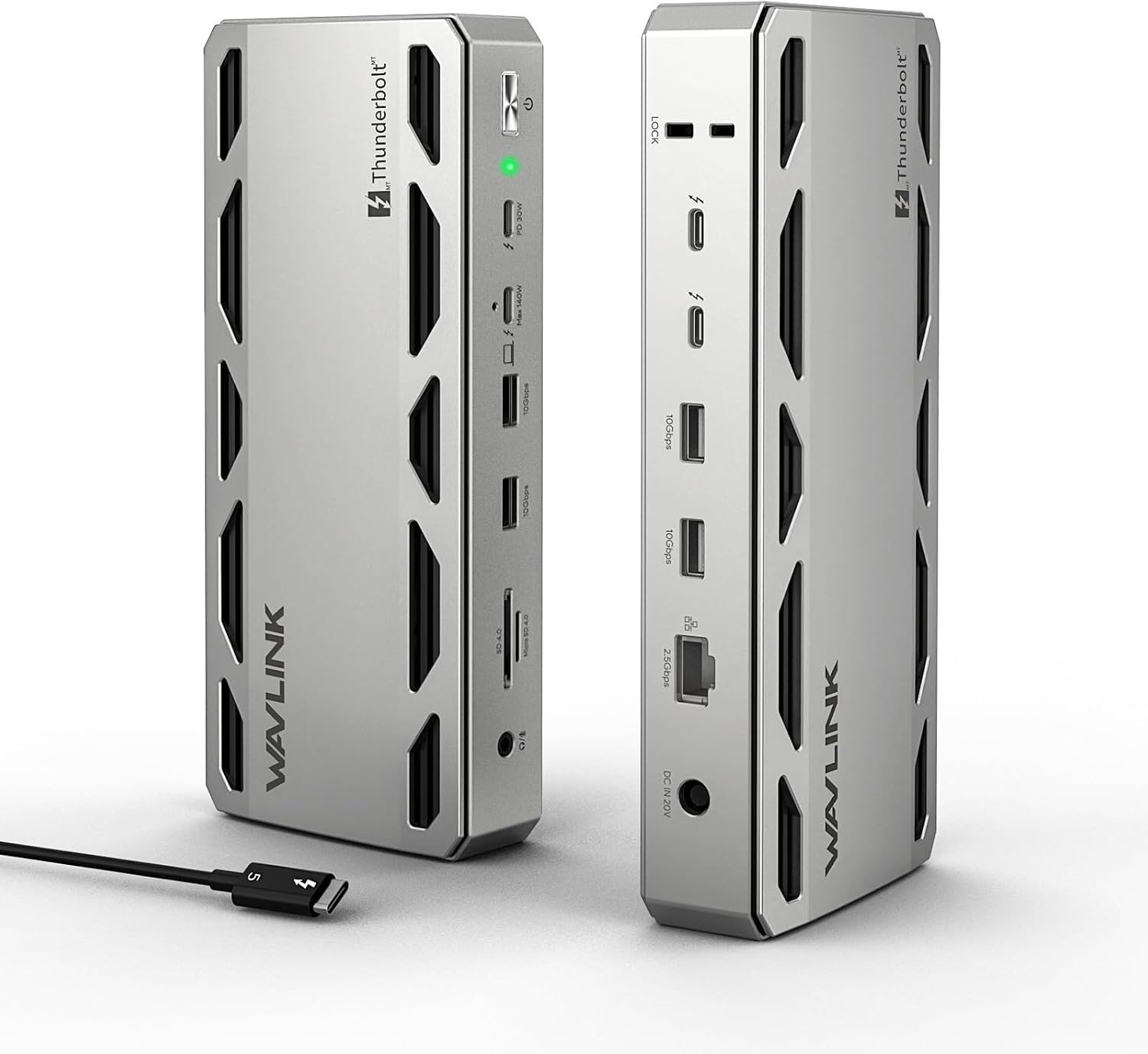
Connection: Thunderbolt 5 · Laptop charging: 140W · Ports: 12 · List price: $299.99
The Wavlink WL-UTD58 is the cheapest Intel-certified Thunderbolt 5 dock here, and it doesn’t cut the important parts. You get three downstream Thunderbolt 5 ports at 80Gbps, the same as the CalDigit, plus four 10Gbps USB-A ports, UHS-II SD and microSD readers, 2.5Gb Ethernet and 140W charging. It is fanless, and Macworld made it an Editors’ Choice for value.
Monitors connect through the Thunderbolt ports. On Windows it drives up to three 4K/144Hz screens or two 8K/60Hz; on Macs, two 6K/60Hz screens with Pro, Max and base M4 chips, or one with base M1 to M3. There are no HDMI, DisplayPort or regular USB-C ports, and Wavlink itself says the 2.5Gb Ethernet port reaches about 1.3 to 2Gbps in practice.
What it does well
- Three downstream Thunderbolt 5 ports for $299.99.
- Fanless.
- Four 10Gbps USB-A ports.
What to know before buying
- No built-in video ports, so you need USB-C monitors or adapters.
- The laptop port is on the front, which Macworld found untidy.
6. iVanky FusionDock Max 2: Best Docking Station for Three Monitors on a MacBook Pro
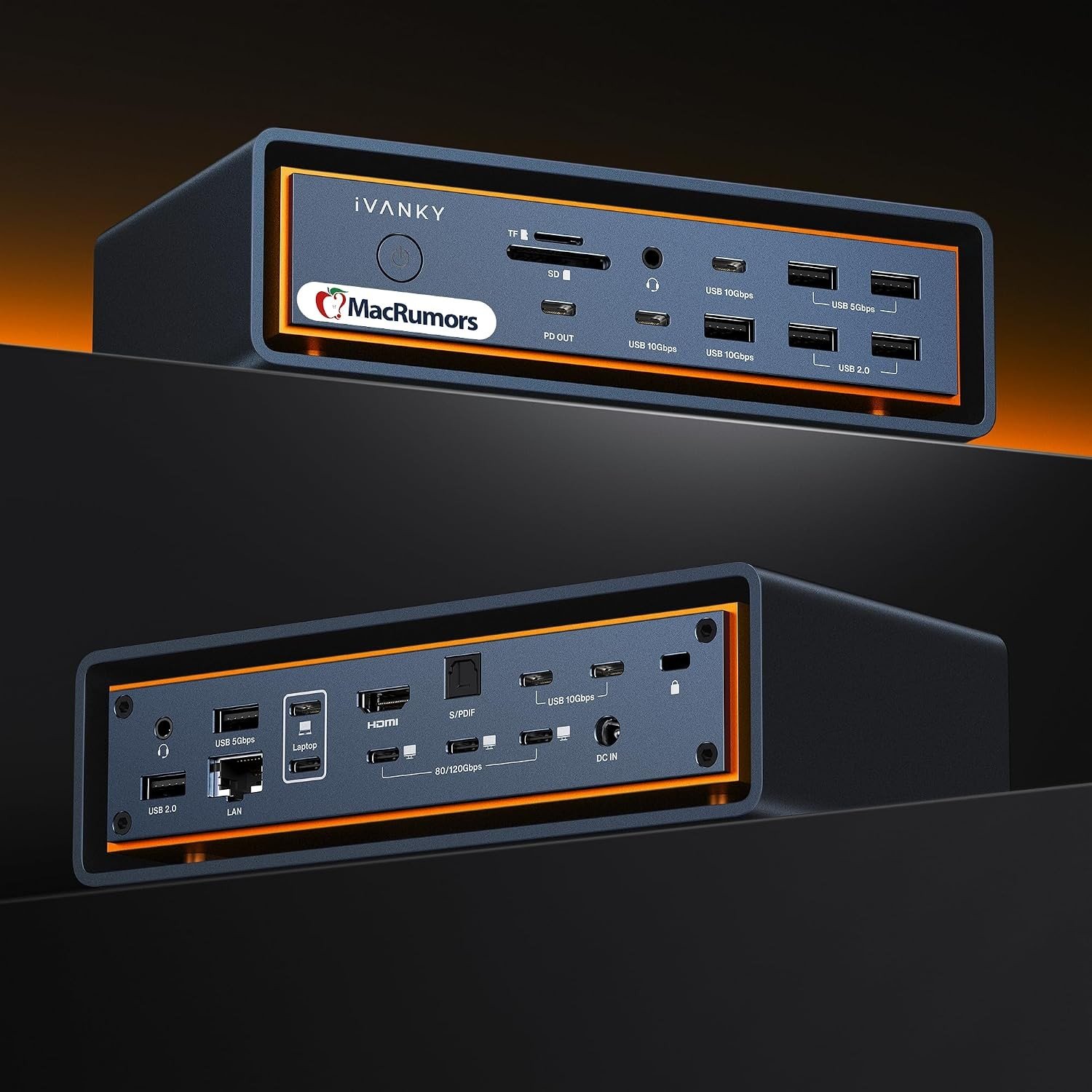
Connection: Thunderbolt 5, Mac only · Laptop charging: 140W · Ports: 23 · List price: $449.99
MacBook Pros with Pro and Max chips can run three or four external monitors, but most docks can’t pass that many through one cable. The FusionDock Max 2 gets around it with two chips and two cables to the Mac. With both connected, an M1 to M4 Max drives three screens, two 6K over Thunderbolt and a 4K over HDMI, an M5 Pro drives three and an M5 Max four, all without DisplayLink software. The included split cable also works with a Mac mini or Mac Studio.
It has 23 ports in all, including three downstream Thunderbolt 5, seven USB-A, four 10Gbps USB-C, UHS-II card readers, 2.5Gb Ethernet and optical audio, and charges at 140W from a 240W supply. It is Mac-only: it needs Apple silicon and macOS 15.1 or later, and does not work with Windows PCs or Intel Macs. iVanky lists it at $449.99, and it was on sale for $399.99 when we checked.
What it does well
- Three or four native monitors on Pro and Max Macs, without DisplayLink.
- 23 ports, the most here.
- Works with a MacBook Pro, Mac mini or Mac Studio.
What to know before buying
- Triple-monitor use takes two of the Mac’s ports.
- A fan that iVanky rates at 42 to 45dB, and HDMI 2.0 rather than 2.1.
- No Windows support.
7. Plugable UD-ULTC4K: Best Docking Station for MacBook Air With Multiple Monitors
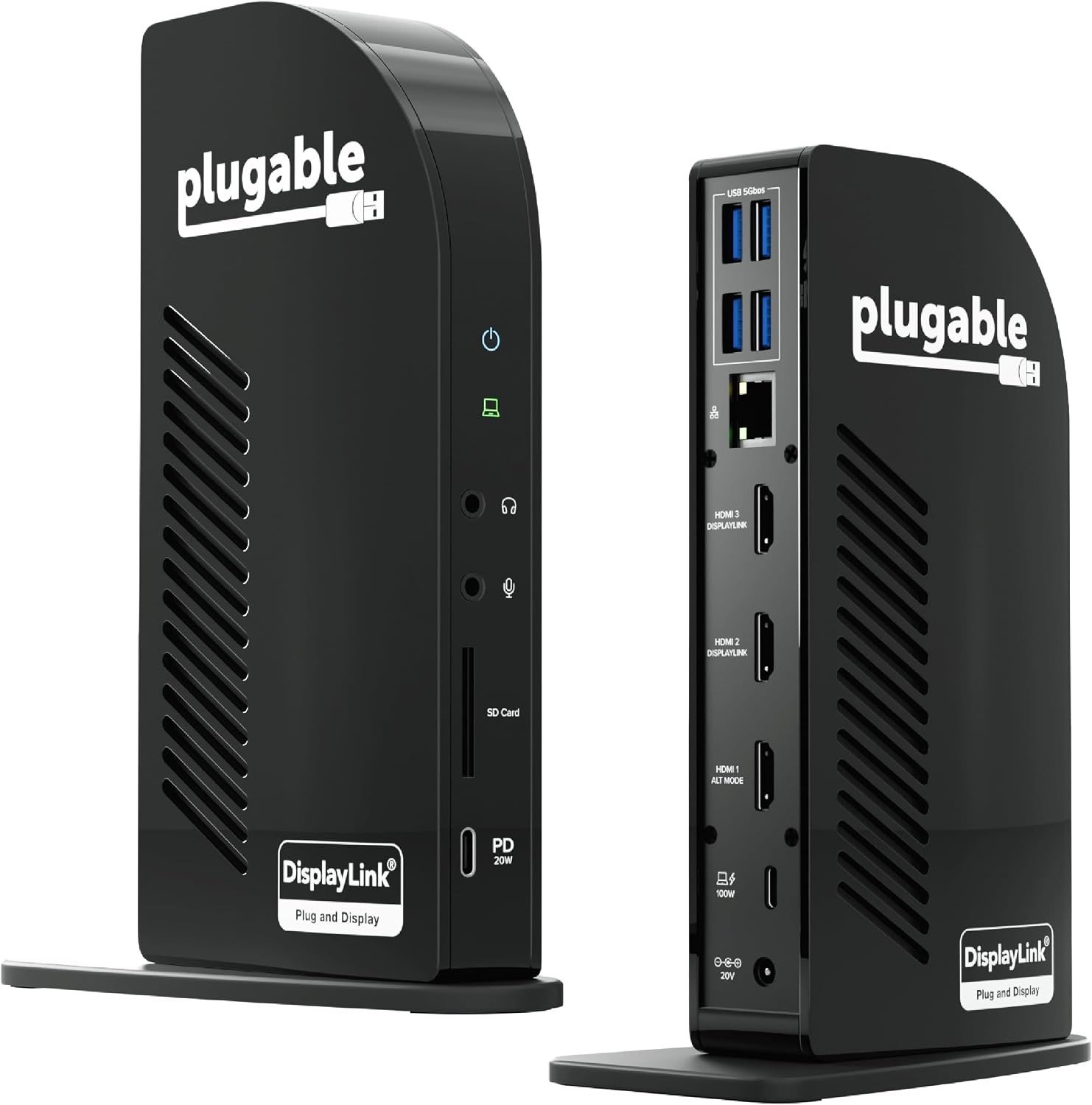
Connection: USB-C with DisplayLink · Laptop charging: 100W · Ports: 13 · List price: $245.99
Base MacBook Airs are the laptops most likely to disappoint at a desk: Apple limits M1 and M2 models to one external display, and M3 models to two only with the lid closed. This Plugable dock gets around that with DisplayLink, a driver and chip that send video over USB. A base M1 or M2 MacBook Air gets three 4K/60Hz monitors with the lid open. Each of the three video outputs comes as both HDMI and DisplayPort, so you won’t need adapters, and it works on Windows and ChromeOS too.
DisplayLink has costs. You install Plugable’s driver and give it macOS’s Screen Recording permission, which turns off HDCP, so Netflix, Disney+ and other protected streams may not play on those screens. It also uses more processing power than a native connection, and Plugable doesn’t recommend it for gaming or video-heavy work. For documents, spreadsheets and browsers, though, it is the simplest way to get three screens from a MacBook Air. It charges at 100W and adds Gigabit Ethernet, four USB-A ports, a 10Gbps front USB-C port and a UHS-II SD reader.
What it does well
- Three monitors from a base M1 or M2 MacBook Air.
- HDMI and DisplayPort for every output.
- Works on Mac, Windows and ChromeOS.
What to know before buying
- Needs the DisplayLink driver, and protected streaming may not play.
- Not suited to gaming or video editing.
- The USB-A ports run at 5Gbps.
8. Dell Pro Thunderbolt 4 Dock WD25TB4: Best Docking Station for Dell and Windows Laptops
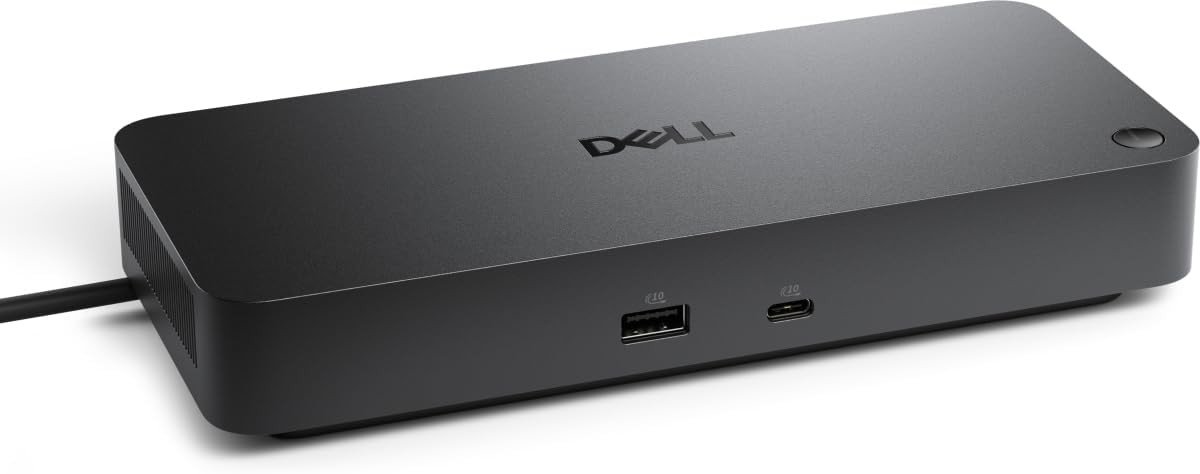
Connection: Thunderbolt 4 · Laptop charging: 130W on Dell laptops, 96W on others · Ports: 12 · List price: $299.99
Most office monitors still use DisplayPort or HDMI, and the WD25TB4 has both: two DisplayPort 1.4 ports and an HDMI 2.1, plus a USB-C port with DisplayPort output, for up to four external monitors without adapters. It also has two downstream Thunderbolt 4 ports, four 10Gbps USB-A ports, a 10Gbps USB-C port and 2.5Gb Ethernet.
It works with any Thunderbolt 4 or USB4 laptop, but it is built for Dell’s. Dell laptops charge at 130W and others at 96W, and IT features such as Wake-on-LAN and Intel AMT management over Thunderbolt work on compatible systems. Dell warns that “users may experience some limitations with macOS”, so it is a better fit for Windows. There is no audio jack or SD card reader.
What it does well
- Four monitors from DisplayPort and HDMI ports, no adapters.
- 130W charging for Dell laptops.
- IT management features for office fleets.
What to know before buying
- Non-Dell laptops charge at 96W.
- No audio jack or card reader.
- Thunderbolt 4, not 5.
9. Satechi Thunderbolt 5 CubeDock: Best Docking Station for Mac mini
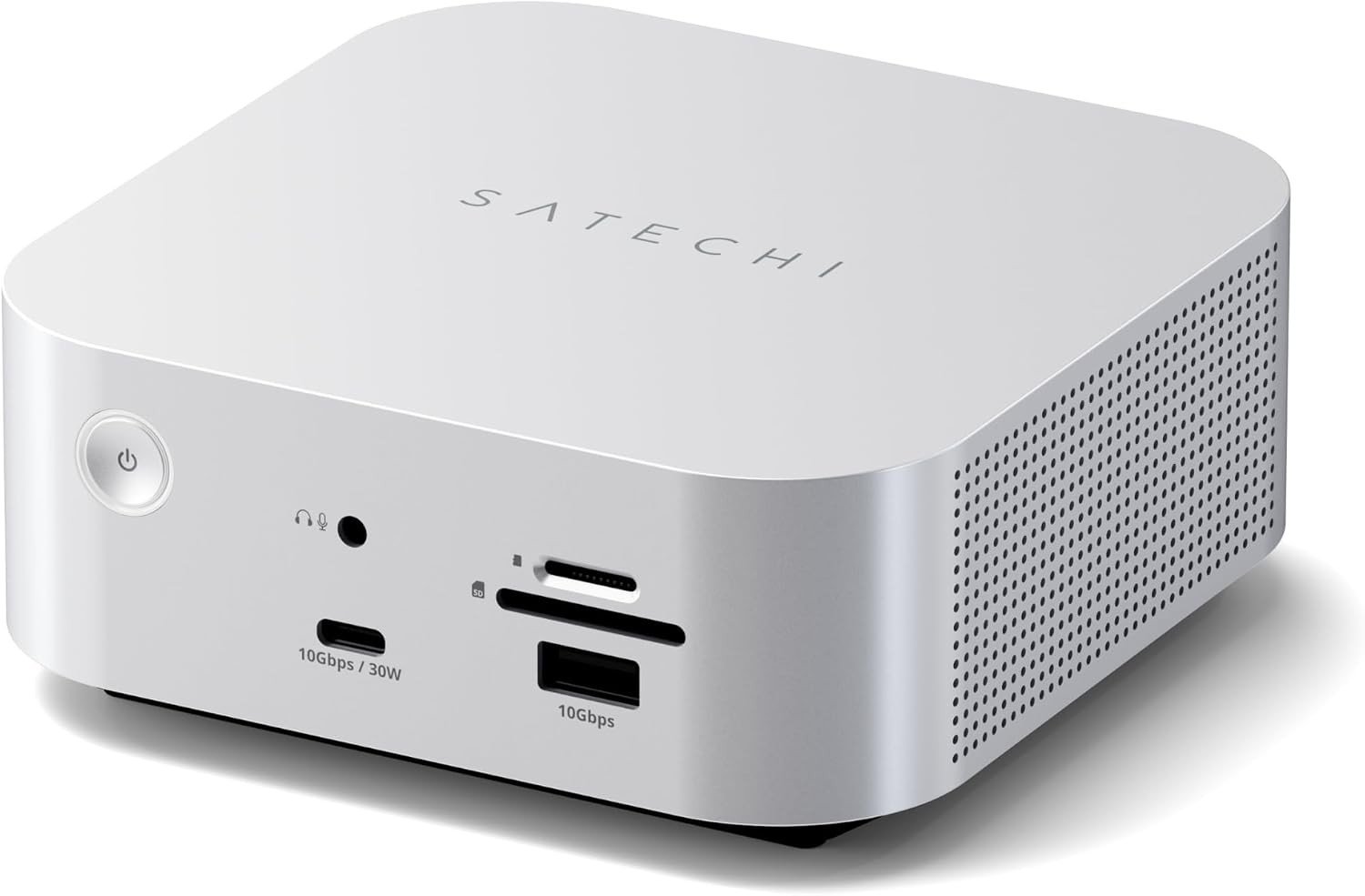
Connection: Thunderbolt 5 · Laptop charging: 140W · Ports: 12, plus an SSD enclosure · List price: $399.99
The CubeDock is a 5-inch aluminium square that matches the M4 Mac mini’s footprint and finish, so it sits neatly beside one. Inside is an M.2 NVMe enclosure (PCIe 4.0, 2230 to 2280 sizes, up to 8TB and up to 6,000MB/s) for fast storage on the same cable. Around it are three downstream Thunderbolt 5 ports, two 10Gbps USB-C ports (one charging at 30W), two 10Gbps USB-A, UHS-II SD and microSD readers, 2.5Gb Ethernet and an audio jack.
It charges a laptop at 140W from a 180W supply. On Macs it runs one display with base M1 and M2 chips and up to two 6K/60Hz screens with most others; on Windows, up to three 8K/60Hz. Satechi launched it at CES in January 2026. MacRumors noticed a faint whine from its fan in a quiet room, and there is no HDMI or DisplayPort.
What it does well
- A built-in SSD enclosure for drives up to 8TB.
- A design that matches the Mac mini.
- Three downstream Thunderbolt 5 ports.
What to know before buying
- A fan that can whine in a quiet room.
- No HDMI or DisplayPort.
- The SSD is sold separately.
10. Anker 575 USB-C Docking Station: Best Budget Docking Station for Windows Laptops
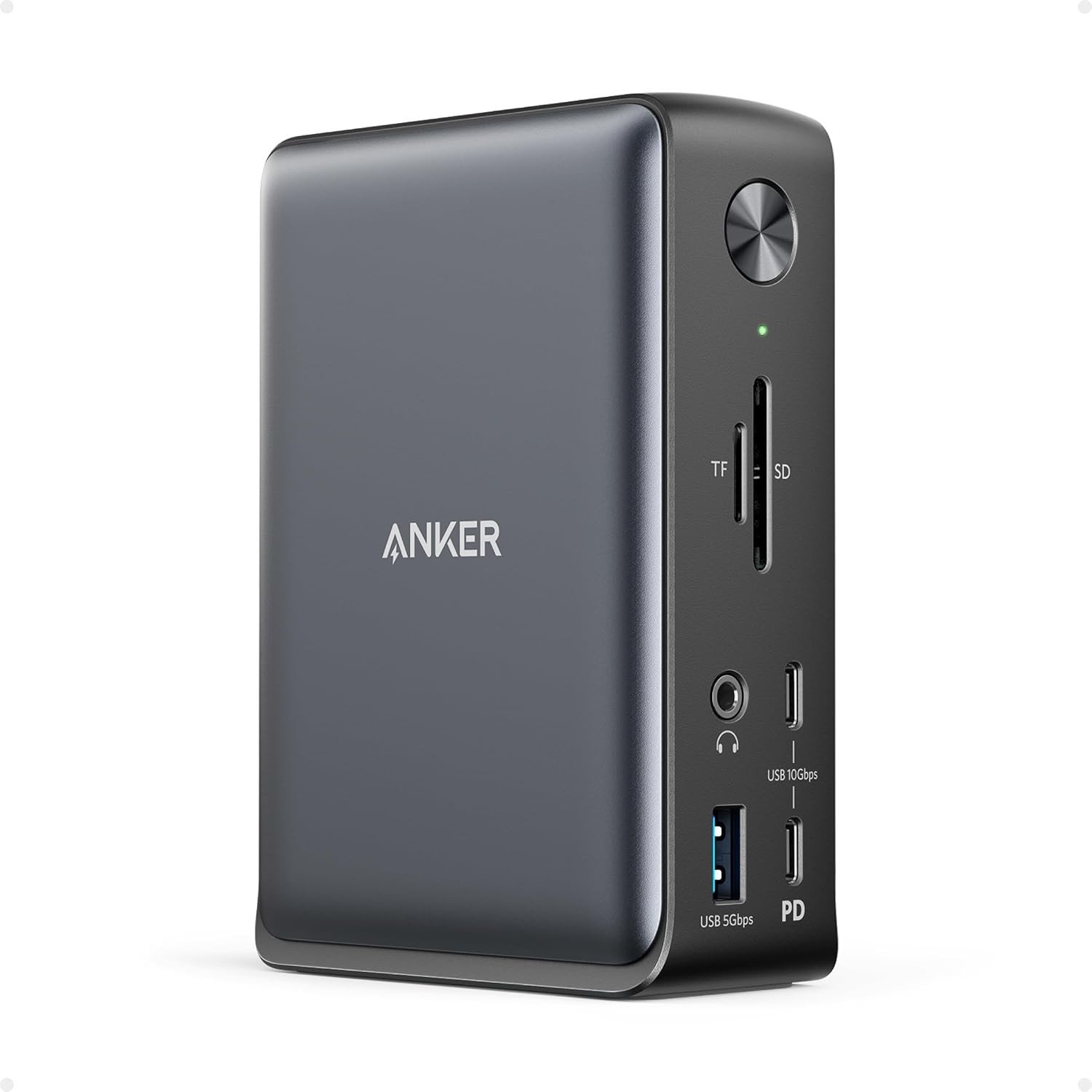
Connection: USB-C · Laptop charging: 85W · Ports: 13 · List price: $199.99
For a Windows laptop with a regular USB-C port, the Anker 575 is a cheaper way to run up to three monitors. It has two HDMI ports and a DisplayPort, plus Gigabit Ethernet, SD and microSD readers, two 10Gbps USB-C ports, three USB-A and an audio jack, and it charges at 85W. No drivers are needed, and because it doesn’t use DisplayLink, streaming services play normally.
The limits are resolution and Macs. One monitor runs at 4K/60Hz, two at 4K/30Hz and three at 1080p. On a Mac, Anker says every monitor on the dock shows the same picture, so you get one extended desktop however many screens you connect. XDA’s review also found it runs hot.
What it does well
- Three monitors on Windows for $199.99.
- No drivers, and protected streaming works.
- Both SD and microSD readers.
What to know before buying
- Macs get a single extended display.
- Two 4K monitors run at only 30Hz.
- 85W charging is low for large laptops.
Thunderbolt 5 vs Thunderbolt 4 vs USB-C: Which Docking Station Do You Need?
Every dock here plugs into a USB-C-shaped port, but what it can do depends on the port on your laptop. Look for the Thunderbolt logo or version in your laptop’s specs before you buy.
- Thunderbolt 5 carries 80Gbps each way, and up to 120Gbps toward monitors with what Intel calls Bandwidth Boost. That is up to three times Thunderbolt 4’s bandwidth, and it is what lets these docks run two 8K or three 4K high-refresh monitors.
- Thunderbolt 4 and USB4 carry 40Gbps. A Thunderbolt 5 dock still works on these ports at the lower speed, but check the maker’s list, as some Thunderbolt 5 docks here don’t support older Thunderbolt 3 laptops.
- Regular USB-C docks, like the Anker 575 and Plugable UD-ULTC4K, run at 10Gbps. Your laptop’s port must support DisplayPort Alt Mode for video and USB Power Delivery for charging.
How Many Monitors Can a MacBook Use With a Docking Station?
A dock can’t give a Mac more monitors than its chip supports, unless it uses DisplayLink. Apple’s own limits for MacBook Air and MacBook Pro are:
- MacBook Air with M1 or M2: one external display.
- MacBook Air with M3: two, but only with the lid closed.
- MacBook Air with M4 or M5: two, with the lid open.
- MacBook Pro with M4 or M4 Pro: two. M4 Max: four.
- MacBook Pro with M5: two. M5 Pro: three. M5 Max: four.
If you need more screens than that, a DisplayLink dock like the Plugable UD-ULTC4K adds them through a driver, with the streaming and performance trade-offs covered above. Cheaper USB-C docks that split one video signal across several monitors, like the Anker 575, show the same picture on every screen on a Mac, because macOS doesn’t support that kind of extended desktop.
Docking Station vs USB-C Hub: What’s the Difference?
A USB-C hub is small, draws its power from your laptop and usually adds a few ports and one monitor output. A docking station has its own power supply, charges your laptop through the same cable, and has enough ports and bandwidth for two or more monitors, wired Ethernet and several drives at once. If you only need an extra USB-A port and an HDMI output when you travel, a hub is enough. For a desk you sit at every day, a dock means one cable connects everything.
How to Choose a Docking Station for Your Laptop
- Match the connection to your laptop’s port, using the section above.
- Check the charging wattage against your laptop’s own charger. A dock that supplies less will still charge it, but more slowly when the laptop is working hard.
- Count your monitors and their inputs. Docks without HDMI or DisplayPort need USB-C monitors, adapters or USB-C to DisplayPort cables.
- Look for 2.5Gb Ethernet if you move large files over a wired network. A cable is also steadier than Wi-Fi for video calls; our Wi-Fi 6 vs Wi-Fi 7 explainer covers what newer routers change.
- Put the ports you use daily, such as a card reader or a charging USB-C port, on the front.
- Use the cable that comes in the box. A random USB-C cable can limit both speed and charging, and Thunderbolt 5 needs a certified cable for its full speed.
Which Docking Station Should You Buy?
For most people with a Thunderbolt laptop or a recent MacBook Pro, the CalDigit TS5 is the one to buy: three downstream Thunderbolt 5 ports, 140W charging and a fanless, compact case. If your monitors use HDMI, get the Plugable Thunderbolt 5 Dock instead, and if you want to save $100 on the same core features, the Wavlink.
MacBook Air owners who need more screens than Apple allows should get the Plugable UD-ULTC4K, and MacBook Pro owners with a Pro or Max chip who want three or four screens, the iVanky FusionDock Max 2. For a Dell or Windows office laptop with DisplayPort monitors, the Dell WD25TB4 is the simplest fit, and the Anker 575 covers a Windows laptop with regular USB-C for $199.99. Pick the Satechi CubeDock or UGREEN Maxidok if you want fast storage built in, and the Anker Prime if you’d rather lose the power brick. To finish the desk, see our Mac keyboard and desk pad picks.
Frequently Asked Questions
What is the best docking station?
The CalDigit TS5 for most Thunderbolt laptops and MacBook Pros. For a base MacBook Air that needs more than one monitor, the Plugable UD-ULTC4K, and for a Windows laptop on a budget, the Anker 575.
Will a docking station work with any laptop?
Not every dock works with every laptop. Thunderbolt docks need a Thunderbolt 4, Thunderbolt 5 or USB4 port, and some won’t work with Thunderbolt 3. USB-C docks need a port that supports DisplayPort Alt Mode and Power Delivery. The iVanky FusionDock Max 2 works only with Apple silicon Macs.
Why does my docking station only show one monitor on my Mac?
Either your Mac’s chip supports only one external display, as base M1 and M2 MacBook Airs do, or the dock splits one video signal across several monitors, which macOS doesn’t support, so the screens mirror each other. A DisplayLink dock or a Mac with a Pro or Max chip gets around it.
Can a docking station charge my laptop?
Yes, if your laptop charges over USB-C. The docks here supply between 85W and 140W, and the Dell WD25TB4 gives 130W to Dell laptops and 96W to other brands.
Does a Thunderbolt 5 dock work with a Thunderbolt 4 laptop?
Yes, at Thunderbolt 4 speed and within your laptop’s own display limits. Check the maker’s compatibility list first, as the Plugable Thunderbolt 5 Dock and Anker Prime don’t support Thunderbolt 3 Windows laptops.
Do I need a special cable for a docking station?
Use the one in the box. It is rated for the dock’s full speed and charging power, and swapping in a longer or cheaper USB-C cable can cut both.
Related Articles

Get the Fox Bulletin briefing
The stories that matter, in your inbox. No spam, unsubscribe anytime.
Newsletter signup will be available soon.
Related stories
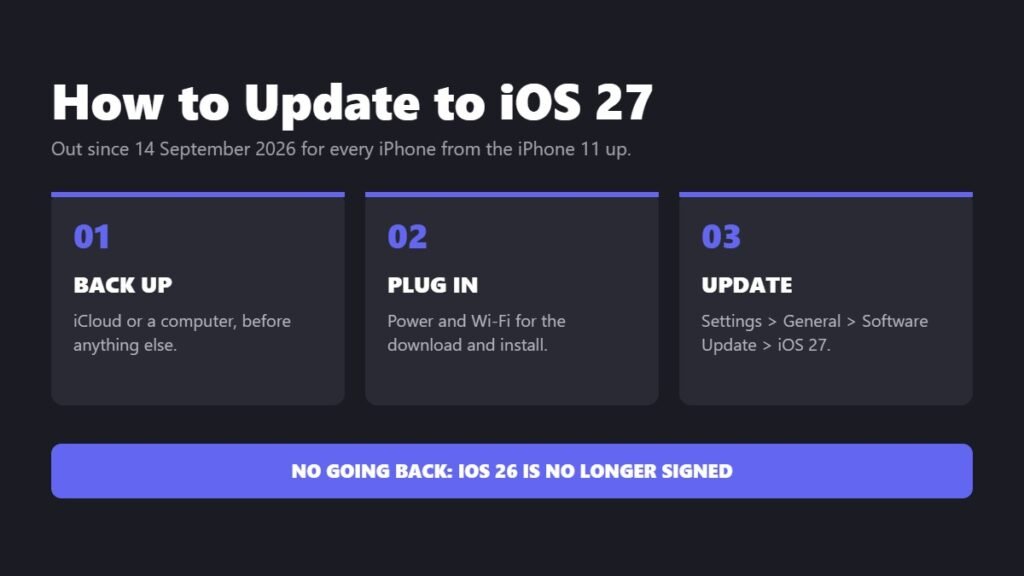
How to Update to iOS 27: Step by Step, Plus Fixes if It Won’t Install
How to update to iOS 27: back up, plug in, then go to Settings > General > Software Update and pick iOS 27 over iOS 26.7. Plus updating from a Mac or PC and what to do when it will not install.

Snapchat Planets Order: What Each Planet Means, Mercury to Neptune
The Snapchat planets order runs from Mercury at one to Neptune at eight. What each planet says about where you stand, why the planet is theirs and not yours, and the toggle that hides them all.

Best Apple Watch Alternatives: 7 Picks for iPhone and Android
The best Apple Watch alternatives split cleanly by phone: three of these seven only pair with Android, four work with an iPhone. Battery life ranges from about a day to five weeks.