


An iPhone won’t turn on for one of three reasons: the battery is empty, the system has frozen, or the screen has failed while the phone keeps running. Charge it for 30 minutes on a cable you trust, then force restart it with the buttons for your model, and wait for the Apple logo, which Apple says can take more than 10 seconds.
The steps below follow iOS 27, the version Apple’s current iPhone User Guide describes, and cover every iPhone generation. If the problem is only that the cable does nothing, the iPhone not charging guide goes through ports and adapters. This page covers the phone that stays dark, the black screen, the Apple logo and the restore.
iPhone Won’t Turn On: Match What You See to the Fix
Look at the screen right now. A red battery sliver means the phone is alive and empty, a computer-and-cable picture means recovery mode, and a lit Apple logo means the system is starting but not finishing. Each state has its own next step, so start with the row below that matches.
| What you see | What it usually means | Go to |
|---|---|---|
| Nothing at all, even after 30 minutes on a cable | Empty or failed battery, or a charging path fault | Charge test, then force restart |
| A red battery sliver appears | Battery empty but the phone is alive and charging | Keep charging for 30 minutes |
| Black screen, but it rings or vibrates | iOS is running; the display or a setting is the problem | Black screen check |
| Apple logo with a moving progress bar | A restore or transfer is still working | Apple logo section, wait first |
| Apple logo that never changes | Startup is stuck | Apple logo section, then recovery mode |
| Logo, black, logo, black | A startup loop | Force restart, then recovery mode |
| Computer and cable picture | Already in recovery mode | Recovery section, choose Update |
Time and Tools for the Whole Sequence
The charge test takes 30 minutes, a force restart about a minute, and a recovery restore up to 60 minutes by Apple’s estimate. Gather these first:
- A wall outlet and a cable and adapter that charge another device without trouble
- A second phone to ring the first, for the black-screen check
- A Mac running macOS Catalina or later, or a Windows PC with the Apple Devices app from the Microsoft Store
- A USB cable that can charge your phone, for the computer steps
- Your Apple Account password, because a restored iPhone with Find My on asks for it
Charge Test: 30 Minutes Before Anything Else
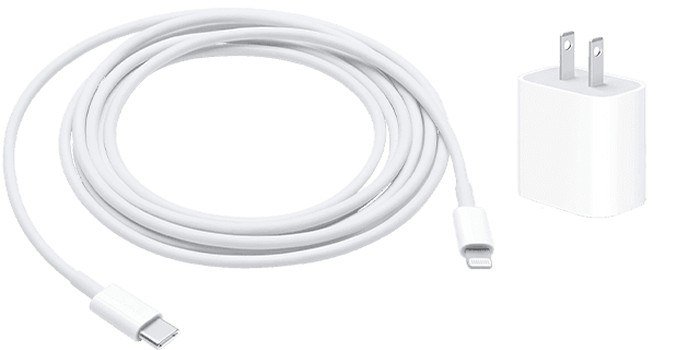
A dark screen alone proves nothing yet, because a phone that has sat at 0 percent needs time on power. Apple’s steps call for a wall outlet and firm connections between cable, adapter and outlet. Then:
- Plug the cable into the phone and the adapter into the wall.
- Leave the phone alone for 30 minutes, without pressing any button.
- Look for the red battery sliver or the charging screen.
- If nothing appears, charge for one hour in total, then try the side button again.
You will know it worked when a low-battery picture or the Apple logo appears; Apple says to charge for 30 minutes or until it starts when the picture shows, and for an hour when the screen stays dark.
Force Restart for Your iPhone Generation
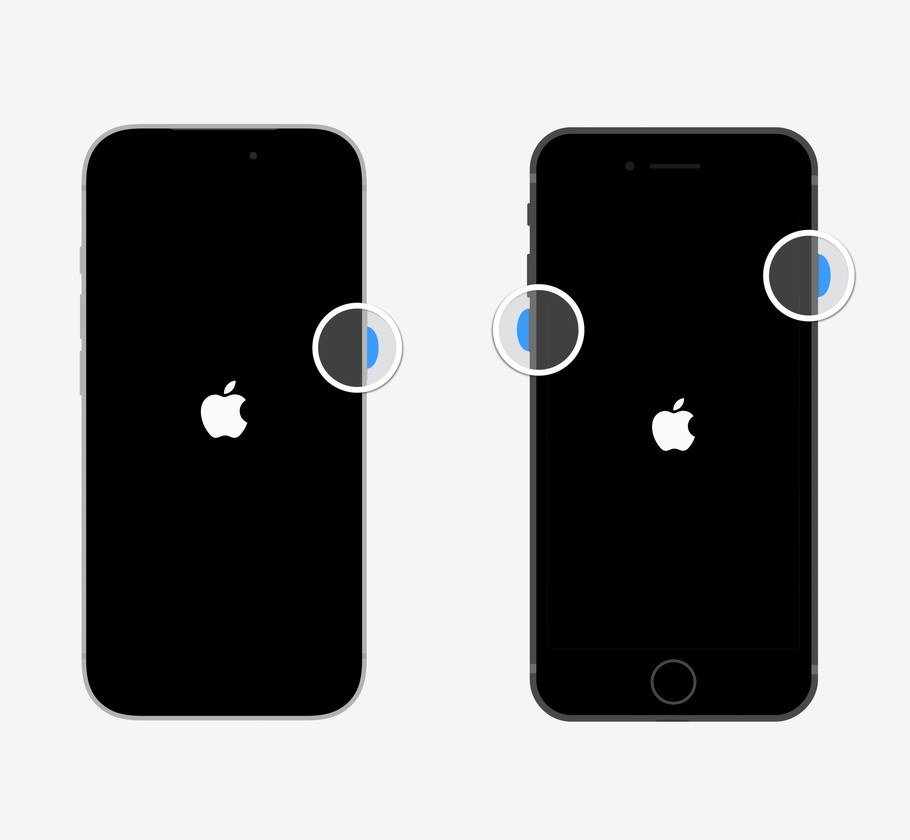
A force restart reboots the system and has no erase step, so your data stays put. The sequence depends on the generation, and the iPhone SE (2nd and 3rd generation) trips people up: it has a Home button but uses the newer three-press sequence.
| Your iPhone | Buttons to press |
|---|---|
| iPhone 8 and later, including iPhone SE (2nd and 3rd generation) | Volume up, volume down, then hold the side button |
| iPhone 7 and iPhone 7 Plus | Hold the side button and volume down together |
| iPhone 6s and earlier, and iPhone SE (1st generation) | Hold the Home button and the side or top button together |
For the newest group, press and release volume up, press and release volume down, then press and hold the side button until the Apple logo appears. Do not let go at 10 seconds; the logo can take longer. On iPhone Duo, volume up is the volume button nearest the side button.
You will know it worked when the screen goes black for a moment, then shows the Apple logo and boots to the passcode screen.
iPhone Black Screen That Stays Black: Is It Awake?
A phone that is running behind a black display is easy to mistake for a dead one. These checks take a few minutes and tell you which side of the line you are on:
- Ring the iPhone from a second phone. A ringtone or a vibration means iOS is running.
- Sign in at icloud.com/find on a computer, select the iPhone and choose Play Sound. If it is online, a sound starts and plays for about 2 minutes.
- If it is awake, wake it and three-finger triple-tap the screen, or four taps if Zoom is on. That toggles Screen Curtain, a VoiceOver feature that keeps the display off while the phone works.
- Once the display is back, open Settings > Accessibility > VoiceOver and turn VoiceOver off if you did not mean to turn it on.
- Move a hot phone out of the sun. Apple says the display dims or goes black when the interior temperature exceeds the normal operating range, and rates ambient use at 0 to 35 degrees C.
You will know it worked when the screen lights after the tap or after cooling. If the phone still rings with a permanently black display, it is a display fault, and a restore will not fix it.
A black screen with a thin colored line before it went dark is a different fault, covered in the green line on phone screen guide.
iPhone Stuck on the Apple Logo: What the Loop Means
The logo itself is good news, because the hardware is powering up. The question is whether the bar below it is moving.
Logo with a progress bar
After a restore or a transfer on iOS 13 or later, the logo and bar can sit on screen for over an hour. Apple’s instruction is to leave it alone until the bar has not moved for at least one hour, and only then use recovery mode.
Logo with no bar, or a logo that keeps repeating
Apple lists an Apple logo with no progress bar for several minutes as a reason for recovery mode. A repeating logo-black-logo cycle is the phone crashing during startup, the same pattern as a kernel panic in other computers. Force restart first. If the loop returns, go to recovery mode and choose Update, which keeps your data.
You will know it worked when the lock screen appears and the phone stays on for a full restart cycle.
Recovery Mode Restore: Update First, Restore Last
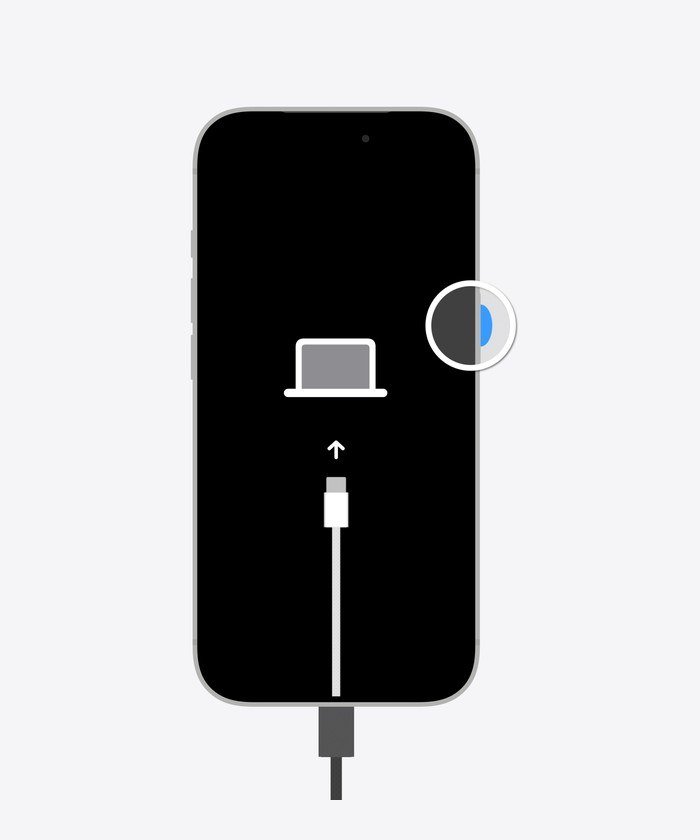
Recovery mode reinstalls iOS from a computer. The iPhone recovery mode guide has the button detail for older models; the sequence for current phones is below.
- Update the Mac, or install the latest Apple Devices app on the PC.
- Connect the iPhone with a USB cable and open Finder, or Apple Devices on Windows.
- On iPhone 8 or later, press and release volume up, press and release volume down, then hold the side button.
- Keep holding until the Connect to computer screen appears, not at the Apple logo.
- In Finder, select the iPhone under Locations. Choose Update, not Restore.
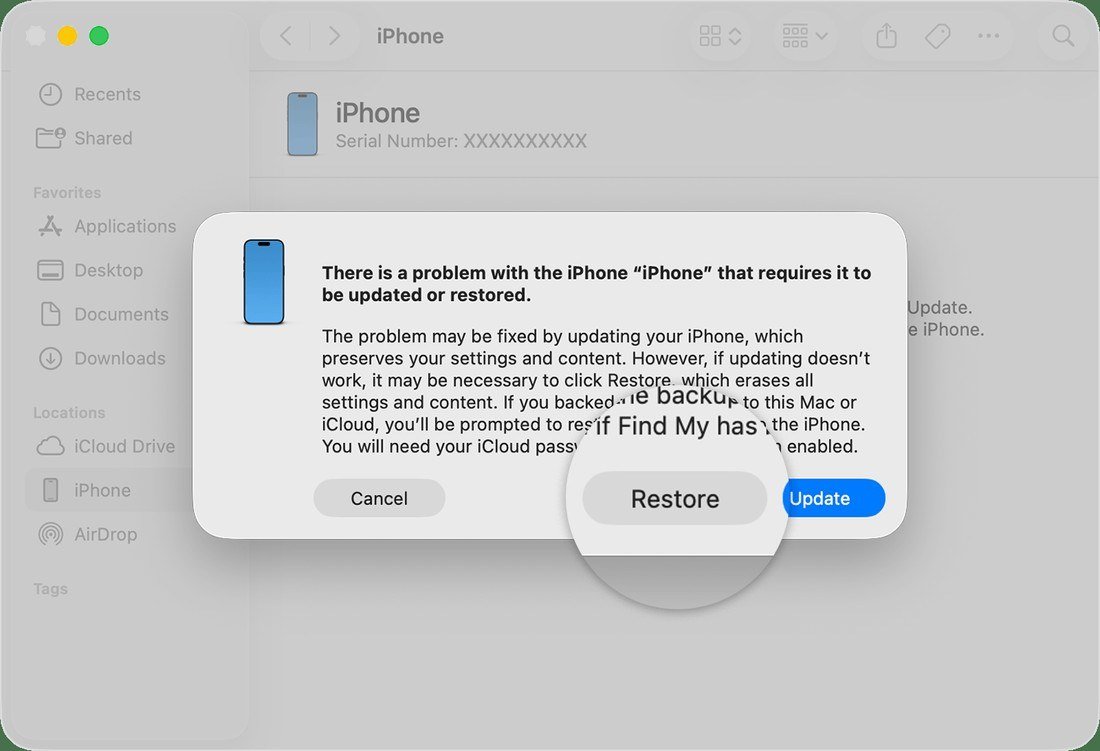
The window explains the choice: updating keeps your settings and content, while Restore erases the phone and asks for your iCloud password if Find My is on. Choose Restore only after Update fails. If the download takes more than 15 minutes the iPhone leaves the recovery screen. Let it finish, turn the phone off, and start recovery mode again.
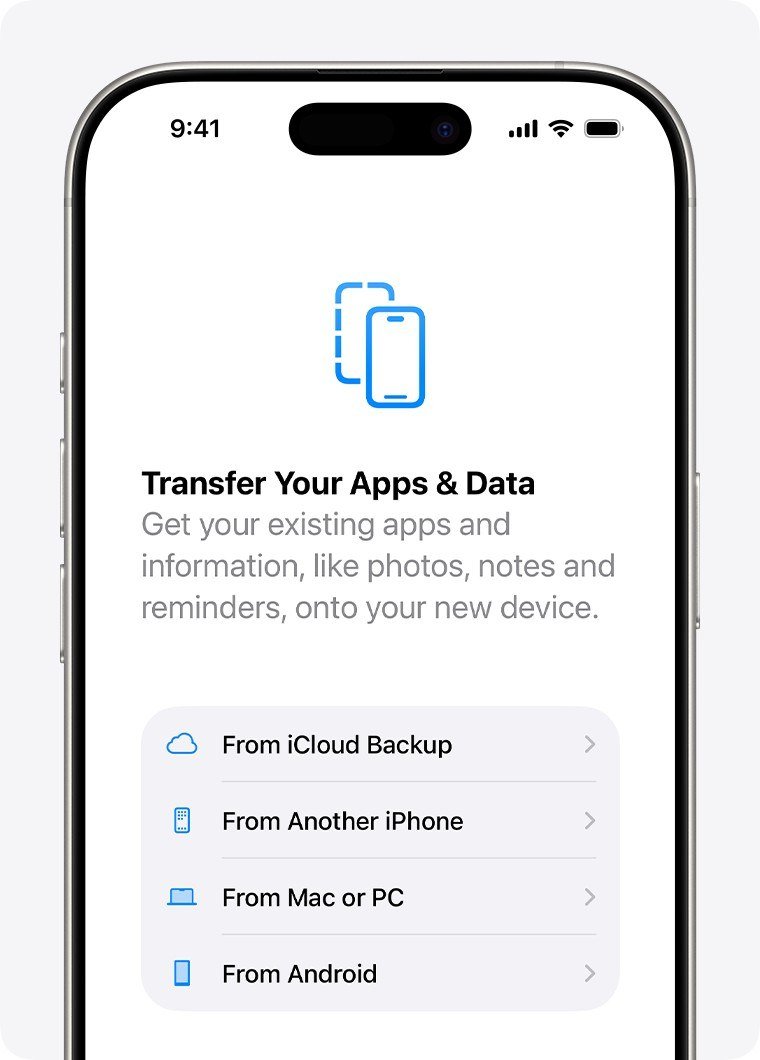
After a Restore, the Hello screen appears. Follow setup to the Transfer Your Apps and Data screen and choose From iCloud Backup, or From Mac or PC for a computer backup.
You will know it worked when the Hello screen appears on the iPhone and your backup begins to restore.
Screen, Battery or Board: Evidence That Means a Service Visit
When the software steps are exhausted, the symptoms split the hardware three ways. Match yours:
| What you observe | Likely part | Reasoning |
|---|---|---|
| Rings or vibrates, screen never lights, force restart changes nothing | Display or its connector | The phone is running, so the battery and board are working |
| A fully red indicator in the SIM slot | Liquid contact | Apple excludes liquid damage from the One-Year Limited Warranty |
| Dies in the cold, restarts when warm; battery message says significantly degraded | Worn battery | A high-wear cell cannot deliver peak power at low charge or low temperature |
| No charge response after an hour, a second cable and a second outlet | Battery, charging port or board | Nothing you can reach in software is left to try |
| Buttons do nothing, or recovery mode never appears | A stuck or failed button, or the board | Recovery mode needs the buttons to work |
| Update and Restore both fail, or the logo returns after a fresh restore | Storage or board | A clean install ruled out the software |
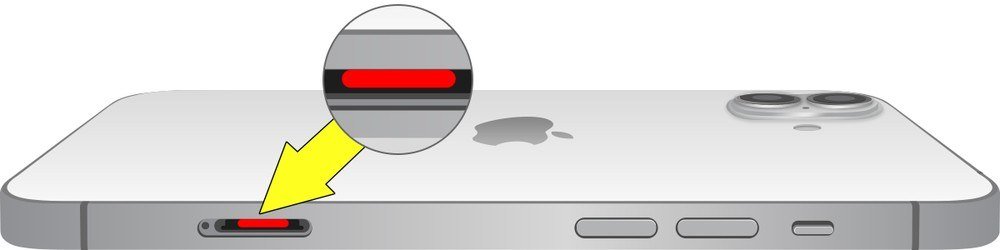
The liquid contact indicator sits inside the SIM slot on models that have a tray, and turns fully red on contact with liquid. An LCI is how a technician finds the cause. Apple says liquid damage service is not covered by the One-Year Limited Warranty, and where iPhone 14 through 17e are sold eSIM-only there is no outside indicator.
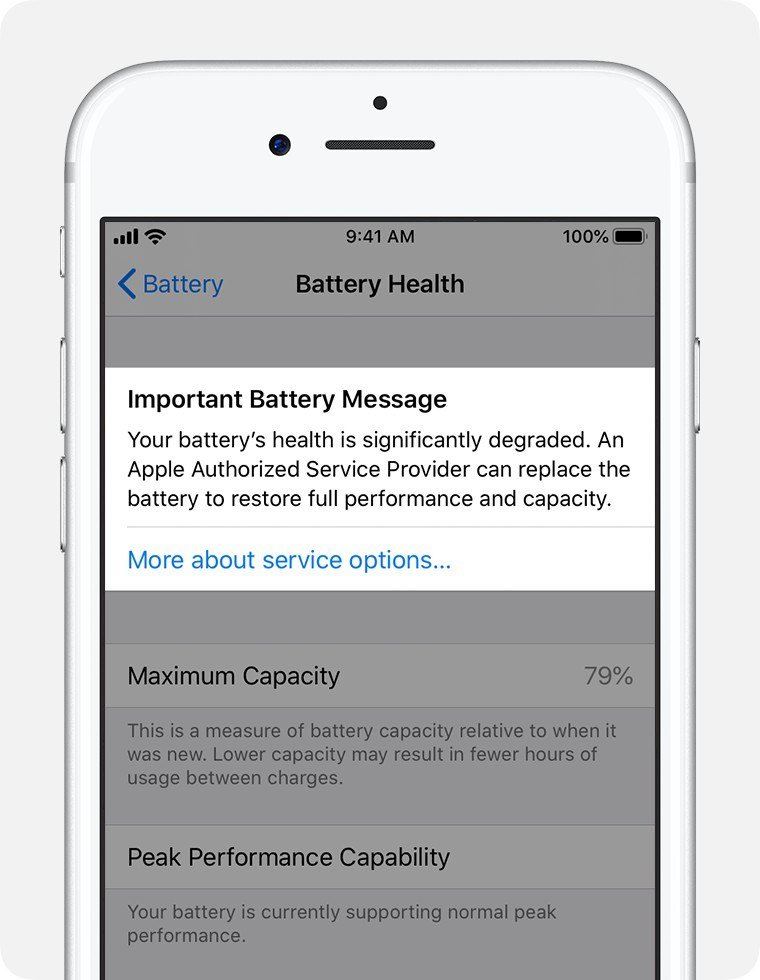
A worn battery shows itself once the phone runs. Apple designs iPhone 14 and earlier batteries to keep 80 percent capacity at 500 charge cycles and iPhone 15 batteries at 1000, and in Settings > Battery > Battery Health it flags a health message at significant wear. Replacement goes through Apple or an authorized provider; Apple’s battery service page describes the options.
For repairs, Apple offers service in person at a Genius Bar or an Apple Authorized Service Provider, or by mail with a prepaid shipping box. Back up first if the phone starts at all.
Mistakes That Turn a Dead iPhone Into a Wiped One
- Choosing Restore first. Update keeps your data, and Apple recommends it before Restore.
- Releasing the side button at the logo. Recovery mode needs the button held until the computer picture appears.
- Unplugging during the 15-minute download. The phone leaves recovery mode and the attempt starts over.
- Reusing the cable that already failed. The computer steps need a cable that can charge your phone, so swap in a good one first.
- Forgetting the Apple Account password. Find My asks for it after a Restore.
Frequently Asked Questions
Why is my iPhone not turning on even when it is charging?
A fully drained battery can take several minutes to show anything, so charge for a full hour first. If the phone then shows nothing, force restart it; if that fails, suspect the cable, the port or the battery.
Will a force restart delete my data?
No. It restarts the system without erasing anything. Only the Restore choice in recovery mode wipes the phone.
What does the Apple logo then a black screen mean?
The phone is failing to finish starting up. Force restart it, and if the loop continues, use recovery mode and choose Update before you consider Restore.
How long should I charge a dead iPhone before giving up?
Apple says to charge for one hour if the screen stays dark. If a low-battery picture appears, charge for 30 minutes or until it starts, then try the force restart.
Related Articles

Get the Fox Bulletin briefing
The stories that matter, in your inbox. No spam, unsubscribe anytime.
Newsletter signup will be available soon.
Related stories

Windows Update Troubleshooter: Run It, Then Fix the Rest
Where the Windows Update troubleshooter lives on Windows 11 and Windows 10, how to run it, what it cannot fix, and the manual repairs in order: disk space, pause and resume, services and folders, DISM, sfc, stuck updates, restart loops and error codes.

Best Ad Blockers for iPhone and iPad: 10 Top Picks
Ten Safari content blockers for iPhone and iPad ranked on price, App Store rating and how recently they shipped, with what none of them can reach.

Best iPhone Camera Settings for Photos in iOS 27
Every iPhone camera setting that changes how a photo turns out in iOS 27, with the exact menu path and what to set it to.