

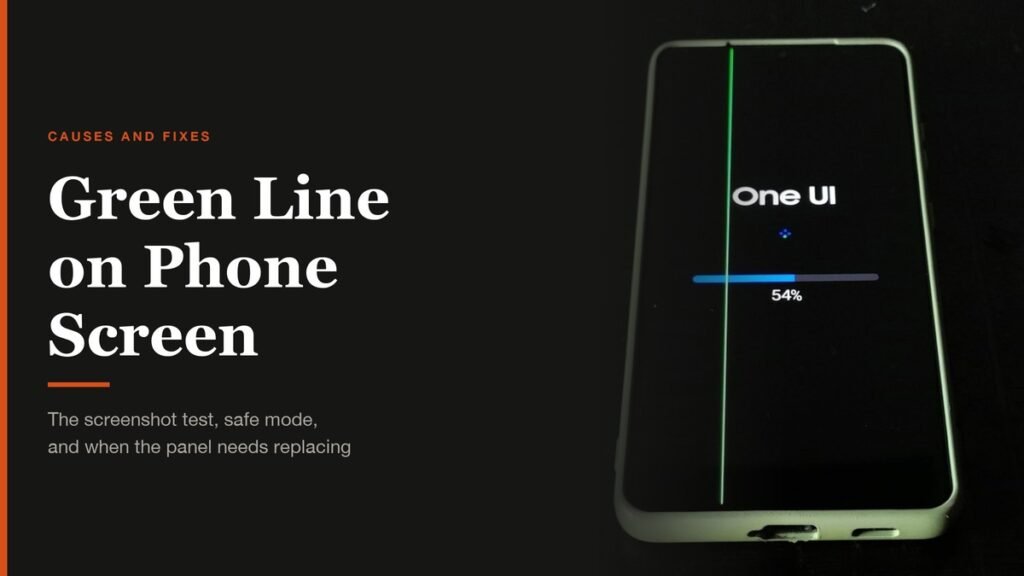
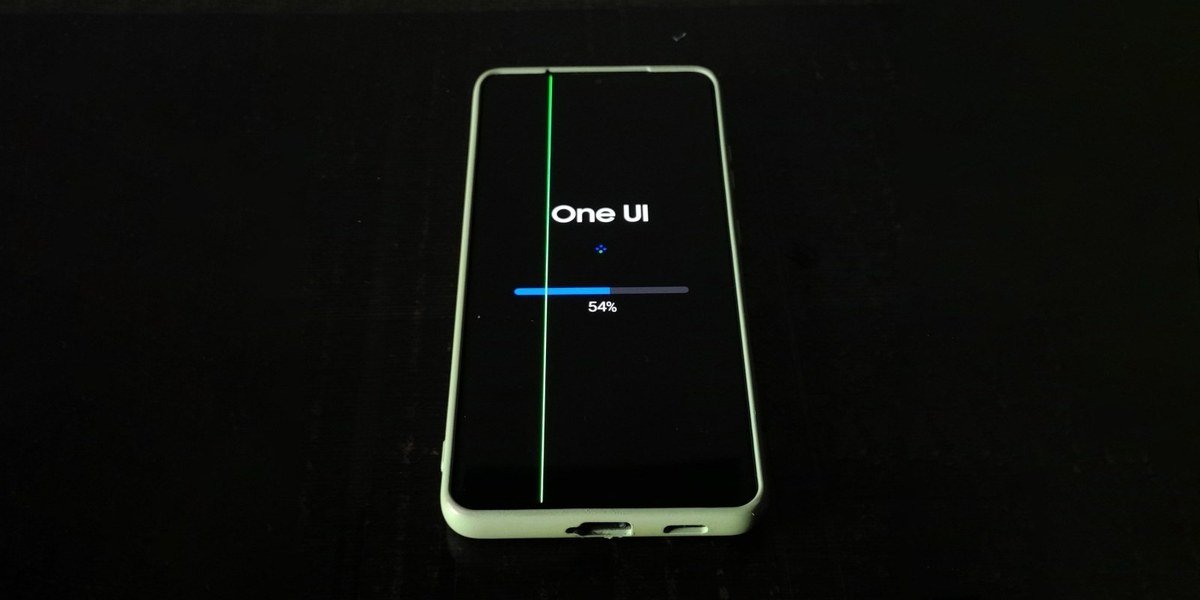
A green line on your phone screen is one of the most common display faults on Android phones with OLED panels. It usually arrives without warning as a thin vertical stripe, often after a software update, and it rarely goes away on its own. In most cases the panel itself is failing, but a small share of lines are caused by software, and those you can fix at home.
The trick is working out which one you have before you spend money. This guide shows a two-minute test that separates the two, the software fixes worth trying, and the free screen replacement schemes some brands now offer for exactly this fault.
The Quick Answer: Is the Green Line Hardware or Software?
Short version: take a screenshot and open it. If the green line is not in the screenshot, the display panel is at fault and only a screen replacement will fix it. If the line is in the screenshot, or it disappears in safe mode, the cause is software, and a restart, an update, removing an app or a factory reset can clear it.
What Causes a Green Line on a Phone Screen
Brands rarely name a single cause. OnePlus, for example, says the fault comes from a combination of factors, and its fix strengthens the edge seal that keeps moisture and oxygen out of the panel. The line has been reported on phones from Samsung, Google, Vivo, Nothing, Motorola and OnePlus, all of which use AMOLED displays.
| Likely cause | How it behaves | What fixes it |
|---|---|---|
| Display panel failure | Line stays put, survives restarts, never appears in screenshots | Screen replacement |
| Moisture at the panel edge | Appears months after purchase, sometimes after humid weather or a splash | Screen replacement |
| Damaged or loose display cable | Line flickers, or changes when you press the frame | Repair shop |
| App or software glitch | Line shows up in screenshots or vanishes in safe mode | Update, remove app, reset |
A drop is the obvious trigger, but plenty of lines appear on phones that were never damaged. That is why the test below matters more than the phone's history.
Step 1: Run the Screenshot Test
A screenshot captures what the phone is drawing, not what the glass shows. That makes it the fastest way to tell a broken panel from a software fault.
- Open a screen where the green line is clearly visible.
- Take a screenshot. On most Android phones, press the Power and Volume down buttons together.
- Open the screenshot on another device, such as a laptop or a friend's phone.
- Look for the line. Check: if the screenshot is clean, the panel is the problem. If the line is in the image, keep going with the software fixes below.
Viewing the screenshot on a different screen is the important part. On your own phone, the faulty panel will draw the line over the picture anyway.
Step 2: Restart and Boot Into Safe Mode
A plain restart clears temporary glitches, so try that first. If the line is still there, safe mode starts the phone with downloaded apps switched off, which shows whether an app is responsible.
On a Samsung Galaxy phone
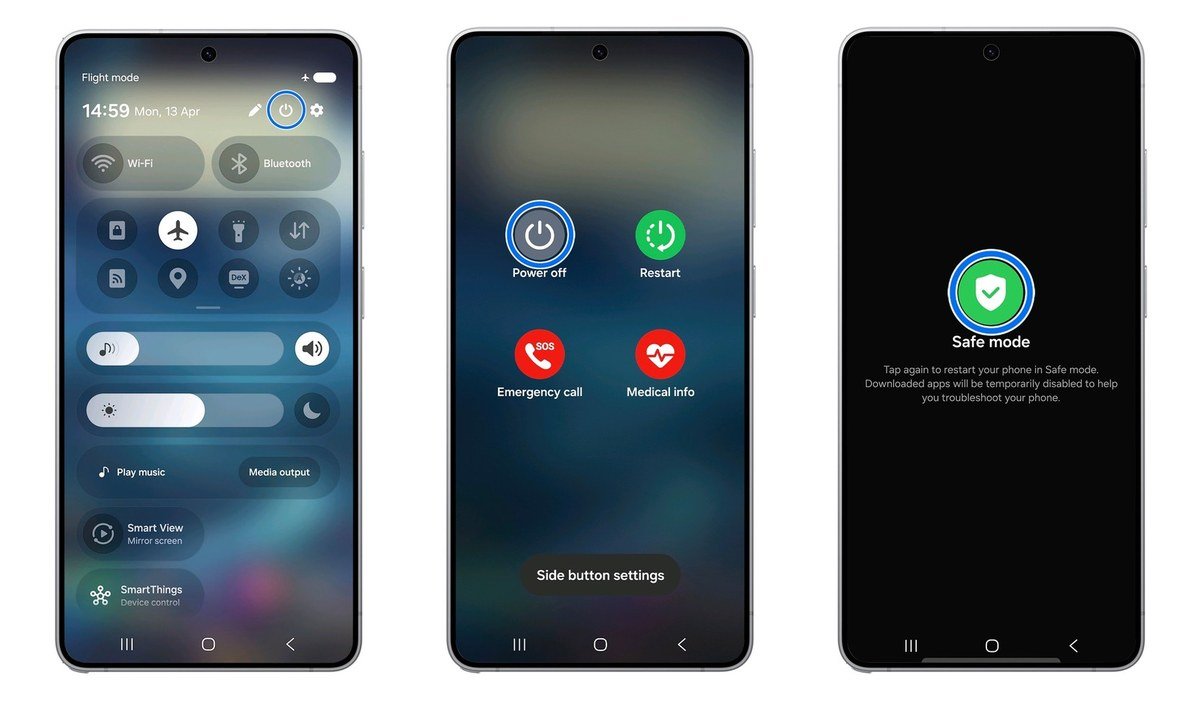
Samsung's safe mode instructions use the Power menu:
- Swipe down to open the quick panel and tap the Power icon, or press Volume down and the side key together.
- Touch and hold Power off.
- Tap Safe mode. Check: the phone restarts with “Safe mode” shown on screen.
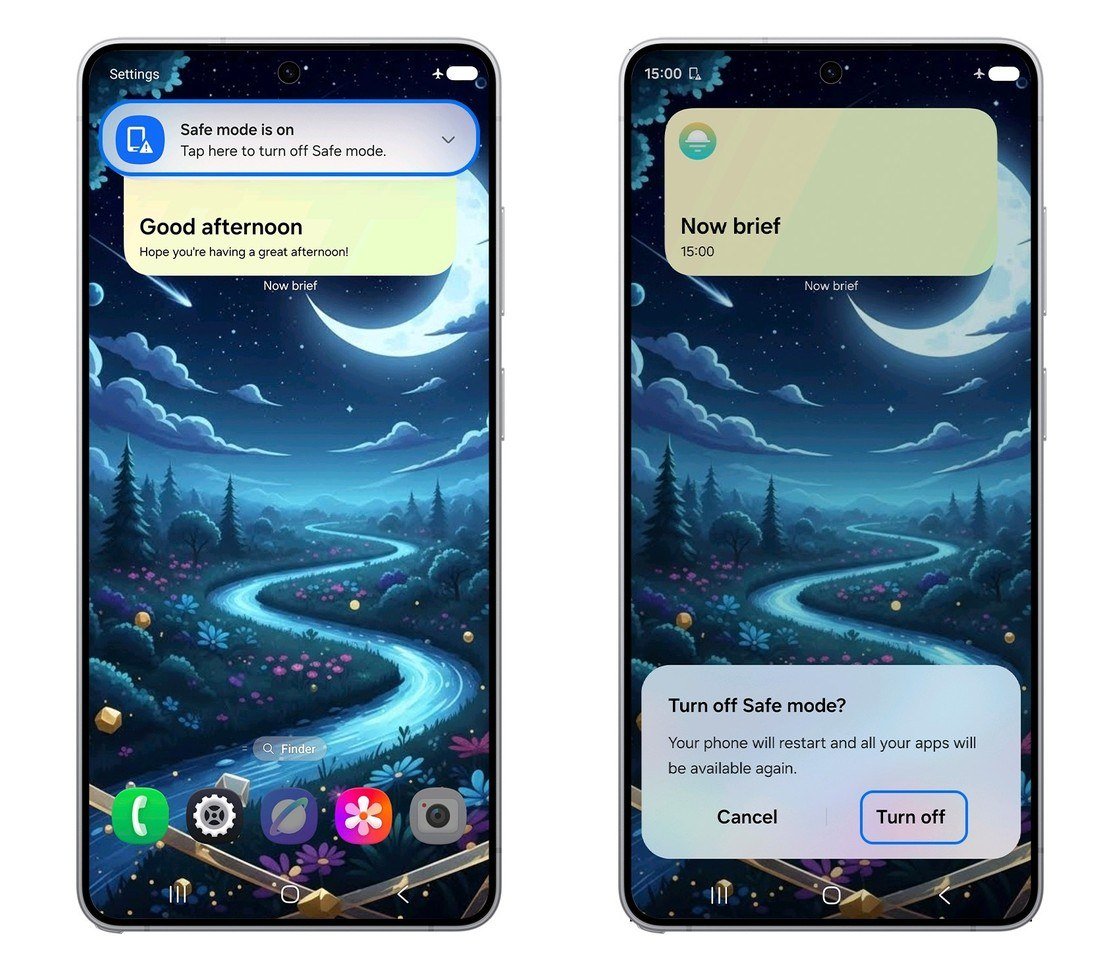
To leave safe mode on a Galaxy, tap the “Safe mode is on” notification and choose Turn off, or simply restart. Samsung notes that some customisations, such as wallpapers and themes, may reset to their defaults when you do.
On a Google Pixel phone
Google's Pixel safe mode guide gives these steps for Pixel 6 and later:
- Press and hold the Power and Volume up buttons for a few seconds.
- Touch and hold Power off or Restart.
- Tap OK. Check: “Safe mode” appears at the bottom of the screen.
On Pixel 5a and earlier, press and hold the Power button and touch and hold Power off instead. If the green line disappears in safe mode, uninstall the apps you added or updated just before it appeared, one at a time, restarting normally after each.
To leave safe mode on a Pixel 6 or later, press and hold the Power and Volume up buttons and tap Restart; on a Pixel 5a or earlier, hold the Power button for about 30 seconds.
Step 3: Update the Software, Then Reset as a Last Resort
- Open Settings and go to Software update (on Pixel, System then Software updates).
- Install any update that is waiting and restart.
- If the line survives and the screenshot test pointed to software, back up your phone.
- Run a factory reset from Settings. Check: if the line is gone after setup, the cause was software.
Skip the reset if the screenshot test already showed a panel fault. Wiping the phone will not repair a failed display, and you would lose time restoring data for nothing.
Free Screen Replacement for Green Line Faults
Because the fault is so widespread, three brands have run dedicated repair schemes for it.
- OnePlus: its lifetime display warranty in India covers green line faults on its phones. Affected users are entitled to a free screen replacement within the parts supply period, though damage from drops or other external causes is excluded.
- Samsung: Samsung India ran a one-time free screen replacement for affected Galaxy S20, S21, Note 20 and S22 Ultra phones bought within three years and free of physical or water damage. That scheme ended on 30 April 2024, but it is still worth asking a service centre whether any current offer applies.
- Google: extended repair programmes for the Pixel 8 and for the Pixel 9 Pro and 9 Pro XL cover a vertical line running from the bottom of the display to the top, or display flicker, for three years from the original purchase date. Cracked glass or liquid damage can rule a phone out.
Outside these schemes, a green line on an in-warranty phone is normally a warranty repair, since it is a component failure rather than accidental damage. Have your purchase proof ready.
Before You Hand the Phone In for a Screen Repair
A screen replacement means a technician needs a working phone, and that phone holds your photos and messages. Samsung and Google both build a mode for exactly this situation.
- Samsung Maintenance mode: open Settings, go to Device care (Battery and device care on some versions), tap Maintenance mode and then Turn on. The phone restarts into a separate space where only pre-installed apps run, so your photos, messages and call history stay hidden. You need a screen lock set up first.
- Pixel Repair mode: open Settings, tap System, then Repair mode, and follow the prompts. It needs the December 2023 Android 14 update or later and at least 2 GB of free space. Enter your PIN to confirm, but do not share it with the technician.
- Back up anyway. Both modes protect privacy, not data. If a repair replaces parts that hold storage, the phone may still have to be wiped.
- Remove the SIM card and keep it with you while the phone is away.
Mistakes That Make a Green Line Worse
- Pressing on the line. Squeezing the frame can make a loose cable look better for a moment and crack a panel for good. Leave it to a technician.
- Resetting before testing. A factory reset only helps software faults, so run the screenshot test first.
- Using a cheap replacement screen. Uncertified panels often have worse colour and brightness, and they can void what is left of your warranty.
While the phone is being repaired, it is a good moment to protect the new panel. Our guides to the best Galaxy S26 screen protectors and to stopping a phone from overheating cover two habits that keep displays healthy for longer.
Frequently Asked Questions
Can a green line on a phone screen fix itself?
Rarely. A line caused by a software glitch can vanish after a restart or update, but a line from a failing panel stays and often spreads to more lines over time.
Is it safe to keep using a phone with a green line?
Yes. The line is a display fault and does not affect the battery, your data or the rest of the phone. It is only a problem if the screen is also cracked or swelling.
Why did the green line appear after a software update?
Updates often coincide with the fault rather than cause it. A panel that is already weakening can show the line during the restart that an update triggers.
Does a green line affect iPhones too?
It is reported far more often on Android phones, but any phone with an OLED display can develop line faults. The screenshot test works the same way on an iPhone.
Related Articles

Get the Fox Bulletin briefing
The stories that matter, in your inbox. No spam, unsubscribe anytime.
Newsletter signup will be available soon.
Related stories
Second Monitor Not Detected? Fixes for Common Multi-Monitor Problems
A second monitor that shows no signal is usually a cable, input or display mode problem. Here is the fix for that and every other common multi-monitor headache.
How to Scan Mac for Malware: A Complete Step-by-Step Check
Macs scan themselves, but not on demand. Here is how to check a Mac for malware by hand, which free tools help, and the 2026 copy-paste scam to watch for.
How to Split Screen on iPad: Side by Side, Slide Over and More
Split screen on iPad now lives inside Windowed Apps. Here is how to put two apps side by side, resize them, float a third in Slide Over and go back to one app.