

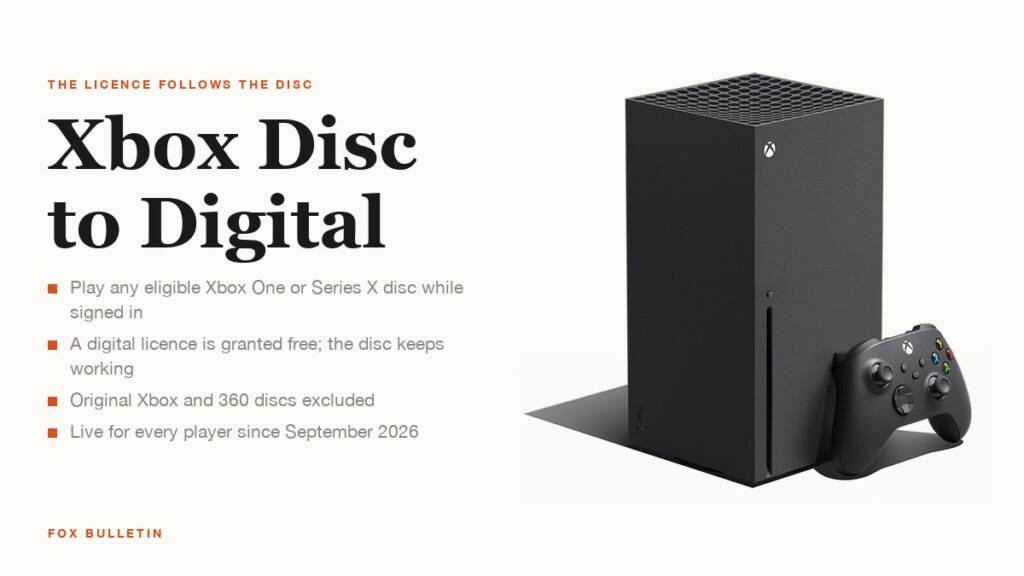
Xbox disc to digital is a licensing feature that gives you a digital copy of a game you own on disc. Play an eligible Xbox One or Xbox Series X disc on a console with a drive while signed in, and Microsoft attaches a digital license to your account, so the game runs without the disc and, for Play Anywhere titles, on PC and handhelds too.
Microsoft announced the feature on Xbox Wire on August 26, 2026, opened it to Xbox Insiders on August 31 and rolled it out to every console in late September. The licence is free, the disc keeps working, and the catch is that the licence follows the disc: sell it and the digital copy can be revoked. This guide covers how to claim, what qualifies and what each error message means.
| Xbox disc to digital | The rule |
|---|---|
| What you get | A digital license tied to the disc; play without the disc inserted |
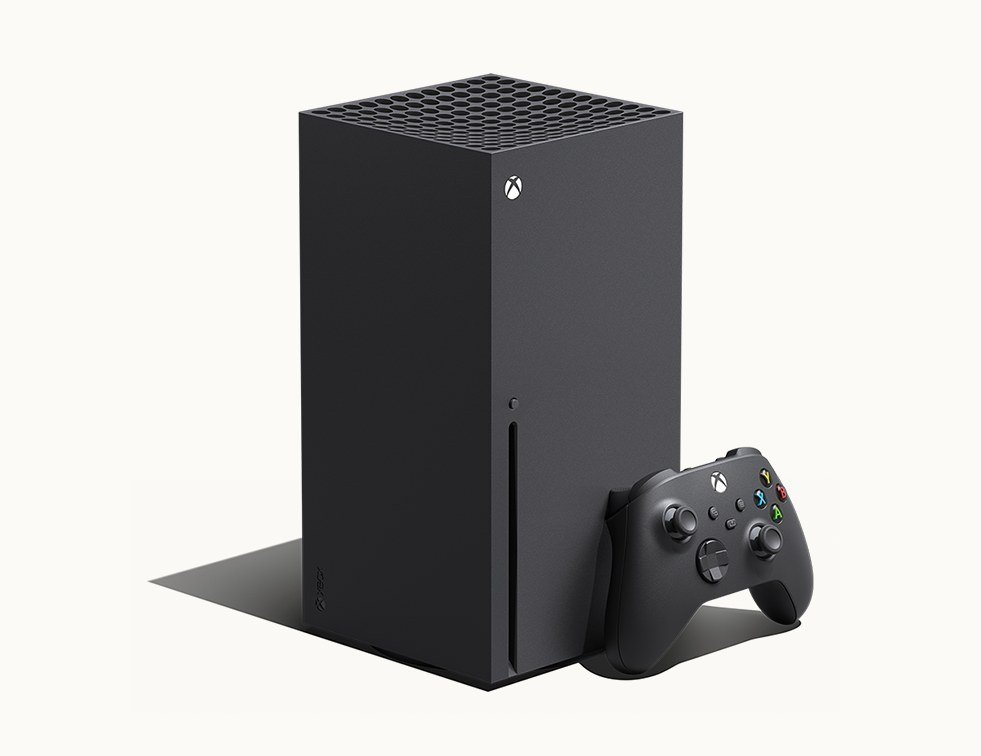
| Consoles that can claim | Any Xbox with an optical drive: Xbox One, One S, One X, Series X |
| Discs that qualify | Supported Xbox One and Xbox Series X discs; eligibility set per title |
| Discs excluded | Original Xbox and Xbox 360 discs, some older pressings, non-participating games |
| Where it then plays | Any Xbox, and on PC and handhelds if the game is Xbox Play Anywhere |
| Cost | Free |
| If you sell or lend the disc | Access to the license may be limited or revoked until you have the disc again |
| Launched | Xbox Insiders from August 31, 2026; all players from late September 2026 |
What Xbox Disc to Digital Actually Does
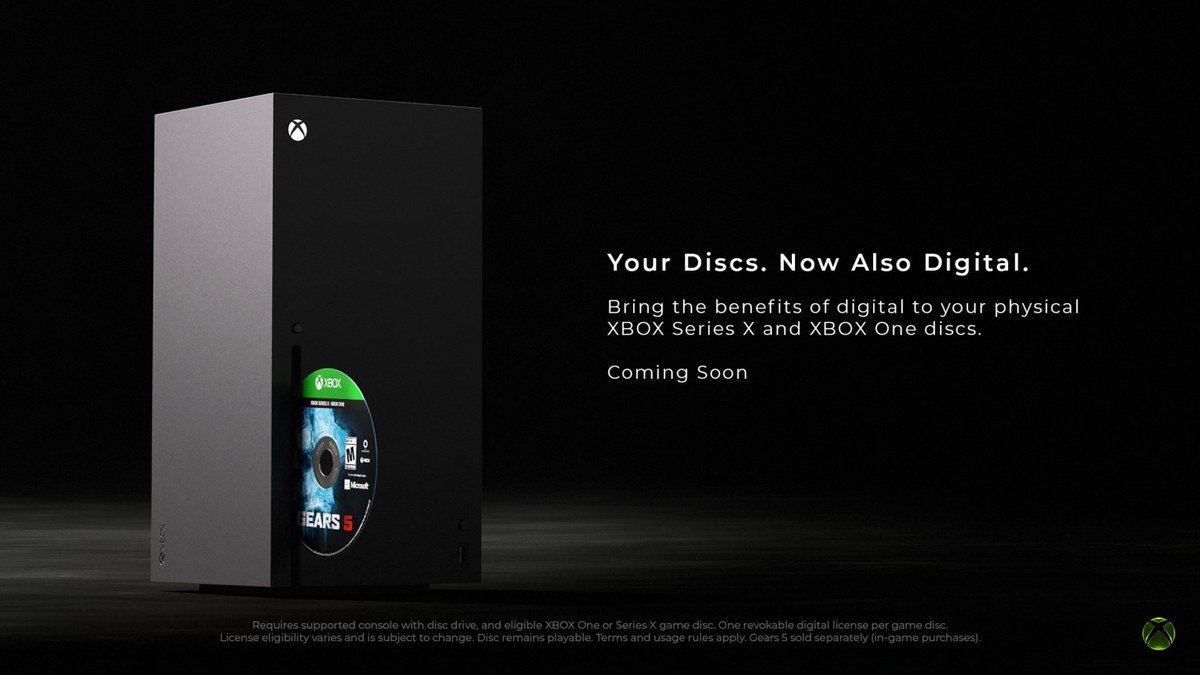
Microsoft’s wording on its support page is careful. When you use an eligible disc, it “may grant a digital license associated with that disc”. That licence lets you “access supported digital versions of the game without keeping the disc inserted while playing”. It is not a conversion: the disc is unchanged and continues to work on its own.
Jason Ronald, Microsoft’s VP of Next Generation, framed the feature on Xbox Wire as part of game preservation, writing that the goal is “to make it easier for those libraries to move forward with players”. The announcement said the feature launched with thousands of titles and that more would be added over time.
The practical gains are the ones digital owners already have: no disc swapping, a library that installs on a second console under the same account, Quick Resume without a drive spin-up, and access to cloud streaming and the PC version where the title supports those.
How to Claim a Disc to Digital Licence
For a single game the process is automatic. Microsoft’s instruction is one sentence: simply playing any supported Xbox One or Xbox Series X game disc while signed in grants the digital licence, and a confirmation appears on screen. If no confirmation shows, the disc is either unsupported or you already hold the licence.
- Sign in to the Xbox profile that should own the licence. The licence attaches to the signed-in account, not to the console.
- Insert the disc and launch the game. Wait for the “digital licence” notification.
- To confirm, press the Xbox button, go to My Games & Apps, then See all, then Full library and All games. Licensed titles carry a disc to digital badge.
- Eject the disc and launch the game again from the library. It should start without asking for the disc.
Claiming a shelf of games one by one is slow because autoplay installs each disc. Microsoft publishes a bulk method for that:
- Press the Xbox button, open Profile & system, then Settings.
- Go to Devices & connections, then Disc, and untick Play disc automatically.
- Return to Home and insert a disc. Highlight its box art, press the Menu button and choose Get digital license.
- Select Claim and wait for the notification, then eject and insert the next disc.
- Re-enable Play disc automatically when you are done if you prefer the old behaviour.
Which Discs Qualify and Which Do Not
Only Xbox One and Xbox Series X discs are in scope. Original Xbox and Xbox 360 discs are explicitly unsupported, even though many of those games run on current consoles through backward compatibility. Within the supported generations, Microsoft says eligibility “varies due to technical, licensing, publishing, manufacturing, and other factors” and can change over time.
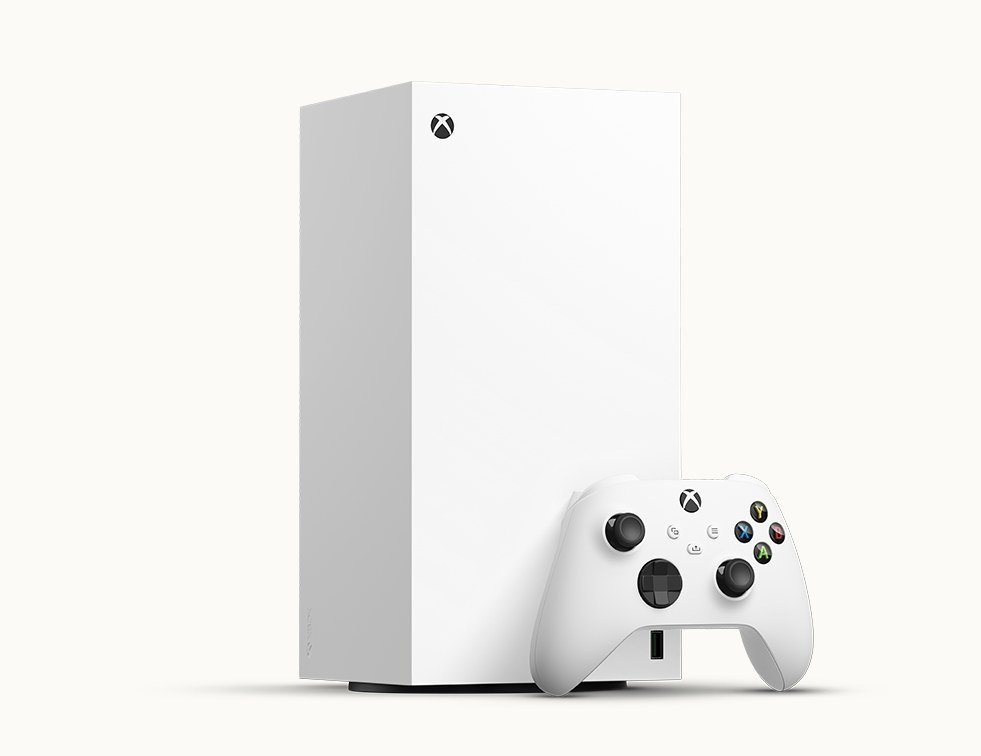
The console matters as much as the disc. Any Xbox with an optical drive can claim a licence, including an Xbox One claiming a licence for a Series X disc. An Xbox Series S or the All-Digital Series X has no drive and cannot claim, although it can play a licence claimed elsewhere on the same account.
- Multi-disc sets: always use disc one; the other discs cannot claim
- Ultimate and deluxe editions: content installed from the disc may be included, but add-ons redeemed with a separate code are governed by that code and may not be
- Peripherals: a game that needs a peripheral still needs it with the digital licence
- Older pressings: some discs lack the identifier the feature needs and are refused
What Happens If You Sell or Lend the Disc
This is the rule that separates disc to digital from a normal digital purchase. The licence is “associated with the qualifying game disc”, and Microsoft says that if you “lose, sell, give away, or otherwise no longer possess a qualifying disc, access to associated disc to digital licenses may be limited or revoked”.
In practice one disc carries one live licence. Lend the disc to a friend who claims it on their account, and your installed copy may show “Digital license unavailable” at launch. Get the disc back, insert it and claim again, and the licence returns. If the disc is gone for good, the only route is buying the game digitally from the Microsoft Store.
You can see which licences you have lost from Settings, then General, Personalization and Games & apps, under the entry labelled “View games you no longer have access to through disc to digital licensing”. The broader terms are Microsoft’s usage rules for digital goods, which also govern ordinary store purchases.
Playing Claimed Games on PC, Series S and the Cloud
A claimed licence behaves like a purchase for the rest of the ecosystem. If the game is part of Xbox Play Anywhere, the Xbox app on PC and Windows handhelds lists it in My Library with the disc to digital badge, and you can install the Windows version at no cost. Titles without the badge stay console-only.
Cloud streaming works the same way: where the title is in the Xbox Cloud Gaming catalogue, a claimed licence qualifies, which is useful for playing an old disc game on a phone or a TV without the console in the room.
For households with a disc console and a Series S, claim everything on the drive console and the Series S inherits the library under the same account. It is the cheapest way to make a digital-only console useful with a shelf of physical games, and it changes the maths in our comparison of the best gaming consoles.
Error Messages and What They Mean
Microsoft documents four messages. Each points to a different cause, so the fix differs.
- “This disc doesn’t support a digital license”: that specific disc cannot be claimed, because it is damaged, the content is no longer available, or the pressing lacks the needed identifier
- “We couldn’t give you a digital license”: a temporary refusal; Microsoft says to try again later as more discs are enabled
- “Disc license unavailable”: the game is not participating in the programme at all
- “Digital license unavailable” on launch: the licence was revoked, usually because the disc was claimed by someone else; reinsert the disc to claim it back
If you play a disc and simply see nothing, check that you are signed in first, then run the manual claim from the Home menu, which surfaces the specific error instead of failing silently.
Before You Claim a Shelf of Discs
A few minutes of preparation avoids the two common mistakes. Decide which account should own the licences, because they cannot be moved between profiles later without the disc. Then install the latest console update, since the feature arrived through system software rather than a store download.
- Sign in to the owning profile and set it as the home console if several people share the machine
- Turn off automatic disc play so each claim takes seconds instead of an install
- Keep a note of any disc that returns “doesn’t support a digital license”; eligibility can change later and the claim can be retried
- Store the discs rather than selling them, because the licence depends on possession
Frequently Asked Questions
Is Xbox disc to digital free?
Yes. Claiming a licence costs nothing and does not require Game Pass. The only requirements are an eligible disc, a console with a disc drive and a signed-in Xbox account.
Does the disc stop working after I claim a licence?
No. Microsoft states you can continue to play the disc after receiving the digital licence. The licence is an addition, not a trade-in.
Can I claim a licence on Xbox Series S?
Not directly, because the Series S has no optical drive. Claim on any Xbox with a drive and the licence is available on the Series S signed into the same account.
Do Xbox 360 and original Xbox discs work?
No. Disc to digital only covers supported Xbox One and Xbox Series X discs. Older generations are excluded even where the game is backward compatible.
Related Articles

Get the Fox Bulletin briefing
The stories that matter, in your inbox. No spam, unsubscribe anytime.
Newsletter signup will be available soon.
Related stories
Fortnite Festival: Modes, Music Pass and What Epic Cut
What Fortnite Festival is on 5 November 2026: Main Stage and Jam Stage, the removed Battle Stage, how songs are kept, and what the Music Pass costs.
LEGO Fortnite Modes: Odyssey, Brick Life and Islands
LEGO Fortnite is a hub of separate experiences. Here is what Odyssey, Brick Life and LEGO Islands do, how they differ, and which one to start with.
Fortnite Crew: What You Get and What You Keep If You Cancel
What Fortnite Crew includes at $11.99 a month on 5 November 2026, what Epic changes on 5 December 2026, and exactly what stays yours if you cancel.