

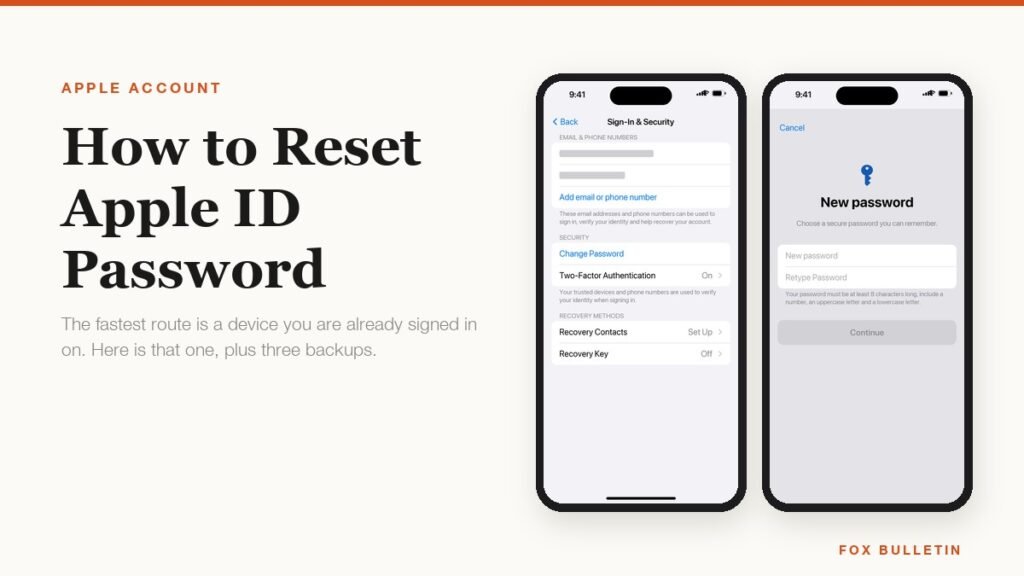
Apple ID is now called Apple Account, but the sign-in and the password are the same ones you have always used. Resetting that password is usually a one-minute job, and the thing that decides how long it takes is whether you are holding a device that is already signed in. If you are, the device itself is the proof of identity and you never have to answer a security question or wait for an email.
If you are not, the routes get progressively slower, ending with account recovery, which Apple deliberately makes take days. Work down the list in order and stop at the first one that applies to you, because starting account recovery when you did not need to will lock you out for longer than the problem you began with.
Reset it on an iPhone or iPad you are signed in on
This is the route Apple points to first, and the one that covers most people. It works because the device passcode already proves the account is yours, so the system lets you set a new password without checking anything else. You need the device to be signed in to iCloud and to have a passcode set.
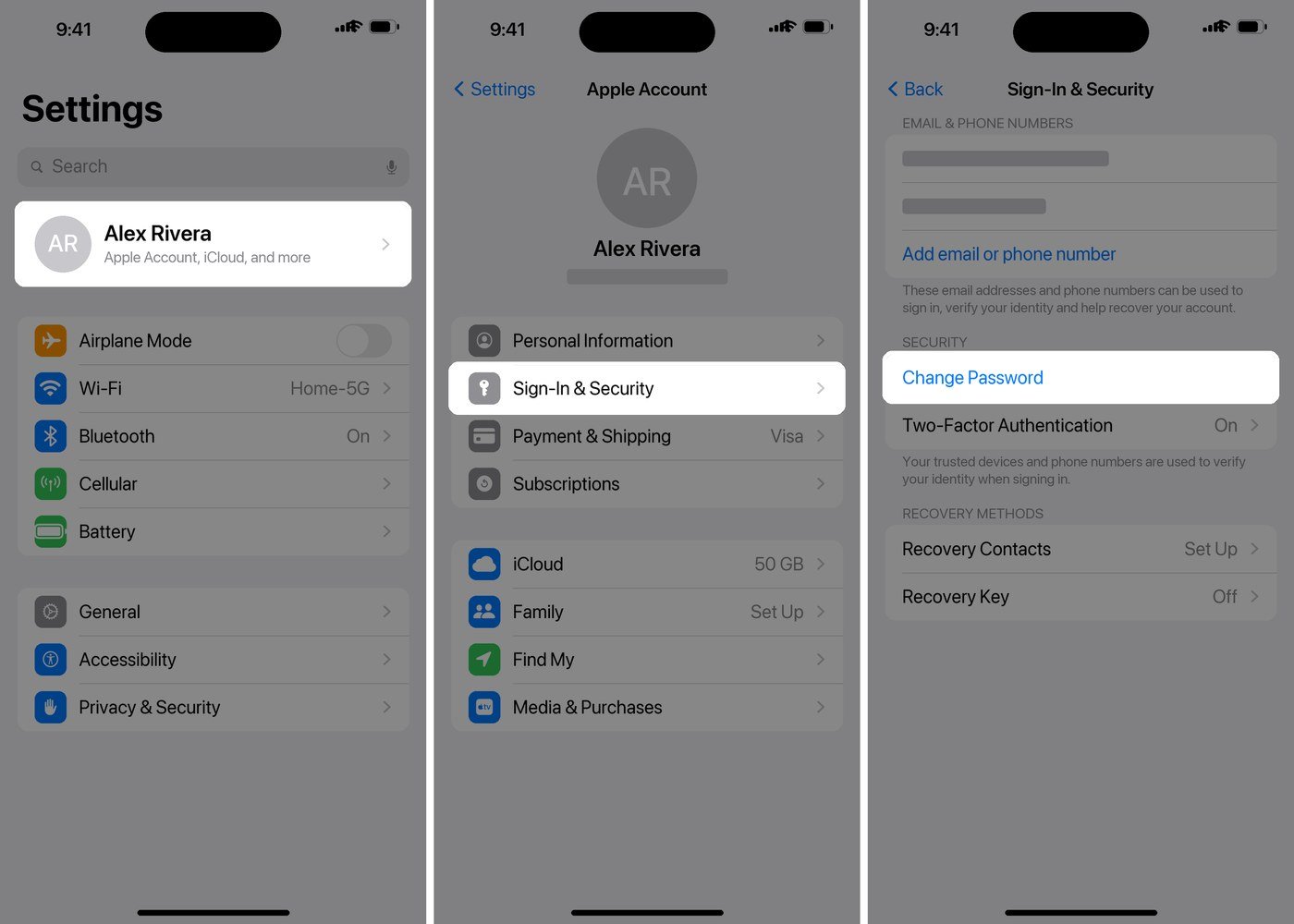
- Open the Settings app and tap your name at the top.
- Tap Sign-In & Security.
- Tap Change Password.
- Enter your device passcode when the sheet appears.
- Type the new password twice, then tap Continue.
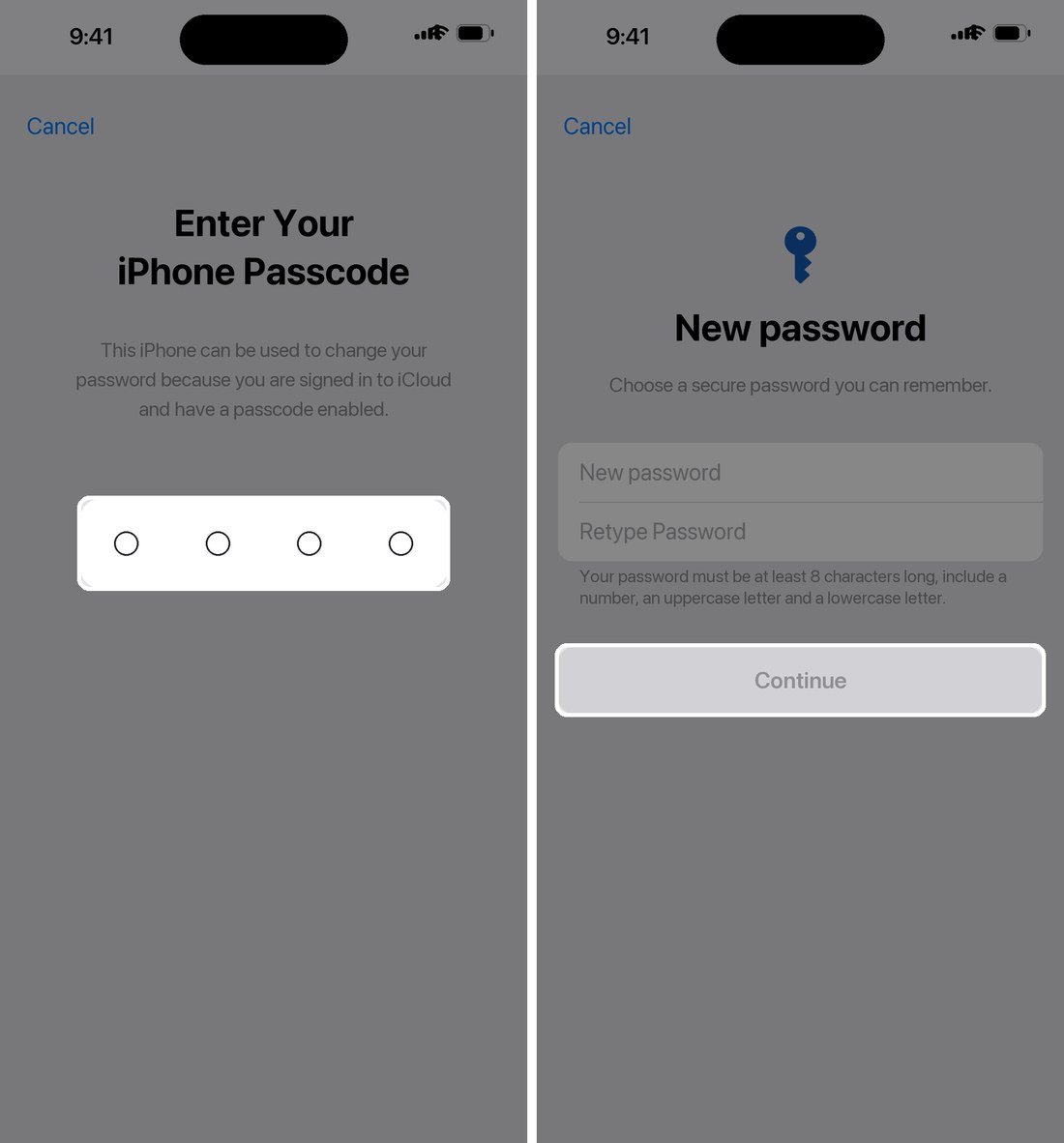
The password has to be at least eight characters with a number, an uppercase letter and a lowercase letter, and it cannot be one you have used before. Changing it signs you out nowhere immediately, but each of your other Apple devices will ask for the new password the next time it checks in, so expect a few prompts over the following hour.
If the Change Password screen makes you wait an hour before it will do anything, that is Stolen Device Protection rather than a fault. It adds a security delay to critical account changes when the phone is somewhere it does not recognise. Going home or to your workplace, where the phone knows the location, removes the delay.
Reset it on a Mac
The Mac route is the same idea with different furniture: your login password stands in for the device passcode. It is the better option if your iPhone is the device you are locked out of, since the two are independent.
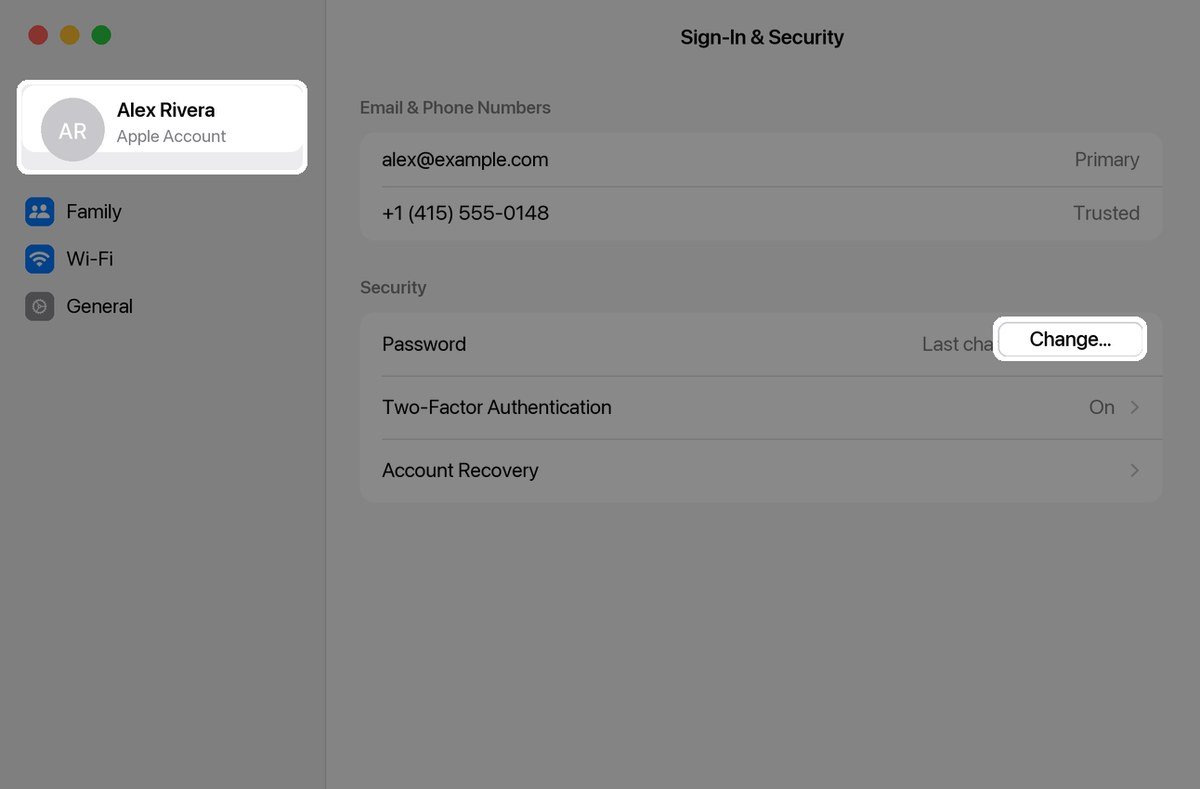
- Open the Apple menu and choose System Settings.
- Click your name at the top of the sidebar, then click Sign-In & Security.
- Click Change Password.
- Enter the password you use to unlock the Mac.
- Follow the prompts to set the new Apple Account password.
A detail worth knowing before you start: if you skipped signing in when you set the Mac up, there is no name in the sidebar to click. Click Sign in instead, then Forgot password, which drops you into the same flow from the other direction.
No device of your own? Borrow one
Apple built a route for exactly this. The Apple Support app on somebody else’s iPhone or iPad can reset your password without signing you in on their device, and nothing you type is stored on it. You need access to your trusted phone number so the verification code reaches you.
- Open the Apple Support app on the borrowed device, installing it from the App Store if it is not there.
- Scroll down to Support Tools, then tap Reset Password.
- Tap Help Someone Else.
- Enter your own Apple Account email address or phone number.
- Tap Continue and follow the prompts to set a new password.
This also works on a device in an Apple Store, which staff will hand you for the purpose. Apple’s password reset guide is explicit that the borrowed device keeps none of your information, so there is nothing to clean up afterwards.
Reset it on the web at iforgot.apple.com
The web form is the fallback when you have a browser and nothing else. It is slower on purpose, and it often redirects you to a trusted device anyway, because Apple would rather verify you that way. Use it on a borrowed laptop or a work machine where you cannot install anything.
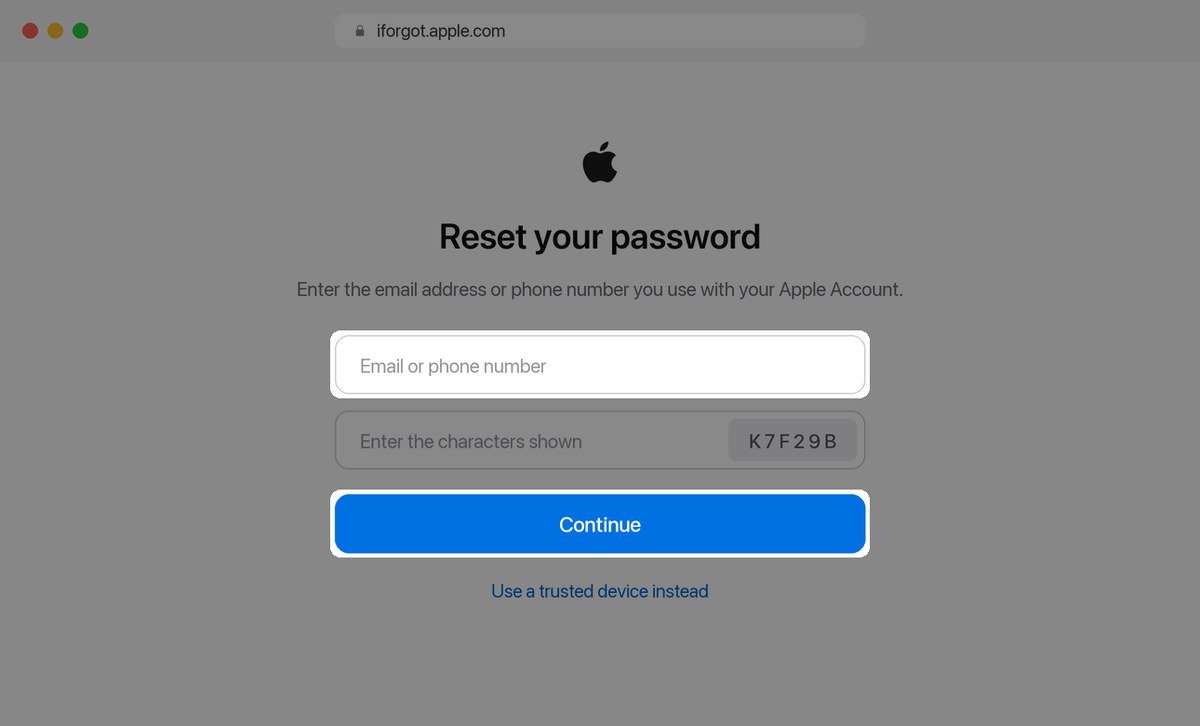
- Go to iforgot.apple.com in any browser.
- Enter the email address or phone number attached to your Apple Account.
- Type the characters shown in the image, then choose Continue.
- Pick how you want to verify: a code to your trusted number, or an approval on a trusted device.
- Enter the code and set your new password.
The number you enter has to be one already on the account. If you have changed phone numbers and never updated Apple, that verification code goes to a line you no longer own, and the web route stops being an option. Apple’s page on two-factor authentication explains how trusted numbers work and why keeping a second one on the account is worth the two minutes it takes.
Which route to use, and how long each takes
Put side by side, the four options are easy to rank. The only one with a real cost is the last.
| Route | How long | What you need | Best for |
|---|---|---|---|
| A device you are signed in on | About a minute | Device passcode | Almost everyone |
| Apple Support app on a borrowed device | 5 to 10 minutes | Your trusted phone number | No device of your own |
| iforgot.apple.com in a browser | 5 to 15 minutes | Trusted number or device | Borrowed computer |
| Account recovery | Several days or longer | Patience, no shortcuts | Everything else failed |
Account recovery is the one to avoid unless you have genuinely run out of options. Apple says in its account recovery guide that it can take several days or longer, that contacting support cannot speed it up, and that using any of your other Apple devices during the wait will cancel the request automatically. Before you start it, try every device in the house, ask a family member to lend you theirs for the Apple Support app route, and check whether you set up a recovery contact who can approve the reset for you.
- Set a recovery contact now, while you still have access; it turns a multi-day wait into a phone call.
- Keep a second trusted number on the account, ideally a partner’s or a work line.
- Store the new password in a password manager rather than a note, so the next reset never happens; our guide to password managers covers the ones with proper iOS and macOS integration.
- Write down your recovery key if you turned that feature on, because without it there is no account recovery at all.
After the reset, check what broke
Changing the account password does not sign you out of your devices, but it does invalidate anything using the old one. A few things reliably need attention in the hours afterwards, and knowing which saves you wondering whether the reset worked.
- Mail on third-party clients stops syncing until you generate a new app-specific password.
- Apple TV and HomePod ask you to sign in again, usually at the least convenient moment.
- Family Sharing purchases keep working, since they are tied to the account rather than the password.
- iCloud backups resume on their own once each device has the new password.
If you suspect the password was reset because somebody else had it, go further. In Settings under your name, scroll to the device list and remove anything you do not recognise, then check that the trusted phone numbers are all yours. Those two checks matter more than the password change itself, because a device already signed in stays signed in.
While you are in there, it is worth checking which devices are still attached to the account at all. An old iPad you sold, or a Mac that went back to work, should not be on the list. If one of them is a phone you have passed on, our walkthrough of iPhone recovery mode explains how a full restore clears it properly, and why Activation Lock keeps the device tied to you until you do.
Frequently Asked Questions
Is Apple ID the same as Apple Account?
Yes. Apple renamed Apple ID to Apple Account, and the email address, phone number and password all carry over unchanged. Older menus and third-party apps still say Apple ID, which is why both names are in use.
Can I reset my Apple Account password without the trusted phone number?
Only from a device you are already signed in on, where the device passcode does the verifying. Without that and without the number, account recovery is the remaining option, and it takes days. A recovery contact set up in advance avoids this entirely.
Why is my iPhone making me wait an hour to change my password?
That is Stolen Device Protection. When the phone is away from a familiar location it adds a security delay to account changes so a thief who watched you type your passcode cannot lock you out. Changing the password at home or at work skips the delay.
Will resetting my Apple Account password delete anything?
No. Your photos, backups, purchases and subscriptions are untouched. The only thing that stops working is any app-specific password you created for a third-party mail client, which you regenerate from the account security settings.
Related Articles

Get the Fox Bulletin briefing
The stories that matter, in your inbox. No spam, unsubscribe anytime.
Newsletter signup will be available soon.
Related stories
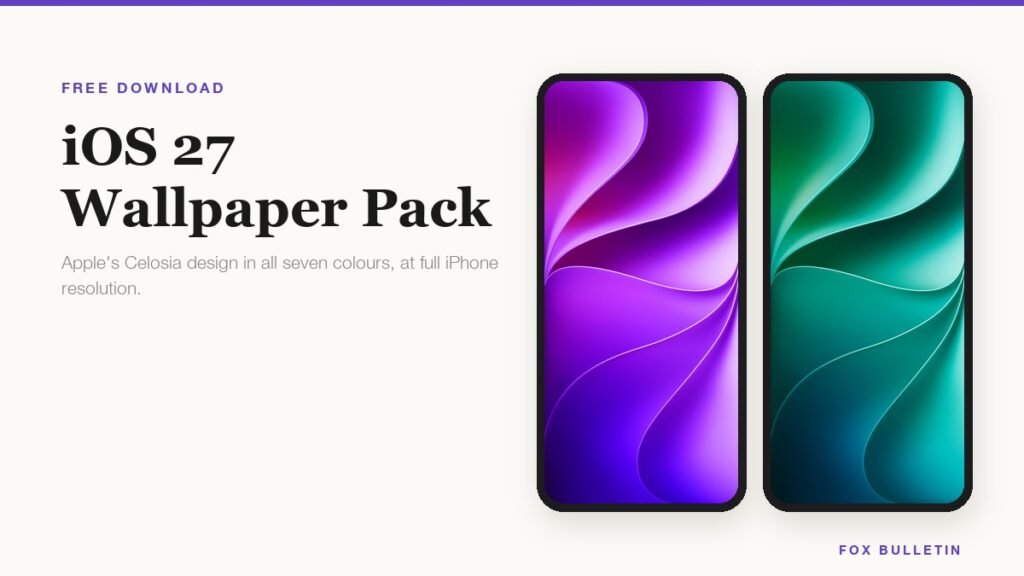
iOS 27 Wallpaper: Download All 7 Celosia Colours
Apple drew one wallpaper for iOS 27 and shipped it in seven colourways. Here is each one at full resolution, shown on an iPhone so you can see where the fold falls before you download it.
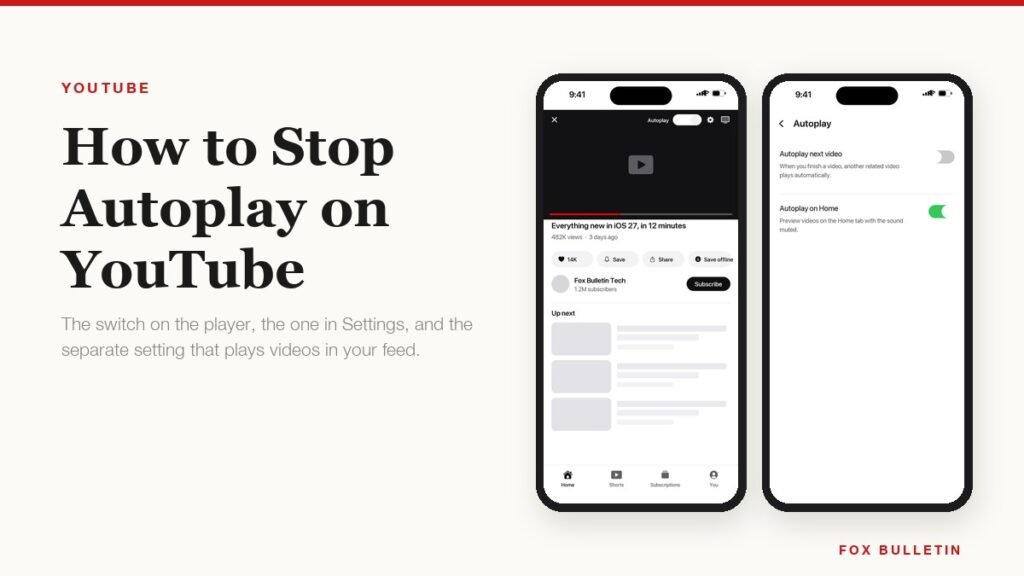
How to Stop Autoplay on YouTube on Every Device
Autoplay is set per device, so switching it off on your phone leaves it running on the laptop. There is also a second setting, Playback in feeds, that most people miss entirely.
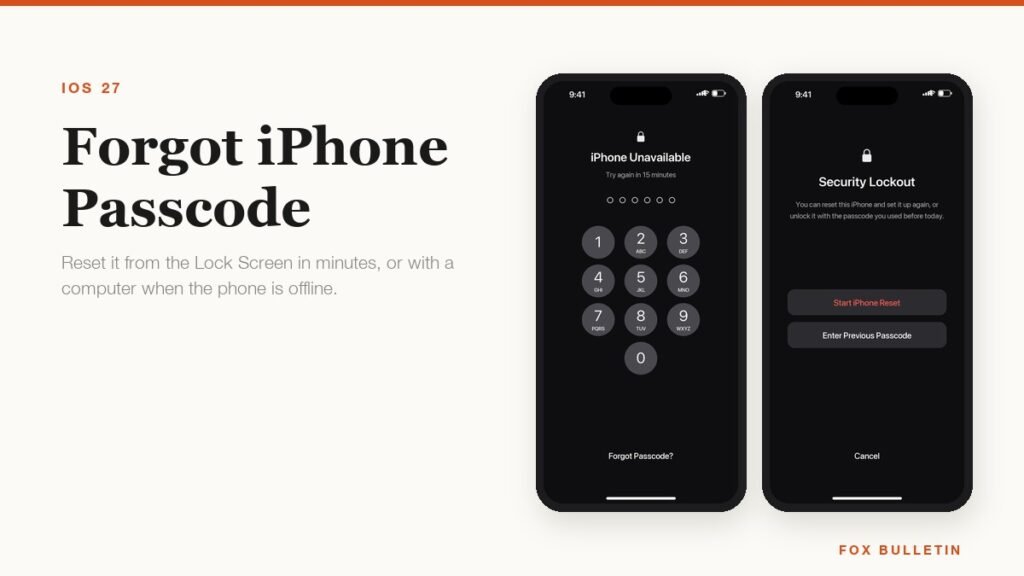
Forgot iPhone Passcode? Here Is How to Get Back In
If you changed the passcode in the last 72 hours, the old one still works and nothing is lost. After that the only way in erases the phone, which is exactly what the lock is for.