

How to fix slow internet starts with finding its one weak link: the device, the Wi-Fi hop, the router and modem, or the line from your provider. A speed test over an Ethernet cable, run twice on one computer, shows which link to fix first, and the check takes about 20 minutes in 2026.
This guide is for a connection that works but crawls. If a device will not join the network at all, start with our WiFi not working fixes instead.
How to Fix Slow Internet in Short: Wired Test, Then Wi-Fi, Then the Line
Plug one computer into the router with Ethernet and run a speed test twice. If the wired result is close to your plan, the fault is Wi-Fi, so change the band, the channel or the router position. If the wired result is also low, restart the modem, stop background downloads, check the cable and modem, and compare an evening run with a daytime one.
- Time: 20 minutes for the tests, plus one run between 7pm and 11pm.
- A computer with an Ethernet port or adapter, and a cable rated Category 5 or better.
- Your router’s login, reached through a web browser, and your plan speed from the bill.
Symptom Table: What Each Speed Result Points To
Run the tests in the next section, then match your result to a row.
| What you see | Likely cause | First fix |
|---|---|---|
| Wired matches the plan, Wi-Fi is far lower | The wireless hop: band, distance, channel | Move closer, try 5 GHz, change the channel |
| Wired and Wi-Fi are both far below the plan on every device | Modem, line or provider | Restart the modem, test off-peak, check modem age |
| Fast by day, slow from 7pm to 11pm | Evening congestion, in the home or on the provider side | Compare timed runs, pause background traffic |
| Only one device is slow | That device’s adapter, software or malware | Test a second device on the same network |
| Speed test looks fine but calls stutter or games lag | Latency, jitter or buffering in the router | Turn on QoS, wire the device |
| Wired tops out far below a gigabit plan | Cable, port or modem limit | Check cable category, port speed and modem generation |
How to Test Slow Internet Honestly
A Wi-Fi speed test mixes the line, the router and the radio link into one number. A wired test removes the radio link. Netflix’s fast.com works in any browser.
Method 1: The wired baseline
- Step 1. Pause every download, cloud backup and stream on every device. On a Mac, open Activity Monitor, click Network and check that Data received/sec sits near zero.
- Step 2. Connect one computer to the router with the Ethernet cable and turn Wi-Fi off on that computer.
- Step 3. Run a speed test and write down download, upload and latency.
- Step 4. Run it a second time and write down the result.
You will know it worked when two runs land within a few Mbps of each other. Speed tests report megabits per second, so divide by 8 for file sizes: a 100 Mbps line moves at most 12.5 megabytes per second.
Method 2: Wi-Fi in the problem room, then at peak
- Step 1. Unplug the cable and join Wi-Fi on the same computer, standing in the same room as the router.
- Step 2. Run two tests and record them.
- Step 3. Carry the computer to the room where the slowdown happens and run two more.
- Step 4. Repeat the wired and Wi-Fi tests between 7pm and 11pm, the window the FCC’s Measuring Broadband America study counts as peak, according to Comcast.
You will know it worked when you hold four numbers: wired by day, wired at peak, Wi-Fi near the router and Wi-Fi in the problem room. Microsoft advises recording a baseline like this before changing anything.
Plan Speed Against Delivered Speed
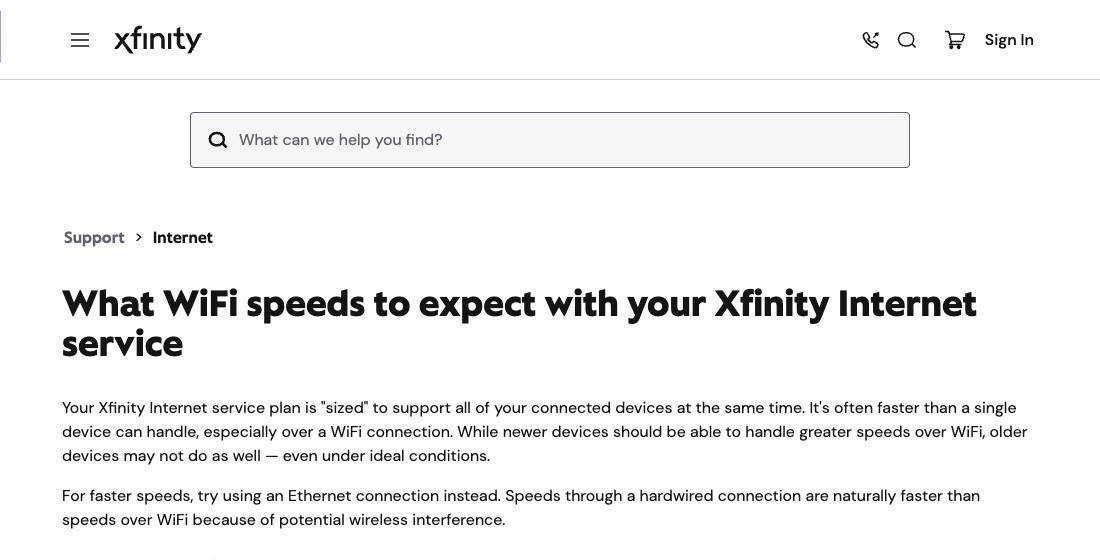
Providers sell speed as “up to” a figure. Comcast states that “Actual speeds vary and are not guaranteed”, and Xfinity adds that a plan is sized for all your devices at once, so a single device often cannot use all of it, especially over Wi-Fi.
Compare three numbers: the plan, your best wired result and your Wi-Fi result in the problem room. Plan minus wired is the line, modem and provider. Wired minus Wi-Fi is the wireless hop. Comcast cites FCC testing in which its service averaged over 100 percent of advertised speed in the weekday 7pm to 11pm window.
Bandwidth, Latency and Jitter: What Streaming, Calls and Games Need
Speed is three measurements, and each activity cares about a different one:
- Bandwidth is how much data moves per second. Tests measure the maximum throughput of a link, and protocol overhead means real transfers run lower.
- Latency is the delay in milliseconds. Distance and the quality of the networks on the path drive it, and a lag under about 100 ms is generally needed for online games to be playable.
- Jitter is the variation in that delay. Microsoft Teams ties static, cut-out calls and robotic voices to jitter or packet loss.
Streaming is a bandwidth job: Netflix recommends 3 Mbps for 720p, 5 Mbps for 1080p and 15 Mbps for 4K. Calls need little bandwidth but steady delay: Zoom asks for 3.8 Mbps up and 3.0 Mbps down for a 1080p group call. Fast-paced games need low latency far more than bandwidth, and cloud play such as GeForce NOW needs both.
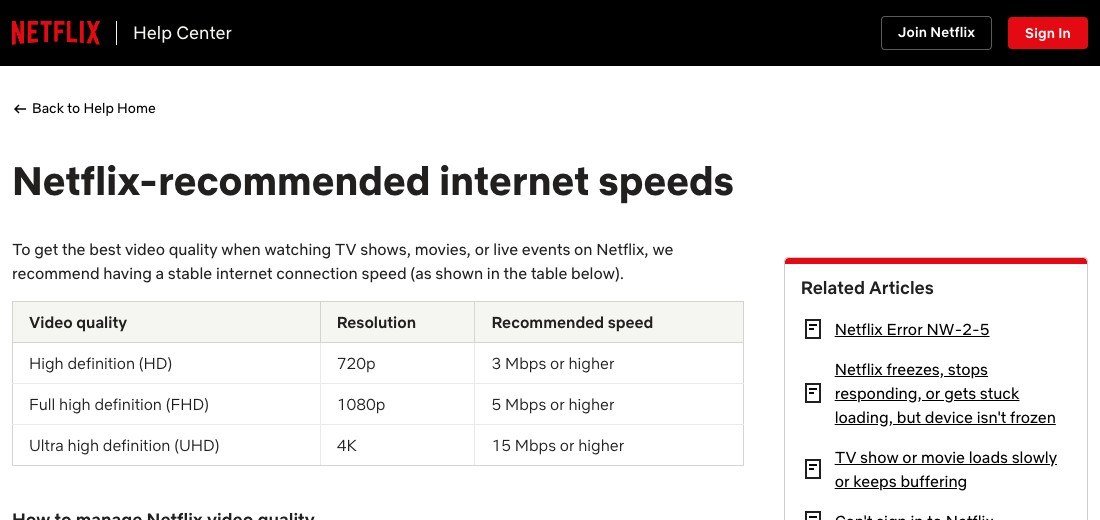
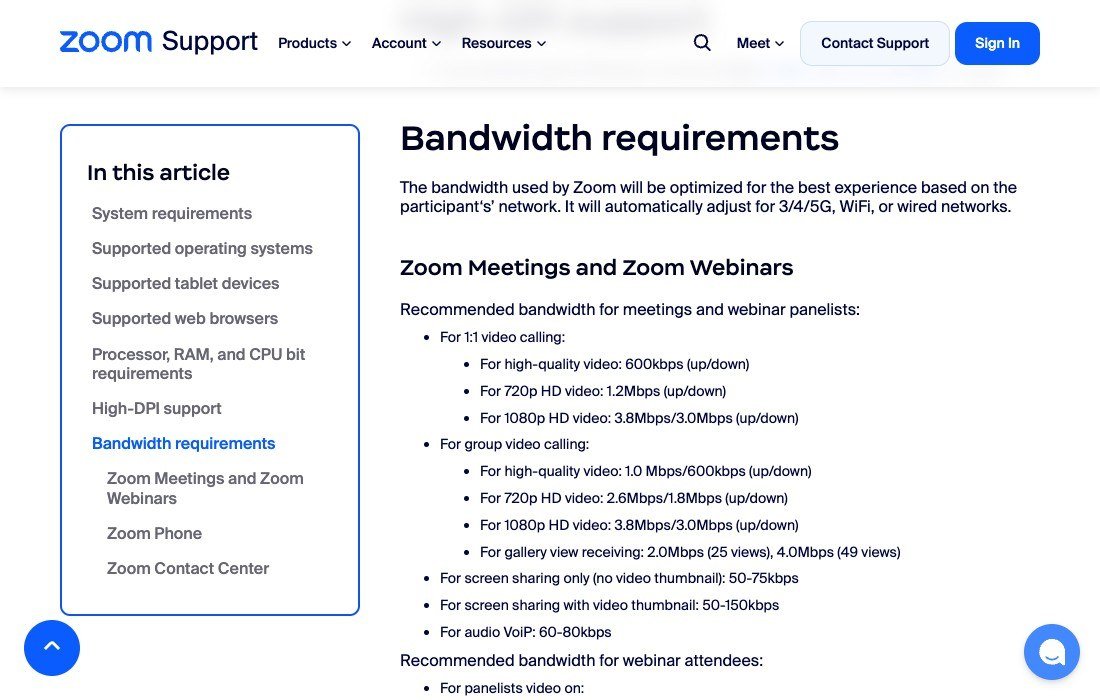
Add it up for one evening: a 4K stream (15 Mbps), a 1080p stream (5 Mbps) and a 1080p Zoom call (3.0 Mbps down) need about 23 Mbps down and 3.8 Mbps up at once.
Fix Slow Wi-Fi: Band, Distance and Router Placement
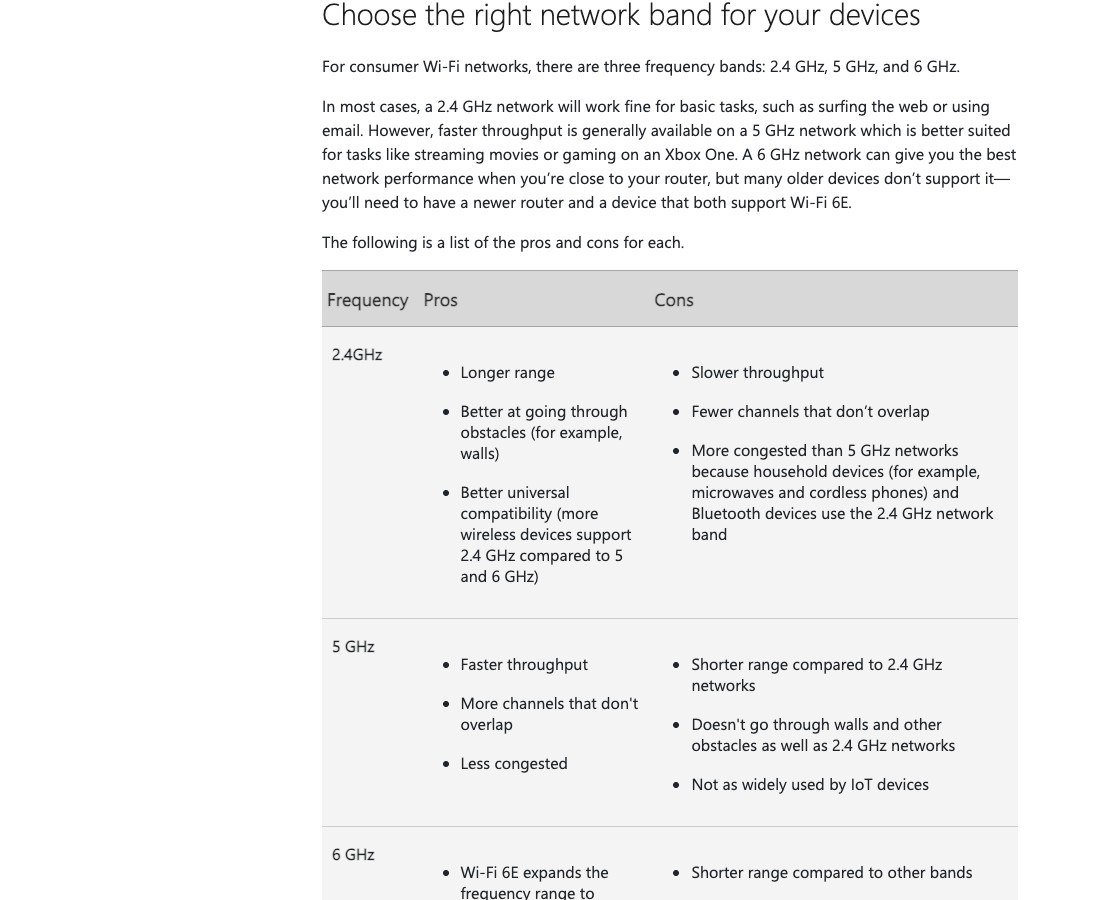
Consumer Wi-Fi uses three bands. 2.4 GHz reaches farthest and passes walls best but is slowest and most crowded. 5 GHz is faster with a shorter reach. 6 GHz is fastest close to the router, weakest through walls and needs Wi-Fi 6E hardware.
Method 3: Move to the right band and the right spot
- Step 1. On Windows 11, open Settings > Network & internet > Wi-Fi > your network properties and read the value beside Network band (channel).
- Step 2. If it says 2.4 GHz and your router offers 5 or 6 GHz, join that band in the problem room and retest. If the router shows one name for every band, give each band its own name while you test.
- Step 3. Move the router to the middle of the home and as high as you can, out of corners and away from metal filing cabinets.
- Step 4. Keep 2.4 GHz cordless phones away from the router and laptop, since Microsoft warns one can block the connection.
- Step 5. If the router cannot move, add a plug-in extender, or a mesh system wired back to the router with Ethernet.
You will know it worked when the Wi-Fi result in the problem room climbs toward the wired result. Comcast notes that extenders help most when they connect back by Ethernet.
Channel Congestion: Setting the Router Up Properly
Many routers keep a factory channel and share a lane with neighbours. Apple’s router guidance sets channel to Auto, 2.4 GHz width to 20 MHz and 5 and 6 GHz width to Auto, because wider channels pick up more interference.
- Step 1. Sign in to the router through a browser.
- Step 2. Set the channel to Auto, or on 2.4 GHz pick 1, 6 or 11, which do not overlap.
- Step 3. Set 2.4 GHz channel width to 20 MHz and leave 5 and 6 GHz on Auto.
- Step 4. Turn on automatic firmware updates and confirm WMM is enabled.
- Step 5. On a Mac, hold Option, click the Wi-Fi icon and choose Open Wireless Diagnostics to get a report on the connection.
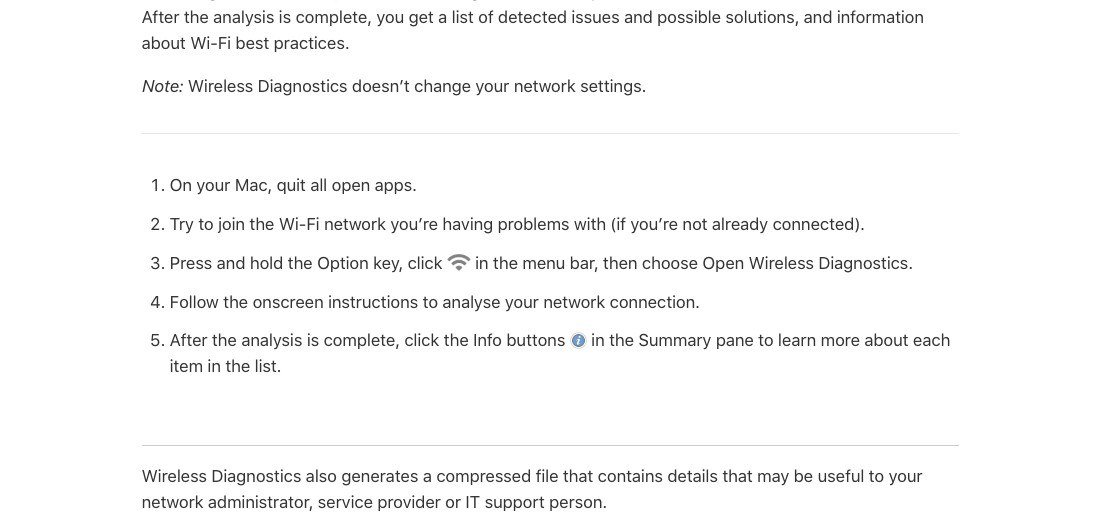
You will know it worked when Wireless Diagnostics lists no Wi-Fi issues and the in-room test is steadier across runs.
Devices and Background Tasks Eating the Line
If wired and Wi-Fi are both fine but one device crawls, the device is the problem. Test a second device on the same Wi-Fi first. Microsoft lists spyware, viruses, browser add-ons, low memory and too many running programs as common causes, and some viruses send hundreds of messages a minute.
- On a Mac, open Activity Monitor and click Network to see Data received/sec and Data sent/sec.
- End processes that use heavy bandwidth, such as cloud backups and game downloads.
- On Windows, run netsh wlan show drivers: 802.11ax under Radio types supported is Wi-Fi 6 or 6E, and 802.11be is Wi-Fi 7.
- Run an antivirus scan if the slowdown follows one machine.
You will know it worked when the same device reaches the speed of its neighbours on the same band.
Cables, Ports and Modems That Cap Your Speed
Gigabit Ethernet over twisted pair needs Category 5 cable or better and runs up to 100 meters per segment. An old cable or a 100 Mbps port caps a gigabit plan no matter what the router can do, so swap the cable and try another router port before you blame the provider.
Modems age too. Comcast says early DOCSIS 3.0 and DOCSIS 2.0 modems cannot handle higher speed tiers and that modem performance may degrade over time. DOCSIS 3.1 supports up to 10 Gbit/s down. A plan above 1 Gbps also needs a 2.5 Gbit/s port, a standard that runs over Cat 5e up to 100 meters.
QoS and Buffering: When a Fast Line Still Stutters
Quality of service gives some traffic priority, such as calls over a background download. Teams guidance recommends it for call quality, and Apple says WMM, the Wi-Fi version of the idea, should stay enabled. The usual hidden cause is bufferbloat, where a router queues too many packets and delay climbs while the line is busy.
- Step 1. On Windows, run ping /t followed by your router address to keep pings going until you press Ctrl+C.
- Step 2. Start a large download on another device for a few seconds, then stop it.
- Step 3. Watch the round-trip times. If they jump while the download runs, the buffer is bloated, as the bufferbloat test describes.
You will know it worked when you enable QoS or smart queue settings on the router and the round-trip times stay close to idle.
When Slow Internet Needs a Plan or Hardware Upgrade
These results point to a purchase or a call to the provider:
- Wired matches the plan, but the plan is below your evening total of about 23 Mbps. Upgrade the plan.
- Wired is far below the plan at every hour after a new cable and port. Replace an early DOCSIS 3.0 modem or contact the provider with your four numbers.
- Wired is fine but Wi-Fi stays poor after moving the router and changing bands. Add a wired mesh node or replace the router.
- The router is old. Wi-Fi 4 tops out at 600 Mbit/s on paper and Wi-Fi 6 at 9,608.
See Wi-Fi 6 vs Wi-Fi 7 before buying. Windows 11 supports Wi-Fi 7 from version 24H2, but both the router and the PC adapter must support it.
Common Mistakes When Fixing Slow Internet
- Testing over Wi-Fi first. It hides which link is at fault. Always start wired.
- Changing several settings at once. Change one thing, then retest against your baseline.
- Buying a faster plan for a Wi-Fi problem. A single device often cannot use the whole plan over Wi-Fi.
- Stopping at a restart. It makes a fresh connection to the provider but will not fix an old modem or a crowded channel.
Frequently Asked Questions
How do I increase my internet speed?
Start with a wired test to find the weak link. Then move the router to a central, raised spot, use 5 or 6 GHz near it, set the channel width correctly and close background downloads.
Why is my WiFi so slow when Ethernet is fast?
The radio link is the bottleneck. Distance, walls, a crowded channel or the 2.4 GHz band can cut speed, and Comcast notes Wi-Fi fluctuates with interference and congestion.
How many Mbps do I need?
Add up your simultaneous activities: 15 Mbps per 4K stream from Netflix, 5 per 1080p stream and about 3 down per 1080p Zoom call. Leave headroom for background traffic.
Related Articles

Get the Fox Bulletin briefing
The stories that matter, in your inbox. No spam, unsubscribe anytime.
Newsletter signup will be available soon.
Related stories
Windows Update Troubleshooter: Run It, Then Fix the Rest
Where the Windows Update troubleshooter lives on Windows 11 and Windows 10, how to run it, what it cannot fix, and the manual repairs in order: disk space, pause and resume, services and folders, DISM, sfc, stuck updates, restart loops and error codes.

Best Ad Blockers for iPhone and iPad: 10 Top Picks
Ten Safari content blockers for iPhone and iPad ranked on price, App Store rating and how recently they shipped, with what none of them can reach.

Best iPhone Camera Settings for Photos in iOS 27
Every iPhone camera setting that changes how a photo turns out in iOS 27, with the exact menu path and what to set it to.