

A no internet connection warning beside full Wi-Fi bars means your device reached the router, but the router could not pass traffic to the internet, or the device never received usable settings from it. In 2026 the cause is usually in one of five places: the device, the router, the modem and its line, your provider, or DNS.
This guide works outward from the device in 10 to 30 minutes, with menu paths for Windows, Mac, iPhone and Android. If the network will not join at all, start with our Wi-Fi not working guide instead.
What Does No Internet Connection Mean When Wi-Fi Is Connected?
It means your device joined the router’s network, but a check packet sent to the wider internet got no answer. A second device and a ping test show whether the break is your device, the router, the modem, the provider or DNS.
Each platform words the warning differently:
- Windows: the Wi-Fi flyout shows “No Internet” under the network name, and Windows 11 labels secured networks “No internet, secured”.
- iPhone: “No Internet Connection” appears under the network name in Settings > Wi-Fi.
- Mac: in System Settings > Network, a yellow dot with “Self-assigned IP” means no address came from the router, and a red dot means not connected.
- Android: the Wi-Fi icon carries an exclamation point.
Windows decides this with a probe: it resolves www.msftconnecttest.com, requests connecttest.txt over plain HTTP and expects “Microsoft Connect Test”. Microsoft notes a failed probe does not always mean the internet is down, so confirm with a real site first.
Symptom Table: Match What You See to the Likely Break
| What you see | What it usually means | Where to look |
|---|---|---|
| Every device on the network fails | Modem, cable line or provider | Steps 2 and 3 |
| Only one device fails | That device: address, DNS, VPN or proxy | Step 4, then the DNS section |
| IP address starts with 169.254 | The router never answered the address request | The self-assigned address section |
| Gateway replies, 8.8.8.8 does not | Router WAN port, modem or provider | Steps 2 and 3 |
| 8.8.8.8 replies, site names fail | DNS | The DNS section |
| Public Wi-Fi, no sign-in page | Captive portal not completed | The captive portal section |
| Wired, port light off or amber | Cable, port or negotiated speed | The Ethernet section |
Step 1: Test a Second Device and Mobile Data
- Open any website on a second phone or laptop joined to the same Wi-Fi.
- On your own phone, switch Wi-Fi off and load the same site over mobile data.
- If you can, load a site on your own device on another Wi-Fi network.
You will know it worked when the results sort the fault. If every device on the network fails, the router, modem or provider is down. If only your device fails while others load pages, the fault is in your device’s address, DNS, VPN or proxy settings. Google’s Pixel guidance draws the same three-way line between phone, network and internet connection.
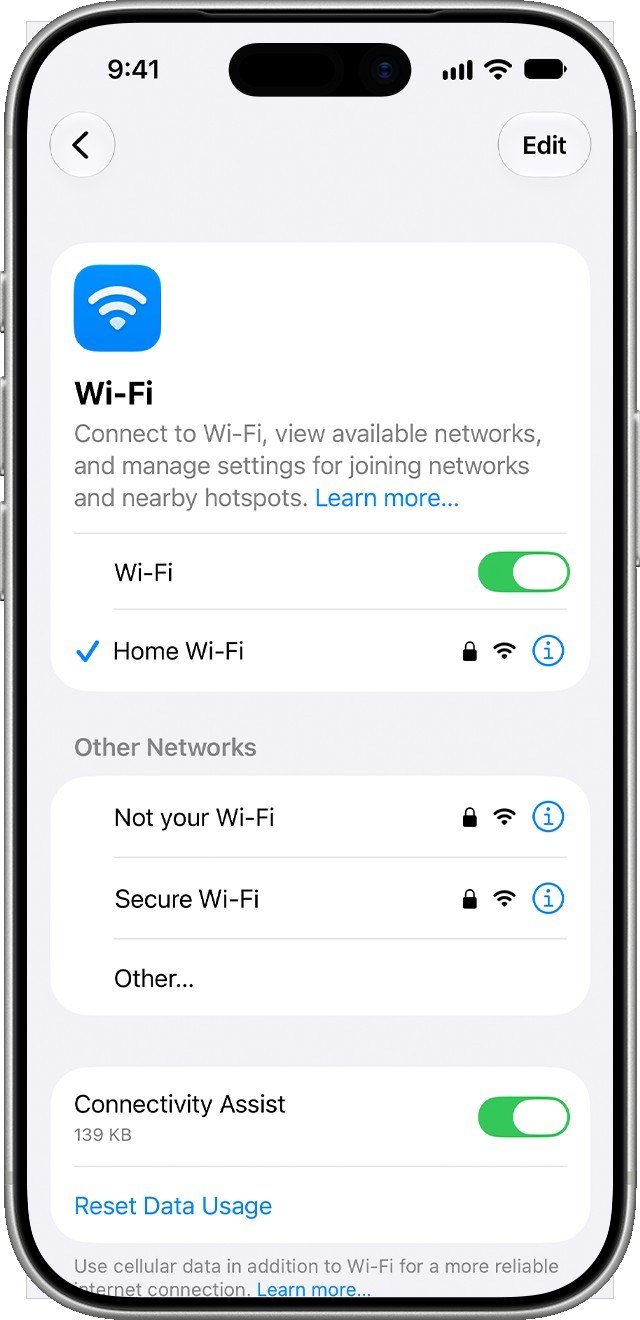
On an iPhone, Settings > Wi-Fi ticks the joined network, and the info button beside it opens the IP details used in Step 4.
Step 2: Read the Modem Lights and the WAN Link
The WAN link is the line from your provider into the modem. A modem has to scan for channels, lock them and register with the provider before it passes any traffic, and its lights report each stage. On a NETGEAR CM1000v2 cable modem, the manual defines them like this:
- Downstream and Upstream: blinking green means still scanning, solid amber means one channel is locked, solid green means two or more are locked, and off means none.
- Online: solid green means the modem is online, blinking green means it is synchronising with the provider’s termination system, and off means offline.
- Ethernet: green is a 1000 Mbps device, amber is 10 or 100 Mbps, off is nothing connected, and blinking is traffic.
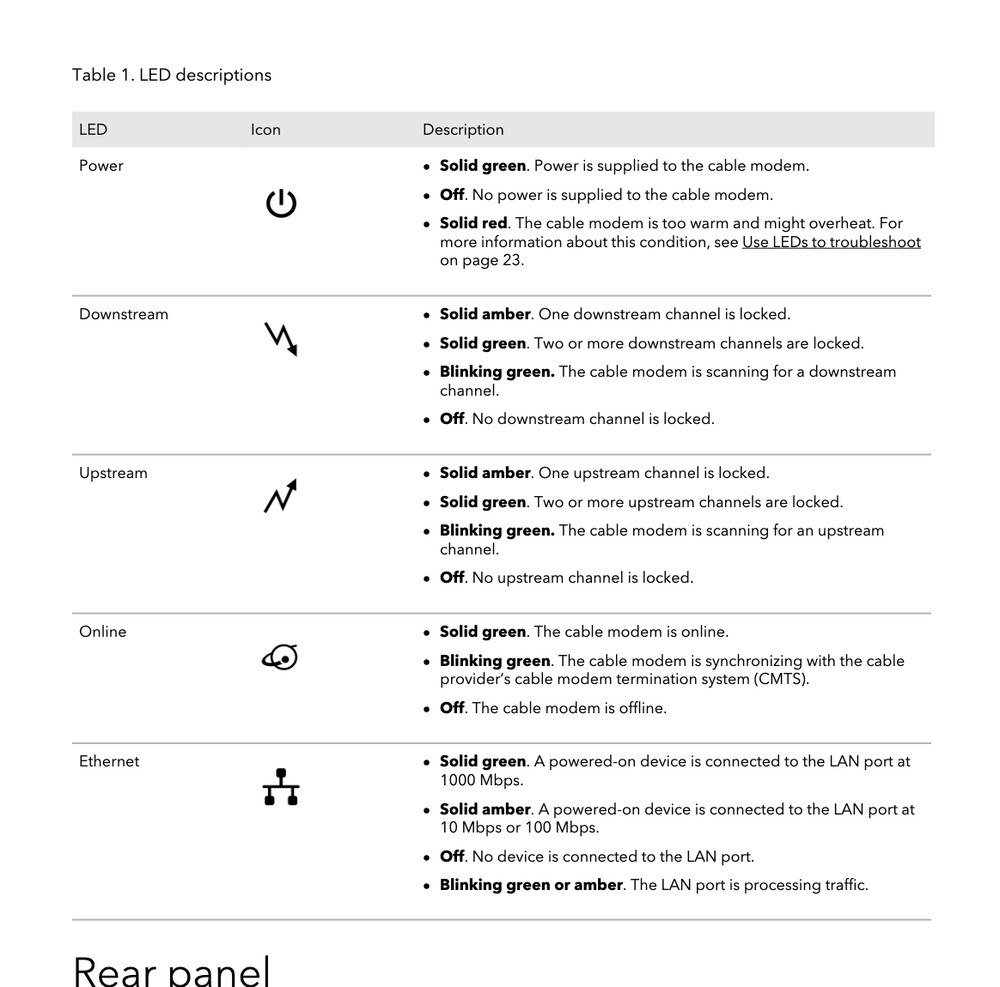
Brands colour their lights differently, so check your own manual. The logic holds for any cable modem: scan, lock, register, pass data.
NETGEAR’s fix for an Online light that stays off while the modem is on the wall jack is to reseat the coax cable, make sure the provider has provisioned the service, and remove extra splitters back to where the cable enters the home. If the Online light is green and nothing loads, the manual says to confirm the modem’s MAC address is registered with the provider. That model keeps a status page at 192.168.100.1, reachable with no internet at all.
Step 3: Check for a Provider Outage Before Changing Settings
- Apple says that if other devices on the same Wi-Fi cannot get online either, there might be a service outage.
- On mobile data, open your provider’s app or outage page and look for your area.
- Google says modem lights that are not right can mean an outage or a connection the provider has to reset.
You will know it worked when you have a posted outage, or a clean status page that sends you to the gateway test.
Step 4: Ping the Gateway, Then the Internet
A ping asks one address to answer. Start at the router, the default gateway, then go outward.
- Windows: search for Command Prompt, choose Run as administrator, type ipconfig and note the Default Gateway under your Wi-Fi adapter, for example 192.168.1.1.
- Type ping followed by that gateway. Four replies with 0% loss mean the router is reachable.
- Mac: open Terminal from Go > Utilities and run ping with the router address from System Settings > Network. After several replies, press Control-C and look for 0.0% packet loss.
- iPhone: in Settings > Wi-Fi tap the info button beside the network and check that the IP address, subnet mask and router fields are filled in.
- Now ping 8.8.8.8, a Google Public DNS address, which tests the path past your router by number rather than by name.
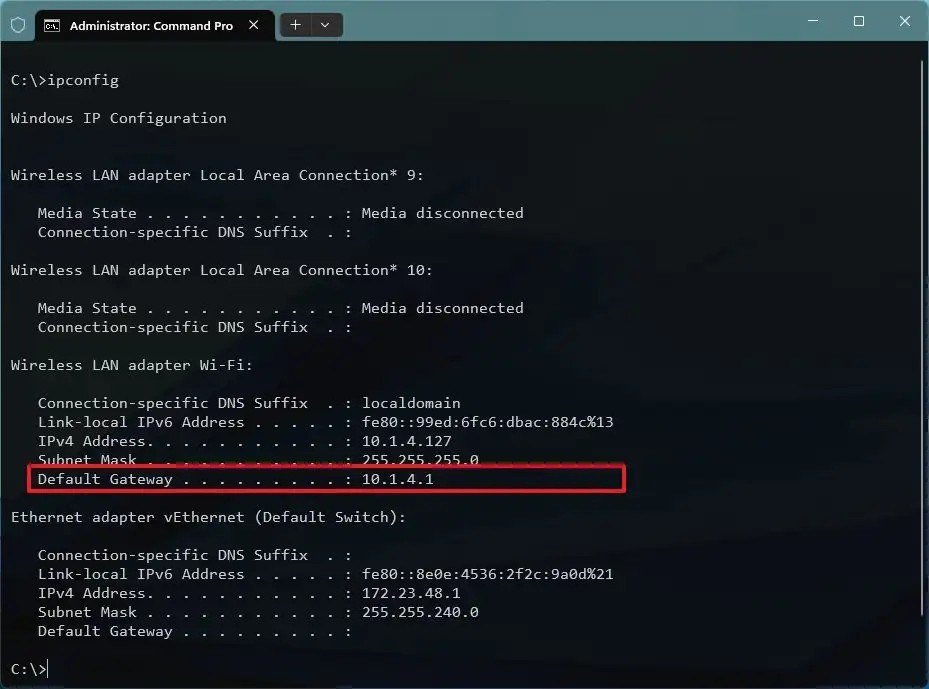
Microsoft reads the result this way: replies from the gateway mean you reach the router, so the modem or the provider is the problem. No replies means plug the PC into the modem with an Ethernet cable. If that works, the Wi-Fi router is at fault. Apple warns that some devices and servers block ping, so treat one silent target as a clue only.
To see where packets stop, run tracert 8.8.8.8 on Windows or traceroute 8.8.8.8 on a Mac. If hop one answers and every later hop shows asterisks, the break sits just past your router.
On a Mac, hold Option, click the Wi-Fi icon and choose Open Wireless Diagnostics. Its summary can flag a WAN Connectivity Failure.
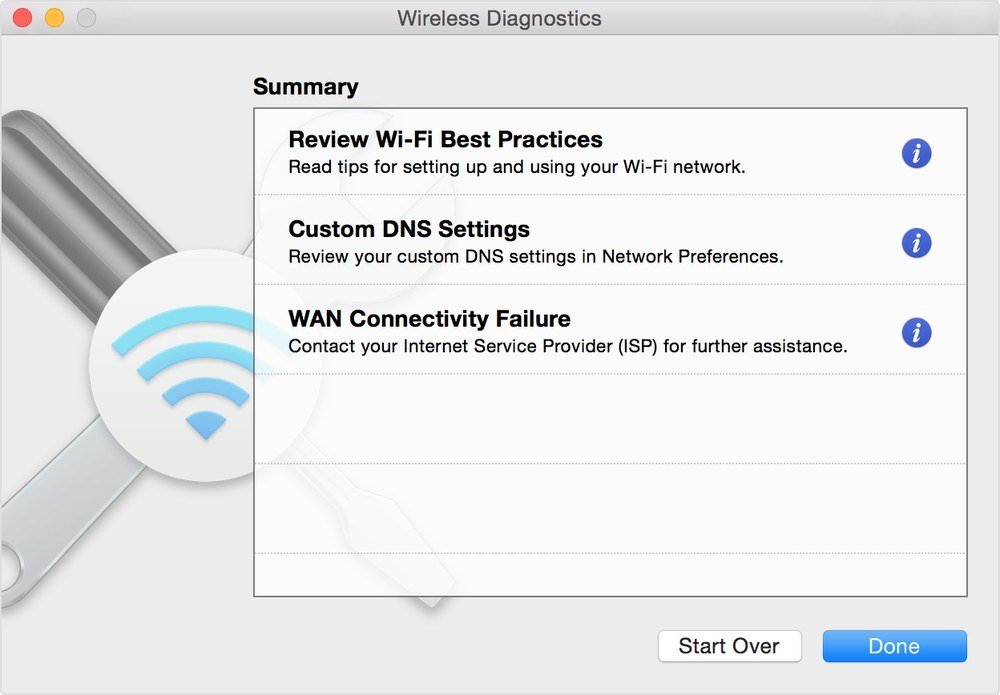
Self-Assigned 169.254 Addresses: The Router Never Answered
An address beginning 169.254 is one a device gave itself after its request to the router went unanswered. Windows reports it as “couldn’t get an IP address from your router”, and macOS shows a yellow “Self-assigned IP” status. The address cannot reach the internet.
- Windows: in an administrator Command Prompt run ipconfig /release, then ipconfig /renew.
- Mac: open Apple menu > System Settings > Network, click the service, choose Details > TCP/IP and click Renew DHCP Lease, then Apply. Save open work first, because Apple warns unsaved changes can be lost.
- If every device shows 169.254, log in to the router and confirm DHCP is switched on, which Microsoft lists as the check it recommends.
You will know it worked when the address changes to the router’s range, such as 192.168.1.x.
DNS Failures: Test by Number, Then Change the Resolver
DNS turns names into addresses. If ping 8.8.8.8 replies but ping on a site name fails, Microsoft’s ping documentation says to suspect name resolution. The Domain Name System can fail while the link stays up.
- Run ipconfig /flushdns on Windows to clear the cache.
- Run ipconfig /all, note the DNS Servers line and ping that address. No reply points at the resolver.
- Windows 11: open Settings > Network & internet, choose Ethernet or Wi-Fi, for Wi-Fi pick your network under Manage known networks, then click Edit beside DNS server assignment (or IP assignment), switch Automatic (DHCP) to Manual, turn on IPv4 and enter 8.8.8.8 and 8.8.4.4, or 1.1.1.1 and 1.0.0.1.
- Mac: System Settings > Network > your service > Details > DNS, then add a server.
- iPhone: Settings > Wi-Fi > the info button > Configure DNS > Manual > Add Server. It applies to that one network only.
- Android: Settings > Network & internet > Private DNS. Pick Automatic if a custom hostname is set, then Save.
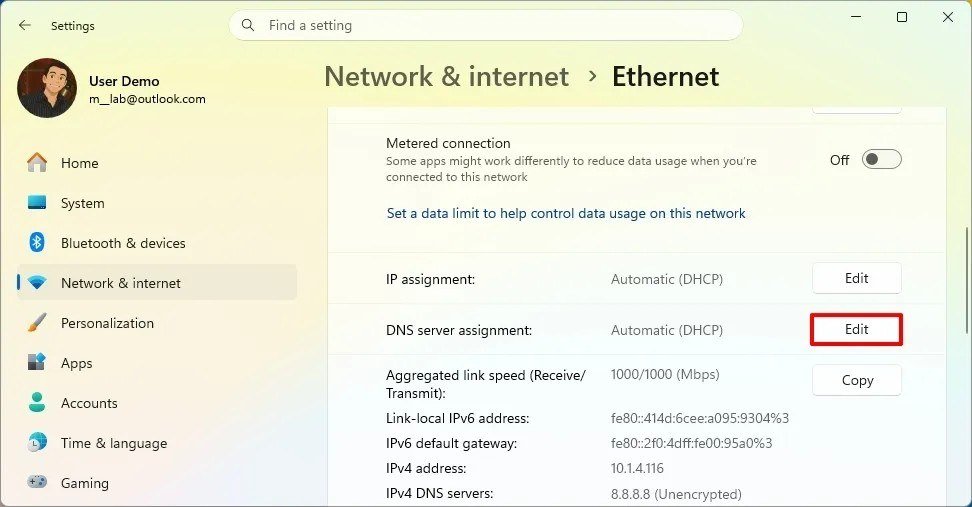
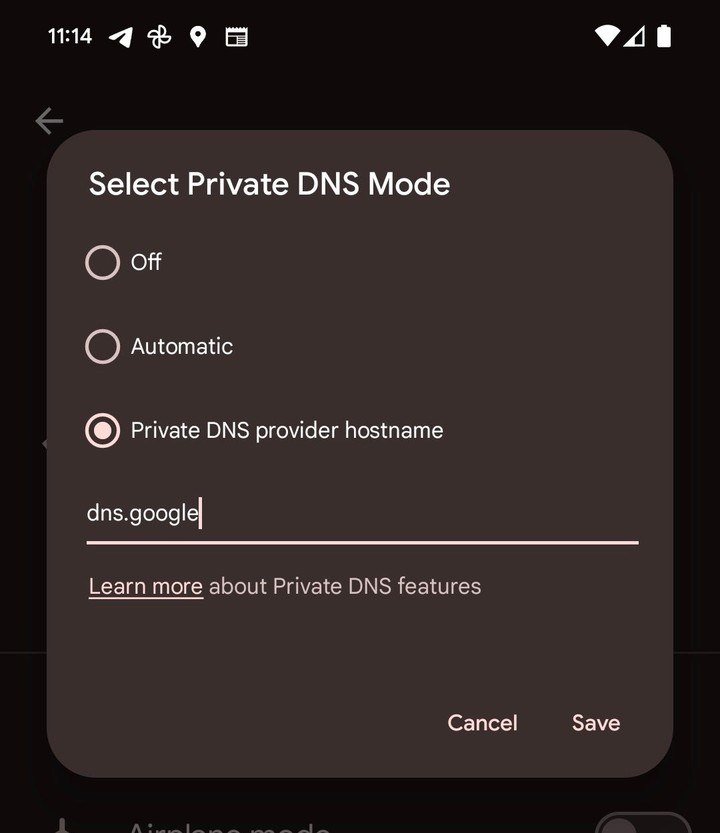
You will know it worked when a site name loads after you switch resolvers.
Ethernet and Cable Checks When You Are Wired
Plug a laptop straight into the modem with Ethernet. If the page loads, the router is the culprit.
- On the NETGEAR modem, an Ethernet light that is off means nothing detected, and amber means 10 or 100 Mbps instead of 1000.
- On a Mac, a red “Not connected” status beside Ethernet means nothing is attached.
- Gigabit and Fast Ethernet over twisted pair need Category 5 or better and a run of 100 metres or less.
- Swap the cable and the port before blaming the device.
Captive Portals on Hotel, Airport and Cafe Wi-Fi
A captive portal holds your traffic until you accept terms or enter a room number. Devices send a test request and expect a 200 or 204 reply, and a redirect instead triggers the sign-in page. HTTPS sites cannot be redirected, so a site you opened with https often just looks down.
- Open a plain HTTP address such as http://captive.apple.com or http://www.msftconnecttest.com/connecttest.txt. Apple’s guidance is to type captive.apple.com into Safari when the sign-in page does not appear.
- On Android, tap the sign-in notification, or forget the network, rejoin and tap the notification that follows.

You will know it worked when captive.apple.com returns the word Success or the Microsoft address returns “Microsoft Connect Test”.
A Router in the Wrong Mode or Double NAT at Home
Double NAT happens when an ISP gateway and your own router both translate addresses. Google says it usually creates no noticeable effect on performance, and matters mainly for gaming and port forwarding. Plain browsing should still load.
Two fixes follow. If the ISP device and its modem are separate boxes, unplug the ISP router and cable the modem to yours. If it is one combined box, switch it to bridge mode, which turns off its address translation. Bridge mode also turns off DHCP and routing on that box, so only one device should hand out addresses afterwards. If both boxes end up in bridge mode, nothing runs DHCP and devices fall back to 169.254 addresses.
Mistakes That Waste an Hour
- Restarting only the router while the modem’s Online light is off.
- Leaving a VPN or security app running. Apple names both as causes on an iPhone and a Mac. Pause your VPN while testing.
- Running a network reset first. Apple says to use it only when other fixes fail.
When the Fault Is Hardware or Your Provider
- Every light off with the adapter plugged in: NETGEAR points to the power adapter, then a hardware fault.
- Online light off with a firm coax connection: the provider has to verify the signal.
- Gateway pings fail on Wi-Fi and a direct cable works: the router is failing. A newer one built for Wi-Fi 6 or Wi-Fi 7 is the replacement.
- Still offline after a phone network reset: Apple says to contact the provider.
Frequently Asked Questions
Why does my Wi-Fi say connected but no internet?
The device joined the router, but its internet check failed. The cause is the device’s settings, the router, the modem, the provider or DNS. A second device and a gateway ping show which.
How do I tell whether the modem or the router is at fault?
Ping the gateway. Replies mean the router answers and the modem or provider is the problem. No replies, but a working direct Ethernet connection to the modem, means the router is at fault.
What does a 169.254 address mean?
Your device gave itself the address because no DHCP server answered, so it cannot reach the internet. Renew the lease, then confirm DHCP is on in the router.
Can a VPN cause no internet connection?
Yes. Apple lists VPN and security software as a cause. Turn it off, restart, and test again.
Related Articles

Get the Fox Bulletin briefing
The stories that matter, in your inbox. No spam, unsubscribe anytime.
Newsletter signup will be available soon.
Related stories
Windows Update Troubleshooter: Run It, Then Fix the Rest
Where the Windows Update troubleshooter lives on Windows 11 and Windows 10, how to run it, what it cannot fix, and the manual repairs in order: disk space, pause and resume, services and folders, DISM, sfc, stuck updates, restart loops and error codes.

Best Ad Blockers for iPhone and iPad: 10 Top Picks
Ten Safari content blockers for iPhone and iPad ranked on price, App Store rating and how recently they shipped, with what none of them can reach.
Best iPhone Camera Settings for Photos in iOS 27
Every iPhone camera setting that changes how a photo turns out in iOS 27, with the exact menu path and what to set it to.