

A second monitor not detected by your PC is the most common multi-monitor problem, and it is almost always fixable in a few minutes. The screen lights up, says no signal, and Windows carries on as if nothing is plugged in. Usually the culprit is a cable, the monitor's input setting or the way Windows is told to use the display, not a broken monitor.
This guide starts with that problem and then works through the others that show up once two or three screens are running: the wrong resolution, mirroring instead of extending, black screens after a refresh rate change, windows that jump around when you undock, and more. Each fix covers Windows 11, with Mac steps where they differ.
The Quick Fix for a Second Monitor With No Signal
Short version: make sure the monitor is set to the input you plugged into, press Windows + P and choose Extend, then open Settings, System, Display, Multiple displays and click Detect. If it is still blank, press Windows + Ctrl + Shift + B to reset the graphics driver, and swap the cable for one you know works.
Common Multi-Monitor Problems at a Glance
| Problem | Usual cause | First thing to try |
|---|---|---|
| Second monitor not detected or no signal | Cable, input or display mode | Win + P, Detect, check input |
| Screen mirrors instead of extending | Duplicate mode is selected | Win + P, choose Extend |
| Blurry or wrong resolution | Resolution copied from another display | Set the recommended resolution |
| Black screen after changing settings | Refresh rate or resolution the monitor cannot show | Wait 15 seconds to revert |
| Mouse moves to the wrong side | Displays arranged in the wrong order | Drag the displays in Settings |
| Games open on the wrong screen | Wrong main display | Make this my main display |
| Monitor keeps cutting out | Loose cable, weak adapter or bad port | Reseat, swap cable, try another port |
| Colours do not match | Different panels and settings | Calibrate each display |
| Third monitor will not work | Graphics or port limit reached | Dock or a different output |
1. Second Monitor Not Detected or Showing No Signal
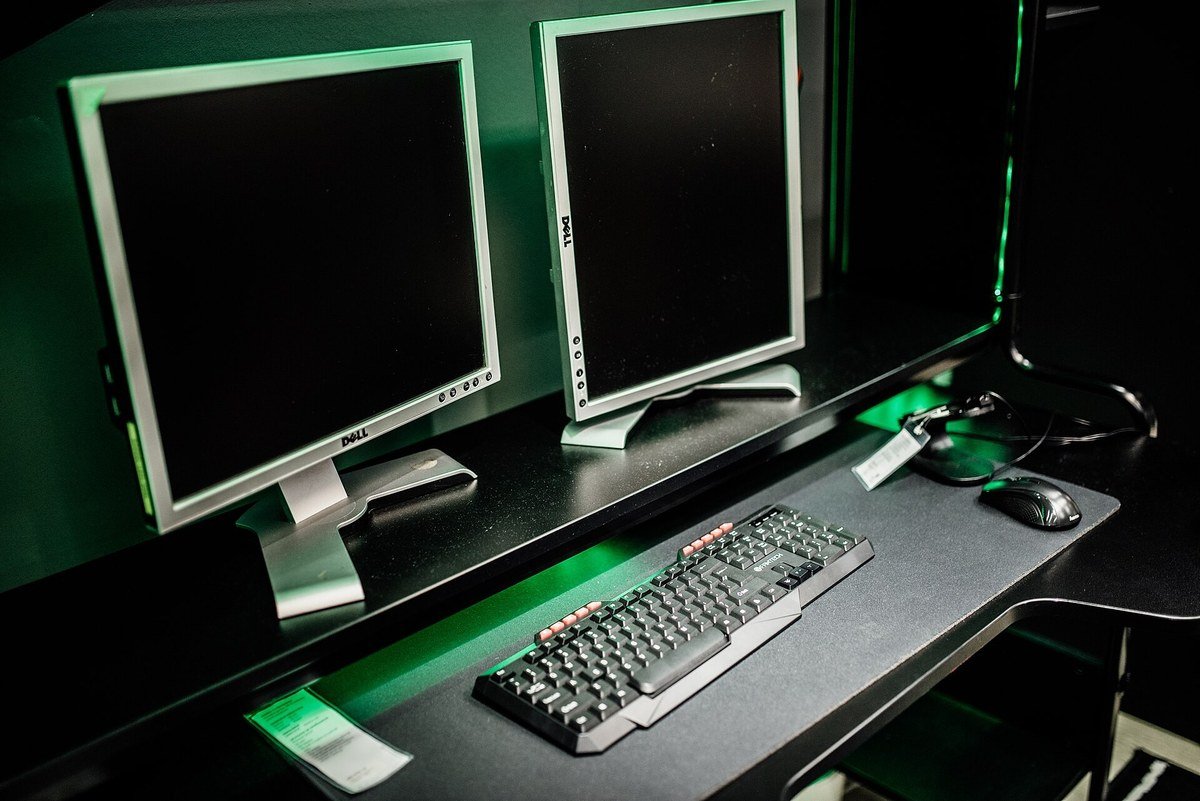
"No signal" means the monitor has power but is not receiving a picture. Work down this list in order, checking the screen after each step.
- Press the monitor's input or source button and pick the port you are using, such as HDMI 1 or DisplayPort. Monitors with several inputs do not always switch automatically.
- Unplug the video cable at both ends and plug it back in firmly. Loose connections cause more no-signal errors than anything else.
- Press Windows + P and choose Extend. If the PC is set to PC screen only, it will never send a picture to the second display.
- Open Settings, System, Display, expand Multiple displays and click Detect.
- Press Windows + Ctrl + Shift + B to reset the graphics driver. A beep or flicker means it worked.
- Unplug docks, dongles and adapters and connect the monitor directly. Microsoft notes these can cause conflicts.
- Try a different cable, then a different port on the PC. Check: if the monitor works on another computer, the problem is on the PC side.
If the picture appeared after a Windows update broke it, roll back the display driver in Device Manager: expand Display adapters, right-click your graphics card, choose Properties, then Driver, then Roll Back Driver. Microsoft's external monitor troubleshooter covers the same steps.
On a Mac
Unplug the display from the Mac and from power, then reconnect it. Put the Mac to sleep and wake it, or close a laptop lid for a few seconds and reopen it. In System Settings, Displays, hold the Option key to reveal the Detect Displays button. On an Apple silicon laptop, watch for a prompt asking you to allow the accessory to connect, because the display stays dark until you allow it.
2. The Second Screen Mirrors Instead of Extending
Duplicate mode copies one desktop onto both screens, which is useful for presentations and frustrating otherwise. Press Windows + P and pick Extend, or select the second monitor in Display settings and choose Extend desktop to this display. On a Mac, open Displays settings and change the second display from mirroring to an extended display.
3. Wrong or Blurry Resolution on One Monitor
A new monitor sometimes inherits the resolution of the old one, which leaves text soft and the image stretched. In Settings, System, Display, click the monitor in the diagram, then set Display resolution to the option marked Recommended. If text is now tiny, raise the Scale setting for that display instead of lowering the resolution.
Monitors with different sizes and resolutions work fine together, but each one keeps its own limits. A 1080p screen beside a 4K screen will never look as sharp, and windows will appear a different size as you drag them across unless you balance the scaling.
4. Black Screen After Changing the Refresh Rate
Choosing a refresh rate or resolution your monitor, cable or adapter cannot handle produces a blank screen. Windows shows a confirmation box after the change, so if you do nothing for about 15 seconds it reverts. To change the rate safely, go to Settings, System, Display, Advanced display and use Choose a refresh rate.
Rates marked with an asterisk do not work at your current resolution, so picking one changes the resolution too. High refresh rates also need the right cable: a 4K monitor at 120 Hz or more usually needs HDMI 2.1 or DisplayPort, and an older HDMI cable will cap it lower. Microsoft's refresh rate guide explains Dynamic Refresh Rate on laptops that support it.
5. The Mouse Moves to the Wrong Side
If you push the pointer off the right edge and it appears on the left monitor, Windows has the screens in the wrong order. In Display settings, click Identify to flash a number on each screen, then drag the boxes in the diagram so they match your desk. Line up the top edges if the monitors are different heights, click Apply and test by moving the pointer across.
6. Windows Jump Around When You Undock a Laptop
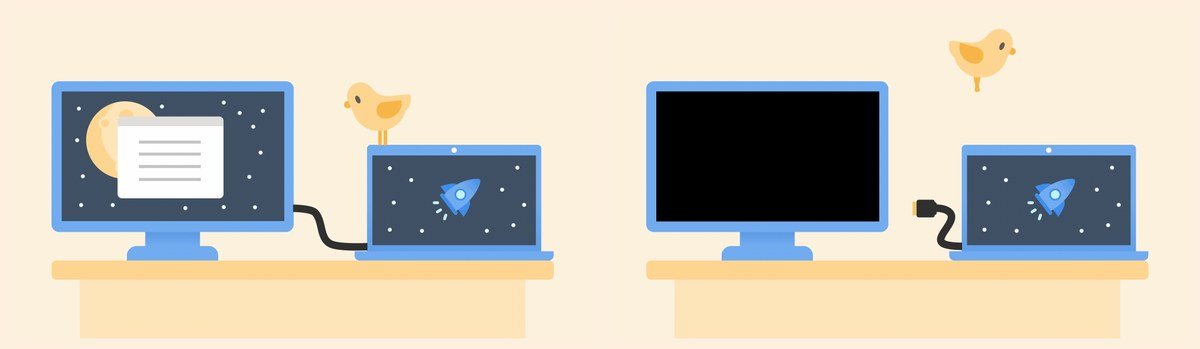
By default, Windows minimises windows on an external monitor when you disconnect it and puts them back when you reconnect. You can change that in Settings, System, Display, Multiple displays, using the options to remember window locations based on monitor connection and to minimise windows when a monitor is disconnected. To move a window between screens quickly, press Windows + Shift + Left or Right arrow.
7. Games and Apps Open on the Wrong Monitor
- Check the game's own display or monitor setting first. Many let you pick the screen.
- In Display settings, select the monitor you want, then tick Make this my main display. Most games and new windows open on the main display.
- Make sure the monitor you game on is plugged into the graphics card, not the motherboard's video port.
- As a last resort, use Windows + P and choose PC screen only while you play.
8. A Monitor Keeps Turning Off and On
A screen that blinks out and comes back is usually losing its connection. Check that the power cable is seated at both ends, then the video cable. Swap in a different cable, plug the monitor straight into a wall socket rather than a strained power strip, and try another port. Cheap USB-C adapters are frequent offenders, so if you use one, our guide to the best USB-C to HDMI adapters covers models that hold a stable signal.
9. You Cannot Add a Third Monitor
If one external monitor works but a second or third will not, the hardware may have reached its limit. A display splitter only duplicates one signal, so it cannot extend your desktop. A laptop with one video port needs a dock or a USB-C video adapter to drive more screens, and our roundup of the best docking stations lists how many monitors each supports. Graphics cards have their own maximum, listed on the manufacturer's spec page.
Macs have a fixed limit that varies by model. Apple says a display goes dark if it exceeds the number your Mac supports, and a hub or dock does not raise that number. Find yours in System Settings by choosing Help, then your Mac's Specifications, and reading Display Support. Apple's dark display guide also notes that USB-C adapters must support DisplayPort Alt Mode or Thunderbolt.
Bonus Fixes: Colour, TVs and the Taskbar
- Colours do not match: no two panels are identical. Use Windows' Calibrate display colour tool or each monitor's picture presets, and set both to the same colour temperature.
- TV edges are cut off: turn off overscan in the TV's picture settings, sometimes called Just Scan, Screen Fit or 1:1 pixel mapping.
- No taskbar on the second screen: in Settings, Personalisation, Taskbar, open Taskbar behaviours and turn on Show my taskbar on all displays.
Frequently Asked Questions
Why is my second monitor not detected?
Most often the monitor is on the wrong input, the cable is loose or faulty, or Windows is set to PC screen only. Press Windows + P, choose Extend and click Detect in Display settings.
Can I use two monitors with different resolutions?
Yes. Each monitor runs at its own resolution and refresh rate. Adjust scaling so windows look a similar size on both.
Why does my second monitor say no signal?
It has power but no picture. Check the input setting, reseat the cable and make sure Extend is selected.
Does a USB-C hub let me add more monitors to a Mac?
No. Hubs and docks do not increase the number of displays a Mac supports. Check your model's Display Support specification.
Related Articles

Get the Fox Bulletin briefing
The stories that matter, in your inbox. No spam, unsubscribe anytime.
Newsletter signup will be available soon.
Related stories
How to Scan Mac for Malware: A Complete Step-by-Step Check
Macs scan themselves, but not on demand. Here is how to check a Mac for malware by hand, which free tools help, and the 2026 copy-paste scam to watch for.
How to Split Screen on iPad: Side by Side, Slide Over and More
Split screen on iPad now lives inside Windowed Apps. Here is how to put two apps side by side, resize them, float a third in Slide Over and go back to one app.
Black Spots on Laptop Screen: Causes, Fixes and When to Repair
A black spot on a laptop screen is dust, a dead pixel or a damaged panel. Each looks different, and only one of them is worth trying to fix yourself.