

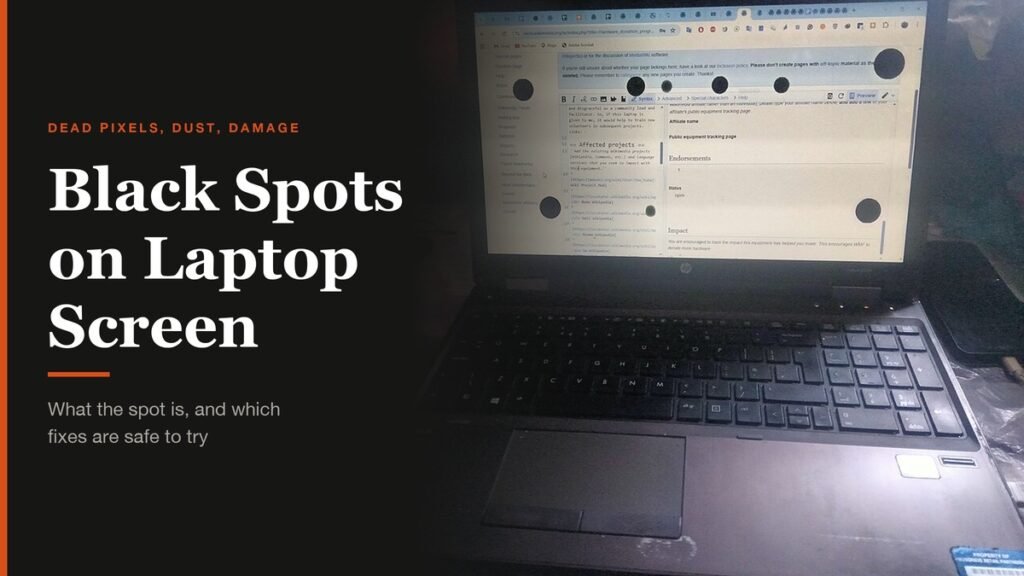
Black spots on a laptop screen range from harmless to terminal, and they can look alike at first glance. A speck of dust, a single dead pixel and a bruise in the LCD from pressure on the lid all show up as dark marks on a white page, but only one wipes away, one might qualify for a free panel, and one only gets worse.
So before reaching for a cloth or a pixel-fixing app, work out which kind of spot you have. This guide shows how to tell them apart in a couple of minutes, which fixes are safe to try, what the major laptop makers will replace under warranty, and how to stop new spots appearing.
The Short Answer
Most black spots on a laptop screen are dead pixels or physical damage, and neither can be repaired at home. Wipe the screen first to rule out dust. A bright coloured dot is a stuck pixel, which a pixel fixer sometimes revives. A sharp black dot is a dead pixel, and a blurry or spreading patch is panel damage: check the warranty and plan for a replacement panel.
Identify the Black Spot First
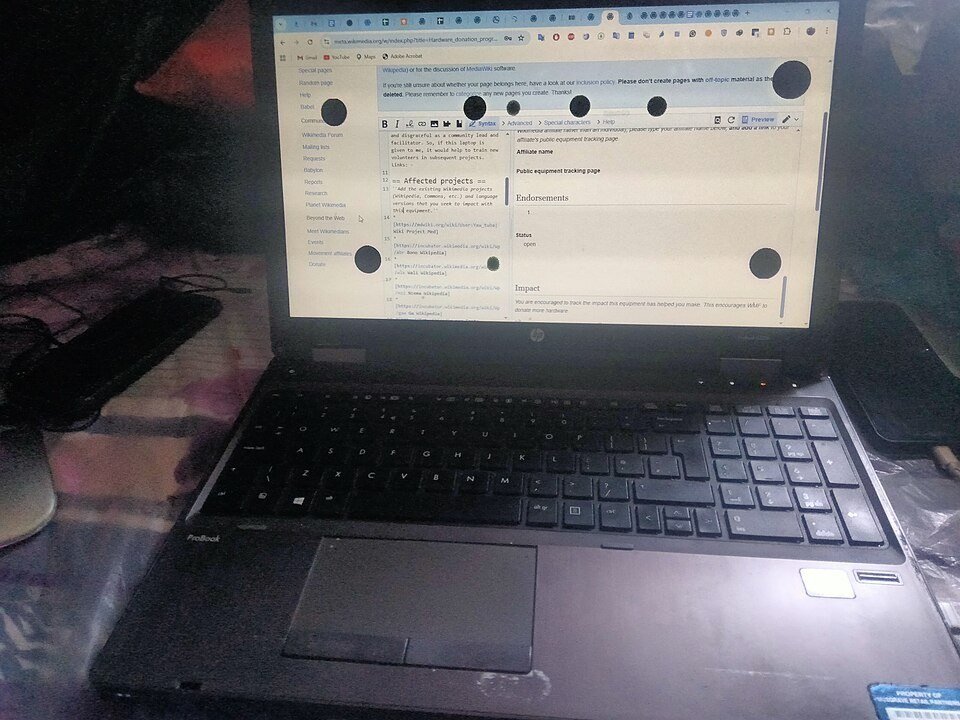
Look at the spot against a plain white page and then a plain black one, from a normal viewing distance. The shape, the size and whether it changes tell you most of what you need to know.
| What you see | What it is | Fixable at home? |
|---|---|---|
| One sharp black dot, visible on white | Dead pixel or dead subpixel | No, panel or warranty |
| One bright red, green, blue or white dot | Stuck pixel | Sometimes, with a pixel fixer |
| Irregular grey speck, best seen on white | Dust on or inside the screen | Yes if on the surface |
| Soft, blurry dark patch | Pressure damage to the LCD layers | No, panel replacement |
| Black blot that grows, often with lines | Cracked LCD leaking liquid crystal | No, panel replacement |
| Spot that appears in a screenshot | Software, not the screen | Yes, close or update the app |
Size is the quickest clue. A dead pixel is tiny, often hard to spot until you open a white document. A pressure mark is usually the size of a fingertip or larger, with soft edges. A crack leaves a black blot that spreads over days, often trailed by lines.
How to Test the Spot in Two Minutes
- Take a screenshot and open it on another device. Check: if the spot is in the screenshot, something on screen is drawing it, so close apps one by one or restart.
- Open a full-screen white page, then black, red, green and blue. A dead pixel stays black on every colour except black. A stuck pixel stays the same bright colour on every background.
- Run your laptop's built-in screen test, which works before Windows loads. Our guide to common laptop screen problems lists the key combinations for Dell, HP, Surface and Mac.
- If you can, connect an external monitor. Check: a spot that does not appear there is in the laptop panel.

Fix 1: Clean the Screen the Right Way
Dust is the one cause you can always fix. Apple notes that many apparent pixel faults turn out to be foreign material on the glass, which comes off with a lint-free cloth, or trapped inside the display, which needs a service provider.
- Shut the laptop down and unplug it so you can see marks against a dark screen.
- Wipe gently with a dry microfibre cloth, using light, straight strokes.
- For stubborn marks, dampen the cloth slightly with water. Never spray liquid directly onto the screen, because it can run into the bezel.
- Check against a white page again. Check: if the spot moved or vanished, it was surface dirt.
A spot that sits behind the glass, stays perfectly still and never changes shape after cleaning is inside the panel.
Fix 2: Try a Stuck Pixel Fixer, for Bright Dots Only
Stuck pixels are subpixels jammed on, so they show as a bright red, green, blue or white dot. Software that flashes colours rapidly over the dot can sometimes jolt it back into working order. JScreenFix runs in a web browser, so there is nothing to install.

- Open JScreenFix in your browser and start the fixer.
- Drag the flashing square over the stuck pixel. Use full-screen mode if the pixel is near an edge.
- Leave it running for at least 10 minutes.
- Check the pixel against a black background. Check: if it is still there, repeat. JScreenFix says a pixel that is not fixed after an hour probably cannot be fixed this way.
Keep expectations realistic. These tools target stuck pixels, not dead black ones, and they do not always work. Dell does not support pixel-fixing software and recommends against it, so if your laptop is under warranty, consider a claim before experimenting.
Why You Should Skip the Pressure Method
Older advice suggests pressing or rubbing the spot through a cloth to nudge a stuck pixel back to life. Dell's pixel guidelines warn strongly against it: pressure can crack the screen, damage internal layers and void the warranty. On a thin laptop panel, the same pressure that might free one pixel can create a far bigger pressure mark. A dead pixel cannot be revived by any method, so there is nothing to gain.
Fix 3: Claim a Warranty Replacement
A few dead pixels are considered normal in LCD manufacturing, so makers publish limits on how many they allow before replacing a panel. Count yours on white and black backgrounds, then compare.
Dell
Dell laptops with HD+ resolution or higher are covered by Premium Panel Exchange, which means zero tolerance for bright pixels for the whole warranty period, including any extended warranty.
| Dell laptop screen | Bright pixels allowed | Dark subpixels allowed | Total defects allowed |
|---|---|---|---|
| HD+ (1600 x 900) or higher | 0 | Up to 5 | Up to 5 |
| HD (1366 x 768) or lower | Up to 2 | Up to 5 | Up to 5 |
Dark subpixels are allowed up to five, so a single dead black dot on a Dell does not qualify on its own.
Lenovo
Lenovo publishes a pixel table for IdeaPad, Lenovo and ThinkBook laptops and asks owners to contact support if their count of bright or dark dots exceeds it during the warranty. Its ThinkPad service manuals treat three or more visible defective pixels as a fault.
Apple
Apple's pixel anomaly guidance explains that a transistor occasionally fails and leaves a subpixel stuck dark or bright. If you are concerned, take the Mac to an Apple Store, an Apple Authorized Service Provider or an Independent Repair Provider for examination, which may carry a charge.
For HP, ASUS, Acer and others, the pixel policy is usually in the warranty terms or a support article. Search your model with "pixel policy".
When the Black Spot Is Physical Damage
A blurry dark patch, a cluster of round spots or a blot that grows is not a pixel fault. It is damage to the layers of the LCD, from a drop, a weight on the lid, an object left on the keyboard when the lid was closed, or heat. Accidental damage is generally excluded from standard warranties, though an accidental damage plan or insurance may pay.
- Stop pressing on it. Flexing the panel spreads the damage.
- Back up while you can still see. An external monitor helps if the spots cover the screen.
- Get a quote for a panel. On many laptops the screen is a separate part that a repair shop can swap.
- Compare with replacement cost. On an older budget machine, our Chromebook vs laptop comparison is a good starting point.
How to Prevent Black Spots on a Laptop Screen
- Check the keyboard is clear before closing the lid. A pen or earbud case left on the keys presses straight into the panel.
- Carry the laptop in a padded sleeve, and do not pack it tightly in a bag with heavy books.
- Open and lift the laptop by the base, not by the corner of the screen.
- Keep it out of hot cars and direct sun, which stress the display layers.
- Clean with a soft, slightly damp cloth instead of paper towels or harsh sprays.
Frequently Asked Questions
Can black spots on a laptop screen go away?
Dust wipes away and a stuck pixel can sometimes recover. A dead pixel and pressure or crack damage are permanent and need a new panel.
Do black spots on a laptop screen spread?
A single dead pixel does not. A blot from a crack or pressure damage often grows over days or weeks, which is a sign the LCD itself is broken.
Is a dead pixel covered by warranty?
It depends on the maker and the count. Dell, for example, replaces HD+ laptop screens for a single bright pixel but allows up to five dark subpixels.
Does a pixel fixer work on black spots?
Rarely. Pixel fixers target bright stuck pixels. A black dot is usually a dead pixel, which no software can revive.
Related Articles

Get the Fox Bulletin briefing
The stories that matter, in your inbox. No spam, unsubscribe anytime.
Newsletter signup will be available soon.
Related stories
Second Monitor Not Detected? Fixes for Common Multi-Monitor Problems
A second monitor that shows no signal is usually a cable, input or display mode problem. Here is the fix for that and every other common multi-monitor headache.

How to Scan Mac for Malware: A Complete Step-by-Step Check
Macs scan themselves, but not on demand. Here is how to check a Mac for malware by hand, which free tools help, and the 2026 copy-paste scam to watch for.

How to Split Screen on iPad: Side by Side, Slide Over and More
Split screen on iPad now lives inside Windowed Apps. Here is how to put two apps side by side, resize them, float a third in Slide Over and go back to one app.