

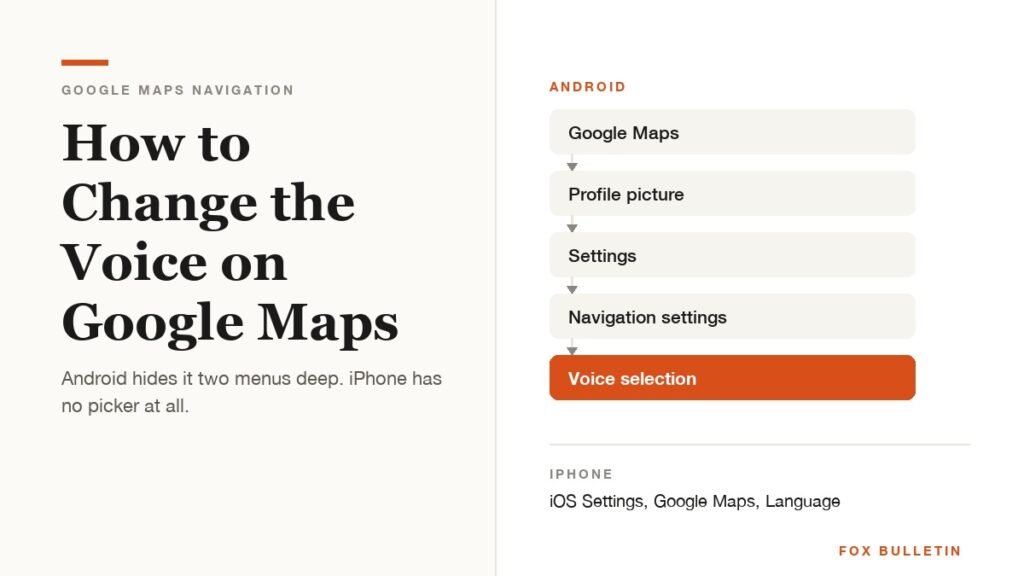
If you want to know how to change the voice on Google Maps, the honest answer depends on which phone you are holding. Android has a proper voice picker buried two menus deep. The iPhone app has no such menu, and never has.
That difference is not an oversight. On Android, Maps speaks through the phone’s text-to-speech engine and lets you choose between the voices that engine offers. On iPhone it follows the system language instead. Below is the exact path on each platform, what the setting really controls, and the one app that lets you replace the voice with a recording of your own.
| What you want to change | Where the setting lives | Platform |
|---|---|---|
| The voice and its accent | Maps, Settings, Navigation settings, Voice selection | Android |
| The language of directions | iOS Settings, Google Maps, Language | iPhone and iPad |
| The underlying speaking voice | Phone Settings, text-to-speech output | Android |
| How loud the voice is | Maps, Settings, Navigation, Guidance volume | Both |
| Whether it plays through the car | Maps, Settings, Navigation, Play voice over Bluetooth | Both |
| A voice you recorded yourself | Waze, sound icon, Current voice | Both |
How to Change the Voice on Google Maps on Android
The setting is not in the main Settings list. It sits inside a second list called Navigation settings, which is why most people never find it:
- Open the Google Maps app.
- Tap your profile picture or initial in the search bar.
- Tap Settings.
- Tap Navigation settings.
- Tap Voice selection.
- Pick a voice and language from the list.
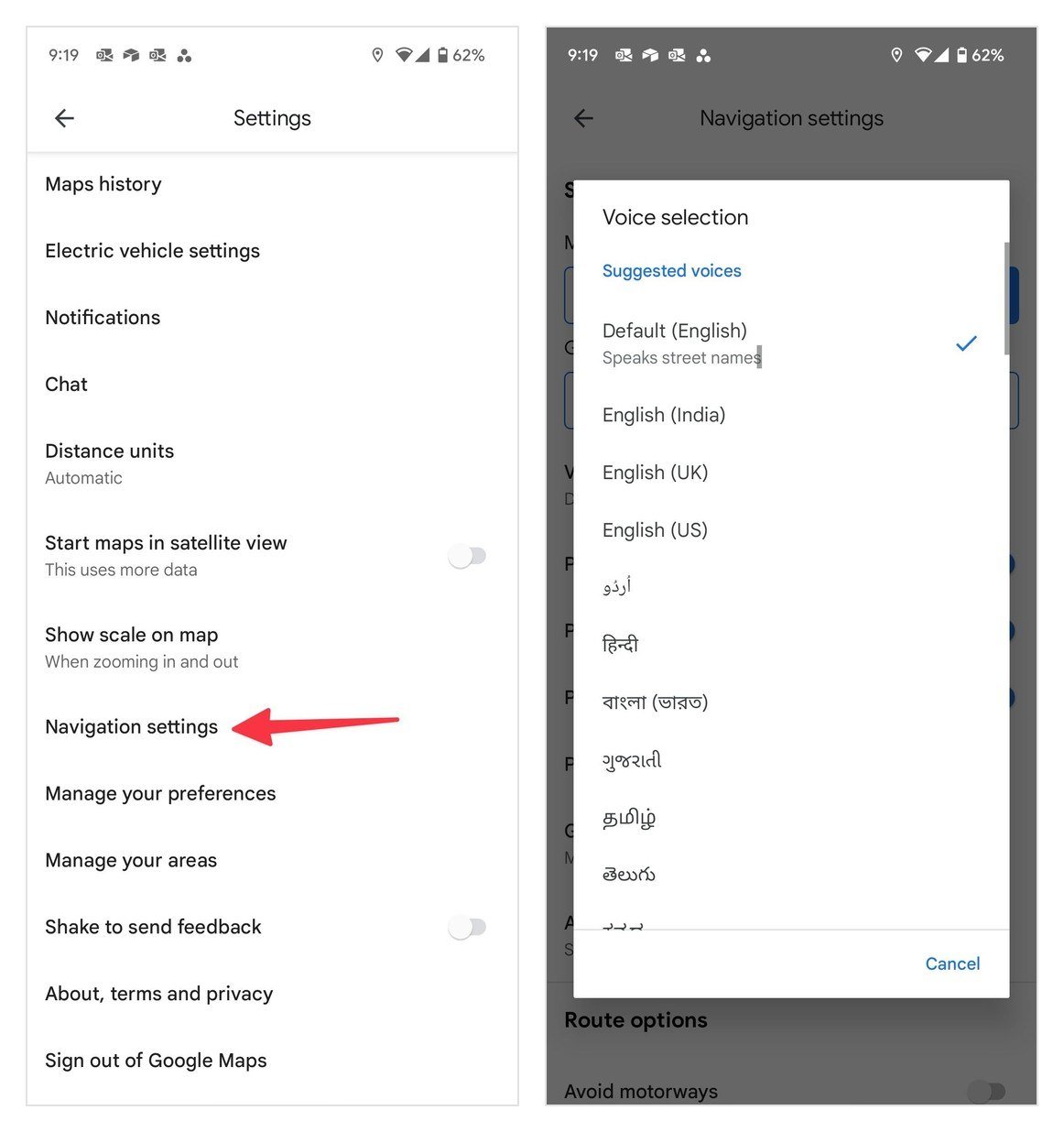
Google describes that final step as choosing a voice and language together, and the pairing is the point. The list is not a set of characters with different personalities; it is a set of locales. Choosing English (United Kingdom) over English (United States) changes the accent, the pronunciation of road types and whether you are told to take a motorway or a freeway.
By default Maps uses your system language, so the voice you have been listening to was chosen for you when you set the phone up. Changing it here affects spoken directions only. The map labels, the search results and the app interface stay in the language they were already in.
One line in that list deserves more attention than it gets. The top entry, Default (English), carries the subtitle Speaks street names, and none of the specific locale entries below it do. Pick English (UK) or English (India) and you may trade “turn left onto Shaftesbury Avenue” for a plain “turn left”. If street names matter more to you than the accent, the default is the one to stay on.
The same screen carries the rest of the audio controls, which is worth knowing because they are often described as living somewhere else. Mute state, Guidance volume, Play voice over Bluetooth, Play voice during phone calls, Play audio cues and a Play test sound button are all inside Navigation settings on Android, sitting directly above and below Voice selection.
Why the iPhone App Has No Voice Selection Menu
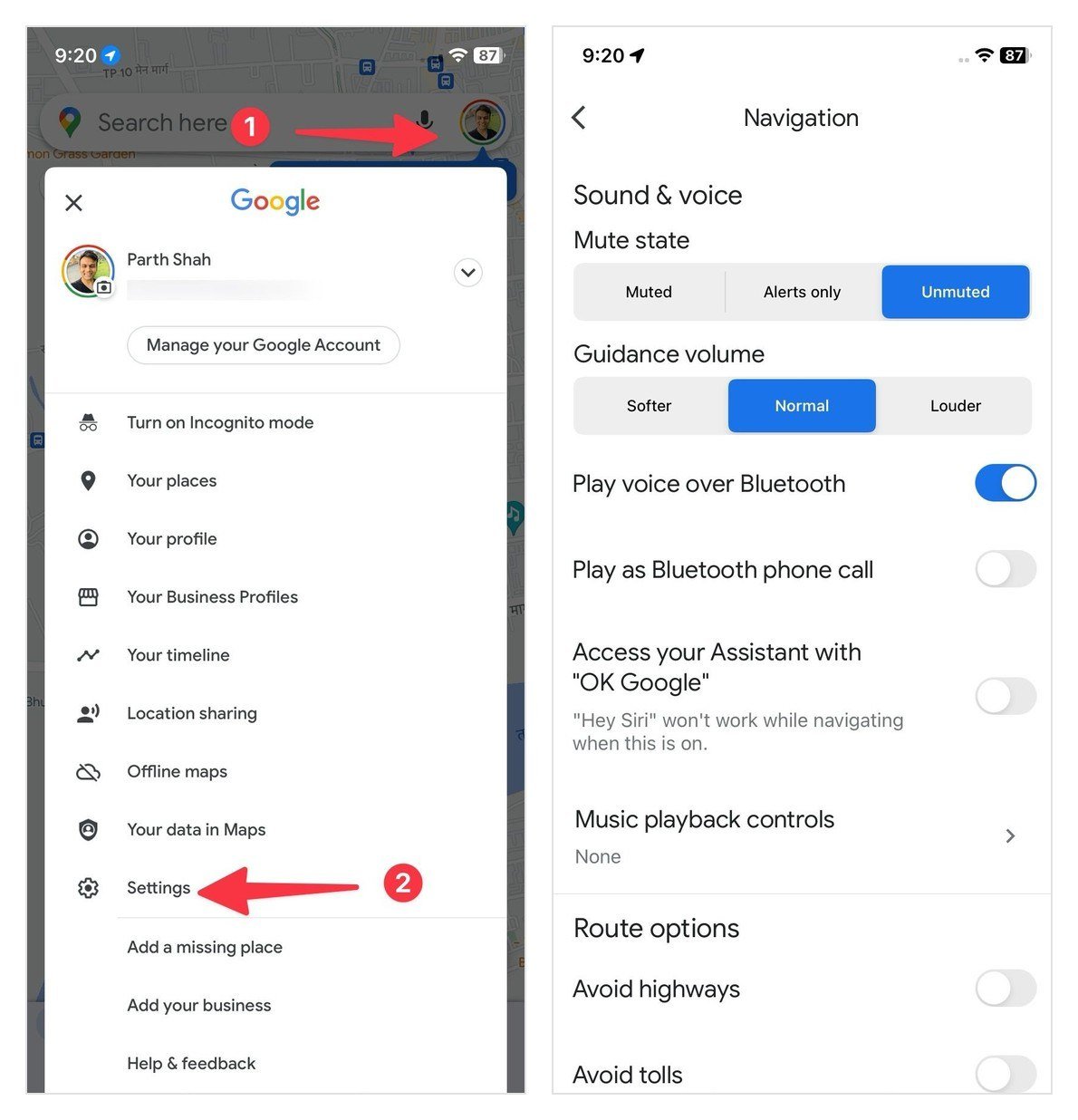
Open Settings inside Google Maps on an iPhone and there is no Voice selection entry to find. The app takes its spoken language from iOS rather than offering its own picker, so the change is made outside the app:
- Open the iOS Settings app.
- Scroll down and tap Google Maps.
- Tap Language.
- Choose a language.
That single setting moves the interface and the spoken directions together, which is a blunter instrument than the Android equivalent. You cannot keep the app in English while the voice reads in Spanish, and you cannot switch accent without switching everything else with it.
One prerequisite catches people out. That Language screen only lists languages your iPhone already carries, so if the one you want is missing you add it first under Settings, General, then Language and Region, using Add Language. The per-app list fills in from there.
The practical consequence is that iPhone users have fewer voices available, not more hidden ones. If the voice sounds wrong, the fix is almost always the language setting rather than anything inside Maps. The same pattern shows up across Apple’s own apps, and anyone setting up a new handset will meet it again in our guide to the iPhone models that run iOS 27.
Swapping the Text-to-Speech Engine Behind the Voice
Voice selection only offers what your phone can already say. On Android the actual speaking is done by a text-to-speech engine, and swapping that engine swaps every voice in the list, in Maps and in every other app that talks.
Google’s instruction is to open your phone’s settings app, tap Language and input, tap Text-to-speech output, then pick a different option under Preferred engine. Manufacturers move that menu around, so on many handsets it sits under Accessibility or under System instead, but the final screen is always called Text-to-speech output.
Two things on that screen are worth knowing:
- Install voice data. Engines ship with a small set of voices and download the rest. If your language offers only one voice, more are usually a download away.
- Speech rate and pitch. Both are set here, not in Maps. Slowing the rate slightly is the single most effective change for directions you keep mishearing at speed.
Changing the engine is a system-wide decision. The same voice will read your notifications and your ebooks, so a voice that sounds characterful for ten seconds of directions can become wearing over an hour of audiobook.
Guidance Volume, Muting and the Bluetooth Toggle
Plenty of people looking for a different voice actually want a louder or quieter one. The menu name differs by platform, which is a common source of confusion: on Android these sit in Navigation settings, the same screen as Voice selection, while on iPhone the equivalent screen is called simply Navigation. Either way you get:
- Guidance volume offers three steps: Softer, Normal or Louder. It is relative to your media volume rather than a replacement for it.
- The Sound icon at the bottom right during navigation cycles through Mute, Hear alerts and Unmute. Hear alerts is the useful middle setting, keeping traffic and speed warnings while dropping turn by turn chatter.
- Play voice over Bluetooth decides whether directions come out of the car speakers or the phone. Turning it off is the fix when music plays through the car but the voice does not.
Android adds a Play test sound button on that screen, which is the fastest way to tell a muted app from a muted phone. If the test sound plays and directions do not, the problem is the mute state or the Bluetooth routing rather than the voice you just picked.
Voice directions are also downloaded rather than generated offline on first use. If a new voice sounds clipped or silent the first time you drive with it, Maps is still fetching the audio data, and a few minutes with the app open on a connection sorts it out.
Record Your Own Voice in Waze Instead
Google Maps has never let you record a voice, and the celebrity voices it ran years ago were short promotions rather than a feature. Waze, which Google also owns, does allow it, and it is the only supported way to drive to directions in a voice you chose yourself:
- Open Waze and tap the sound icon.
- Under Current voice, tap the voice shown.
- Tap New voice.
- Tap a phrase, record it with the microphone icon, then stop.
- Play it back and save it.
- Repeat for each phrase in the list.
Recordings can be shared, so a voice pack made by one person can be sent to friends who will then hear it while navigating. Waze does impose one restriction worth knowing before you start: you can only share or delete a voice recording you are not currently using, so switch to another voice first.
The trade is coverage. A recorded voice can only say the phrases you recorded, which means no street names. Maps reading “turn left onto Shaftesbury Avenue” becomes Waze saying “turn left” in your own voice, and for a lot of drivers that is a worse experience rather than a better one.
When the Voice Stops Working Altogether
A voice that has gone silent is usually one of five things, and they are worth checking in this order:
- The phone is muted or the media volume is at zero. Press the volume up button after navigation has started, not before, so you adjust the right channel.
- Maps itself is muted. Tap the Sound icon during navigation and select Unmute.
- Guidance volume is set to Softer. Raise it to Louder under Settings and Navigation.
- The audio is being sent somewhere you are not listening. Check the Play voice over Bluetooth toggle.
- The voice data has not downloaded. Open Maps on a solid connection and leave it running for a few minutes.
If every one of those is correct and the app is still silent, the problem has usually moved down to the text-to-speech engine rather than Maps. Open Text-to-speech output, press the listen or play button on that screen, and if the phone says nothing there either then no app on the device will speak until the engine is fixed or replaced. Tracking down an app-level setting that turns out to be a system one is a common pattern, much like the device-by-device toggles in our guide to stopping autoplay on YouTube.
Frequently Asked Questions
Can you change the Google Maps voice to a celebrity?
No. Google Maps ran celebrity voices as limited promotions in the past and none of them are available now. The list under Voice selection contains languages and accents, not characters. Waze is the only Google navigation app that lets you use a voice it did not supply, and only by recording one yourself.
How do I change the Google Maps voice from male to female?
On Android, open Voice selection and look for a second entry for your language. Where a phone offers more than one voice for a locale, both appear there. If only one is listed, open Text-to-speech output in your phone settings and install additional voice data for that language.
Why does Google Maps speak in the wrong language?
Because it follows your system language by default. On Android, change it under Navigation settings and then Voice selection. On an iPhone, change it in the iOS Settings app under Google Maps and then Language.
Does changing the voice use more data?
Only once. A newly selected voice downloads its audio data the first time you use it, after which directions are spoken without further downloads. This is also why a new voice can sound incomplete on the first trip.
Related Articles

Get the Fox Bulletin briefing
The stories that matter, in your inbox. No spam, unsubscribe anytime.
Newsletter signup will be available soon.
Related stories

Best Wi-Fi Routers: 7 Picks From Flat to Flagship
Seven Wi-Fi routers compared on standard, bands, coverage and wired ports, with a plain explanation of which of those actually changes anything.

Best Gaming Chairs: 7 Picks and Their Limits
Seven gaming chairs compared on capacity, material and features, including the mesh and fabric options that do not trap heat.

Best Standing Desks: 6 Picks for Every Room
Six standing desks compared on size, capacity and presets, including two glass desks that look like furniture and a riser for the desk you already own.