

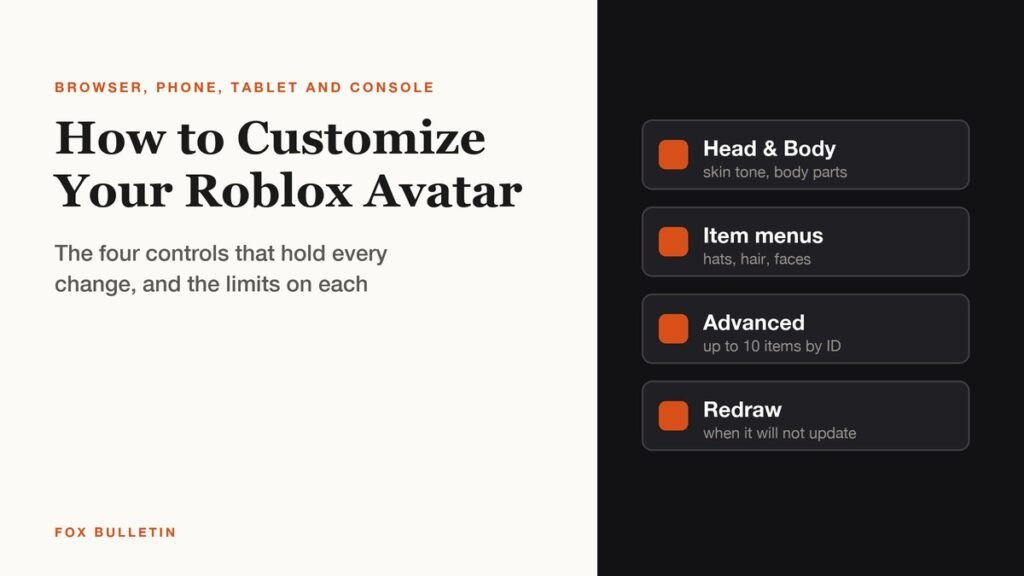
You customize your Roblox avatar from the avatar editor, and where that editor sits depends entirely on what you are holding. In a browser it is the Avatar entry in the left navigation menu. On a phone the same controls are split between your inventory and a Customize screen. On a tablet you have to go through a More button first. The changes themselves save as you make them, with no save button anywhere.
Roblox is also in the middle of renaming that tab. Its own mobile documentation says the Avatar tab is becoming Me and is rolling out by region, so if your app shows one name and a guide shows the other, both are current. Everything below is the same underneath either label.
Where to customize your Roblox avatar on each device
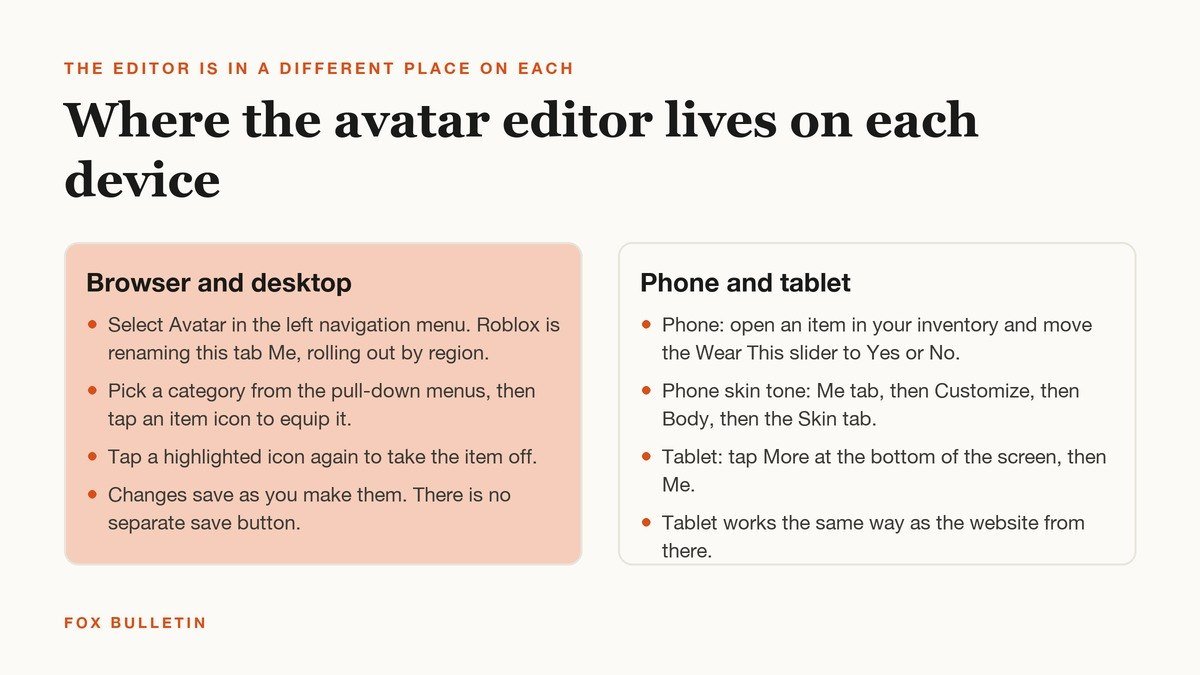
On the website, tap Avatar in the navigation menu. The editor is a set of pull-down menus, one per category, with hats, hair and faces each in their own list. Tap an item icon to equip it and the icon highlights. Tap the highlighted icon again to take it off. Roblox’s browser instructions add a useful detail about removal: the Recent menu lists what you are currently wearing first, which is faster than hunting through categories.
On a phone the flow is inverted. You open the item in your inventory and move a Wear This slider to Yes or No rather than tapping an icon in an editor. Skin tone is somewhere else again: the Me tab, then Customize, then Body, then the Skin tab. On a tablet, tap More at the bottom of the screen and then Me, and from there it behaves like the website. Roblox keeps these as a separate mobile article precisely because the steps do not match. Xbox has its own console walkthrough again.
Changing skin tone, including one body part at a time
In the browser, skin colour is not under a Skin heading. Move the cursor over the Head & Body pull-down menu and choose Skin Tone, then tap a colour to recolour the whole avatar at once.
The part most people miss sits one click further in. Tap Advanced in the lower-right corner of that same panel and you can select an individual body part and give it its own colour. That is how two-tone and mismatched-limb avatars are made, and it needs no paid item at all.
If you want a different body shape rather than a different colour, Roblox gives away four body packages: Man Package, Woman Package, Roblox Girl Package and Roblox Boy Package. All four are free from the Marketplace, and equipping one changes the whole body at once.
The three item soft limit and the Advanced button
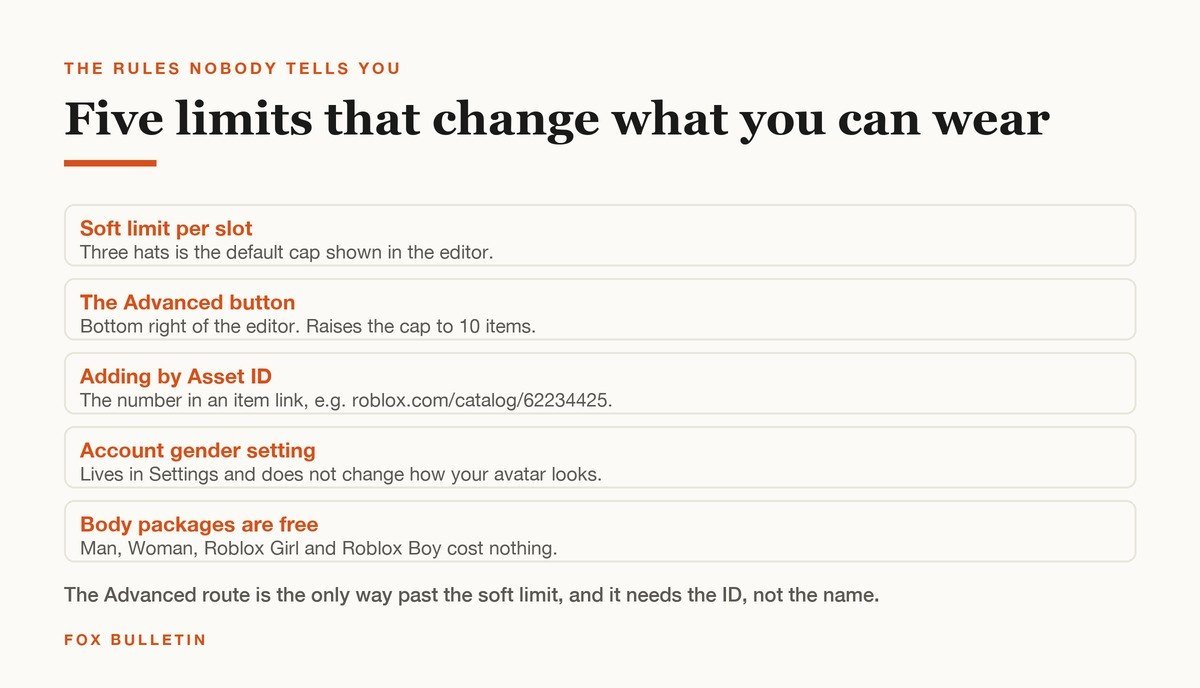
The editor caps how many items you can wear in one slot, and three hats is the default. That cap is a soft limit rather than a hard one, and there is an official route past it.
- Open the avatar editor in a browser and tap Advanced in the lower-right corner.
- Find the Asset ID of the item you want to add. It is the number inside the item link: in roblox.com/catalog/62234425/Brown-Hair, the ID is 62234425.
- Enter the ID into the Advanced panel.
- Repeat until you reach ten items, which is the ceiling Roblox documents for this method.
Two things to know before relying on it. The panel takes the ID, not the item name, so you have to open the item page to get the number. And this is a browser feature, so a phone-only player cannot build a ten item stack without borrowing a desktop. The same ID trick is the backbone of a lot of customisation on Roblox, in the same way that Roblox image IDs are how decals get into a game.
Animations, emotes and camera movement
Animations are equipped the same way items are, and they change how the avatar walks, runs, jumps and idles rather than how it looks standing still. Emotes sit alongside them.
Roblox also supports animating an avatar from your device camera, which mirrors your head movement and facial expressions onto the character in real time. Two limits are worth knowing: developers have to build support for it, so it will not work in every experience, and it needs camera permission from the operating system. Roblox states in its avatar animation documentation that the video never leaves your device and is not recorded or stored. Voice chat can be enabled alongside it by eligible players aged 13 and over.
What it costs to customize your Roblox avatar
The editor itself is free and so is a surprising amount of what it controls. Skin tone, per-body-part colouring, the four body packages and every animation you already own cost nothing. What you pay for is catalogue items: hats, hair, faces, bundles and emotes sold in the Marketplace for Robux.
- Free every time: skin tone and body part colours, the Man, Woman, Roblox Girl and Roblox Boy packages, and removing anything you are already wearing.
- Free if you look: the Marketplace carries free hats, hair and faces permanently, and rotates limited-time free items around events.
- Paid: most bundles and accessories, priced in Robux. Items can also go off sale permanently, after which the only route is resale where the creator allowed it.
Because items leave sale, an avatar built around one bundle can become impossible to copy later. That scarcity is a large part of why avatars carry status on the platform at all, and why the oldest accessories trade for far more than they cost new. An avatar on Roblox is closer to a profile picture than to a game character: it follows you into every experience you open, from a group session with friends to a solo build, unless a developer overrides it for their own game.
Developers can override the look entirely. Some experiences force a costume, a morph or a fixed body type, which is why your avatar occasionally looks nothing like your editor. That is the game doing it, not a fault, and leaving the experience restores your own look immediately.
When the avatar will not update
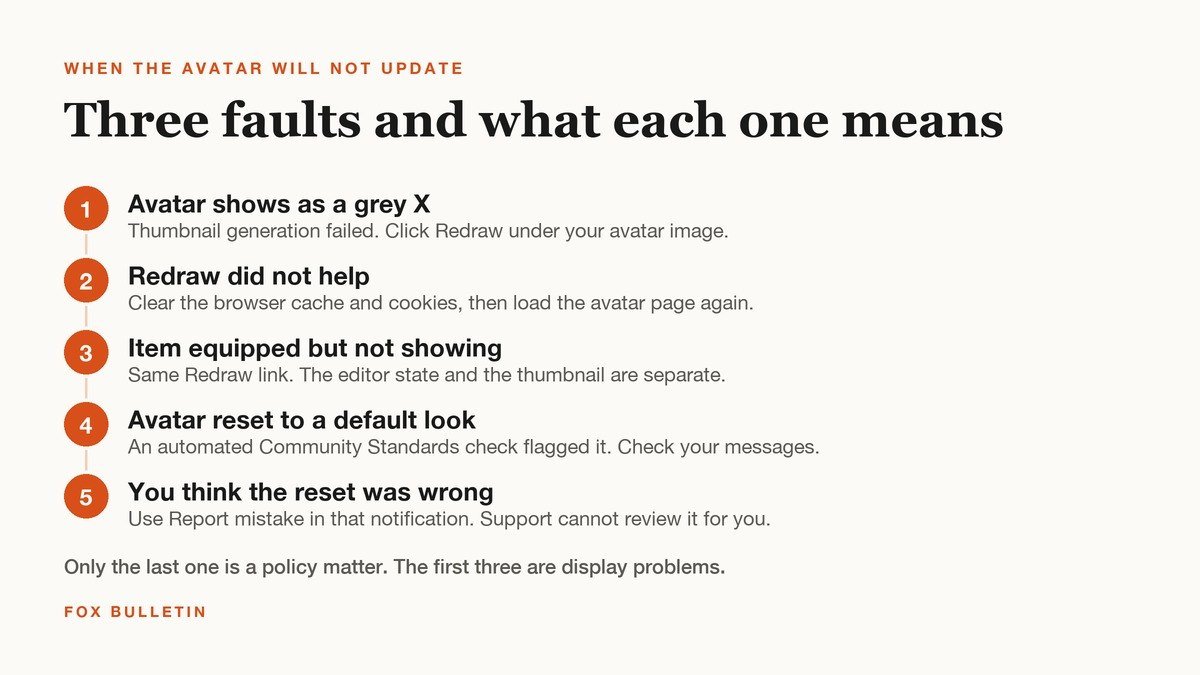
An avatar that shows as a grey X, or that keeps showing an old outfit, is almost always a thumbnail problem rather than a lost item. Roblox generates avatar images on its servers, and that step can fail on its own while your actual equipped items are fine.
- Click Redraw. The link sits directly underneath your avatar image in the editor. Roblox says this fixes the grey X most of the time and can take a few minutes.
- Clear the browser cache. If Redraw does not do it, the official page for this fault points at temporary internet files next.
- Check the in-experience reset instead. If the problem is being stuck in a wall rather than a broken thumbnail, open the menu and choose Respawn, or press R, which Roblox documents separately as resetting your avatar in an experience.
Why an avatar sometimes resets itself
Roblox runs automated checks on profile avatars against its Community Standards. If a configuration is flagged, the avatar is reverted to a default look and you get an in-app message explaining it. Nothing is deleted: the items stay in your inventory and you can go straight back to the editor and re-equip them.
What is unusual is the appeal route. Roblox states plainly in its avatar reset policy that Customer Support does not manually review these cases. The only channel is the Report mistake link inside the notification itself. Rebuilding a look that was flagged once risks a second reset and further action on the account, so it is worth reading the message before re-equipping everything.
One more thing that trips people up: the gender setting in your account settings does not change how your avatar looks. Roblox says so directly in its help article on the subject. Changing the look means changing the body package, not the setting.
Frequently Asked Questions
How do I save changes to my Roblox avatar?
You do not. Roblox applies each change as you make it, and there is no save button in the editor. If the preview updates, the change is live. If the preview has not updated, use the Redraw link rather than looking for a save control.
Can I wear more than three hats on Roblox?
Yes, up to ten items in a slot. Tap Advanced in the lower-right of the browser editor and enter each item’s Asset ID, which is the number in its catalogue link. Three is the soft limit shown by default, not the real ceiling.
Why is my Roblox avatar a grey X?
The server failed to generate your avatar thumbnail. Click Redraw underneath your avatar image and give it a few minutes. If it is still wrong after that, clearing your browser’s temporary files is the next step Roblox recommends.
Is customising a Roblox avatar free?
Much of it is. Skin tone, per-body-part colouring through Advanced, and all four body packages cost nothing. Most hats, hair, faces and animations in the Marketplace are sold for Robux, though free items appear regularly.
Related Articles

Get the Fox Bulletin briefing
The stories that matter, in your inbox. No spam, unsubscribe anytime.
Newsletter signup will be available soon.
Related stories
Roblox Age Check: How It Works and What It Unlocks
What a Roblox age check unlocks, the six age groups it sorts accounts into, the selfie and ID routes, what happens to the face scan, and how trusted friends change chat.
Roblox Kids vs Roblox Select: What Changes by Age
Roblox Kids covers ages 5 to 8 and Roblox Select ages 9 to 15. What each account type allows, from content ratings to chat defaults and parental controls.
Roll A Stickman Codes (October 2026)
The Roll A Stickman codes that pay instant rolls, potions and Trait Rerolls, and the group check you have to clear first.