

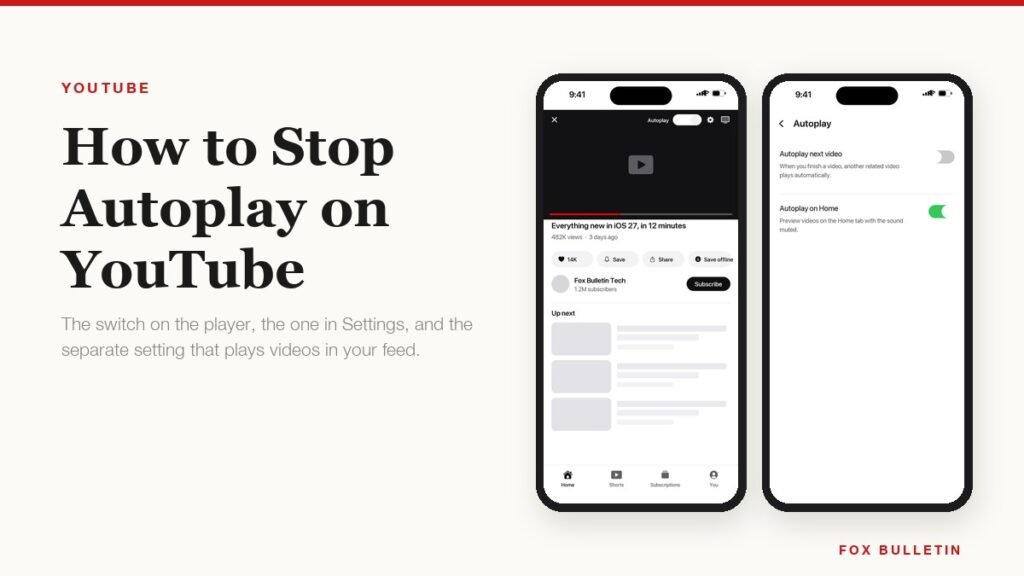
Autoplay is the feature that queues up another video the moment the one you chose finishes, and it is on by default for adults on every YouTube surface. Switching it off takes about ten seconds once you know where the control is. The part that trips people up is that YouTube stores the setting per device, so turning it off on your phone changes nothing about what happens on the laptop or the living-room TV.
There is also a second, separate feature that most people mean when they complain about autoplay: the muted videos that start playing as you scroll the Home tab. That is called Playback in feeds and it has its own switch in a different place. Both are covered below, along with the one setting that genuinely cannot be changed, which is a supervised account where a parent has already made the decision.
Turn off autoplay in the YouTube app
The quickest route does not involve Settings at all. Open any video and look at the top of the player: there is a small Autoplay switch sitting next to the cast and settings icons. Tapping it applies immediately and sticks for that device, so you only have to do it once.
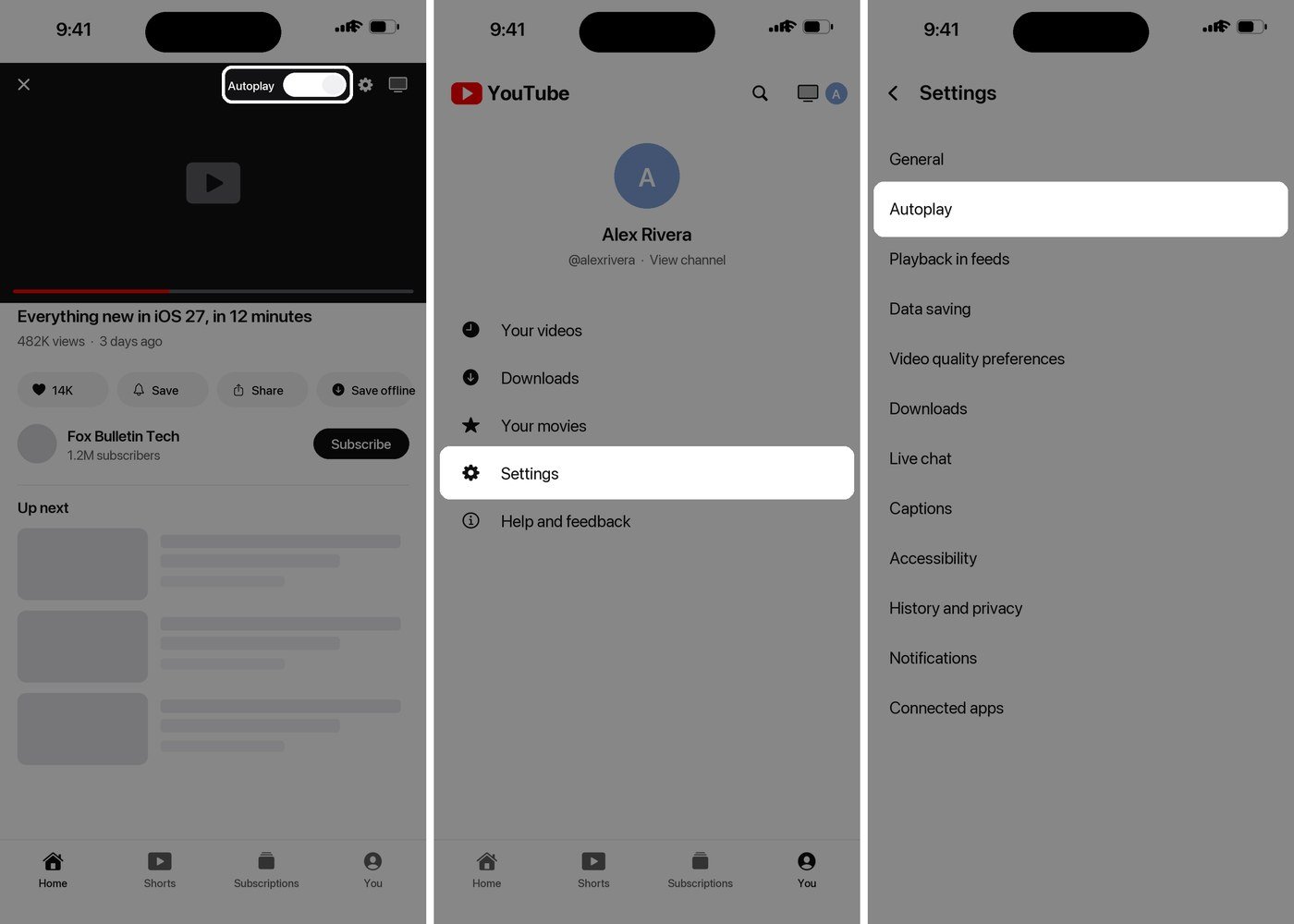
- Open the YouTube app and start any video.
- At the top of the video player, tap the Autoplay switch to set it to Off.
- For the same setting in a menu, tap your profile picture, then Settings.
- Tap Autoplay.
- Switch Autoplay next video off.
The steps are identical on iPhone and Android, which is unusual enough for YouTube to be worth noting. Google’s own autoplay documentation lists both platforms with the same three taps through the profile picture, and confirms that the player switch and the Settings switch control the same thing rather than two different behaviours.
One useful escape hatch if you leave autoplay on: when a video ends and the countdown to the next one starts, tapping Cancel stops it for that moment without changing the setting. Scrolling past the player or starting to type a comment does the same thing, which is why autoplay sometimes seems to behave inconsistently when you are actually using the app.
Stop videos playing in your feed as you scroll
This is the setting people usually want and rarely find. Playback in feeds is what makes thumbnails start playing silently with captions while you browse the Home tab and search results. It is a different feature from autoplay and it has a different switch, which is why turning autoplay off never seemed to fix it.
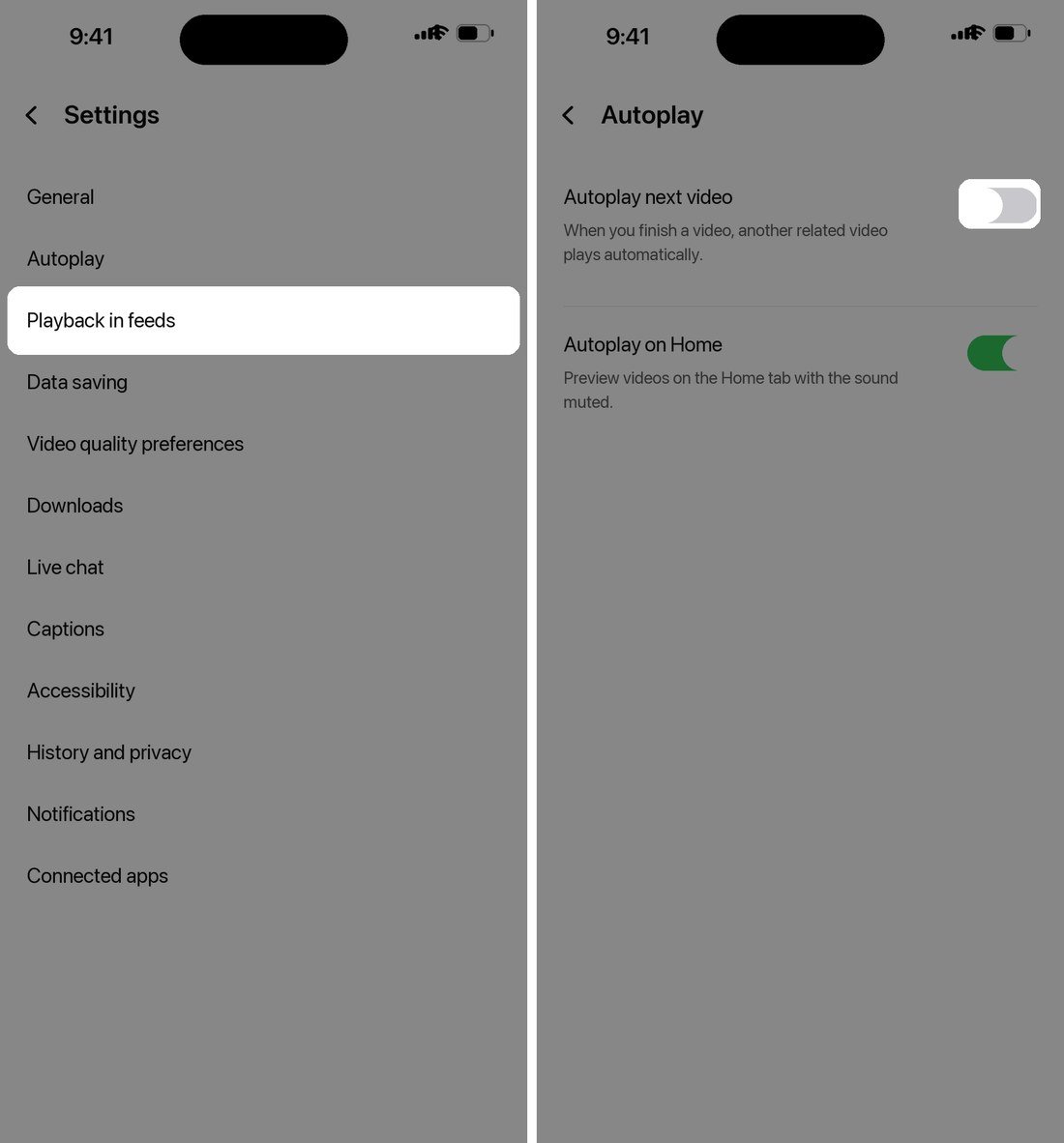
- Tap your profile picture, then Settings.
- On iPhone, tap General, then Playback in feeds. On Android, tap Playback in feeds directly.
- Choose Off, or Wi-Fi only if the real concern is mobile data.
- On a computer, click your profile picture, click Settings, then Playback and performance, and switch off inline playback.
Google describes the feature in its inline player documentation as a way to fast forward and rewind without leaving the feed, and notes that with it switched off you still get three-second previews rather than a completely static grid. Those short previews cannot be removed, so if a totally still feed is the goal, Off gets you most of the way and no further.
Turn off autoplay on a computer
On the desktop site the switch lives in the player controls along the bottom, between the subtitles button and the quality cog. It is easy to miss because it only appears when you move the pointer over the video.
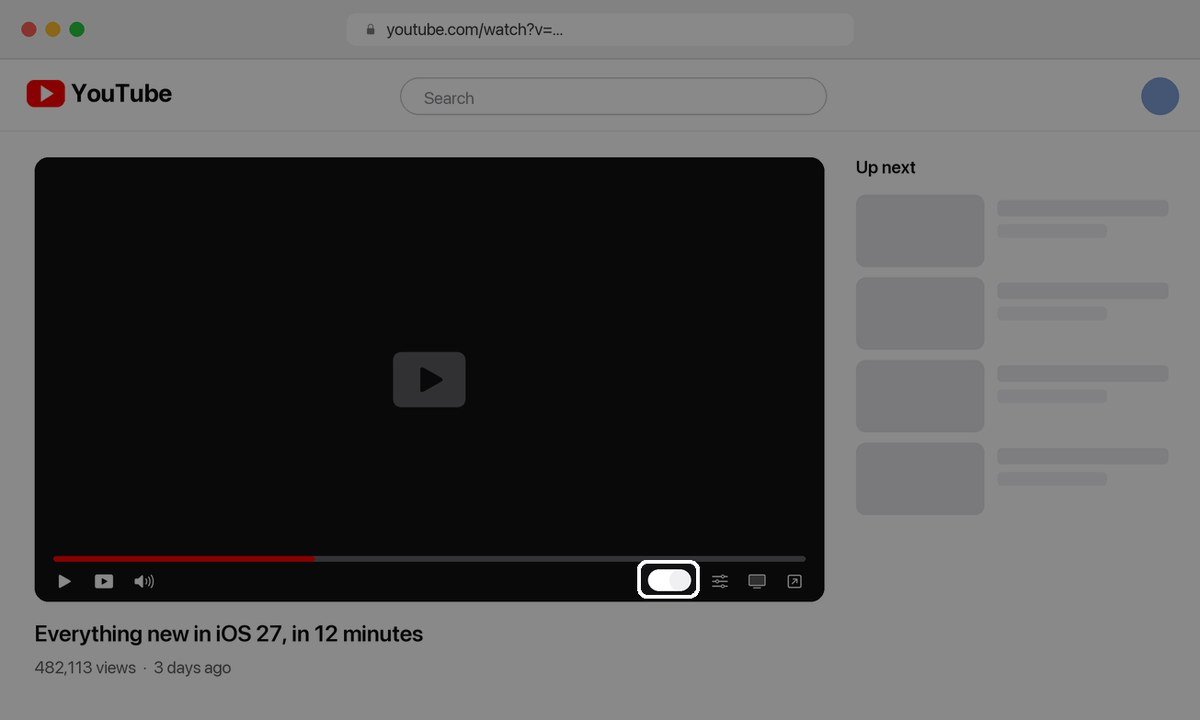
- Hover over the player so the controls appear, then click the Autoplay switch at the bottom right.
- The setting follows your account and browser, so a second browser or a private window starts with autoplay on again.
- Signed out, it resets, because there is no account to store the preference against.
- A queue overrides it, so videos you added to a queue keep playing in order whatever the switch says.
Smart TVs, consoles and casting
The TV app keeps its own copy of the setting, which is why the living room carries on autoplaying long after you fixed your phone. Open the YouTube app on the TV, go to Settings, scroll to Autoplay, and set it to Off. The same path works on games consoles, since they run the same app.
Casting is the confusing one. When you cast from a phone, the phone is driving and the TV is just the screen, so the TV’s own setting does not apply. Tap the control bar at the bottom of your phone screen to expand the queue, and the Autoplay switch for that session is in there.
| Where you are watching | Where the switch is | What it applies to |
|---|---|---|
| iPhone and Android app | Switch at the top of the player, or Settings then Autoplay | That device only |
| Desktop browser | Switch in the player controls, bottom right | That browser and account |
| Smart TV and consoles | Settings then Autoplay inside the TV app | That TV app |
| Casting from a phone | Expand the control bar, then the Autoplay switch | The casting session |
| Feed previews | Settings then Playback in feeds | That device only |
The pattern is consistent once you see it: YouTube treats every app on every device as a separate place with separate preferences. If autoplay keeps coming back, you have almost certainly fixed one surface and are now watching on another. The same logic applies to the ad and quality settings people assume are account wide, and it is one reason our roundup of the best streaming services treats per-device setup as part of what you are actually buying.
Smart displays and the settings that pair with autoplay
A Google Assistant smart display keeps its autoplay preference somewhere else again: in the Home app on your phone rather than in YouTube. Tap the display, open its settings, then Notifications and digital wellbeing, then YouTube Settings. If the display is voice-matched to you, the preference can be set for you alone or for everyone who uses it.
Switching autoplay off is usually a symptom of a bigger goal, which is spending less time in the app than you meant to. Two built-in settings do more for that than the autoplay switch, and both sit a few rows away from it.
- Remind me to take a break, under Settings then General, interrupts playback at an interval you choose, which stops the drift whether or not autoplay is on.
- Bedtime reminders sit alongside it and pause the nudge until you have finished the current video, so they are easier to live with than a hard stop.
- Turning off notifications for recommended videos removes the other half of the pull, since autoplay is only one route back into the app.
- Watch history controls under History and privacy change what gets recommended at all, which is the setting that actually shapes what autoplay would have queued.
When autoplay will not turn off
A handful of situations override the switch, and knowing which one you are in saves a lot of poking at menus.
- Supervised accounts: if a parent has turned autoplay off for a child’s account, the child cannot turn it back on, and Google documents that behaviour in its parental controls guide.
- Teen accounts: for viewers aged 13 to 17 autoplay is off by default, which is the opposite problem and is changed the same way.
- Playlists and queues: these keep advancing because they are a list you chose, not an autoplay suggestion.
- Signed out or incognito: nothing is stored, so the default comes back every session.
- Inactivity timeouts: on mobile data autoplay stops by itself after 30 minutes of no interaction, and on Wi-Fi after four hours.
A phone that keeps autoplaying when you thought you had stopped it is sometimes a storage problem rather than a settings one, because a YouTube app that cannot write its preferences file falls back to the defaults. If the device is also slow and short of space, our guide to clearing out a machine that has filled up covers the same checks on the desktop side, where the browser is usually the culprit.
That last pair is worth knowing if your worry is a phone playing videos to an empty room overnight. YouTube already stops on its own, and on a cellular connection it gives up after half an hour rather than burning through an allowance until morning.
Frequently Asked Questions
Why does YouTube autoplay keep turning itself back on?
It almost certainly has not. The setting is stored per device and per browser, so a tablet, a work laptop or a private window all start from the default. Change it once in each place you actually watch and it stays changed.
What is the difference between autoplay and playback in feeds?
Autoplay starts a related video after the one you chose finishes. Playback in feeds plays muted previews while you scroll the Home tab without you choosing anything. They are separate features with separate switches, which is why turning one off does not affect the other.
Can I stop YouTube autoplay without signing in?
You can switch it off for the current session, but nothing is saved, so it returns the next time you open the app or browser. A signed-in account is the only way to make the preference persist.
Does turning off autoplay save mobile data?
Yes, and switching Playback in feeds to Off or Wi-Fi only saves more, because feed previews download video for clips you never chose to watch. Combining both with a lower default quality setting makes a noticeable difference on a capped plan.
Related Articles

Get the Fox Bulletin briefing
The stories that matter, in your inbox. No spam, unsubscribe anytime.
Newsletter signup will be available soon.
Related stories
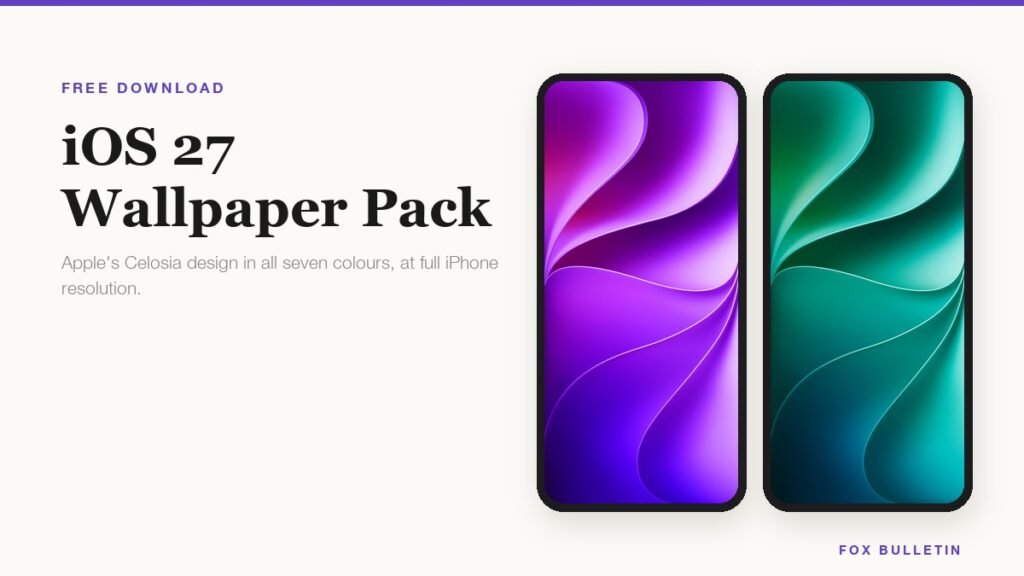
iOS 27 Wallpaper: Download All 7 Celosia Colours
Apple drew one wallpaper for iOS 27 and shipped it in seven colourways. Here is each one at full resolution, shown on an iPhone so you can see where the fold falls before you download it.
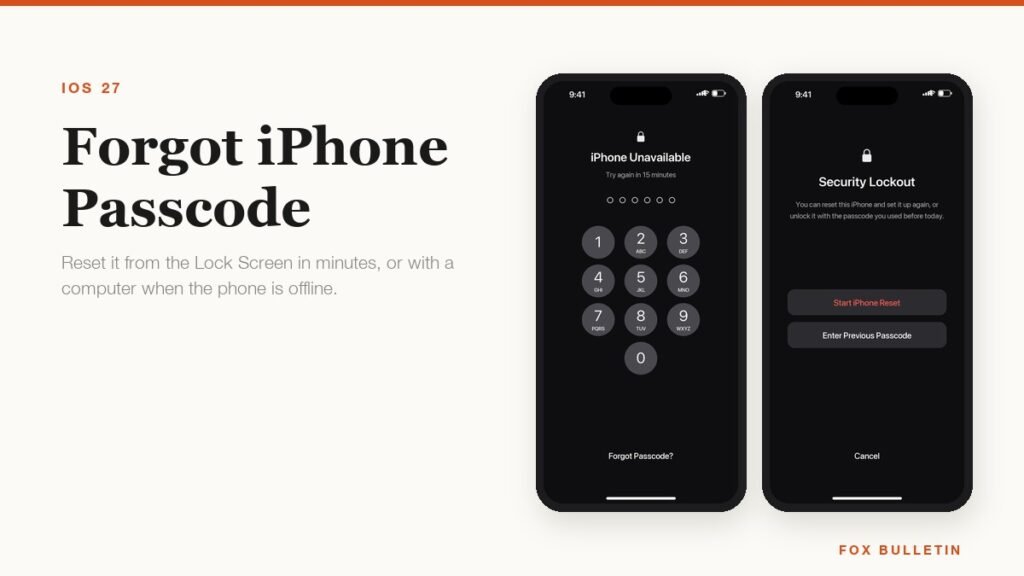
Forgot iPhone Passcode? Here Is How to Get Back In
If you changed the passcode in the last 72 hours, the old one still works and nothing is lost. After that the only way in erases the phone, which is exactly what the lock is for.
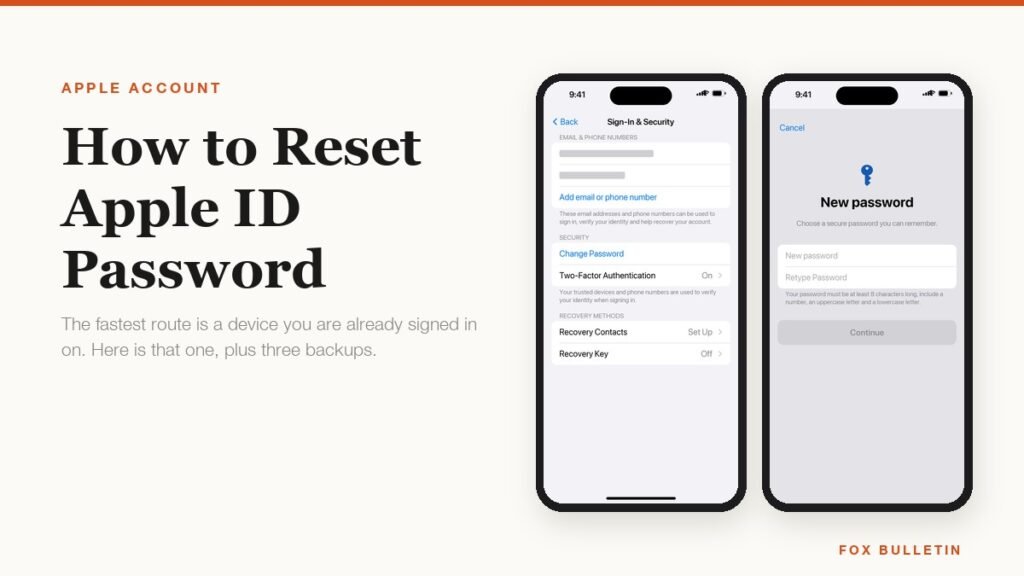
How to Reset Apple ID Password: 4 Ways That Work
A device you are already signed in on resets the password in under a minute. Every other route is slower, and account recovery can take days, so work down the list in order.