

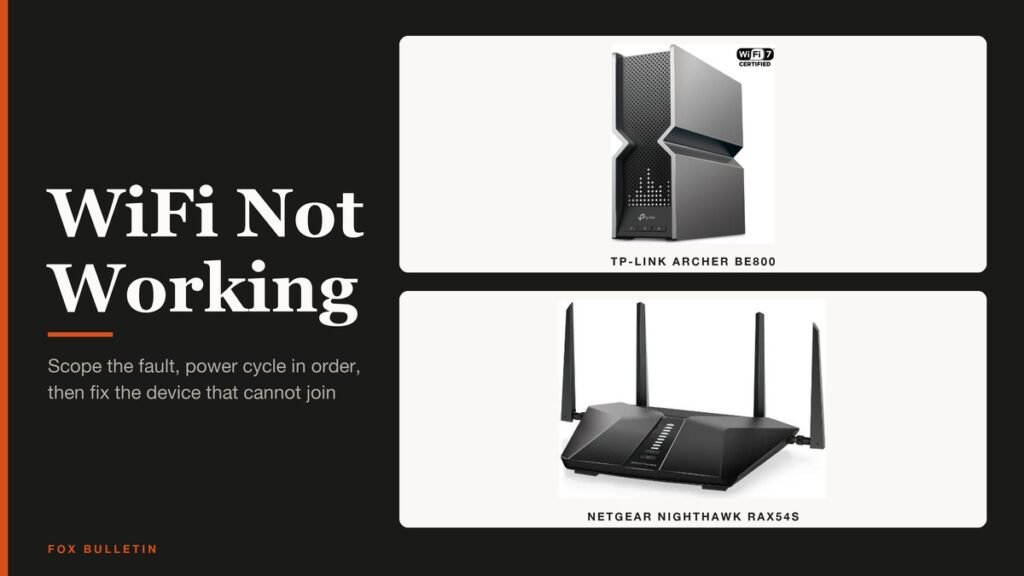
Wifi not working on every device in the house points to the modem, the router or your provider, while wifi not working on a single phone or laptop points to that device. Telling the two cases apart takes about two minutes, and it decides which of the fixes below you need in 2026.
The methods run cheapest and most likely first: scope test, modem and router restart, cables and provider, device fixes, band and channel settings, firmware, then new hardware. Plan on 20 minutes for the first four.
Wifi Not Working: The Short Answer
Test a second device first. If every device is offline, unplug the router and modem, wait 30 seconds, plug the modem in, then the router, and give both a few minutes. If only one device is offline, forget the network on it, rejoin with the password, and reset that device’s network settings only as the last step.
What You Need Before You Start
- A second phone or laptop on the same network, for the scope test in Method 1.
- Access to the modem and router, and a clear view of their status lights.
- The Wi-Fi password, because forgetting a network deletes it.
- Cellular data on a phone, to reach your provider’s outage page while home internet is down.
Method 1: Is It One Device or Every Device?
Apple’s own checklist begins here: if other devices join the network, the router and network are working. Google adds that a phone which works on other networks has a network problem, and one that joins but loads nothing has an internet problem.
- Join the same network on a second phone or laptop and open a webpage.
- Take the failing device to a different network, such as a friend’s house or a phone hotspot, and open a webpage.
- Match the result: second device fine means a device fault (Methods 4 to 6), nothing loads anywhere in the house means Methods 2 and 3, and connected with no pages means Method 3 first, then the DNS steps in Method 6.
You will know it worked when you can name the scope: one device, every device, or connected with no internet.
Method 2: Power Cycle the Modem and Router the Right Way
A restart makes a new connection to your internet provider, and everyone on the network drops for a few minutes. A modem and router combo unit needs only one set of steps.
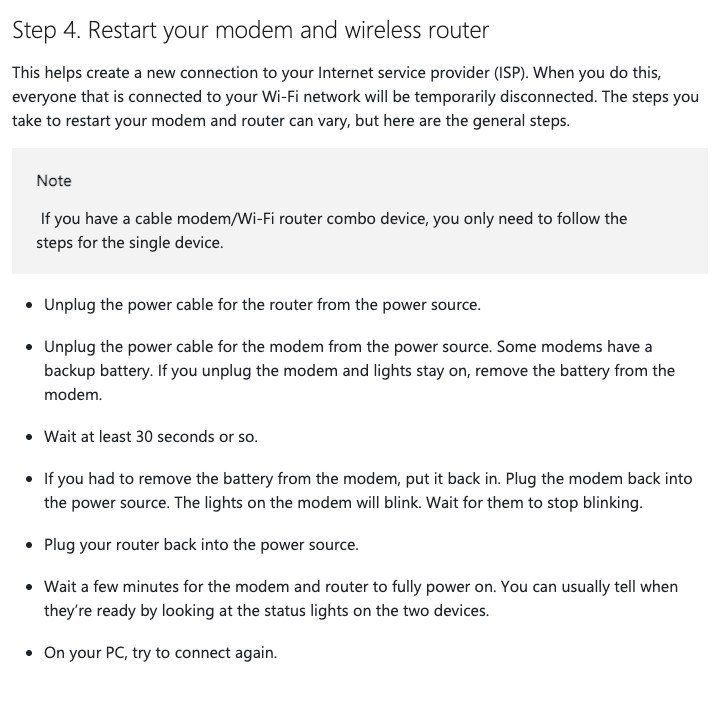
- Unplug the power cable from the router.
- Unplug the power cable from the modem. If its lights stay on, it has a backup battery, so take the battery out.
- Wait at least 30 seconds, which TP-Link says is long enough to clear a router’s temporary memory.
- Refit the battery if you removed one, plug the modem in, and wait until its lights stop blinking.
- Plug the router back in.
- Wait a few minutes until the status lights on both settle, then try the connection again.
You will know it worked when the modem and router lights stop blinking and a webpage loads on the device that failed.
Method 3: Check Cables, Lights and the Provider
If the restart changed nothing, look at the parts you can see. A damaged or loose cable between the wall and the modem, or between the modem and the router, cuts the internet while the Wi-Fi network itself keeps running.
- Check that every cord and cable is secure at both ends.
- Read the modem lights against its manual. Google says lights that are not working right point to the modem, router or internet connection, and TP-Link lists a persistent connection failure after a power cycle as a reason to call the provider.
- Plug a laptop straight into the modem with an Ethernet cable. Microsoft says that if pages load by cable, the Wi-Fi router is the fault; if not, suspect the modem or the line. Thin laptops need a port, and our docking station roundup covers wired ones.
- On cellular data, check the provider’s outage page, then call with the modem make and model and the light colors ready.
You will know it worked when you can say whether the fault is inside the house or outside it.
Method 4: Fix Wifi Not Working on an iPhone
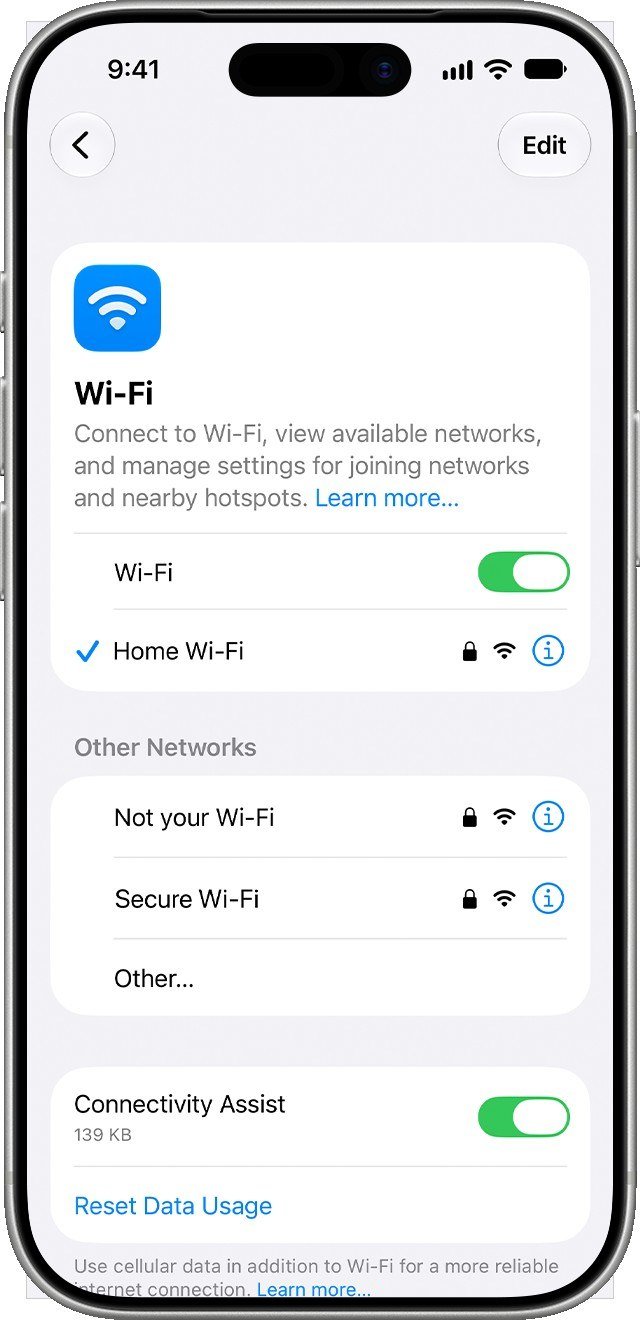
- Open Settings, tap Wi-Fi, and confirm Wi-Fi is on.
- Tap the network name and look for the blue checkmark.
- Go back to Settings and confirm Airplane Mode is off.
- Tap Wi-Fi again and switch Connectivity Assist off while you test. If the Wi-Fi setting is dimmed, restart the iPhone.
- If you run a VPN or security app, uninstall it, restart, and test. Apple says to do this before anything deeper, and our ranking of VPN services for streaming is the place to pick a replacement once the connection works.
Then forget the network. Open Settings, tap Wi-Fi, tap Edit, tap the More Info button beside the network, tap Forget This Network, and tap Forget. Rejoin and type the password. With iCloud Keychain on, your other devices on the same Apple Account forget the network too.
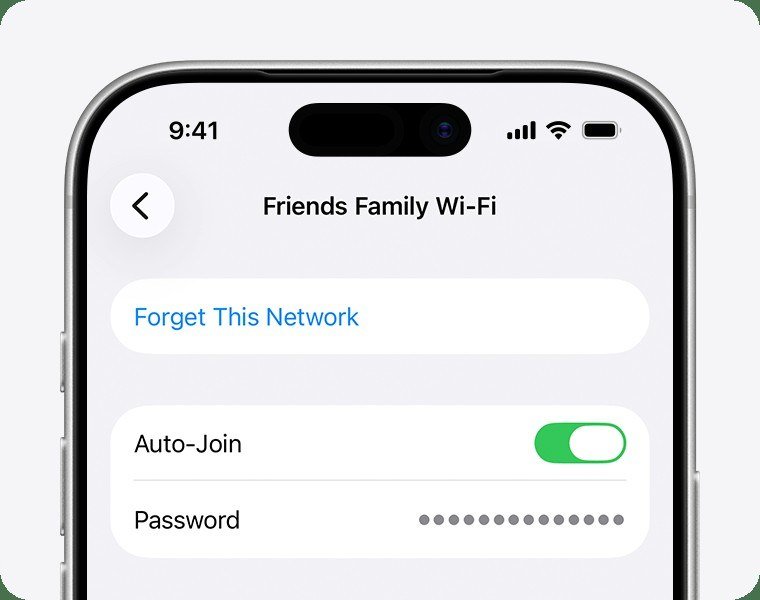
Two last steps. For one stubborn network, open the same More Info screen, tap Private Wi-Fi Address (iOS 18 and later offers Off, Fixed or Rotating), and update iOS before you change it. The last resort is Settings > General > Transfer or Reset iPhone > Reset > Reset Network Settings, which erases every saved Wi-Fi network and password plus cellular, VPN and APN settings.
You will know it worked when a blue checkmark appears beside the network name and a page loads in Safari.
Method 5: Fix Wifi Not Working on Android
These steps follow Google’s instructions for Pixel phones. Other makers rename menus, so use the Settings search box if an item is missing.
- Turn Wi-Fi off and on, then Airplane mode on and off, then hold the power button and tap Restart.
- Open Settings > Network & internet > Internet, tap Saved networks, tap the network, and tap Forget. Back on the Internet screen, tap Add network, enter the name and password, and tap Save.
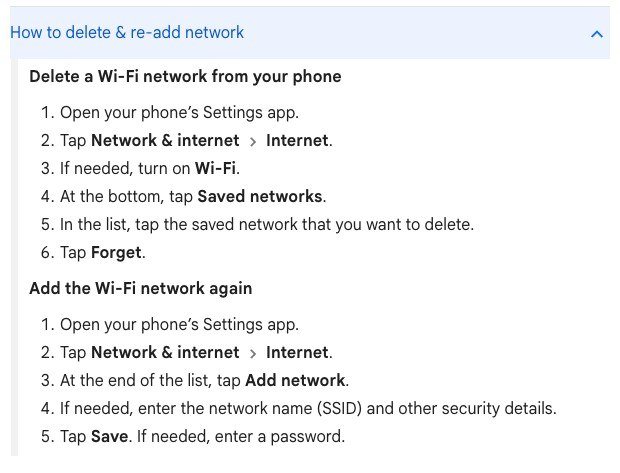
- Clock: open Settings > System > Date & time and turn on Set time automatically. Google says a wrong clock can break Wi-Fi.
- Apps: restart in safe mode and test. If Wi-Fi works there, a downloaded app is the cause.
- DNS: open Settings > Network & internet > Private DNS. Google recommends leaving it on and offers Off, Automatic or a provider hostname. If you once typed a custom hostname, switch back to Automatic.
- Last resort: open Settings > System > Reset options > Reset Bluetooth & Wi-Fi and tap Reset settings.
You will know it worked when the Wi-Fi icon loses its exclamation point and a page opens.
Method 6: Fix Wifi Not Working on Windows
- Select the network icon on the taskbar, turn Wi-Fi on, and check the network says Connected. Then open Settings > Network & Internet > Airplane mode and make sure it is off.
- On Windows 11, run the Network and Internet troubleshooter from the Get Help app. On Windows 10 it is under Settings > Network & Internet > Status > Network troubleshooter.
- Open Settings > Network & internet > Wi-Fi > Manage known networks, select the network, click Forget, then reconnect with the password.
- Search for command prompt and choose Run as administrator. Run the five commands below in order, pressing Enter after each.
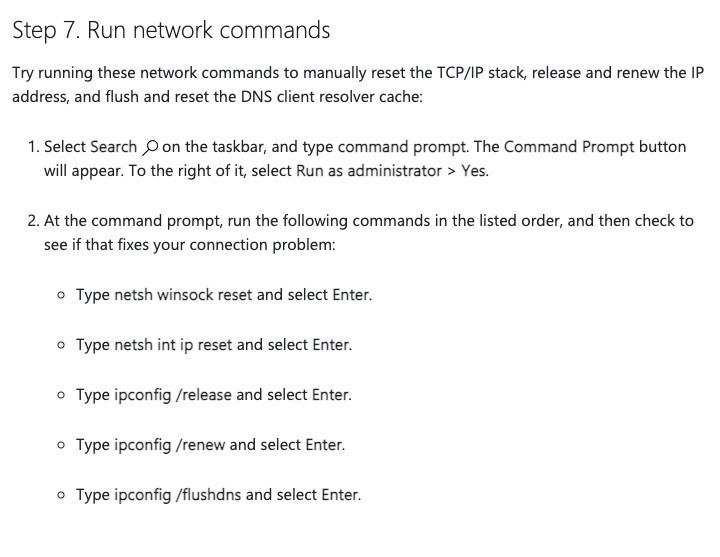
- netsh winsock reset and netsh int ip reset reset the network stack.
- ipconfig /release and ipconfig /renew drop and request a new IP address from the router.
- ipconfig /flushdns clears the DNS cache.
Run ipconfig afterwards. An address starting with 169.254 means Windows never received one from the router, the fallback range described under link-local addresses. Check that DHCP is enabled on the router.
- Power saving: open Device Manager, expand Network adapters, right-click the Wi-Fi adapter, choose Properties > Power Management, and clear Allow the computer to turn off this device to save power.
- Driver: if the adapter broke after an update, download the latest driver from the PC maker on another device, choose Uninstall device with Attempt to remove the driver ticked, and restart.
- Last resort: on Windows 11 open Settings > Network & internet > Advanced network settings > Network reset > Reset now. On Windows 10 it is under Status.
You will know it worked when the taskbar icon shows Connected without a No Internet label and ipconfig lists an address that does not start with 169.254.
2.4 GHz, 5 GHz and Channel Congestion
Most home routers broadcast two or three bands. Microsoft lists 2.4 GHz as the longer-range band that passes through walls better but is slower and crowded by microwaves, cordless phones and Bluetooth devices, while 5 GHz is faster with more non-overlapping channels but covers less distance.
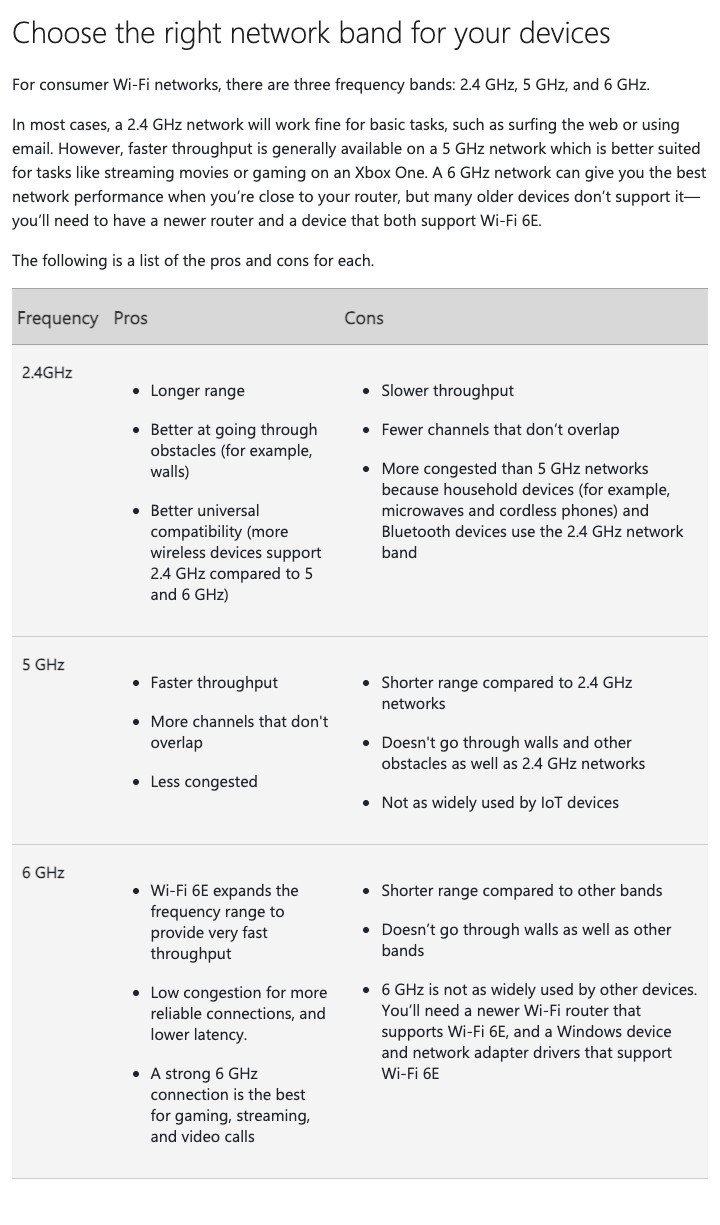
- Give each band its own network name so you know which one a device joined, as Microsoft advises.
- Apple suggests joining 5 GHz instead of 2.4 GHz when the router offers separate bands.
- Keep every radio mode and band switched on so each device can use the fastest mode it supports.
On 2.4 GHz, the list of Wi-Fi channels has 14 channels spaced 5 MHz apart, but each signal is about 20 MHz wide, so only channels 1, 6 and 11 avoid each other. Microsoft says to pick the one with the fewest neighbors, which a Wi-Fi analyzer app from the Microsoft Store can graph.
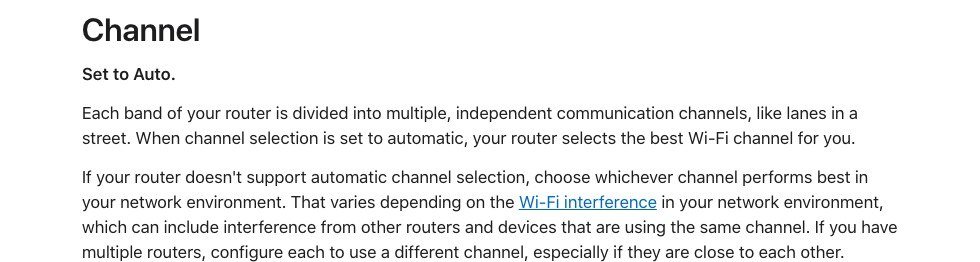
Apple’s router guidance is simpler: set the channel to Auto, use a 20 MHz width on 2.4 GHz, and leave 5 GHz and 6 GHz on Auto width. If you run several routers, give each a different channel, because each one is a separate wireless access point competing for the same air. Change one setting at a time.
You will know it worked when speed holds steady for a full evening instead of dropping when neighbors come online.
Firmware, Drivers and Router Settings
- Router firmware: update it, and turn on automatic updates if the router offers them, as Apple recommends.
- Windows: run Settings > Windows Update > Check for updates, then restart.
- One DHCP server: Apple warns that DHCP on both the modem and router can cause address conflicts, and that NAT on both causes double NAT.
When the Wi-Fi standard itself is the question, our Wi-Fi 6 vs Wi-Fi 7 comparison shows what a newer router changes.
When the Hardware Is the Answer
Replace hardware only after the cable test and a clean restart both fail. Three signs point to it:
- Ethernet works, Wi-Fi does not on every device, even after a firmware update.
- The adapter lacks the band. Microsoft notes an adapter that supports only 2.4 GHz cannot see a 5 GHz network.
- Age and load. TP-Link says routers older than five or six years struggle with the many connections a modern home makes, and a home can easily reach 15 active devices.
- Dead rooms. TP-Link says a mesh system or second access point fixes coverage that placement cannot.
Mistakes That Keep Wifi Down
- Restarting only the router. Cycle the modem too.
- Jumping to a network reset. It deletes every saved network, so it comes last.
- Changing three router settings at once. You cannot tell which one helped.
Frequently Asked Questions
Why is my wifi not working but my phone data is fine?
Cellular data bypasses your home network, so it only proves the phone works. Run the scope test in Method 1 to see whether the router or provider is the fault.
Why does my wifi say connected but have no internet?
The device reached the router, but the router is not passing traffic on, or the device has no valid address or DNS. Restart the modem and router, then check for a 169.254 address on Windows.
How long should I unplug my router?
At least 30 seconds, which is Microsoft’s figure. Plug the modem in first and wait for its lights to stop blinking before you power the router.
Does resetting network settings delete my passwords?
On an iPhone, yes: Apple says it erases saved Wi-Fi networks and passwords, plus cellular, VPN and APN settings. Forget a single network first.
Related Articles

Get the Fox Bulletin briefing
The stories that matter, in your inbox. No spam, unsubscribe anytime.
Newsletter signup will be available soon.
Related stories

Best VPN: 7 Services Compared on Audits and Privacy
Seven VPN services compared on no-logs audits, server countries, simultaneous devices, platforms and kill-switch behavior, with prices only where a service lists them in US dollars.

Best Laptop: 7 Picks for Every Budget and Job
Seven laptops that cover every kind of buyer, from a MacBook Air to a Chromebook Plus, with the chip, memory and storage each listing confirms and the specs worth paying for.

Best Headphones: 7 Wired, Wireless and ANC Picks
Seven headphones chosen by design, from an open-back Sennheiser and a Sony studio standard to Sony, Beats and Skullcandy noise cancelling pairs, with the wired and Bluetooth basics.