

The Windows Update troubleshooter is still in Windows 11 and Windows 10 in 2026, but it moved: on Windows 11 the Run button in Settings hands the job to the Get Help app, while Windows 10 keeps it under Update & Security. Run it, restart, check for updates, and if the same error returns, work down the manual repairs below in order.
Each path and command is split by Windows version and marked when it needs an administrator Command Prompt or Terminal. Most steps take a few minutes, and DISM, which Microsoft says may take several minutes, comes last. Back up personal files first, as Microsoft advises.
Where Is the Windows Update Troubleshooter in Windows 11 and Windows 10?
On Windows 11, open Start > Settings > System > Troubleshoot > Other troubleshooters and select Run beside Windows Update, or search the Get Help app for windows update troubleshooter. On Windows 10, open Start > Settings > Update & Security > Troubleshoot > Additional troubleshooters, then select Windows Update > Run the troubleshooter.
| Windows 11 | Windows 10 | |
|---|---|---|
| Settings path | Start > Settings > System > Troubleshoot > Other troubleshooters | Start > Settings > Update & Security > Troubleshoot > Additional troubleshooters |
| Button | Run, beside Windows Update under Most frequent | Run the troubleshooter, under Get up and running |
| Other route | Get Help app: search windows update troubleshooter | Get Help app: the same search |
| Microsoft support | In support (Home and Pro 25H2 listed to October 2027) | Free updates ended October 14, 2025 |
Windows 11 moved it as Microsoft deprecates the old MSDT engine behind its legacy troubleshooters. Microsoft’s deprecation notes list Windows Update among the troubleshooters redirected to Get Help when you open them from Settings > System > Troubleshoot.
Before you start:
- An administrator account, because some updates need administrator access.
- The PC plugged in and online, with pages loading.
- Your version: Start > Settings > System > About, then read Windows specifications. On Microsoft’s lifecycle table for Windows 11 Home and Pro, version 24H2 carries an end date of 14 October 2026, which has passed, and 25H2 runs to 13 October 2027.
Step 1: Run the Windows Update Troubleshooter
Windows 11 first:
- Select Start > Settings > System.
- Select Troubleshoot, then Other troubleshooters.
- Under Most frequent, select Run beside Windows Update.
- In Get Help, choose I can’t download, install, or uninstall an update, or I installed an update, but that update has caused a problem, and follow the prompts.
- Restart when it finishes, then select Start > Settings > Windows Update > Check for updates.
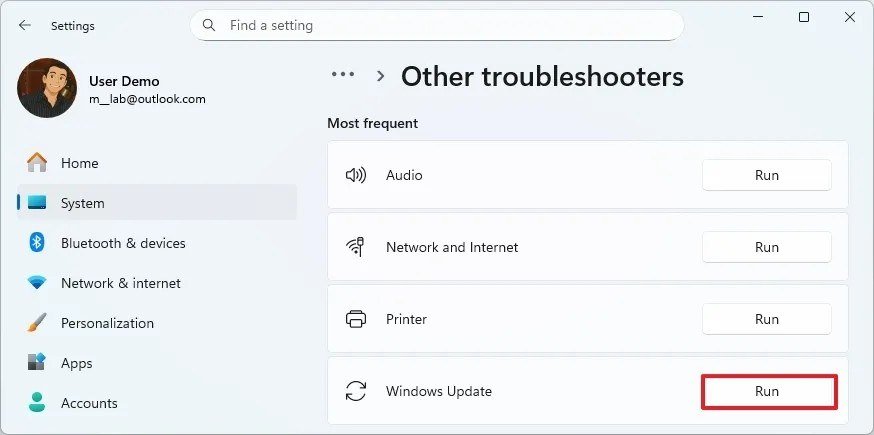
You will know it worked when Check for updates downloads and installs without the earlier error. To skip Settings, open Get Help, type windows update troubleshooter in the Search bar and follow the steps.
Windows 10:
- Select Start > Settings > Update & Security.
- Select Troubleshoot, then Additional troubleshooters.
- Under Get up and running, select Windows Update > Run the troubleshooter.
- Restart, then select Start > Settings > Update & Security > Windows Update > Check for updates.
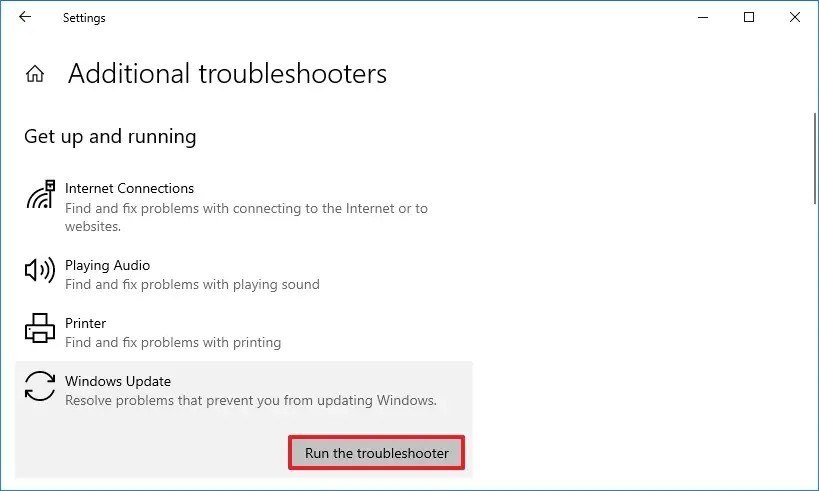
Skip any msdt command: Microsoft names MSDT as the engine of the legacy troubleshooters it is redirecting to Get Help.
What the Troubleshooter Cannot Fix
Microsoft says the tool runs diagnostics and attempts to fix most problems, and Get Help reports its findings with suggested remedies. Microsoft’s own error table sends five problems to manual steps, which is the clearest list of what the tool leaves to you.
| Problem | Error code | Manual fix Microsoft gives |
|---|---|---|
| Drive too full | 0x800f0922, 0x80070002 | Free 16 GB (32-bit) or 20 GB (64-bit), turn off any VPN |
| Incompatible driver | 0xC1900101 | Uninstall or update the network and display drivers in Device Manager |
| No administrator rights | 0x80070005 | Sign in with an administrator account |
| Damaged system files | 0x80070057, 0x80080005 | Run sfc /scannow from an administrator prompt |
| Update service switched off | 0x80070422 | Set the Windows Update service to Automatic in services.msc |
Step 2: Free Disk Space for the Update
Microsoft requires at least 16 GB free to upgrade a 32-bit OS and 20 GB for a 64-bit OS. Open File Explorer > This PC and read the space under your C drive.
- Windows 11: select Start > Settings > System > Storage > Cleanup recommendations.
- Review Temporary files, Large or unused files, Files synced to the cloud and Unused apps, check the items you can lose, and select Clean up for each section.
- Windows 10: use Storage Sense, or type disk cleanup in the taskbar search, pick the drive, check the file types and select Clean up system files for more.
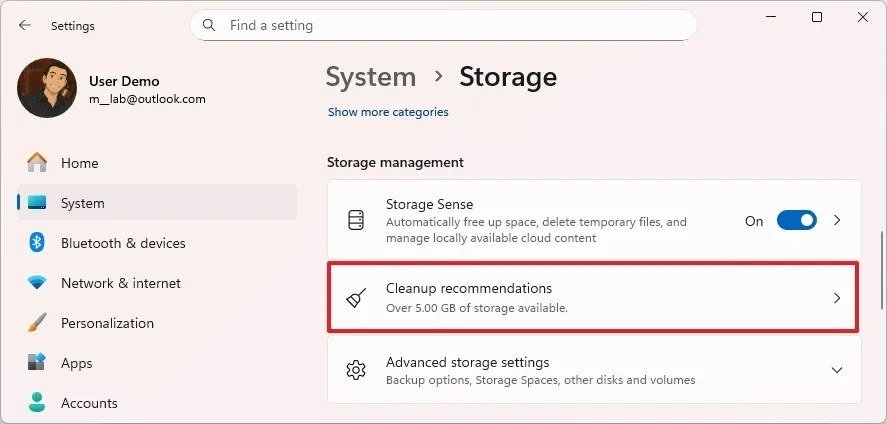
Within 10 days of an upgrade, your previous Windows appears as a deletable system file. Deleting it removes the Windows.old folder and your option to go back. You will know it worked when This PC shows 20 GB or more free.
Step 3: Pause Updates, Then Resume Them
Microsoft says pausing cancels any update in progress, and resuming makes the PC check for updates and download the latest again. That is the cheapest way to restart a stalled download.
- Windows 11: select Start > Settings > Windows Update.
- Select Pick a date on the Pause updates control and choose the nearest date, up to 35 days out.
- Select Resume updates on the same page, then wait for the new check to finish.
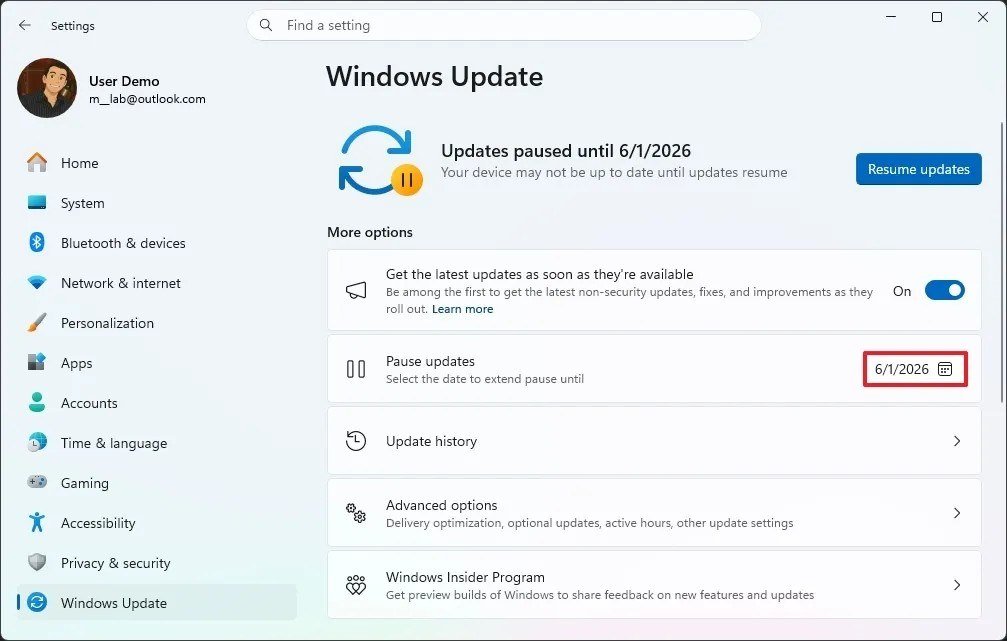
On Windows 10, Microsoft documents Start > Settings > Update & Security > Windows Update > Pause updates for 7 days, which resumes by itself on the chosen date, so skip to Step 4. You will know it worked when the status changes from a frozen percentage to a new download.
Step 4: Stop the Update Services and Rename SoftwareDistribution and catroot2
This step needs an administrator Command Prompt or Terminal. On Windows 11 press the Windows key + X and choose Windows Terminal (Admin). On Windows 10 type command prompt in the taskbar search, choose Run as administrator and select Yes. Microsoft says to run the lines one at a time and let each finish.
net stop bitsnet stop wuauservren %systemroot%\softwaredistribution softwaredistribution.bakren %systemroot%\system32\catroot2 catroot2.baknet start bitsnet start wuauserv
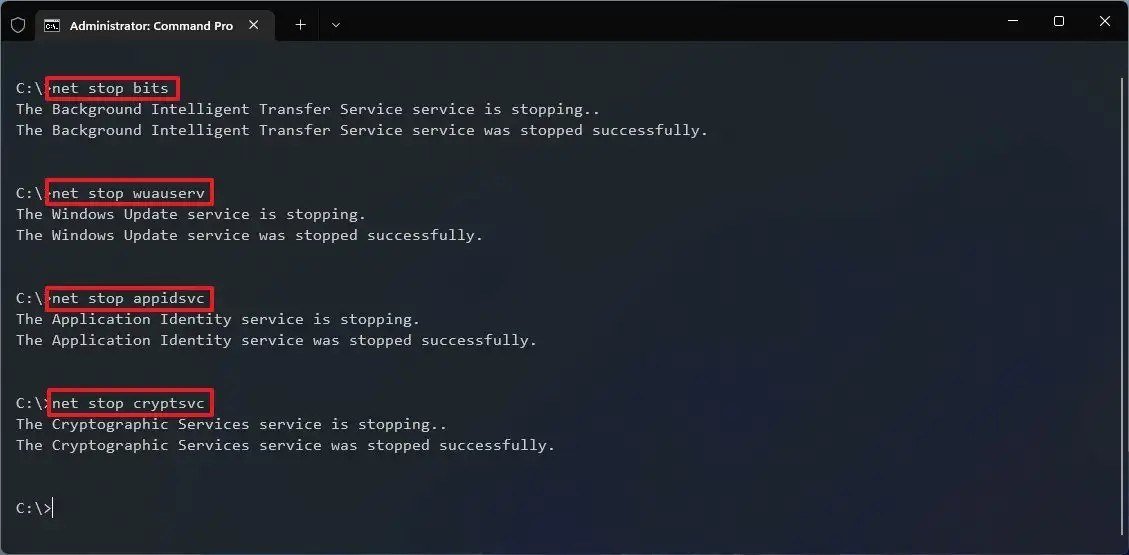
The first line stops the Background Intelligent Transfer Service, which moves update files in the background. The second stops Windows Update itself. Renaming keeps both folders as .bak copies, so nothing is deleted. The screenshot also stops appidsvc and cryptsvc, which Microsoft’s steps do not require. Restart afterwards. If Windows 10 prints that the service is not started, it was already stopped.
You will know it worked when the renames print no error and the next Check for updates completes without the old code.
Step 5: Run DISM, Then sfc /scannow
Open an administrator Command Prompt, as in Step 4. Microsoft says to run DISM first because it supplies the files that sfc uses for repairs.
DISM.exe /Online /Cleanup-image /Restorehealth- Wait for The restore operation completed successfully. Microsoft says it may take several minutes.
sfc /scannow- Keep the window open until verification reaches 100 percent.
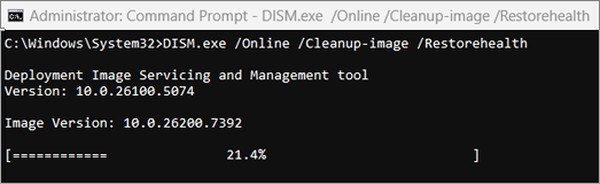
DISM draws on Windows Update by default, which is what you are repairing. Microsoft’s alternative points it at a repair source instead: add /Source:C:\RepairSource\Windows /LimitAccess after /Restorehealth, with your own path.
If sfc says it could not perform the requested operation, Microsoft says to run it in safe mode and confirm the PendingDeletes and PendingRenames folders exist under %WinDir%\WinSxS\Temp. You will know it worked when sfc reports no integrity violations or that it repaired corrupt files.
Windows Update Stuck at 0%, 100% or While Downloading
Stuck at 0% or 100%
Microsoft’s three checks: restart the PC, confirm Start > Settings > Network & Internet > Wi-Fi shows you connected, and confirm the free space from Step 2.
Stuck between 51% and 99%
Microsoft says the time depends on connection speed, network settings and update size. If the same percentage holds after a restart, check for updates again or rerun Step 1.
Stuck on downloading
Microsoft says download time depends on connection speed, network settings and update size, and advises keeping the device plugged in and connected. A crawling download is usually the connection, so test it with our slow internet guide, then repeat Step 3.
Windows Update Stuck in a Restart Loop
Windows opens its Recovery Environment by itself after two consecutive failed starts, two unexpected shutdowns within two minutes of boot, or two reboots within two minutes of boot. From the sign-in screen you can also hold Shift and select Restart.
- In the blue menu select Troubleshoot > Advanced options > Uninstall Updates.
- Choose Uninstall latest quality update. The menu also offers Uninstall latest feature update.
- If BitLocker is on, enter the recovery key when asked.
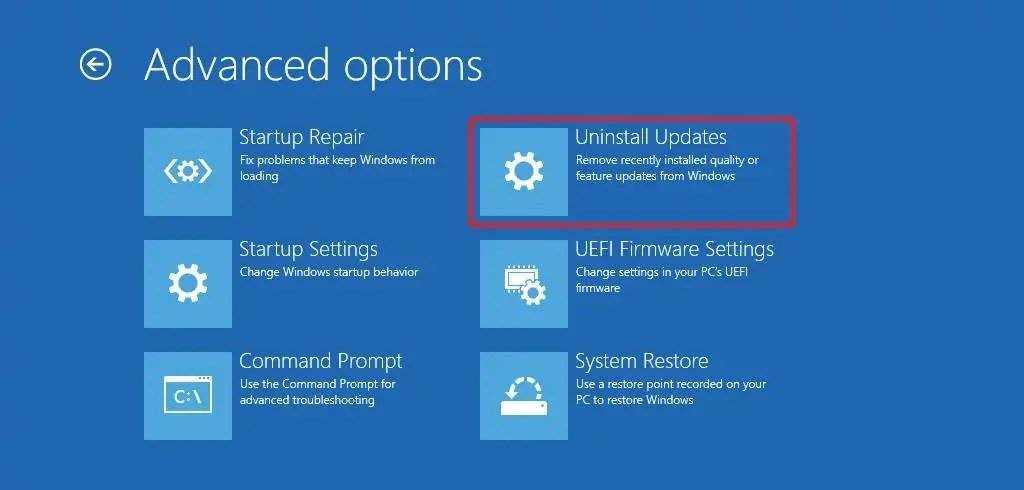
Microsoft says this keeps your files and apps. In a widespread outage, Windows 11 24H2 or later with quick machine recovery turned on tries to apply a fix from Windows Update by itself, so restart once first. If Windows starts, use Settings > Windows Update > Update history > Uninstall updates. You will know it worked when you reach the sign-in screen.
Reading Error Codes Such as 0x80070002 or 0x800f0922
A code that starts 0x8007 is a Win32 error wrapped in an HRESULT: 0x8007 marks the Win32 facility and the last four digits are the Win32 code. Screenshot the code with the shortcuts in our Windows screenshot guide, then match it.
| Code | What the Win32 part means | Microsoft’s fix |
|---|---|---|
| 0x80070002 | File not found: the system cannot find the file specified | Restart, run the troubleshooter, free disk space |
| 0x800f0922 | Named CBS_E_INSTALLERS_FAILED on Microsoft Learn | Free disk space and turn off any VPN |
| 0x80070005 | Access is denied | Use an administrator account, pause antivirus |
| 0x80070422 | The service is disabled | Set the Windows Update service to Automatic, then Start |
| 0x800705b4 | The timeout period expired | Check the connection, pause antivirus, restart |
| 0x8007000d | The data is invalid | Clear the update cache (Step 4) |
| 0x80070057 | The parameter is incorrect | Run sfc /scannow (Step 5) |
| 0xC1900101 | Not a 0x8007 code: Microsoft lists an incompatible driver | Update or uninstall network and display drivers |
If Microsoft’s fix does not clear the code, Steps 4 and 5 are the next repairs.
Fix Windows Update When Nothing Above Worked
- Run
chkdsk /f C:from an administrator prompt, then accept the restart Windows asks for. - Temporarily uninstall third-party antivirus, update, then reinstall it. Microsoft says to know how to reinstall it first.
- Use Reset this PC last, from the recovery menu at Troubleshoot > Reset this PC. Microsoft ranks it the most disruptive option.
Mistakes That Make a Failed Update Worse
- Typing the Step 4 and Step 5 lines in a normal window. They need administrator rights.
- Closing the window while sfc is below 100 percent.
- Deleting your previous Windows version to save space within 10 days of an upgrade, which removes the way back.
Frequently Asked Questions
Why is Windows Update not working?
The drive is too full, a service is stopped, system files are damaged or a driver conflicts. Run the troubleshooter, then read the error code against the table above.
What does a Windows Update failed message mean?
Windows gave up on one update and logged a code. 0x8007 codes carry a Win32 meaning, so 0x80070002 is a missing file and 0x80070005 is denied access.
Can I run the troubleshooter from a command?
Use the menu or Get Help instead. Microsoft lists Windows Update among the troubleshooters redirected away from the old MSDT engine.
Is renaming SoftwareDistribution safe?
Yes. Microsoft’s procedure renames it to softwaredistribution.bak while the services are stopped, so the original stays on disk as a backup.
Related Articles

Get the Fox Bulletin briefing
The stories that matter, in your inbox. No spam, unsubscribe anytime.
Newsletter signup will be available soon.
Related stories

Best Ad Blockers for iPhone and iPad: 10 Top Picks
Ten Safari content blockers for iPhone and iPad ranked on price, App Store rating and how recently they shipped, with what none of them can reach.

Best iPhone Camera Settings for Photos in iOS 27
Every iPhone camera setting that changes how a photo turns out in iOS 27, with the exact menu path and what to set it to.

How to Fix Slow Internet: Find the One Weak Link
A wired speed test, a symptom table and fixes in order: Wi-Fi band and placement, background tasks, cables, modem limits, QoS and the point where the plan or hardware has to change.